
Introduction
Each portal user belongs to a single customer and only sees what belongs to that customer. They see nothing of your other customers or of your own company. Within their customer, what they see depends on their role and their zones.
The portal has its own login page and its own accounts. A portal user cannot log in to your company's website, and the email address of a user of your company cannot be used for a portal account.
What the customer sees and what they do not
| Sees | Does not see |
|---|---|
| Their assets on the map, with their record, photos and attributes | Other customers' assets |
| Their work orders: status, priority, dates, SLA deadlines, type, people responsible, materials used, photos and completed forms | The internal notes of WOs, costs and prices |
| Their incidents, open and past: status, criticality, type, source, SLA deadlines, description, asset and photos | The internal notes of incidents |
| The PDF report of finished WOs | Other customers' WOs |
| A dashboard with indicators, the service level and exportable lists | Your branches, your staff (except the names of the people responsible for each WO) and your settings |
The PDF report the customer downloads is a version of its own: it omits the internal notes, the warehouse codes and the branch, and masks the ID number (DNI) of the person who signs.
Note
The Descripción (Description) of an incident is public: the customer reads it. Anything you do not want them to see goes in Notas internas (Internal notes). See Incidents.
Prerequisites
Module and activation per customer
- The portal is included in the customer management module. Without that module there is no portal. See Customers and SLA.
- In addition, each customer has its own switch. Only customers with the portal enabled can have users and log in.
Permissions
Portal users are managed in the admin area, in Gestión de Clientes (Customer management). Two permissions are needed, in Gestión de Roles y Permisos (Role and permission management), group Módulos Contratados (Contracted modules), portal row:
| Permission | What it allows |
|---|---|
| Ver (View) | See the list of a customer's portal users |
| Gestionar (Manage) | Invite, edit, deactivate, delete, export their data, resend the invitation and unlock |
The company administrator always has both. A customer can also manage their own users from the portal if you give the Administrador (Administrator) role to one of their people. See The customer's administrator.
How many users each customer can have
Your plan sets a maximum number of portal users per customer. All the users of that customer count, including inactive ones and those who have not yet activated their account. When the maximum is reached, adding a user is rejected with “Has alcanzado el límite de … usuarios de portal para este cliente de tu plan” (You have reached your plan's limit of … portal users for this customer). To free up a seat you have to delete a user; deactivating them is not enough. The limit is the same when the customer's administrator sends the invitation.
Giving a customer access
Access has four steps: you enable the customer's portal, you invite a user, the user activates their account from the email and then logs in with their email address and password.
Enabling the customer's portal
- Open the user menu → Ir al administrador (Go to admin area) → Gestión de Clientes.
- Click the customer's pencil to edit it.
- In the Portal del cliente (Customer portal) section, enable Dar acceso al portal (Give portal access).
- Click Guardar cambios (Save changes).
From that moment the Usuarios del Portal (Portal users) button (the two-people icon) appears in its row. Customer acceptance is configured in the same section: see Customer acceptance.
If you disable it, that customer's users can no longer log in, with immediate effect. They are shown “El portal de clientes no está disponible para tu empresa. Ponte en contacto con tu empresa de mantenimiento para que lo active” (The customer portal is not available for your company. Contact your maintenance company to have it enabled). Their accounts are not deleted: if you enable it again, they will be able to log in again.
Viewing a customer's users
In Gestión de Clientes, click the Usuarios del Portal button in the customer's row. The Usuarios del Portal screen opens with the list of that customer's users and a search box by name, email or phone.
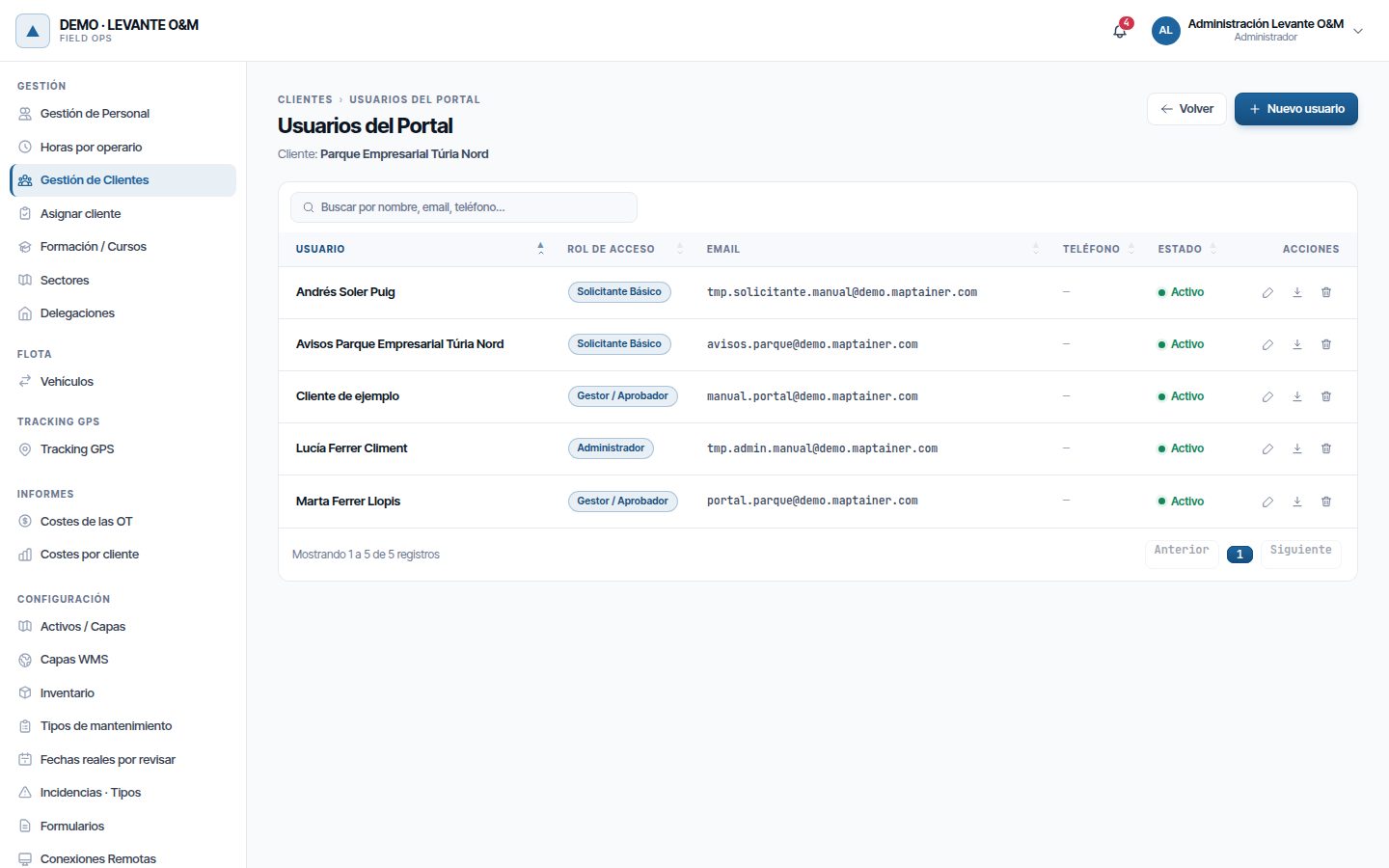
The Estado (Status) column shows where each user stands:
| Status | What it means | Can log in |
|---|---|---|
| Pendiente (Pending) | Invited, has not activated the account yet | No |
| Activo (Active) | Has activated the account | Yes |
| Inactivo (Inactive) | You have deactivated them | No |
| Bloqueado hasta HH:MM (Locked until HH:MM) | Has entered the wrong password too many times | No, until that time |
Inviting a user
- In Usuarios del Portal, click Nuevo usuario (New user).
- Fill in Nombre (First name) and Email, which are required. Apellidos (Surname), Teléfono (Phone) and Cargo (Job title) are optional.
- Choose the Rol de acceso (Access role). The form suggests Supervisor Técnico (Technical supervisor). See Portal roles.
- If you want to limit them to part of the customer, tick their Zonas (Zones). See A user's zones.
- Click Crear usuario (Create user).
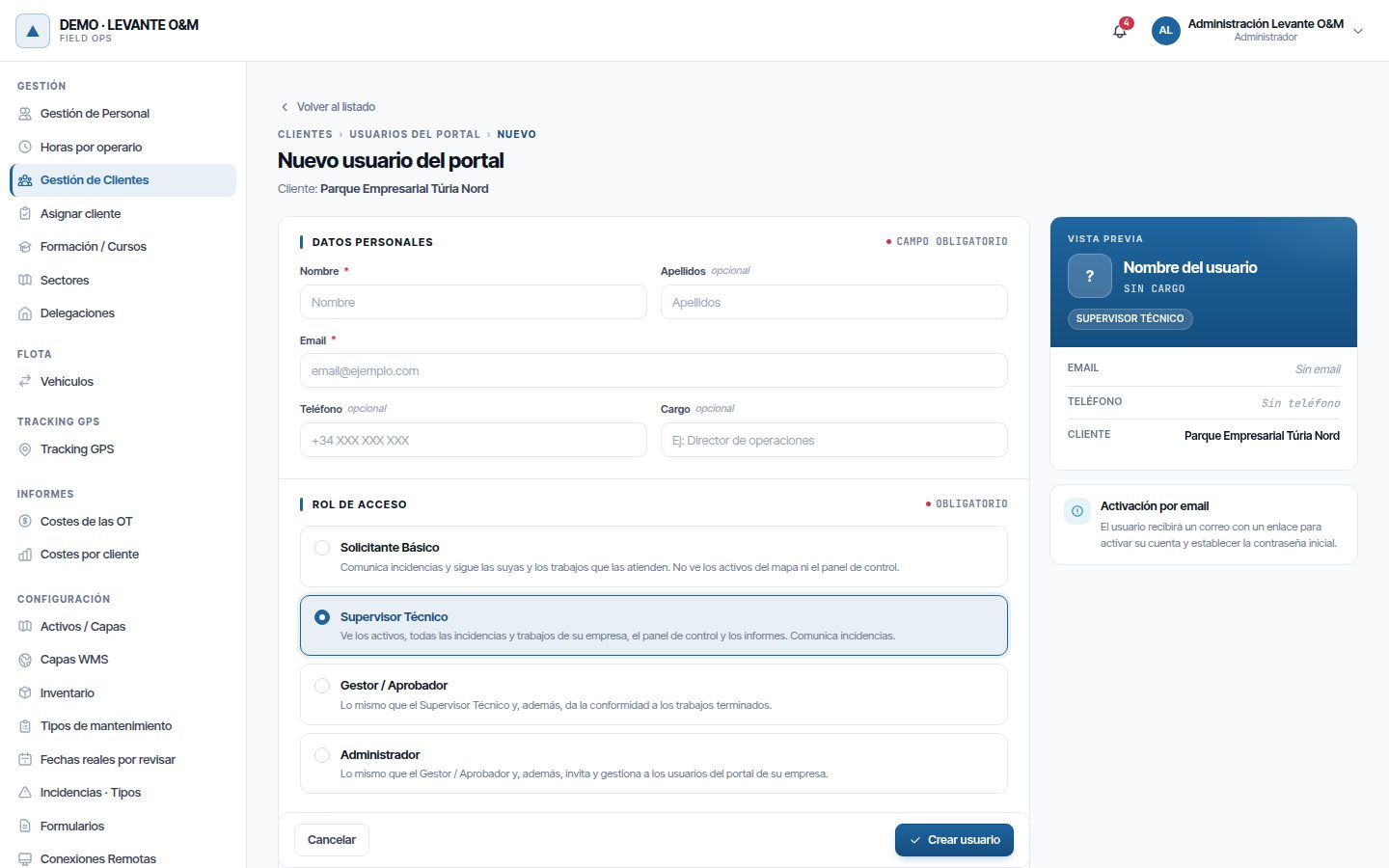
“Usuario creado” (User created) appears and the user is shown as Pendiente. At that moment they receive an email “Acceso al Portal de Cliente - Maptainer” (Customer Portal access - Maptainer) with the Activar Cuenta (Activate account) button. The link expires after 24 hours.
If the email address is already used by another portal user of your company, “El email ya está registrado en el portal” (The email is already registered in the portal) appears. If it belongs to a user of your company or of another company, “Este email no se puede usar para un usuario del portal” (This email cannot be used for a portal user) appears.
Portal roles
There are four fixed roles. They go from fewest to most permissions, and each one can do everything the previous one can. You cannot create others or change what they allow.
| Role | For whom |
|---|---|
| Solicitante Básico (Basic requester) | Someone who only reports problems: reception, the caretaker, a tenant on the industrial estate |
| Supervisor Técnico | Someone who follows the service: sees everything of the customer's |
| Gestor / Aprobador (Manager / Approver) | Someone who answers for the service in their company: in addition, gives acceptance of the work |
| Administrador | Someone who manages the portal in their company: in addition, invites and manages their users |
| What they can do | Solicitante Básico | Supervisor Técnico | Gestor / Aprobador | Administrador |
|---|---|---|---|---|
| Report incidents | Yes | Yes | Yes | Yes |
| Incidents they see | Those they reported | All the customer's | All | All |
| WOs they see | Those that deal with their incidents | All the customer's | All | All |
| Assets on the map, the “i” and the Activos (Assets) tab | No | Yes | Yes | Yes |
| Choose assets when reporting an incident | No: only zone or point | Yes | Yes | Yes |
| Panel de Control (Dashboard) | No | Yes | Yes | Yes |
| Listados e Informes (Lists and reports) and PDF report | Of what they see, without “Próximos Mantenimientos” (Upcoming maintenance) | Yes | Yes | Yes |
| Give acceptance of a job | No | No | Yes | Yes |
| Manage their company's users | No | No | No | Yes |
The role applies everywhere: to what is shown on screen, on the map, on the dashboard, in the lists and in the emails. Whatever the role does not allow is not shown.
Only you can give the Administrador role, from Usuarios del Portal. The customer's administrator cannot create other administrators.
A user's zones
You can limit a user to part of the customer with the customer's zones: those drawn in Gestión de Clientes → zones (see Customer zones).
- With none ticked: they see their whole customer, according to their role.
- With zones: they only see the assets, incidents and WOs that fall within one of them. An incident or WO counts if its location, its area or any of its assets is inside.
- They always see the incidents they reported, wherever they are.
The limit applies to the map, the lists, the dashboard, the reports and the email notifications. The list of zones appears when adding and editing the user, below the role, only if the customer has zones drawn.
How the user activates their account
- The user opens the email and clicks Activar Cuenta.
- On the Activar tu Cuenta (Activate your account) page, they enter their password twice and tick the He leído y acepto la política de privacidad y el aviso legal (I have read and accept the privacy policy and the legal notice) box (required).
- They click Activar Cuenta. “¡Cuenta Activada!” (Account activated!) appears, with the Ir al Portal (Go to portal) button.
- Clicking it takes them to the login page, where they log in with their email address and password.
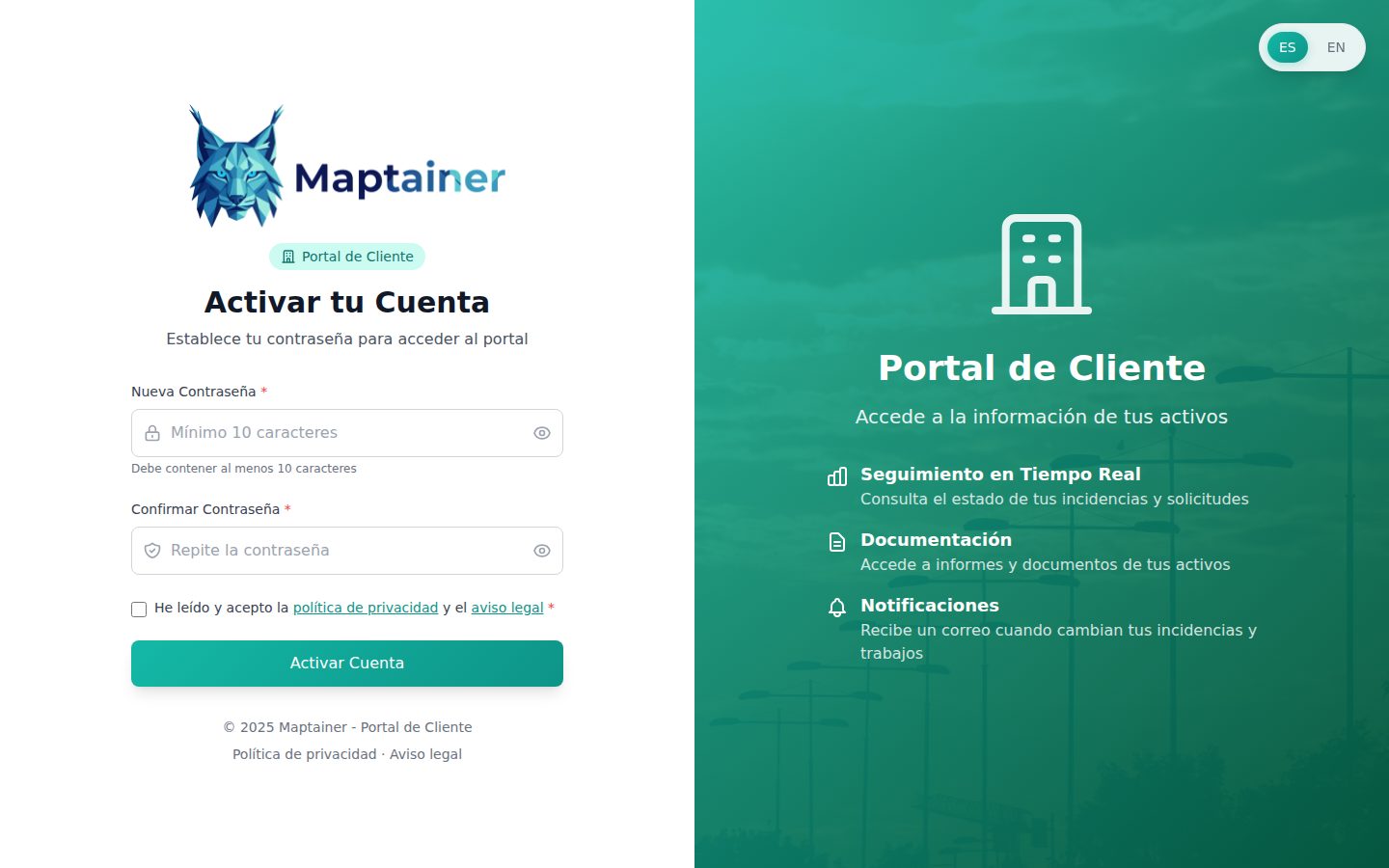
The password must be at least 10 characters long. In addition, passwords that are very easy to guess, that appear in lists of leaked passwords, that repeat the same characters a lot or that contain the email address itself are rejected.
Resending the invitation
If the link has expired or the email did not arrive:
- In Usuarios del Portal, find the user with status Pendiente.
- Click the envelope button (Reenviar email de activación (Resend activation email)).
- “Email enviado” (Email sent) appears. The previous link stops working and the new one lasts another 24 hours.
The button only appears while the user is Pendiente. A user who has already activated their account and has forgotten the password recovers it themselves from the login page.
Editing or deactivating a user
- Click the user's pencil (Editar (Edit)).
- Change their details, their Rol de acceso or their Zonas.
- To remove their access without deleting them, set Estado to Inactivo.
- Click Guardar cambios.
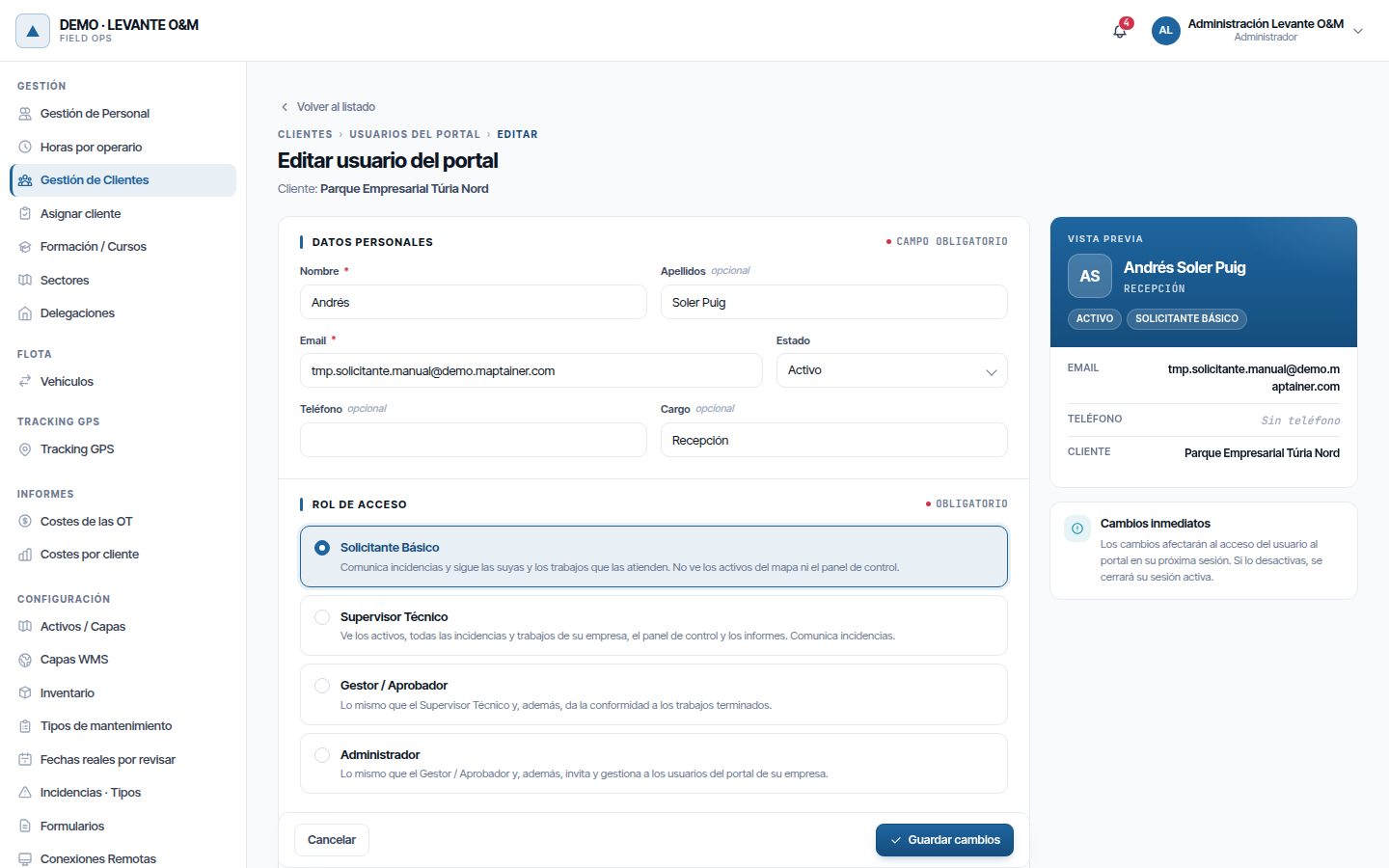
When you deactivate them, their open session is cut off at their next action. To give them access back, set them to Activo again. An inactive user still takes up a seat.
Deleting a user
Click the bin (Eliminar (Delete)) and confirm with Eliminar y anonimizar (Delete and anonymise). This also serves to handle a data erasure request (Art. 17 GDPR).
- Their name (it becomes “Persona eliminada #…” (Deleted person #…)), email address, phone, job title, avatar and the IP address of their last login are erased, and their web and app sessions are closed.
- They disappear from the list and free up their seat.
- The incidents they created still exist, but without their name or contact details in Reportado por (Reported by).
- If they signed any WO for their company with their name, the signature loses the name and ID number; the image is kept.
It cannot be undone: to give them access again you have to invite them again, with another email address or the same one.
Exporting a user's data
The down arrow (Exportar datos (Export data)) downloads a ZIP with everything Maptainer stores about that user: their account, their app sessions, the incidents they opened, the signatures with their name and what they did according to the audit log. It comes in JSON and CSV, with a LEEME.txt. Use it to handle an access or portability request (Arts. 15 and 20 GDPR), and before deleting the user if they ask for it. The export is recorded in the audit log.
Unlocking a user
After five wrong passwords in a row, the account is locked for one minute, and each new round of failures extends the lock up to 30 minutes. In the list, their status shows “Bloqueado hasta HH:MM”. The lock expires by itself, but you can lift it earlier with Desbloquear (Unlock).
The customer's administrator
A user with the Administrador role manages the portal users of their own company, without having to ask you. They do so from the portal, with the Usuarios de mi empresa (My company's users) button (the people icon in the top bar), which only they can see.
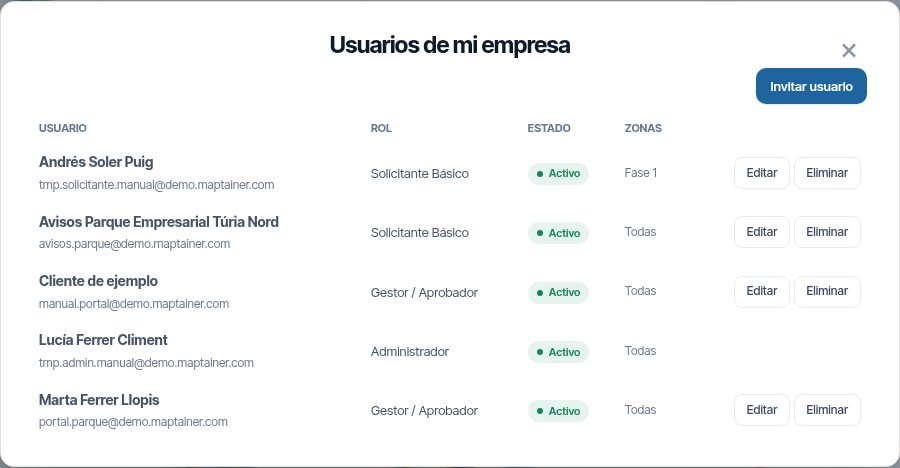
The list shows each user of their company with their Rol (Role), their Estado (Pendiente, Activo or Inactivo) and their Zonas (“Todas” (All) if they have none). From it they can:
| Action | What it does |
|---|---|
| Invitar usuario (Invite user) | First name, surname, email, phone, job title, role and zones. They click Enviar invitación (Send invitation) and the user receives the activation email |
| Editar | Changes the details, the role, the zones and the Puede entrar en el portal (Can log in to the portal) box (unticked, the user becomes inactive) |
| Reenviar (Resend) | Sends the invitation again. Only shown for pending users; the previous link stops working |
| Eliminar | Erases their personal data and frees the seat. It cannot be undone |
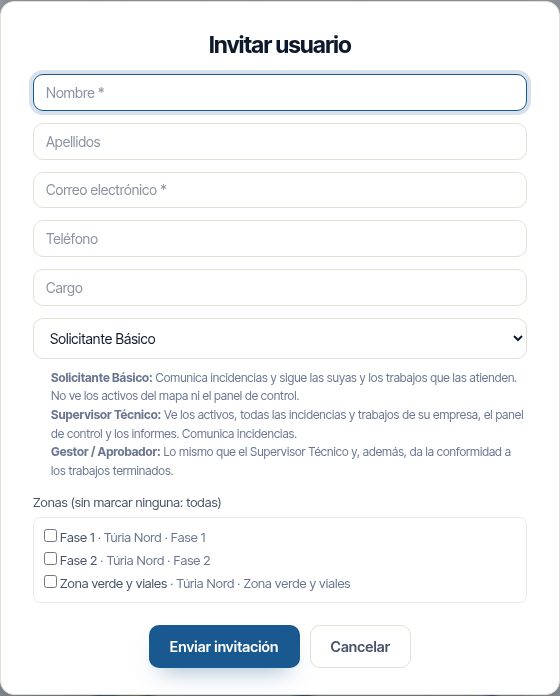
They have these limits:
- They can only give the Solicitante Básico, Supervisor Técnico and Gestor / Aprobador roles.
- They cannot edit or delete other administrators, or themselves: those rows appear without buttons.
- They can only assign their own zones. If they have none, they can assign all of the customer's zones.
- Your plan's maximum number of users per customer applies just the same.
Everything they do is recorded in Auditoría (Audit), with them as the author. You can still see and manage all their users from Usuarios del Portal.
Customer acceptance
The customer can say in the portal whether they accept each finished job. You decide, customer by customer, whether that answer is for information only or whether it is needed to close the WO.
Setting it up on the customer record
- In Gestión de Clientes, edit the customer or add a new one.
- In the Portal del cliente section, enable Exigir su conformidad para cerrar (Require their acceptance to close) if their WOs must not be closed without it.
- If you wish, fill in Conformidad tácita a los (días) (Tacit acceptance after (days)), from 1 to 365. Empty: never.
- Save the customer.
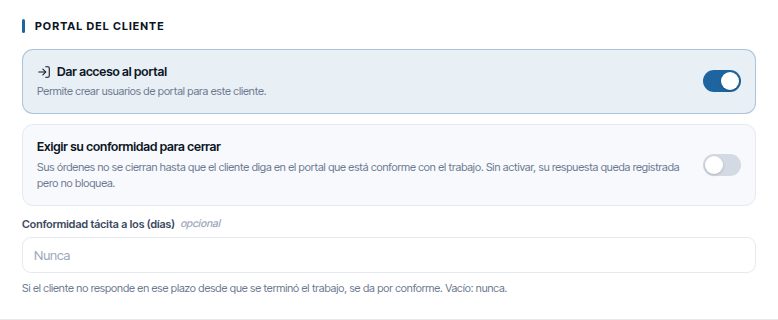
| Option | What happens |
|---|---|
| Without Exigir su conformidad para cerrar | The customer's answer is recorded and can be seen on the WO record, but it does not block anything |
| With Exigir su conformidad para cerrar | The WO does not change to Cerrada (Closed) without a “Conforme” (Accepted) answer |
| Conformidad tácita a los (días) | If the customer gives no answer within those days from when the work was finished, it is deemed accepted |
How the customer answers
Gestor / Aprobador and Administrador users answer, on the record of a Completada (Completed) or Validada (Validated) WO. The Conformidad (Acceptance) section has the Conforme (Accepted) and No conforme (Not accepted) buttons. With No conforme they have to explain what is missing or what is wrong. The last answer counts: they can change it as long as the WO is not closed.
If they answer No conforme:
- The notification “Cliente no conforme: …” (Customer not satisfied: …) appears in the bell, with the WO's code, its name and the customer's comment.
- The WO does not change status. The supervisor decides: reopen it, talk to the customer or leave it as it is.
- If the customer requires acceptance, the WO is not closed until they answer Conforme.
Tacit acceptance is checked every hour. It only applies if the customer has given no answer at all: a No conforme answer never turns into tacit acceptance.
What you see on the WO record
The record of a finished WO has a badge next to the status and priority. Hovering over it shows the name of the person who answered and their comment.
| Badge | What it means |
|---|---|
| Pendiente de conformidad (Acceptance pending) | The customer requires it and has not answered yet |
| Sin conformidad del cliente (No customer acceptance) | The customer does not require it and has not answered |
| Cliente conforme (Customer accepted) | Answered Conforme |
| Conformidad tácita (Tacit acceptance) | The period passed without an answer |
| Cliente no conforme (Customer not satisfied) | Answered No conforme |
If the customer requires it and it is missing, clicking Cerrar (Close) shows “Falta la conformidad del cliente” (Customer acceptance is missing) and the WO is not closed. The same happens in bulk actions and in the app. See Validating and closing. Each customer answer is recorded in Auditoría as “Conformidad del cliente con un trabajo” (Customer acceptance of a job).
Warning
If you require acceptance and the customer has no Gestor / Aprobador or Administrador user, nobody can answer. Fill in the tacit acceptance or give that role to someone. To unblock a WO, you can also disable Exigir su conformidad para cerrar.
Note
With the simple life cycle (Pendiente → En Curso → Cerrada) there are no Completada or Validada WOs where the customer can answer: in that case Exigir su conformidad para cerrar does not block closing.
Email notifications
The portal sends emails to its users when their incidents and jobs change. Each user chooses which ones they receive in the portal, with the bell in the top bar (Mis avisos por correo (My email notifications)).
| Notification | When it is sent |
|---|---|
| Incidencia recibida (Incident received) | When a new incident is registered |
| Incidencia en marcha (Incident under way) | When it changes to Aprobada / OT Creada (Approved / WO created). It includes the WO's code |
| Incidencia resuelta (Incident resolved) | When it is resolved or closed |
| Incidencia no tramitada (Incident not processed) | When it is rejected |
| Trabajo terminado (Job finished) | When the WO changes to Completada, Validada or Cerrada. The PDF report is attached |
Who receives each one depends on the boxes they have ticked:
| Box | What they receive | Default |
|---|---|---|
| Mis incidencias (My incidents) | Notifications for the incidents they reported | Ticked |
| Todas las incidencias de mi empresa (All my company's incidents) | Those for all the incidents they see, including those your company registers. Only for roles that see all of them | Unticked |
| Trabajos terminados (Finished jobs) | The finished jobs they see | Ticked |
- Each email has the Ver en el portal (View in the portal) button, which opens the record. If they do not have a session open, they go through the login page first.
- For a Gestor / Aprobador or Administrador, the job finished email also asks for their acceptance if nobody has answered yet. If the customer requires it, it adds that the job cannot be closed without it.
- Role and zones are respected: nobody receives notifications about what they cannot see.
- Only active users who have already activated their account, with the customer's portal enabled, receive emails.
The emails are sent by a server process every few minutes. If the change was undone before that (for example, a completed WO that is reopened straight away), nothing is sent.
What the customer sees in their portal
The screen
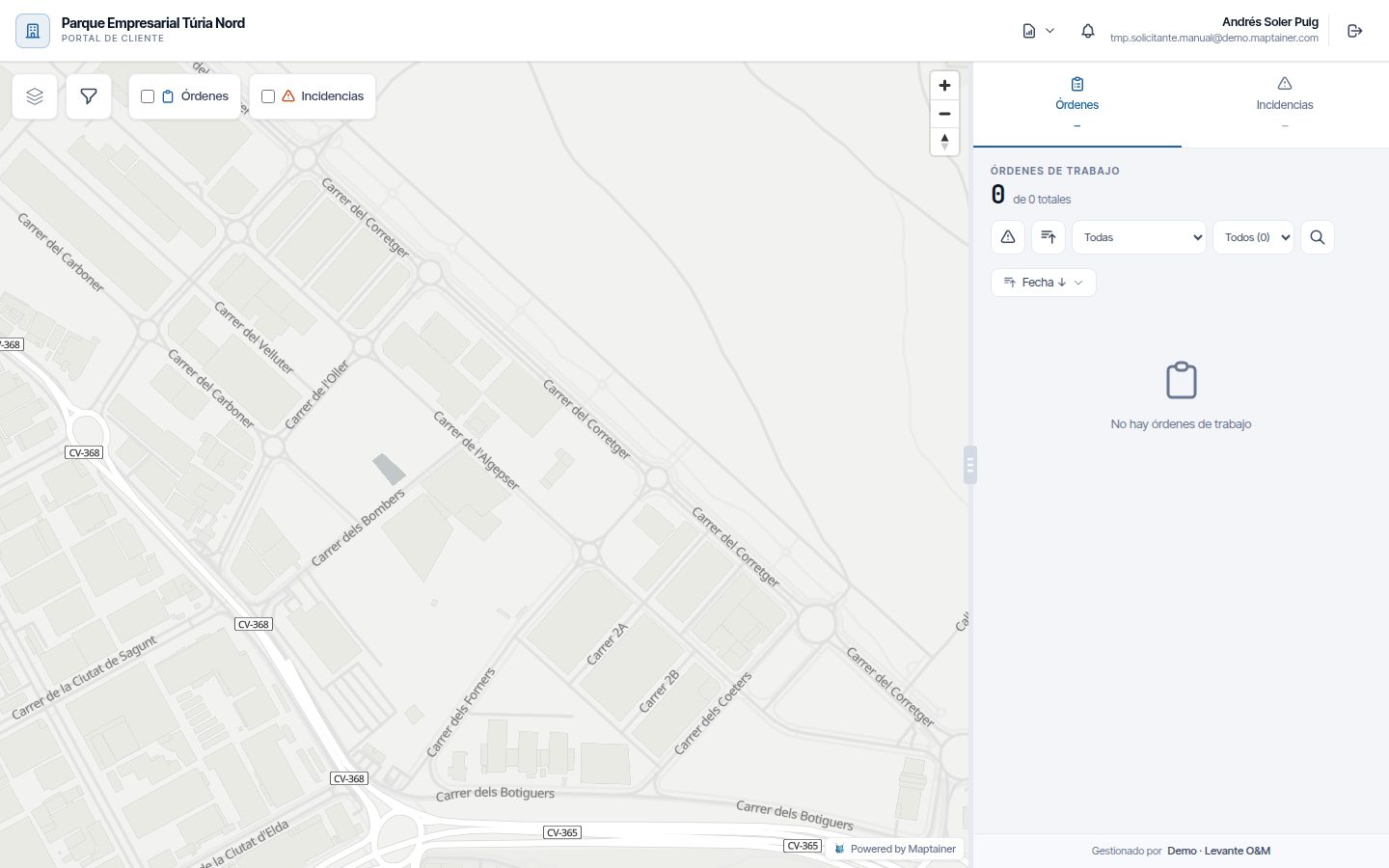
The portal fills the whole window: the map on the left and a panel with tabs on the right. The map opens framed on the customer's assets and does not let you zoom out far from that area.
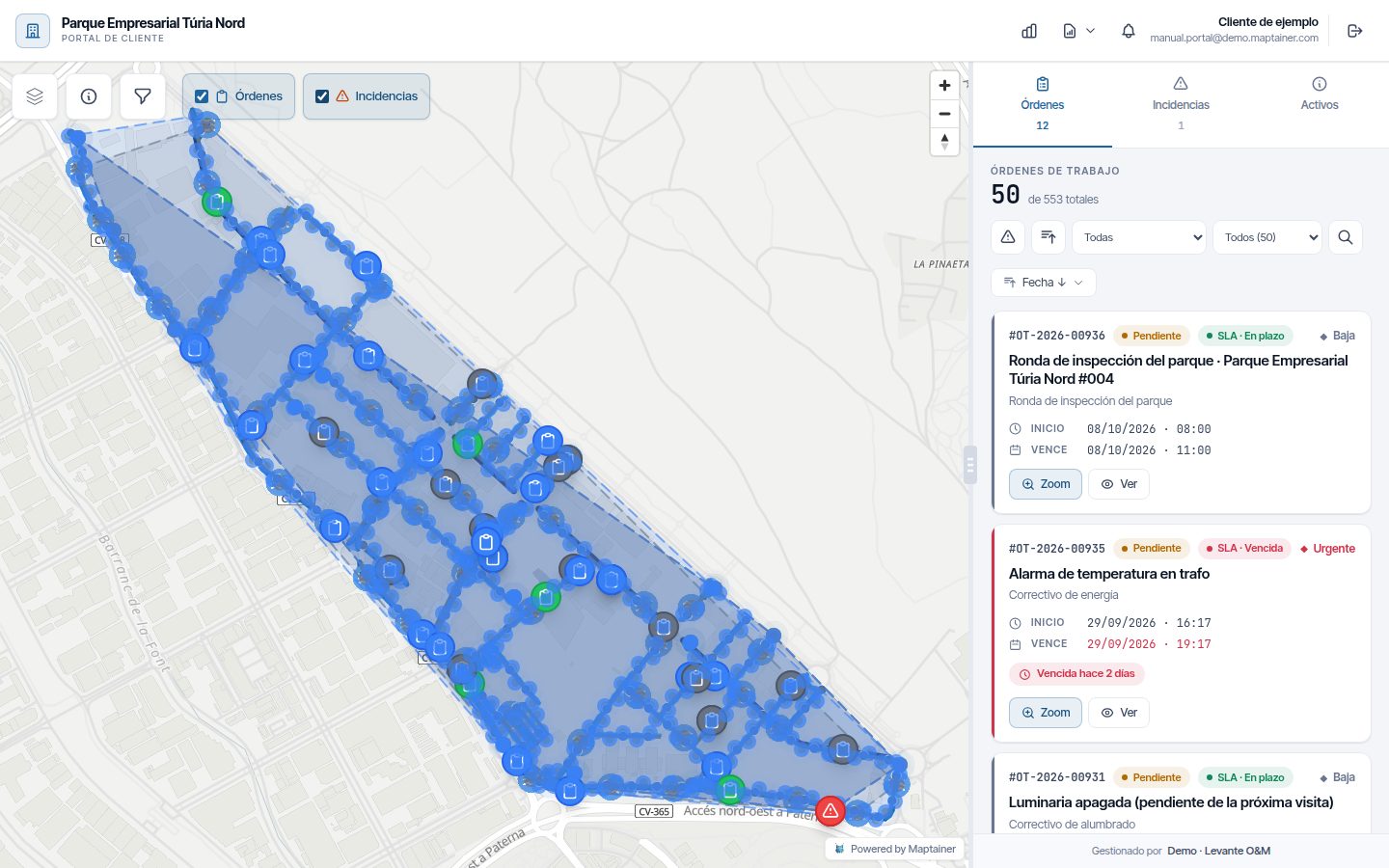
| Area | What is there |
|---|---|
| Top bar, left | The logo and the customer's name |
| Top bar, right | Panel de Control (chart icon), Listados e Informes (document icon), Usuarios de mi empresa (Administrador only), Mis avisos por correo (the bell), the user's name and email address, and Cerrar sesión (Log out) |
| Over the map | Capas (Layers), Consultar información de activos (View asset information) (the “i”), Filtros (Filters) and the Órdenes (Orders) and Incidencias (Incidents) boxes |
| Right-hand panel | The Órdenes, Incidencias and Activos tabs |
| Panel footer | “Gestionado por” (Managed by) and your company's name |
Whatever the user's role does not allow does not appear. The Órdenes and Incidencias boxes plot the WOs and incidents of the lists on the map. They are unticked when you log in.
Layers and filters
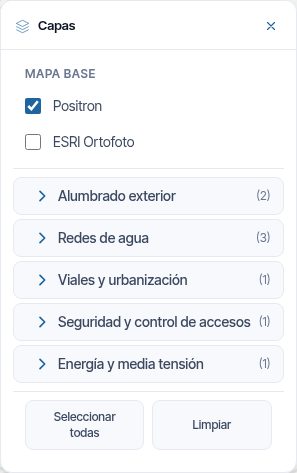
Capas opens the list of the customer's asset types, grouped by family. Only the types the customer has assets of appear. At the top you choose the Mapa base (Base map): Positron or ESRI Ortofoto (ESRI orthophoto).
Filtros has two tabs and some common filters. They are applied with Aplicar (Apply) and removed with Limpiar (Clear). They filter the panel's list and what is plotted on the map.
| Tab | Filters |
|---|---|
| Órdenes | Estado, Prioridad (Priority) and Tipo de tarea (Task type) |
| Incidencias | Estado, Criticidad (Criticality) and Tipo de incidencia (Incident type) |
| Common filters | Rango de fechas (Date range) |
Work orders
The Órdenes tab lists the customer's WOs, from newest to oldest. The number under the tab counts the pending, in-progress and paused ones. Each card has Zoom (takes the map to the WO) and Ver (View) (opens its record).
A drop-down above the list chooses which WOs are shown:
| Option | What it shows |
|---|---|
| Todas (All) | All the WOs the user can see (this is the option on login) |
| Abiertas (Open) | Pending, in progress and paused |
| Terminadas (Finished) | Completed, validated, closed and cancelled |
| Pendientes de conformidad (Pending acceptance) | Completed or validated with no answer from the customer. Only for Gestor / Aprobador and Administrador |
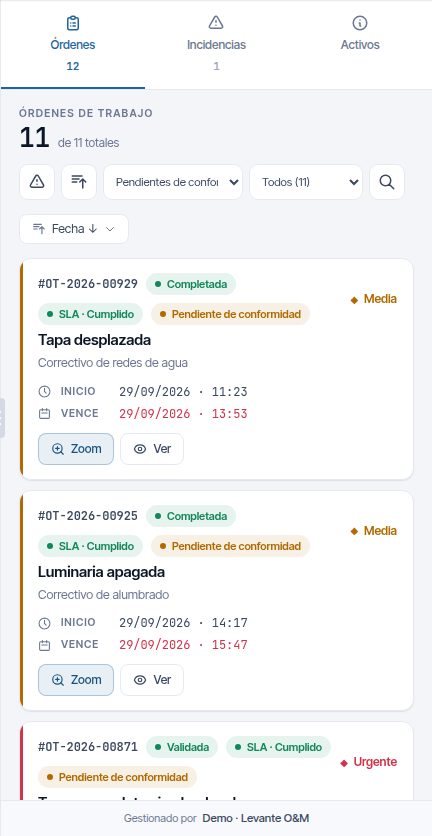
Each card shows Inicio (Start) and Vence (Due), and warns with “Vence hoy” (Due today), “Vence en N días” (Due in N days) or “Vencida hace…” (Overdue by…). Vence is the job's deadline; if it has none, the SLA resolution deadline; and if it has neither, the planned end.
The list loads 50 at a time. At the end there is Cargar más (Load more), and the counter at the top says how many there are in total. If your company works with SLAs, each card has its deadline tag (see Service deadlines (SLA)). Finished WOs can also have the acceptance tag.
The record has three tabs:
- Info: description, start date, due date (Vence: the deadline, the SLA deadline or the planned end, in that order), completion date and creation date, Plazos del servicio (SLA) (Service deadlines (SLA)), Conformidad (on finished ones), maintenance type, people responsible, materials (planned and used) and associated assets.
- Fotos (Photos): the photos of the work.
- Datos (Data): the answers to the forms filled in on site.
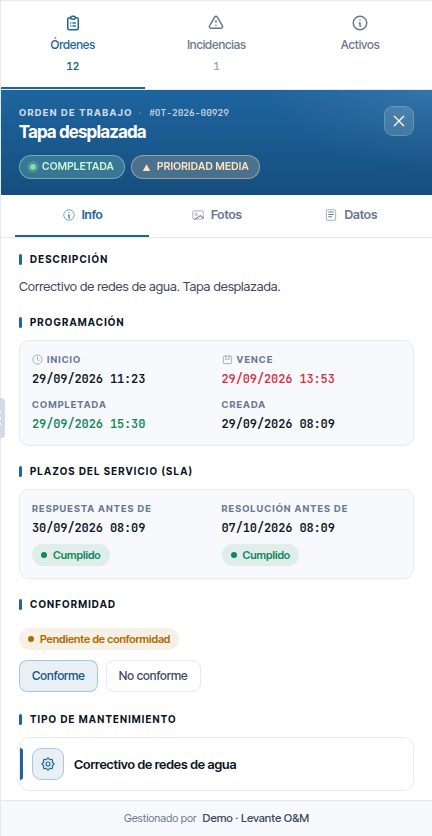
When the WO is Completada, Validada or Cerrada, Descargar informe (Download report) appears at the foot of the record, which downloads the PDF of the job. While it is not finished there is no report.
The customer cannot create, edit or close WOs from the portal. How they are managed is explained in Work orders.
Incidents
The Incidencias tab lists the customer's incidents that the user can see, whether they created them or your company did. The number under the tab counts the open ones and is visible from login. A drop-down chooses which ones are shown:
| Option | What it shows |
|---|---|
| Abiertas | Pending and with a WO created (this is the option on login) |
| Historial (History) | Resolved, closed and rejected |
| Todas | Both |
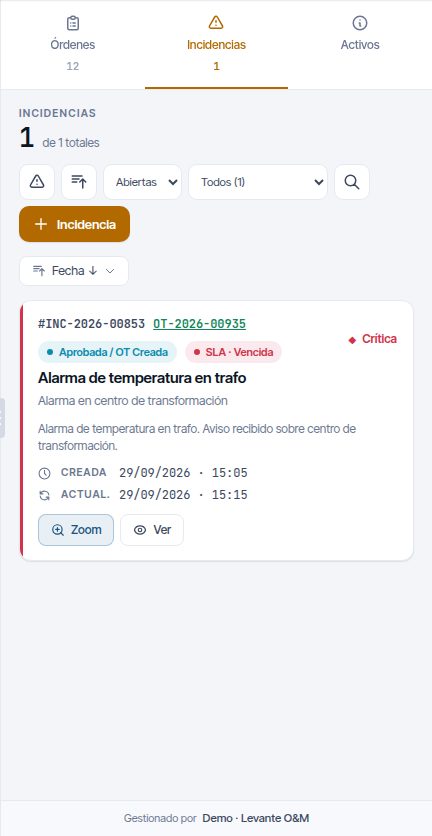
The list loads 50 at a time, with Cargar más at the end. If an incident already has a WO, its code appears next to the incident's code; clicking it opens that WO's record.
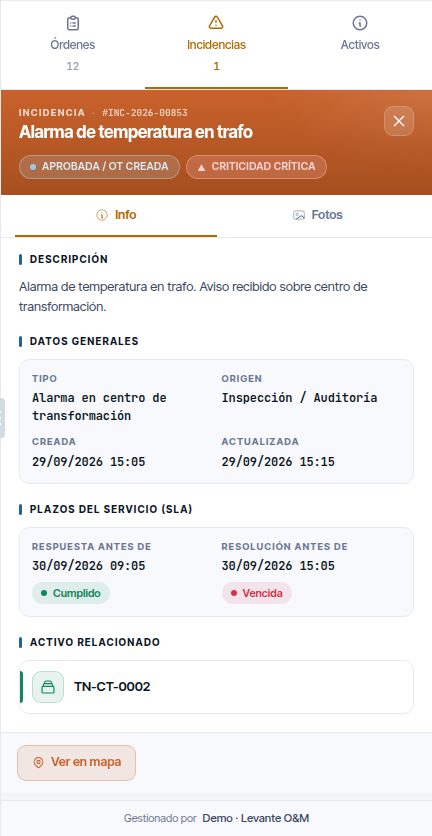
The record has the Info and Fotos tabs, and the Ver en mapa (View on map) button. Info shows the description, the type, the source, the dates, the SLA deadlines, the related asset and who reported it.
Service deadlines (SLA)
If your company works with SLAs, the customer sees the deadline of each incident and each WO. The deadlines are the same ones you see: the customer's or, if they have none, your company's. See Customers and SLA.
- On the card, the “SLA · …” tag with the status of the resolution deadline (or the response deadline, if there is no resolution deadline).
- On the record, the Plazos del servicio (SLA) section, with Respuesta antes de (Response by) and Resolución antes de (Resolution by): the deadline and its status.
| Status | What it means |
|---|---|
| En plazo (On time) | Open and with time left |
| En riesgo (At risk) | Open and close to the deadline |
| Vencida (Overdue) | Open and past the deadline |
| Cumplido (Met) | Responded to or resolved on time |
| Fuera de plazo (Late) | Responded to or resolved late |
Assets
With the Consultar información de activos button (the “i”) switched on, the customer clicks an asset on the map and its record opens in the Activos tab. The record has the Info (with its Atributos (Attributes)), OT (WOs), Incidencias and Fotos tabs.
The customer can only view: they cannot add, edit or delete assets. The Solicitante Básico does not see assets.
Dashboard
The Panel de Control button opens a screen with the customer's indicators. At the top you choose the Período (Period) (from 1m to Todo (All)) or a range with Desde (From) and Hasta (To).
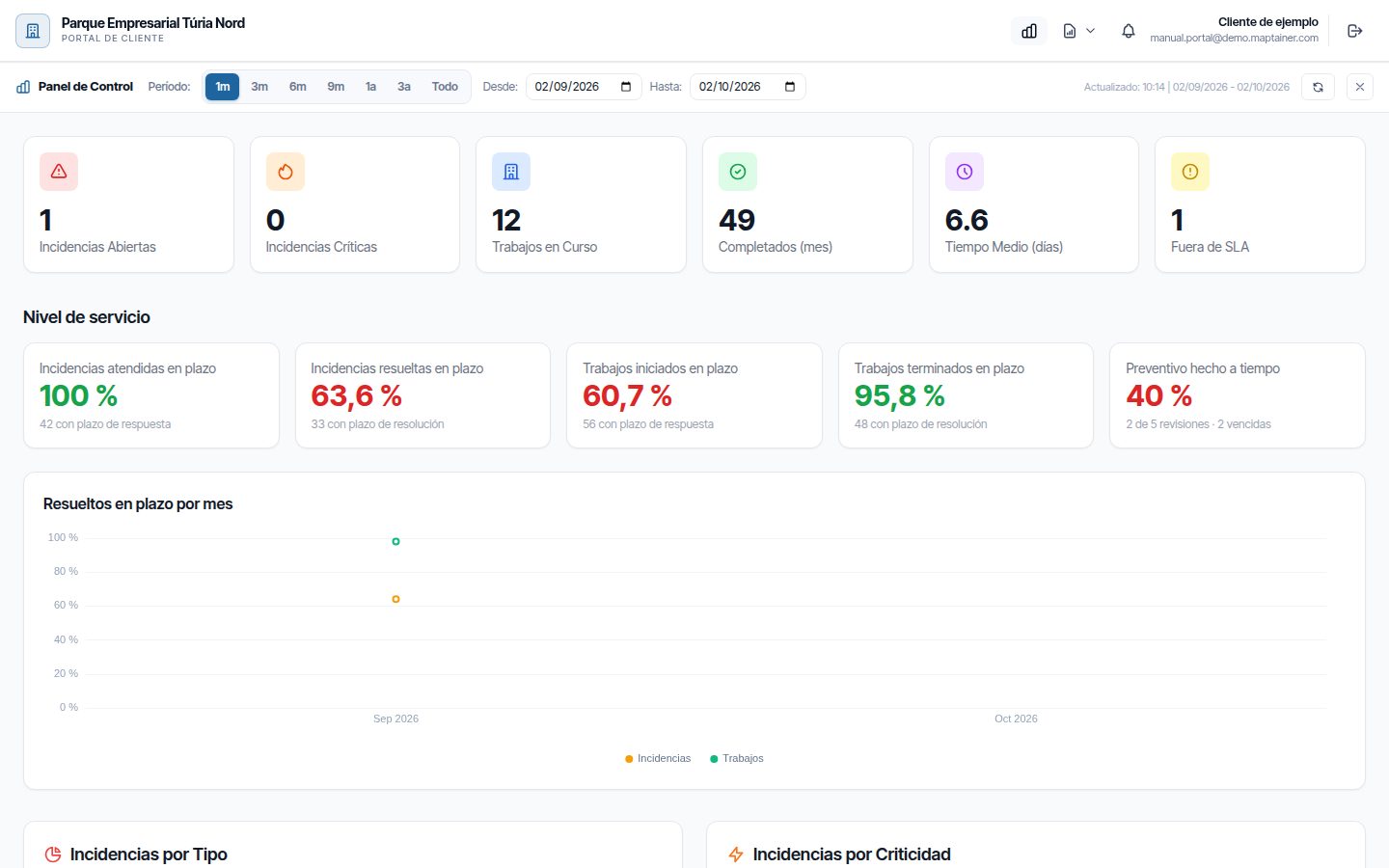
They are all calculated over the chosen period.
| Indicator | What it counts |
|---|---|
| Incidencias Abiertas (Open incidents) | Unresolved incidents |
| Incidencias Críticas (Critical incidents) | Open ones with critical criticality |
| Trabajos en Curso (Jobs in progress) | Pending, in-progress or paused WOs |
| Completados (mes) (Completed (month)) | WOs finished in the period (with no period, in the current month) |
| Tiempo Medio (días) (Average time (days)) | Average resolution time of the incidents |
| Fuera de SLA (Outside SLA) | Open incidents whose resolution deadline has passed |
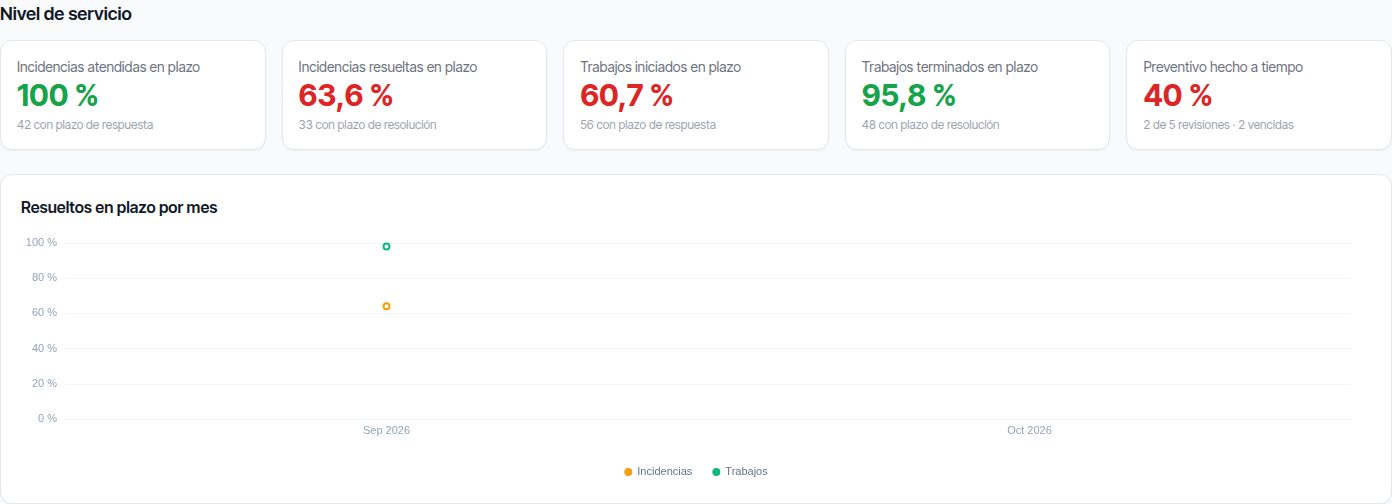
Below is the Nivel de servicio block. Each percentage appears in green from 90 %, in yellow from 75 % and in red below that.
| Indicator | What it counts |
|---|---|
| Incidencias atendidas en plazo (Incidents responded to on time) | Those responded to on time, among those with a response deadline |
| Incidencias resueltas en plazo (Incidents resolved on time) | Those resolved on time, among those with a resolution deadline |
| Trabajos iniciados en plazo (Jobs started on time) | WOs started on time, among those with a response deadline |
| Trabajos terminados en plazo (Jobs finished on time) | WOs finished on time, among those with a resolution deadline |
| Preventivo hecho a tiempo (Preventive maintenance done on time) | Preventive inspections done before their deadline (without one, before their planned end), with the total and the overdue ones. Rescheduling an inspection does not move its deadline |
The first four and the Resueltos en plazo por mes (Resolved on time by month) chart only appear if your company works with SLAs. Preventive maintenance always appears.
Then come the Incidencias por Tipo (Incidents by type), Incidencias por Criticidad (Incidents by criticality), Trabajos por Estado (Jobs by status) and Evolución (Trend) charts, and the Últimas Incidencias (Latest incidents) and Últimos Trabajos Completados (Latest completed jobs) tables.
Lists and reports
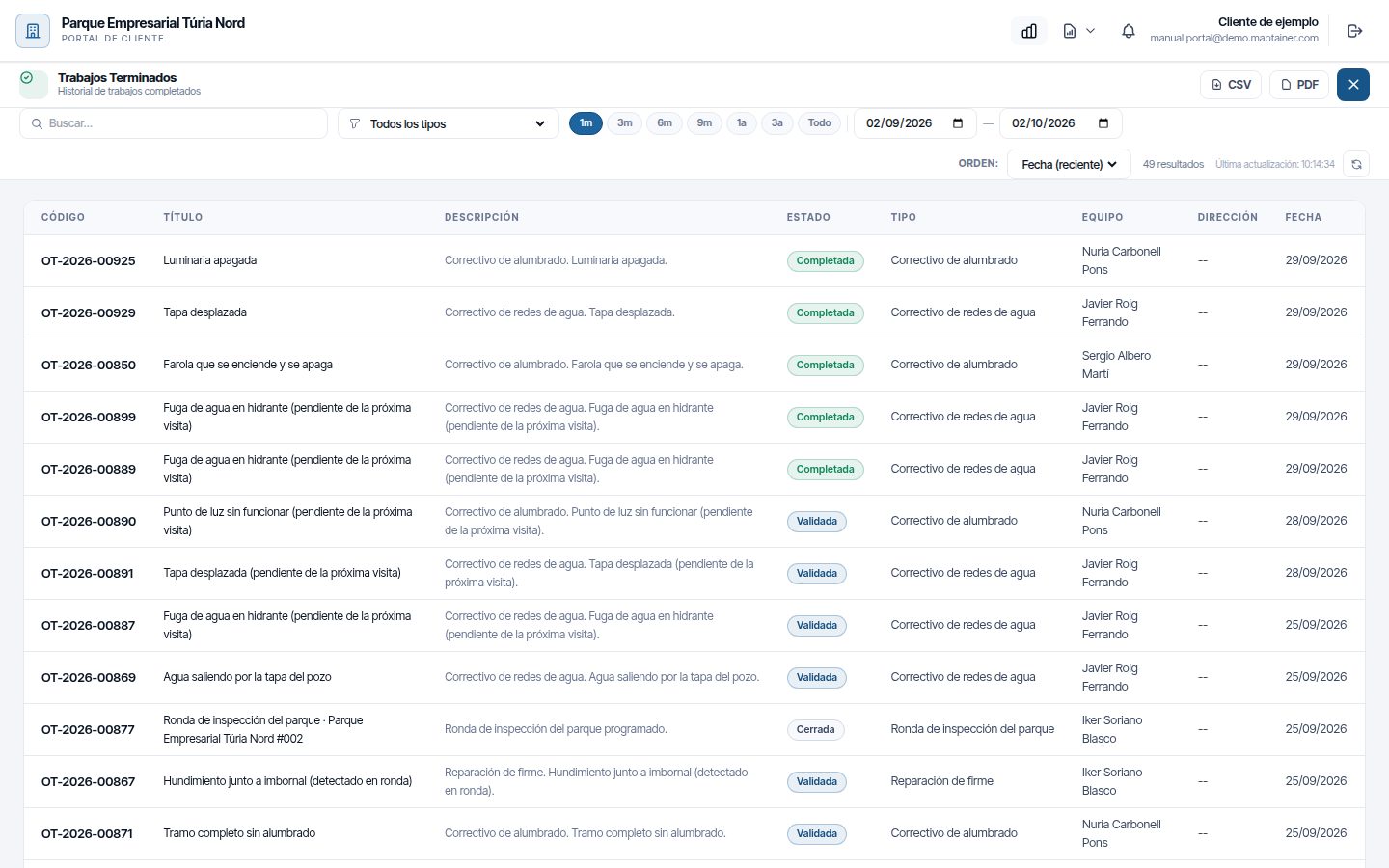
The Listados e Informes menu has four lists. Each one can be searched, filtered by type, sorted and exported with CSV or PDF.
| List | What it contains |
|---|---|
| Incidencias Abiertas | Unresolved incidents |
| Trabajos en Curso | Pending, in-progress or paused WOs |
| Trabajos Terminados (Finished jobs) | Finished WOs. Lets you choose the period |
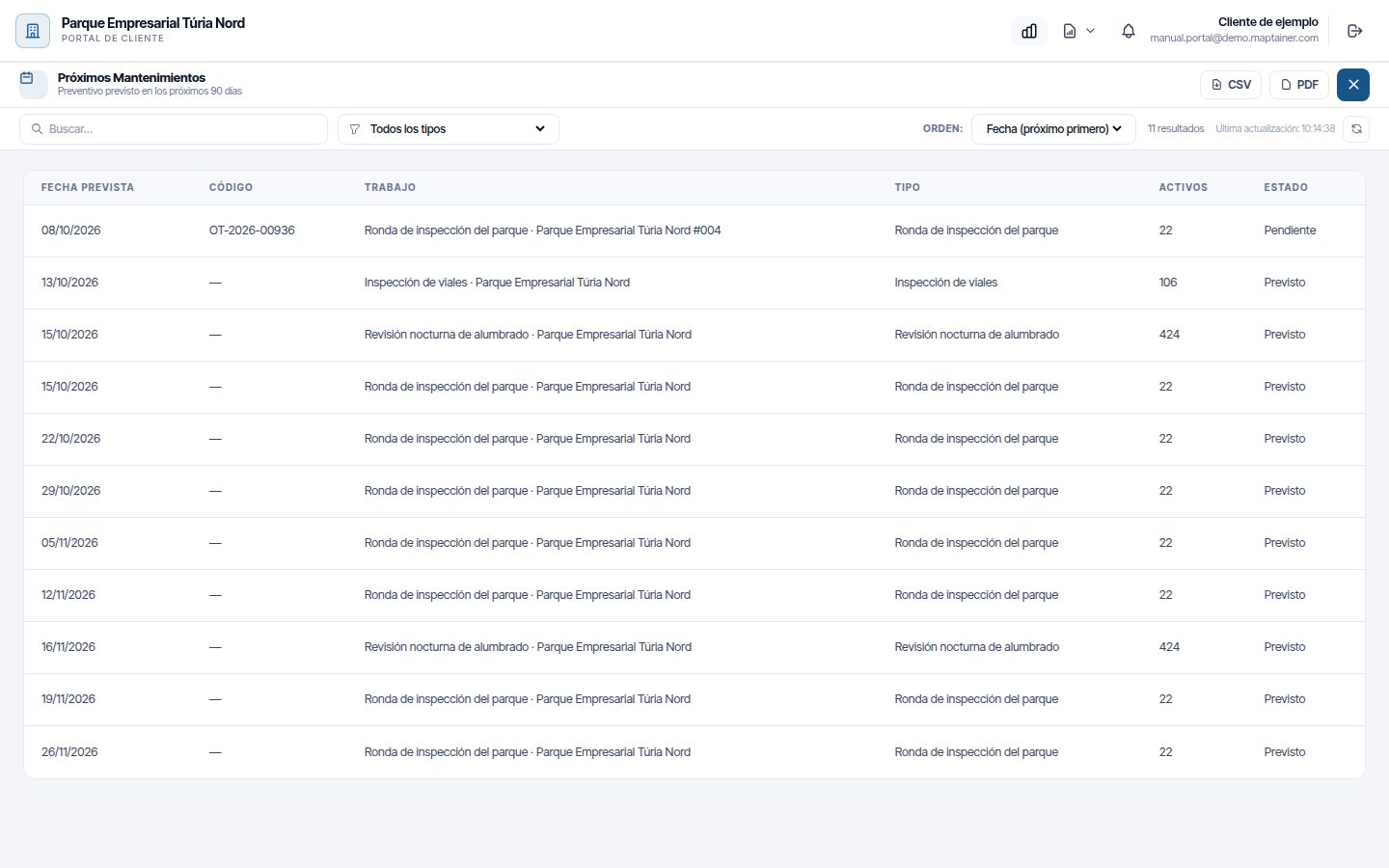
| Próximos Mantenimientos | The preventive maintenance planned for the next 90 days |
Próximos Mantenimientos brings together two things: the WOs your schedules have already created and the calendar forecasts, which are not WOs yet. The forecasts go as far ahead as your company plans preventive maintenance (see Preventive maintenance).
| Column | What it shows |
|---|---|
| Fecha prevista (Planned date) | The planned day |
| Código (Code) | The WO's code, or “—” if it is still a forecast |
| Trabajo y Tipo (Job and type) | The title and the maintenance type |
| Activos | How many assets it includes |
| Estado | “Previsto” (Planned) if it is a forecast, or the WO's status |
Incidents that arrive from the portal
When a customer creates an incident, you receive it like any other. It comes in like this:
| Field | Value |
|---|---|
| Estado | Pendiente |
| Origen (Source) | Portal Ciudadano (Citizen portal) |
| Tipo (Type) | The one the customer chooses from your active types |
| Cliente (Customer) | That of the user who creates it |
| Reportado por | The user's name, with their email address as contact |
| Delegación (Branch) | The one that corresponds to it by its asset, its location or its customer |
| Código | The next one in your incident numbering |
It generates the new incident notification in the bell, like the others. It is reviewed and converted into a WO as explained in Incidents.
The customer can send the incident without an asset, without a point and without a zone. If it arrives without a location, it does not appear on the map: ask them for the details or mark it yourself when you review it. The Solicitante Básico does not choose assets: they only mark a zone or a point.
The customer follows their incident in the portal: they see it as Pendiente, then as Aprobada / OT Creada with the WO's code, and when it is resolved it moves to Historial. If they have Mis incidencias ticked, they receive an email at each step. See Email notifications.
The portal on a phone
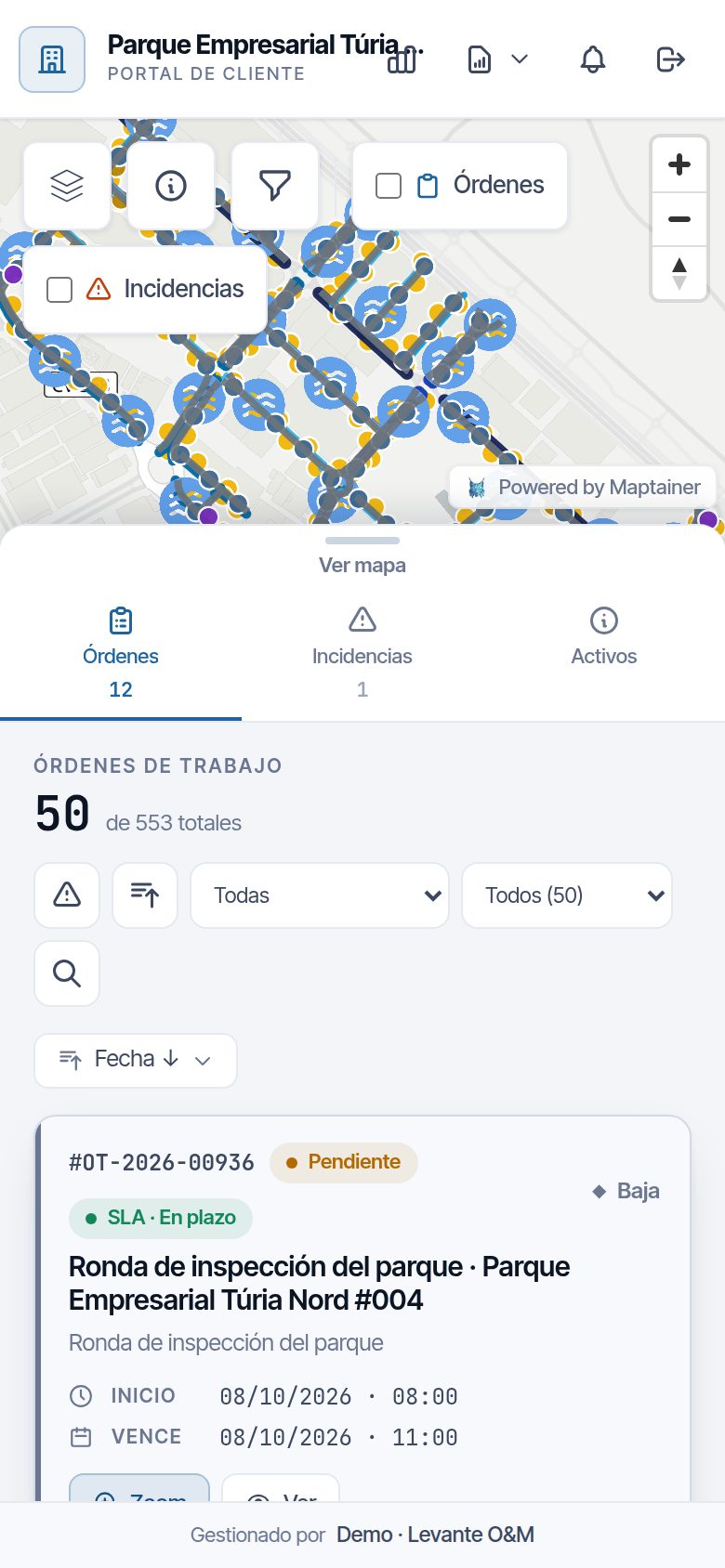
The portal can be used from the phone's browser. On narrow screens the panel moves below the map, as a folding sheet:
- Folded, it only shows the Órdenes, Incidencias and Activos tabs, and the map takes up almost the whole screen.
- It unfolds when you tap Ver lista (View list), swipe up or choose a tab.
- It folds with Ver mapa (View map) or by swiping down. When you tap Zoom or choose a point on the map, it folds by itself.
If the customer is deactivated
When you deactivate a customer (see Customers and SLA):
- Their portal is disabled and all their users' open sessions are cut off.
- If they try to log in, they see “Tu empresa ya no tiene acceso al portal. Si crees que es un error, ponte en contacto con tu empresa de mantenimiento” (Your company no longer has access to the portal. If you think this is a mistake, contact your maintenance company).
- Their users are not deleted: they remain in the Usuarios del Portal list. They stop receiving emails.
If you reactivate the customer, the portal is not enabled again automatically. Edit the customer, enable Dar acceso al portal and save. Their users will be able to log in again with their usual password.
If your company loses the customers module, or its subscription is no longer current, the portal is closed for all its customers.
Guide for your customers
This section is written for your customers. You can copy it and send it to them together with the portal address: the same address you use to access Maptainer, ending in /portal-login.html.
Logging in for the first time
- Look for the email “Acceso al Portal de Cliente - Maptainer”. If it is not there, check your junk mail folder.
- Click Activar Cuenta. The link lasts 24 hours; if it has expired, ask for it to be resent.
- Enter your password twice (at least 10 characters, not easy to guess), tick the box accepting the privacy policy and the legal notice and click Activar Cuenta.
- Click Ir al Portal and log in with your email address and password.
Logging in
- Open the Acceso al Portal (Portal access) page.
- Enter your Correo electrónico (Email) and your Contraseña (Password).
- Tick Mantener sesión iniciada (Keep me logged in) if you want to stay logged in for 30 days on that device.
- Click Acceder al portal (Access the portal).
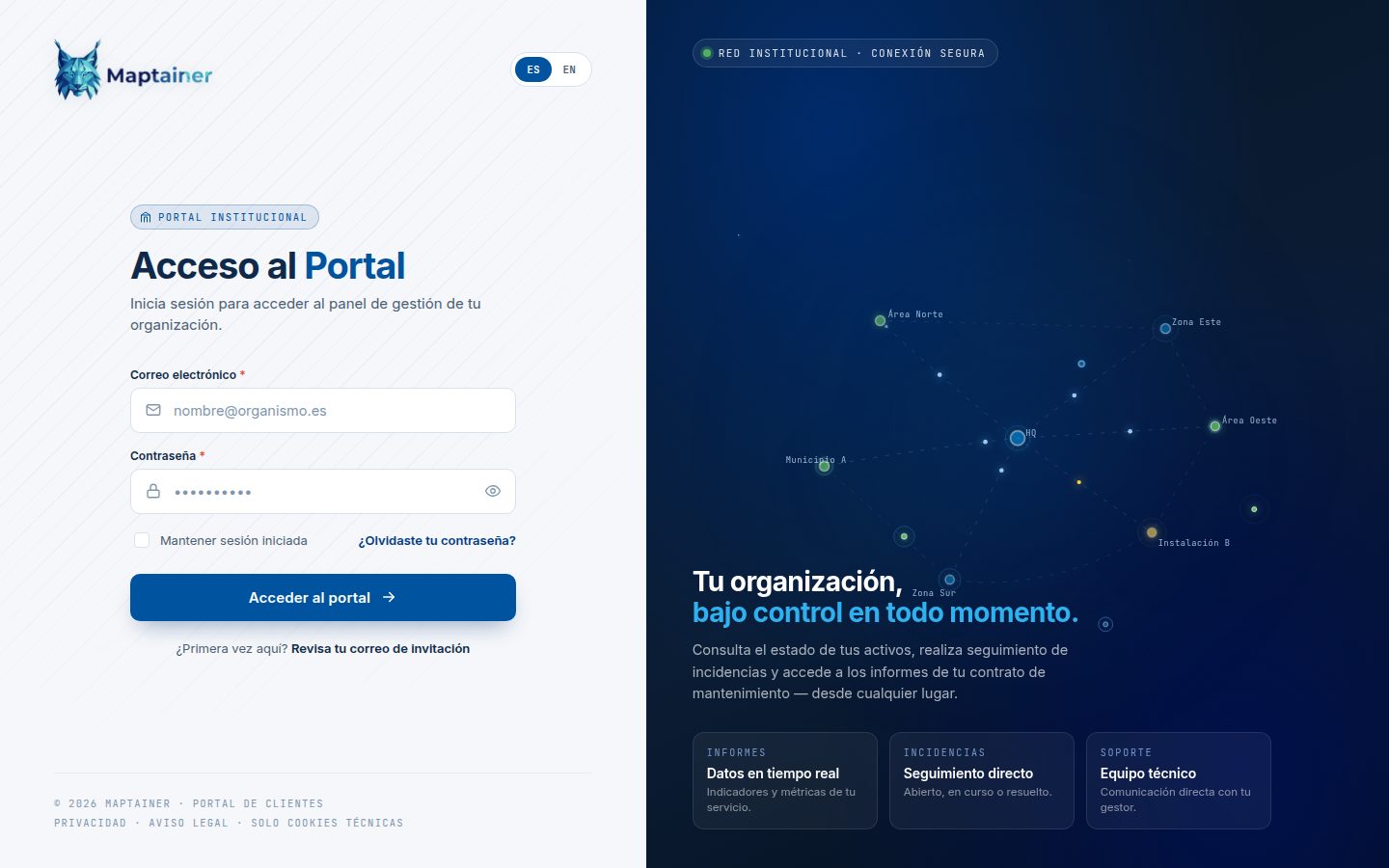
You can change the language with ES / EN. You can only have one session open: if you log in from another device, the previous one is closed. To leave, click the log-out button, top right.
If you forget your password
- On the login page, click ¿Olvidaste tu contraseña? (Forgot your password?)
- Enter your email address and click Enviar enlace de recuperación (Send recovery link).
- Open the email you will receive and follow the link. It lasts one hour.
- Enter the new password twice and click Establecer nueva contraseña (Set new password).
What you can do depending on your role
Your maintenance company gives you one of these roles:
- Solicitante Básico: you report incidents and follow your own and the jobs that deal with them.
- Supervisor Técnico: you see everything of your company's: assets, incidents, jobs, dashboard and lists.
- Gestor / Aprobador: in addition, you give acceptance of finished jobs.
- Administrador: in addition, you invite and manage your company's portal users.
If you only see part of your facilities, it is because you have been assigned certain zones.
Viewing your assets and jobs
- Mapa (Map): shows your assets. With Capas you choose which types you see and the background map; tick Órdenes or Incidencias to see them on the map.
- Asset record: tap the “i” in the corner of the map and then the asset. You will see its details, its jobs, its incidents and its photos.
- Órdenes: the list of jobs. With the drop-down you choose Todas, Abiertas or Terminadas. Click Ver to open one and Zoom to locate it on the map. For finished jobs, Descargar informe downloads the PDF.
- Deadlines: if your service has an SLA, each card says whether it is “En plazo”, “En riesgo” or “Vencida”, and the record gives the deadlines.
- Panel de Control (chart icon): indicators, the service level and charts.
- Listados e Informes (document icon): open incidents, jobs in progress, finished jobs and upcoming maintenance, which you can download as CSV or PDF.
Reporting an incident
- Open the Incidencias tab and click + Incidencia (+ Incident).
- Enter a Título (Title) that sums up the problem and choose the Tipo. If you wish, add a Descripción and a Dirección / Ubicación (Address / Location).
- Choose the Criticidad: Crítica (Critical), Alta (High), Media (Medium) or Baja (Low).
- Indicate where the problem is, in one of these ways:
- On an asset: choose the Capa operativa (Operational layer), click Puntual (Point) and tap the asset on the map, or Poligonal (Polygon) and draw an area around several.
- On an area without assets: click Zona (Zone) and draw the area on the map.
- At a point: click Click en el mapa para ubicar (Click on the map to locate) and tap the spot.
- If you have photos, click Subir fotografías (Upload photos). JPG, PNG, GIF and HEIC images of up to 10 MB are accepted.
- Click Crear Incidencia (Create incident). “¡Incidencia creada!” (Incident created!) appears with its code. Make a note of it in case you need to ask about it.
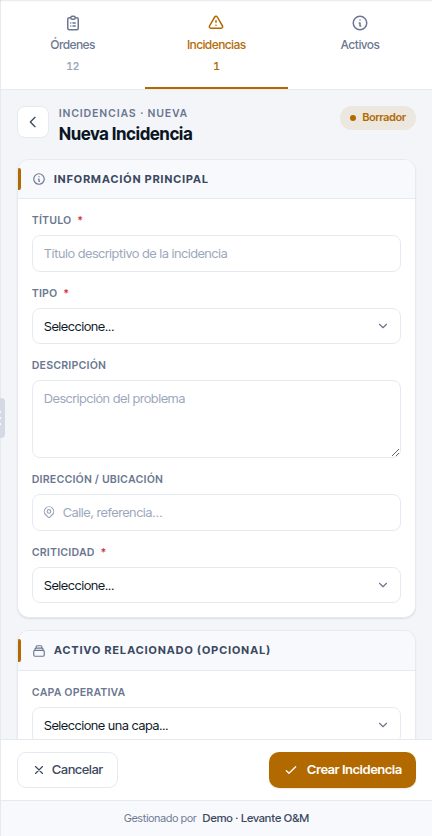
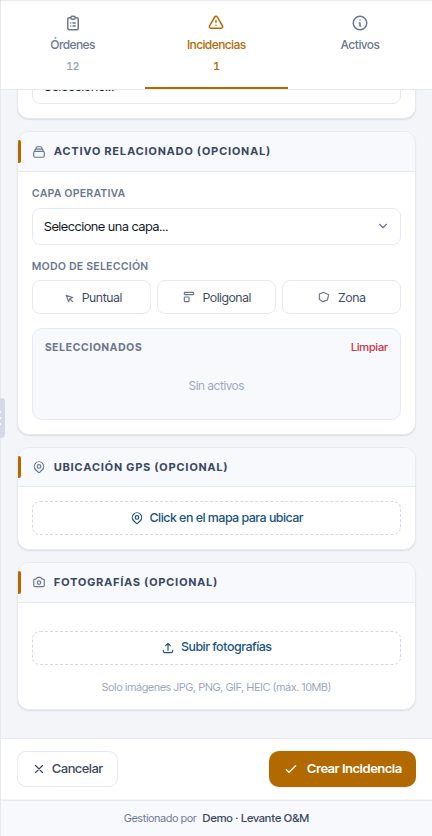
With the Solicitante Básico role you do not choose assets: the section is called Zona afectada (opcional) (Affected zone (optional)) and only has Zona and the point on the map.
To draw an area, tap the map to add vertices and double-click, or tap the first point, to close it. If you change your mind, click Cancelar (Cancel): nothing is saved.
Following your incidents
Your open incidents appear in the Incidencias tab:
- Pendiente: we have received it and are reviewing it.
- Aprobada / OT Creada: there is already a job to resolve it. Click its WO code on the card to see the job.
When it is resolved, it moves to Historial: choose it in the list's drop-down. The job that resolved it remains in Órdenes, with its report.
Choosing your email notifications
- Click the bell in the top bar (Mis avisos por correo).
- Tick what you want to receive:
- Mis incidencias: when we receive your incident, when work on it starts and when it is resolved.
- Todas las incidencias de mi empresa: also those reported by others or by the maintenance company. Only if your role can see them.
- Trabajos terminados: with the job report as a PDF.
- Click Guardar (Save).
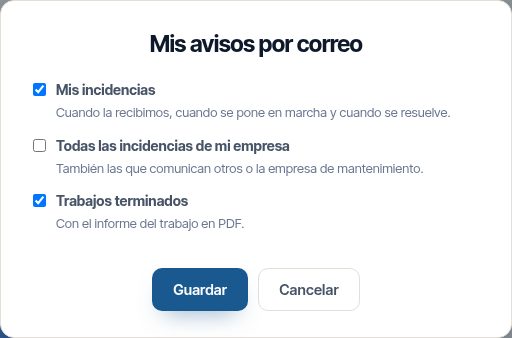
Initially, Mis incidencias and Trabajos terminados are ticked. Each email has the Ver en el portal button, which takes you to the record.
Giving your acceptance of a job
If you are a Gestor / Aprobador or Administrador:
- Open the Órdenes tab and choose Pendientes de conformidad in the drop-down. You can also get there from the job finished email.
- Click Ver on the job and scroll down to Conformidad.
- Click Conforme (the comment is optional) or No conforme (explain what is missing or what is wrong).
- Click Dar conformidad (Give acceptance) or Enviar (Send).
If you say No conforme, we notify the maintenance company. You can change your answer as long as the job is not closed. If your company has agreed that jobs are not closed without acceptance, the record says so: “El trabajo no se cierra sin tu conformidad” (The job is not closed without your acceptance).
Managing your company's users
If you are an Administrador:
- Click the people icon in the top bar (Usuarios de mi empresa).
- To give someone access, click Invitar usuario, fill in their details, choose their role and, if you wish, their zones. Click Enviar invitación.
- With Editar you change their details, their role or their zones. Untick Puede entrar en el portal to remove their access without deleting them.
- Reenviar sends the invitation again to someone who has not activated it yet. Eliminar erases their data and cannot be undone.
You cannot create other administrators or modify yourself: ask your maintenance company to do it.
From a phone
Open the same address in your phone's browser. The map fills the screen and the list stays folded at the bottom: tap it or swipe it up to open it (Ver lista) and use Ver mapa to go back to the map.
If you cannot log in
| Message | What to do |
|---|---|
| “Correo o contraseña incorrectos, o cuenta no activada” (Incorrect email or password, or account not activated) | Check the email address and password. If you never activated the account, ask for the invitation to be resent |
| “Demasiados intentos. Vuelve a intentarlo en … minutos” (Too many attempts. Try again in … minutes) | Wait that long or ask your maintenance company to unlock you |
| “El token ha expirado” (The token has expired) when activating the account | The link has expired: ask for the invitation to be resent |
| “Tu empresa ya no tiene acceso al portal” (Your company no longer has access to the portal) or “El portal de clientes no está disponible para tu empresa” (The customer portal is not available for your company) | Contact your maintenance company |
Current limitations
- Approving quotes from the portal does not exist yet (the permission is reserved for the Gestor / Aprobador and the Administrador).
Common problems
| Symptom | Likely cause | Solution |
|---|---|---|
| The Usuarios del Portal button does not appear for a customer | The customer does not have Dar acceso al portal enabled, or there is no customers module | Edit the customer and enable it |
| I cannot see Gestión de Clientes or I cannot create users | Your role does not have the portal permissions | Ask the administrator for Ver and Gestionar in the portal row |
| When creating the user, “Has alcanzado el límite…” (You have reached the limit…) appears | The customer already has your plan's maximum number of users | Delete a user who does not use the portal or upgrade the plan |
| The customer does not receive the invitation | It is in junk mail, or the email address is misspelt | Check the email address with Editar and click Reenviar email de activación |
| The customer says the link does not work | More than 24 hours have passed or another one has already been resent | Resend the invitation and have them use the latest email |
| The resend button does not appear | The user has already activated the account | Have them recover the password with ¿Olvidaste tu contraseña? |
| The user appears as “Bloqueado hasta …” (Locked until …) | Too many wrong passwords | Click Desbloquear or wait until that time |
| A user does not see assets, the dashboard or other people's incidents | They have the Solicitante Básico role | Change their role to Supervisor Técnico or higher |
| A user does not see an incident, a WO or an asset | They have zones and that falls outside them | Check their Zonas, or untick them all so that they see the whole customer |
| The list of zones does not appear when editing a user | The customer has no zones drawn | Draw them in the customer's zones |
| The customer does not receive emails about their incidents or jobs | They have the box unticked in Mis avisos por correo, they cannot see that item or the emails are in junk mail | Have them check the bell in the portal and their junk mail folder |
| When closing a WO, “Falta la conformidad del cliente” appears | The customer requires acceptance and has not answered, or is not satisfied | Ask them to answer in the portal, wait for tacit acceptance or disable the requirement on their record |
| “Cliente no conforme” arrives in the bell | The customer answered No conforme to a finished job | Read their comment and decide whether to reopen the WO |
| In the portal, neither Pendientes de conformidad nor the acceptance buttons appear | The user is neither a Gestor / Aprobador nor an Administrador | Change their role |
| The customer's administrator cannot edit a user | It is another administrator, or themselves | Do it yourself from Usuarios del Portal |
| After reactivating a customer, their users cannot log in | Deactivation disabled the portal and it is not re-enabled automatically | Enable Dar acceso al portal on the customer record |
Last updated: