
Introduction
The incident is the input of the work; the work order (WO) is the work itself. Keeping them separate lets you review each report before sending anyone. WOs can be created directly, without going through an incident: see Work orders.
Where they come from
| Channel | Who creates it | Status on entry | Origin shown |
|---|---|---|---|
| Web | Office staff or supervisors, from the Incidencias (Incidents) panel or by right-clicking on the map | The one you choose (Pendiente (Pending) by default) | The one you choose in Origen / Canal (Origin / Channel) |
| Mobile app | The technician, from the field | Pendiente | App Técnico (Technician app) |
| Customer portal | The customer themselves | Pendiente | Portal Ciudadano (Citizen portal) |
The Origen / Canal catalogue also has Llamada / Teléfono (Call / Phone), Email / Registro (Email / Registry), Sensor IoT / Smart City (IoT sensor / Smart City) and Inspección / Auditoría (Inspection / Audit). They are used to note how a report that you record by hand came in.
How the customer creates incidents is explained in Customer portal.
Note
The Solicitudes (Pendientes) (Requests (Pending)) layer on the map is not incidents. They are proposed changes to assets (additions, changes or removals) and are reviewed separately.
Statuses
Each incident is always in one of these five statuses:
| Status | What it means | Shown in the panel? |
|---|---|---|
| Pendiente | Just arrived, not reviewed | Yes |
| Aprobada / OT Creada (Approved / WO created) | Reviewed and with a WO that resolves it | Yes |
| Resuelta Directamente (Resolved directly) | Resolved, with or without a WO | No |
| Cerrada (Closed) | Completely finished | No |
| Rechazada (Rejected) | Discarded | No |
The panel and the map layer only show open incidents (Pendiente and Aprobada / OT Creada). The others remain in the system and can be consulted in Listados (Lists) (see Monitoring).
The bell notification
Each incident that comes in as Pendiente generates a notification in the bell in the top bar. If its criticality is Alta (High) or Crítica (Critical), the notification says “Incidencia de criticidad alta” (High-criticality incident) or “crítica” (critical); otherwise, “Nueva incidencia” (New incident). The notification disappears for everyone when the incident is no longer pending.
Who receives the notification depends on the Avisos → Incidencias (Notifications → Incidents) permission of their role and on their branch. Whoever creates the incident does not receive their own notification.
Prerequisites
Enabling incidents
Incidents are optional. To use them:
- Open the user menu (top right) → Configuración (Settings) → Configuración General (General settings).
- In Cómo trabaja tu empresa (How your company works), open Ajustar en detalle (Fine-tune).
- Switch on Registramos incidencias (We record incidents) and click Guardar configuración (Save settings).
If you switch it off, the Incidencias tab, the map layer and the types menu disappear. No data is deleted.
Permissions
Incidents share permissions with work orders: the Mantenimiento (Maintenance) group in Gestión de Roles y Permisos (Roles and permissions management).
| Permission | What it allows for incidents |
|---|---|
| Ver (View) | See the tab, the map layer and the records |
| Crear (Create) | See the Incidencia (Incident) button and the right-click “Nueva incidencia aquí” (New incident here) |
| Editar (Edit) | Edit incidents, change their status and link them to a WO |
There are also fixed rules by role, which do not depend on permissions:
- Only the administrator and the supervisor can Eliminar (Delete) an incident.
- An incident that is Resuelta Directamente can only be touched by the administrator, and only to change its status.
- Nobody can edit Cerradas and Rechazadas incidents.
- Creating, editing or deleting incident types requires Configuración Global (Global settings) → Editar, which by default only the administrator has. The types screen is in the admin area, which only the tenant administrator can see.
With the customers module
If your company works with customers (see Customers and SLA), each incident should have one. It can come in as Sin clasificar (Unclassified), but then it cannot be turned into a WO, resolved or closed. You first have to edit it and assign it a customer.
Incident types
The type classifies the report: “Fuga de agua”, “Luminaria apagada”, “Vallado dañado”… It is mandatory when creating each incident, so it is a good idea to have the list ready before you start.
They are managed from the user menu → Ir al administrador (Go to admin area) → Incidencias · Tipos (Incidents · Types) (Gestión de Tipos de Incidencias (Incident types management) screen).
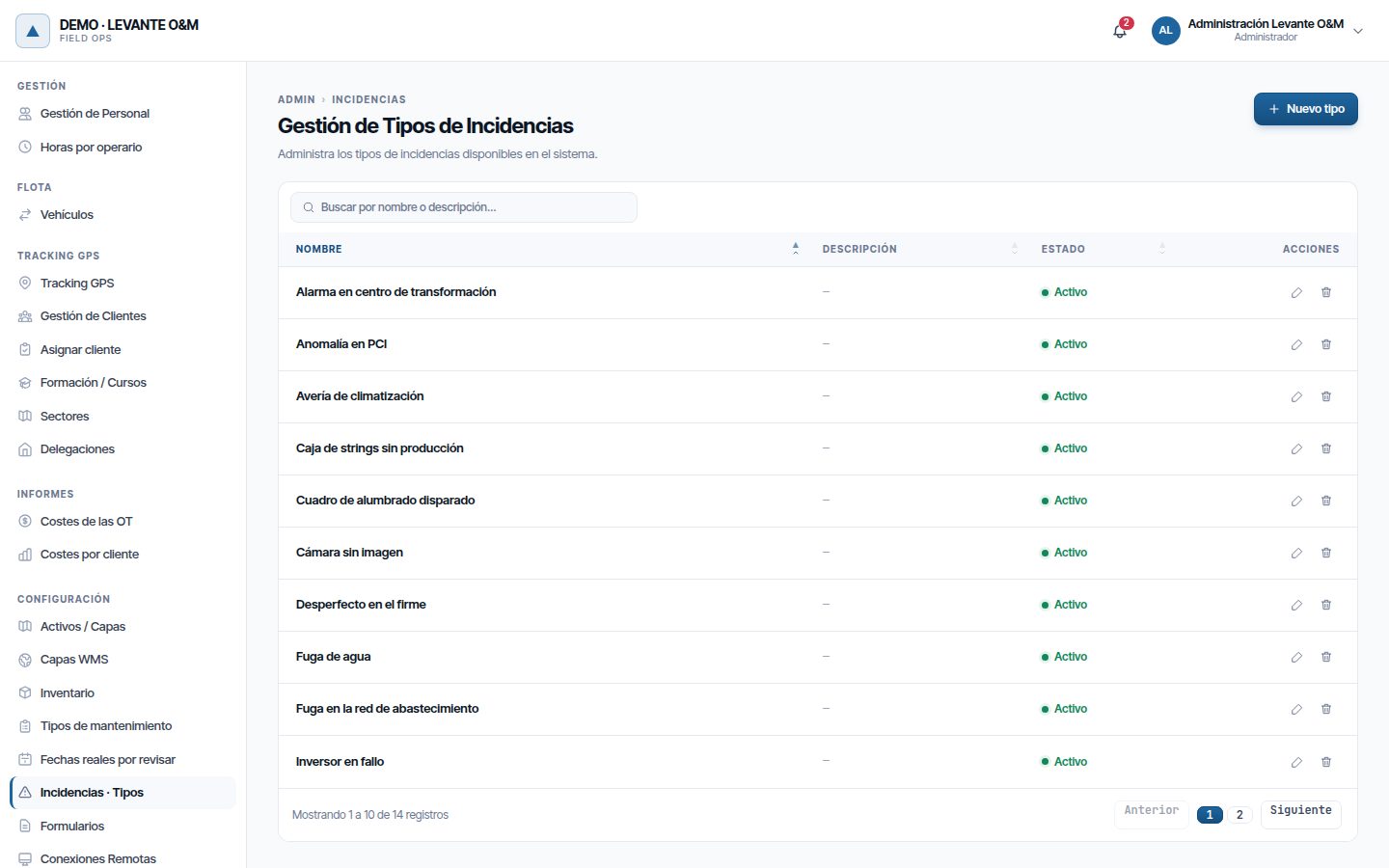
The table shows Nombre (Name), Descripción (Description), Estado (Status) (Activo (Active) or Inactivo (Inactive)) and the edit and delete buttons. The search box filters by name or description.
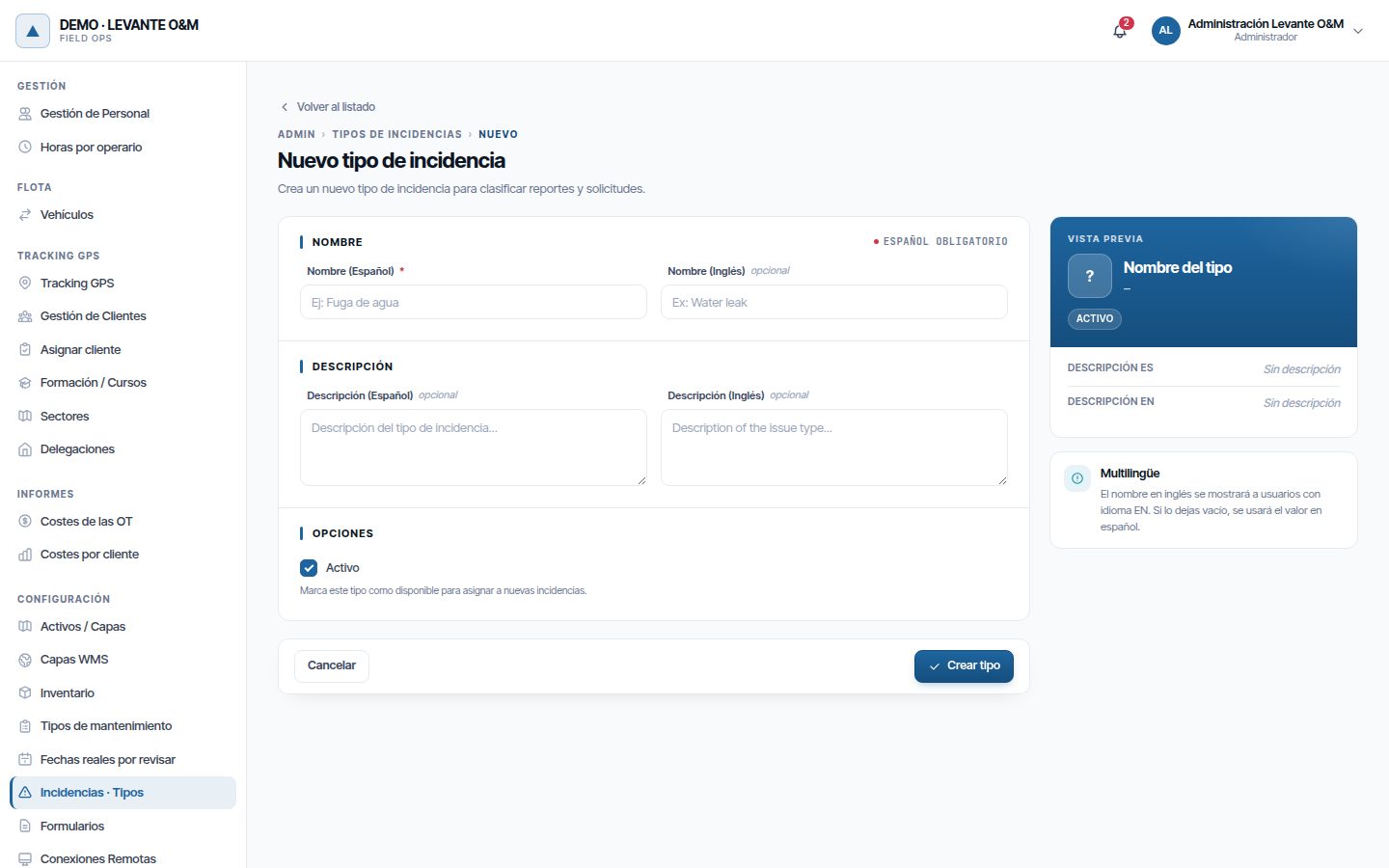
Creating a type
- Click Nuevo tipo (New type).
- Enter the Nombre (Español) (Name (Spanish)), which is mandatory. The Nombre (Inglés) (Name (English)) is optional: users with the language set to English see it.
- If you wish, add a Descripción in each language.
- Leave Activo ticked so that the type can be chosen.
- Click Crear tipo (Create type).
Editing, deactivating or deleting a type
- Click the pencil to edit it and Guardar cambios (Save changes) to save.
- Untick Activo to withdraw it. It is no longer offered for new incidents, and old ones keep it.
- The bin deletes it, but only if no incident uses it. If it is in use, it is not deleted and the warning says how many incidents it appears in; to withdraw it, untick Activo.
Recording an incident
Opening the form
There are two ways:
- In the right-hand panel, Incidencias tab, click the orange Incidencia button.
- On the map, right-click where the problem is and choose Nueva incidencia aquí. The form opens with that point already marked.
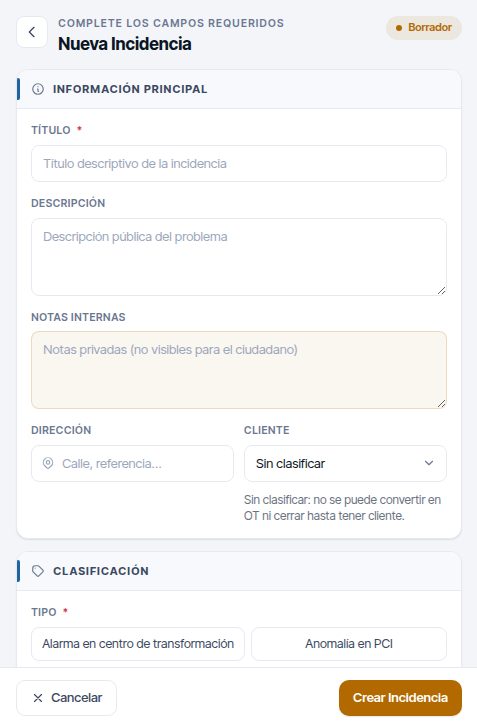
Fields
| Section | Field | What it is for |
|---|---|---|
| Información Principal (Main information) | Título (Title) (mandatory) | Short summary of the problem |
| Descripción | Explanation of the problem. It is the public part: the customer also sees it in their portal | |
| Notas internas (Internal notes) | The company's private notes. The customer does not see them | |
| Dirección (Address) | Street or reference, in free text | |
| Cliente (Customer) | Only with the customers module. It is filled in automatically with the customer chosen on the map or with that of the assets you select | |
| Clasificación (Classification) | Tipo (Type) (mandatory) | One of the active types |
| Criticidad (Criticality) (mandatory) | Crítica, Alta, Media (Medium) or Baja (Low). It sets the colour on the map and the SLA deadlines | |
| Origen / Canal (mandatory) | How the report came in | |
| Estado | Only appears when editing | |
| Datos del Reportador (si es externo) (Reporter details (if external)) | Nombre (Name) and Contacto (Contact) | Who reported it, if not from the company: email or phone |
| Activo Relacionado (opcional) (Related asset (optional)) | Capa Operativa (Operational layer) and Modo de selección (Selection mode) | The affected asset (see below) |
| Ubicación (opcional) (Location (optional)) | Point and affected area | Where the problem is (see below) |
| Archivos Adjuntos (Attachments) | Subir archivo (Upload file) | Photos and documents. Only after saving |
Where the problem is
The incident needs at least one of these three things: an asset, a point or an area. With none of them, when you save “Seleccione un activo relacionado, marque un punto o dibuje un área” (Select a related asset, mark a point or draw an area) appears.
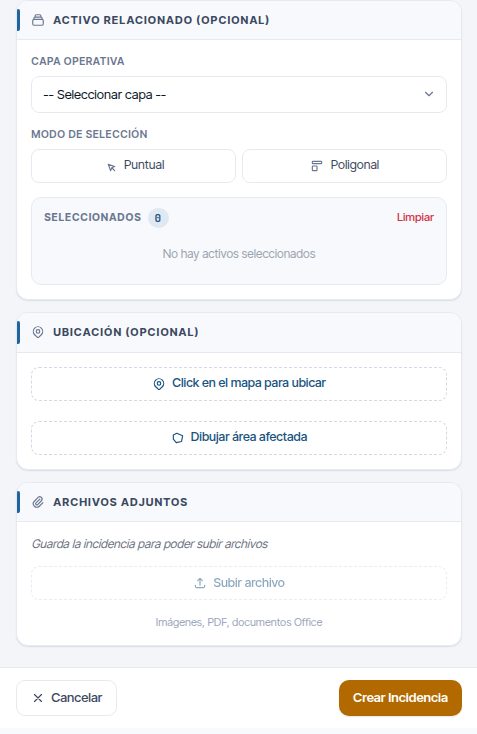
On an asset:
- In Capa Operativa, choose the asset type.
- Click Puntual (Single) and click the asset on the map, or Poligonal (Polygon) and draw a polygon around several (double-click to finish).
- The asset appears in Seleccionados (Selected). If it is a point asset, its position becomes the incident's position.
If the asset is a line or a polygon (a pipe, a plot…), you also have to mark the exact point. Otherwise, when you save “Para activos lineales o poligonales, debe indicar una ubicación GPS específica” (For linear or polygonal assets, you must indicate a specific GPS location) appears.
You can select several assets: the incident saves them all and the record shows them all. The first one in the list is the main asset. To remove one from the selection, click its X.
At a point: click Click en el mapa para ubicar (Click on the map to locate) and click on the map. The coordinates appear below and the X removes them.
In an area: click Dibujar área afectada (Draw affected area), mark the vertices and finish with a double-click. The surface area and the number of vertices are shown. It is used for faults that affect a zone, such as a supply outage. If you do not finish the area before saving, “Área sin terminar” (Unfinished area) appears.
Saving
Click Crear Incidencia (Create incident). “Incidencia creada” (Incident created) appears, the panel returns to the list and the map is updated. The incident receives a code such as INC-2026-00848 and a branch, which is deduced from the asset, the sector the point falls in, the customer or the person who creates it.
Photos and documents
Attachments are added after creating the incident: open it with Editar and, in Archivos Adjuntos, click Subir archivo. Each file can be up to 20 MB.
The following are accepted:
- JPG, PNG, GIF and WEBP images.
- PDF.
- Word, Excel and PowerPoint documents in current format (.docx, .xlsx, .pptx) and LibreOffice documents (.odt, .ods).
- Text (.txt) and CSV.
For security, Maptainer checks the content of each file and not just its name. It rejects files that are not what their extension says and documents with macros or with content that runs when opened. It also does not accept the old .doc, .xls and .ppt formats: save them as .docx, .xlsx or .pptx, or as PDF, before uploading them. Images and PDFs are viewed in the browser; the rest are downloaded.
Photos sent by technicians from the app also appear here and in the Fotos (Photos) tab of the record.
The incidents panel
All the day-to-day work is done in the right-hand panel, Incidencias tab. The number on the tab is the number of open incidents for the customer chosen on the map.
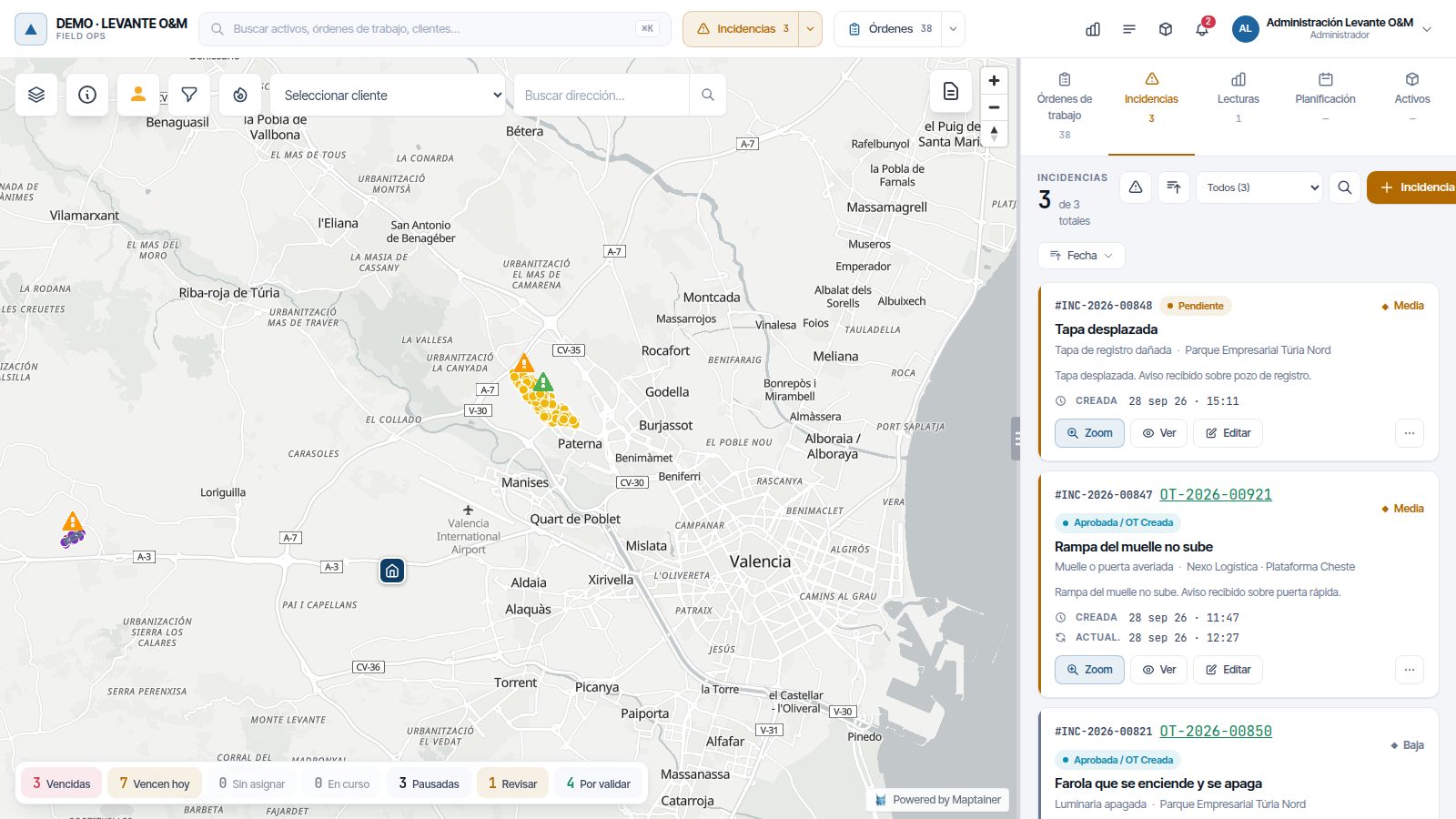
Header
| Element | What it does |
|---|---|
| N de M totales (N of M total) | How many are shown with the filters applied, out of how many open ones there are |
| Triangle (Ordenar por criticidad (Sort by criticality)) | The first click puts critical ones at the top; the next, the other way round |
| Arrows (Ordenar por fecha (Sort by date)) | Toggles from newest to oldest and vice versa |
| Status drop-down | Todos (All) or one of the open statuses, with its count |
| Magnifying glass | Opens a search by title, code, description, address or name of the reporter |
| Incidencia | Opens the creation form |
| N sin clasificar (N unclassified) | Only with the customers module and if there are incidents without a customer. When clicked, it shows only those |
| Limpiar filtros (Clear filters) | Appears when you come from the map's advanced filters, and removes them |
If another user, the app or the portal changes incidents while you are looking at the list, the notice “Hay incidencias nuevas o actualizadas · Actualizar” (There are new or updated incidents · Refresh) appears. The list does not reload by itself so that you do not lose the filter; click it when you want to see them.
Cards
Each card shows the code, status and criticality; the title; the type and the customer (or the asset, if there is no customer); the beginning of the description and the Creada (Created) and Actual. (Updated) dates. The colour bar on the left is the criticality colour. If the incident already has a WO, its code appears in green next to the incident code: click it to open the WO.
Buttons on each card:
- Zoom: centres the map on the incident and switches the layer on. Only shown if it has a location.
- Ver: opens the record. It also opens when you click the card.
- Editar: opens the form. Only shown if its status and your role allow it.
- ⋯ (Más acciones (More actions)): opens a menu with Ver en el mapa (View on map) (if it has a location), Ver ficha (View record), Editar, Ver OT (View WO) (if it already has one), Crear OT… (Create WO…) and Asignar a una OT existente… (Assign to an existing WO…) (if it is still open and has no WO) and Eliminar… (administrator and supervisor, if it has no WO). Only the options its status and your role allow are shown. The menu closes when you click outside it or press Escape.
If the incident has an SLA and is running late, the card carries a label: SLA incumplido (SLA breached) or Sin respuesta en plazo (No response on time) in red, or SLA en N h (SLA in N h) or Responder en N h (Respond in N h) in amber when it is at risk. Hover over it to see both deadlines.
The record
The record has two tabs: Info and Fotos.
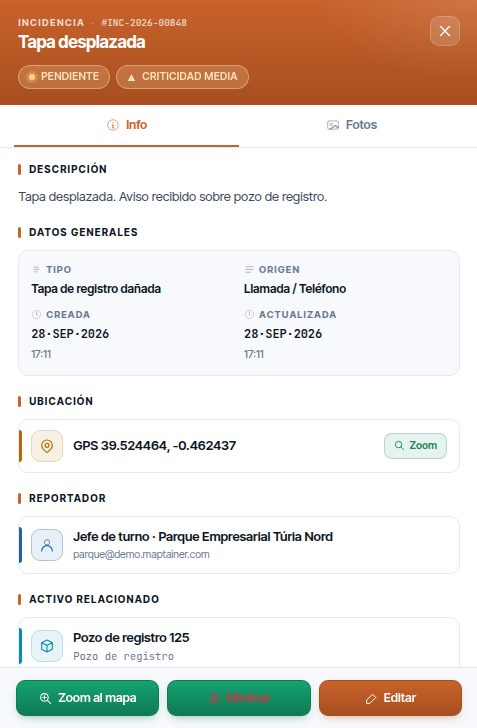
In Info the following appear, if they have data: Descripción, Datos generales (General details) (type, origin, creation, update and closing dates and, if there is an SLA, Plazo de respuesta (Response deadline) and Plazo de resolución (Resolution deadline) with their due date and status), Ubicación with its Zoom button, Reportador (Reporter), Activo relacionado, Cliente, linked Orden de trabajo (Work order) (click it to open it), Notas internas and Acciones (Actions).
At the bottom are Zoom al mapa (Zoom to map), Eliminar (administrator and supervisor) and Editar. The X in the header returns to the list.
The incidents layer on the map
The layer is switched on and off with the Incidencias button in the top bar. Each open incident is drawn with a warning triangle; if it has an affected area, the area is shown shaded when you zoom in. Clicking the triangle or the area opens its record in the panel.
The arrow next to the button opens Temático (Thematic):
- Criticidad: each incident in the colour of its criticality. This is the default.
- Estado: amber for Pendiente and blue for Aprobada / OT Creada.
- Mapa de calor (90 días) (Heat map (90 days)): the density of incidents created in the last 90 days.
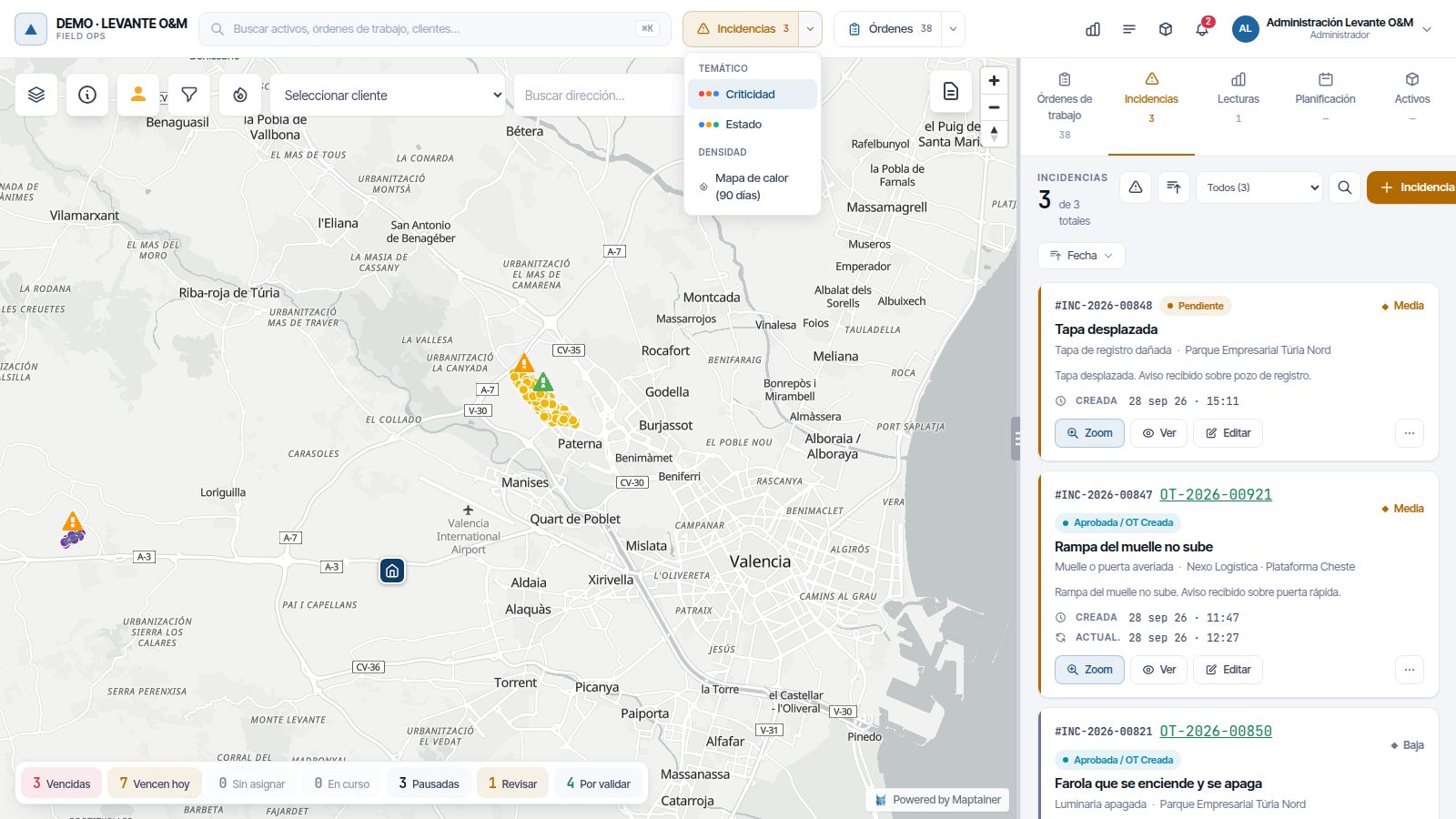
The layer and the list respect the customer chosen in the map's drop-down. The rest of the map tools are explained in The map.
Advanced filters
The funnel button in the map bar opens Filtros (Filters). In the Incidencias tab you can filter by Estado, Prioridad (Priority) (the criticality) and Tipo de incidencia (Incident type). Below, in Filtros comunes (Common filters), are Rango de fechas (Date range) (of creation), Responsable (Responsible person), Personal asignado (Assigned staff) and Cliente. An incident does not have staff of its own: Responsable and Personal asignado find the incidents from which a work order has been created with that person.
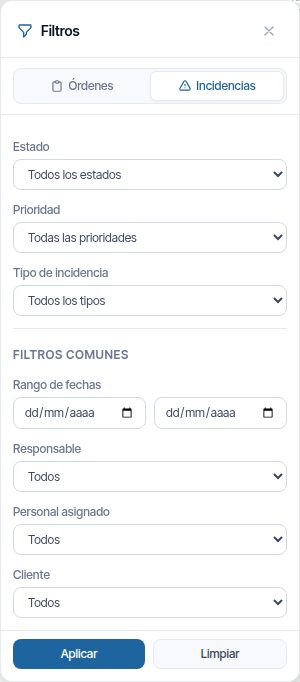
Click Aplicar (Apply) to filter the list and the layer at the same time, and Limpiar (Clear) to remove everything.
Processing an incident
Reviewing a pending incident ends in one of these outcomes: a new WO, an existing WO, resolving it without a WO or rejecting it.
Turning it into a work order
- Open the record. In Acciones, click Crear OT (Create WO).
- The work orders tab opens with the Nueva Orden de Trabajo (New work order) form already filled in: title, description, customer, asset or location (point or area). The priority comes from the criticality: Crítica becomes Urgente (Urgent), and the others become their equivalent.
- At the top you see “Se vinculará a la incidencia: INC-…” (It will be linked to the incident: INC-…). The X on that notice removes the link, and the WO would be created on its own.
- Complete whatever is missing (maintenance type, staff…) and click Crear Orden de Trabajo (Create work order).
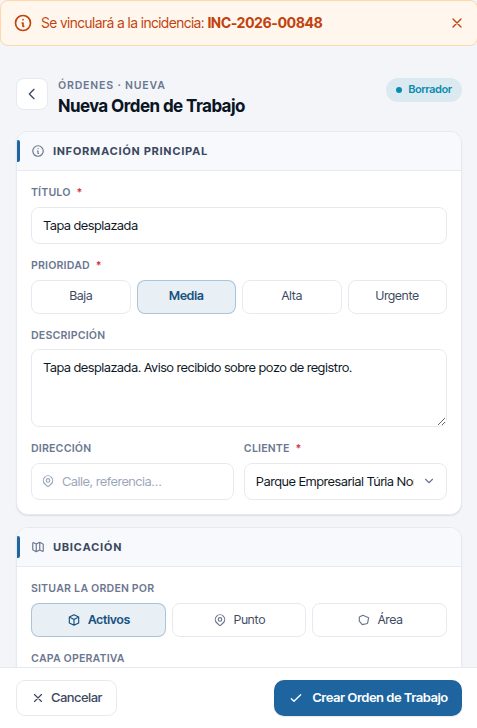
When you save, the incident changes to Aprobada / OT Creada and its card shows the WO code. The rest of the WO form is explained in Work orders.
Acciones only appears if the incident is open and does not yet have a WO. An incident is resolved with a single WO. If it has no customer and you work with customers, “Incidencia sin clasificar” (Unclassified incident) appears: edit it and assign it one first.
Linking it to an existing WO
This is useful when the problem is already in an open WO, for example a second report of the same fault.
- In the record, click Asignar a OT (Assign to WO). The list of pending, in-progress, paused or completed WOs appears, starting with the most urgent.
- Search by code or title if you cannot see it: the list shows the first 100.
- Click Asignar (Assign) on the WO and confirm with Sí, asignar (Yes, assign).
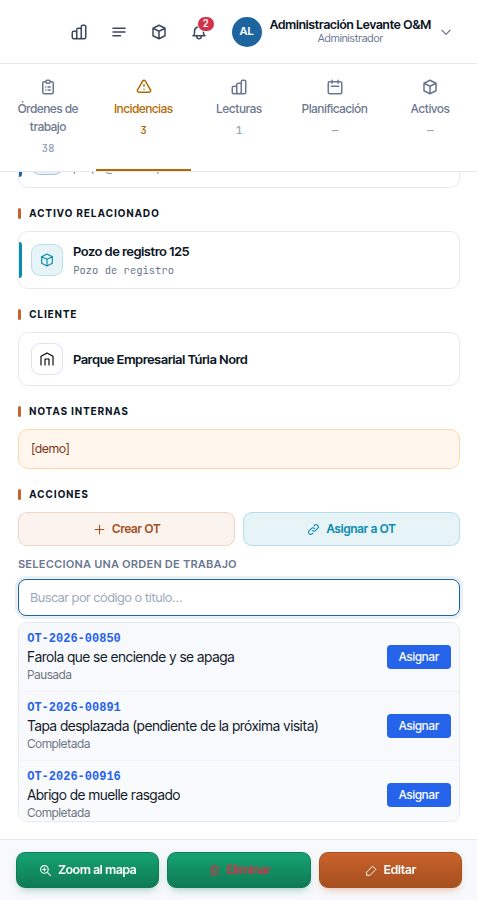
The incident changes to Aprobada / OT Creada, just as if you had created the WO.
What the WO does to the incident
Once linked, the incident follows its WO automatically:
| The WO… | The incident changes to… |
|---|---|
| Is completed | Resuelta Directamente |
| Is validated | No change |
| Is closed | Cerrada, with a closing date |
| Is reopened (from completed or validated to in progress) | Aprobada / OT Creada |
| Is cancelled | Aprobada / OT Creada, unless another WO is resolving it |
An incident with a linked WO cannot be deleted: the Eliminar button is disabled.
Changing the status by hand
- Open the incident with Editar.
- In Clasificación → Estado, click the new status.
- Click Actualizar Incidencia (Update incident).
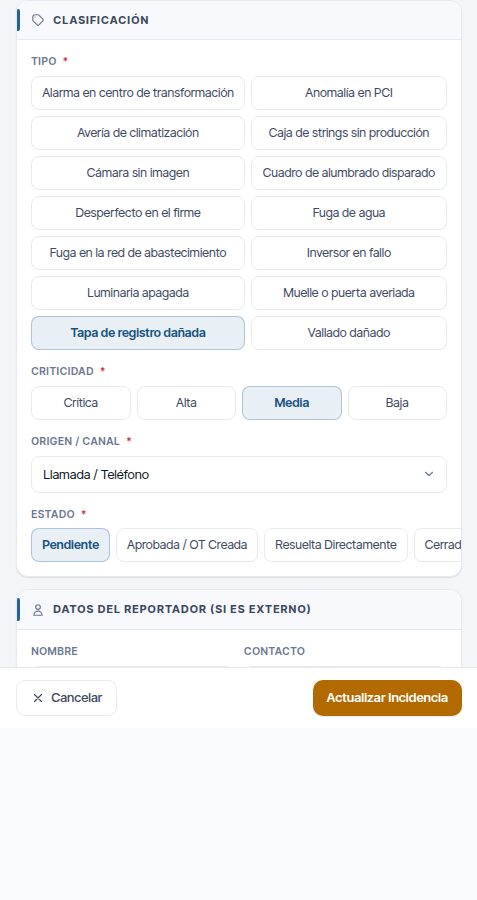
This is how you resolve an incident without a WO: choose Resuelta Directamente, for example when the problem was fixed by phone. Resuelta and Cerrada require a customer if you work with customers.
Warning
When you change an incident to Resuelta Directamente, Cerrada or Rechazada, it disappears from the panel and the map and a supervisor can no longer edit it. A Resuelta incident can only be reopened or closed by the administrator; a Cerrada or Rechazada one, by nobody.
Rejecting an incident
Reject reports that are not valid: duplicates, false alarms, things that are not your company's responsibility. There are two ways:
- Reject: in Editar, choose the Rechazada status and save. The incident still exists and appears in Listados as rejected.
- Delete: in the record, click Eliminar, enter the Motivo de la eliminación (Reason for deletion) (it is mandatory) and confirm. It is rejected and also deleted: it no longer appears in lists, indicators or the app, which deletes its photos.
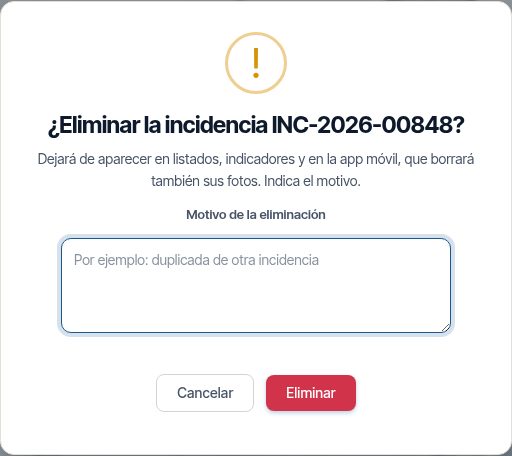
Warning
Deletion cannot be undone from the web. Use it for mistakes and duplicates; for a report that is simply not valid, Rechazada is enough.
Incident SLA
If your company has the SLA contracted, each incident receives two deadlines according to its criticality:
- Response: target time until it is attended to, that is, until it leaves Pendiente (it is approved, rejected or resolved).
- Resolution: target time until it is resolved or closed. Rejected ones do not count.
Both are counted in working hours: they only run within the working hours and working days set in Cómo trabaja tu empresa, excluding the public holidays of the incident's branch and in its time zone. If no working hours are configured, calendar hours are counted.
Deadlines are configured by criticality in Configuración General → SLA section, in the Incidencias part, and each customer can have its own. The customer's applies; if it has none, the company's; and failing that, the global one. How to configure them is explained in Customers and SLA.
Deadlines are calculated automatically when the incident is created and recalculated if its criticality, customer or branch changes. If the incident has no criticality, it has no deadline. Once resolved or closed, it keeps the deadline it finished with.
An open incident is at risk when it has used the same percentage of its deadline as is used for WOs (75 % unless changed), and overdue when it has used it all up.
Where they are shown:
- On the cards in the right-hand panel, with a label when the incident is at risk or out of time (see Cards).
- In the record, in Datos generales: Plazo de respuesta and Plazo de resolución, with the due date and the status (“En plazo · quedan 3 h” (On time · 3 h left), “En riesgo” (At risk), “Vencido · sin atender” (Overdue · not attended), “Cumplido” (Met) or “Incumplido” (Not met)).
- In the Panel de control (Dashboard), in the SLA block, the Incidencias: respuesta en plazo (Incidents: on-time response) and Incidencias: resolución en plazo (Incidents: on-time resolution) indicators. They count the incidents created in the period: those attended or resolved on time out of those attended or resolved plus those still open with the deadline passed. Open incidents that are still within the deadline do not count. Their target (85 %, acceptable from 70 %) is changed in Configuración General → SLA, together with the other SLA indicators.
- In the Panel de control, the MTTR por Criticidad (SLA, horas de jornada) (MTTR by criticality (SLA, working hours)) table compares the average resolution time of each criticality with its deadline, and the En plazo (On time) column gives the percentage resolved on time with each incident's deadline (that of its customer, if it has one). All in working hours, like the deadlines.
- In the portal, the customer sees the deadline of each incident on its card and in its record, the Fuera de SLA (Outside SLA) indicator (their open incidents with the resolution deadline passed) and the Nivel de servicio (Service level) block of the dashboard. See Customer portal.
Monitoring
The panel only shows open incidents. To see all of them, including resolved, closed and rejected ones, click the Listados button in the top bar (the one with three lines) and choose Incidencias. There you can filter by dates, status and customer, see each one's record and export the list. This is explained in Dashboard and lists.
The Panel de control also has the Análisis de Solicitudes (Request analysis) section, with the Estado de Incidencias (Incident status) and their Tiempos de Respuesta (horas de jornada) (Response times (working hours)).
Common problems
| Symptom | Probable cause | Solution |
|---|---|---|
| I cannot see the Incidencias tab | The Registramos incidencias option is switched off, or your role does not have Mantenimiento → Ver | Switch it on in Cómo trabaja tu empresa or check the role |
| I cannot see the Incidencia button | Your role does not have Mantenimiento → Crear | Ask for it to be enabled for you |
| An incident has disappeared from the panel | It is Resuelta, Cerrada or Rechazada, or its WO was completed or closed | Look for it in Listados → Incidencias |
| When saving, “Información incompleta” (Incomplete information) appears | There is no asset, point or area | Mark at least one of the three |
| When saving, “Ubicación requerida” (Location required) appears | The asset is a line or a polygon | Mark the exact point with Click en el mapa para ubicar |
| Crear OT does not appear in the record | The incident already has a WO or is not open | Open the WO from its code on the card |
| “Incidencia sin clasificar” appears when creating the WO | The incident has no customer | Edit it, choose a customer and try again |
| The Eliminar button is greyed out | It has a linked WO | Cancel the WO or let it resolve the incident |
| I cannot edit a Resuelta incident | Only the administrator can, and only the status | Ask the administrator |
| The type I am looking for is not in the form | It is inactive | Activate it in Incidencias · Tipos |
| A Word or Excel file will not upload | Only images and PDF are accepted | Convert it to PDF |
Last updated: