
Introduction
The cost of a WO is the sum of three items. Each one comes from data that is set up elsewhere in Maptainer.
| Item | How it is calculated | Where the data comes from |
|---|---|---|
| Staff (labour) | Hours on each person's parte de horas (timesheet) × their Coste por hora (Cost per hour) | The timesheet of each WO and each worker's record, in Gestión de Personal (Staff management) |
| Materials | Units consumed minus units returned × cost price | The Precio coste (Cost price) of each inventory item |
| Fuel (vehicle) | Road km × vehicle consumption × fuel price on the day | Vehicles, assignments and prices in Control de flota (Fleet control) |
These are costs, not revenue: there are no sale prices or margins. Quotes are not included either.
Each amount counts on the day it was spent, not on the day the WO was closed. A WO that started in March and finished in April splits its cost between the two months. That is why, in the reports, a long WO only adds what was spent within the chosen dates.
Amounts never appear in the WO PDF that is given to the customer.
Prerequisites
The “Controlamos costes” option
This whole manual depends on the Controlamos costes (We track costs) option. It is enabled in the Profesional (Professional) and Avanzado (Advanced) profiles, and disabled in Esencial (Essential).
- Open the user menu (top right) → Configuración (Settings) → Configuración General (General settings).
- In Cómo trabaja tu empresa (How your company works), open Ajustar en detalle (Fine-tune).
- Enable Controlamos costes and click Guardar configuración (Save settings).

Without the option, the Informes group of the admin area, the Costes reales (Actual costs) card on the dashboard and the Coste real (Actual cost) section of the WO record disappear. The records no longer ask for amounts either:
| Screen | What is hidden without the option |
|---|---|
| Worker record (Staff and teams) | The Coste por hora field, the Coste /h (Cost /h) column of the list and the Coste medio / hora (Average cost / hour) indicator |
| Item record (Inventory and warehouses) | Precio coste, Precio venta (Sale price) and IVA (VAT) |
| Añadir stock (Add stock) | The Precio de compra unitario (Unit purchase price). The goods received are valued at the Precio coste the item already had |
| Inventory | The Inventario valorado (Valued inventory) report |
No data is deleted: when you save a record without those fields, the amounts it already had are kept. When you enable the option again, the fields and figures come back.
Modules
| Screen or data | What you need |
|---|---|
| Costes de las OT (WO costs), the Costes reales card and the WO's Coste real | The Controlamos costes option |
| Costes por cliente (Costs by customer) | In addition, the customers module (see Customers and SLA) |
| Materials item | The inventory (Gestionamos almacén de materiales (We manage a materials warehouse)). Without it, the column does not appear |
| Fuel item | The Control de flota and Tracking de personal (Staff tracking) modules, which generate the trips (see Fleet and GPS tracking) |
Without inventory or without fleet, the reports work just the same: those items stay at zero.
Permissions
Costs are visible with Reportes (Reports) · Costes (Costs), in Roles y Permisos (Roles and permissions) (see Tenant administration), together with Reportes · Ver (View), the same permission that opens the Panel de Control (Dashboard). Ver on its own no longer shows any amount. To download the CSV files you also need Reportes · Exportar (Export).
By default, Costes is held by Administrador (Administrator) and Supervisor. Técnico (Technician), Almacén (Warehouse) and Solo Lectura (Read only) do not have it.
| With Reportes · Ver and Costes | Without Costes |
|---|---|
| Informes group of the admin area: Costes de las OT and Costes por cliente | Not shown |
| Costes reales card on the dashboard | Not shown |
| Coste real section on the WO record | Not shown |
| Exportar CSV (Export CSV) in both reports, if they also have Exportar | Not shown |
| The inventory's Inventario valorado and Consumo por activo (Consumption by asset) reports | Not shown, unless they have Inventario (Inventory) · Control almacén (Warehouse control) (see Inventory and warehouses) |
Anyone with Reportes · Ver and Costes can enter the admin area even without other administration permissions. They only see the Informes group.
What to set up so that costs come out right
An incomplete cost does not give an error: it simply comes out lower than the real one. Check these four points before you trust the figures.
Staff cost per hour
Each worker has a Coste por hora on their record, in Datos laborales (Employment details). It is filled in when you add the worker or with Editar (Edit), as explained in Staff and teams.
- Without a Coste por hora, their hours are counted but add no cost. The reports warn you about it.
- The Coste por hora is only visible to those with Personal (Staff) · Editar (by default, only the administrator). The cost reports use it anyway.
- The hours come from the parte de horas of each WO, explained below.
The timesheet
Labour is not how long the WO lasts. As in professional CMMS, each WO has a parte de horas: each person's hours, day by day. Maptainer fills it in automatically from the time the WO is En Curso (In progress), trimmed to each person's jornada (working day).
| When | How it counts |
|---|---|
| Within the working day | Hora normal (Normal hour). Counts automatically |
| Outside the working day, with signs of work | Hora extra por revisar (Overtime to review). Does not count until someone approves it |
| Outside the working day, with no signs (nights, weekends of a WO left in progress) | Does not count and is not flagged for review |
- The working day is the person's shift, with its exceptions (see Work calendar). If they have no shift, the hours of their branch or of the company. Public holidays, days off and confirmed absences are not working days. Nor is the shift break.
- Signs of work outside the working day: the person started, paused or finished the WO at that time (up to 4 hours either side), the geofence saw them at the WO, or they had working-day tracking open. The automatic end-of-day pause does not count as a sign.
- A WO that was in progress for more than a week in a row: working days with no sign of work are left por revisar (to review). This way, a WO forgotten in progress does not add up every working day.
- If two people work on it, each adds their own hours, according to their working day.
- The person responsible for the WO only adds hours if they worked on it: they started or paused it, the geofence saw them arrive, or they made a quick report.
- A quick report, or a WO with actual dates but no time in progress, counts from its actual start to its actual end.
Example. A WO starts on Monday at 08:00 and is closed on Wednesday at 18:00, with no pauses:
| Person | Working day | Normal hours | Overtime to review |
|---|---|---|---|
| Ana | 08:00 to 18:00 | 10 + 10 + 10 = 30 h | — |
| Luis | 08:00 to 16:00 | 8 + 8 + 8 = 24 h | 2 h on Wednesday (he closed the WO at 18:00) |
The nights do not count for either of them.
Reviewing and correcting the timesheet
- Horas por revisar (Hours to review), in the admin area menu under Horas por operario (Hours per technician), gathers everything pending, by WO. Aprobar (Approve) or Rechazar (Reject) decides all its pending hours at once; Ver parte (View timesheet) opens the day-by-day detail.
- Parte de horas (Timesheet), in the Personal Operativo (Operational staff) section of the WO record, shows each person and day with their time slot, type and status. From there you can approve, reject, Corregir (Correct) the time slot, Quitar (Remove) hours, Añadir horas a mano (Add hours manually) and Recalcular día (Recalculate day).
- Anything reviewed or entered manually stays fixed: even if the dates or staff of the WO change, that day is no longer recalculated. Recalcular día returns it to the automatic calculation.
- Viewing: everyone who can see WOs. Reviewing and correcting requires Personal · Editar. Everything is recorded in Auditoría (Audit).
Warning
Labour is always calculated with each person's current Coste por hora. If you change it, the costs of past WOs change too. Materials and fuel, on the other hand, keep the price at the time.
Materials price
Each inventory item has a Precio coste. This is explained in Inventory and warehouses.
- Material counts when it is consumed, that is, when the technician reports what they used. Planned material does not count: a WO completed without a report has a materials cost of zero.
- When it is consumed, the cost price at that moment is stored. Changing the price later does not change what has already been consumed.
- Whatever is returned (when the line is deleted or the WO is cancelled) is subtracted at the same price.
- An item with a Precio coste of zero adds nothing, and there is no warning.
Vehicle and fuel
Fuel comes from the road trips to each WO. A trip is created when the geofence detects that the technician arrives at the WO. It is all explained in Fleet and GPS tracking.
For a trip to have a cost, three things are needed:
- The technician must have a vehicle assigned at that time (Assignments). Without an assignment, the trip has no vehicle and no cost.
- The vehicle must have its consumption (L/100 km or kWh/100 km).
- There must be a fuel price for that day. Maptainer takes the Spanish Ministry's price every day. Electric vehicles need a manual override (Fuel prices).
The cost is frozen on each trip when it is calculated. If you change the consumption or the price afterwards, past trips are not recalculated.
Customer, branch and sector of the WO
The reports split the cost according to the customer, branch, sector and task type of the WO. A WO without a customer appears as “Sin cliente” (No customer) or “Sin asignar” (Unassigned). Check that the WOs have them set correctly.
WO costs
This screen gives the cost of a period with three views: totals, a grouped table and the WO-by-WO detail.
In the admin area, click Costes de las OT, in the Informes group. It also opens with Ver por OT → (View by WO →) on the dashboard's Costes reales card.
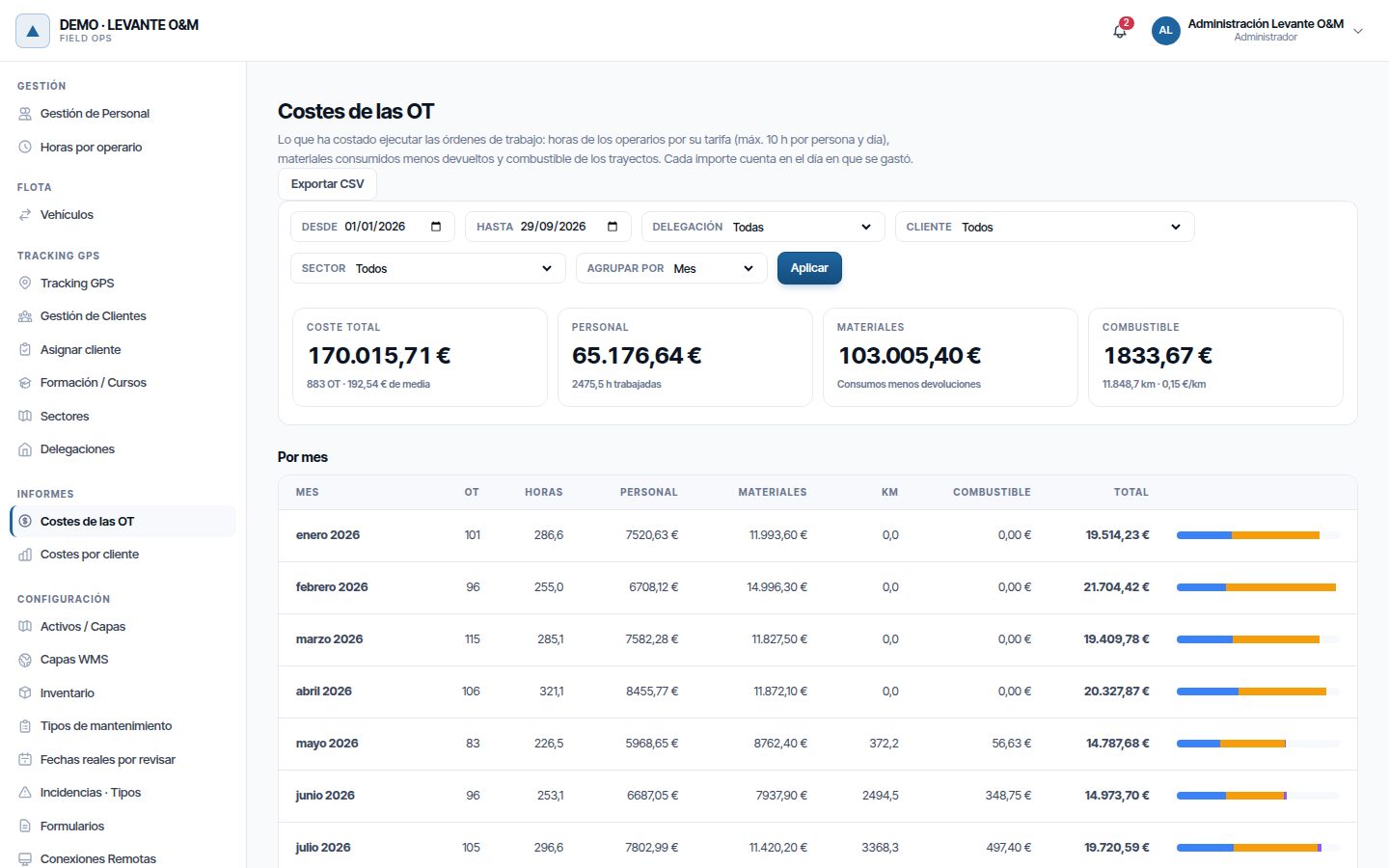
Filters
| Filter | What it does |
|---|---|
| Desde (From) / Hasta (To) | Period. By default, from 1 January to today |
| Delegación (Branch) | Only the WOs of that branch. Shown if you have branches |
| Cliente (Customer) | Only the WOs of that customer. Deactivated customers appear with “(baja)” (deactivated) |
| Sector | Only the WOs of that sector. Shown if you have sectors |
| Agrupar por (Group by) | Mes (Month), Delegación, Cliente, Tipo de tarea (Task type) or Sector |
- Choose the dates and filters.
- Click Aplicar (Apply).
Agrupar por recalculates instantly, without clicking Aplicar. If Desde is later than Hasta, the warning “La fecha ‘Desde’ no puede ser posterior a ‘Hasta’” (The ‘From’ date cannot be later than ‘To’) appears.
Totals
The four boxes at the top summarise the period.
| Box | What it shows |
|---|---|
| Coste total (Total cost) | The sum of everything, with the number of WOs with spending and the average per WO |
| Personal | Labour and hours worked |
| Materiales (Materials) | Consumption minus returns. Only with inventory |
| Combustible (Fuel) | The cost of the trips, the km and the cost per km |
Grouped table
For each month (or branch, customer…), the table gives the OT (WOs), Horas (Hours), Personal, Materiales, Km, Combustible and Total. The bar on the right splits the total by item: blue for staff, amber for materials and violet for fuel.
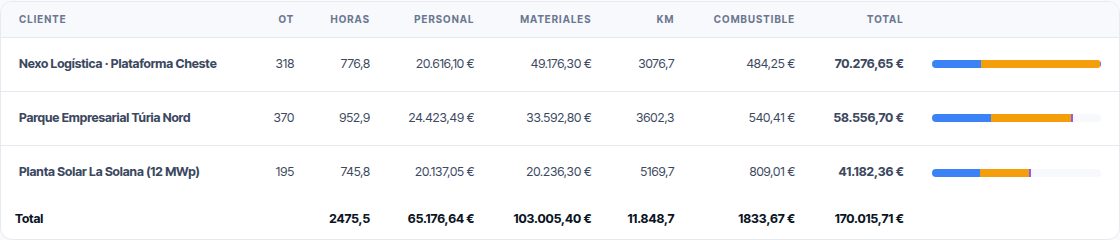
By month, the rows are in date order. With the other groupings, from highest to lowest cost.
Note
In the OT column, a WO that had spending in two months counts in both. The Total row gives the distinct WOs, so it can be lower than the sum of the column.
Order by order
Below, Orden a orden (Order by order) lists each WO with spending in the period, from highest to lowest cost. It gives its task type, customer, branch and status, and the same amount columns.
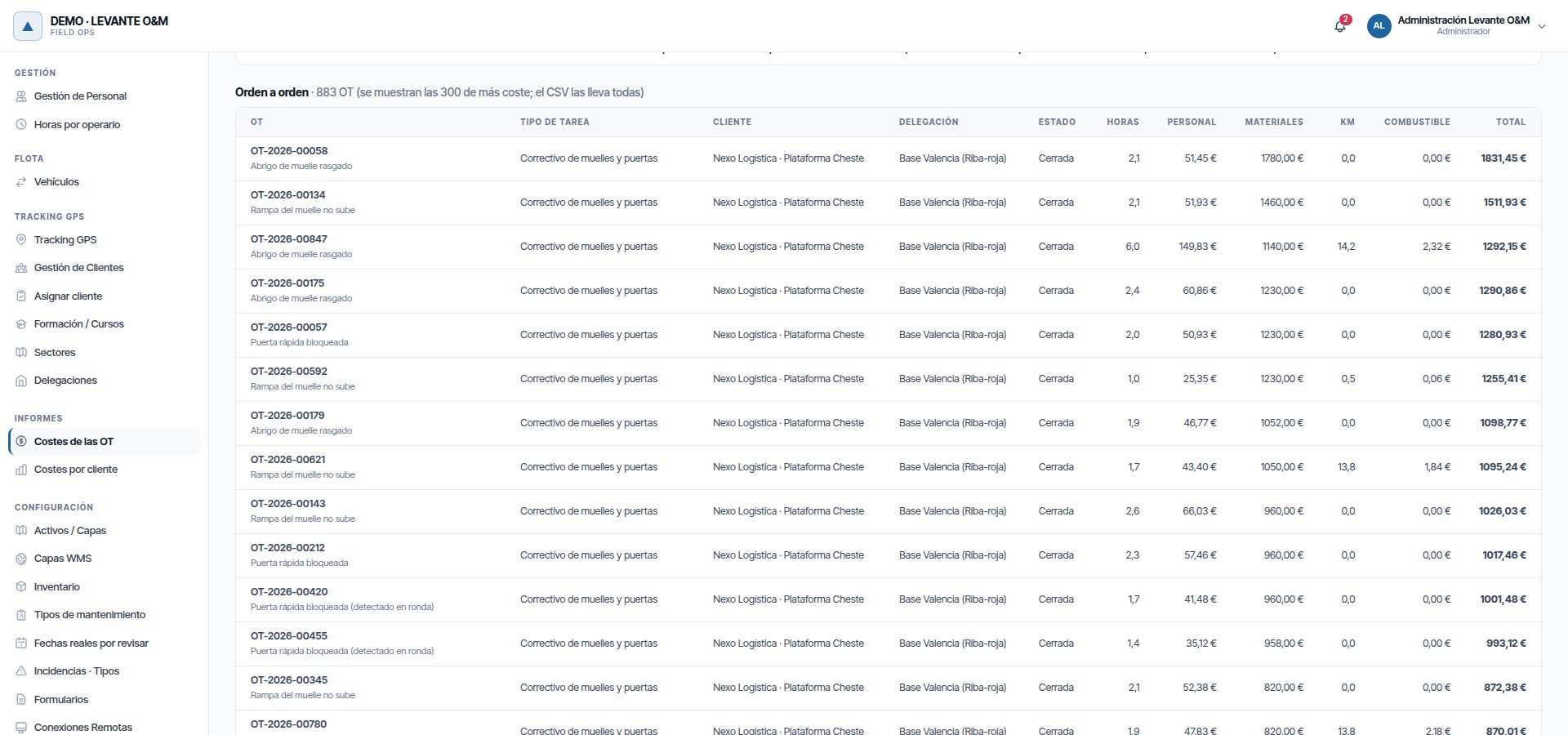
- Click a WO's code to open its record on the map, in another browser tab. That way you do not lose the report.
- The screen shows at most the 300 WOs with the highest cost. The CSV contains them all.
- The ⚠ symbol next to an amount marks incomplete data or hours to review. Hover over it to see the reason.
Incomplete data warnings
If data is missing, an orange warning appears below the totals:
| Warning | What is happening | What to do |
|---|---|---|
| “N OT tienen horas de operarios sin tarifa: esas horas no suman coste.” (N WOs have technician hours without a rate: those hours add no cost.) | Someone who worked has no Coste por hora | Set it on their record. Labour is recalculated automatically |
| “N OT tienen trayectos sin coste de combustible (sin precio del día o sin consumo del vehículo).” (N WOs have trips without fuel cost (no price for the day or no vehicle consumption).) | A trip has no vehicle, consumption or price | Check the assignment, the vehicle's consumption or the fuel price |
| “N OT tienen X h por revisar en el parte de horas…” (N WOs have X h to review in the timesheet…) | There is overtime or days without activity that have not been reviewed | Approve or reject them in Horas por revisar. Once approved, they count automatically |
Each warning counts distinct WOs: a WO with spending in two months counts only once, however you group.
Trips already calculated without a cost are not recalculated when you correct the vehicle or the price. The warning will keep appearing for those WOs.
Exporting to CSV
Exportar CSV downloads one row per WO with the screen's filters. Agrupar por does not apply: the CSV is always WO by WO.
| CSV columns |
|---|
| OT (WO), Título (Title), Estado (Status), Tipo de tarea (Task type), Cliente (Customer) (if you have customers), Delegación (Branch) (if you have branches) |
| Horas (Hours), Mano de obra (€) (Labour), Materiales (€) (Materials), Km, Combustible (€) (Fuel), Total (€) |
| Operarios sin tarifa (Technicians without rate), Trayectos sin coste (Trips without cost): “sí” (yes) if data is missing. Horas por revisar (Hours to review): those that do not count yet |
The file is semicolon-separated with a decimal comma, so that it opens directly in Excel.
Costs by customer
This screen answers how much it costs to serve each customer, period by period, and how it has changed. In the admin area, click Costes por cliente, in the Informes group. It is also in Listados (Lists), in the Costes category.
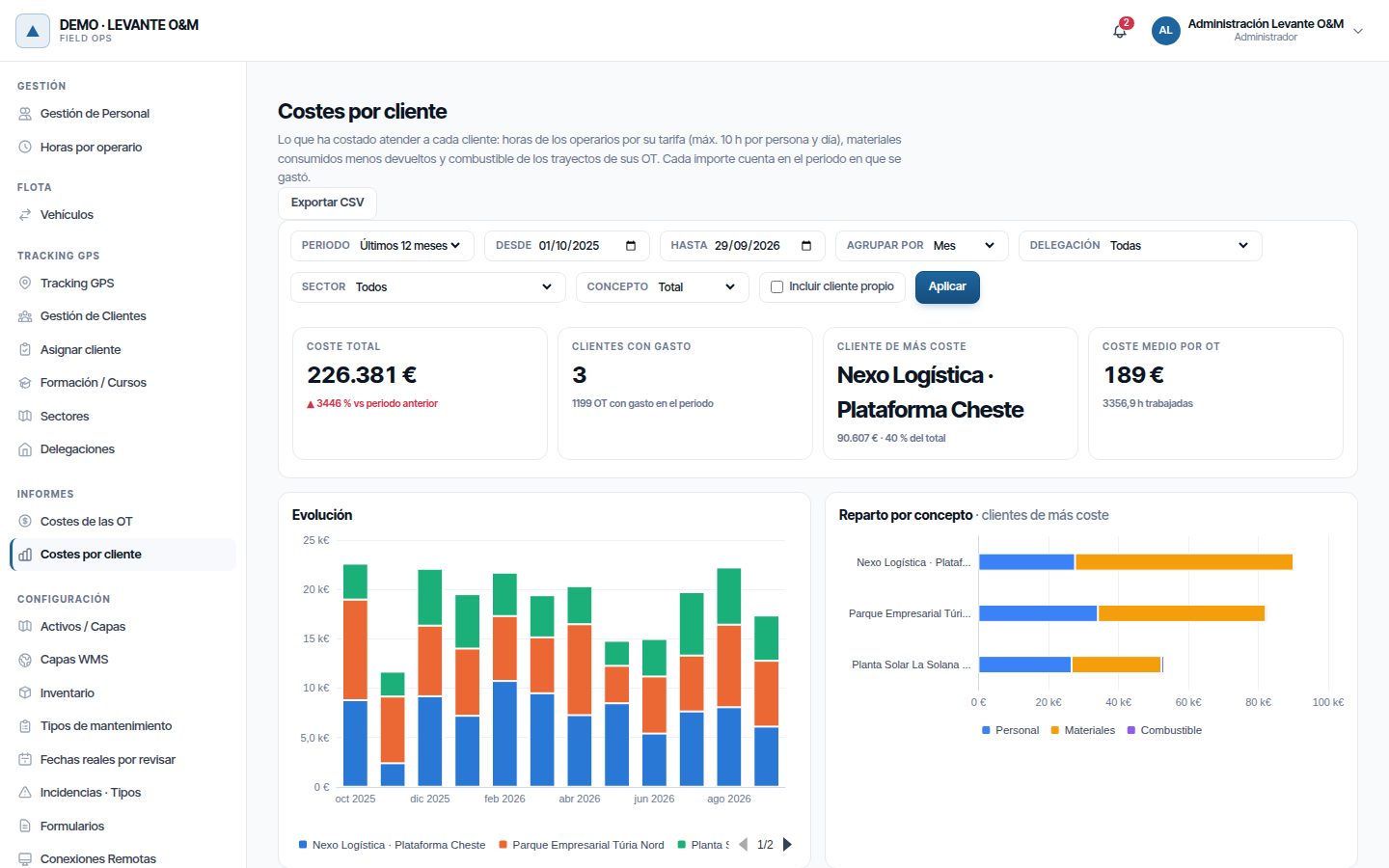
Filters
| Filter | What it does |
|---|---|
| Periodo (Period) | Últimos 12 meses (Last 12 months) (default), Este año (This year), Año anterior (Previous year) or Personalizado (Custom) |
| Desde / Hasta | The dates of the period. When you change them, Periodo switches to Personalizado |
| Agrupar por | Mes, Trimestre (Quarter) or Año (Year): the table columns and the chart bars |
| Delegación, Sector | Only the WOs of that branch or sector |
| Concepto (Item) | Total, Personal, Materiales or Combustible: which amount the indicators, charts and table show |
| Incluir cliente propio (Include own customer) | Also adds the work for your own company. Unticked by default |
Periodo, Agrupar por, Concepto and Incluir cliente propio apply instantly. Dates typed by hand, the branch and the sector need Aplicar.
The own customer is the one that groups your company's internal work (Customers and SLA). In the table it appears with “(propio)” (own) and in grey.
Indicators
| Indicator | What it shows |
|---|---|
| Coste total | What was spent in the period and the change from the previous period |
| Clientes con gasto (Customers with spending) | How many customers had spending and how many WOs they add up to |
| Cliente de más coste (Highest-cost customer) | Its amount and what share of the total it represents |
| Coste medio por OT (Average cost per WO) | The total divided by the WOs, with the hours worked |
The previous period is the one of the same length immediately before. With Últimos 12 meses, it is the 12 months before. Hover over the change to see its dates. For a cost, going up is the bad news: ▲ appears in red and ▼ in green.
Below are the same incomplete data warnings as in WO costs.
Charts
- Evolución (Trend): one bar per period, stacked by customer. The 8 external customers with the highest cost have their own colour; the rest are grouped in “Resto (N clientes)” (Others (N customers)).
- Reparto por concepto (Breakdown by item): one bar per customer (the 10 with the highest cost), split into Personal, Materiales and Combustible.
Hover over a bar to see the amounts. Click a name in the legend to hide or show that customer.
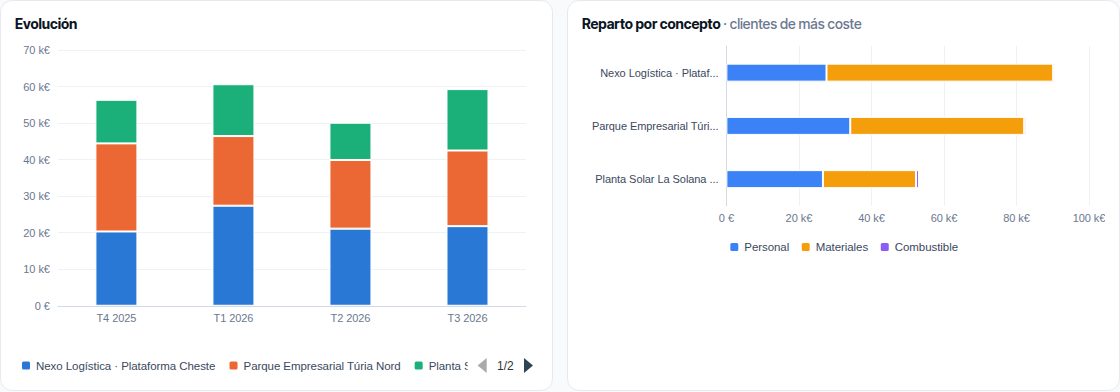
If the charts library does not load, “No se pudo cargar la librería de gráficas. La tabla tiene todas las cifras.” (The charts library could not be loaded. The table has all the figures.) appears.
Customer-by-customer table
The table has one row per customer and one column per period. The darker the background of a figure, the higher the amount.
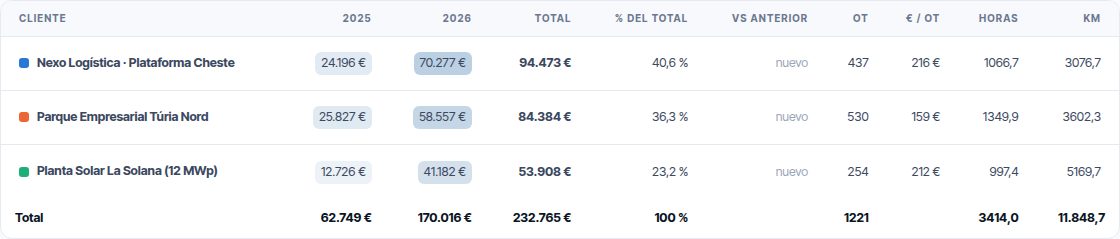
| Column | What it shows |
|---|---|
| Periods | The amount of the chosen Concepto in each month, quarter or year. “—” if there was no spending |
| Total | The customer's amount over the whole period |
| % del total (% of total) | What share of the total it represents |
| vs anterior (vs previous) | Change from the previous period. “nuevo” (new) if there was no spending then |
| OT, € / OT (€ / WO) | WOs with spending and the average cost of each |
| Horas, Km | Hours worked and km of the trips |
Only customers with spending in the chosen Concepto appear. Deactivated customers appear with “(baja)”.
Customer detail
Click a row to see the customer's detail below the table:
- A chart by period, split into Personal, Materiales and Combustible.
- OT de más coste en el periodo (Highest-cost WOs in the period): their 15 most expensive WOs. Click the code to open the record in another tab.
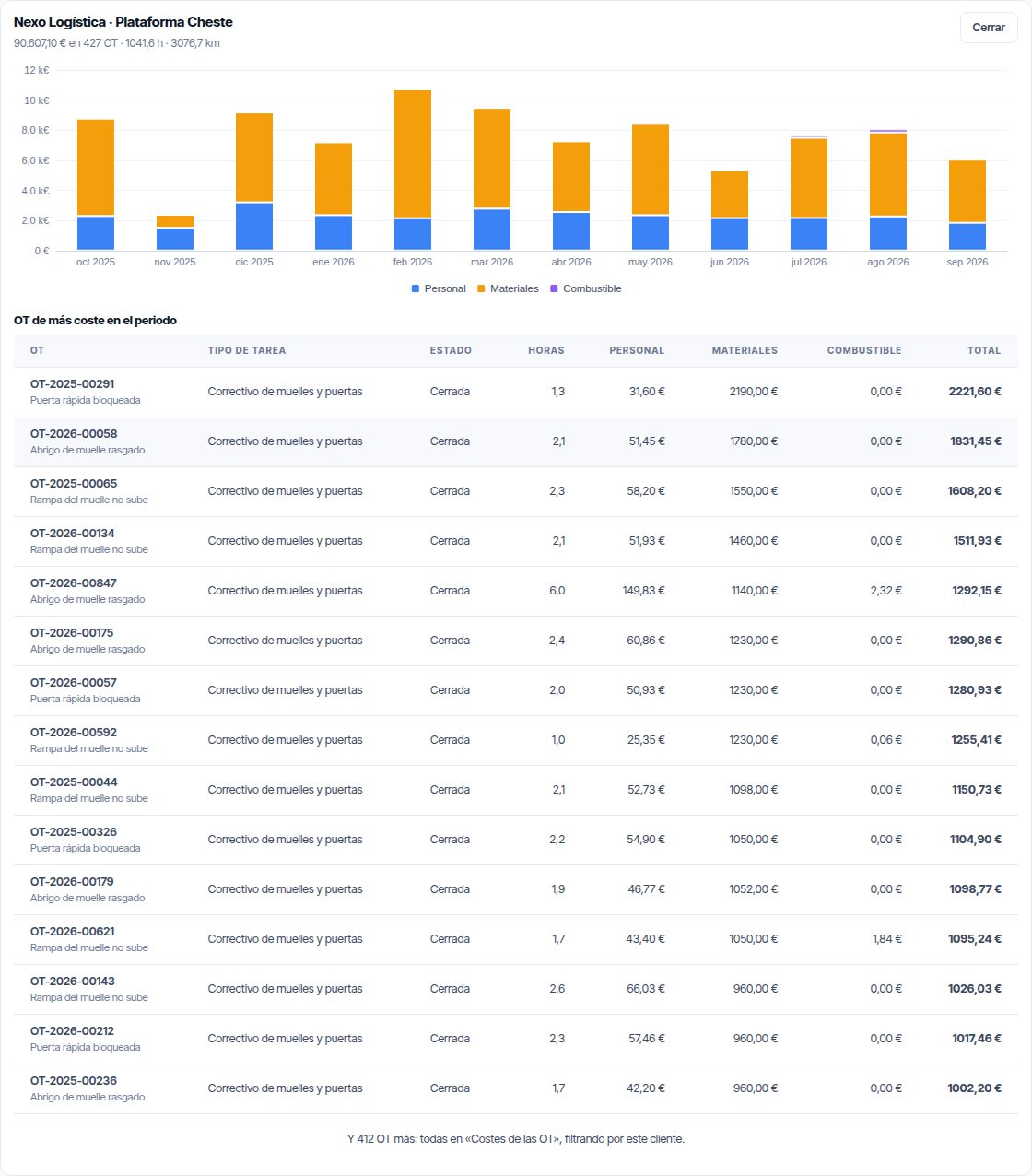
If the customer has more than 15 WOs, it says so: “Y N OT más: todas en ‘Costes de las OT’, filtrando por este cliente.” (And N more WOs: all of them in ‘Costes de las OT’, filtering by this customer.) Click Cerrar (Close) to remove the detail.
Exporting to CSV
Exportar CSV downloads what is on screen: the visible customers, with the chosen Concepto and grouping.
| CSV columns |
|---|
| Cliente (Customer) and Estado (Status) (Alta (Active) or Baja (Deactivated)) |
| One column per period, with the amount of the chosen item |
| Personal, Materiales, Combustible and Total for the whole period |
| Total periodo anterior (Previous period total), OT, Horas, Km |
Actual cost on the WO record
Each WO record has the Coste real section, with everything spent on it, with no date limit. This is explained in Work orders.
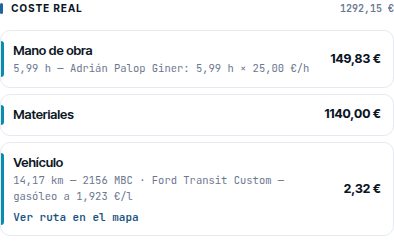
| Line | What it details |
|---|---|
| Mano de obra (Labour) | Total hours and, per person, their hours × their cost per hour. “(sin tarifa)” (no rate) if they do not have one |
| Materiales | What was consumed minus what was returned. If there were returns, “Consumido …, devuelto …” (Consumed …, returned …) |
| Vehículo (Vehicle) | Km, registration and model of the vehicle, fuel and price per litre (or kWh) on the day. With several vehicles, the km of each one |
The Vehículo line only appears if the WO has trips. With Control de flota · Ver, Ver ruta en el mapa (View route on the map) draws the trips.
Note
The record adds up everything spent on the WO. The reports only add what was spent within their dates. A long WO can give less in a report than on its record.
Costs on the dashboard
The dashboard's Costes reales card summarises the same with the dashboard's dates and filters. It has the totals, a chart and a table with OTs (WOs), Mano de obra, Materiales, Km, Vehículo and Total.
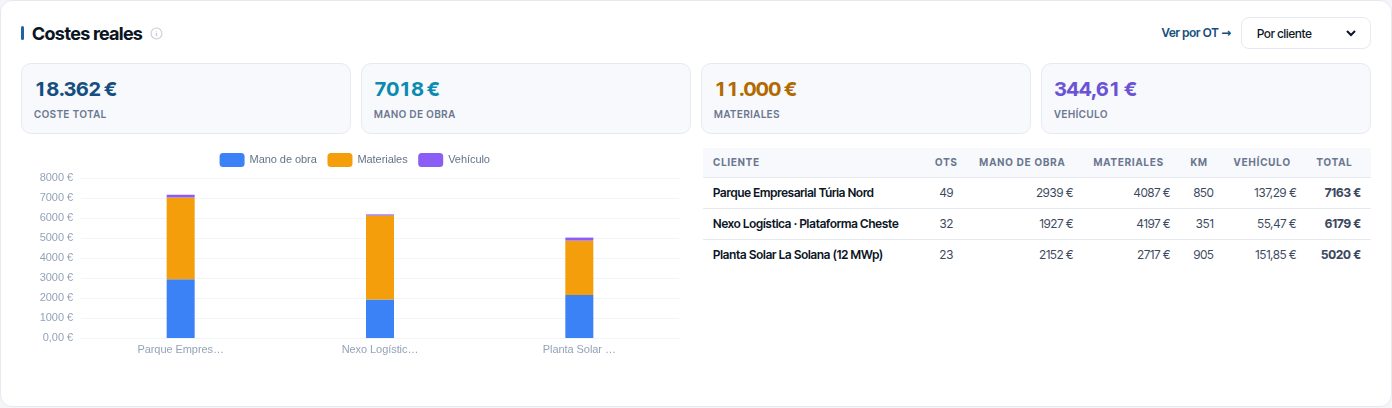
The drop-down groups it Por cliente (By customer), Por tipo de tarea (By task type), Por delegación (By branch), Por sector (By sector) or Por mes (By month). The rest of the dashboard is explained in Dashboard and lists.
Ver por OT → opens Costes de las OT with the dashboard's dates and filters: branch, customer, sector and work on assets or without an asset. That way the figures match the card. A strip above the totals says so: “Filtros del Panel de control aplicados” (Dashboard filters applied), with the period and each filter.
- Quitar filtros del panel (Remove dashboard filters) goes back to the default dates (from 1 January to today) and no filters.
- If you change a filter, the strip disappears: the screen no longer shows the same as the dashboard.
The dashboard's scheduled emails can include costs: tick Incluir los costes reales del periodo (Include the actual costs for the period) (Scheduled emails).
Common problems
| Symptom | Likely cause | Solution |
|---|---|---|
| The Informes group does not appear in the admin area | The Controlamos costes option is disabled or you lack Reportes · Ver or Costes | Enable it in Cómo trabaja tu empresa or check your role |
| Costes de las OT appears but not Costes por cliente | Your company does not have the customers module | See Customers and SLA |
| Labour comes out at zero or very low | Rates are missing, or there are hours to review (the warning appears) | Set the Coste por hora and check Horas por revisar |
| A WO lasting several days adds fewer hours than it was in progress | This is expected: only each person's working day counts; outside it, only what is approved | Check the WO's Parte de horas; if someone worked outside their working day, add it manually or approve the overtime |
| Labour for past months has changed | Someone's Coste por hora was changed | This is expected: labour uses the current rate |
| Fuel comes out at zero | The company does not have fleet and tracking, or there are no trips | See Fleet and GPS tracking |
| There are trips but without a cost | No vehicle assigned, no consumption or no price for that day | Check assignments, consumption and prices. Past trips are not recalculated |
| Materials come out at zero | Items with a Precio coste of zero, or material not consumed | Set the price on the item. What has already been consumed does not change |
| The report gives less than the WO record | The WO has spending outside the report's dates | Widen Desde and Hasta |
| The dashboard card does not match Costes de las OT | It was opened from the menu, or the filters were changed afterwards | Open it with Ver por OT → on the dashboard |
| Neither Coste por hora nor Precio coste appears on the records | The Controlamos costes option is disabled | Enable it in Cómo trabaja tu empresa |
| Costes por cliente does not show a customer | It had no spending in the chosen Concepto, or it is the own customer | Change Concepto to Total or tick Incluir cliente propio |
Last updated: