
Introduction
Every WO has a maintenance type (required), a priority, a status and, almost always, a location: one or more assets, a point on the map or a drawn area. With the customers module, it also belongs to a customer.
The work is split like this:
| Where | What is done |
|---|---|
| Web (office) | Create, assign staff and dates, reschedule, change statuses, validate, close, cancel and review costs and activity |
| Mobile app (field) | Start, pause and complete the WO, fill in forms, take photos, consume material and collect the customer's signature |
What the technician does on the phone reaches the web when it syncs: status changes, actual dates, photos, forms and signatures. The web shows it in the WO record.
Statuses
A WO's statuses are always these. How many are used depends on your company's lifecycle (see below).
| Status | Meaning |
|---|---|
| Pendiente (Pending) | Created and still to be done. Every WO starts in this status |
| En Curso (In progress) | The technician is working on it |
| Pausada (Paused) | Started and stopped; it can be resumed |
| Completada (Completed) | The technician has finished |
| Validada (Validated) | A supervisor has reviewed the work |
| Cerrada (Closed) | Final, satisfactory closure. This is the billable status |
| Cancelada (Cancelled) | Closed without doing the work. It cannot be undone |
Assigning is not a status. A WO is assigned when it has staff, whatever its status. An open WO with nobody on it shows “Sin asignar” (Unassigned) on its card.
Company lifecycle
The number of steps to close a WO depends on the profile chosen in Configuración General (General settings) → Cómo trabaja tu empresa (How your company works):
| Profile | Cycle | How a WO is closed |
|---|---|---|
| Esencial (Essential) | Simple | Pendiente → En Curso → Cerrada. There is no Completada or Validada |
| Profesional (Professional) | Supervisado (Supervised) | En Curso → Completada → Cerrada. There is no intermediate validation |
| Avanzado (Advanced) | Completo (Full) | En Curso → Completada → Validada → Cerrada |
Pausada and Cancelada exist in every cycle. The application only offers the status changes that are valid for your cycle; the server rejects any other. In the supervised cycle, the map counter “Por validar” (To validate) is called “Por cerrar” (To close), and in the simple cycle it does not appear.
Priorities
| Priority | Effect |
|---|---|
| Baja, Media, Alta (Low, Medium, High) | Used to sort, filter and colour the map |
| Urgente (Urgent) | In addition, when the WO is created the person in charge receives an “Orden de Trabajo Urgente” (Urgent work order) notification instead of the normal “Nueva Orden de Trabajo” (New work order) notification |
Maintenance types
The maintenance type is required on every WO. It defines the tasks that can be ticked, the estimated duration, the forms that are suggested and, where applicable, whether it asks for a signature. Types and their tasks are configured in the administrator; this is explained in Preventive maintenance and maintenance types.
Due date and SLA
Every WO has three dates and, if there is a service agreement, a time limit:
- Inicio previsto (Planned start) and Fin previsto (Planned end): the time slot in which the work is planned. They change when planning, by hand or with the optimiser.
- Fecha límite (Deadline): the one requested by the customer or the contract. It is optional and planning never moves it.
- Plazo de resolución del SLA (SLA resolution deadline): Maptainer calculates it when the WO is created, based on the criticality and on the service agreement of the customer, of the company or the general one. The card shows “SLA en N h” (SLA in N h) when it is at risk and “SLA incumplido” (SLA breached) when it has passed.
A WO's due date is its deadline; if it has none, the SLA resolution deadline; and if it has neither, its planned end. This is what marks it as overdue in the calendar, in the Vencidas (Overdue) and Vencen hoy (Due today) counters, in the dashboard and in the portal.
The card warns with “Vence hoy” (Due today), “Vence en N días” (Due in N days) (up to 3) or “Vencida hace…” (Overdue by…). That warning looks at the deadline or, if there is none and the WO has no SLA, at the planned end. When the SLA governs, its own pill already warns.
Due-date and SLA warnings disappear when the WO is completed, validated or closed. Service agreements are configured as explained in Customers and SLA.
Prerequisites
Work orders require the maintenance module to be contracted. Without it, neither the Órdenes de trabajo (Work orders) tab nor the day counter above the map appear.
Permissions
The permissions are in Gestión de Roles y Permisos (Role and permission management), group Mantenimiento (Maintenance).
| Permission | What it allows on WOs |
|---|---|
| Ver (View) | View the list, the map and the record |
| Crear (Create) | Create WOs, including assigning staff when creating them |
| Editar (Edit) | Edit, assign staff, move to En Curso, Pausada or Pendiente, reschedule and use multiple selection |
| Eliminar (Delete) | Cancel WOs, one by one or in bulk |
| Cerrar (Close) | Complete, validate and close. Also revert a geofence start and correct actual dates |
This is how each tenant's roles come by default:
| Role | Ver | Crear | Editar | Eliminar | Cerrar |
|---|---|---|---|---|---|
| Administrador (Administrator) | Yes | Yes | Yes | Yes | Yes |
| Supervisor | Yes | Yes | Yes | Yes | Yes |
| Técnico (Technician) | Yes | Yes | Yes | No | No |
| Solo Lectura (Read only) | Yes | No | No | No | No |
| Almacén (Warehouse) | Yes | No | No | No | No |
Other permissions that show in the record: Coste real (Actual cost) requires Reportes (Reports) · Ver and Costes (Costs), and the company must track costs; seeing GPS positions in the activity requires permission to view staff.
Permissions in the app
What the technician sends from the app is checked against the same permissions of their role:
| From the app | Requires |
|---|---|
| Set the WO to Pendiente, En Curso, Pausada or Completada | Editar |
| Validate or close it | Cerrar |
| Cancel it | Eliminar |
| Reopen a Completada, Validada or Cerrada WO | Cerrar |
| Record the material consumed | Inventario (Inventory) · Movimientos (Movements) |
A signed WO can no longer be modified from the app, except to complete or close it. The asset and meter reading permissions the app requires are explained in Assets and Reading batches.
If something is rejected, the app shows the error for that record and the rest is saved. With the default roles, the Técnico completes their WOs but does not validate or close them. If in your company technicians must close WOs from the app, the administrator ticks Cerrar under Mantenimiento for the Técnico role (see Change a role's permissions).
“Cómo trabaja tu empresa” options
| Option | What changes in WOs |
|---|---|
| Trabajamos con equipos (We work with teams) | Equipos de trabajo (Work teams) appears in the form |
| Gestionamos almacén de materiales (We manage a materials warehouse) | Materiales (Materials) appears in the form and in the cost |
| Controlamos competencias y certificaciones (We track skills and certifications) | A warning is shown if the staff do not cover the trades or training required by the tasks |
| Usamos formularios de campo (We use field forms) | Forms are suggested according to the maintenance type |
| Programamos mantenimiento preventivo (We schedule preventive maintenance) | Recurrencia (Recurrence) appears in periodic maintenance types |
| Controlamos costes (We track costs) | The Coste real section appears in the record |
The profile also sets which fields are required when creating: in Esencial none apart from the title and the type; in Profesional and Avanzado, at least one person in charge.
The work orders panel
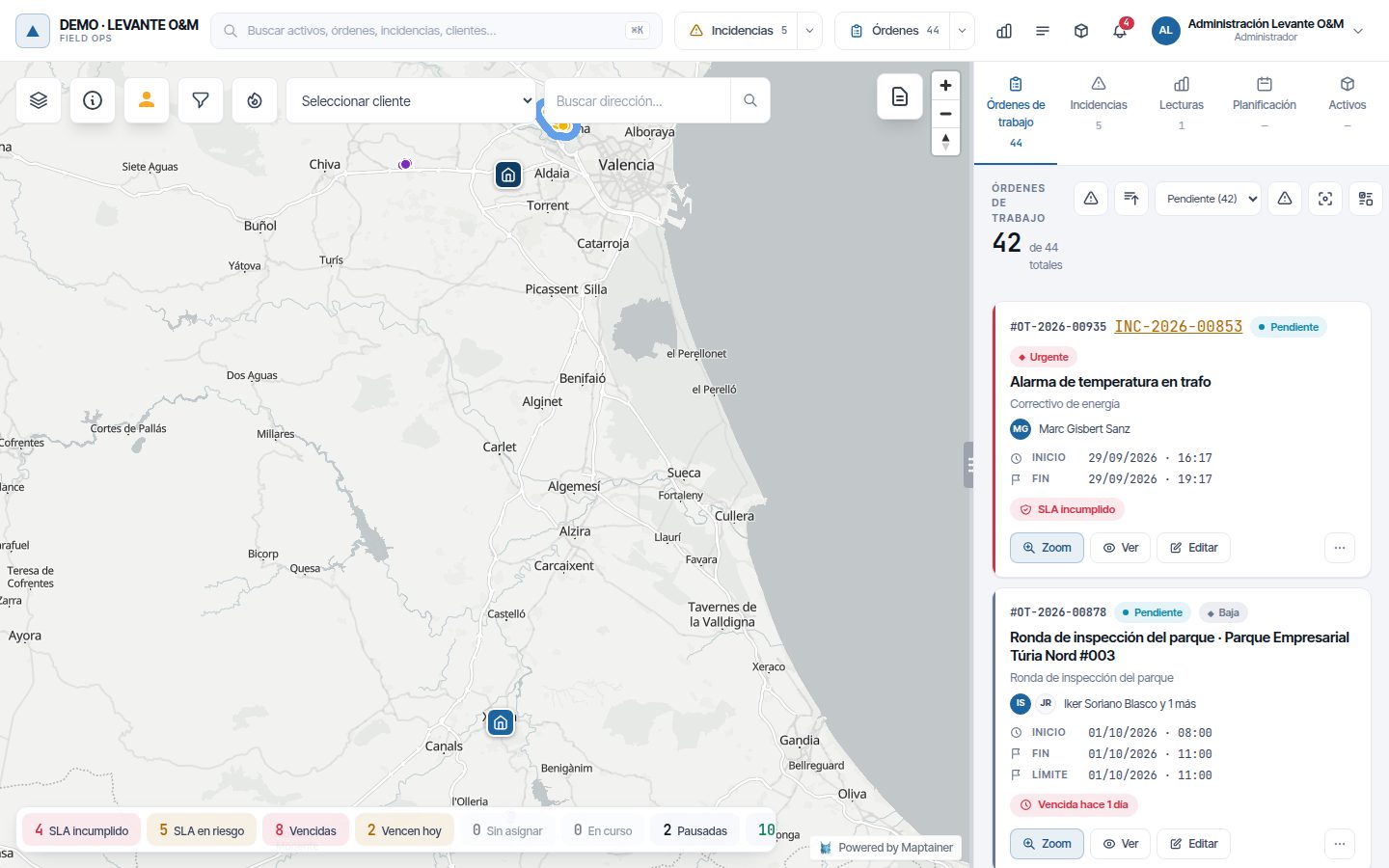
The panel opens with the Órdenes de trabajo tab in the right-hand panel. It shows active WOs (Pendiente, En Curso and Pausada) as cards; when you open the application, only the pending ones are shown.
Header, filters and sorting
The header shows how many WOs match the filter and how many there are in total (“35 de 38 totales”, i.e. 35 of 38 in total). The buttons, from left to right:
| Button | What it does |
|---|---|
| Ordenar por criticidad (Sort by criticality) | Sorts by priority. Each click reverses the order |
| Ordenar por fecha (Sort by date) | Sorts by date. Each click reverses the order |
| Status selector | Todos (All) or a specific status, with the number of WOs in each |
| Pausadas — necesitan revisión (Paused — need review) | Shows only the WOs that have been paused for more days than allowed. The number shows how many there are |
| Solo lo visible en el mapa (Only what is visible on the map) | Limits the list to the area of the map you have on screen and updates when you move it |
| Seleccionar varias (Select several) | Enters multiple selection (see Multiple selection and bulk actions) |
| Buscar (Search) | Opens a search box by title, code or description |
| Orden (Order) | Opens the new WO form |
The map filters (status, priority, task type, dates, person in charge, staff and customer) also apply to the list; they are explained in The map. When filters are active, Limpiar filtros (Clear filters) appears. The list loads 50 WOs at a time and fetches more when you reach the end.
Day counters
Above the map there is a strip of counters: SLA incumplido, SLA en riesgo (SLA at risk), Vencidas, Vencen hoy, Sin asignar, En curso (In progress), Pausadas (Paused), Revisar (Review) and Por validar. Clicking one filters the map and the list at the same time. The SLA counters and Revisar only appear when they are not zero.
The card
Each card shows the code, the status, the priority, the title, the maintenance type and the customer (or the address). Below are the assigned staff (the person in charge, marked), the Inicio (Start) and Fin (End) dates (planned), Límite (Deadline) if it has a deadline, and the due-date and SLA warnings. If the WO resolves an incident, the incident's code appears next to the WO's code and opens the incident.
| Button | What it does |
|---|---|
| Zoom | Centres the map on the WO's assets, point or area and highlights them |
| Ver | Opens the record. It also opens when you click the card |
| Editar | Opens the edit form |
| ⋯ | Opens the actions menu |
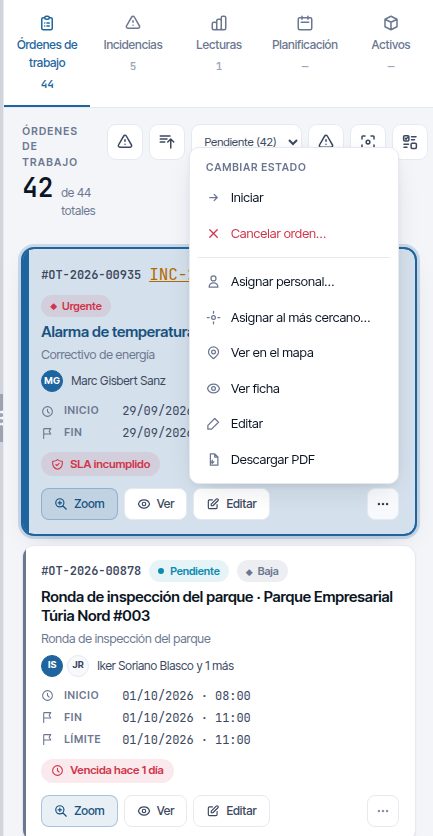
The ⋯ menu
The menu first shows Cambiar estado (Change status) with the changes your cycle and your permissions allow. The labels depend on where the WO comes from:
| Option | Change |
|---|---|
| Iniciar / Reanudar / Reabrir (Start / Resume / Reopen) | To En Curso from Pendiente, Pausada or a closing status |
| Pausar (Pause) | From En Curso to Pausada |
| Devolver a pendiente (Return to pending) | From En Curso to Pendiente |
| Completar (Complete) | To Completada. Asks for confirmation |
| Validar (Validate) | To Validada. Asks for confirmation |
| Quitar validación (Remove validation) | From Validada to Completada. Asks for confirmation |
| Cerrar | To Cerrada. Asks for confirmation |
| Cancelar orden… (Cancel order…) | To Cancelada. Asks for the reason |
Then come the shortcuts:
- Asignar personal… (Assign staff…): on Pendiente, En Curso or Pausada WOs. See Assign staff.
- Asignar al más cercano… (Assign to the nearest…): on Pendiente or Pausada WOs, when dispatch is available. This is explained in Planning and dispatch.
- Ver en el mapa (View on the map), Ver ficha (View record), Editar and Descargar PDF (Download PDF).
Create a work order
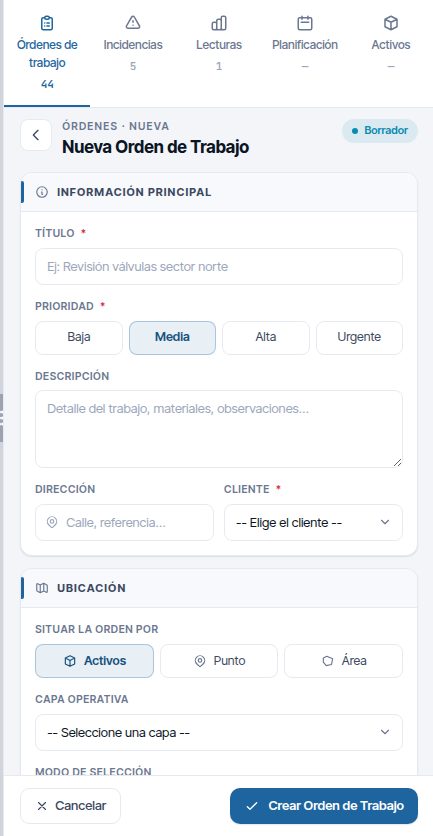
There are several ways to start a WO. They all open the same form, Nueva Orden de Trabajo (New work order), in the right-hand panel:
- The Orden button in the WO panel.
- Right-click on the map → Nueva orden aquí (New order here) or, on an asset, Nueva orden para este activo (New order for this asset).
- The Crear OT (Create WO) button of an incident (see From an incident).
- The planning calendar, when you choose a free slot (see Planning and dispatch).
The form has six sections: Información Principal (Main information), Ubicación (Location), Tipo de Trabajo (Type of work), Planificación (Planning), Equipo de Trabajo (Work team) and Recursos (Resources). Every new WO starts as Pendiente.
Main information
| Field | What it is for |
|---|---|
| Título (Title) (required) | What everyone will see on the card. Up to 255 characters |
| Prioridad (Priority) (required) | Baja, Media, Alta or Urgente. Media by default |
| Descripción (Description) | Details of the work |
| Dirección (Address) | Free text with the street or a reference |
| Cliente (Customer) (required with the customers module) | Who the work is done for. For internal work, choose your company's own customer |
Location
In Situar la orden por (Locate the order by) you choose what places the WO on the map:
| Mode | How it is used |
|---|---|
| Activos (Assets) | Choose the Capa Operativa (Operational layer) and click Puntual (Single) (click on each asset) or Poligonal (Polygon) (draw a zone and the assets inside are added). The chosen ones appear in Seleccionados (Selected); Limpiar (Clear) removes them |
| Punto (Point) | Click Clic en el mapa para ubicar (Click on the map to locate) and click where the work is. Cambiar ubicación (Change location) moves it |
| Área (Area) | Click Dibujar el área en el mapa (Draw the area on the map): click on each vertex, double-click or press Enter to finish, Backspace removes the last one and Esc cancels. Minimum 3 vertices and 50 km² at most |
With Punto or Área, assets become optional (Activos (opcional) (Assets (optional))) and can still be added. The WO marker goes on the point or the area even if it has assets, and the geofence takes them into account.
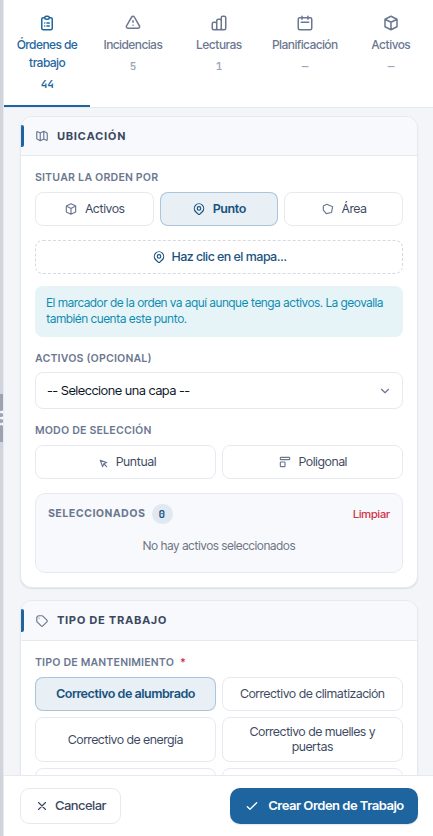
If you choose Punto or Área and do not mark it, “Falta la ubicación” (Location missing) appears when you save. If your company requires a location and there is no asset, point or area, “Ubicación requerida” (Location required) appears.
Type of work
- Choose the Tipo de mantenimiento (Maintenance type) (required).
- In Tareas a realizar (Tasks to perform), tick the tasks of that type that have to be done.
- In Formularios asociados (Associated forms), review the forms suggested according to the type, the tasks and the assets. Leave ticked the ones the technician will have to fill in. Mandatory ones come ticked and cannot be unticked, nor can those that already have responses. Forms are configured in Forms.
When you choose the type, the trades and training required by its tasks also appear, if your company tracks them.
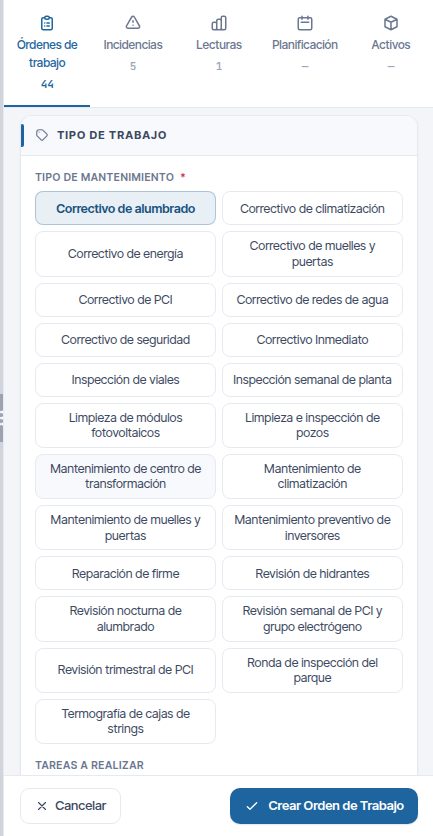
Long names take up two lines inside the button. If you hover the mouse over it, you can see the full name.
Planning
| Field | What it is for |
|---|---|
| Inicio previsto | When the work is planned to start, in the time zone of the WO's branch |
| Fin previsto | When the work is planned to finish. It cannot be earlier than the planned start |
| Fecha límite (opcional) (Deadline (optional)) | The one requested by the customer or the contract. Without a time, it counts until the end of the working day |
| Duración estimada (min) (Estimated duration (min)) | Filled in automatically with the type's estimate (the note next to it says where it comes from: tasks, actual history, type estimate). It can be changed, up to 1,440 minutes |
When you set the planned start, the planned end is calculated automatically from the duration. If you change the planned end by hand, the duration becomes the difference between the two dates. If the end falls before the start, “El fin previsto no puede ser anterior al inicio previsto.” (The planned end cannot be earlier than the planned start.) appears. The dates must fall on your company's working days and hours: otherwise a warning appears when you choose them and it will not let you save.
Planned start and planned end are the planning: they are changed by this form, the calendar, the Por despachar (To dispatch) queue, bulk actions and the optimiser. The Fecha límite only changes if you edit it yourself. That is why it tells you whether the WO will be on time even if you replan it.
With the planning module, two aids appear:
- Planificar esta OT (equipo u operario apto más cercano) (Plan this WO (nearest suitable team or technician)): suggests a date and staff. Only on pending WOs.
- Sugerir próxima fecha disponible (Suggest next available date): looks for the first free slot of the chosen persons in charge in the next 30 days. It appears when there is a person in charge.
Recurrencia only appears with periodic maintenance types. It turns the WO into a schedule that repeats; this is explained in Preventive maintenance and maintenance types.
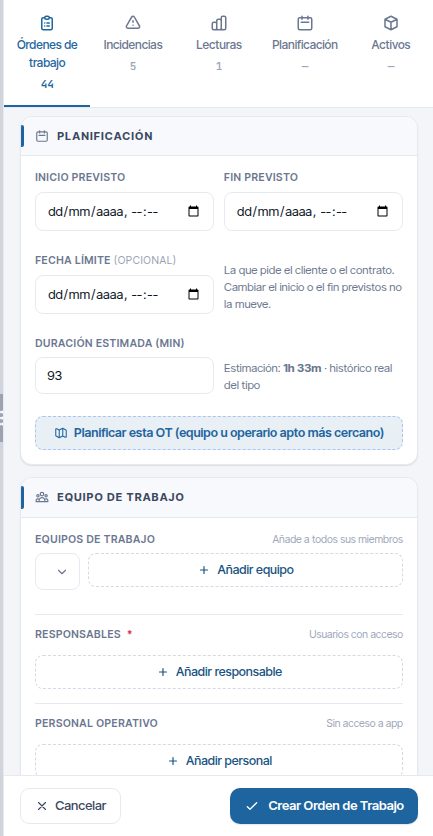
Work team
| Field | What it is for |
|---|---|
| Equipos de trabajo | Choose a team and click Añadir equipo (Add team): all its active members are added |
| Responsables (Persons in charge) | Añadir responsable (Add person in charge). Only people with an app user appear. Required if your company demands it |
| Personal Operativo (Operational staff) | Añadir personal (Add staff). Any worker, whether or not they have access to the app |
With the type, assets and date chosen, Técnicos recomendados (Recommended technicians) appears, with the most suitable candidates. If someone is not available on those dates (shift, absence or another WO), they appear in Conflictos de disponibilidad (Availability conflicts). The warnings do not prevent saving.
Resources
- Materiales: Añadir material (Add material), search for the item and enter the Cantidad planificada (Planned quantity). Planning does not deduct stock: it is deducted when the material is consumed. This is explained in Inventory and warehouses.
- Documentación (Documentation): Añadir archivo (Add file) with Título del documento (Document title), Descripción (opcional) (Description (optional)) and Archivo (File) (PDF, image, Word, Excel or text).
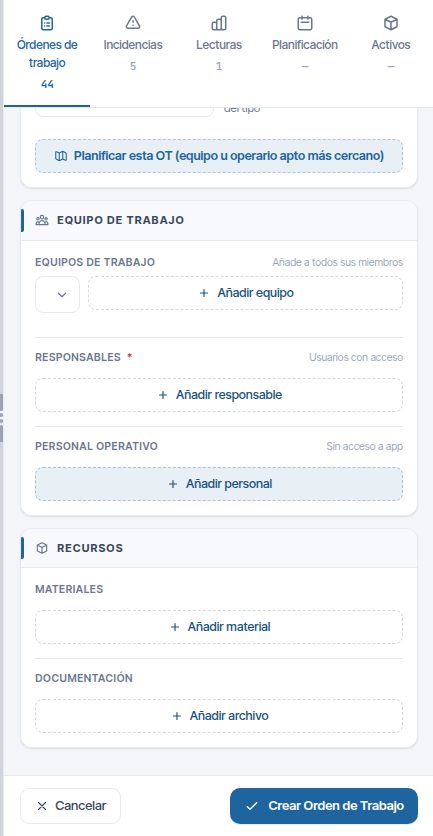
Save
Click Crear Orden de Trabajo (Create work order). If something required is missing, the reason appears (“Debes seleccionar un tipo de mantenimiento” (You must select a maintenance type), “Responsable requerido” (Person in charge required)…). After saving, two warnings may appear that do not undo anything:
- Avisos de Stock (Stock warnings): the material requested exceeds the stock or leaves it below the minimum. The WO is saved anyway.
- Avisos de Cualificación (Qualification warnings): the assigned staff do not cover some trade or training required by the tasks. The training must be valid on the day of the Inicio previsto (without a date, today).
If the WO is saved but the Recurrencia or the upload of a Documentación file fails, “La orden se ha guardado, pero no todo” (The order has been saved, but not everything) appears. It says what failed and why (for example, “el archivo es demasiado grande” (the file is too large) or “no tienes permiso para esta acción” (you do not have permission for this action)). Open it with Editar and try again.
Cancelar (Cancel) closes the form without saving and without asking.
From an incident
In an incident's record, Crear OT opens the form already filled in with the title, the description, the address, the customer, the asset (or the point or area) and a priority based on the criticality. At the top, “Se vinculará a la incidencia…” (It will be linked to the incident…) appears.
- With the customers module, an incident without a customer cannot be converted into a WO: “Incidencia sin clasificar” (Unclassified incident) appears.
- An incident can only have one WO that resolves it.
- If the WO is created but the link fails, “OT creada, pero sin vincular” (WO created, but not linked) appears with Reintentar (Retry).
The rest of incident management is in Incidents.
Edit a work order
Click Editar on the card, in the ⋯ menu, or Editar orden (Edit order) in the record. Editar Orden de Trabajo (Edit work order) opens with the data loaded. Change what you need and click Guardar cambios (Save changes).
- Completada, Validada, Cerrada and Cancelada WOs cannot be edited or cancelled. On them, Editar and Cancelar orden do not appear. A Completada or Validada WO can only change status; to correct it, reopen it and return it to En Curso.
- If another person or another tab has saved the WO while you were editing it, the save is rejected with “Otra persona u otra pestaña ha guardado esta orden de trabajo mientras la editabas…” (Another person or another tab has saved this work order while you were editing it…). Open it again and repeat the changes.
- Changing the planned materials does not move stock; only what is consumed counts.
- If you change the customer of a WO that comes from an incident, you are offered to change the incident's customer as well.
Assign staff
Assigning staff does not change the status. Staff can be assigned on any Pendiente, En Curso or Pausada WO.
- In the ⋯ menu, click Asignar personal…. Asignar orden de trabajo (Assign work order) opens.
- Check Fecha de inicio (Start date) and Fecha de fin (End date) (required).
- Click Cargar personal disponible (Load available staff). The list marks each person as Recomendado (Recommended), Disponible (Available), Sin comprobar turno (Shift not checked) or No disponible (Not available) (with the reason). Those not available cannot be ticked.
- Tick the Personal operativo and click Asignar (Assign).
The ticked staff replace the operational staff the WO had. The persons in charge do not change. To change the person in charge, use Editar.
Assignment by dragging in the calendar, dispatch and the optimiser are explained in Planning and dispatch.
Multiple selection and bulk actions
Multiple selection applies the same action to many WOs at once. It requires the edit permission.
- Click Seleccionar varias in the panel header.
- Tick the WOs: - by clicking their cards or their points on the map; - by dragging a rectangle over the map (while the selection lasts, dragging does not move the map); - with Todas las del listado (All in the list). Ninguna (None) unticks them all.
- Choose the action in the bottom bar.
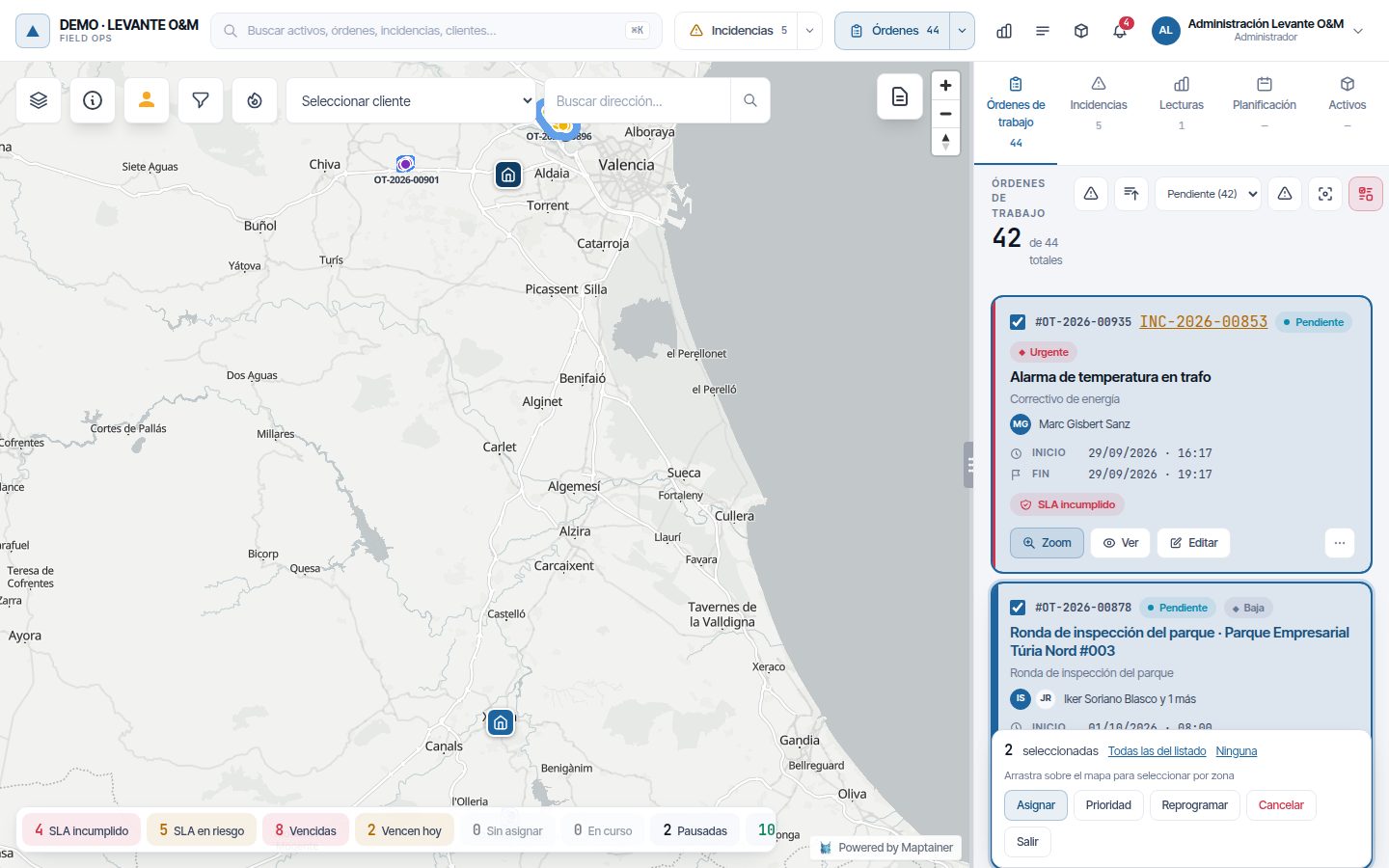
| Action | What it does |
|---|---|
| Asignar | Assigns the ticked staff. In the Resp. column you can mark a person in charge; if you mark none, each WO keeps its own. If any pending WO has no dates, you can enter Inicio and Fin (planned) for all of them. It does not work for finished or cancelled WOs |
| Prioridad | Sets the same priority on all of them |
| Reprogramar (Reschedule) | Changes Inicio, Fin or both. The time is each WO's local time; whatever you leave empty does not change |
| Cancelar | Cancels all of them with the same reason. Only with the delete permission. It cannot be undone |
| Salir (Exit) | Exits the selection. Also with Esc |
Each WO is processed separately, with the same rules as one by one. If any fails, a list appears with the code and the reason, and the ones that failed stay selected so you can review them. At most 200 WOs are processed per action.
The work order record
The record opens with Ver or by clicking the card. The header shows the code, the title, the status, the priority and the customer. It has four tabs: Info, Formularios (Forms), Fotos (Photos) and Actividad (Activity).
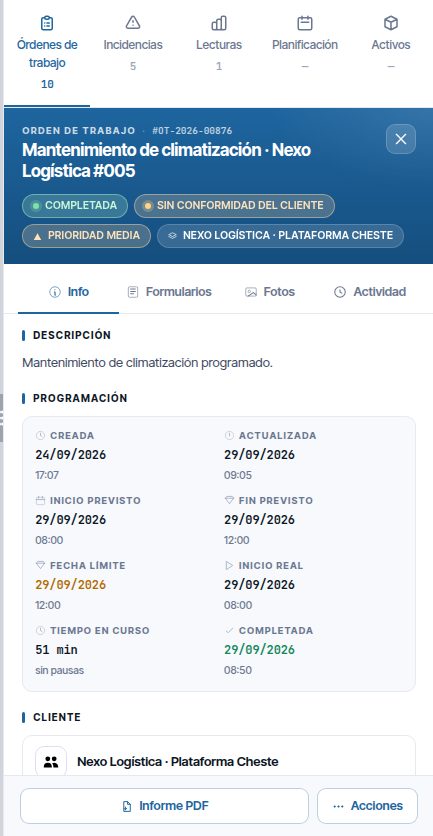
Info tab
| Section | What it shows |
|---|---|
| Descripción and Dirección | What was written when it was created |
| Programación (Schedule) | Creada (Created), Actualizada (Updated), Inicio previsto, Fin previsto and, if it has one, Fecha límite. When there is actual work, also Inicio real (Actual start), Tiempo en curso (Time in progress) (with the number of stretches or “sin pausas” (without pauses)) and Completada |
| Cliente and Tipo de Mantenimiento | Those of the WO |
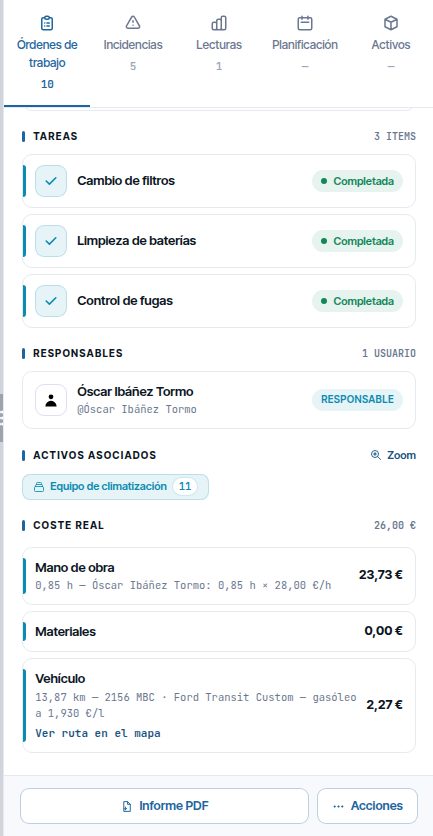
| Tareas (Tasks) | Each task with its status: Pendiente, En Progreso (In progress) or Completada |
| Responsables and Personal Operativo | Who is assigned and how much time in progress the WO has accumulated. Parte de horas (Timesheet) opens each person's hours per day (see below) |
| Activos asociados (Associated assets) | How many assets from each layer, with Zoom |
| Materiales | What is planned (“PLAN”) and what is used (“USADO”, used) for each item |
| Formularios asociados | The forms the technician must fill in. Mandatory ones carry * and say whether they are still to be completed: without them the WO cannot be completed, validated or closed. The responses are in the Formularios tab |
| Documentación | The files added to the WO. Click one to open it |
| Coste real | Labour, materials and vehicle (see below) |
Dates are shown in the time zone of the WO's branch, even if someone views it from another zone.
Actual cost
The Coste real section appears if your company tracks costs and your role has Reportes · Ver and Costes. It adds up:
- Mano de obra (Labour): each person's timesheet multiplied by their hourly rate.
- Materiales: what was consumed minus what was returned.
- Vehículo (Vehicle): road kilometres to the WO and fuel at each day's price. With fleet tracking, Ver ruta en el mapa (View route on the map) draws the journeys (departure in green, arrival in red).
Below, warnings appear if there are hours without a rate, hours to review in the timesheet or journeys without a fuel cost. Costs by period and by customer are explained in Costs and reports.
Timesheet
The duration of the WO is not its labour. Parte de horas, in the Personal Operativo header, shows each person's hours day by day: the WO's time in progress trimmed to their working day. Anything outside working hours with signs of work appears as hora extra por revisar (overtime to review) and does not count until it is approved. How it is built, with an example, is in Costs and reports.
With Personal (Staff) · Editar you can Aprobar (Approve) or Rechazar (Reject) what is pending, Corregir (Correct) a time slot, Quitar (Remove) hours and Añadir horas a mano (Add hours manually), for example for someone who worked without the app. Anything reviewed or entered by hand stays fixed; Recalcular día (Recalculate day) returns it to the automatic calculation. Everything pending across all WOs is in Horas por revisar (Hours to review), in the administrator menu.
Forms and Photos
Formularios shows the responses the technician has sent from the app. It does not appear for system maintenance types that do not carry forms. Fotos shows the WO's photographs; clicking one opens the gallery, which you browse with the arrows.
Activity tab
The Actividad tab tells you what has happened to the WO. It reloads every time you open it.
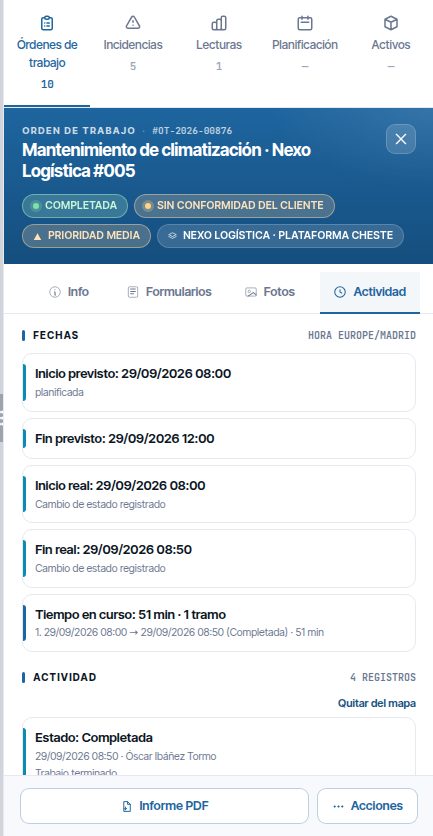
The Fechas (Dates) block shows the Inicio previsto and the Fin previsto, the arrival detected by the geofence, and the actual start and end with their source. Tiempo en curso adds up the stretches between each start or resumption and the next pause or closure, without counting pauses or nights.
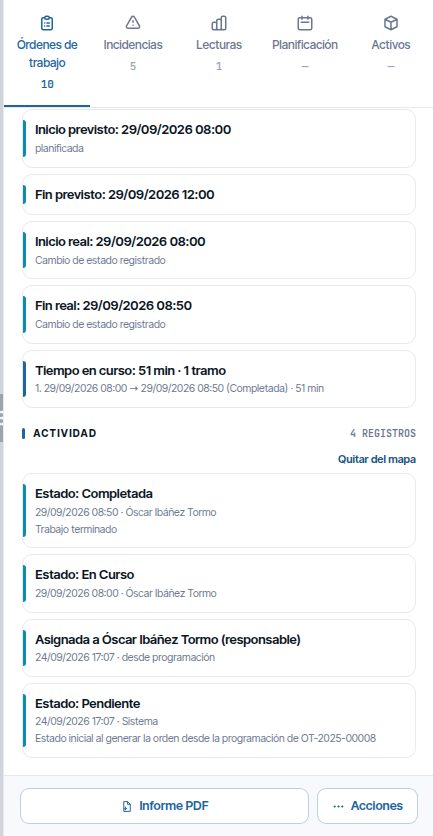
The Actividad block is the timeline, from most recent to oldest:
| Entry | What it indicates |
|---|---|
| Estado: … (Status: …) | Each status change, with who made it and the note. “Aceptó el aviso de geovalla” (Accepted the geofence alert) if the technician started it from the arrival alert |
| Llegada a la zona / Salida de la zona (Arrival in the zone / Departure from the zone) | What the geofence detected, with the technician, the GPS points, the distance and the accuracy |
| Asignada a … / Retirada a … (Assigned to … / Removed from …) | Staff changes, with who and from where (form, list, bulk action, dispatch, planner, schedule) |
| Pausa automática (Automatic pause) | The WO was paused when the technician's working day ended |
| Requiere revisión / Sin posiciones GPS (Requires review / No GPS positions) | The WO has been paused for too long, or is in progress without the phone sending positions |
| Inicio automático revertido (Automatic start reverted) | Someone undid a geofence start |
Geofence: arrival and departure
With staff tracking contracted, Maptainer detects when an assigned technician arrives in the WO's zone (less than 200 m from an asset, the point or the area) and when they leave.
- The geofence never changes the status. On arrival, the app asks the technician whether they want to start or resume the WO; it is their decision.
- When they leave with the WO in progress, the app asks them whether they want to close it. Depending on the configuration, the supervisor is also notified.
- If a WO is still in progress with the technician in the zone and the phone stops sending positions, it is flagged for review.
The only automatic status change is the end-of-day pause: with staff tracking, 15 minutes after the end of the technician's shift, their WOs in progress move to Pausada.
The parameters (minimum accuracy, points and minutes to confirm, departure radius, no-GPS alert, simulated positions) are adjusted in Configuración General → Geovalla de órdenes de trabajo (Work order geofence). Each parameter has its explanation on screen.
In the activity, anyone with permission to view staff can click Ver en el mapa on an arrival or departure. The entry and exit zones and the GPS points around the crossing are drawn. Quitar del mapa (Remove from map) clears them. An arrival confirmed with simulated positions is marked “Con posiciones simuladas” (With simulated positions).
Revert an automatic start
Older WOs may have starts made by the geofence when it still did this on its own. Their card shows Auto and the record shows “Iniciada automáticamente” (Started automatically). If it was a mistake:
- In Actividad, find the arrival and click Revertir (Revert). You need the close permission.
- Enter the reason and confirm.
The WO returns to its previous status, the actual start time set by the geofence is deleted and the arrival no longer counts towards durations. For a resumption, the WO returns to Pausada.
Record buttons
| Button | What it does |
|---|---|
| Editar orden | Opens editing (not on Completada, Validada, Cerrada or Cancelada) |
| Hoja de trabajo (Worksheet) / Informe PDF (PDF report) / Ficha PDF (PDF record) | Downloads the PDF. Before completion it is the worksheet; once completed, validated or closed, the report of the work done; when cancelled, the record |
| Acciones (Actions) | The same ⋯ menu as the card |
| Cancelar orden | Asks for the reason and sets the WO to Cancelada. It does not delete it: it stays in the history and in the reports. It returns to the warehouse whatever was consumed that had not been reported as used. It cannot be undone |
The edit form has the same Cancelar orden button. When you confirm, the message repeats the saved reason.
Validate and close
Closure depends on your lifecycle. In the full cycle:
- The technician finishes in the app and the WO arrives as Completada. It can also be completed from the web with Completar.
- The supervisor reviews the record: tasks, forms, photos, materials and activity.
- If it is correct, click Acciones → Validar and confirm. If something is missing, Reabrir (Reopen) returns it to En Curso.
- When appropriate (for example, when invoicing), Cerrar. A Cerrada WO no longer changes status.
The map's Por validar counter lists the completed WOs awaiting this step. In the supervised cycle it is called Por cerrar and step 3 does not exist: Completada moves to Cerrada.
Customer signature. If the customer's signature policy requires it, a WO cannot move to Completada, Validada or Cerrada without the signature or a signature exception recorded in the app. “La orden … requiere la firma del cliente o una excepción de firma antes de completarla” (Order … requires the customer's signature or a signature exception before it is completed) appears. Quick reports from the phone are exempt.
Mandatory forms. A WO with an uncompleted mandatory form cannot move to Completada, Validada or Cerrada; it can be cancelled. “No se puede …” (Cannot …) appears with the list of the missing ones. See Mandatory forms and WO closure.
Customer approval. If the customer has Exigir su conformidad para cerrar (Require their approval to close) enabled, the WO does not move to Cerrada without their “Conforme” (Approved) approval in the portal, or tacit approval once the time limit has passed. Their latest response counts. When you click Cerrar, “Falta la conformidad del cliente” (Customer approval missing) appears; the batch and the app do not close it either. The record of a finished WO carries the badge Pendiente de conformidad (Approval pending), Cliente conforme (Customer approved), Conformidad tácita (Tacit approval) or Cliente no conforme (Customer not approved) (or Sin conformidad del cliente (No customer approval) if it is not required). A non-approval does not change the status: it notifies you in the bell and you decide whether to reopen it. See Customer approval.
Cancel
Cancelling closes a WO that is not going to be done. It is only possible from Pendiente, En Curso or Pausada, and it cannot be undone.
- In the ⋯ menu, click Cancelar orden….
- Enter the Motivo de cancelación (Cancellation reason) (required).
- Click Confirmar cancelación (Confirm cancellation).
Warning
A cancelled WO cannot return to any active status. If you make a mistake, you will have to create another one.
Actual dates to review
This administrator screen gathers the WOs whose actual start or end dates do not add up, so you can correct them. It opens from Ir al administrador (Go to administrator) → Fechas reales por revisar (Actual dates to review), in the Configuración (Settings) group, which only the Administrador role sees.
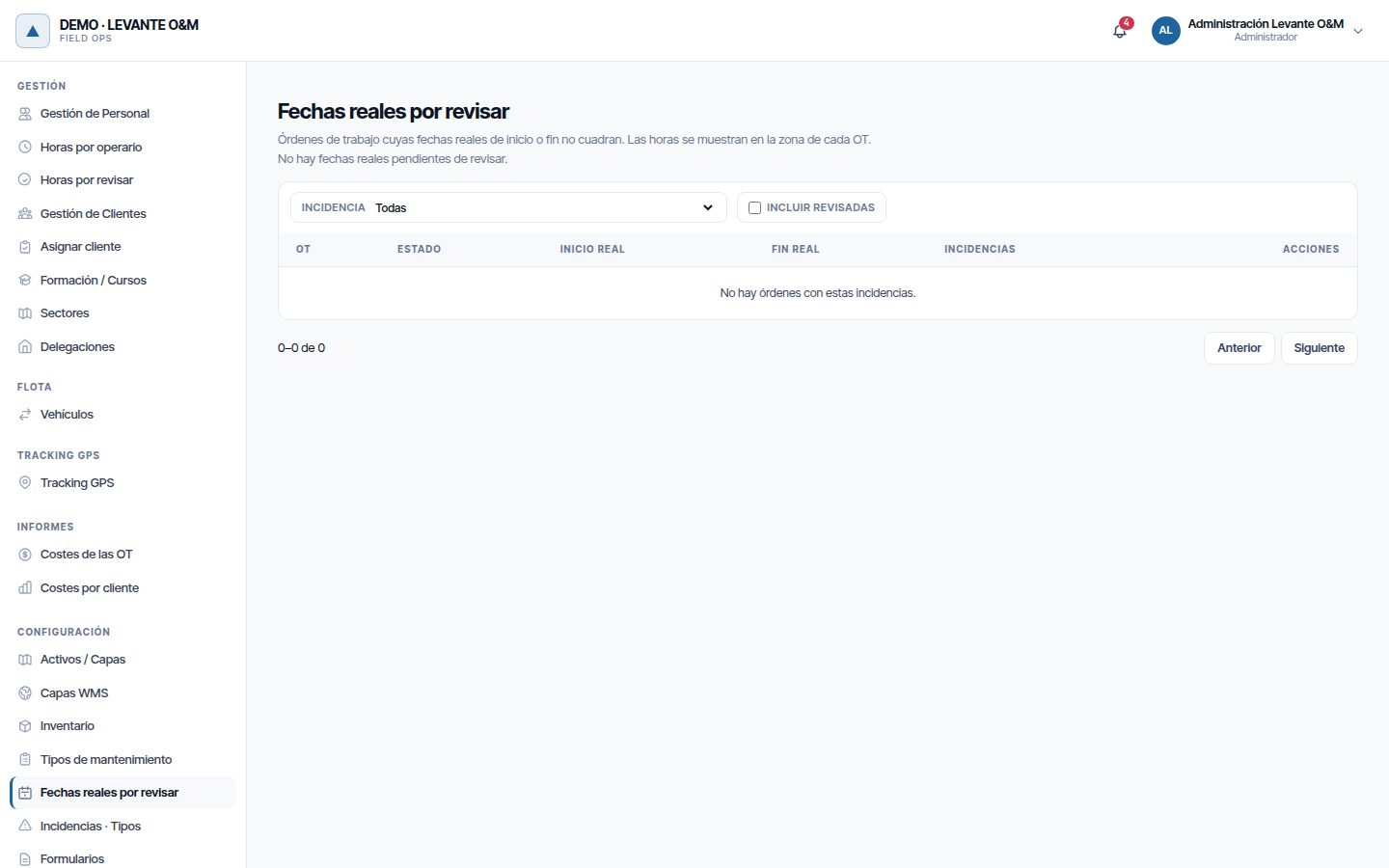
At the top there is a summary by type of problem; clicking one filters the list. You can also filter with Incidencia (Issue), and Incluir revisadas (Include reviewed) shows those already reviewed.
| Problem | What it means |
|---|---|
| El fin es anterior al inicio (The end is earlier than the start) | The actual dates are reversed |
| Un tramo de trabajo de más de 24 horas seguidas, sin pausas (A stretch of work of more than 24 hours in a row, without pauses) | A pause or a closure was probably missed |
| Tiene fin real pero no inicio (Has an actual end but no start) | The start is missing |
| Completada sin fin real (Completed without an actual end) | The end is missing |
| Empieza antes de crearse la OT (Starts before the WO was created) | Impossible start |
| Inicio posterior a cuando se registró / Fin posterior a cuando se registró (Start later than when it was recorded / End later than when it was recorded) | Date in the future relative to when it arrived |
| El inicio no cuadra con el historial o la geovalla / El fin no cuadra con el historial (The start does not match the history or the geofence / The end does not match the history) | The saved date does not match the status changes or the detected arrival |
Each row has three actions:
- Ver OT (View WO): opens the record.
- Corregir: lets you change Inicio real and Fin real (Actual end), in the WO's time zone, with a Motivo (Reason) of at least 5 characters. If the dates still do not add up, a warning is shown.
- Revisada (Reviewed): accepts the date as correct with an optional note. The WO leaves the list until a new problem appears.
Viewing the screen only requires viewing WOs; Corregir and Revisada require the close permission.
Common problems
| Symptom | Probable cause | Solution |
|---|---|---|
| I cannot find a completed or closed WO in the list | The list only shows active WOs | Use the Por validar counter, the search box or the lists in Dashboard and lists |
| “Transición de estado no permitida” (Status transition not allowed) | The change does not exist in your company's cycle | Use only the options in the ⋯ menu, which already take the cycle into account |
| “No tienes permiso para cerrar órdenes de trabajo” (You do not have permission to close work orders) | Your role does not have the close permission | Have a supervisor do it, or check the role in Gestión de Roles y Permisos |
| “La orden … requiere la firma del cliente…” | The customer requires a signature and the WO does not have it | The technician must collect the signature or record an exception in the app |
| “No se puede completar” (Cannot complete) with a list of forms | Mandatory forms are still to be completed | The technician must complete them in the app; if the WO is not going to be done, cancel it |
| “Falta la conformidad del cliente” when closing | The customer requires their approval and has not responded, or responded No conforme (Not approved) | Ask them to respond in the portal; if they do not approve, review the work and reopen it if necessary |
| “Error de validación” (Validation error) when saving, because of the date | The date falls on a non-working day or time | Change the date or check that day's hours in Días y horario de trabajo (Working days and hours) |
| The app shows an error when uploading a validated, closed or cancelled WO | The technician's role does not have Cerrar or Eliminar under Mantenimiento | The WO stays as it was. Have the office validate or close it, or tick the permission in the role |
| The app will not save a change to a signed WO | A signed WO is not modified, except to complete or close it | Make the change from the web if necessary |
| “Responsable requerido” | Your company requires a person in charge | Add one in Responsables. Only people with an app user appear |
| A worker does not appear in Responsables | They do not have an app user | Add them in Personal Operativo, or give them access in Staff and teams |
| “Otra persona u otra pestaña ha guardado esta orden…” | Someone saved it while you were editing it | Open it again and repeat your changes |
| “La orden está Cerrada y ya no se puede modificar” (The order is Closed and can no longer be modified) (or Cancelada) | Finished WOs are not edited | If the work has to be redone, create a new WO |
| “Incidencia sin clasificar” when clicking Crear OT | The incident has no customer | Assign it a customer and try again |
| The WO moved to Pausada on its own | The technician's end-of-day pause | This is the expected behaviour; the technician resumes it the next day |
| I do not see Seleccionar varias or Editar | The edit permission is missing | Check the role |
| The Coste real section does not appear | The company does not track costs or your role does not have Reportes · Costes | Enable it in Cómo trabaja tu empresa or check the role |
Last updated: