
Introduction
Every WO has a maintenance type. The type groups the tasks that can be ticked on the WO, sets its estimated duration and decides whether the WO asks for the customer's signature. Types marked as Tarea cíclica (Cyclic task) are preventive maintenance: only with them can you schedule a WO that repeats.
| Concept | What it is |
|---|---|
| Maintenance type | A class of work: “Correctivo de alumbrado”, “Revisión de hidrantes”… |
| Task | A specific step within a type: “Maniobra de válvulas”, “Comprobación de presión” |
| Cyclic task | A flag on the type that turns it into preventive maintenance and enables Recurrencia (Recurrence) |
| Schedule | The repetition of a WO: frequency, dates and time. It is created with Recurrencia when the WO is saved |
| Base WO | The WO from which the schedule was created. It serves as the template for the following ones |
| Generated WO | Each repetition turned into a real WO. It has the title of the base WO with a number: “… #004” |
| Forecast | A future repetition that is not yet a WO. It is only shown in the calendar |
There is no “corrective or preventive” field: Tarea cíclica decides it. Nor is there a colour or SLA deadline per type; the deadline depends on the customer and the criticality (see Customers and SLA).
How preventive maintenance is generated
A schedule does not create all its WOs at once. Maptainer works with a window that moves forward every day:
- The repetitions for the next few days (Crear órdenes a (Create orders at), 7 by default) are turned into real WOs, pending and assigned like the base WO.
- The following ones, up to Tiempo a planificar (Time to plan) (90 days by default), remain as forecasts in the calendar.
- Every night the process is repeated: the forecasts that enter the short window become WOs and new forecasts appear at the end.
Past days are never generated. When you create or edit a schedule, the window is calculated at that very moment.
Prerequisites
- Módulo de mantenimiento (Maintenance module) subscribed.
- In Configuración General (General settings) → Cómo trabaja tu empresa (How your company works) → Ajustar en detalle (Fine-tune), the option Programamos mantenimiento preventivo (We schedule preventive maintenance) turned on. It is turned on in all three profiles. Without it, neither Recurrencia nor the Cumpl. Preventivo (Preventive compliance) indicator appears.
- The maintenance types screen is in the Configuración (Settings) group of the admin area (Ir al administrador (Go to admin area)), which only the Administrador (Administrator) role sees.
Permissions
The permissions are those of the Mantenimiento (Maintenance) group in Gestión de Roles y Permisos (Role and permission management), except for the catalogue, which is company configuration.
| Action | Permission required |
|---|---|
| View types, tasks, calendar and forecasts | Mantenimiento → Ver (View) |
| Create, edit or delete maintenance types, their tasks and the trades of each task | Configuración Global (Global settings) → Editar (Edit) |
| Create a schedule (turn on Recurrencia when saving a WO) | Mantenimiento → Crear (Create) |
| Change a schedule or remove it (turn off Recurrencia when saving the WO) | Mantenimiento → Editar |
| Change or remove a schedule that has already generated future pending WOs | Also Mantenimiento → Eliminar (Delete), because those WOs are deleted |
| Delete a forecast | Mantenimiento → Eliminar |
With the default roles, only the Administrador has Configuración Global → Editar: the Supervisor uses the catalogue, but does not change it.
Maintenance types
Types are managed in Ir al administrador → Tipos de Mantenimiento (Maintenance types). The Gestión de Tipos de Mantenimiento (Maintenance type management) screen lists them with their name, description and status (Activo (Active) or Inactivo (Inactive)). The search box filters by name or description.
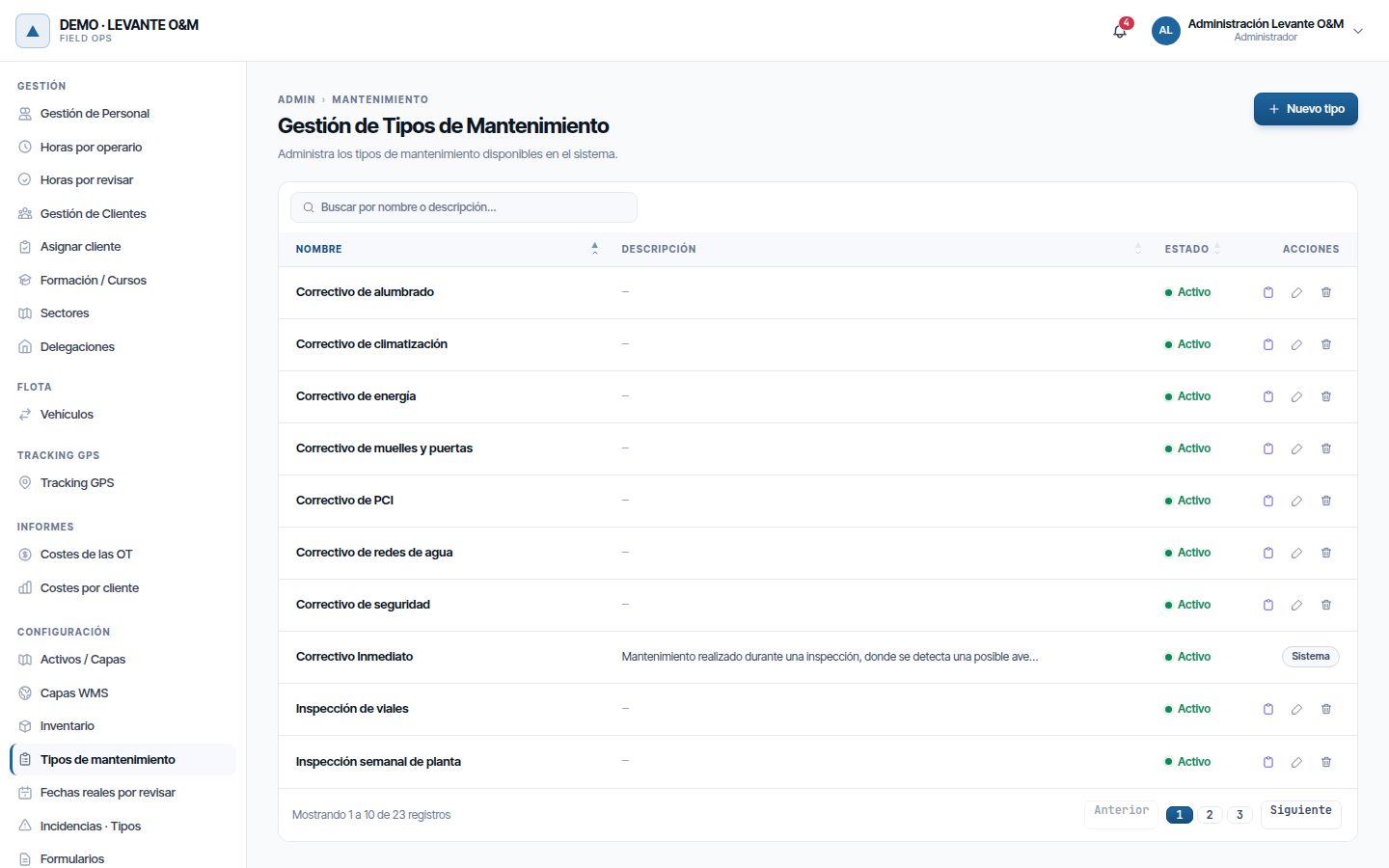
Each row has three buttons: Gestionar tareas (Manage tasks) (the clipboard), Editar (the pencil) and Eliminar (the bin). The Correctivo Inmediato (Immediate corrective) type has the Sistema (System) label and cannot be changed or deleted: it is used by quick reports from the mobile app.
Creating a type
- Click Nuevo tipo (New type).
- Enter the Nombre (Español) (Name (Spanish)), which is required. The English name and description are optional: users with the application in English see them.
- Tick the Opciones (Options) and the signature setting (see the table).
- Click Crear tipo (Create type). The message “Tipo de mantenimiento creado. Puedes añadir formación requerida ahora.” (Maintenance type created. You can add required training now.) appears and the type opens for editing.
- If needed, add the Formación requerida (Required training) (see below).
Cancelar (Cancel) or Volver al listado (Back to list) exit without saving.
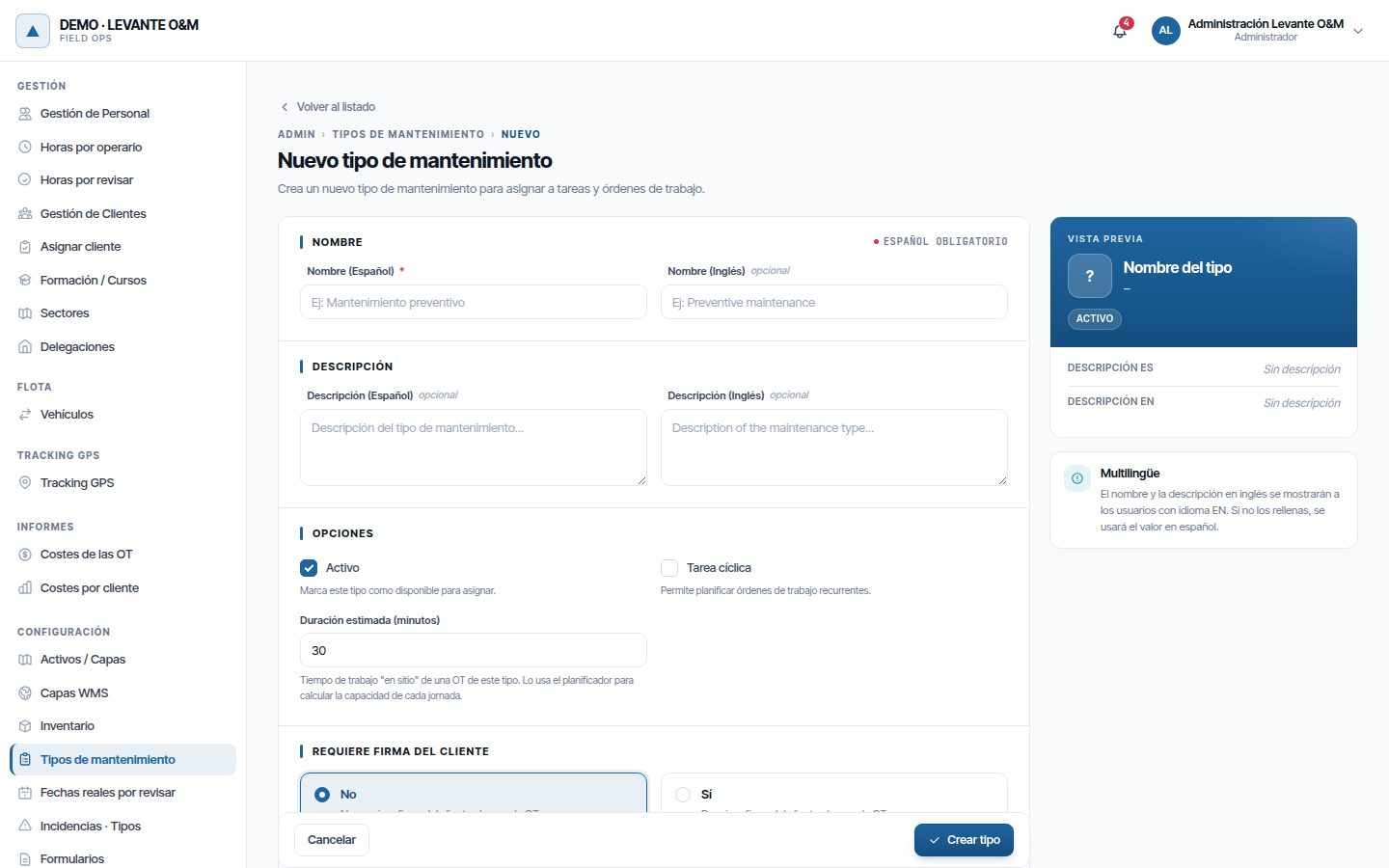
| Field | What it is for |
|---|---|
| Activo | Marks the type as available. An inactive type is not offered in Tipo de mantenimiento (Maintenance type) when creating a WO; WOs that already have it keep it and show it with “(inactivo)” (inactive) |
| Tarea cíclica | Turns it into preventive maintenance: it enables Recurrencia on its WOs and it is counted by the Cumpl. Preventivo indicator |
| Duración estimada (minutos) (Estimated duration (minutes)) | On-site working time for a WO of this type, between 1 and 1,440. It is used by the WO form and the planner |
| Requiere firma del cliente (Requires customer signature) | Sí (Yes) or No. It only applies to customers with the signature policy “Según tipo de mantenimiento” (According to maintenance type) |
| Formación requerida | Courses or certifications required of whoever does the work. All the tasks of the type inherit it |
When you edit a type that already has finished WOs, Histórico real (Actual history) appears below the duration: the median actual time of those WOs. With 5 or more, the planner uses that value instead of the estimate.
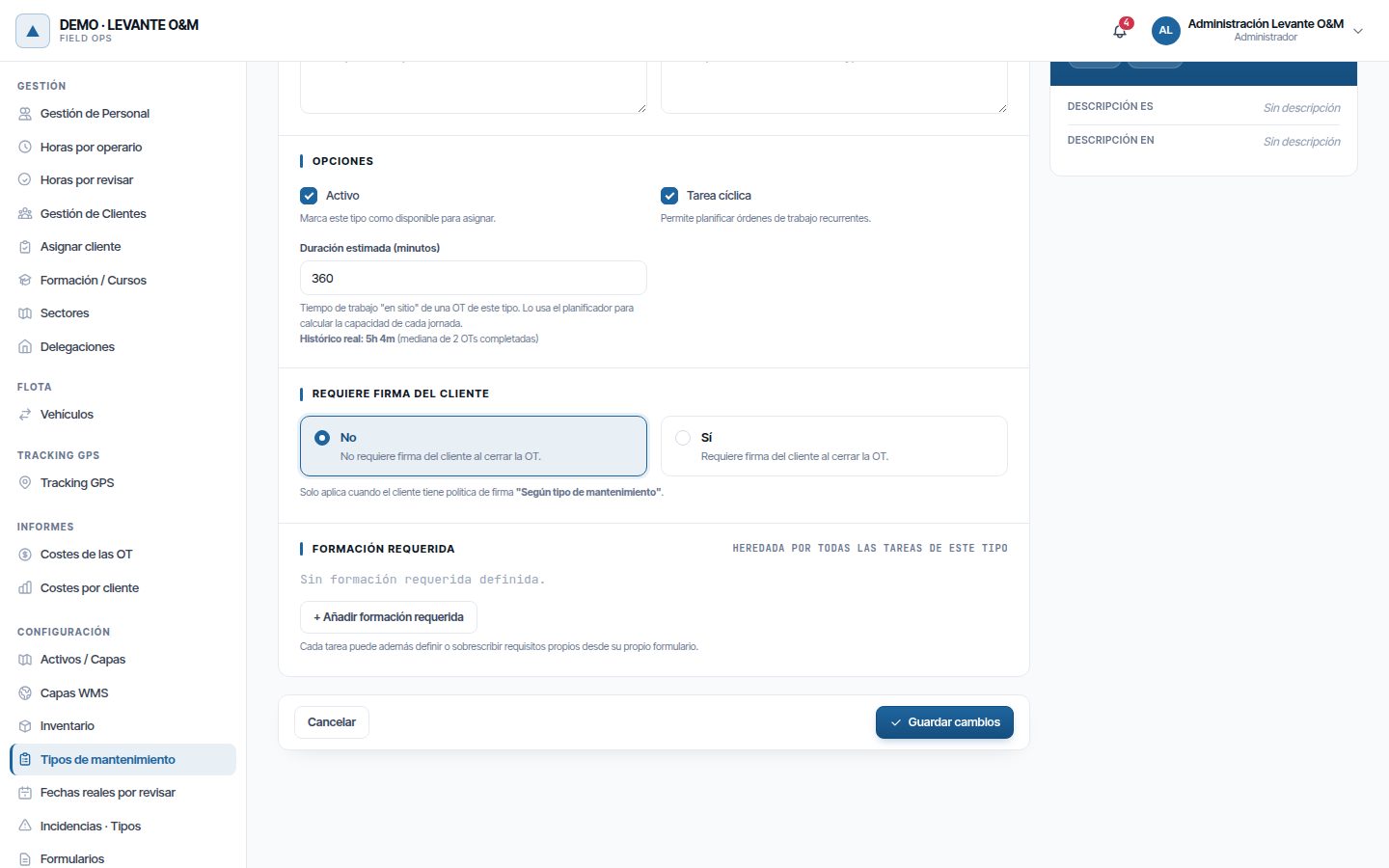
Required training
Training is added once the type has been saved, from its edit screen:
- Click + Añadir formación requerida (Add required training).
- Choose the Formación (Training), the Requisito (Requirement) (Preferida (Preferred), Recomendada (Recommended) or Obligatoria (Mandatory)) and the Nivel mínimo (Minimum level).
- Click Añadir (Add). It is saved immediately, without clicking Guardar cambios (Save changes).
The cross on each row removes the requirement. With Controlamos competencias y certificaciones (We track skills and certifications) turned on, the WO warns you if the assigned staff do not meet it. The training catalogue is in Staff and teams.
Editing and deleting a type
Click Editar, change what you need and click Guardar cambios. To delete it, click Eliminar and confirm with Sí, eliminar (Yes, delete). Deleting it also deletes its tasks.
A type that has already been used in a WO cannot be deleted: a message explains this. To retire it, untick Activo: it is no longer offered on new WOs and older ones keep it.
Associated forms
The forms that the WO suggests according to its type are not chosen here: they are assigned to each maintenance type in Forms.
Tasks of a type
Tasks are the type's checklist. When you create a WO you tick the ones that need to be done; the technician completes them in the app and the record shows the status of each one.
- In the type list, click Gestionar tareas on the type's row.
- Tareas de … (Tasks of …) opens, with the counters Total tareas (Total tasks), Activas (Active), Inactivas (Inactive) and Por componentes (By component), a search box and the Estado (Status) and Tipo (Type) filters.
- Click Nueva tarea (New task) to create one, or the pencil on a row to edit it.
Volver a tipos (Back to types) returns to the type list.
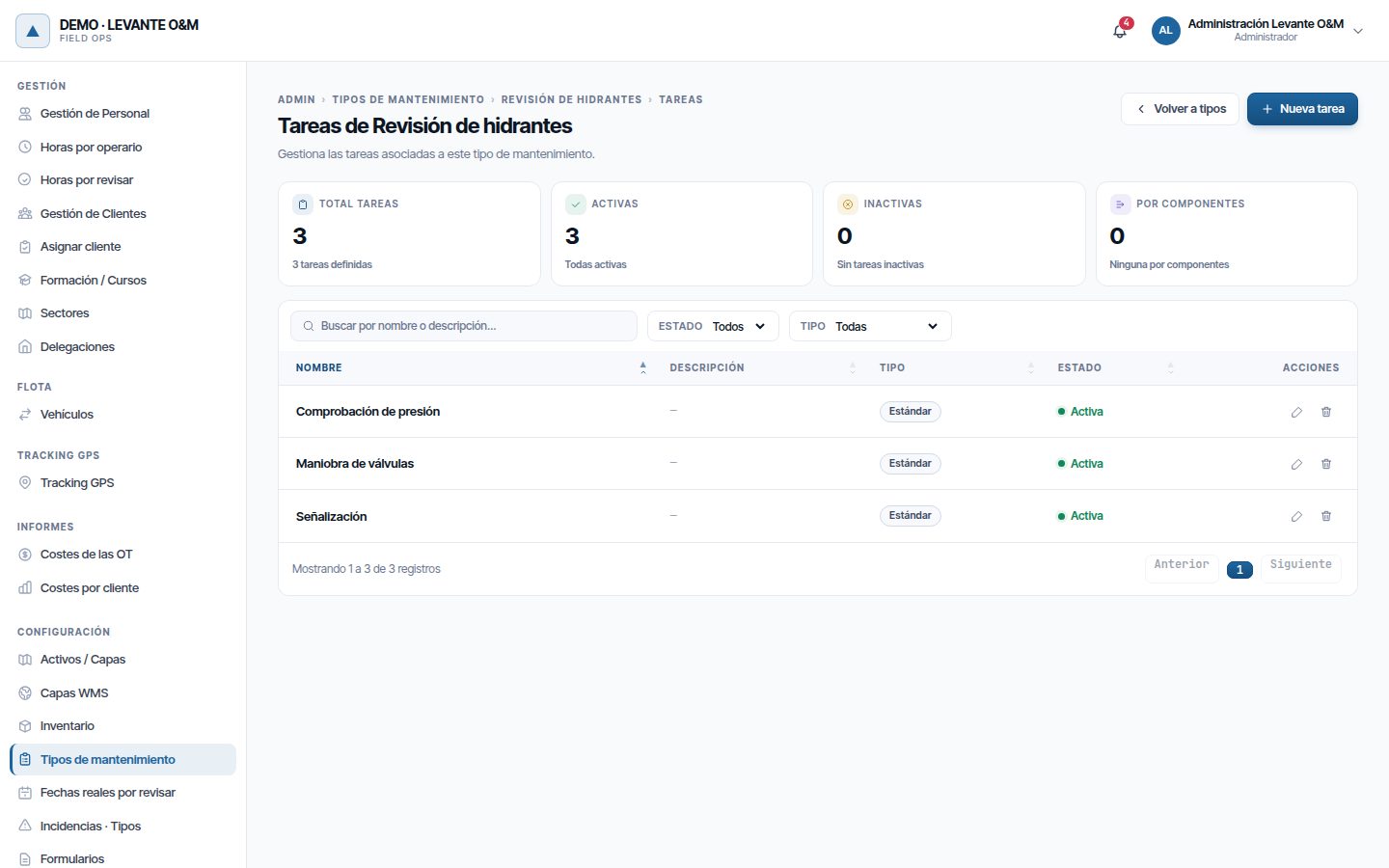
| Field | What it is for |
|---|---|
| Nombre (Español) / Nombre (Inglés) (Name (Spanish) / Name (English)) | At least one is required |
| Descripción (Description) | Steps, materials or details of the task |
| Tarea activa (Active task) | Marks the task as available. An inactive task is not offered when creating a WO; WOs that already have it keep it with “(inactiva)” (inactive) |
| Desglosar por componentes (Break down by component) | The WO creates a task for each internal component of the asset. In the list it appears as Por componentes; the others, as Estándar (Standard) |
| Duración estimada (minutos) | On-site time for the task. If empty, it inherits the type's duration. The WO adds up the durations of the ticked tasks |
| Formación requerida | The training inherited from the type (Heredada del tipo (Inherited from type)) and the task's own (Esta tarea (This task)), which is added with Añadir formación específica (Add specific training) |
| Oficios requeridos (Required trades) | Trades that whoever does the task must have. They are added with Añadir oficio (Add trade) |
Training and trades are added once the task has been created, and are saved when you click Añadir. Click Crear tarea (Create task) or Guardar cambios for the rest of the fields.
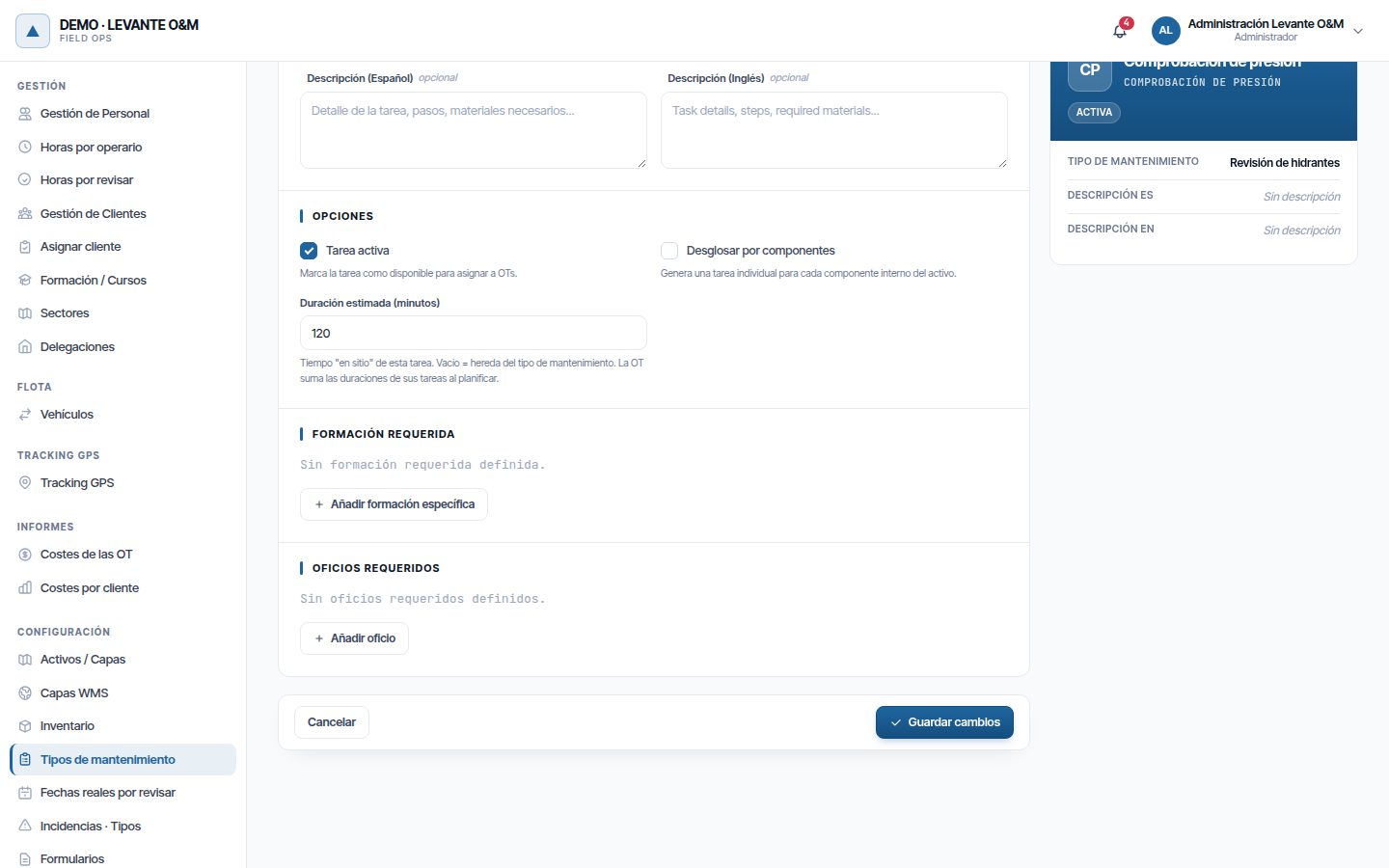
A task that has already been used in a WO cannot be deleted: a message explains this. To retire it, untick Tarea activa.
Configuring the preventive maintenance window
The number of days generated in advance is set for the whole company in Configuración General → Planificación de Órdenes de Trabajo (Work order planning):
| Field | What it sets | Default |
|---|---|---|
| Tiempo a planificar (días) (Time to plan (days)) | How many days of forecasts are shown in the calendar, counted from the start date (Desde (From)) of each schedule, or from today if it has already started | 90 |
| Crear órdenes a (días) (Create orders at (days)) | How many days before its date, counted from today, each repetition is turned into a real WO | 7 |
Click Guardar configuración (Save settings). The change applies at the next nightly generation, or when a schedule is created or edited.

Tip
Keep Crear órdenes a short enough that you can change the schedule without redoing many WOs, and long enough for technicians to see their week's work in the app.
Scheduling a recurring WO
A schedule is created from a WO: the base WO. There is no separate schedules screen.
- Create the WO as described in Work orders: location, assets, tasks, staff and materials. All of this will be copied to each repetition.
- Choose a Tipo de mantenimiento with Tarea cíclica. The Recurrencia block appears in Planificación (Planning).
- Set Inicio previsto (Planned start) and Fin previsto (Planned end). The duration between the two will be applied to each repetition.
- Turn on Recurrencia and fill in the fields (see the table).
- Click Crear Orden de Trabajo (Create work order).
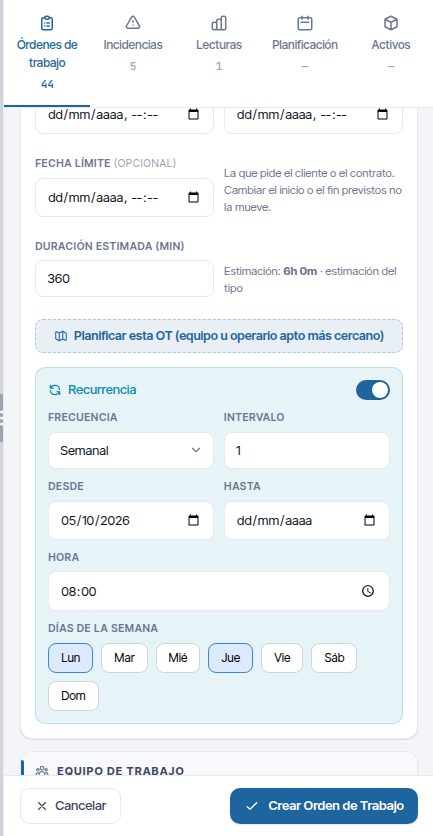
| Field | What it is for |
|---|---|
| Frecuencia (Frequency) | Diaria (Daily), Semanal (Weekly), Mensual (Monthly) or Anual (Yearly) |
| Intervalo (Interval) | Every how many days, weeks, months or years. 1 = every one |
| Desde | First day of the schedule. Required |
| Hasta (Until) | Last day, inclusive. Empty = no end |
| Hora (Time) | Start time of each repetition. If empty, the time of the WO's Inicio previsto is used |
| Días de la semana (Days of the week) | With Semanal: Lun (Mon) to Dom (Sun). If none is ticked, the same day of the week as Desde |
| Días del mes (Days of the month) | With Mensual: numbers separated by commas, such as “1,15”. “-1” is the last day of the month. If left empty, the same day of the month as Desde |
| Meses (Months) | With Anual: month numbers separated by commas, such as “3,6,9,12”. The day of the month of Desde is repeated |
Some examples:
| You want | Frecuencia | Intervalo | Other fields |
|---|---|---|---|
| Every Monday and Thursday | Semanal | 1 | Días de la semana: Lun, Jue (Thu) |
| Every 15 days, on the same day of the week | Semanal | 2 | Nothing |
| Day 1 of each quarter | Mensual | 3 | Días del mes: 1 |
| Every 6 months | Mensual | 6 | Nothing (the day of Desde) |
| Once a year | Anual | 1 | Nothing (the date of Desde) |
Date rules:
- If a requested day does not exist in a month (the 30th or the 31st), the repetition falls on the last day of that month.
- If a repetition falls on a non-working day of the week (according to the company's Días y horario de trabajo (Working days and hours), or those of the WO's branch if it has its own hours) or on a public holiday in the work calendar (company-wide or for the WO's branch), it moves to the next working day. If two coincide on the same day, only one is generated.
- If you add a public holiday later, the forecast for that day is moved automatically at the next nightly generation.
- The day of the base WO is not repeated: the base WO is that day's visit.
- The numbering (#001, #002…) counts from Desde and does not change from one generation to the next.
Warning
Without Desde, or if the schedule fails for another reason, the WO is saved without recurrence and no message appears. After saving, open the WO with Editar and check that Recurrencia is still turned on with your details.
Generated WOs
Each generated WO is a normal WO: it appears in the work orders panel, on the map, in the mobile app and in the lists. It is created as Pendiente (Pending), with the title of the base WO followed by its number (“Revisión de hidrantes · Parque… #013”).
What is copied from the base WO:
| Copied | Not copied |
|---|---|
| Customer, description, address, priority and maintenance type | Status (it is always created as Pendiente) |
| Branch, location (point or area) and assets | Attached documents |
| Ticked tasks and associated forms | Actual dates, photos, completed forms and signatures |
| Responsible people and operational staff | |
| Planned materials | Stock deduction: it happens when the material is consumed |
- The responsible people receive the new WO alert, as if it had been created by hand.
- The start time is the schedule's time and the planned end keeps the duration of the base WO. If the base WO lasts several days, only working days are counted.
- Each generated WO is created with a Fecha límite (Due date) equal to that planned end. If you reschedule it later, the due date stays where it was: that way you can see whether the inspection was done on time.
- In Actividad (Activity), the assignment appears with the origin “programación” (schedule).
- They can be assigned, rescheduled and closed like any WO. See Work orders.
SLA deadline for preventive maintenance
The resolution deadline of a generated WO counts from its first planned start, not from when it was created. That way, a WO created 7 days earlier does not start with its deadline already used up. If you reschedule it later, the deadline no longer moves. Service agreements are explained in Customers and SLA.
Changing or removing a schedule
The schedule is always changed from the base WO, with Editar. When you open it, the Recurrencia block appears turned on with its details.
Changing the frequency or the dates
- Open the base WO with Editar.
- Change the Recurrencia fields, or any other WO detail that you want to carry over to the following repetitions.
- Click Guardar cambios.
When you save, Maptainer rebuilds the schedule from today. If this deletes pending WOs that have already been generated, the Eliminar permission of Mantenimiento is needed. Without it nothing is saved and the message says how many WOs would be deleted.
- It deletes the generated Pendientes (Pending) WOs from today onwards and all the forecasts, and generates them again with the new details.
- It keeps WOs that have already been started or finished, and does not create another one on the same day.
- It keeps pending WOs from past days: they are overdue preventive maintenance.
Warning
Saving the base WO with Recurrencia turned on rebuilds the future pending WOs, even if you have only changed the description. Any manual changes made to them (staff, dates, priority) are lost and they get new codes.
Hasta, Días de la semana, Días del mes and Meses cannot be left empty if the schedule already had them: when you save, a message appears and nothing is saved. Enter another value or, if you want to remove them, turn off Recurrencia, save and create it again. When you change the frequency, the days of the previous frequency are replaced by the new ones.
Ending or pausing a schedule
There is no pause button. There are two ways to stop preventive maintenance:
| Method | How | What happens |
|---|---|---|
| Set an end | On the base WO, enter the date in Hasta and save | Repetitions stop being generated after that day. Everything before it is kept |
| Remove the schedule | On the base WO, turn off Recurrencia and save | The schedule is deleted with its forecasts and its generated Pendientes WOs, including overdue ones. Those started or finished remain as standalone WOs. The base WO does not change |
Removing the schedule also requires Eliminar of Mantenimiento if it has generated pending WOs.
For a temporary pause, set an end to the schedule and, when you want to resume it, change Hasta to a later date.
Warning
Removing the schedule really deletes (it does not cancel) its pending WOs, including overdue ones. If you want to keep a record of the preventive maintenance not done, use Hasta instead of turning off Recurrencia.
Warning
Cancelling the base WO does not stop its schedule: WOs keep being generated. When you cancel a base WO with an active schedule, the confirmation warns you. If you want to stop it, click Volver (Back) and, from Editar, set an end to the schedule or remove it: a cancelled WO can no longer be edited.
Tip
Do not turn on Recurrencia when editing a generated WO (with “#” in the title): you would create a second schedule that duplicates the first. Changes are always made on the base WO.
The calendar
The calendar shows in one place the WOs with a date, the preventive maintenance forecasts and the reading batches. It opens with the Planificación tab of the right-hand panel.
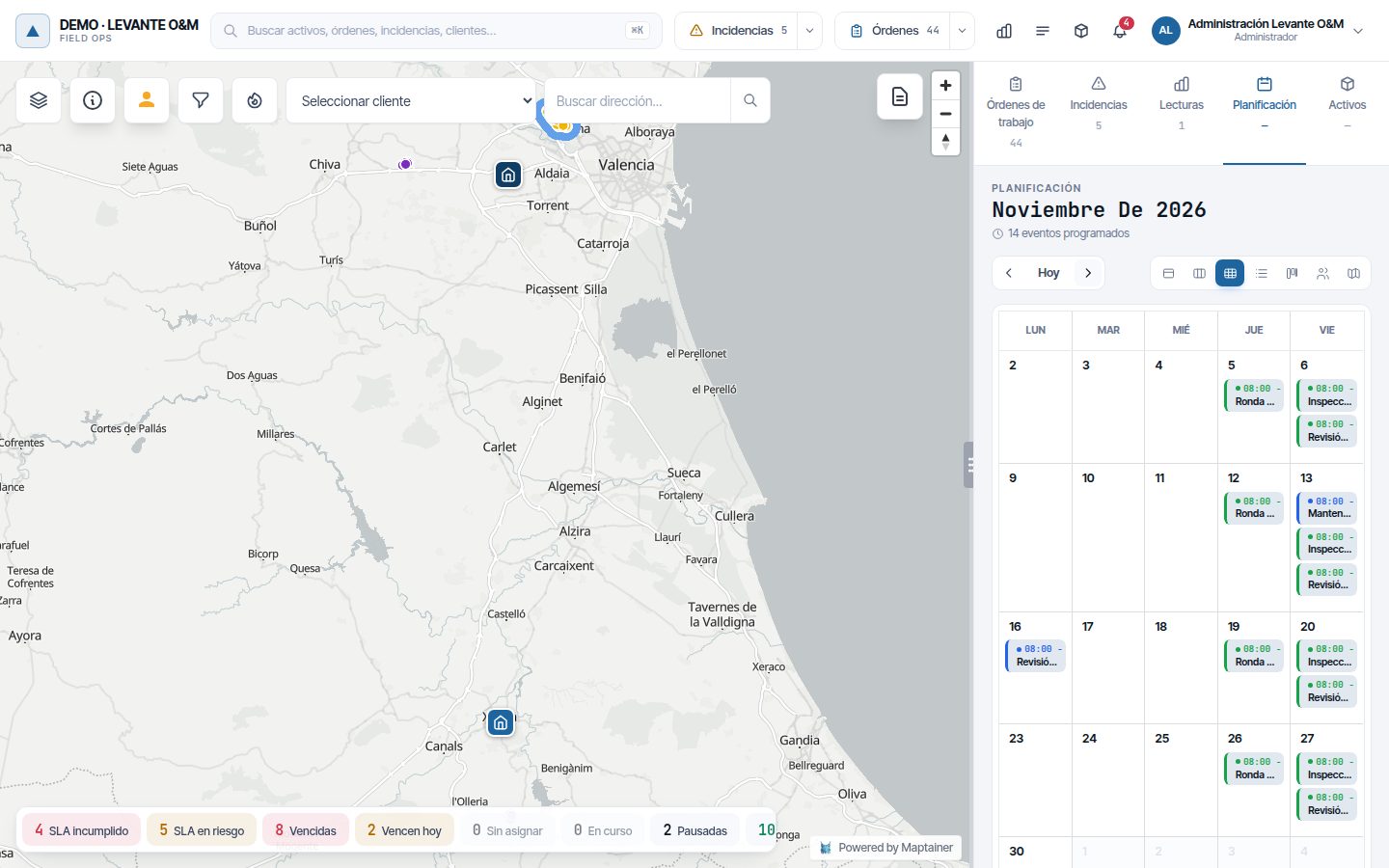
- Anterior (Previous), Hoy (Today) and Siguiente (Next) move the period. At the top you can see the month and the number of events.
- The buttons on the right change the view: Día (Day), Semana (Week), Mes (Month), Lista (List), Kanban, Vista Usuario (User view) and, with the planning module, Optimizador (Optimiser).
- The background of each event shows the status (red if it is overdue) and the border, the priority. The legend at the bottom counts the events by priority.
- Only the company's working days are shown.
- Hovering shows the title, the time, the status and the priority.
Dragging WOs, creating WOs by clicking a time slot and the other views are explained in Planning and dispatch.
Forecasts in the calendar
A forecast appears with the title of the base WO and its number, always in grey and as Pendiente: it is still to be done, whatever the status of the base WO. Hovering over it shows “Previsión del preventivo: su fecha se cambia en la programación” (Preventive maintenance forecast: its date is changed in the schedule). It cannot be dragged: the message “Las previsiones del preventivo no se mueven desde el calendario: cambia la programación” (Preventive maintenance forecasts are not moved from the calendar: change the schedule) appears.
Clicking it opens Orden generada · #… (Generated order · #…) with the Inicio previsto, the Fin previsto (which will also be its due date) and the description of that repetition.
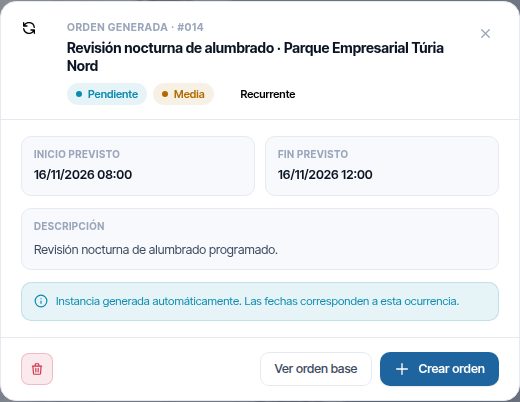
| Button | What it does |
|---|---|
| Bin | Skips that repetition: it removes the forecast and that day is no longer generated, either as a forecast or as a WO. It asks for confirmation |
| Ver orden base (View base order) | Opens the record of the base WO. It is the way to get to the schedule |
| Crear orden (Create order) | Creates the WO for that repetition now, just as the schedule would generate it, and opens it. It asks for confirmation. The forecast disappears and no other is generated for that day |
Warning
If you change the schedule's rule (frequency, interval, days or Desde), the repetitions skipped with the bin are generated again. Changing only the time or Hasta respects them.
Compliance tracking
“Cumpl. Preventivo” indicator
The dashboard shows Cumpl. Preventivo: of the WOs generated by schedules whose due date fell within the period, the percentage completed before that date. The default target is ≥ 85 %.
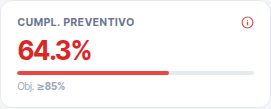
- WOs generated by a schedule count. A WO of a cyclic type created by hand does not count.
- The Fecha límite the WO was created with is used or, if it has none, its Fin previsto. Rescheduling the WO does not change the result. Only those up to today count: future ones are not included.
- Cancelled WOs and those still within their deadline do not count.
- The indicator and the list use the same criterion and give the same figure.
- The target is changed as described in Dashboard and lists.
The indicator is explained with the rest in Dashboard and lists.
“Cumplimiento del preventivo” list
The list gives the WO-by-WO detail of each schedule: planned date, deadline, completion date and result (A tiempo (On time), Con retraso (Late), Sin hacer (Not done), En plazo (Within deadline) or Cancelada (Cancelled)). It is opened from Listados (Lists), as described in Dashboard and lists.
Common problems
| Symptom | Probable cause | Solution |
|---|---|---|
| Recurrencia does not appear in the WO form | The type does not have Tarea cíclica, or the company does not have preventive maintenance turned on | Tick Tarea cíclica on the type or turn on Programamos mantenimiento preventivo |
| I saved the WO with recurrence and it does not repeat | Desde was missing or the schedule failed without warning | Open the WO with Editar, check Recurrencia and save again |
| I see forecasts but no WOs in the panel | The repetitions are outside the Crear órdenes a window | This is expected: they become WOs when that many days remain |
| No new WOs have appeared for days | The nightly generation has not run | Tell Maptainer support; meanwhile, editing and saving the base WO generates those in the window |
| Changes I made to a generated WO have disappeared | The base WO was saved with Recurrencia turned on | Redo the changes; from now on, change the base WO before adjusting the generated ones |
| A generated WO falls on a Saturday or a public holiday | Saturday has hours in Días y horario de trabajo (or in the branch's hours), or the public holiday is not in the work calendar | Check the working days and add the public holiday: the next nightly generation moves the forecasts |
| There are pending preventive maintenance WOs from past days | They were not done on time | They are overdue preventive maintenance: assign them or cancel them with a reason |
| A WO does not count in Cumpl. Preventivo | You created it by hand, its date has not arrived yet, or it is cancelled | Only those generated by a schedule with a date up to today count |
| I cannot create or change maintenance types or tasks | Configuración Global → Editar is needed, which by default only the administrator has | Ask the administrator |
| When saving the base WO, a message says pending orders would be deleted | Changing or removing the schedule deletes its generated pending WOs, and your role does not have Eliminar of Mantenimiento | Ask someone who has that permission |
| It will not let me delete a type or a task | It has already been used in a WO | Untick Activo (or Tarea activa) to retire it |
Last updated: