
Introduction
With the customers module, all work belongs to a customer: assets, work orders (WO), incidents and meter readings. Your company's internal work goes to a special customer, the in-house customer. A customer goes through three states: active, deactivated and deleted.
| Concept | What it is |
|---|---|
| Customer | Who the work is done for. It has contact details, a responsible branch, zones, an SLA and a portal |
| In-house customer | Your own company. It always exists, appears with the label “· Propio” (Own) and cannot be deactivated or deleted |
| Deactivation | The customer stops accepting new work, but keeps all its history. It can be reactivated |
| Complete deletion | Permanently erases all the data of a deactivated customer. It cannot be undone |
| Customer zones | Polygons on the map that divide the customer's territory (phases, plots, neighbourhoods…) |
| SLA | Response and resolution deadlines by criticality, for WOs and incidents |
| Customer limit | How many customers your plan allows. Deactivated customers still count |
Prerequisites
Customers module
Customer management is a module your company subscribes to. The customer portal is included in it. The SLA is a separate module.
| Situation | What happens |
|---|---|
| With the module | Gestión de Clientes (Customer management) and Asignar cliente (Assign customer) appear in the admin area, the Cliente (Customer) field appears in forms and the customer drop-down appears on the map |
| Without the module | Everything you create goes to the in-house customer, without asking. There is no customers screen, no portal and no per-customer SLA. The map drop-down shows sectors |
| Module suspended | If Maptainer disables the module, your customers change to Suspendido (Suspended). The list is shown read-only with the message “Gestión de clientes no contratada: tus clientes están suspendidos. Tus datos se conservan.” (Customer management not subscribed: your customers are suspended. Your data is kept.) |
While the module is suspended nothing is deleted or reassigned, and the portal is closed. New WOs and incidents use the company SLA, not the customer's. When you subscribe again, the customers become active again.
Permissions
Permissions are managed in Gestión de Roles y Permisos (Role and permission management), in the Clientes (Customers) and SLA groups. See Tenant administration.
| Action | Permission |
|---|---|
| View the customer list and their zones | Clientes → Ver (View) |
| Create customers and zones | Clientes → Crear (Create) |
| Edit, deactivate, reactivate and transfer assets | Clientes → Editar (Edit) |
| Delete zones | Clientes → Eliminar (Delete) |
| Delete a customer completely | Clientes → Eliminar, and also be an administrator |
| Change the SLA of a customer or of the company | SLA → Gestionar (Manage) |
| Asignar cliente | Administrator only |
In the default roles, supervision and read-only have Clientes → Ver.
Customer management
The Gestión de Clientes screen is in the admin area, in the left-hand menu. At the top it shows how many customers of your plan you are using, for example “3 de 10 clientes (0 de baja)” (3 of 10 customers, 0 deactivated).
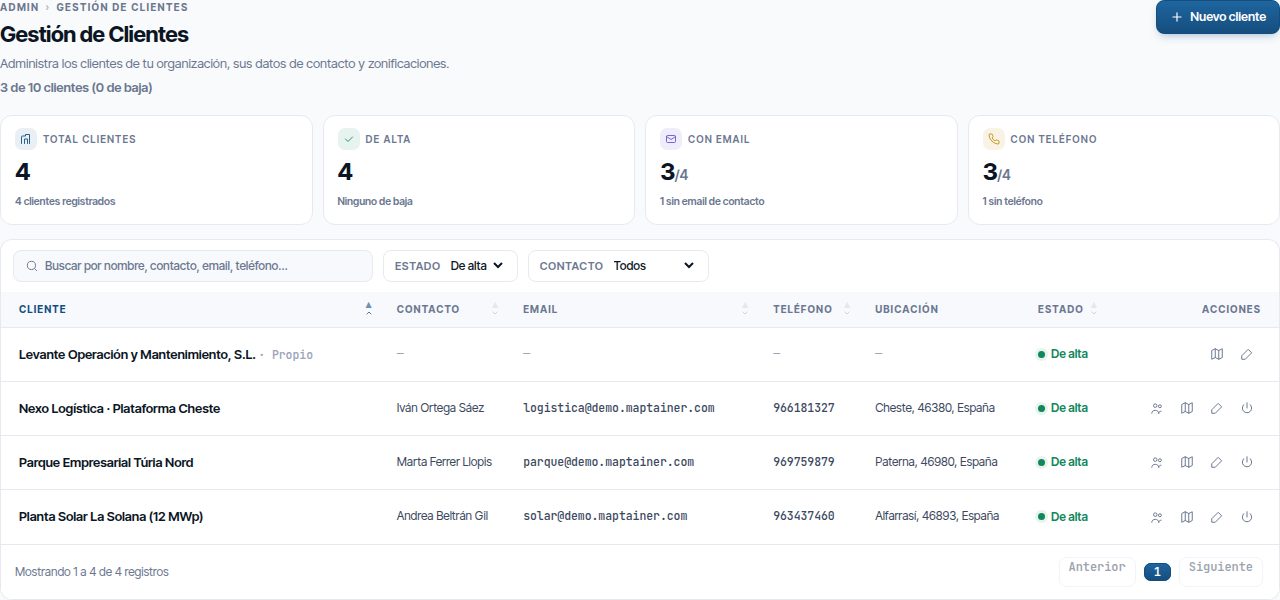
- Indicators: Total clientes (Total customers), De alta (Active), Con email (With email) and Con teléfono (With phone). They also count the in-house customer.
- Filters: search box, Estado (Status) (De alta, De baja (Deactivated) or Todos (All)) and Contacto (Contact). When you open the screen, only active customers are shown.
- Columns: Cliente, Contacto, Email, Teléfono (Phone), Ubicación (Location), Estado and Acciones (Actions). Hovering over De baja shows the date and the reason.
Buttons on each row:
| Button | What it does | When it appears |
|---|---|---|
| Usuarios del Portal (Portal users) | Opens the users of the customer's portal | Customer with the portal enabled |
| Gestionar Zonificaciones (Manage zonings) | Opens its zones on the map | Always |
| Editar | Opens the customer record | Editar permission |
| Dar de baja (Deactivate) | Opens the deactivation wizard | Active customer, except the in-house one |
| Reactivar (Reactivate) and Traspasar activos (Transfer assets) | See Reactivate and Transfer assets | Deactivated customer |
| Eliminar completamente (Delete completely) | See Deleting a customer | Deactivated customer, administrator only |
The in-house customer
Every tenant has its in-house customer from the start, with your company's name. It is used for internal work: maintenance of your premises, your vehicles or your own assets.
- It always appears first in drop-downs, with “· Propio”.
- It can be edited (details, branch, zones), but it cannot be deactivated or deleted.
- It does not count towards your plan's customer limit.
Adding a customer
- Click Nuevo cliente (New customer).
- Fill in Nombre del cliente (Customer name), which is the only required field, and any others you need.
- If needed, turn on Activar SLA personalizado (Enable custom SLA) and Dar acceso al portal (Give portal access).
- Click Crear cliente (Create customer). The message “El cliente se ha creado correctamente” (The customer has been created successfully) appears.
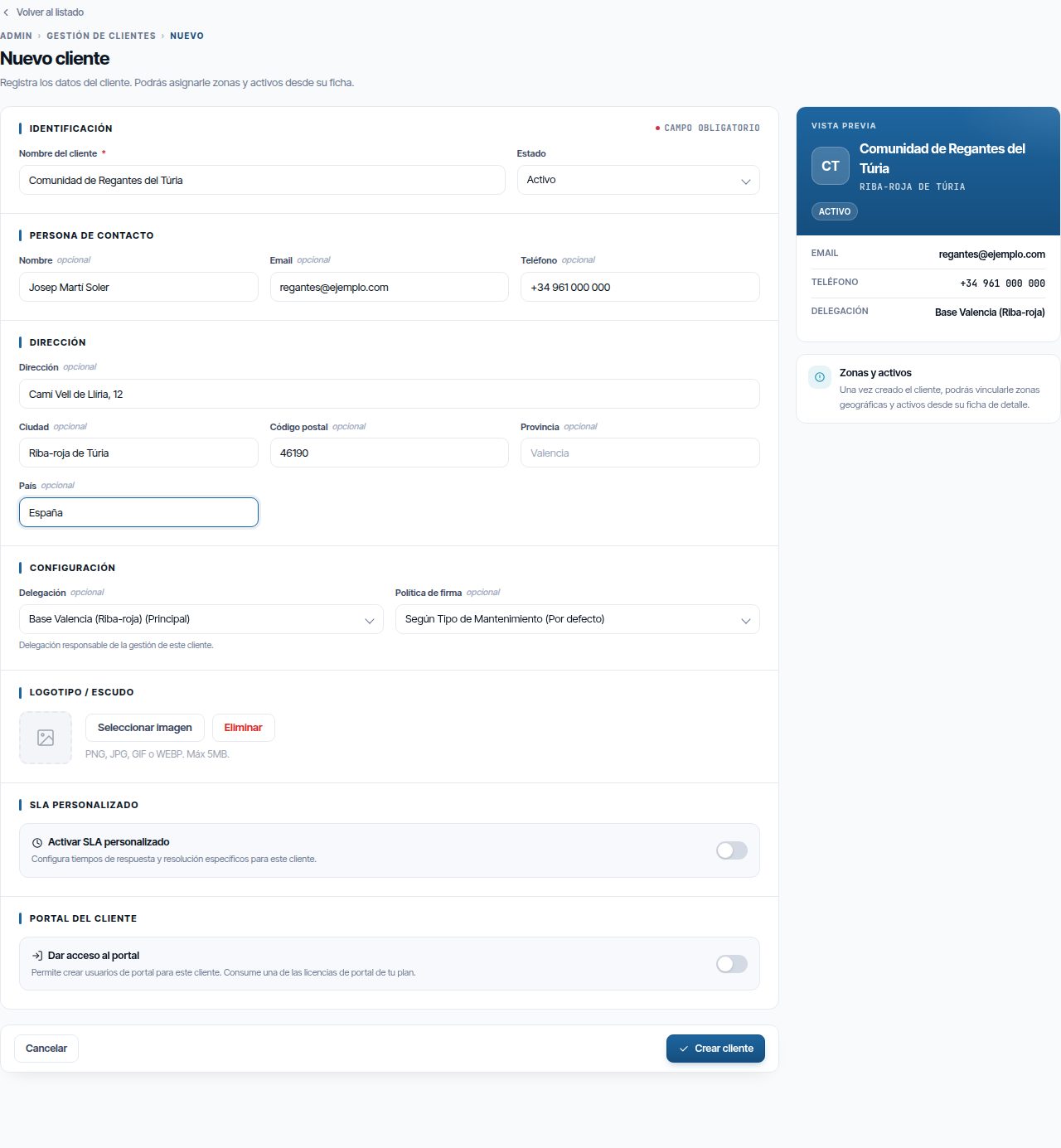
| Section | Fields | What it is for |
|---|---|---|
| Identificación (Identification) | Nombre del cliente, Estado | The name appears in every drop-down. Inactivo (Inactive) creates the customer already deactivated |
| Persona de contacto (Contact person) | Nombre (Name), Email, Teléfono | Reference details. They count in the list indicators |
| Dirección (Address) | Dirección, Ciudad (City), Código postal (Postcode), Provincia (Province), País (Country) | City, postcode and country make up the Ubicación column |
| Configuración (Configuration) | Delegación (Branch) | The branch responsible for the customer. It only appears if you work with branches. See Branches and sectors |
| Configuración | Política de firma (Signature policy) | Whether the customer's WOs require a signature. See Work orders |
| Logotipo / Escudo (Logo / Coat of arms) | Seleccionar imagen (Select image) | PNG, JPG, GIF or WEBP, 5 MB maximum. Eliminar removes it |
| SLA Personalizado (Custom SLA) | Activar SLA personalizado | The customer's own deadlines. See A customer's SLA |
| Portal del cliente (Customer portal) | Dar acceso al portal | Lets you create portal users for this customer. When you edit it, the approval options also appear (see Customer approval) |
The form has no fields for tax details (tax ID or registered company name).
If you have reached your plan's limit, “Límite de clientes” (Customer limit) appears with the text “Has llegado a tu límite de N clientes. Los clientes dados de baja siguen contando: elimina alguno por completo o amplía tu plan.” (You have reached your limit of N customers. Deactivated customers still count: delete one completely or upgrade your plan.)
Editing a customer
Editar opens the same record with Guardar cambios (Save changes). The Estado is not changed here: Dar de baja and Reactivar in the list are for that.
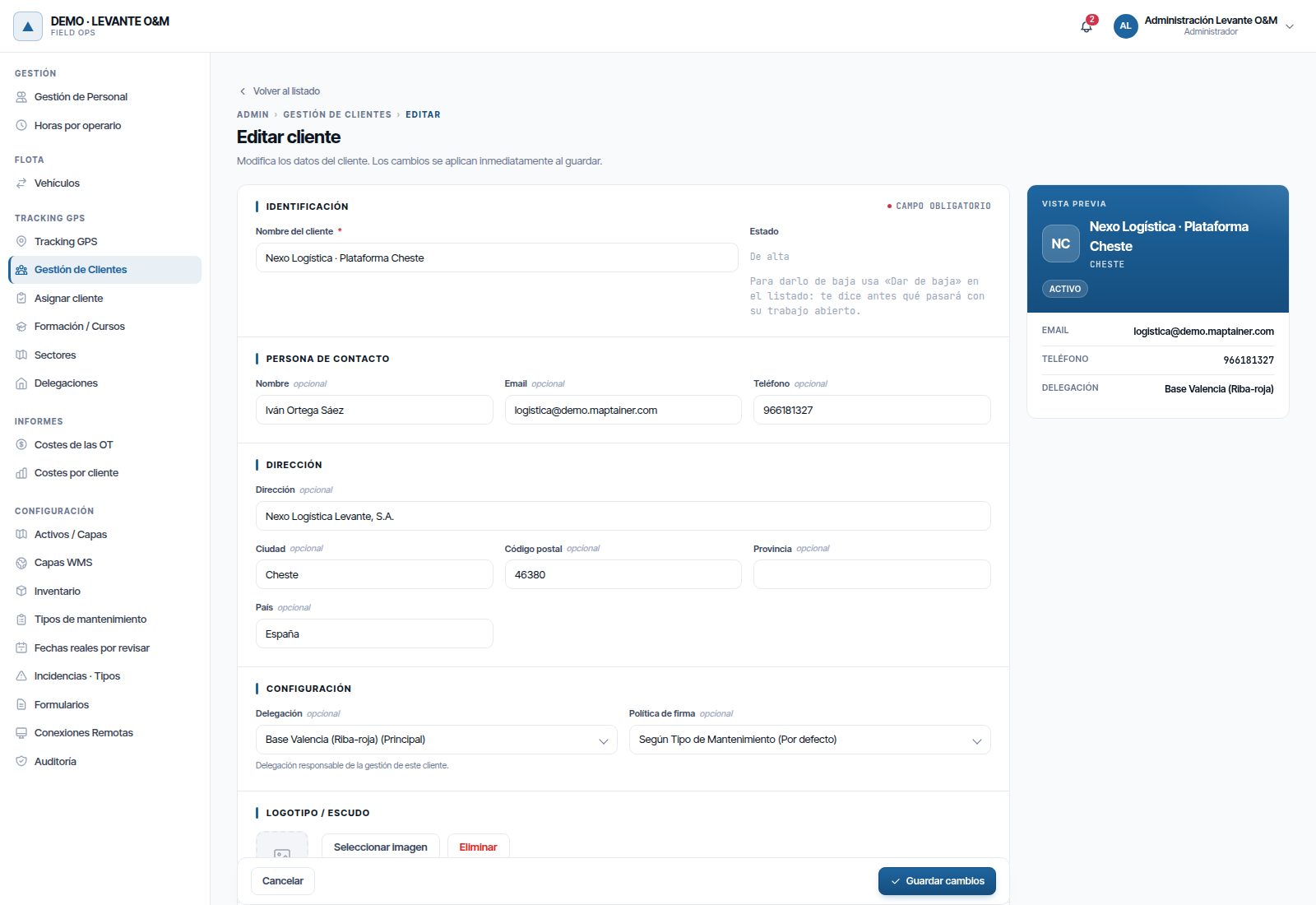
If you clear an optional field (contact, email, phone, address, city, postcode, province or country) and save, it stays empty. The only required field is Nombre del cliente: if you leave it blank, the message “El nombre del cliente es obligatorio” (The customer name is required) appears and nothing is saved.
Customer zones
Gestionar Zonificaciones opens the customer's “Zonificaciones de…” (Zonings of…) screen. On the left are the zoning types and the zones; on the right, a map showing them.
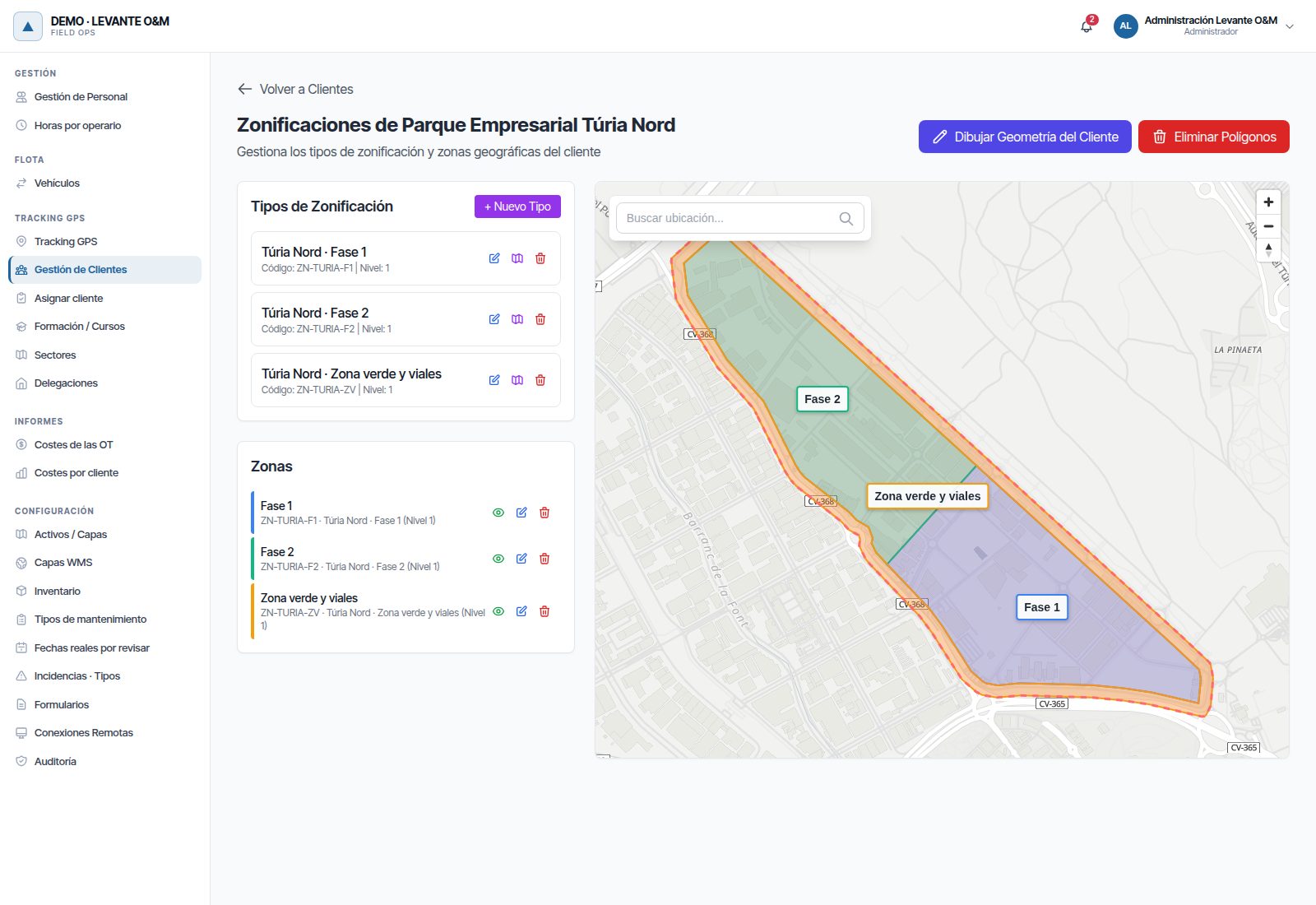
There are two different things:
- Geometría del cliente (Customer geometry): the outline of its whole territory. On the map it appears in red with a dashed line.
- Zonas (Zones): divisions within that territory, of a zoning type and with a level (1, 2…). Zones of level 2 or higher hang from a parent zone.
Zones are shown on the main map with the Zonas cliente (Customer zones) layer. See The map.
Zoning types
- Click + Nuevo Tipo (New type).
- Fill in Código (Code), Nombre and Nivel (Level). Descripción (Description) is optional.
- If the level is 2 or higher, choose the Tipo de Zona Padre (Parent zone type), which must be of the previous level.
- Click Crear.
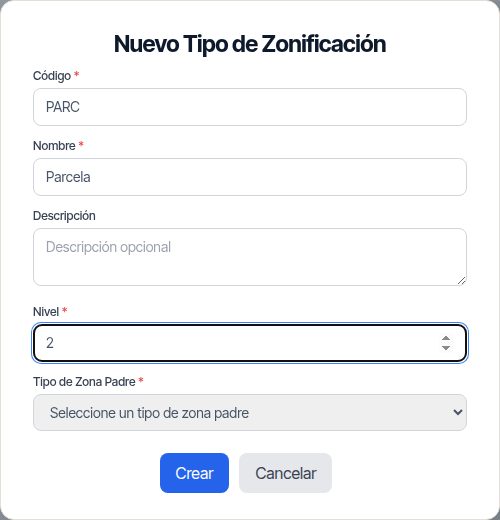
Each type has the buttons Editar, Dibujar geometría (Draw geometry) and Eliminar.
Drawing a zone
- On the zoning type, click Dibujar geometría.
- Click on the map to add the vertices. The cursor snaps to the vertices of nearby zones.
- Double-click to close the polygon.
- In “Nueva Zona: …” (New zone: …), fill in Código and Nombre. For zones of level 2 or higher, choose the Zona Padre (Parent zone); the one containing the drawing is suggested.
- Click Guardar (Save). The message “La zona se ha creado correctamente” (The zone has been created successfully) appears.
In the zone list, the eye icon hides or shows the zone on this map, Editar forma (Edit shape) changes its outline, Editar changes the code, name and parent zone, and Eliminar deletes it. Clicking the name zooms the map to the zone.
Changing the shape of a zone
- In the zone list, click Editar forma (the polygon-with-dots icon). The map zooms to the zone and “Editando la forma de…” (Editing the shape of…) appears over it.
- Drag the vertices. To add one, drag the midpoint of a side. To remove one, click the vertex and press Supr (Delete key). If the zone has several polygons, click the one you want to change.
- Click Guardar forma (Save shape). The message “La forma de la zona se ha actualizado correctamente” (The zone shape has been updated successfully) appears.
Cancelar (Cancel) leaves the zone as it was. While you are editing a shape, the other buttons on the screen cannot be used. If moving a vertex makes two sides cross, it is corrected automatically when you save.
Importing zones from a file
You can import the polygons of a GeoJSON, a Shapefile compressed as a .zip (with .shp, .shx, .dbf and .prj) or a GeoPackage (.gpkg). The coordinates are converted to the map's system using the .prj or the file itself.
- On the zoning type, click Importar zonas desde archivo (Import zones from file) (the up-arrow icon).
- Choose the file and click Analizar (Analyse).
- The “Campos del archivo” (File fields) window says how many polygons it contains. Choose the field for the Código de la zona (Zone code) (or let them be numbered with the type's code: BAR-001, BAR-002…) and the one for the Nombre (or use the code).
- For types of level 2 or higher, choose the Zona padre. With Automática (Automatic), each zone hangs from the zone of the parent type that covers it most.
- Click Importar (Import). When it finishes, it says how many zones were created and which were not, with the reason.
The following are not imported: features that are not polygons, those whose code is already used by another zone of the customer and, with automatic parent zone, those that do not fall inside any parent zone.
Customer geometry
- Click Dibujar Geometría del Cliente (Draw customer geometry). If it already had one, it is loaded so you can add polygons.
- Draw one or more polygons: click for each vertex and double-click to close.
- Click Guardar Geometría (Save geometry). The message “La geometría del cliente se ha guardado correctamente” (The customer geometry has been saved successfully) appears.
To leave without saving, click Cancelar, next to Guardar Geometría: the geometry stays as it was.
To remove polygons, click Eliminar Polígonos (Delete polygons), click the polygon and confirm. Then click Guardar Geometría. A polygon needs at least 3 points.
Deactivating a customer
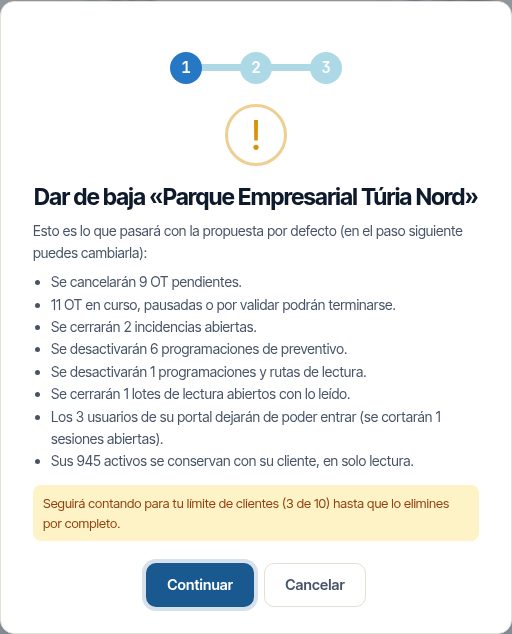
Deactivating deletes nothing: the customer stops accepting new work and its history is kept. Click Dar de baja on its row. The wizard has three steps.
Step 1. It summarises what will happen under the default proposal: WOs, incidents, schedules, reading batches, portal users and assets. It warns that the customer will still count towards your customer limit. Click Continuar (Continue).
Step 2. Decide what to do with each item and enter the Motivo de la baja (Reason for deactivation), which is required.
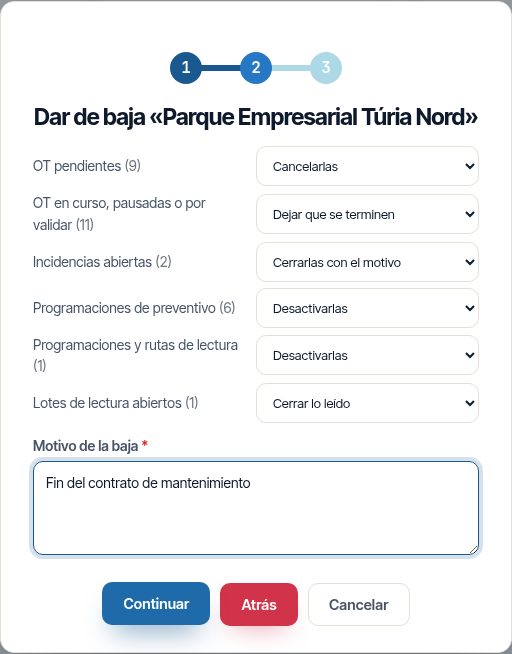
| What | Options (the first is the proposal) |
|---|---|
| Pending WOs | Cancelarlas (Cancel them) or Mantenerlas (Keep them) |
| WOs in progress, paused or awaiting validation | Dejar que se terminen (Let them finish) or Cancelarlas. Completed WOs or WOs awaiting validation are never cancelled |
| Open incidents | Cerrarlas con el motivo (Close them with the reason) or Mantenerlas abiertas (Keep them open). Those resolved by an open WO are closed with it |
| Preventive maintenance schedules | Desactivarlas (Deactivate them) or Mantenerlas. Once deactivated, they stop generating WOs |
| Reading schedules and routes | Desactivarlas or Mantenerlas |
| Open reading batches | Cerrar lo leído (Close what has been read) or Mantenerlos abiertos (Keep them open) |
Step 3. It repeats the summary with your decisions. Click Dar de baja. The result says how many WOs were cancelled, how many incidents were closed and how many schedules were deactivated.
In addition, always:
- The customer portal is disabled and its users can no longer log in. Open sessions are ended.
- Its assets are kept with their customer, read-only.
- The customer appears in the filters, at the end, in the Clientes de baja (Deactivated customers) group, so you can consult its history. It is no longer offered when creating work.
Warning
Whatever was cancelled or closed during deactivation is not undone when the customer is reactivated.
Reactivating a customer
- Filter the list by Estado → De baja.
- Click Reactivar and confirm.
- If the deactivation disabled schedules, they appear in a list. Click Reactivar on the ones you want to recover and, at the end, Hecho (Done).
The portal is not reactivated automatically. To open it again, edit the customer and turn on Dar acceso al portal.
Transferring assets
Traspasar activos, on a deactivated customer, moves all its assets to another active customer or to the in-house customer. It is useful, for example, when a facility changes concession holder. The open work on those assets stays with the deactivated customer.
Deleting a customer completely
Deletion physically erases everything belonging to the customer: assets, WOs, incidents, meter readings, photos, documents, signatures, forms, portal users, SLA, zones and quotes. Only an administrator can do it, and only on a deactivated customer. It frees its slot in the customer limit.
- Filter by De baja and click Eliminar completamente.
- Check the record count and the size of the files.
- Click Descargar una copia antes (Download a copy first) (a ZIP with the data and the files) or Continuar sin copia (Continue without a copy).
- Type the exact name of the customer and click Eliminar completamente.
- Wait for the progress bar to finish. When it is done, the deletion certificate (PDF) downloads automatically; if it does not, click Descargar justificante (Download certificate) in the final message.
The certificate records who requested it, when, whether the copy was downloaded first and how many records and files of each type were erased. To download it again, click Clientes eliminados (Deleted customers), at the top of customer management: each deletion is listed with its date, who requested it, its status and the Justificante (PDF) (Certificate (PDF)) button.
Stock movements and the audit log are kept, without any reference to the customer. If the customer shares data with others (for example, its assets are in another customer's WOs), a warning appears and you must transfer them first.
Warning
Deletion cannot be undone. Download the copy if you need it for contractual or data protection reasons. If the task is interrupted, launch it again: it carries on from where it stopped.
Assign customer
The Asignar cliente screen gathers everything that has been left without a customer and assigns it in bulk. Only the administrator can see it.
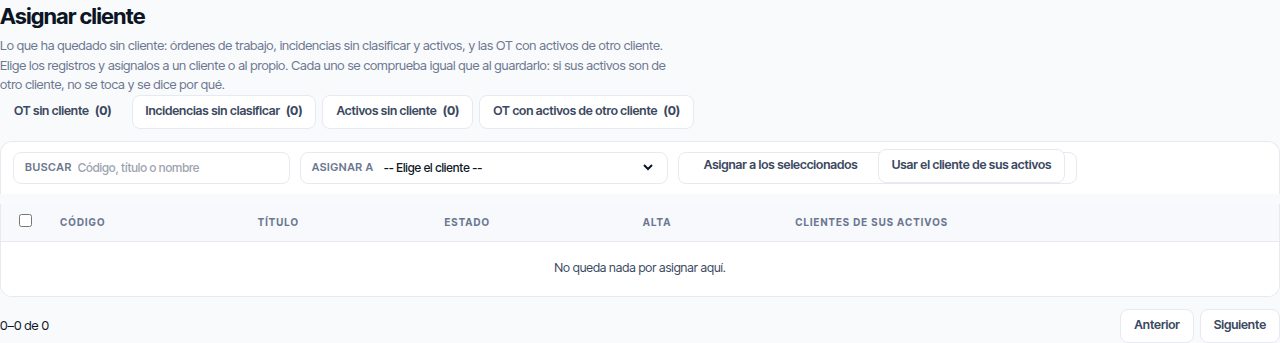
| Tab | What it lists |
|---|---|
| OT sin cliente (WOs without customer) | Work orders without a customer |
| Incidencias sin clasificar (Unclassified incidents) | Incidents without a customer. They cannot be converted into WOs or closed until they have one |
| Activos sin cliente (Assets without customer) | Assets without a customer |
| OT con activos de otro cliente (WOs with another customer's assets) | WOs whose assets belong to a customer other than the WO's customer |
- Choose the tab. If needed, search by code, title or name.
- Tick the records. The checkbox in the header ticks the whole page (50 rows).
- In Asignar a (Assign to), choose the customer or the in-house customer.
- Click Asignar a los seleccionados (Assign to selected) and confirm.
Usar el cliente de sus activos (Use the customer of its assets) assigns each record the customer of its assets, when they all share one. In OT con activos de otro cliente, the Pasar activos a… (Move assets to…) button moves those assets to the WO's customer.
Each record is checked as if it were being saved. If it does not fit, for example because its assets belong to another customer, it is left untouched and the summary says why.
Customer filter
With the customers module, the map has a drop-down to show only one customer's items: assets, WOs, incidents, meter readings and planning. It is explained in Getting started and The map. The Dashboard has its own customer filter.
SLA
The SLA sets two deadlines for each criticality: response (start working) and resolution (finish). There are deadlines for WOs and for incidents. It requires the SLA module to be subscribed.
Where the deadline comes from
Maptainer looks for the deadline on three levels and uses the first one it finds:
- The customer's own SLA, for that criticality.
- Your company's SLA (Configuración General (General settings) → SLA).
- The platform's global SLA.
A WO does not have a criticality, but a priority. Section 2 of the settings says which criticality each priority uses; by default, Urgente (Urgent) uses Crítica (Critical), Alta (High) uses Alta, and so on.
How it is counted
- The deadline starts when the WO is created. For preventive maintenance, it starts at its first planned start if that is later. Rescheduling the WO afterwards does not move the deadline.
- Only the time within the Días Laborales (Working days) and the Horario de Trabajo (Working hours) of Configuración General counts. Nights, weekends and public holidays of the WO's branch do not count. See Work calendar.
- If the WO is created outside working hours, the deadline starts at the next opening time.
- When the SLA, working hours, public holidays, priority, customer or branch change, the deadlines of open WOs are recalculated. Closed WOs keep their deadline.
For example, with working hours from 7:30 to 15:30 and a 4-hour deadline, a WO created on Friday at 14:00 is due on Monday at 10:00.
SLA at risk and SLA breached
| Status | When |
|---|---|
| SLA en riesgo (SLA at risk) | The open WO has used 75 % of its resolution deadline (or your company's %) and is not yet overdue |
| SLA incumplido (SLA breached) | The WO is still open and its resolution deadline has passed |
The warning is proportional to the deadline: with 4 hours it warns at 3 hours; with 48 hours, at 36. The warnings disappear when the WO is completed, validated or closed.
Where you see it:
- On the WO cards: “SLA en N h” (SLA in N h) or “SLA incumplido”. See Work orders.
- In the counter strip above the map: SLA incumplido and SLA en riesgo.
- In the Dashboard: SLA en riesgo, SLA incumplido, Resolución en plazo (Resolution on time) and Respuesta en plazo (Response on time).
- In the portal, the customer sees the deadline of each incident and WO, its Fuera de SLA (Outside SLA) incidents and the Nivel de servicio (Service level) block on the dashboard. See Customer portal.
Incident deadlines and how they are used are explained in Incidents.
The company SLA
It is configured in the user menu → Configuración (Settings) → Configuración General, section SLA de la organización (Organisation SLA). It only appears with the SLA module subscribed.
1. Deadlines by criticality. For each criticality (Crítica, Alta, Media (Medium), Baja (Low)), the Tiempo de respuesta (min) (Response time (min)) and the Tiempo de resolución (min) (Resolution time (min)) for incidents and for work orders. Below, the equivalent in working hours is shown.
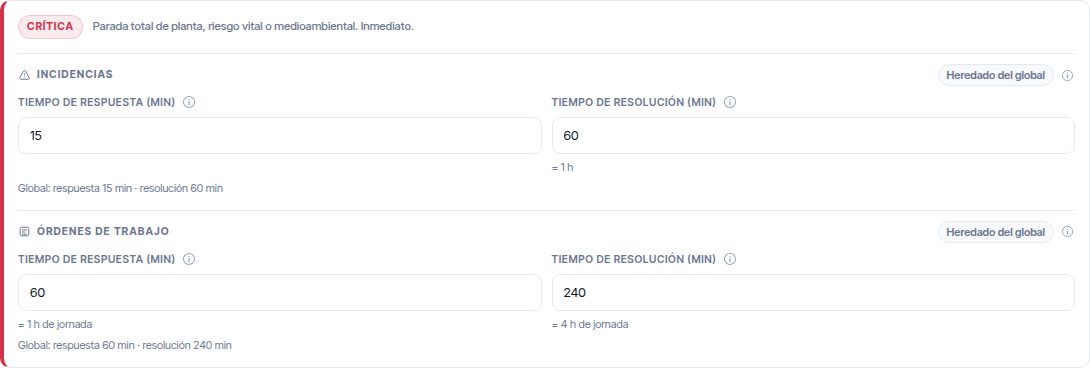
Each block says Heredado del global (Inherited from global) or Personalizado (Custom). When you change a value it becomes custom; Restaurar global (Restore global) returns it to the platform value.
2. Which deadline each work order priority uses. One drop-down per priority. 3. “SLA en riesgo” warning. The percentage of the resolution deadline, from 1 to 99. Below, examples with your deadlines are shown.
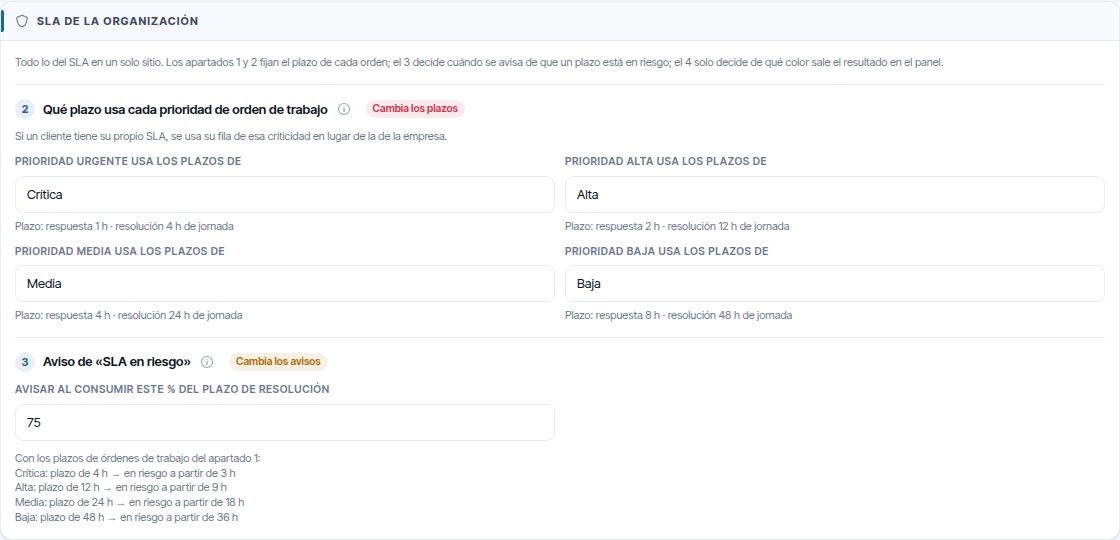
4. How compliance is rated on the dashboard. The target and acceptable values of the dashboard's SLA indicators. It only changes colours. See Dashboard.
Click Guardar configuración (Save settings) at the bottom of the page. The rest of the screen is explained in Tenant administration.
A customer's SLA
A customer can have deadlines different from the company's.
- Edit the customer (or create it).
- Turn on Activar SLA personalizado. A card appears for each criticality, with Incidencias (Incidents) and Órdenes de Trabajo (Work orders).
- Enter Tiempo de Respuesta (min) and Tiempo de Resolución (min) wherever you want a specific deadline. Leave both blank wherever the company's deadline should still apply; the value in grey is the company's.
- Click Guardar cambios (or Crear cliente).
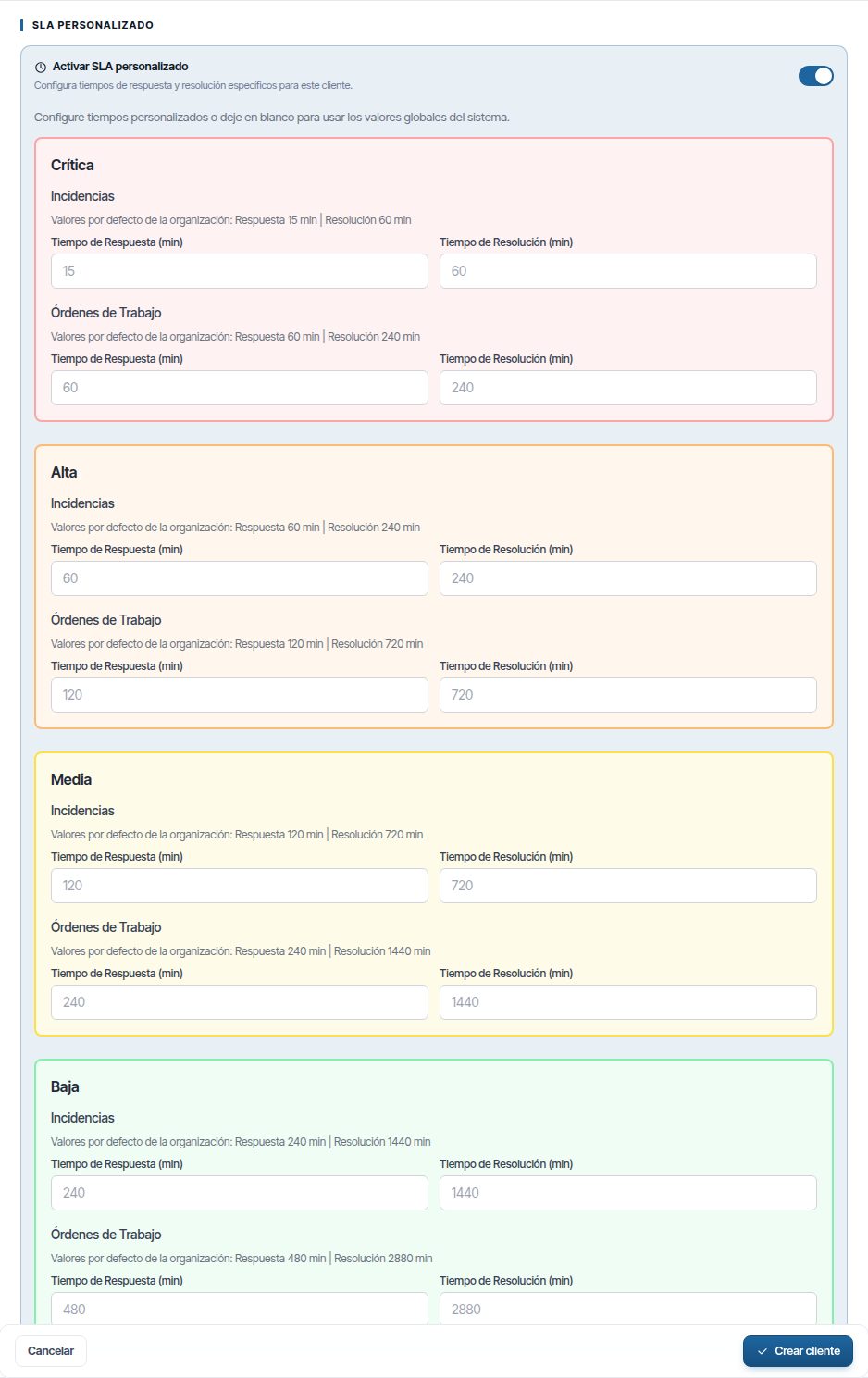
Warning
If you turn off Activar SLA personalizado and save, all the customer's own deadlines are deleted. Its open WOs switch to the company's deadlines.
Each specific deadline always has both times. If you fill in only one, the message “SLA personalizado incompleto” (Custom SLA incomplete) appears, the missing box is marked in red and nothing is saved until you fill it in or clear both. To return a criticality to the company's deadlines, clear its two boxes and save.
Customer portal
The portal lets the customer consult its work and report incidents. It is included in the customers module, and it is enabled customer by customer.
- Edit the customer and turn on Dar acceso al portal. Click Guardar cambios.
- The Usuarios del Portal button appears on its row in the list.
- Click Nuevo usuario (New user) to give access to a person at the customer.
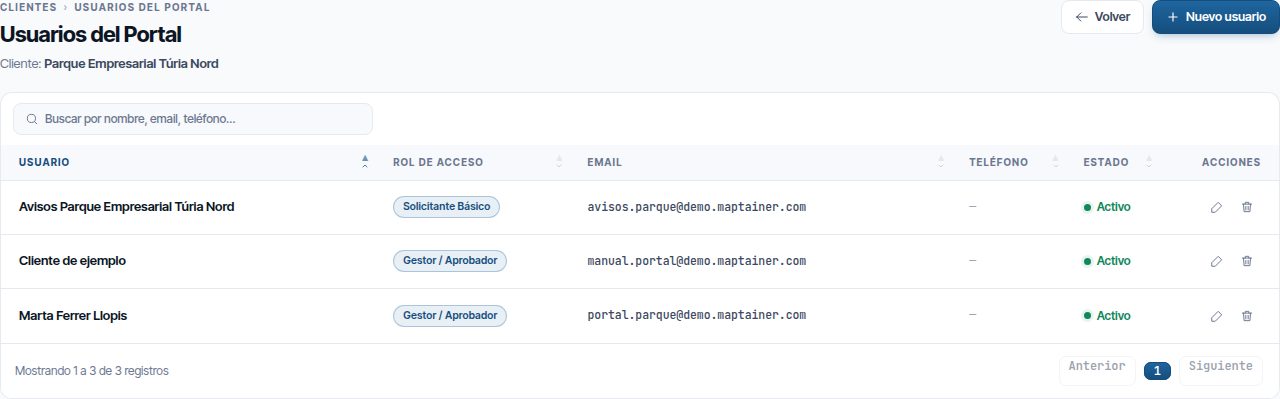
What the customer sees, the access roles, each user's zones and how to add users are explained in Customer portal. When the customer is deactivated, its portal is closed.
Customer approval
In the same Portal del cliente (Customer portal) section of the record (when creating or editing the customer) you decide whether its jobs need its approval to be closed:
| Field | What it does |
|---|---|
| Exigir su conformidad para cerrar (Require their approval to close) | Its WOs do not change to Cerrada (Closed) until the customer states in the portal that it approves. If not enabled, its response is recorded but does not block |
| Conformidad tácita a los (días) (Tacit approval after (days)) | If the customer does not respond within that period from when the work was finished, it is deemed to approve. Empty: never |
Responses in the portal are given by users with the Gestor / Aprobador (Manager / Approver) or Administrador (Administrator) role. A No conforme (Not approved) response creates the “Cliente no conforme” (Customer not satisfied) alert in the bell. The whole process is explained in Customer approval.
Note
With the simple life cycle (without Completada (Completed) or Validada (Validated)) the customer has nowhere to respond: in that case the requirement does not block closing.
Common problems
| Symptom | Probable cause | Solution |
|---|---|---|
| Gestión de Clientes does not appear | Your company does not have the module, or your role does not have Clientes → Ver | Check the role or contact Maptainer |
| “Límite de clientes” when creating one | You have reached the limit; deactivated customers still count | Completely delete a deactivated customer or upgrade the plan |
| A customer does not appear when creating a WO | It is deactivated | Reactivate it from the list, filtering by De baja |
| Dar de baja does not appear on a customer | It is the in-house customer, or you do not have Editar | The in-house customer cannot be deactivated |
| Eliminar completamente does not appear | The customer is active, or you are not an administrator | Deactivate it first; ask an administrator to delete it |
| “El nombre no coincide” (The name does not match) | The name you typed is not exact | Copy it exactly, with capitals and punctuation |
| Deletion warns of data linked to other customers | Its assets are in another customer's WOs, incidents or routes | Use Traspasar activos or Asignar cliente and try again |
| Usuarios del Portal does not appear | The customer does not have the portal enabled | Edit the customer and turn on Dar acceso al portal |
| After reactivating, the portal is still closed | Reactivation does not open the portal | Turn on Dar acceso al portal in the record |
| A customer WO will not close: “Falta la conformidad del cliente” (Customer approval missing) | The customer requires its approval and has not responded, or does not approve | Ask it to respond in the portal, or check Exigir su conformidad para cerrar in its record |
| “Incidencia sin clasificar” (Unclassified incident) when creating a WO | The incident has no customer | Assign one or use Asignar cliente |
| A WO shows no SLA warning | Your company has no SLA, or the WO is already completed | Check the SLA section in Configuración General |
| The customer's deadline is not applied | You only filled in the response or the resolution | Enter both values and save |
Last updated: