
Introduction
A template is the design of a form: its sections and its questions (fields). An assignment states which WOs it is suggested for: by maintenance type, task and asset type. When creating the WO, the office ticks the forms that the technician will have to fill in.
| Concept | What it is |
|---|---|
| Template | The form: name, description, sections and fields. For example, “Revisión de hidrante” |
| Section | Block of related fields: “Datos de la revisión”, “Conformidad”… |
| Detail section | Repeatable section: the technician adds as many rows as needed (“Piezas sustituidas”) |
| Field | Each question, with its type: text, number, date, selector, photo, signature… |
| Assignment | Rule that suggests the template in a WO: maintenance type, task and asset type |
| Scope | Activos (Assets): one answer for each asset in the WO. Global: a single answer for the whole WO |
| Answer | What the technician submits from the app. It is shown in the Formularios (Forms) tab of the WO record |
Prerequisites
- Módulo de mantenimiento (Maintenance module) subscribed.
- In Configuración General (General settings) → Cómo trabaja tu empresa (How your company works) → Ajustar en detalle (Fine-tune), the Usamos formularios de campo (We use field forms) option switched on. It comes switched on in all three profiles. Without it, Formularios disappears from the administrator and Formularios asociados (Associated forms) disappears from the WO form.
- The screen is in the administrator (admin area): Ir al administrador (Go to administrator) → Formularios.

Permissions
Templates are company configuration: changing them requires Configuración Global (Global configuration), not Mantenimiento (Maintenance).
| Action | Permission required |
|---|---|
| View templates, their design, the preview and the assignments | Mantenimiento → Ver (View) |
| Create, edit and delete templates, sections, fields and assignments, and open the design editor | Configuración Global → Editar (Edit) |
| View the answers on the WO record | Mantenimiento → Ver |
With the default roles, only the Administrador (Administrator) has Configuración Global → Editar. The Supervisor uses forms in WOs, but does not change templates.
The Formularios screen is in the Configuración (Settings) group of the administrator, which only the Administrador role can see. Other roles, even if they have the permissions, only see forms inside the WO.
The template list
Formularios opens Gestión de Formularios (Form management). At the top, four counters: Total plantillas (Total templates), Activas (Active), Total secciones (Total sections) and Media de secciones (Average sections). Below them, the search box (name or description) and the Estado (Status) filter.
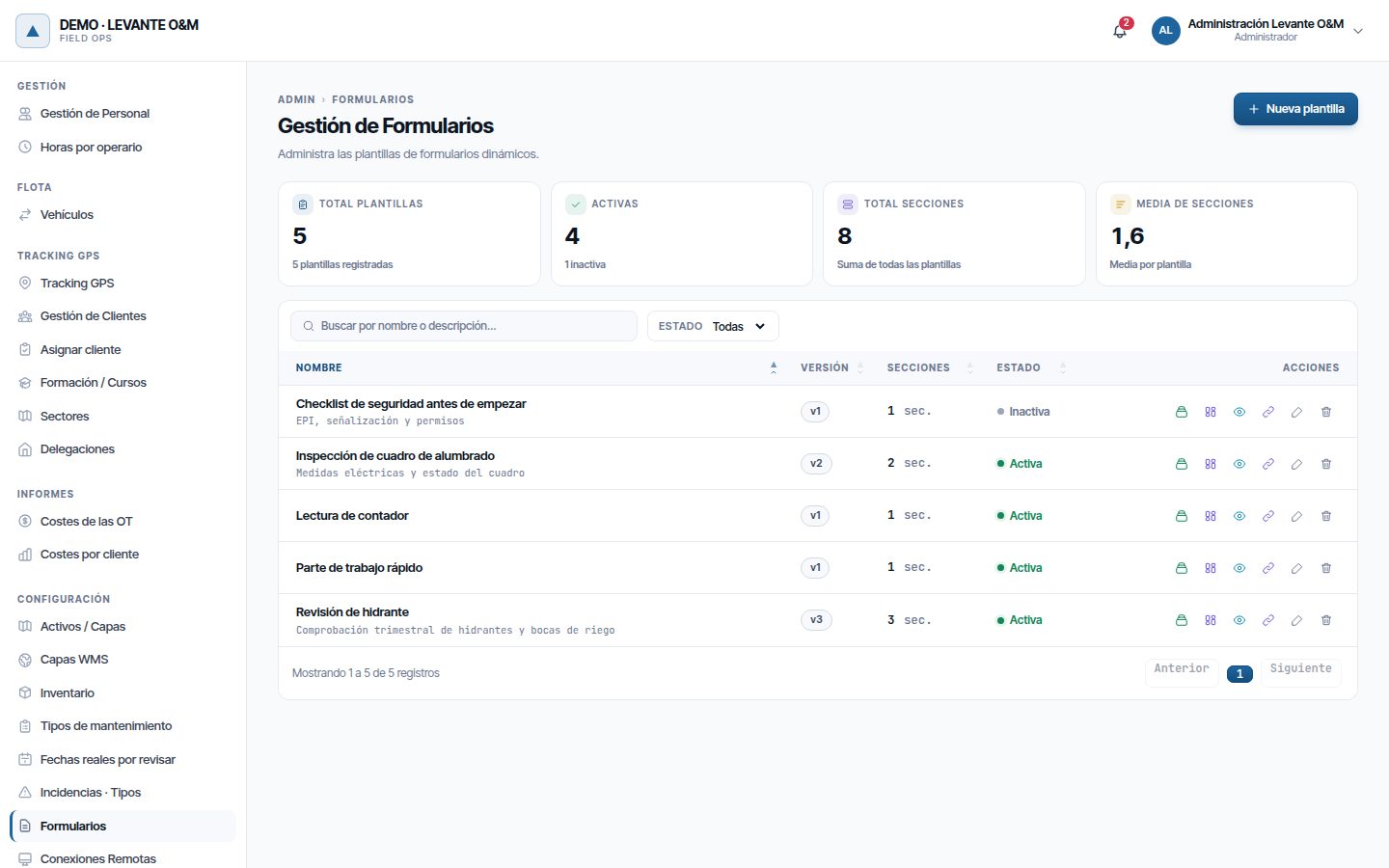
The table shows the Nombre (Name) (with the description underneath), the Versión (Version), the number of Secciones (Sections) and the Estado. Each row has six buttons:
| Button (on hover) | What it does |
|---|---|
| Gestionar secciones y campos (Manage sections and fields) | Opens Diseñar formulario (Design form) |
| Composición de layout (Layout composition) | Opens the layout editor in another tab |
| Previsualizar (Preview) | Opens the preview in another tab |
| Asignaciones (Assignments) | Opens the template's assignments |
| Editar | Changes name, description and status |
| Eliminar (Delete) | Deletes the template (see Deleting a template) |
The “Parte de trabajo rápido” template
Every company has the Parte de trabajo rápido (Quick work report) template, marked in the list with the Sistema (System) tag. The mobile app uses it for quick reports: its two fields, Título (Title) and Trabajo realizado (Work done), go to the WO's title and closing notes.
It is a system template and has these protections:
- It cannot be deleted. When you click Eliminar, the message “Parte de trabajo rápido es una plantilla de sistema: la usan los partes rápidos y no se puede eliminar. Si no la usas, desactívala” (Parte de trabajo rápido is a system template: quick reports use it and it cannot be deleted. If you do not use it, deactivate it) appears.
- Its section and its two fields cannot be deleted, nor can their Clave técnica (Technical key) or Tipo de campo (Field type) be changed. You can change their labels and add fields to it.
Templates for your sector
If your company was set up with a business sector (for example, street lighting or water), Maptainer copied its ready-made templates at sign-up, with their sections, fields and assignments. They are yours: you edit, assign and delete them like any others.
Creating a template
- Click Nueva plantilla (New template).
- Enter the Nombre (Español) (Name (Spanish)), which is mandatory. The English name and description are optional: users with the application in English see them.
- Leave Plantilla activa (Active template) ticked if you want it to be suggested in WOs.
- Click Crear plantilla (Create template). The message “Plantilla creada correctamente” (Template created successfully) appears and you return to the list.
- Add the sections and fields with Gestionar secciones y campos.
The Vista previa (Preview) card on the right shows how the name looks as you type. Cancelar (Cancel) or Volver al listado (Back to list) leave without saving.
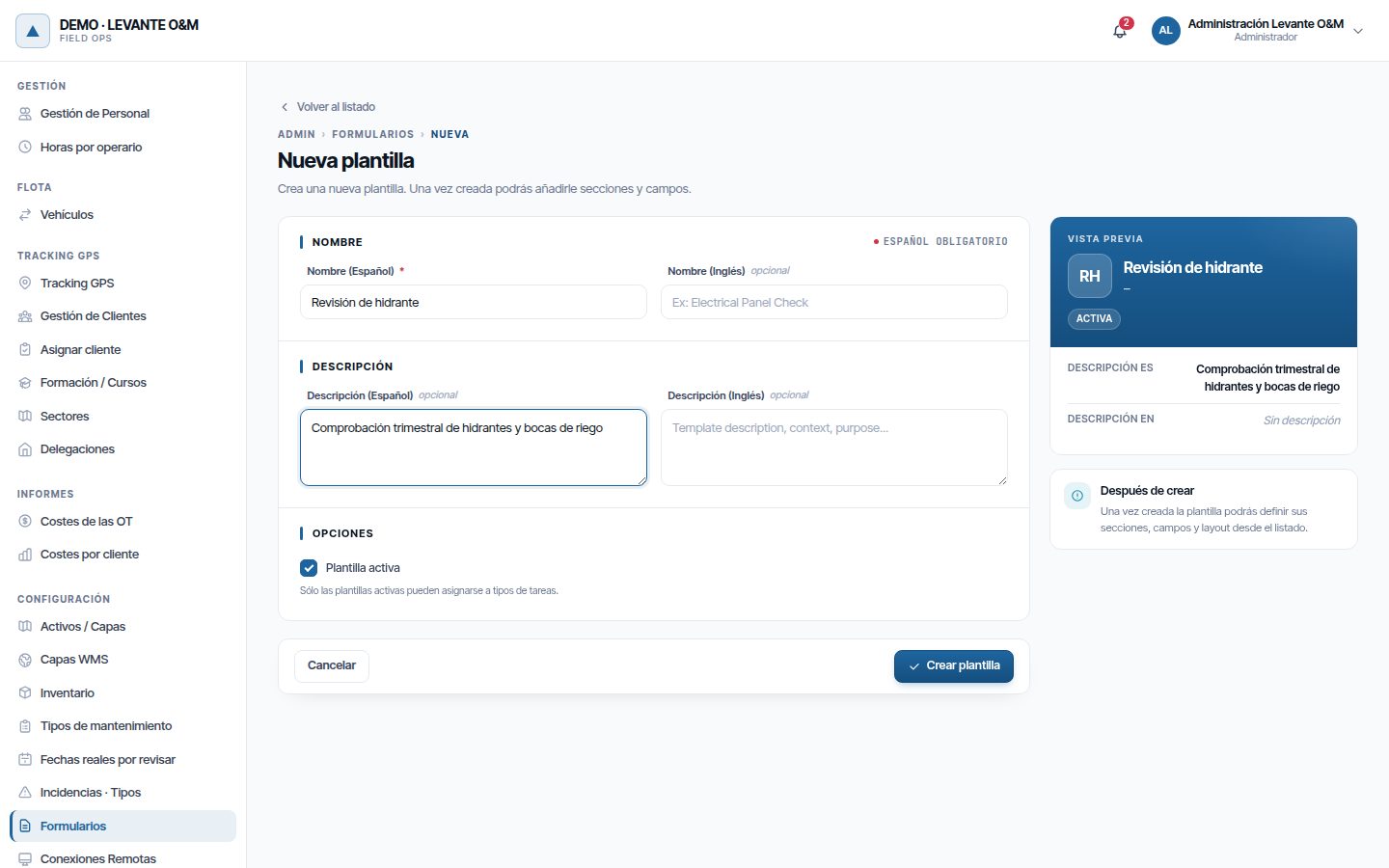
An inactive template is kept with its design, its assignments and its answers, but it is no longer suggested when creating or editing a WO. WOs that already had it keep it.
Designing the form
Gestionar secciones y campos opens Diseñar formulario. Each section is a card with its fields. Each field shows its label, its technical key, its type and, where applicable, Obligatorio (Mandatory) and Con dependencias (With dependencies).
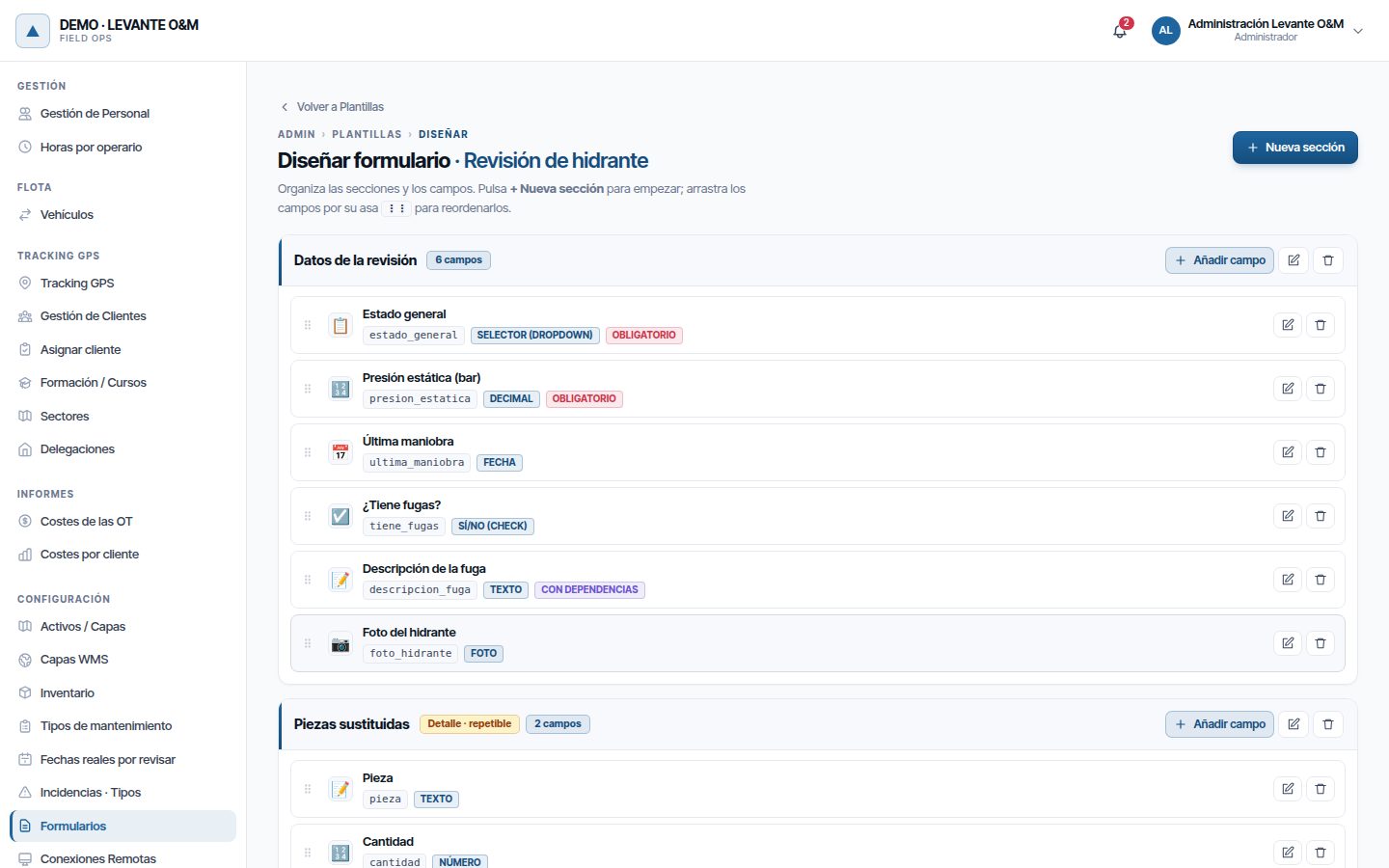
Sections
- Click Nueva sección (New section) (or Crear primera sección (Create first section) if the template is empty).
- Enter the Nombre (ES) (Name (ES)). The Nombre (EN) (Name (EN)) is optional.
- Set the Orden (Order): sections are shown from lowest to highest.
- Tick the Comportamiento (Behaviour) options if needed (see the table).
- Click Crear sección (Create section).
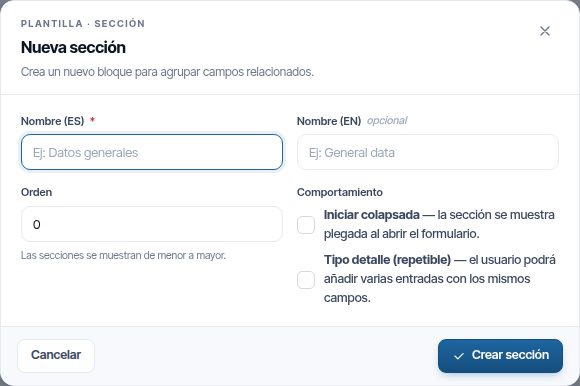
| Option | What it does |
|---|---|
| Iniciar colapsada (Start collapsed) | The section appears folded when the form is opened |
| Tipo detalle (repetible) (Detail type (repeatable)) | The technician can add several rows with the same fields. On the WO record it is shown as a table |
The pencil on the card edits the section and the bin deletes it with all its fields, after you confirm with Sí, eliminar (Yes, delete).
Tip
The Orden of a new section defaults to 0. Number sections in steps of 10 (10, 20, 30…) so that they appear in the order you want and you can insert others later.
Adding a field
- In the section, click Añadir campo (Add field).
- Fill in Identificación (Identification): Etiqueta (ES) (Label (ES)), Clave técnica and Tipo de campo are mandatory.
- If the type has options, add them in Opciones del campo (Field options).
- If needed, fill in Validación (Validation) and Dependencia condicional (Conditional dependency).
- Adjust Layout y comportamiento (Layout and behaviour) and tick Campo obligatorio (Mandatory field) if the technician cannot leave it empty.
- Click Crear campo (Create field).
Cancelar, the cross or a click outside the dialogue close it without saving.
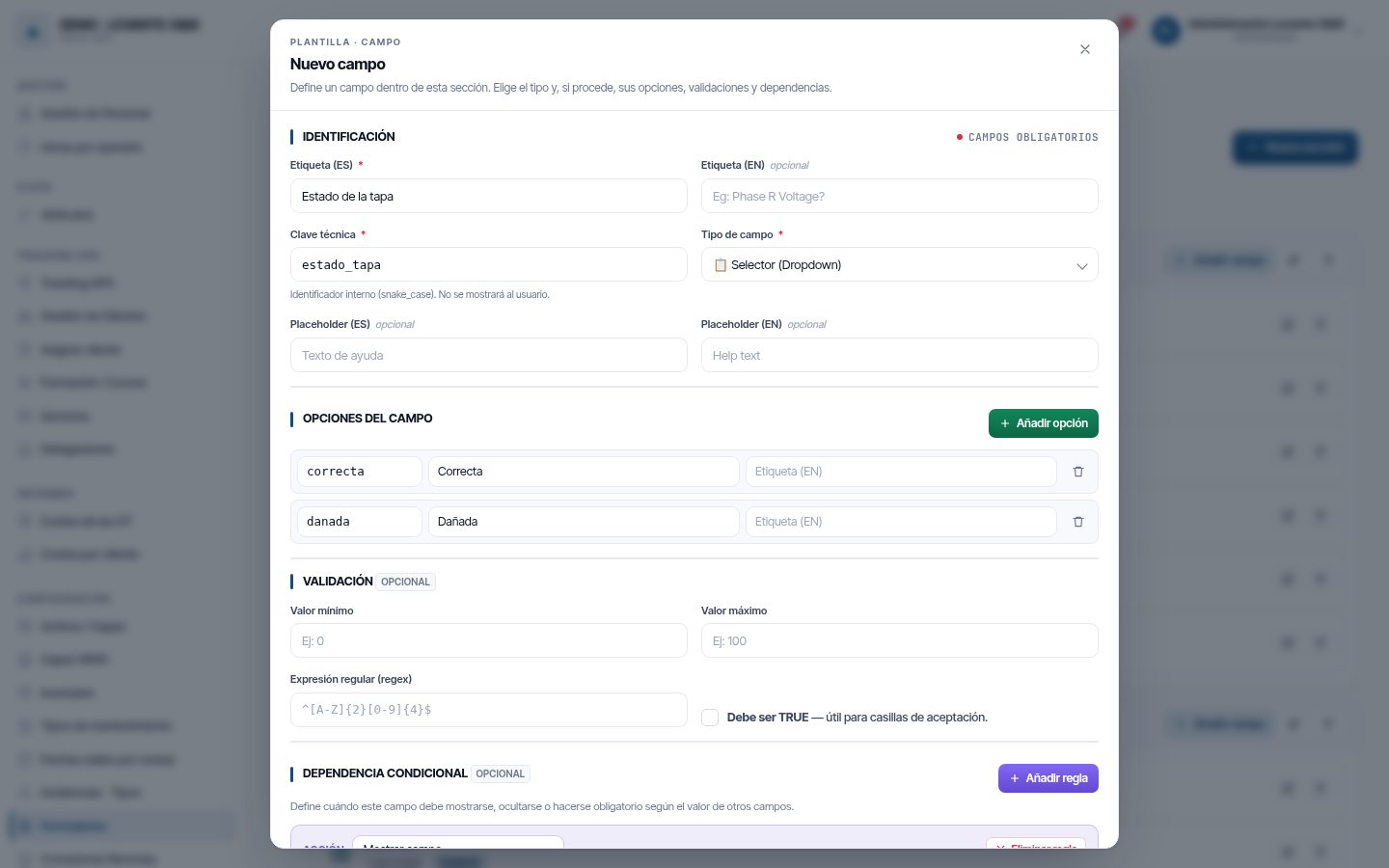
| Dialogue field | What it is for |
|---|---|
| Etiqueta (ES) / (EN) | The question the technician sees |
| Clave técnica | Internal name of the field, without spaces or accents (for example, presion_estatica). It is not shown to the technician and cannot be repeated within the template |
| Tipo de campo | What is answered (see the table of types) |
| Placeholder (ES) / (EN) | Help text inside the empty box. In Solo texto (Info) (Text only (Info)) it is the text that is displayed |
If the key already exists, the message “La clave ‘…’ ya la usa otro campo de esta plantilla; elige otra” (The key “…” is already used by another field in this template; choose another) appears.
Field types
| Type | What the technician answers | Has options |
|---|---|---|
| Texto (Text) | Free text | No |
| Número (Number) | Whole number | No |
| Decimal | Number with decimals | No |
| Sí/No (Check) (Yes/No (Check)) | Yes or No | No |
| Selector (Dropdown) | One option from a drop-down list | Yes |
| Selector Múltiple (Multiple selector) | Several options from a list | Yes |
| Radiobutton | One option, with all of them visible | Yes |
| Checkboxes | Several tickable boxes | Yes |
| Fecha (Date) | A date | No |
| Hora (Time) | A time | No |
| Foto (Photo) | A photograph taken with the phone | No |
| Firma (Signature) | A signature on the screen | No |
| Ubicación GPS (GPS location) | The phone's position | No |
| Solo texto (Info) | Nothing: it displays an informative text | No |
For types with options, click Añadir opción (Add option) for each one. Each option has a Valor (Value) (what is stored), an Etiqueta (ES) (what is displayed) and an optional Etiqueta (EN) (Label (EN)). If you leave the value empty, the label is used. The bin on the row removes the option.
Validation, dependencies and layout
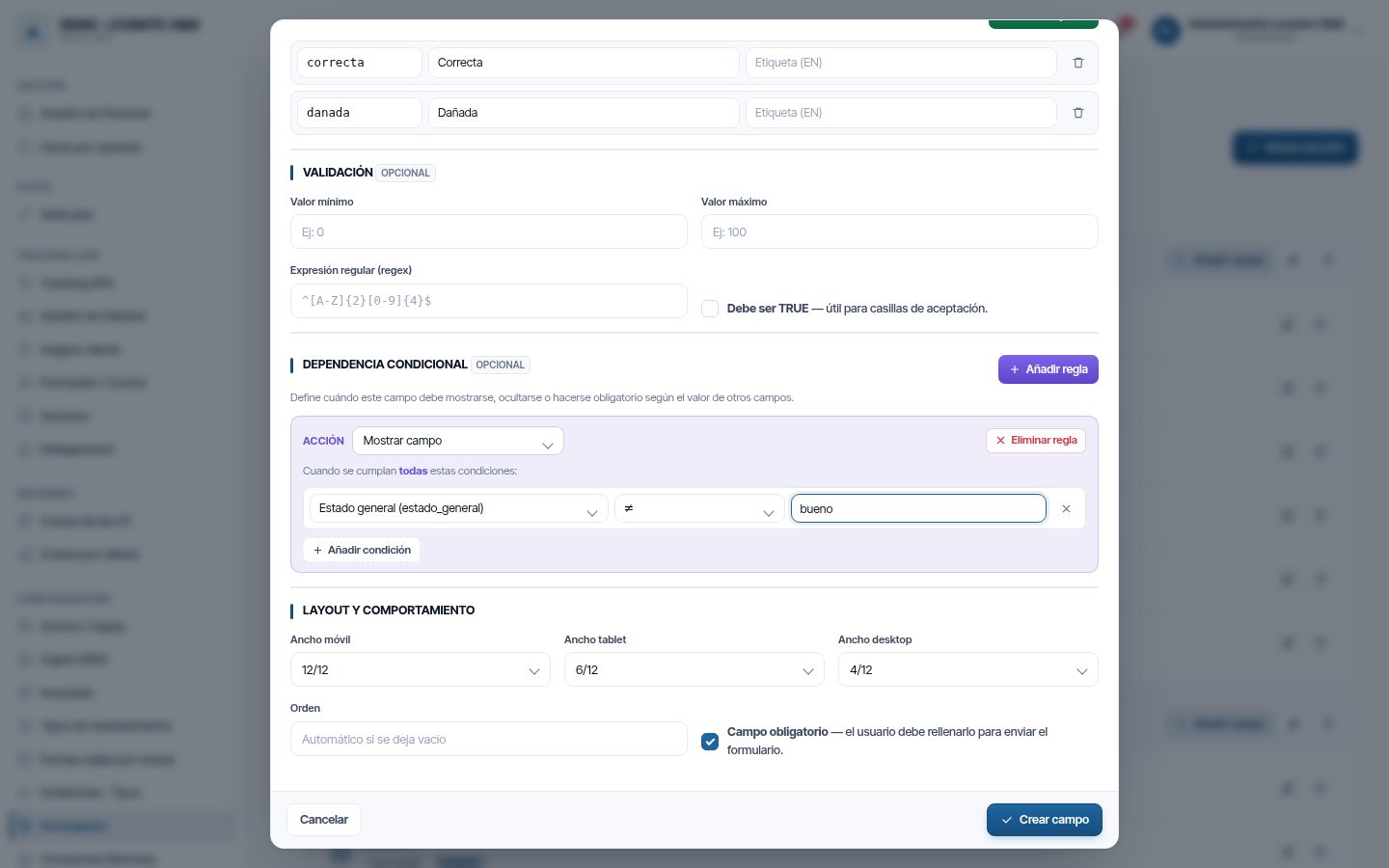
Validación is optional:
| Field | What it is for |
|---|---|
| Valor mínimo / Valor máximo (Minimum value / Maximum value) | Limits of a number. For example, a pressure between 0 and 16 |
| Expresión regular (regex) (Regular expression (regex)) | Format that a text must have, such as a number plate or a code |
| Debe ser TRUE (Must be TRUE) | Forces Sí (Yes) to be ticked. Useful for acceptance boxes |
Dependencia condicional makes the field change according to what is answered in other fields:
- Click Añadir regla (Add rule) and choose the Acción (Action): Mostrar campo (Show field), Ocultar campo (Hide field), Hacer obligatorio (Make mandatory), Hacer opcional (Make optional), Habilitar (Enable) or Deshabilitar (Disable).
- In the condition, choose the field, the operator (=, ≠, >, <, ≥, ≤, Contiene (Contains), Vacío (Empty), No vacío (Not empty)) and the value. With a Sí/No field, the value is chosen between Verdadero (true) (True (true)) and Falso (false) (False (false)).
- With Añadir condición (Add condition) you add more. The rule applies when all of them are met.
In a selector, the value compared is the option's Valor, not its label. You can only choose fields already saved in the template: create the field it depends on first. Eliminar regla (Delete rule) and the cross on each condition remove them.
Layout y comportamiento:
| Field | What it is for |
|---|---|
| Ancho móvil / Ancho tablet / Ancho desktop (Mobile width / Tablet width / Desktop width) | Part of the row that the field takes up on each screen: 12/12 (all), 6/12 (half), 4/12 (a third) or 3/12 (a quarter) |
| Orden | Position within the section. If empty, it goes at the end |
| Campo obligatorio | The technician must fill it in to submit the form |
Editing, reordering and deleting fields
- The pencil on a field opens Editar campo (Edit field). Click Guardar cambios (Save changes) when you have finished.
- To reorder, drag the field by its handle (⋮⋮). The order is saved when you drop it: the section turns green for a moment.
- The bin deletes the field after you confirm with Sí, eliminar.
Preview
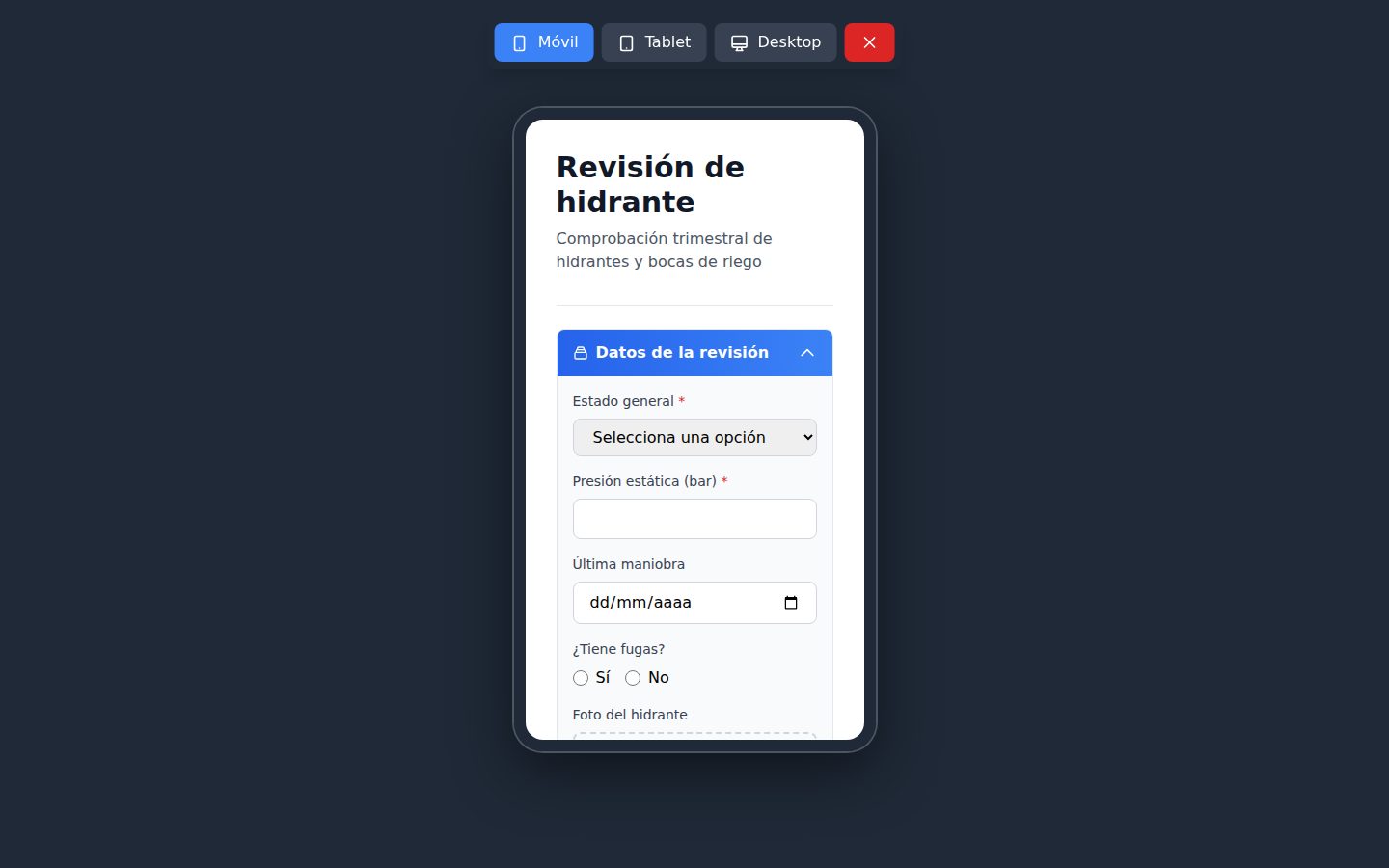
Previsualizar opens the form in another tab exactly as it will be filled in, with its sections, mandatory fields (with *) and dependency rules. The Móvil (Mobile), Tablet and Desktop buttons change the size; the red cross closes the tab. What you type is not saved.
Tip
Test each dependency rule in the preview before assigning the template: answer the field it depends on and check that the other one appears or disappears.
Layout editor
Composición de layout opens the Editor de Layout (Layout editor) in another tab. It is used to place fields in rows and give them a width, separately for Móvil, Tablet and Desktop.
- Choose the device at the top. Vista actual (Current view) shows which one you are composing.
- Drag the fields by their handle (⋮⋮) within their row or to another row.
- Change the width with − and +, from 1 to 12 columns.
- Click Guardar layout (Save layout). The message “Layout guardado” (Layout saved) appears. Cerrar (Close) closes the tab without saving.
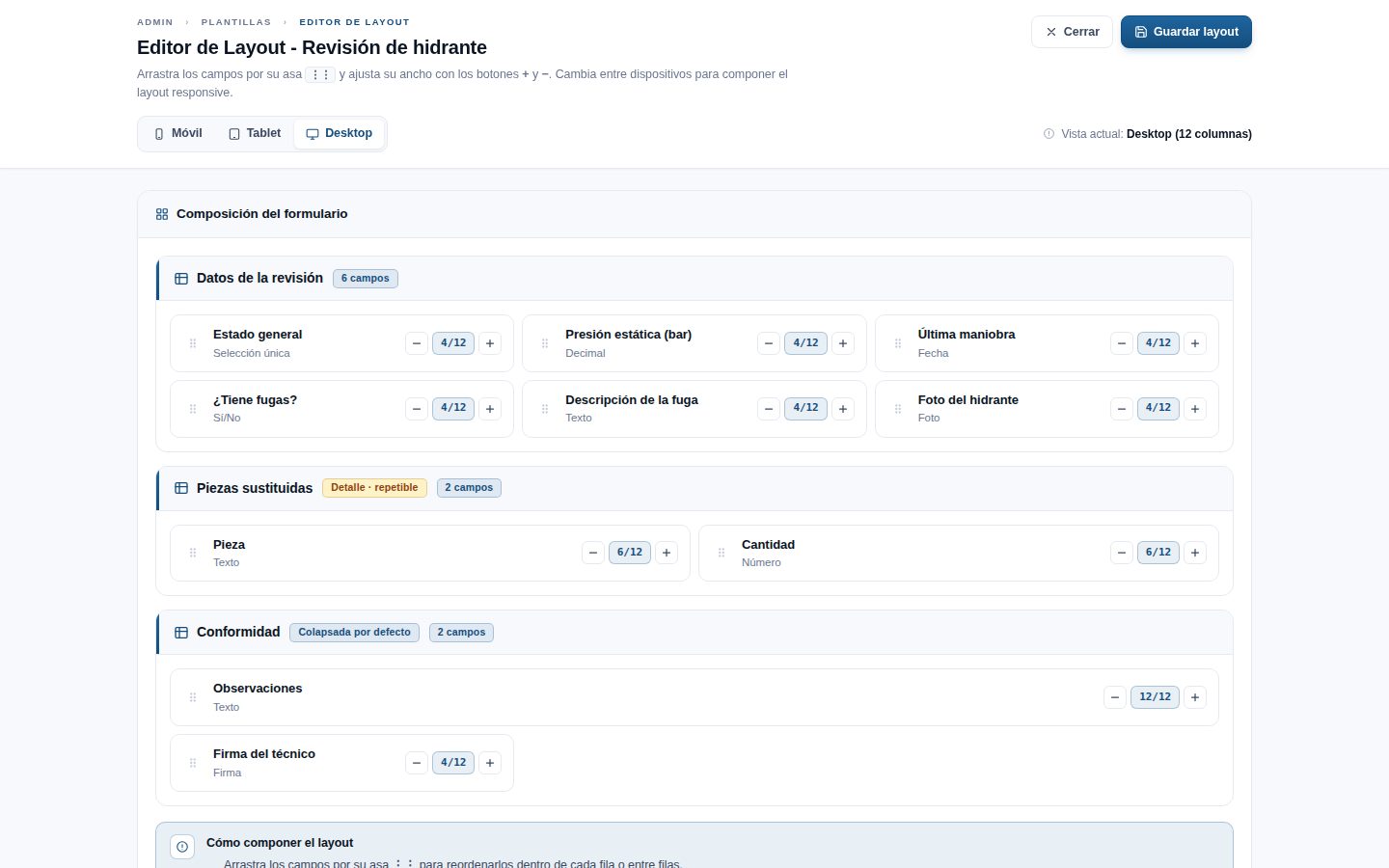
Widths are kept wherever you edit them: the field dialogue in Diseñar formulario also offers 1 to 12 columns, so saving the field does not change the width you gave it in the layout.
Assigning the template to WOs
Assignments decide which WOs the template is suggested for. Click Asignaciones on its row. Each card shows the Peso (Weight), whether it is Obligatorio or Opcional (Optional), the scope and the context (maintenance type, task and asset type). Without a context, it says “Aplica a todos los contextos” (Applies to all contexts).
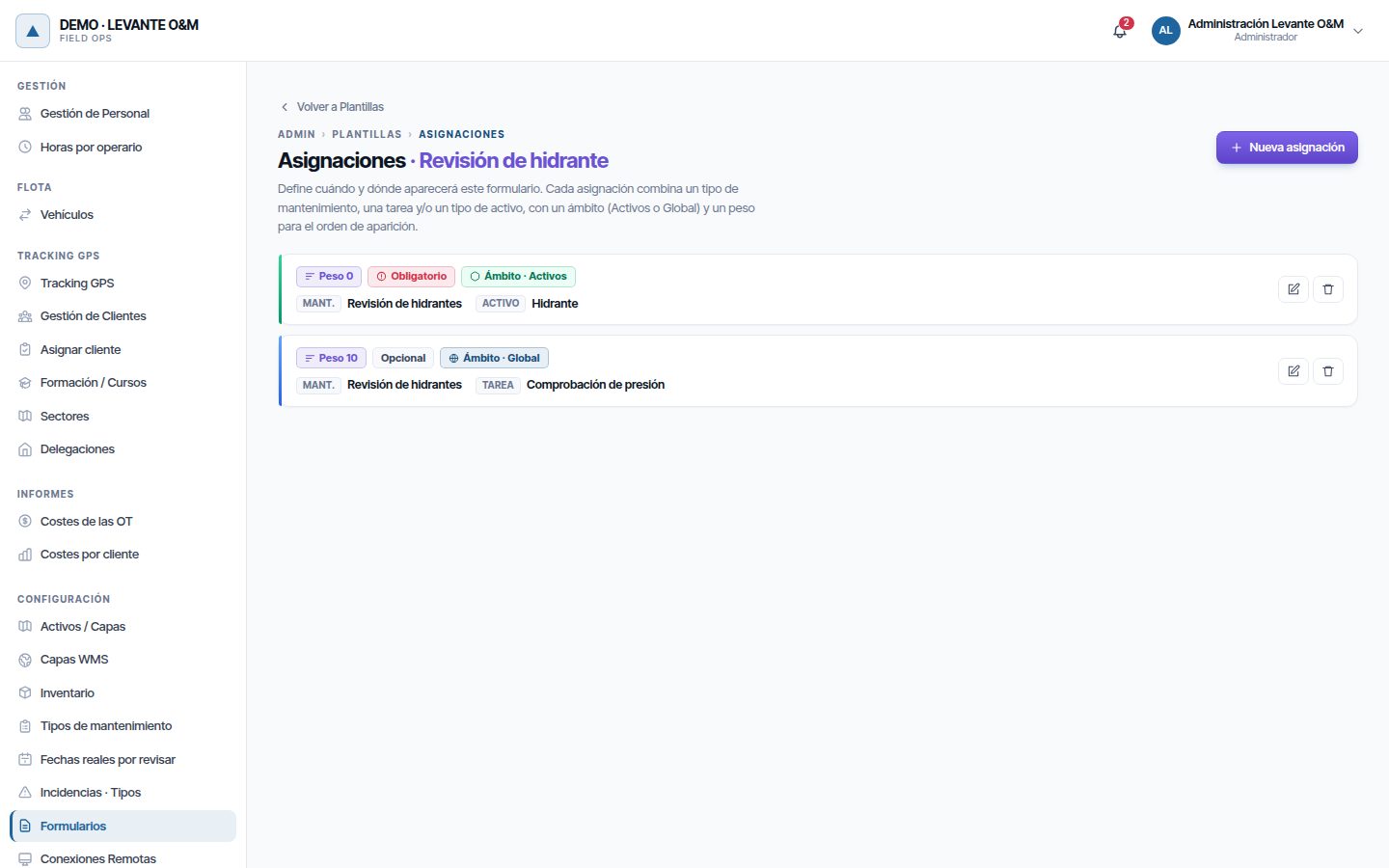
Creating an assignment
- Click Nueva asignación (New assignment).
- In Contexto (Context), choose the Tipo de mantenimiento (Maintenance type). When you choose it, Tarea estándar (Standard task) appears, to limit it to a specific task.
- Choose the Tipo de activo (Asset type) if the form is only for one class of asset.
- In Comportamiento, set the Peso and tick Obligatorio if appropriate.
- Choose the Ámbito de aplicación (Scope of application): Activos or Global.
- Click Crear asignación (Create assignment).
Leave a field on Todos (All) so as not to restrict that context. The pencil on the card edits the assignment and the bin deletes it.
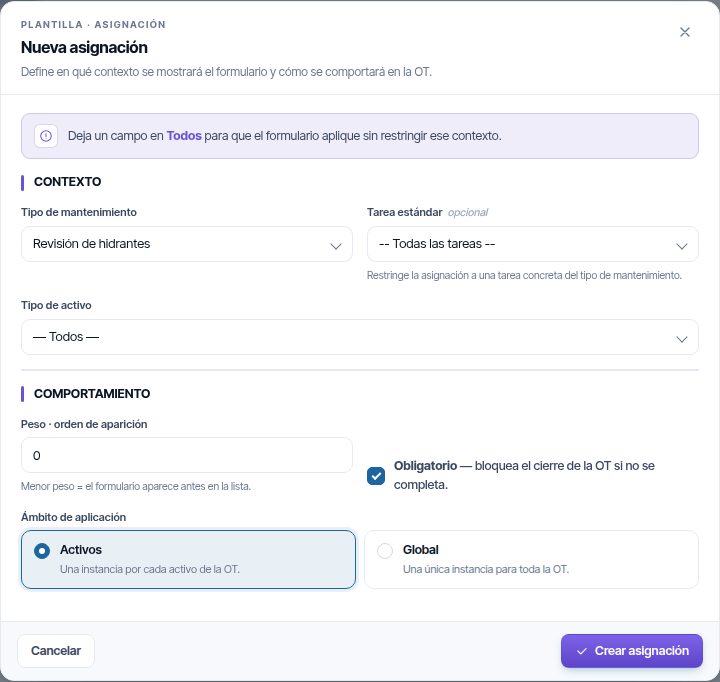
| Field | What it is for |
|---|---|
| Tipo de mantenimiento | The template is suggested in WOs of that type. Todos: in any WO |
| Tarea estándar | Only when that task is ticked in the WO. In addition, the task is considered done when the form arrives completed |
| Tipo de activo | Only when the WO includes assets of that type |
| Peso · orden de aparición (Weight · order of appearance) | Order in the WO's list: lower weight, earlier |
| Obligatorio | The form is added to the WO automatically, ticked and unable to be unticked. The WO cannot be completed, validated or closed until it is filled in. Ticked by default |
| Activos | One answer for each asset in the WO. If the WO has no assets, it becomes global |
| Global | A single answer for the whole WO |
A template can have several assignments: it is suggested if it meets any of them.
When it is suggested in a WO
When creating or editing a WO, Formularios asociados appears under Tareas a realizar (Tasks to perform) as soon as you choose the maintenance type. The list is recalculated when you tick tasks or add assets. Active templates are suggested if they have an assignment that meets all of the following:
- Its maintenance type is that of the WO, or Todos.
- Its task is among those ticked, or is Todas las tareas (All tasks). As long as you have not ticked any tasks, there is no filtering by task.
- Its asset type is among the WO's assets, or is Todos. As long as you have not added any assets, there is no filtering by asset type.
Tick the forms that the technician must fill in and save the WO. Only the ticked ones reach the app. Creating and saving the WO is explained in Work orders.
Some forms appear ticked and cannot be unticked. The reason is shown next to the name:
| Indication | What it means |
|---|---|
| * and “(Obligatorio)” | A mandatory assignment of the template matches the WO. It is saved in the WO even if it is not in the list |
| “(N respuestas)” (N answers) | The technician has already started filling it in. It is not removed, so as not to lose what has been filled in |
| “ya asignado; no se propone para esta OT” (already assigned; not suggested for this WO) | The WO already had it, but with the current type, tasks or assets it would no longer be suggested, or the template is inactive. You can untick it if it has no answers |
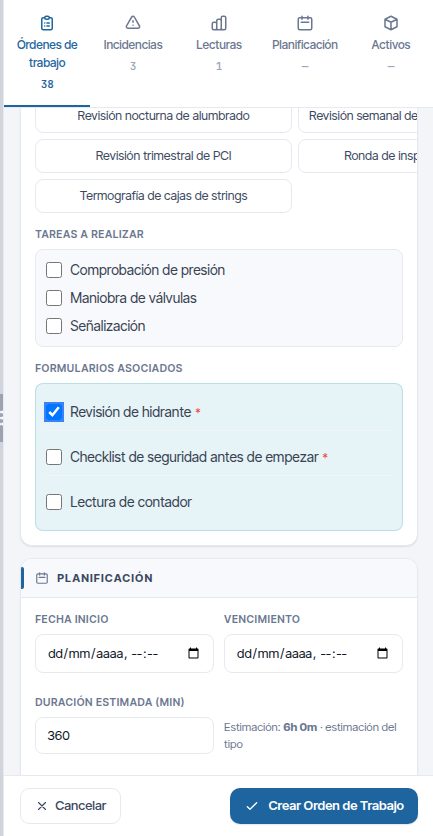
Preventive maintenance WOs copy the forms ticked in their base WO (see Preventive maintenance and maintenance types).
What the technician does
In the mobile app, the technician opens the WO and fills in its forms. With the Activos scope they fill in one per asset; they can answer once and apply the same answers to several assets, which on the web appears as a batch. They can save a draft and finish later. The answers reach the web when the app synchronises.
Mandatory forms and closing the WO
A WO with an uncompleted mandatory form cannot be completed, validated or closed. It can be cancelled. A draft does not count: the completed answer is required. With the Activos scope, one is required for each asset in the WO to which the template applies.
- On the web, Completar (Complete), Validar (Validate) and Cerrar (⋯ menu, record and board) show “No se puede …” (Cannot …) with the list of missing forms and how many assets remain.
- On the record, Formularios asociados marks the mandatory ones with * and shows “Obligatorio · sin completar” (Mandatory · not completed), “Obligatorio · faltan N de M activos” (Mandatory · N of M assets missing) or “Obligatorio · completado” (Mandatory · completed).
- If the technician completes the WO in the app without filling them in, when the app synchronises the WO returns to its previous status and the app receives the warning.
- Quick reports are not checked: they are created already completed with their system template.
A WO already completed with pending mandatory forms (from before this rule) cannot be validated or closed either. Reopen it (it goes back to En curso (In progress)) so that the technician can fill them in.
Viewing the answers
The answers are in the Formularios tab of the WO record. If there are none, the message “No hay formularios completados” (There are no completed forms) appears. The tab does not appear in WOs of the quick reports' system type.
Each form is a folded card; clicking it unfolds it:
- Lote del … (Batch of …) (blue): answers applied to several assets. It shows the template, who and when, and how many assets. Below, Activos aplicados (Applied assets) groups them by type, with Ver en mapa (View on map).
- WO form (green): a single answer, with the template, who, when and its status, Completado (Completed) or Borrador (Draft). If it belongs to a per-asset form, it also shows Activo: (Asset:) with its name and type, and below, Ver en mapa.
Inside, the answers are grouped by section. Sí/No is shown with a green tick or a red cross; selectors, with the option's label; photos and signatures, as an image; detail sections, as a table with one row per entry.
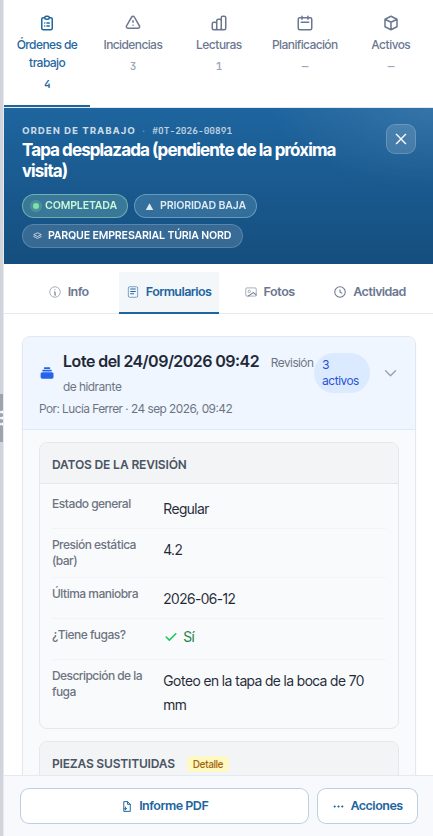
Exporting
There is no export of answers to a spreadsheet. The answers appear in:
- The record's PDF (Hoja de trabajo (Worksheet), Informe PDF (PDF report) or Ficha PDF (PDF record), depending on the status): it includes all the answers with their photos and signatures. See Work orders.
- The customer portal, if you use it: the customer sees only the completed forms.
Changing a template that has answers
Answers do not store a copy of the form: they are always displayed with the template's current design. The Versión goes up by one every time you save Editar in the list (name, description or status); changing sections or fields does not change it.
| Change | What happens to answers already submitted |
|---|---|
| Changing the label of a field or the name of a section | Previous answers appear with the new text |
| Changing the label of an option | They appear with the new label. If you remove the option, its stored value appears |
| Adding a field | Previous answers do not have it: it does not appear |
| Deleting a field or a section | Its previous answers move to an “Otros” (Other) block, with the question “Campo” (Field) |
| Deactivating the template | The answers do not change; it is no longer suggested in new WOs |
Tip
If the form really changes (new questions, others removed), create a new template and deactivate the old one. That way old WOs keep their questions exactly as they were answered.
Editing a WO that has answers
Saving changes to a WO keeps the answers to its forms. Only what changes is applied:
| Change when saving | What happens |
|---|---|
| Nothing in Formularios asociados | Everything stays the same, with its answers |
| You tick a new form | It is added; the technician receives it when the app synchronises |
| You untick one without answers | It is removed from the WO |
| One with answers | It cannot be unticked and is kept with its answers |
| You change the type, tasks or assets | The forms that remain are updated (task, scope, mandatory) without losing their answers; new mandatory forms are added automatically |
Every change to forms is recorded in Auditoría (Audit) (administrator → Configuración) as “Formularios de la OT cambiados” (WO forms changed), with who made it, when and the details: added, removed, kept because they have answers, and modified.
Deleting a template
- Click Eliminar on its row.
- Confirm with Sí, eliminar.
The warning states what is deleted: sections, fields and assignments, and it removes the template from WOs. If it already has answers, it says how many will be deleted, including those of closed WOs.
Warning
Deleting a template that has answers deletes them and cannot be undone. If you want to keep them, deactivate it instead of deleting it.
Parte de trabajo rápido cannot be deleted: when you click Eliminar, the reason appears (see The “Parte de trabajo rápido” template).
Common problems
| Symptom | Probable cause | Solution |
|---|---|---|
| Formularios does not appear in the administrator | The Usamos formularios de campo option is switched off | Switch it on in Configuración General → Cómo trabaja tu empresa |
| The WO does not suggest any form | The template is inactive or no assignment matches the type, tasks or assets | Activate the template and check its Asignaciones |
| A form appears in WOs where it should not | Assignment with Todos as the maintenance type | Set the type in the assignment |
| The technician does not have the form in the app | It was not ticked in Formularios asociados when the WO was saved | Edit the WO and tick it; the answers to the other forms are kept |
| “No se puede completar” (Cannot complete) (or validate, or close) with a list of forms | Mandatory forms are still to be completed | Have the technician complete them in the app; if the WO is not going to be carried out, cancel it |
| A form appears ticked and cannot be unticked | It is mandatory for the WO or already has answers | This is expected; the reason is shown next to the name |
| There is one form per asset when only one was wanted | The assignment has the Activos scope | Change it to Global |
| I cannot choose a field in a rule's condition | The field has not been saved yet | Create that field first and then the rule |
| “La clave ‘…’ ya la usa otro campo de esta plantilla” | Duplicate technical key | Choose another key |
| The answers of a WO have disappeared | The template was deleted | They cannot be recovered; from now on, deactivate templates that have answers instead of deleting them |
| An “Otros” block with “Campo” questions appears on the record | Fields were deleted from the template after answering | This is expected; for major changes, create a new template |
Last updated: