
Introduction
These are two separate modules that are subscribed to separately and work together:
| Module | What it provides |
|---|---|
| Control de flota (Fleet control) | Vehicles, fuel prices, technician-vehicle assignments, road journeys with their cost, and vehicle alerts |
| Tracking de personal (Staff tracking) | GPS positions from the mobile app, the Posiciones GPS (GPS positions) layer on the map, the WO geofence, the end-of-day pause and the Tracking GPS (GPS tracking) screen |
With both, each arrival of a technician at a WO generates a journey: the road route from the previous WO, with the kilometres, the time and the fuel at that day's price.
| Concept | What it is |
|---|---|
| Vehicle | Van, car, light truck or motorbike, with its fuel and its consumption |
| Assignment | Which technician drives which vehicle and since when |
| Journey | Road route to a WO. It stores driver, vehicle, km, time and cost |
| GPS trail | The positions the technician's phone sends during their working day |
| Geolocation notice | The text the technician accepts in the app before any position is stored |
Prerequisites
Modules
The subscribed modules are shown in Configuración General (General settings), as explained in Tenant administration. Without them, the screens in this manual do not appear.
| Screen or function | What is needed |
|---|---|
| Vehículos (Vehicles) menu (Vehículos, Asignaciones (Assignments), Recorridos (Routes) and Alertas (Alerts) tabs) | Control de flota |
| Tracking GPS menu, Posiciones GPS layer on the map, Posiciones GPS button in Gestión de Personal (Staff management) | Tracking de personal |
| Automatic journeys on arrival at a WO | Both modules |
| APD alerts (WO paused at end of working day) in the Alertas tab | Tracking de personal |
Permissions
Permissions are managed in Roles y Permisos (Roles and permissions). Roles are explained in Tenant administration.
| Group and permission | What it allows |
|---|---|
| Control de Flota (Fleet control) · Ver (View) | View vehicles, prices, assignments, routes and alerts |
| Control de Flota · Crear (Create) | Nuevo vehículo (New vehicle), Override manual (Manual override) and Asignación manual (Manual assignment) |
| Control de Flota · Editar (Edit) | Edit and deactivate vehicles, confirm and change assignments |
| Control de Flota · Eliminar (Delete) | Delete a price override |
| Personal (Staff) · Ver | Tracking GPS menu, Posiciones GPS layer, GPS trail and Actividad fuera de turno (Out-of-shift activity) |
| Personal · Editar | Regularizar (Regularise) an out-of-shift time slot |
| Configuración Global (Global settings) · Ver / Editar | View the Aviso de geolocalización (Geolocation notice) / publish a new version |
| Reportes (Reports) · Seguimiento personal (Staff tracking) | Revisión de geovalla (Geofence review) tab (unrecorded visits and WOs in progress without GPS) and the dashboard's Flota y seguimiento (Fleet and tracking) section, with tracking per person |
| Avisos (Alerts) · Flota / Seguimiento GPS (Fleet / GPS tracking) | Receive VPR alerts / APD, GDP and PSM alerts in the bell |
In the roles created with each tenant, only the Administrador (Administrator) has Control de Flota. Give it to the role that needs it. Seguimiento personal is held by the Administrador and the Supervisor.
Vehicles
In the admin area, click Vehículos, in the Flota (Fleet) group. The Vehículos tab shows the fleet with four indicators: Total, Activos (Active), Km flota (Fleet km) (sum of odometers) and Eléctricos (Electric).
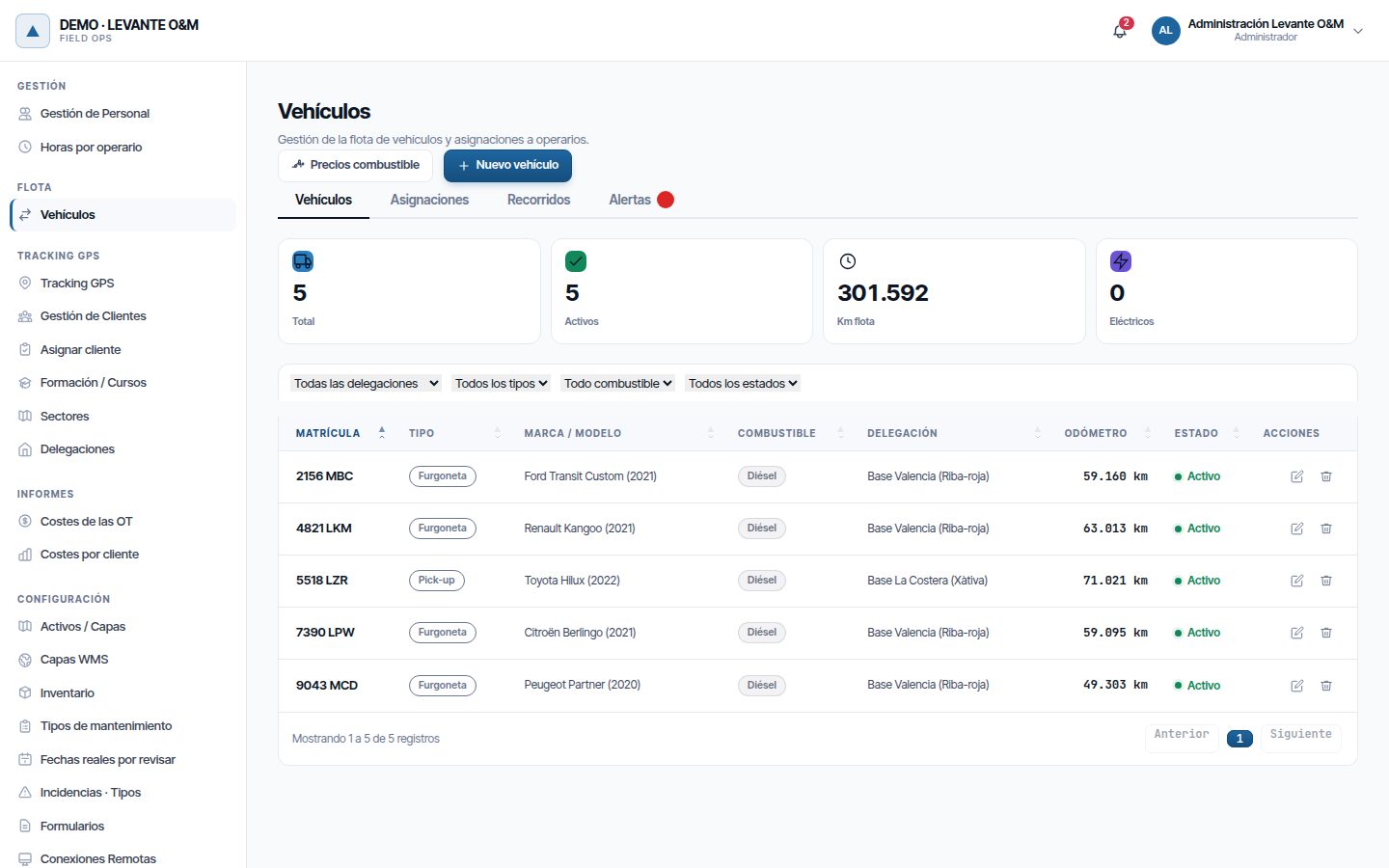
- The drop-downs filter by branch, type, fuel and status.
- Each row shows registration, type, make and model, fuel, branch, odometer and status.
- The row actions are Editar (pencil) and Desactivar (Deactivate) (bin).
Add a vehicle
- Click Nuevo vehículo.
- Fill in Matrícula (Registration) and choose Tipo (Type).
- Choose Tipo de combustible (Fuel type) and enter the consumption.
- Enter the Odómetro inicial (km) (Initial odometer (km)). If you leave it empty, it starts at 0.
- Click Guardar vehículo (Save vehicle).
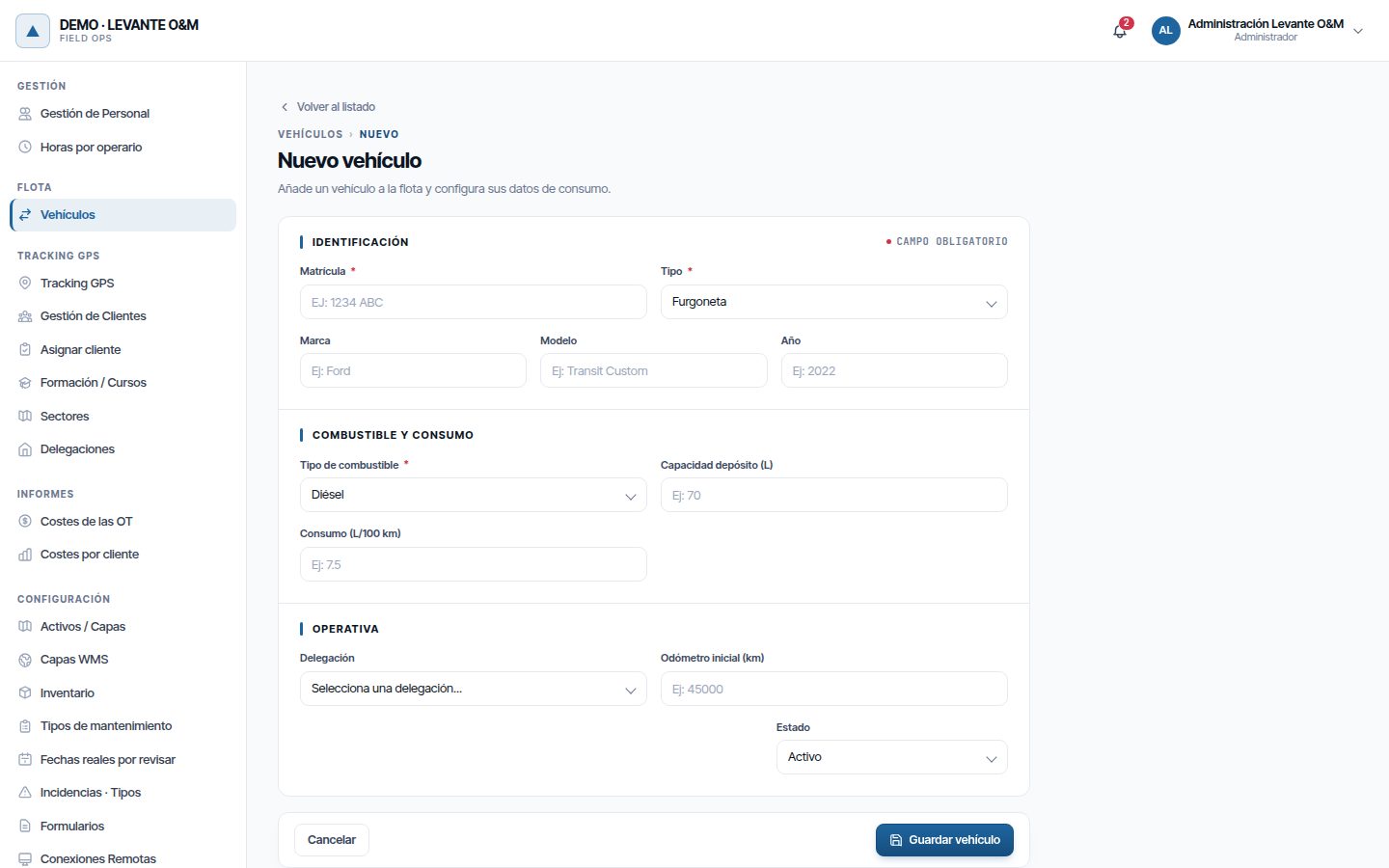
| Field | What it is for |
|---|---|
| Matrícula | Required and unique within your company. It is saved in capitals |
| Tipo | Furgoneta (Van), Turismo (Car), Camión ligero (Light truck) or Moto (Motorbike) |
| Marca, Modelo, Año (Make, Model, Year) | For information. They appear in the list and in Recorridos |
| Tipo de combustible | Diésel (Diesel), Gasolina (Petrol), Eléctrico (Electric), Híbrido (Hybrid), GLP (LPG) or GNC (CNG) |
| Capacidad depósito (L) (Tank capacity (L)) | For information. It does not appear with Eléctrico |
| Consumo (L/100 km) (Consumption (L/100 km)) | Required for diesel, petrol, LPG and CNG. It is what gives the cost of each journey |
| Consumo (kWh/100 km) | Only with Eléctrico, and required |
| Delegación (Branch) | The vehicle's base. Only if you work with branches |
| Odómetro inicial (km) | Starting mileage; empty means 0. Maptainer adds the km of each journey to it |
| Estado (Status) | Activo (Active) or Inactivo (Inactive) |
A Híbrido accepts consumption in litres or none. Without consumption, its journeys have no cost.
If the required consumption is missing, Maptainer does not save the vehicle and tells you which consumption is missing.
Note
The odometer is not read from the vehicle. It only adds up the road kilometres of the journeys to WOs, without decimals. Correct it by hand in Editar when you have the real reading.
Edit or deactivate a vehicle
- Click the pencil on its row.
- Change what you need. Delegación accepts Sin delegación (No branch).
- Click Guardar cambios (Save changes).
If you change the fuel from liquid to electric, or vice versa, the consumption that no longer applies is cleared. Enter the new one.
The bin does not delete the vehicle: it asks for confirmation in “¿Desactivar vehículo?” (Deactivate vehicle?) and sets it to Inactivo. To use it again, edit it and set Estado to Activo.
An assigned vehicle cannot be deactivated. Maptainer warns with “El vehículo está asignado” (The vehicle is assigned), says to whom, and offers Ir a Asignaciones (Go to Assignments). Change the vehicle on those assignments (see Assignments) and then deactivate it. An inactive vehicle cannot be assigned.
Fuel prices
The cost of each journey uses the fuel price on the day of the journey. Each day Maptainer takes the national average from the Spanish Ministry. If your company pays a different price, you set it with a manual override.
In the Vehículos tab, click Precios combustible (Fuel prices).
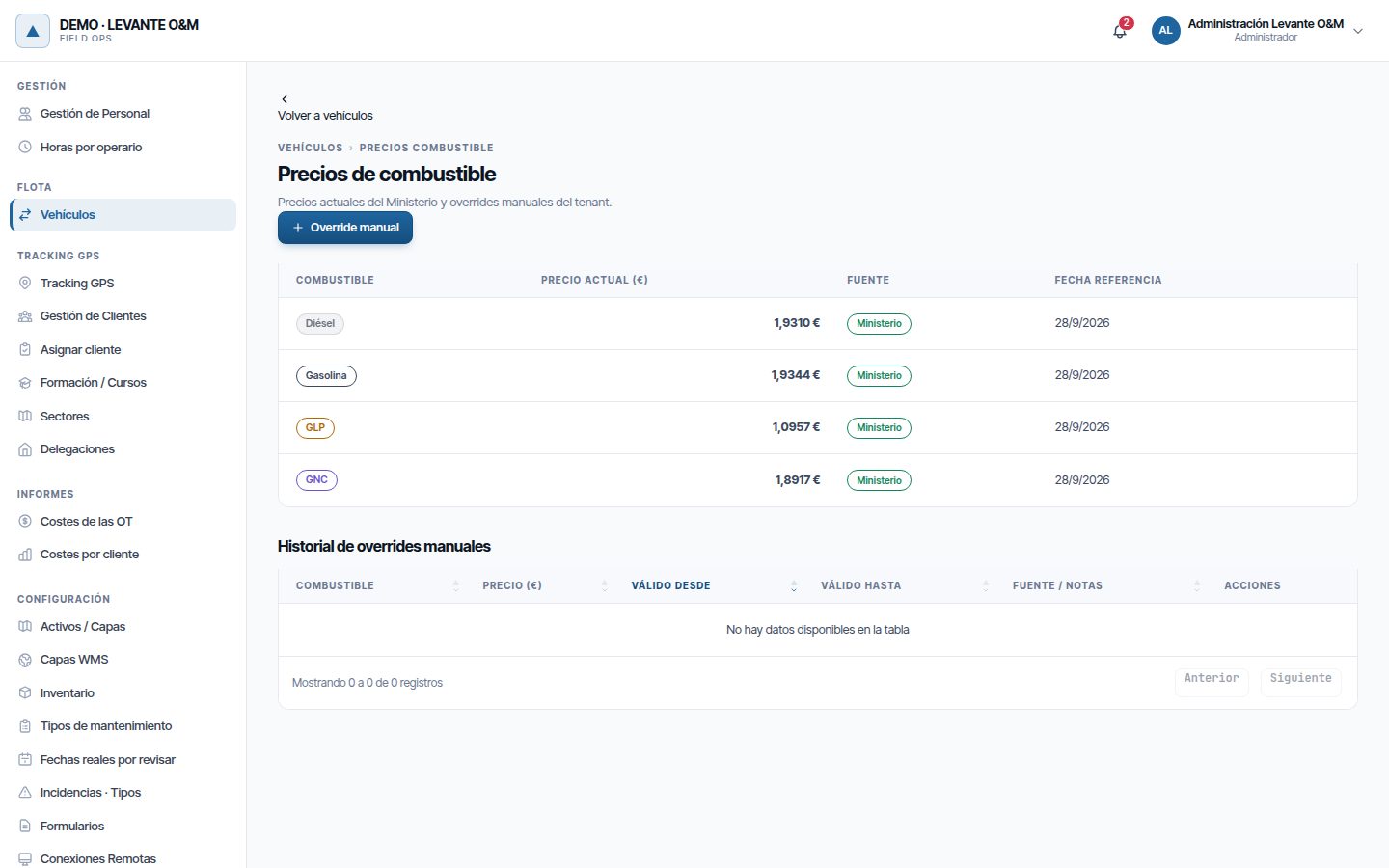
- The table at the top gives today's price for each fuel and its Fuente (Source): Ministerio (Ministry) or Manual.
- Historial de overrides manuales (Manual override history) lists your prices, with their validity. Without Válido hasta (Valid until) they appear as Vigente (Current).
| Fuel | Ministry price |
|---|---|
| Diésel | Gasóleo A (automotive diesel) |
| Gasolina and Híbrido | Gasolina 95 E5 (95 E5 petrol) |
| GLP, GNC | Liquefied petroleum gas, Compressed natural gas |
| Eléctrico | None. Without an override, an electric vehicle's journeys have no cost |
Set your own price
- Click Override manual.
- Choose the Combustible (Fuel). For electric vehicles, the price is per kWh.
- Enter the Precio por unidad (€) (Price per unit (€)) and Válido desde (Valid from).
- Leave Válido hasta empty if the price remains in force.
- Add some Notas (Notes) if you wish and click Guardar precio (Save price).
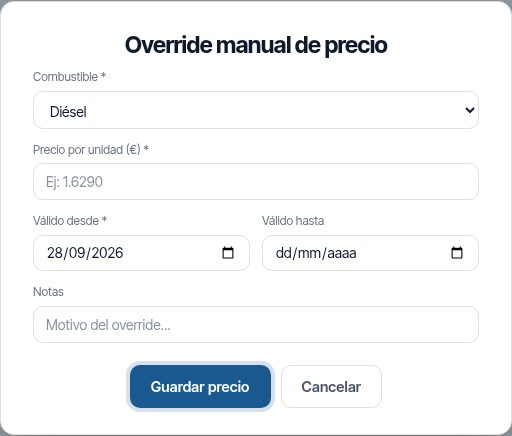
When you save a new price, the one in force on that day is closed on that date. If the new period overlaps another manual price for the same fuel, the dialogue warns of the overlap and says which price is in the way, with its amount and dates. Choose other dates or delete that price first.
The price is frozen in each journey when it is calculated. Changing a price does not recalculate journeys already made.
Eliminar override (Delete override) (bin) deletes that price. From its date, the Ministry price is used again, even if there was an earlier override.
Assignments
An assignment says which technician drives which vehicle from a given date. When calculating a journey, Maptainer looks for the technician's assignment at that moment. Without an assignment, the journey has no vehicle and no fuel cost.
Open the Asignaciones tab. The indicators are Total, Activas (Active), Pend. revisión (Pending review) and Confirmadas (Confirmed).
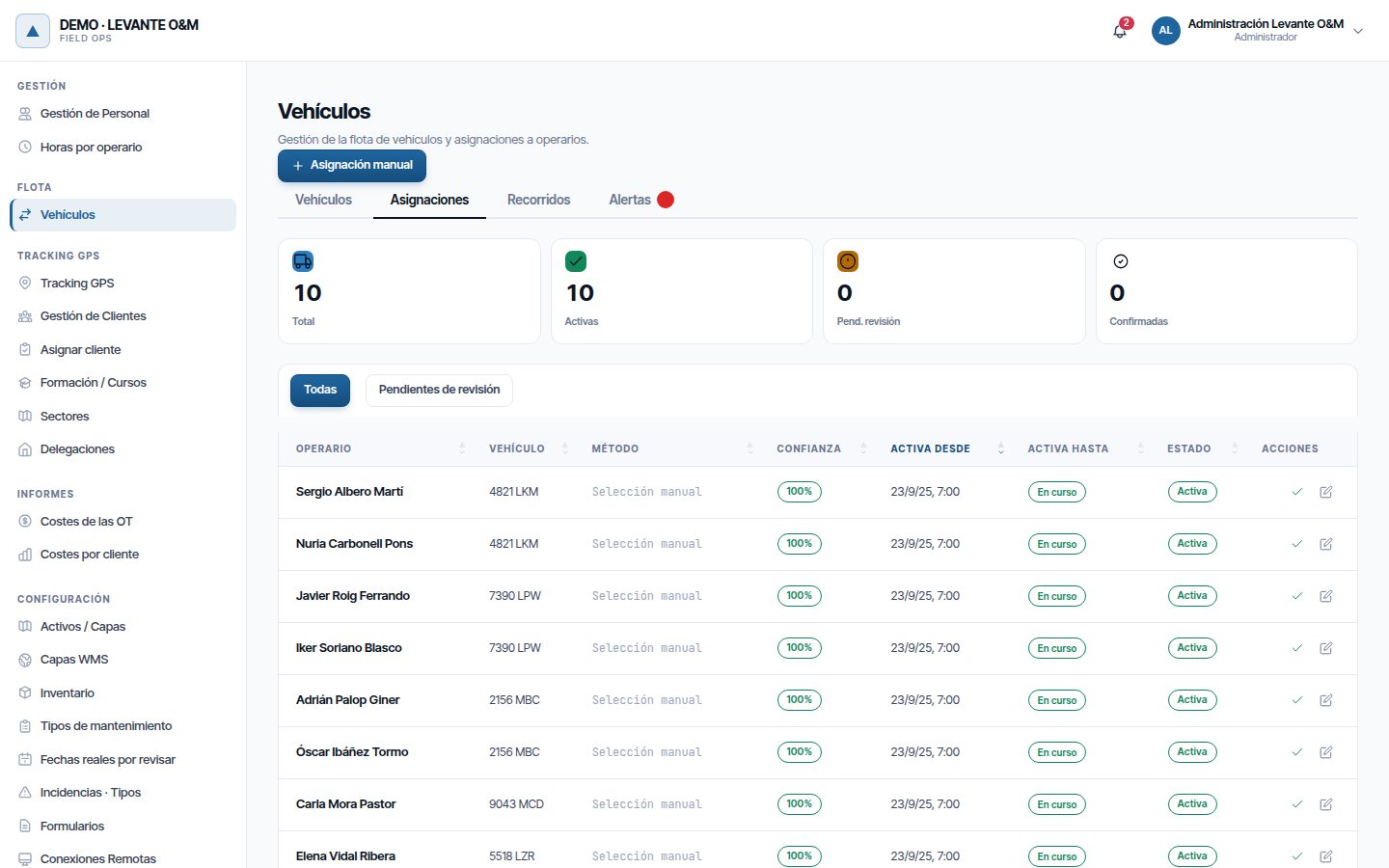
| Column | What it shows |
|---|---|
| Método (Method) | How it was created: Selección manual (Manual selection) (the technician chooses their vehicle in the app) or Supervisor (from the web app) |
| Confianza (Confidence) | How certain it is that the vehicle is the right one. Green from 85 %, amber from 60 %, red below that |
| Activa desde / Activa hasta (Active from / Active until) | Validity, in the time of the technician's branch. With no end, it shows En curso (Ongoing) |
| Estado | Activa (Active), Cerrada (Closed) (it ended: its Activa hasta passed or it was closed when another was created), Reemplazada (Replaced) (the vehicle was changed) or Disputada (Disputed) |
A vehicle can be assigned to several technicians at once: for example, the two members of a pair.
Create an assignment
- Click Asignación manual.
- Choose Operario (Technician) and Vehículo (Vehicle). Only active ones appear.
- Adjust Activa desde. Leave Activa hasta blank for an open-ended assignment. The times are those of the technician's branch, even if you are in another time zone: the form indicates this when you choose the technician.
- Enter some Notas if you wish and click Crear asignación (Create assignment).
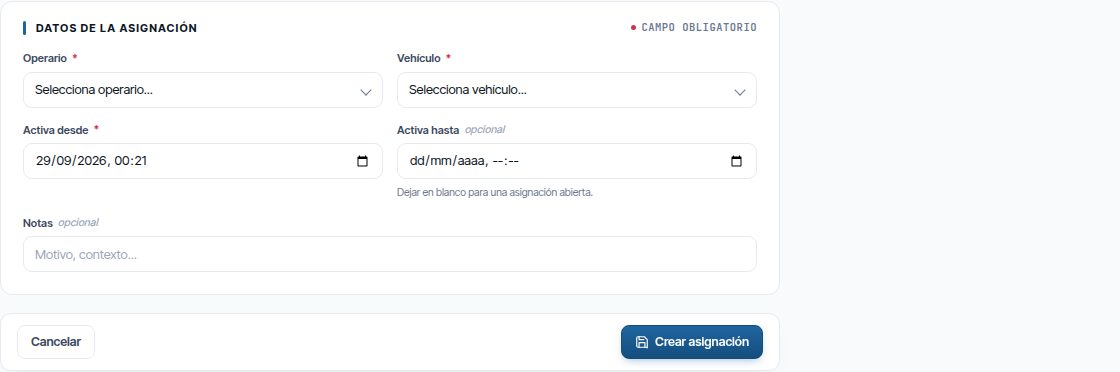
If the technician had an assignment that started earlier, it ends where the new one starts, whether or not it has an end date. If they already have another that starts within the new period, Maptainer does not touch it: it warns you with its vehicle and dates so that you change the dates or that assignment. An assignment shows as Activa only while it is in force; after its Activa hasta, it shows as Cerrada. A manual assignment is considered confirmed, with 100 % confidence.
Confirm or change an assignment
Active assignments that have not been reviewed show two buttons:
- Confirmar asignación (Confirm assignment) (✓): the vehicle is correct. It starts counting in Confirmadas.
- Cambiar vehículo (Change vehicle) (pencil): choose the Nuevo vehículo, enter the Motivo del cambio (Reason for change) and click Aplicar cambio (Apply change). The assignment becomes Reemplazada and another is created from that moment.
The change applies from now on: earlier journeys keep the vehicle they had.
The Pendientes de revisión (Pending review) button filters active assignments with less than 85 % confidence, with the number of days they have been waiting. Maptainer does not infer the vehicle on its own: assignments are made by the technician in the app (95 %) or by a supervisor (100 %), so it is normally empty.
Routes
The Recorridos tab shows a vehicle's journeys over a period, on a map and in a table. It lets you see where it went each day, who was driving and how much it cost.
- Open the Recorridos tab. By default the first vehicle is shown with the last 7 days.
- Choose the Vehículo, Desde (From) and Hasta (To).
- Click Ver recorridos (View routes).
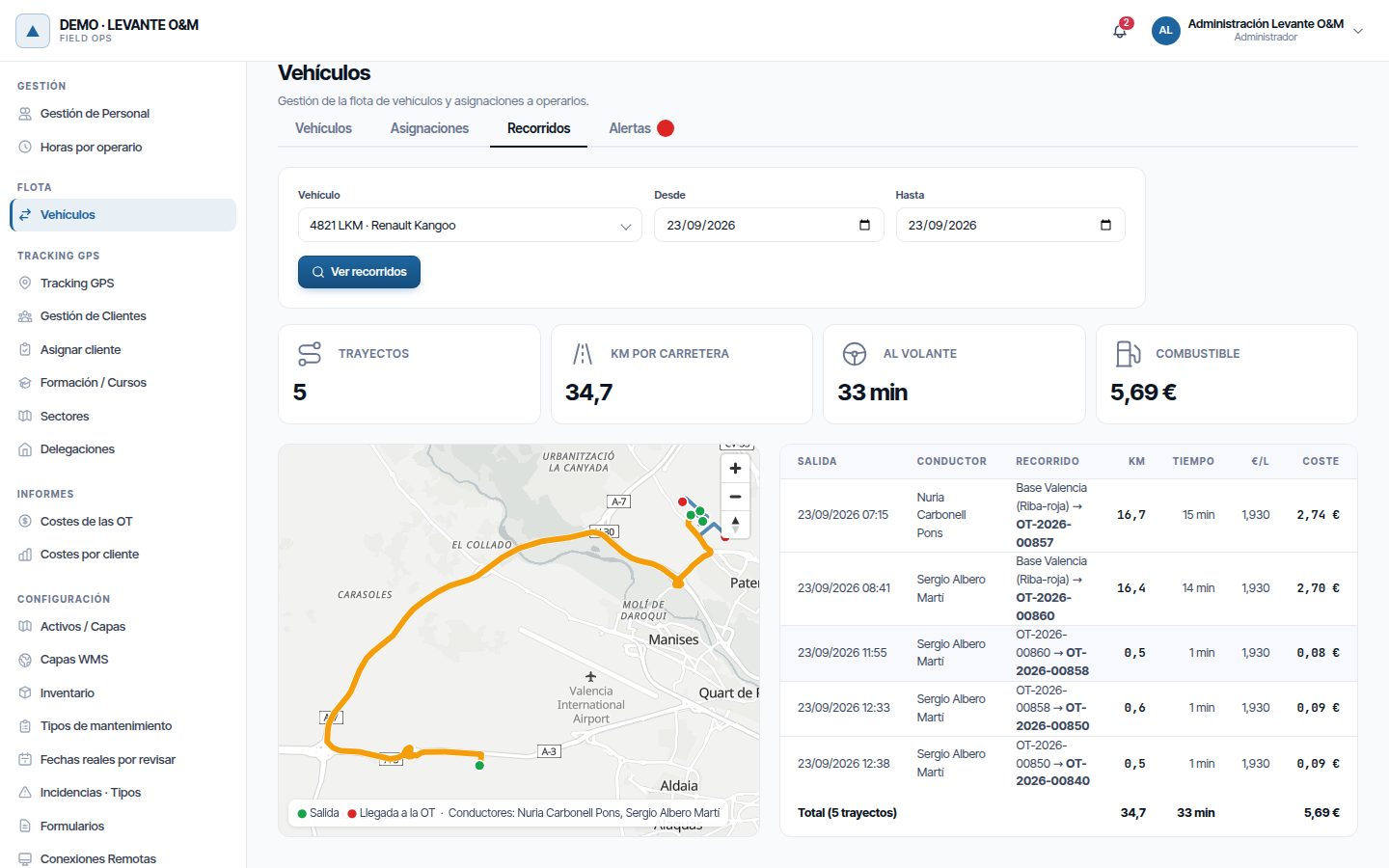
| Element | What it shows |
|---|---|
| Trayectos, Km por carretera, Al volante, Combustible (Journeys, Road km, Driving time, Fuel) | Totals for the period. The km are split into de trabajo (work) and de desplazamiento (travel) |
| Map | The route of each journey. Green, the departure; red, the arrival. Below, the drivers |
| Salida (Departure) | Day and time of departure, in the time zone of the vehicle's branch |
| Conductor (Driver) | The technician who was assigned to the vehicle |
| Recorrido (Route) | From where to where: origin branch, home or WO → destination WO, branch or home. Travel journeys carry the Desplazamiento (Travel) or Vuelta a base (Return to base) tag |
| Km, Tiempo (Km, Time) | Calculated road distance and time |
| €/l, Coste (€/l, Cost) | Fuel price on that day and cost of the journey |
- Click a row to highlight its route in orange and frame it on the map. Clicking a route on the map highlights its row.
- The table shows 10 at a time, from the oldest journey to the most recent. The total at the bottom is for the whole period.
- If any journey has no cost, the warning “… sin coste de combustible (sin precio de ese día o sin consumo del vehículo)” (… without fuel cost (no price for that day or no vehicle consumption)) appears.
Note
The km and time are those of the road route, not the GPS. The cost is consumption × km × that day's price, with the consumption the vehicle had at the time.
When a journey is created
With both modules, a journey is created when the geofence detects that the technician enters a WO's zone:
- First WO of the day: the journey starts from the technician's base, their branch or their home (see Each technician's base). It is a Desplazamiento.
- The following ones: the journey goes from the point where they left the previous WO that same day. These are work km.
- At the end of the working day: every hour, Maptainer counts the Vuelta a base for finished working days, from the last WO the technician left to their base. If their last record of the day is an arrival (the phone was switched off inside the WO), it is not counted.
Travel journeys (outward from the base and return) are not charged to any WO: they do not add to its Coste real (Actual cost). Costes de las OT (WO costs) gives them separately, below the indicators.
- The phone must send positions during the working day (see GPS tracking).
- A base more than 150 km from the WO is not taken into account: that travel is not counted.
- The vehicle and the cost come from the technician's assignment at the departure time.
- If the routing service does not respond at that moment, the journey is not created and is not recalculated later.
Each technician's base
The base is where the first journey of the day starts and where the last one returns to. It is set in the worker's record, in Gestión de Personal → Editar, Jornada y desplazamientos (Working day and travel) section (only with Control de flota or Tracking de personal):
| Field | What it is for |
|---|---|
| Empieza la jornada en (Starts the working day at) | Su delegación (Their branch) or Su domicilio (Their home) |
| Acaba la jornada en (Ends the working day at) | Su delegación or Su domicilio |
| Domicilio (Home) | Point on the map. Optional: with Su domicilio and no home set, the branch is used |
If neither their branch has a location nor they have a home, their first journey of the day and their return are not counted. The Recorridos tab warns of this at the top, with the names, if they have had arrivals at WOs in the last 30 days.
Fleet alerts
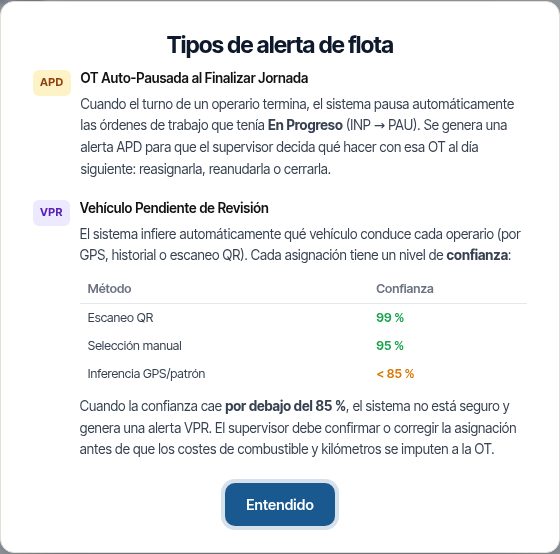
The Alertas tab gathers the open fleet alerts. The i button explains each type.
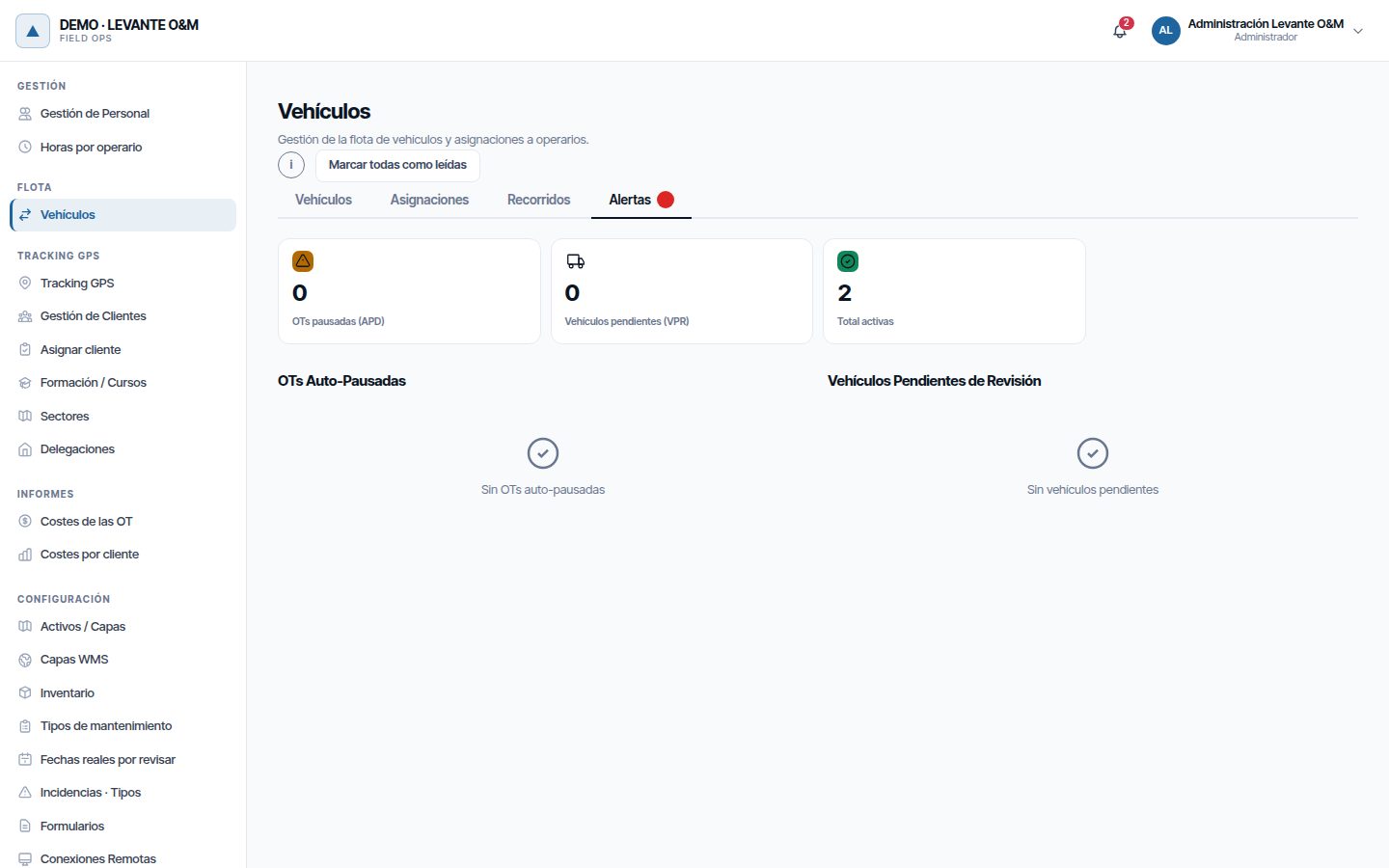
| Alert | What it means | What to do |
|---|---|---|
| APD · OTs pausadas (APD · Paused WOs) | A WO that was En Curso (In progress) changed to Pausada (Paused) 15 minutes after the end of the technician's working day. Only with Tracking de personal | Ver OT (View WO) and decide whether to resume, reassign or close it. Then, Resolver (Resolve) |
| VPR · Vehículos pendientes (VPR · Pending vehicles) | An assignment has less than 85 % confidence and should be reviewed before costs are charged. It does not occur with app and manual assignments | Ver asignaciones (View assignments), confirm or change the vehicle, and Resolver |
The Total activas (Total active) indicator, the tab's red badge and Marcar todas como leídas (Mark all as read) only count fleet alerts. Stock, incident or asset alerts are read in the bell.
Resolver closes the alert for the whole company. The end-of-day pause is explained in Work calendar.
GPS tracking
GPS tracking records the position of each technician's phone only during their working day. In addition, the technician must have accepted the geolocation notice. This is what article 90 of the LOPDGDD (Spanish data protection law) requires.
| Rule | What happens |
|---|---|
| Within the shift | The position is stored. The technician's shift and exceptions count, with a 15-minute margin before and after |
| Outside the shift | The position is not stored. Only how many arrived and between which times is recorded |
| No shift that day | All their positions are out of shift |
| No notice accepted | No position is stored |
| Views and downloads | Each view of a technician's trail is logged |
| Retention | Positions are deleted automatically after 60 days. Journeys are kept |
Shifts and exceptions are explained in Work calendar. The time that counts is that of the technician's time zone.
In the admin area, click Tracking GPS. It has three tabs: Actividad fuera de turno, Aviso de geolocalización and Revisión de geovalla.
Publish the geolocation notice
With no notice published, the server rejects all positions. Publishing it is the first step when you subscribe to Tracking de personal.
- In Tracking GPS, open Aviso de geolocalización.
- Enter an Identificador (Identifier), for example v1.0.
- Enter the Texto del aviso (Notice text). It is written by your company, which is the data controller.
- Click Publicar y dejar como vigente (Publish and set as current) and confirm with Publicar (Publish).
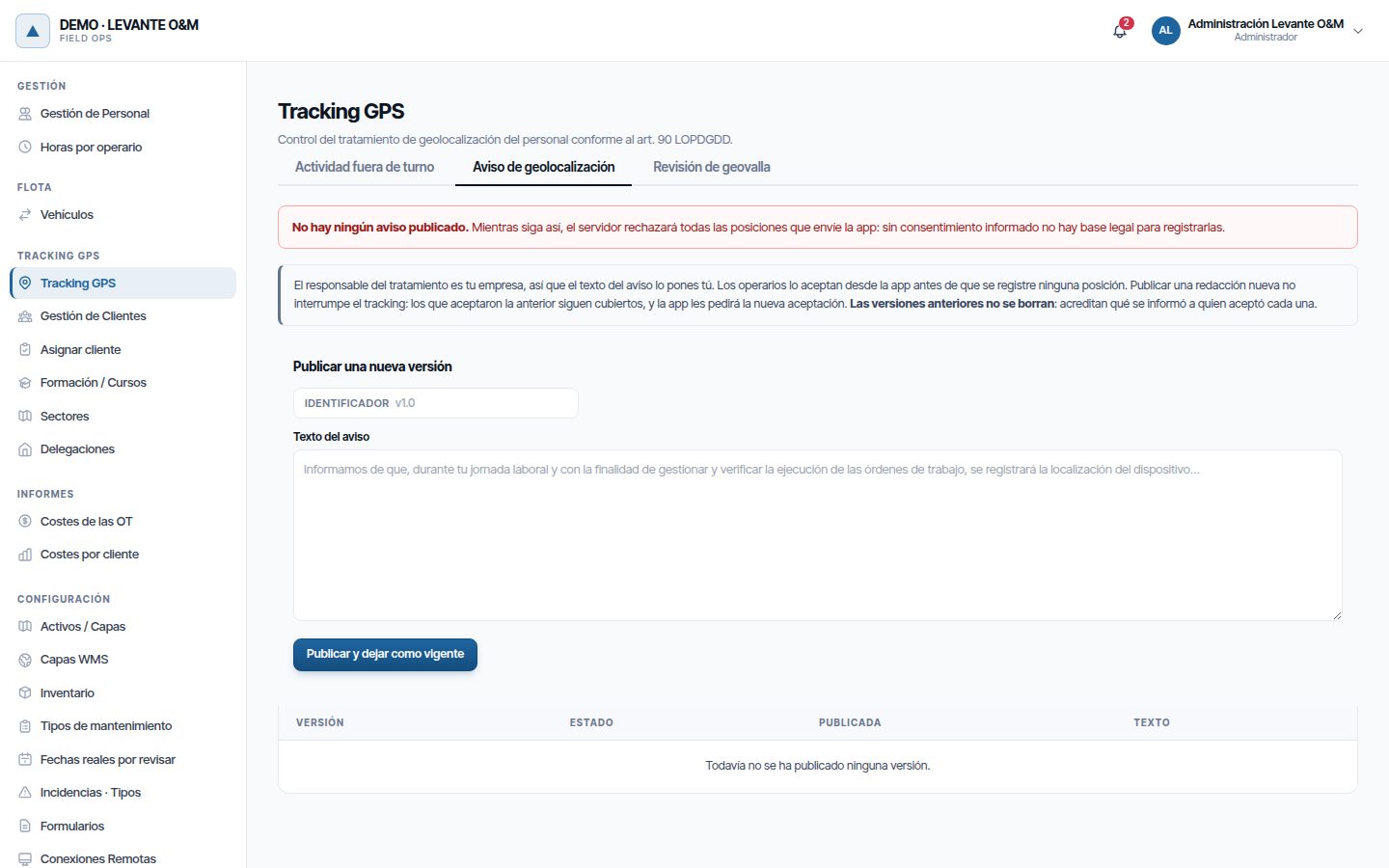
Technicians accept the notice from the app before any position is recorded. When you publish a new version, anyone who accepted the previous one remains covered and the app asks them to accept the new one. Previous versions are not deleted: they appear as Anterior (Previous).
Each technician sees their acceptance and downloads their data in their profile (see Getting started).
Out-of-shift activity
This tab lists the time slots in which a technician's phone sent positions outside their working hours. The positions have not been stored: only the day, the time slot and how many there were are recorded.
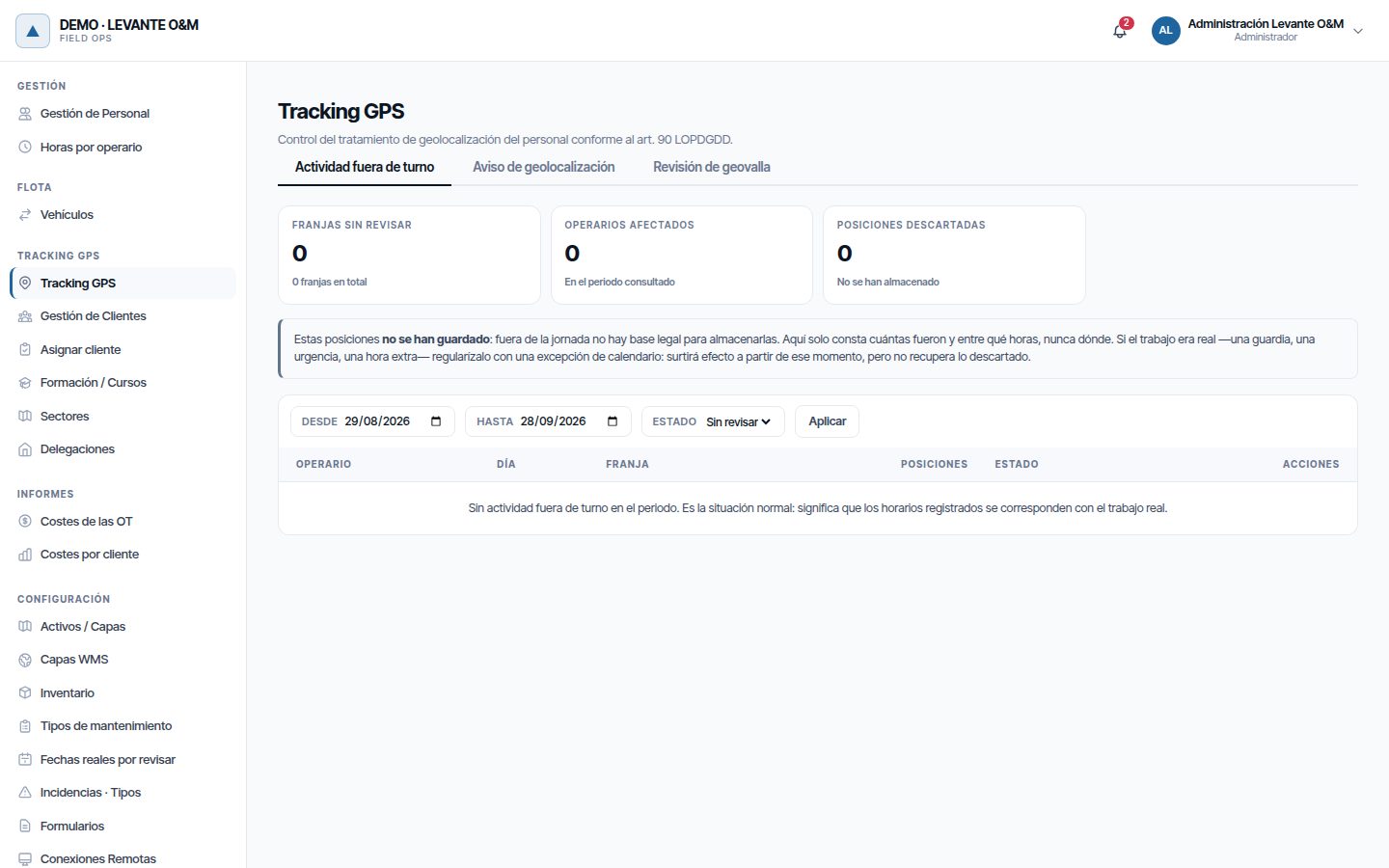
- Choose Desde, Hasta and Estado (Sin revisar (Not reviewed) or Todas (All)) and click Aplicar (Apply).
- The indicators are Franjas sin revisar (Time slots not reviewed), Operarios afectados (Technicians affected) and Posiciones descartadas (Positions discarded).
- An empty list is normal: the working hours match the actual work.
If the work was real (on-call duty, an emergency, overtime), regularise it:
- Click Regularizar on the row.
- Choose the Tipo: Guardia (On-call), Ampliación de jornada (Extended hours) or Jornada extra (día no laborable) (Extra day (non-working day)).
- Adjust Desde and Hasta. An end earlier than the start is a time slot that ends the next day.
- Click Regularizar.
A calendar exception is created for that day and the time slot changes to Regularizada (Regularised). Positions already discarded are not recovered: the exception covers from that moment on.
Geofence review
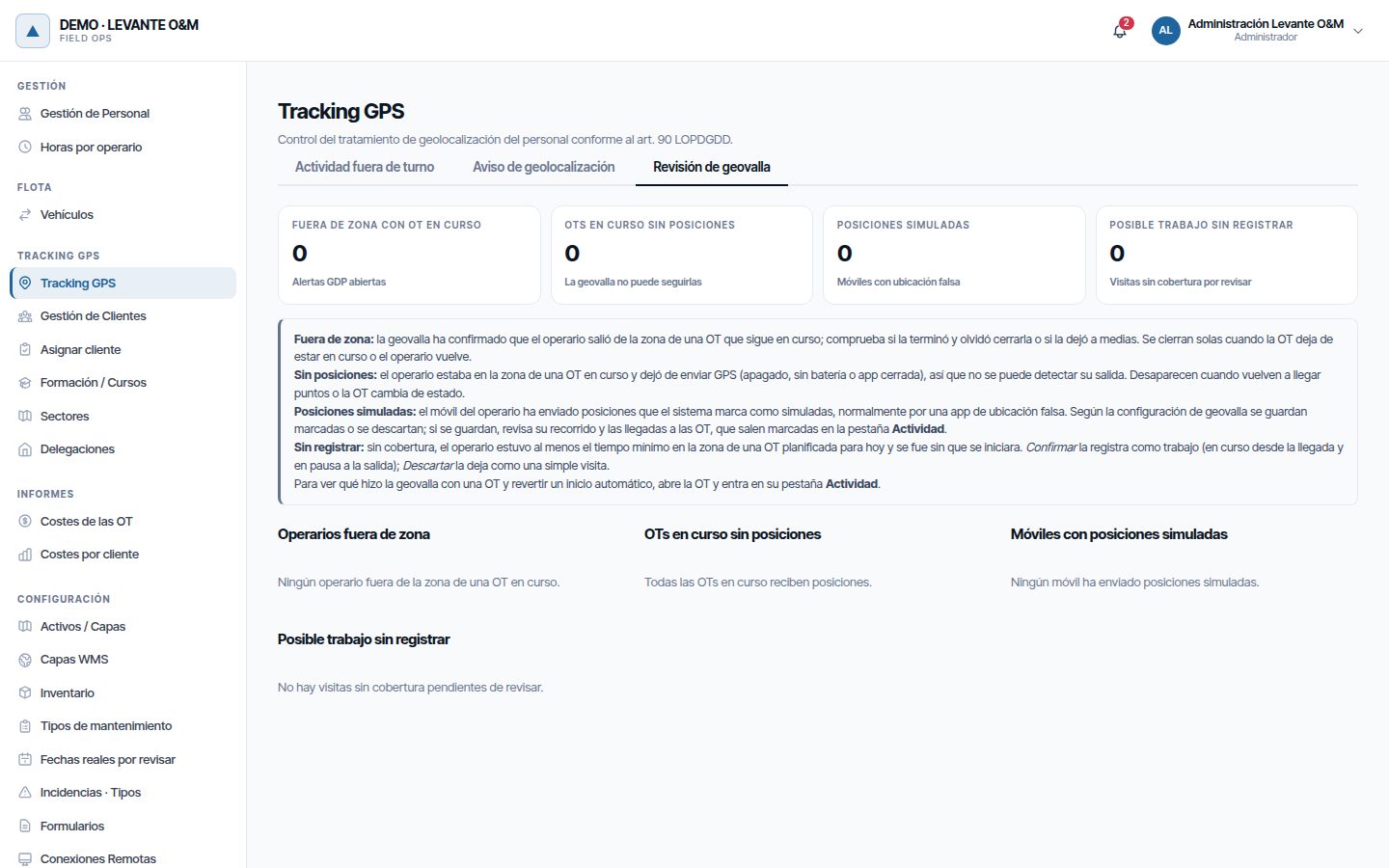
This tab gathers what the geofence cannot resolve on its own. Each block has its explanation on screen. It only appears with Reportes · Seguimiento personal.
| List | What to do |
|---|---|
| Operarios fuera de zona (Technicians out of zone) | The technician left the zone of a WO that is still in progress. Ver OT to check it and Resolver |
| OTs en curso sin posiciones (WOs in progress without positions) | The phone stopped sending GPS inside the zone of a WO in progress. Ver OT |
| Móviles con posiciones simuladas (Phones with simulated positions) | See Simulated positions. Resolver once you have reviewed it |
| Posible trabajo sin registrar (Possible unrecorded work) | The technician was in the zone of one of today's WOs and left without starting it. Confirmar (Confirm) records it as work; Descartar (Discard) leaves it as a simple visit |
The geofence and the activity of each WO are explained in Work orders.
Simulated positions
Some apps allow the phone's location to be faked. When the phone's system marks a position as simulated, Maptainer alerts the supervisor with a PSM alert: “Posiciones simuladas en el móvil de …” (Simulated positions on the phone of …). There is one open alert per technician, which keeps adding up.
- In Configuración General → Geovalla de órdenes de trabajo (Work order geofence), Descartar posiciones simuladas (Discard simulated positions) decides whether they are stored flagged or discarded.
- If stored, they appear in fuchsia in the technician's trail, with the Posiciones simuladas (Simulated positions) indicator.
- In the Posiciones GPS layer on the map, the last simulated position has a fuchsia ring and its pop-up says “Posición simulada” (Simulated position).
- In the trail CSV, the Simulada (Simulated) column says Sí (Yes) or No.
- An alert is also raised if photos, signatures, incidents, quick reports or GPS fields arrive with the position flagged. Those records are always stored.
Note
The flag is set by the phone's system. On iPhone it is never set, and a tampered phone can hide it. It detects the usual case; it is not proof.
Technician positions
On the map, in real time
The Posiciones GPS (Tiempo real) (Real time) layer on the map shows the last position of each technician from the last 2 hours. It is updated every minute. The colours and each technician's window are explained in The map.
Those positions are also used by Asignar al más cercano… (Assign to the nearest…) in Planning and dispatch.
A technician's trail
- In Gestión de Personal, click Posiciones GPS on the technician's row.
- In Telemetría GPS (GPS telemetry), adjust Operario, Desde and Hasta (day and time).
- Click Ver recorrido (View route).
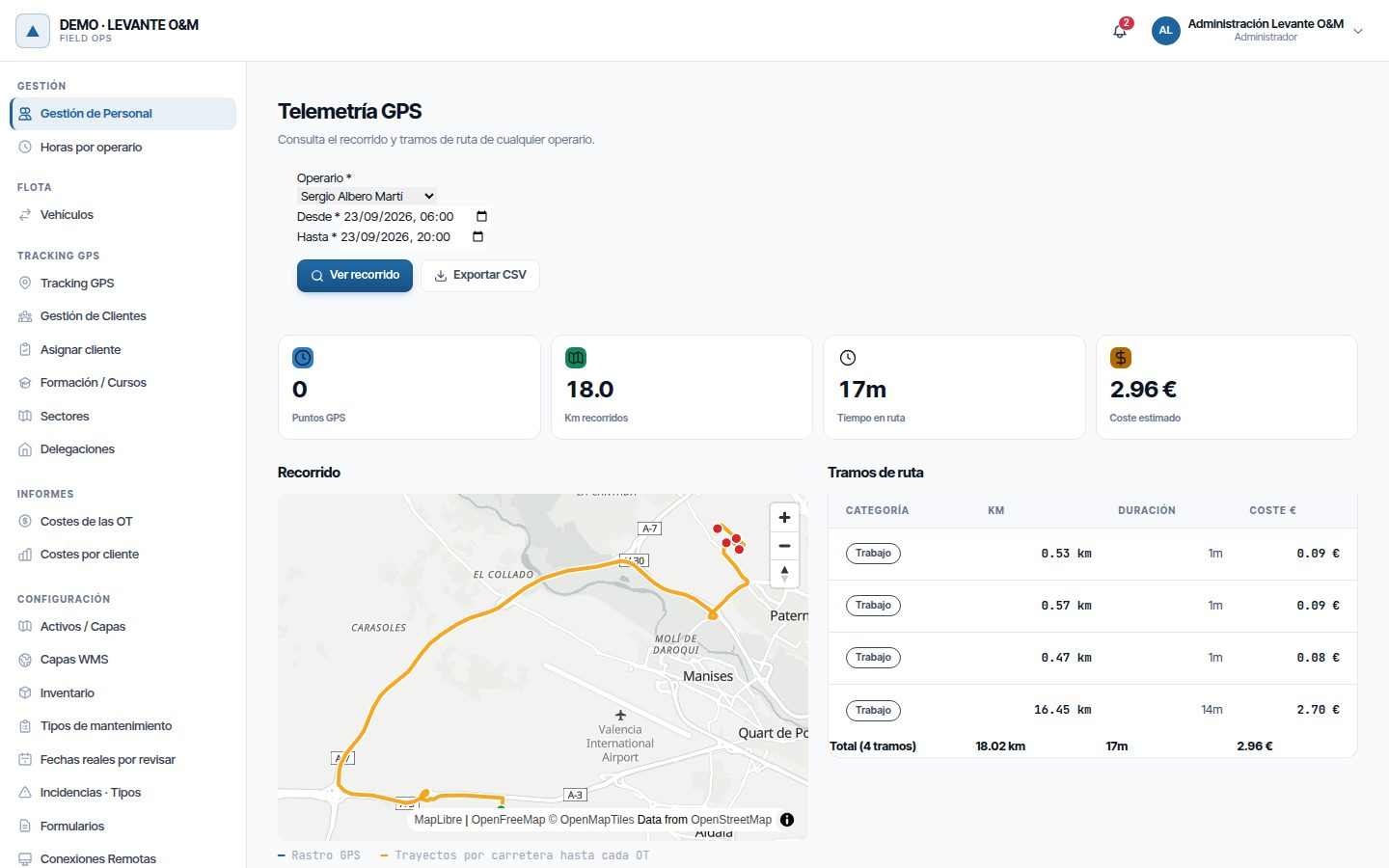
| Element | What it shows |
|---|---|
| Puntos GPS (GPS points) | Positions stored in the period |
| Km recorridos, Tiempo en ruta, Coste estimado (Km travelled, Time on the road, Estimated cost) | Totals of their road journeys (with Control de flota) |
| Recorrido map | GPS trail in blue, with a green marker at the start and a red one at the end. The journeys to each WO, in orange |
| Tramos de ruta (Route sections) | Each journey with its category, km, duration and cost. Only with Control de flota |
Exportar CSV (Export CSV) downloads the positions for the period, up to 50,000, with the Simulada column (Sí or No). The download is logged.
To delete all of a technician's GPS data (right to erasure), use Suprimir datos GPS (Erase GPS data) in their record. This is covered in Staff and teams.
Travel costs
The cost of each journey is added to the destination WO.
- In the WO record, the Coste real section includes the Vehículo: km and fuel. Ver ruta en el mapa (View route on the map) draws its journeys. See Work orders.
- Costes de las OT and Costes por cliente (Costs by customer), in the admin area's Informes (Reports), add up fuel by period, WO and customer. See Costs and reports.
- The fleet block on the dashboard summarises km, driving hours and fuel by person, vehicle or month. It only appears with Reportes · Seguimiento personal. See Dashboard and lists.
Common problems
| Symptom | Likely cause | Solution |
|---|---|---|
| The Vehículos or Tracking GPS menu does not appear | The module or the permission is missing | Check the modules in Configuración General and the role in Roles y Permisos |
| No positions arrive from anyone | No geolocation notice has been published | Publish it in Tracking GPS → Aviso de geolocalización |
| A technician's positions do not arrive | They have not accepted the notice in the app, or they are outside their shift | Ask them to accept the notice; check their shift and Actividad fuera de turno |
| A technician always appears in Actividad fuera de turno | They have no shift or their shift does not cover their real working hours | Assign them the right shift or create an exception (Work calendar) |
| A journey has no vehicle | The technician had no assignment at that time | Create the assignment. Past journeys are not recalculated |
| A technician's first journey of the day does not appear | They have no base with a location | Set the location of their branch or their home in their record |
| Journeys without fuel cost | The vehicle has no consumption or there is no price for that day (electric vehicles without an override) | Enter the consumption in the vehicle or an Override manual for the fuel |
| The Recorridos tab says “Este vehículo no tiene trayectos en el periodo.” (This vehicle has no journeys in the period.) | No one had it assigned, or no arrivals at WOs were detected | Check the assignments and that technicians are sending positions |
| The odometer does not match the vehicle's | It only adds up the journeys to WOs | Correct it in Editar with the real reading |
Last updated: