
Introduction
A branch is a site or workplace. Staff, teams, warehouses and vehicles depend on it, and it is the starting point of routes. A sector is a polygon drawn on the map: a municipality, a district, a plant or a service area.
| Concept | What it is |
|---|---|
| Branch | A site with a location on the map. Every worker, team, warehouse, vehicle and shift belongs to one |
| Head office | The central branch. It receives whatever cannot be placed in any other |
| Zoning type | A level of the sector hierarchy, with its own code and colour. For example, “Municipio” (Municipality) and “Distrito” (District) |
| Sector | A zone on the map, of a zoning type. It can have a parent sector and a responsible branch |
| Main team | The team in charge of a sector. It is used when reading batches are allocated by dates |
The two pieces are independent. You can work with branches and without sectors, or the other way round.
Prerequisites
“Cómo trabaja tu empresa” options
Branches and sectors are enabled in Configuración General (General settings) → Cómo trabaja tu empresa (How your company works) → Ajustar en detalle (Fine-tune). Only the administrator sees this section. The rest of the screen is explained in Tenant administration.
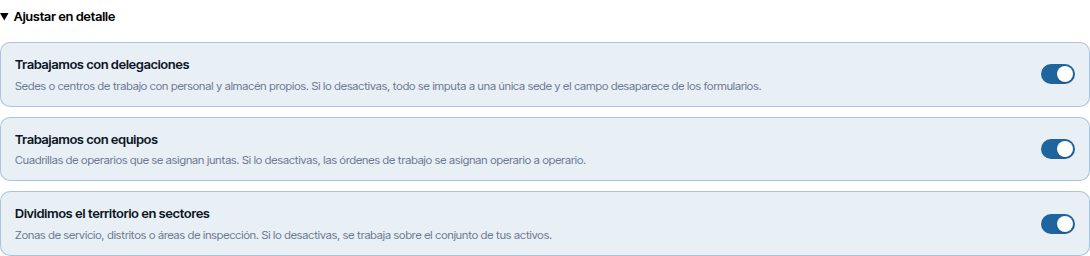
| Option | What appears | If you turn it off |
|---|---|---|
| Trabajamos con delegaciones (We work with branches) | The Delegaciones (Branches) menu, the Delegaciones layer on the map and the Delegación (Branch) field in forms | Everything is assigned to the head office and the field disappears. No data is deleted |
| Dividimos el territorio en sectores (We divide the territory into sectors) | The Sectores (Sectors) menu, the Sectores layer on the map and the sector filter on the dashboard | Work is done on the whole set of assets. No data is deleted |
| Trabajamos con equipos (We work with teams) | The Gestionar equipos (Manage teams) button on each sector | Sectors have no team |
- Open the user menu (top right) → Configuración (Settings) → Configuración General.
- In Cómo trabaja tu empresa, open Ajustar en detalle.
- Turn on the options you need and click Guardar configuración (Save settings).
When you turn off Trabajamos con delegaciones, a warning appears: the route optimiser needs to know where each technician starts from. Set the location of the head office first, because with the option turned off the Delegaciones screen disappears.
Permissions
Permissions are managed in Gestión de Roles y Permisos (Role and permission management), within Administración y Catálogos (Administration and catalogues), in the Delegaciones and Sectores groups. See Tenant administration.
| Action | Delegaciones | Sectores |
|---|---|---|
| View the menu and the screen | Ver (View) | Ver |
| Create | Crear (Create): new branches | Crear: sectors, zoning types and import from file |
| Modify | Editar (Edit) | Editar: details, geometry, adding teams and changing the main team |
| Delete | Eliminar (Delete) | Eliminar: sectors, types and removing a team from the sector |
The administrator can do everything. In the default roles, supervision and read-only have Ver in both groups.
Branches
The Delegaciones screen is in the admin area, in the left-hand menu. It shows four indicators and the list of sites.
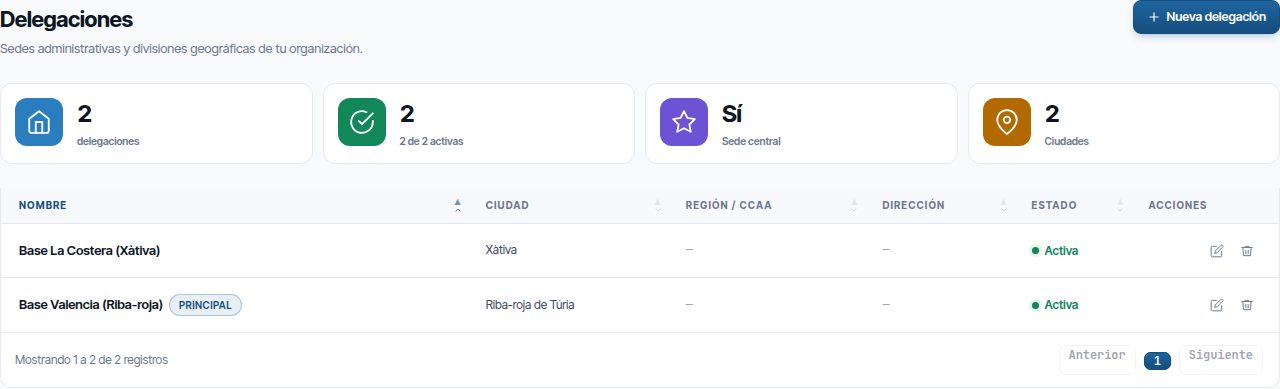
- Total, Activas (Active), Sede central (Head office) (Sí (Yes) or No, depending on whether there is a head office) and distinct Ciudades (Cities).
- The list has Nombre (Name), Ciudad (City), Región / CCAA (Region / Autonomous community), Zona horaria (Time zone), Dirección (Address) and Estado (Status). The head office has the PRINCIPAL (MAIN) label.
- Each row has the Editar (pencil) and Eliminar (bin) buttons.
Creating a branch
- Click Nueva delegación (New branch).
- Fill in Nombre and the details you need (see the table).
- In Ubicación en el mapa (Location on the map), click the exact point of the site. Drag the marker to adjust it, or enter Latitud (Latitude) and Longitud (Longitude).
- Click Guardar delegación (Save branch). The message “Delegación creada correctamente” (Branch created successfully) appears.
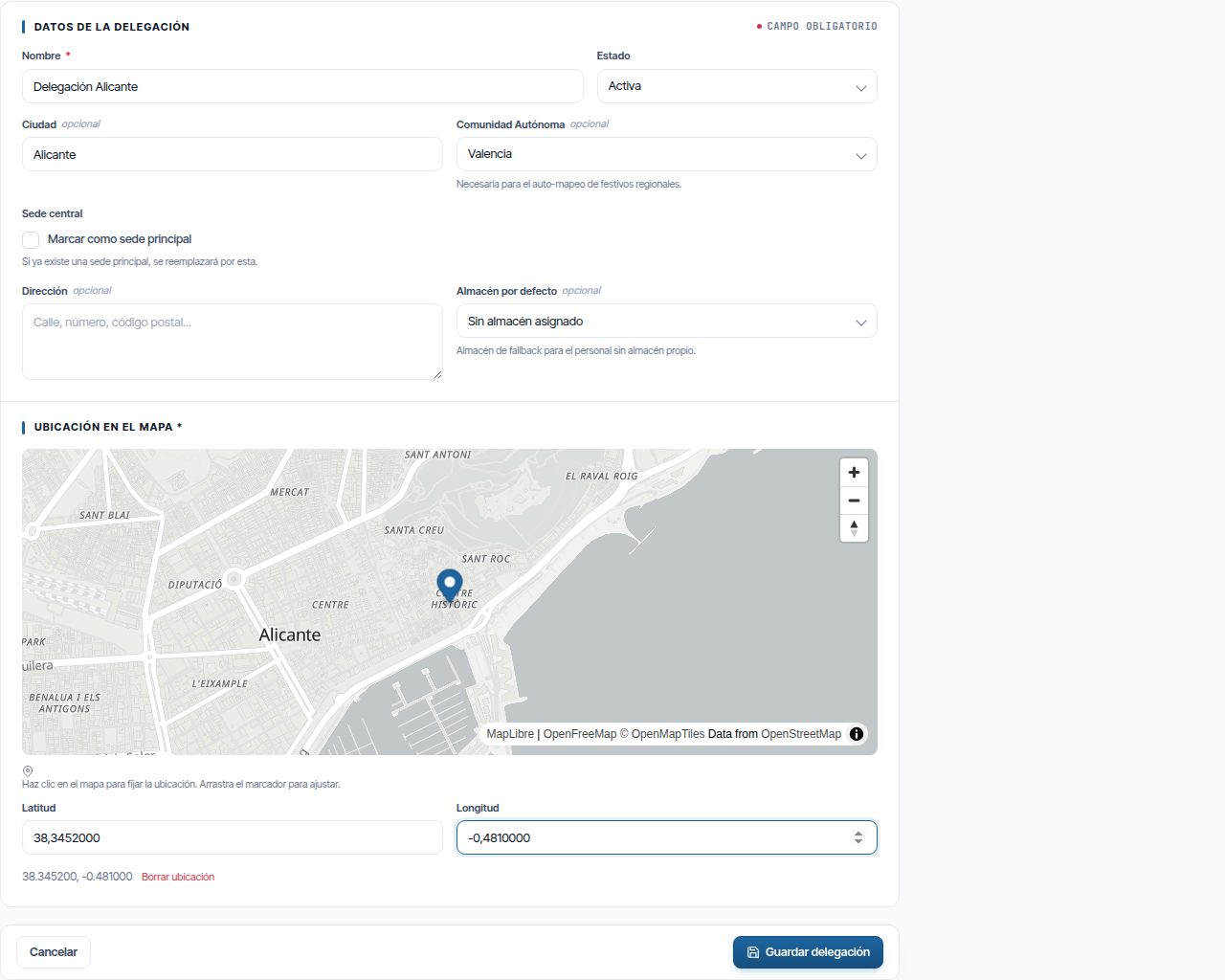
| Field | What it is for |
|---|---|
| Nombre | Required. It is the name shown in every drop-down |
| Estado | Activa (Active) or Inactiva (Inactive). An inactive branch is not shown on the map and is not offered when adding workers |
| Ciudad | For information only. It counts in the Ciudades indicator |
| Comunidad Autónoma (Autonomous community) | Loads the regional public holidays of that autonomous community. See Work calendar |
| Zona horaria | The site's local time: shifts are read and SLA deadlines are counted in it. See Time zone |
| Sede central | Marcar como sede principal (Mark as head office). If there was one already, it stops being the head office |
| Dirección | For information only. It appears when you click the site icon on the map |
| Almacén por defecto (Default warehouse) | The warehouse used by branch staff who do not have their own warehouse |
| Ubicación en el mapa | Required. It is the start and end point of routes |
The location is required. Without it, the message “Debes fijar la ubicación en el mapa antes de guardar.” (You must set the location on the map before saving.) appears. Borrar ubicación (Clear location) empties the coordinates, but does not let you save without them.
Editing, deactivating or deleting
- Editar opens the same form with Guardar cambios (Save changes). To retire a site without losing its history, set Estado to Inactiva.
- When editing, Días y horario de trabajo (Working days and hours) also appears: El de la empresa (Configuración General) (The company's (General settings)) or Horario propio de esta delegación (This branch's own hours), with the hours for each day. See A branch's own working hours.
- Eliminar asks for confirmation. A branch can only be deleted when nothing depends on it any longer.
If something still depends on it, the message “No se puede eliminar la delegación porque todavía tiene…” (The branch cannot be deleted because it still has…) appears, with the list of what is pending. Deletion is blocked by:
- active staff, active teams and active shifts;
- customers, warehouses and sectors that have not been deleted;
- vehicles;
- work orders that are not closed (pending, in progress or paused).
Reassign everything to another branch, or deactivate it, before deleting the branch.
The head office
There is only one. It is used in these cases:
- If your company does not work with branches, everything is assigned to it.
- If the branch of a work order or an incident cannot be worked out, the head office is assigned (see Branch of a WO or an incident).
- On the map, its icon is darker and when you click it, it says “Sede central”.
If none is marked as the head office, the first active branch that was created acts as one.
Time zone
Each branch has a time zone, which is chosen in the Zona horaria field of the form. Its staff's shifts are read and the SLA deadlines of its work orders and incidents are counted in that time. The dates of its work orders are also shown in that time.
- The drop-down starts with the usual zones: España peninsular y Baleares (Mainland Spain and Balearic Islands), Canarias (Canary Islands), Portugal and those of Latin America (Mexico, Colombia, Peru, Chile, Argentina…). Each one has its official name, for example
Atlantic/Canary, and its offset from universal time. - Below, under Todas las zonas (All zones), are the rest of the world's zones.
- A new branch suggests the company's zone, which is that of the head office. If there is none, mainland Spain.
- The branch list shows each branch's zone in the Zona horaria column.
When you save a different zone, Maptainer recalculates the SLA deadlines of open work orders and incidents. Closed ones keep the deadline they were closed with. The same happens when you change the head office, because its zone is the company's zone.
Tip
A worker who works in a different zone from their branch can have their own Zona horaria in their record. See Staff and teams and Time zones.
What depends on the branch
| Where | How the branch is used |
|---|---|
| Staff and teams | Every worker and every team belongs to one. A team only accepts members from its own branch |
| Warehouses and vehicles | Every warehouse and every vehicle belongs to one. The lists are filtered with Todas las delegaciones (All branches) |
| Shifts and public holidays | Shifts belong to a branch, and a public holiday can affect only some branches |
| Working hours | A branch can have its own weekly hours instead of the company's: they apply to its WOs (dates, SLA, preventive maintenance) and to its staff without a shift. See A branch's own working hours |
| Customers | The Delegación responsible for managing the customer. See Customers and SLA |
| Work orders and incidents | They receive a branch automatically (see below). It is not chosen in the form |
| Bell alerts | Each user only receives the alerts of their own branch, except the administrator and users without a branch |
| Planning and dispatch | The branch location is the start and end point for each technician and team |
| Dashboard | Todas las delegaciones filter and Por zona (By zone) table |
| Costs and reports | Costs can be grouped and filtered by branch |
Sectors
The Gestión de Sectores (Sector management) screen is in the admin area, in the Sectores menu. On the left it has the zoning types and the sectors; on the right, a map showing all of them.
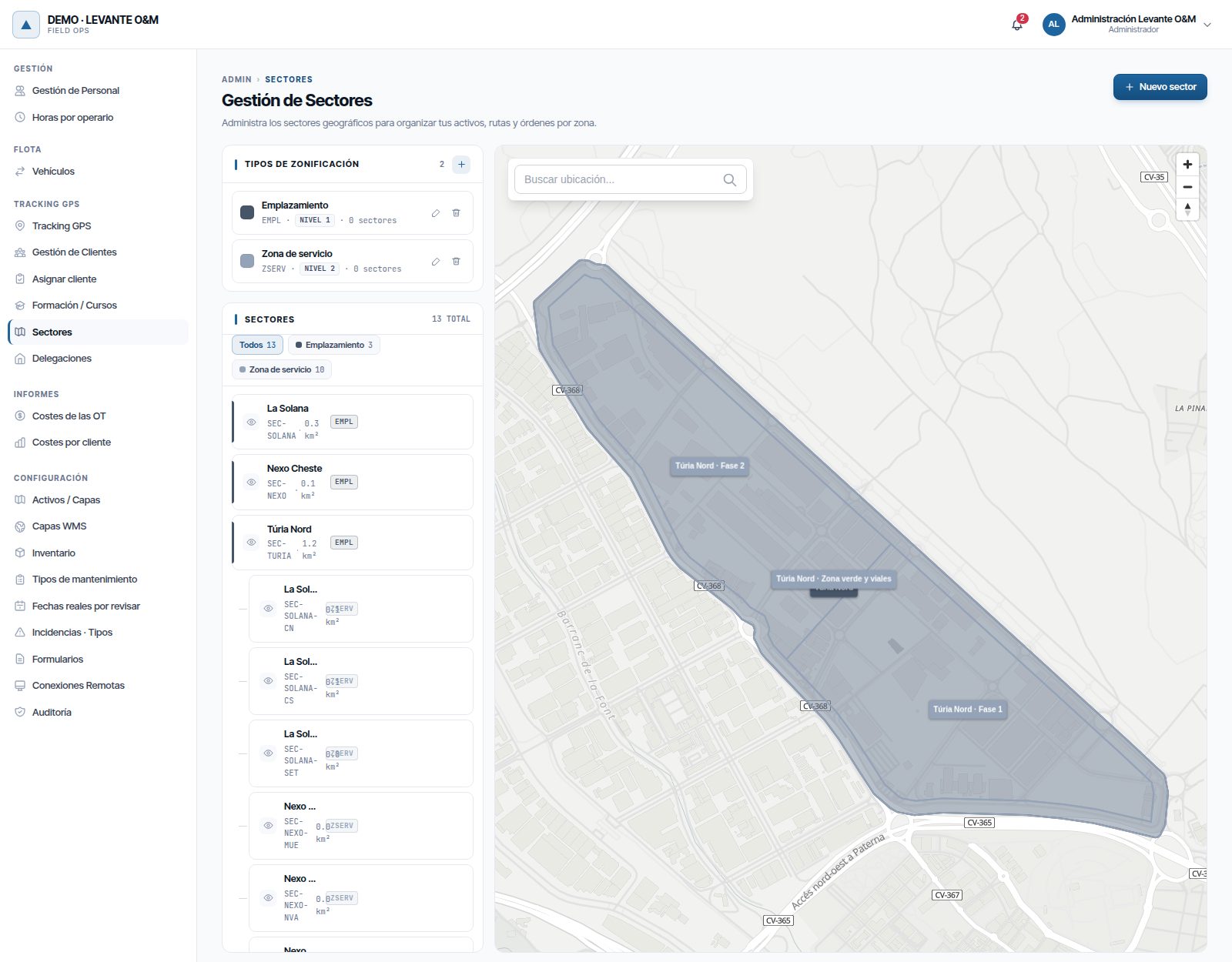
- Tipos de Zonificación (Zoning types): each type with its colour, code, level and number of sectors. The + creates a new one.
- Sectores: the total and some filters by type (Todos (All) and one per type). Sectors of level 2 or higher are indented under those of level 1.
- Each sector shows its name, its code, its area in km² and the code of its type.
- The eye icon hides or shows the sector on this screen's map. It changes nothing else.
- When you hover over a sector, its buttons appear: Zoom (only if it has geometry), Dibujar geometría (Draw geometry), Gestionar equipos (if you work with teams), Editar and Eliminar.
- On the map, Buscar ubicación... (Search location...) searches for an address from three letters.
The work is done in this order: zoning types, sectors, geometry and teams.
Zoning types
A zoning type is a level of the hierarchy. All the sectors of a type are drawn in its colour, on this screen and on the map.
- In the Tipos de Zonificación panel, click +.
- Fill in Nombre and Código (Code), which are required, and a Descripción (Description) if you want.
- Choose Nivel (Level) (1 is the top level, 2 the next…) and Color (Colour).
- Click Crear tipo (Create type). The message “Tipo de zona creado” (Zone type created) appears.
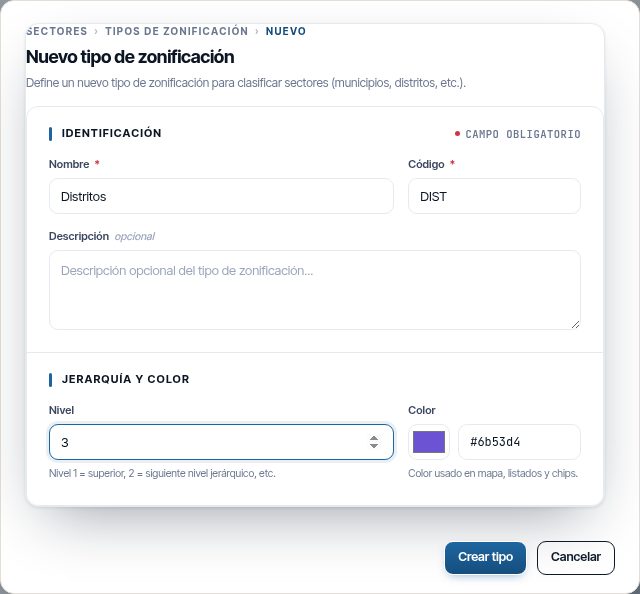
The code cannot be repeated. It also provides the prefix for the codes of sectors imported from a file with no code field.
The pencil on each type opens Editar tipo de zonificación (Edit zoning type). A colour change is shown on all its sectors. The bin deletes it, but only if it has no sectors: if it has any, the message “No se puede eliminar el tipo de zona porque tiene N sectores asociados.” (The zone type cannot be deleted because it has N associated sectors.) appears.
Creating a sector
- Click Nuevo sector (New sector).
- Fill in the fields (see the table) and click Crear Sector (Create sector).
- The message “Sector creado” (Sector created) appears. The sector is created without geometry: draw it next (see Drawing or editing the geometry).
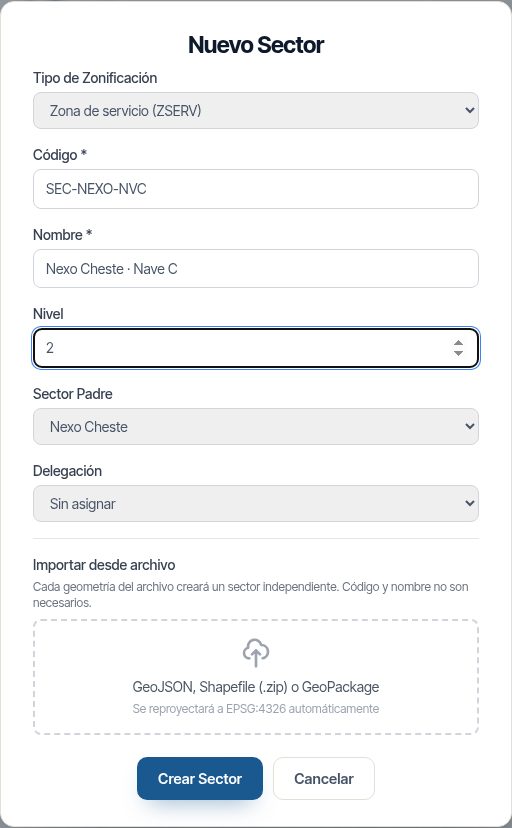
| Field | What it is |
|---|---|
| Tipo de Zonificación | The level of the hierarchy. If there is only one type, it is already selected |
| Código | Required and unique. For example, SEC-001 |
| Nombre | Required. It is the name shown on the map and in the filters |
| Nivel | From 1 to 10. It decides which sector wins when a work order falls in several (see Work orders) |
| Sector Padre (Parent sector) | The sector that contains it. A district has its municipality as parent |
| Delegación | The branch responsible for the maintenance of the zone. It only appears if you work with branches |
Tip
Set Nivel to the same number as the level of its zoning type, and always choose the Sector Padre of subsectors. The level and the parent are not filled in automatically from the type, and they determine which sector each asset and each work order goes to.
Drawing or editing the geometry
The geometry is the sector's polygon. It can have several separate parts.
Sector without geometry:
- On the sector's row, click Dibujar geometría. “Modo Dibujo” (Drawing mode) appears and, below the map, the Dibujando: … (Drawing: …) bar.
- Click on the map for each vertex. Finish the polygon by double-clicking the last point.
- If you need another part, draw it the same way: drawing mode stays active.
- Click Guardar Geometría (Save geometry). The message “Geometría guardada” (Geometry saved) appears.
Sector with geometry:
- Click Dibujar geometría. “Modo Edición” (Editing mode) appears and the polygon is selected.
- Drag the vertices to move them. Dragging the small points between two vertices adds a new one.
- To add another part to the sector, click Añadir Polígono (Add polygon) and draw it.
- Click Guardar Geometría.
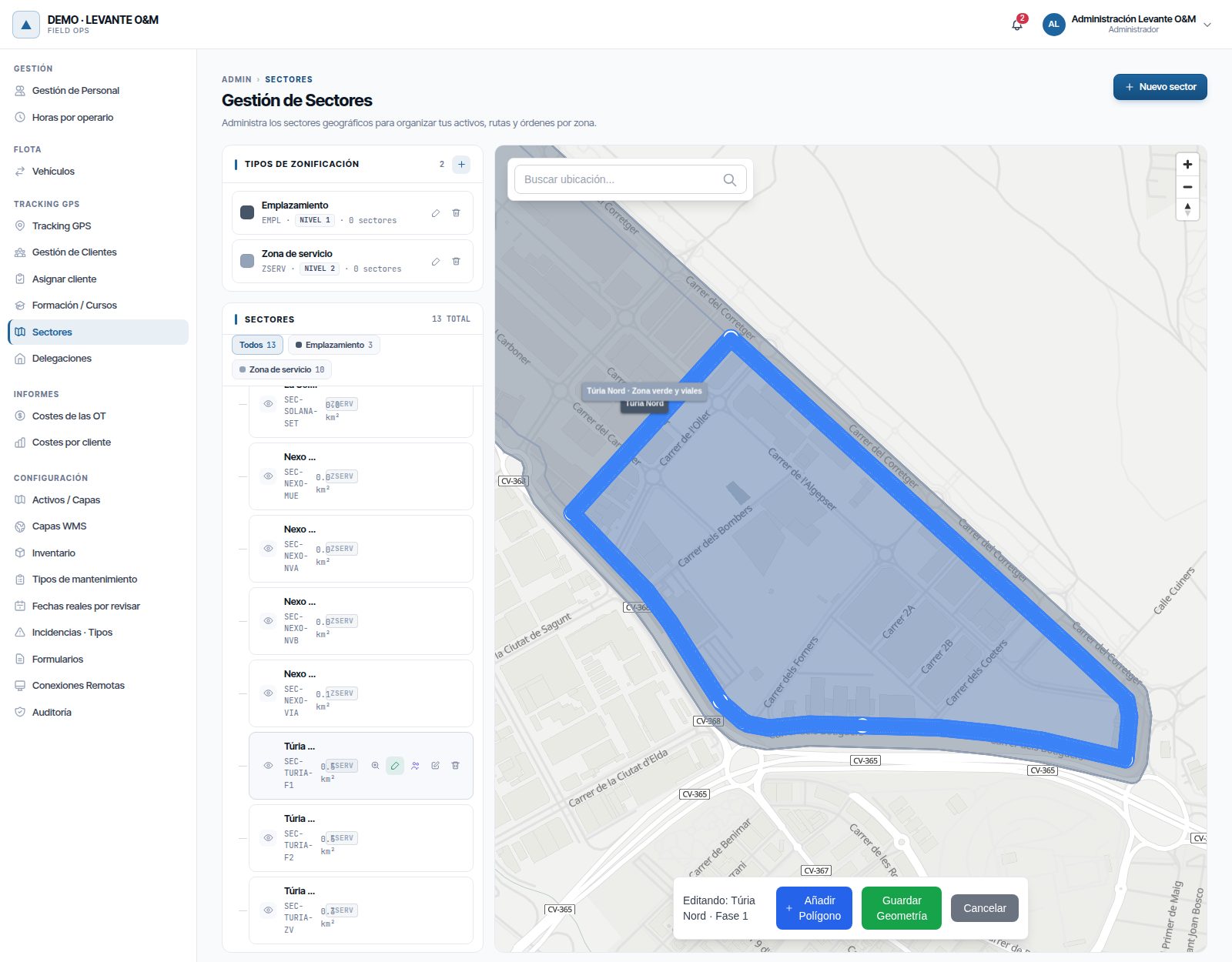
When you draw near another sector, the vertex snaps to its nearest edge or vertex and the Snap label appears briefly. This makes it easier for neighbouring sectors to fit together without gaps or overlaps.
Cancelar (Cancel) exits without saving and discards what you have drawn. A polygon with fewer than three points is rejected with “Un polígono necesita al menos 3 puntos…” (A polygon needs at least 3 points…).
Warning
Saving the geometry reassigns the assets that fall inside the sector (see Assets). Do it once the asset load has been completed.
Importing sectors from a file
If you already have the sectors in a GIS file, import them in one go. Each polygon in the file creates a sector, already with its geometry.
- Click Nuevo sector.
- First choose the Tipo de Zonificación, the Nivel, the Delegación and, if they all hang from the same one, the Sector Padre. They apply to all the imported sectors.
- In Importar desde archivo (Import from file), click the dotted area and choose the file: GeoJSON, Shapefile compressed as a .zip, or GeoPackage. It is reprojected automatically.
- Mapear campos (Map fields) opens, with the number of polygons and the fields in the file. Choose the Campo para el código (Field for the code) and the Campo para el nombre (Field for the name).
- Click Importar N sectores (Import N sectors). The message “Importación completada” (Import completed) appears with the number of sectors created.
If you do not choose a code field, they are numbered with the type's code: DIST-001, DIST-002… Without a name field, they are called nombre_001, nombre_002… A code that already exists gets a suffix. Lines and points in the file are skipped and you are told how many.
Importing the same file twice creates the sectors twice.
Editing a sector
The Editar button opens Editar sector (Edit sector), with Nombre, Código, Tipo de zonificación, Nivel, Sector padre, Sector activo (Active sector) and Delegación. The geometry is not changed here, but with Dibujar geometría.
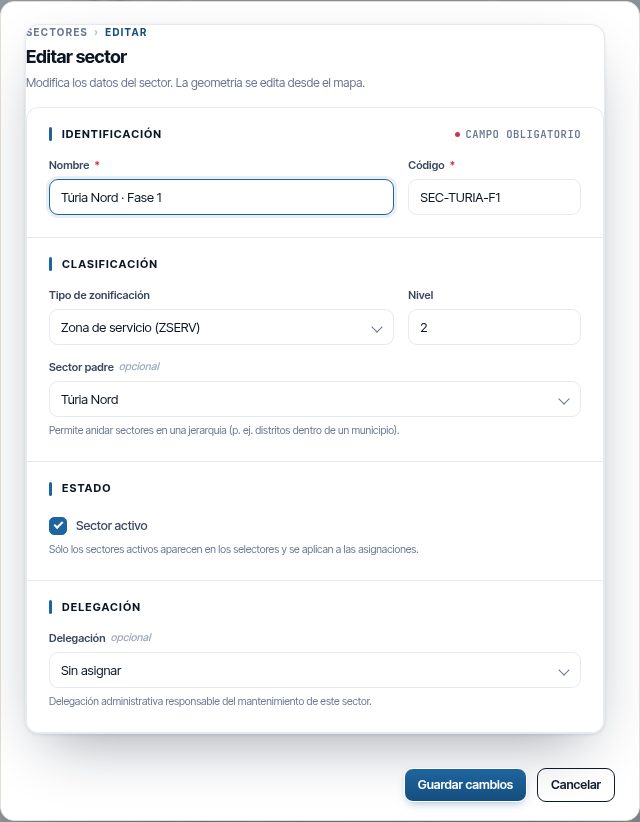
Unticking Sector activo retires the sector without deleting it. The work orders that fell in it move to the next sector that contains them. Assets, on the other hand, stay in it.
Sector teams
Each sector can have one or more teams. The main team is the one that receives the batch of its assets when a reading is allocated by dates. The others are secondary.
- On the sector's row, click Gestionar equipos.
- In Seleccionar equipo... (Select team...), choose the team.
- Leave Principal (Main) ticked if it is the team in charge; untick it to make it secondary.
- Click Asignar (Assign). The message “Equipo asignado al sector” (Team assigned to the sector) appears.
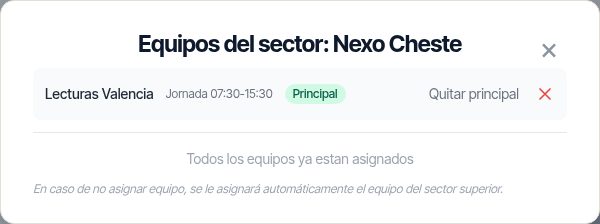
In the list, Hacer principal (Make main) and Quitar principal (Remove as main) change the team's role, and the X removes it from the sector. An inactive team appears with the Inactivo (Inactive) label. You can do the same from the team, with Gestionar sectores (Manage sectors): see Team sectors. There, the main team is called Titular (Lead) and the secondary one, Apoyo (Support).
If the company works with teams, the Equipo principal (Main team) is required: it is chosen when creating the sector, when importing it and in Editar sector, and the only main team of a sector cannot be removed or made secondary. When you choose a new one, the previous one becomes secondary, so each sector has only one main team. A sector without a main team does not inherit the one of the sector above it. Older sectors that do not have one appear in the list with “Sin equipo principal” (No main team): edit them and choose one.
Deleting a sector
The bin asks for confirmation: “¿Eliminar sector?” (Delete sector?). When it is deleted:
- Its assets move to the sector that contains them, for example the parent, or are left without a sector if they do not fall in any.
- Its work orders move to the next sector that contains them.
- Its teams are removed and it drops out of the allocation of reading schedules.
A sector with subsectors cannot be deleted. The message “No se puede eliminar un sector que tiene sub-sectores. Elimina primero los sub-sectores.” (A sector that has sub-sectors cannot be deleted. Delete the sub-sectors first.) appears.
How assets, work orders and incidents are assigned
Nobody chooses the sector by hand: Maptainer calculates it from the geometry. Assets, work orders and incidents follow different rules.
| When it is calculated | Which sector wins if they fall in several | |
|---|---|---|
| Assets | When the asset is created or moved, and when a sector is saved, imported, reduced or deleted | The subsector over its parent sector |
| Work orders | When the work order is created, when its point is moved and when a sector is created, redrawn or deleted | The one with the highest Nivel and, at the same level, the smallest. Active sectors only |
| Incidents | On each dashboard query | They count in every sector that contains them |
Assets
Each asset is placed in the sector that contains its geometry. This is calculated when it is created or moved, by any means (web, map, import, app or API), and when a sector is saved, imported, reduced or deleted. Assets left outside a reduced sector move to the sector that contains them or are left without a sector. An asset that was already in a subsector does not move up to the parent; one that was in the parent moves down to the subsector. If it falls in two overlapping sectors where neither is the parent of the other, it keeps the one it already had or, if not, goes to the oldest one.
The asset's sector decides the branch of its work orders and incidents, and which reading batch it goes to.
Work orders
Each work order with a location is placed in the most specific sector that contains its point. It is recalculated automatically when the work order is created, when its point is moved and when a sector is created, redrawn, activated, deactivated, changes level or is deleted. Work orders without a location have no sector.
The work order's sector is not shown in its record. It is used on the dashboard and in the lists.
Incidents
Incidents do not store a sector. The dashboard counts them in a sector if their point falls inside it.
Branch of a WO or an incident
Maptainer assigns the branch when the work order or incident is created, in this order:
- The branch of the sector of its assets. If there are several assets, the most frequent one.
- The branch of the smallest active sector that contains its point.
- The branch of its customer.
- Work orders only: the branch of the first assigned technician who has one.
- The branch of the person who creates it, if they have a staff record.
- The head office.
That is why it is advisable to give every sector a branch. A sector without a branch contributes nothing to this calculation.
In the rest of Maptainer
On the map
The layer panel has two layers of its own. They are also explained in The map.
| Layer | What it shows |
|---|---|
| Sectores | The sectors, grouped by zoning type and with their colour. They are ticked one by one, or all at once with the group checkbox |
| Delegaciones | A house icon on each active branch with a location. It is switched on by default. When you click it, it shows the name, “Sede central” if it is the head office, and the address |
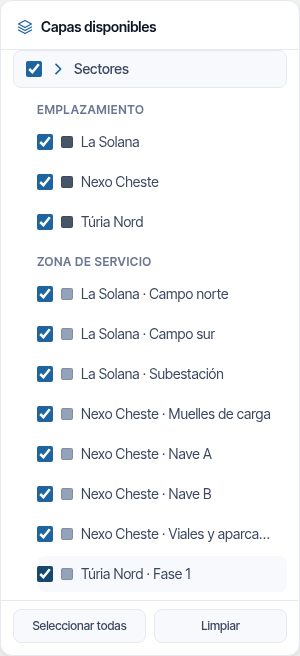
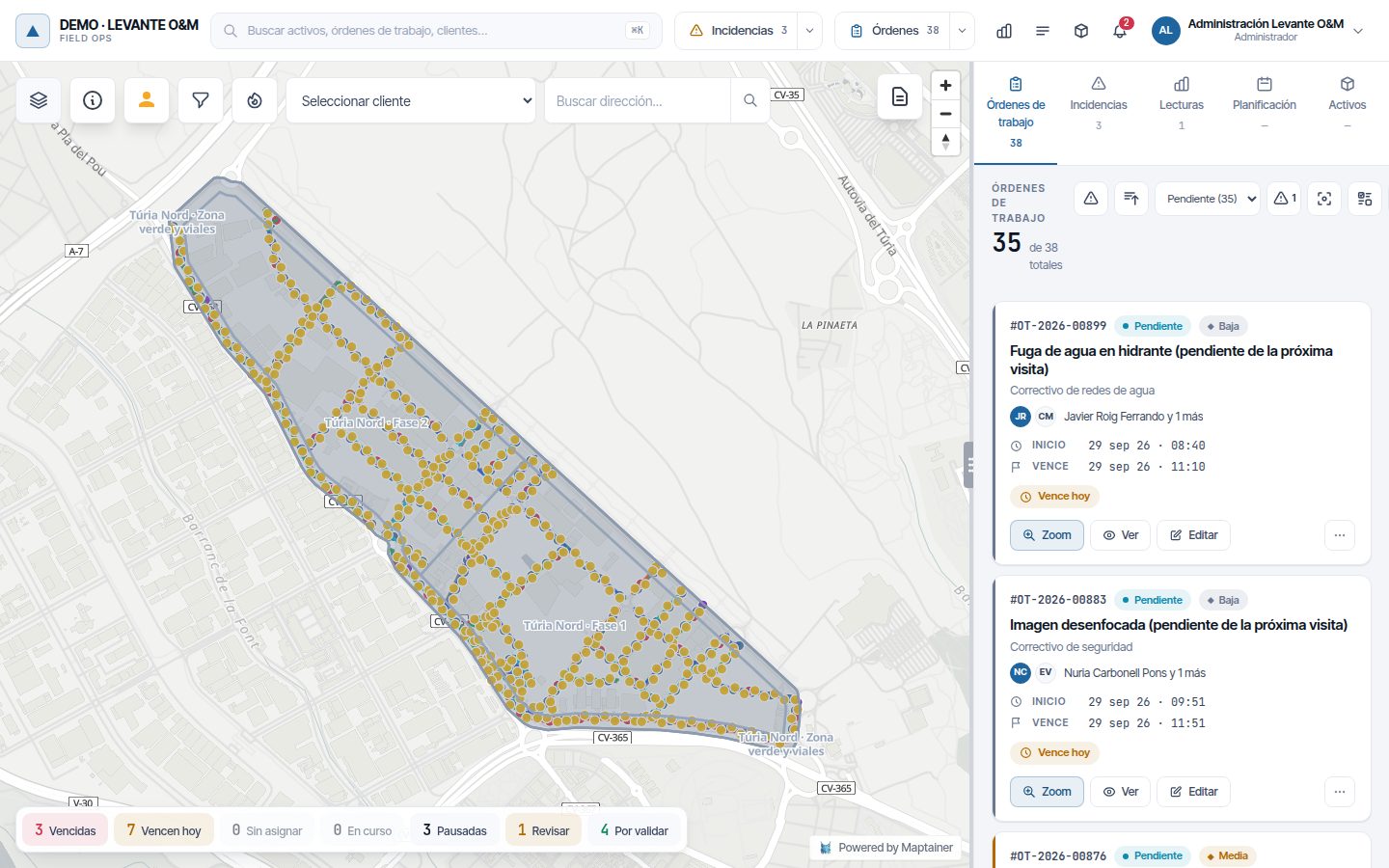
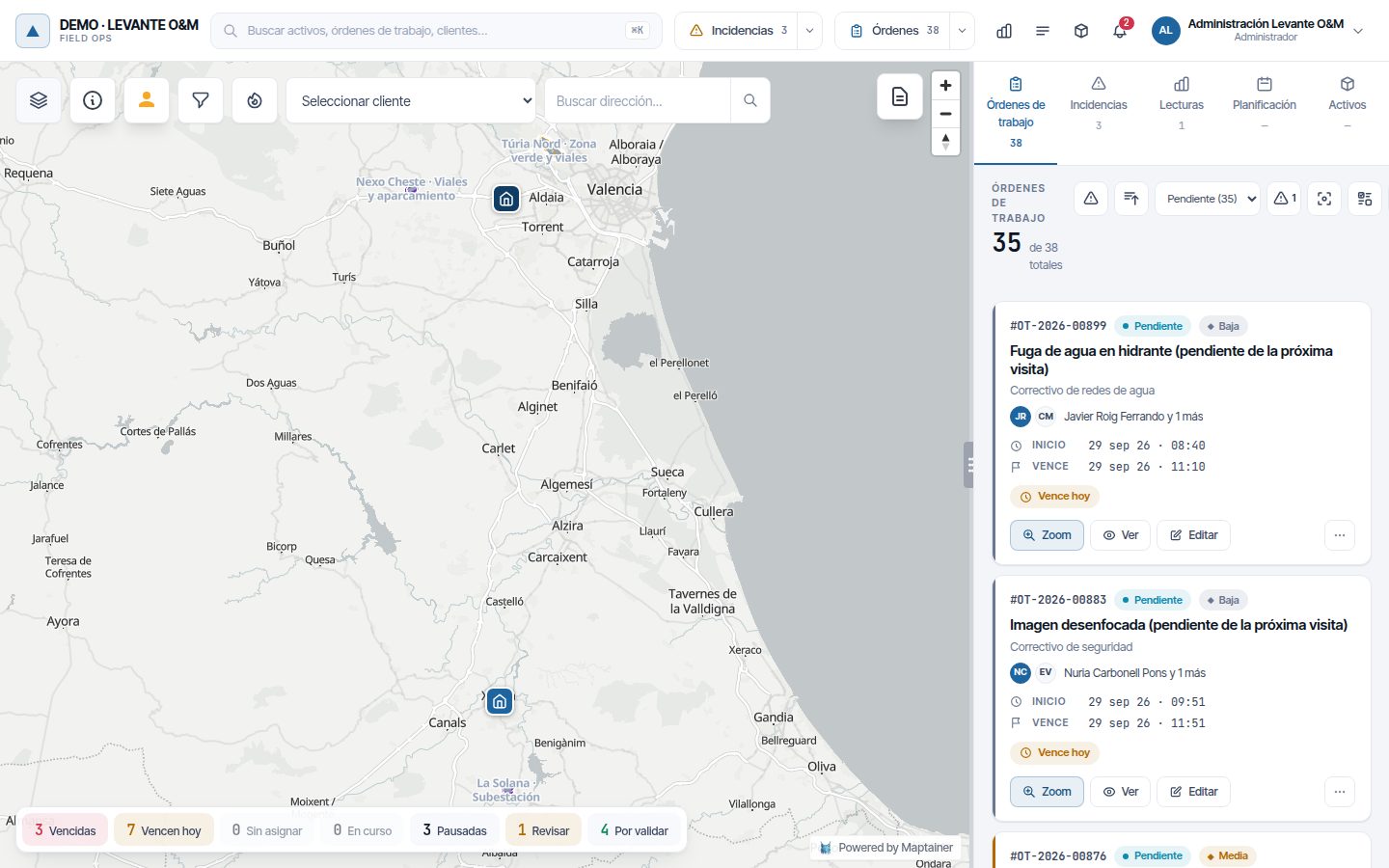
If your company does not have the customers module, the drop-down in the map bar is Seleccionar sector (Select sector). It shows the sectors as a tree and, when you choose one, zooms the map to it. It only frames the view: it hides nothing. If the sector has no geometry, “Sin geometría” (No geometry) appears. See Select sector.
On the dashboard
The dashboard has the Todas las delegaciones and Todos los sectores (All sectors) filters, and the Por zona table, with one row per branch and per sector. When you filter by a parent sector, the work orders and incidents include those of all its subsectors. In the Por zona table, each work order and incident counts only in its most specific sector. See Dashboard and lists and By zone.
In reading batches
Sectors allocate reading batches by dates: each main team receives a batch with the assets of its sectors. Only assets that have a sector and sectors that have a main team are included. See Reading batches.
Common problems
| Symptom | Probable cause | Solution |
|---|---|---|
| The Sectores or Delegaciones menu does not appear | The option is turned off or your role does not have Ver | Turn it on in Ajustar en detalle or check the role |
| “Debes fijar la ubicación en el mapa antes de guardar.” | The branch has no location | Click on the form's map |
| “No se puede eliminar la delegación porque todavía tiene…” | It still has staff, teams, warehouses, sectors or open work orders | Reassign them to another branch, or deactivate the branch |
| A branch does not appear on the map | It is inactive or has no location | Edit it and check Estado and Ubicación en el mapa |
| “Ya existe un sector con el codigo…” (A sector with the code… already exists) | The code is in use | Use another code |
| “No se puede eliminar un sector que tiene sub-sectores…” | It has child sectors | Delete the subsectors or change their parent first |
| “No se puede eliminar el tipo de zona porque tiene N sectores asociados.” | There are sectors of that type | Change their type or delete them first |
| An asset is not in any sector | It does not fall inside any sector polygon | Draw or enlarge the sector that should contain it |
| A sector shows “Sin equipo principal” | It predates the required main team rule | Edit it and choose the Equipo principal |
| A WO ends up in the wrong branch | Its sector has no branch, or there is no sector at its point | Give the sectors in the area a branch |
| “Sin geometría” when choosing a sector on the map | The sector has no polygon | Draw it in Gestión de Sectores |
Last updated: