
Introduction
When you sign in, the map is zoomed so that all your company's assets fit. The screen has five areas:
| Area | What it contains |
|---|---|
| Top bar | Global search box, Incidencias (Incidents) and Órdenes (Work orders) layers, dashboard, lists, inventory, alerts and user menu |
| Top left | Capas (Layers), identify, Street View, filters and heat map buttons, the customer drop-down and Buscar dirección... (Search address...) |
| Top right | Leyenda (Legend) button, zoom and compass |
| Bottom left | Day's pulse: counters for today's work orders |
| Right-hand panel | Tabs for work orders, incidents, meter readings, planning and assets |
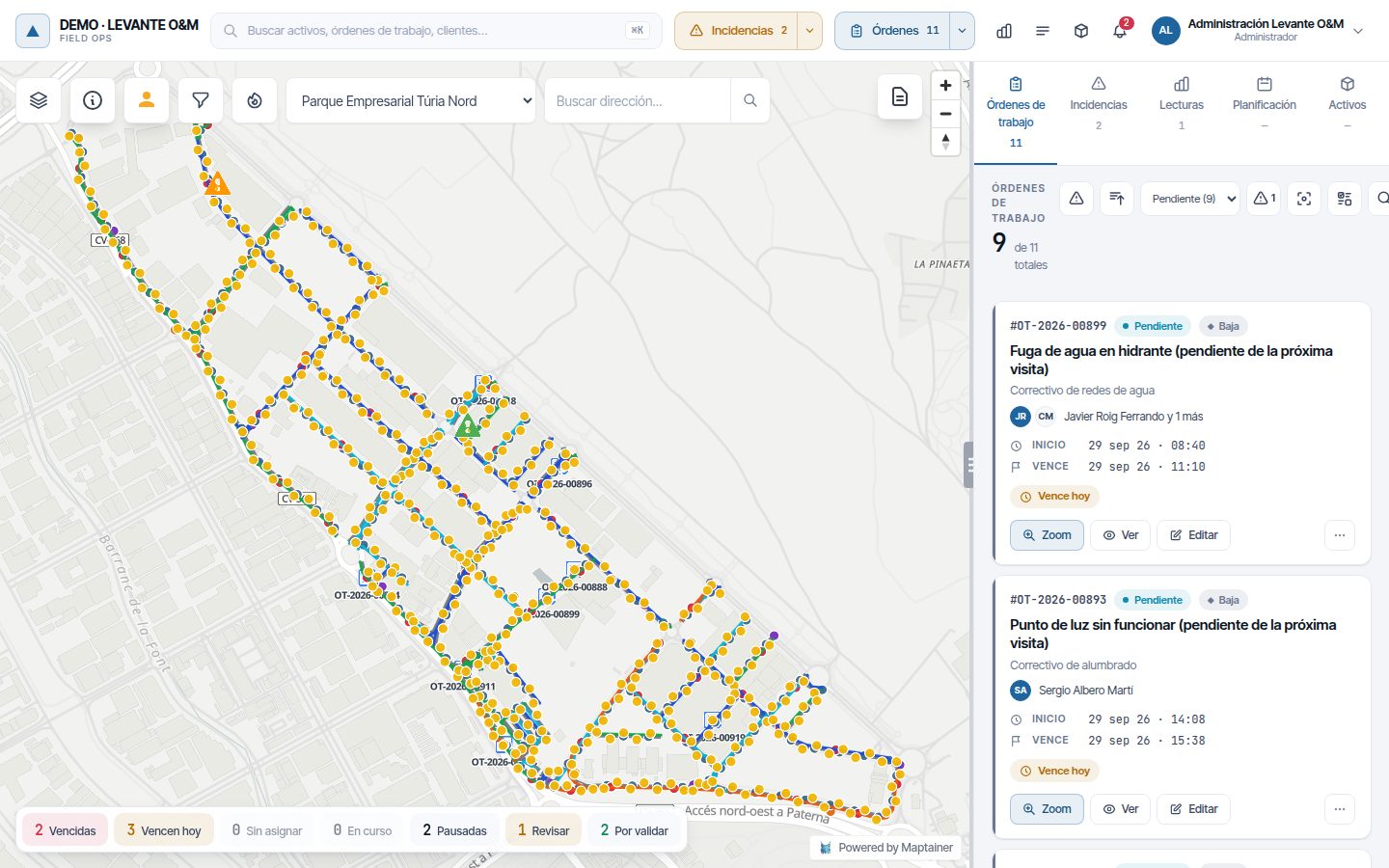
The buttons in the top left row are, in order:
| Button (on hover) | What it is for |
|---|---|
| Capas | Opens the layers panel: base map, assets, zones, sectors and special layers |
| Consultar información de elementos (Identify features) | Switches on identify mode: one click on an asset opens its record |
| Street View | Shows the street-level image of the point you click |
| Filtros avanzados (Advanced filters) | Filters the work orders or incidents on the map and in the list |
| Mapa de calor (Heat map) | Shows where most work orders or incidents have been created in the last 90 days |
This manual explains how to view and filter. Managing each element is covered in its own manual: Assets, Work orders, Incidents and Layers and asset types.
Prerequisites
The map and the asset layers can be seen by any user in the tenant. Some parts depend on the subscribed module or on the role's permission:
| Element | What is needed |
|---|---|
| Incidencias and Órdenes layers, Filtros avanzados, Mapa de calor and day's pulse | Mantenimiento (Maintenance) module subscribed and Ver (View) permission in the Mantenimiento group |
| Seleccionar cliente (Select customer) drop-down | Clientes (Customers) module and at least one customer registered |
| Solicitudes (Requests) layer | Editar (Edit) permission in the Activos GIS (GIS assets) group |
| Editar capa (Edit layer) icon in the layers panel | Crear (Create), Editar or Eliminar (Delete) permission in the Activos GIS group |
| Posiciones GPS (GPS positions) layer and Técnicos más cercanos (Nearest technicians) option | Tracking de personal (Staff tracking) module and Ver permission in the Personal (Staff) group |
| Delegaciones (Branches) layer | Option to work with branches and Ver permission in the Delegaciones group |
| Nueva orden aquí (New work order here) and Nueva incidencia aquí (New incident here) options | Crear permission in the Mantenimiento group |
The subscribed modules can be checked in Configuración General (General settings), as explained in Tenant administration.
Moving around the map
Drag the map with the mouse to move around and use the wheel to zoom in or out. The buttons at the top right do the same:
- + and −: zoom the map in and out.
- Compass: puts north back at the top if you have rotated the map.
Other useful gestures:
| Gesture | Result |
|---|---|
| Shift + drag | Zooms the map to the box you draw |
| Ctrl + drag | Rotates and tilts the map |
| Double-click | Zooms the map in one level |
| Right-click | Opens the context menu (see Context menu) |
Note
The layers you switch on or off are not saved. When you open the map again, the layers set to load at start-up are shown again.
Layers panel
The Capas disponibles (Available layers) panel decides what is drawn on the map. It opens with the Capas button and closes when you click outside it.
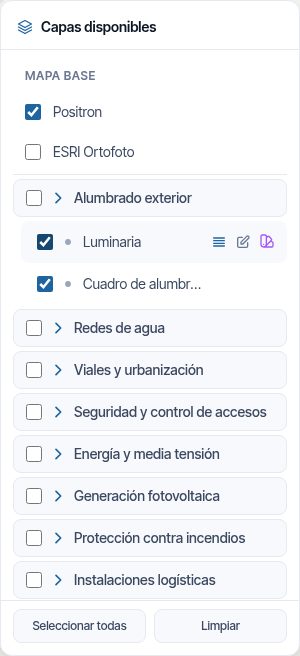
Base map
There are two base maps, which are ticked as checkboxes:
- Positron: street map in light tones. It is ticked by default.
- ESRI Ortofoto (ESRI orthophoto): aerial imagery.
If you tick both, the street map is dimmed and the orthophoto shows underneath. This way you see the streets and the imagery at the same time.
Asset layers
Each asset type is a layer. Layers are grouped into familias (families), for example “Alumbrado exterior” or “Redes de agua”. Those without a family appear on their own at the end of the group.
- Click the family name to expand it.
- Tick a layer's checkbox to see it on the map, or untick it to hide it.
- Tick the family's checkbox to switch all its layers on or off at once.
The icon next to each layer shows its geometry: point, line or polygon. Some layers are only drawn from a certain zoom level, depending on their symbology. If you see nothing, zoom in.
When you hover over a layer, up to three icons appear:
| Icon (on hover) | What it does | Who sees it |
|---|---|---|
| Ver listado de activos (View asset list) | Opens the table with the layer's assets | Everyone, on operational layers |
| Editar capa | Switches on geometry editing. It is explained in Assets | Anyone who can create, edit or delete assets |
| Seleccionar temático (Select thematic map) | Changes how the layer is coloured. It appears when the layer is already switched on | Everyone |
Layers that have the Cargar al inicio (Load at start-up) option ticked are switched on by themselves when the map opens. That option and the symbology are configured in Layers and asset types.
A family's checkbox appears ticked as soon as any of its layers is switched on, including those that switch on by themselves. Unticking it switches all its layers off; ticking it switches them all on.
Other layers
Below the asset layers these groups may appear, depending on your company's configuration:
| Layer | What it shows |
|---|---|
| Capas WMS (WMS layers) | External layers from a map server, such as the cadastre or planning. They are registered in Layers and asset types |
| Zonas cliente (Customer zones) | The customers' service zones, grouped by zone type. See Customers and SLA |
| Sectores (Sectors) | The sectors, grouped by zoning type. They are ticked one by one. See Branches and sectors |
| Solicitudes (Pendientes, Pending) | Asset changes requested from the app that are awaiting approval |
| Posiciones GPS (Tiempo real, Real time) | Last position of each technician |
| Delegaciones | The company's sites. It is switched on by default |
At the bottom of the panel, Seleccionar todas (Select all) switches all layers on and Limpiar (Clear) switches them off, including the work order and incident layers.
Tip
Seleccionar todas also switches on all zones, sectors and special layers. With a lot of data, the map becomes slow and hard to read. Switch on only what you need.
Pending requests
The Solicitudes layer draws the assets that a technician has asked to create, modify or delete from the app. The colour shows the type:
| Colour | Request |
|---|---|
| Green | New asset pending |
| Orange | Modification |
| Red | Deletion |
Click a request to see the detail. In the window you can enter some Notas de revisión (opcional) (Review notes, optional) and click Aprobar (Approve) or Rechazar (Reject). The full process is in Assets.
GPS positions
The Posiciones GPS layer shows a circle per technician with their last position. It updates by itself every minute; the Actualizar posiciones (Update positions) button on the row refreshes it immediately.
| Colour | Meaning |
|---|---|
| Green | Technician without a work order in progress |
| Blue | Technician with a work order in progress. A line joins them to that work order |
| Amber | The last position is more than 15 minutes old |
Clicking a technician shows when the position was received, the battery, the speed and the work order in progress, if any. Tracking is explained in Fleet and GPS tracking.
View asset list
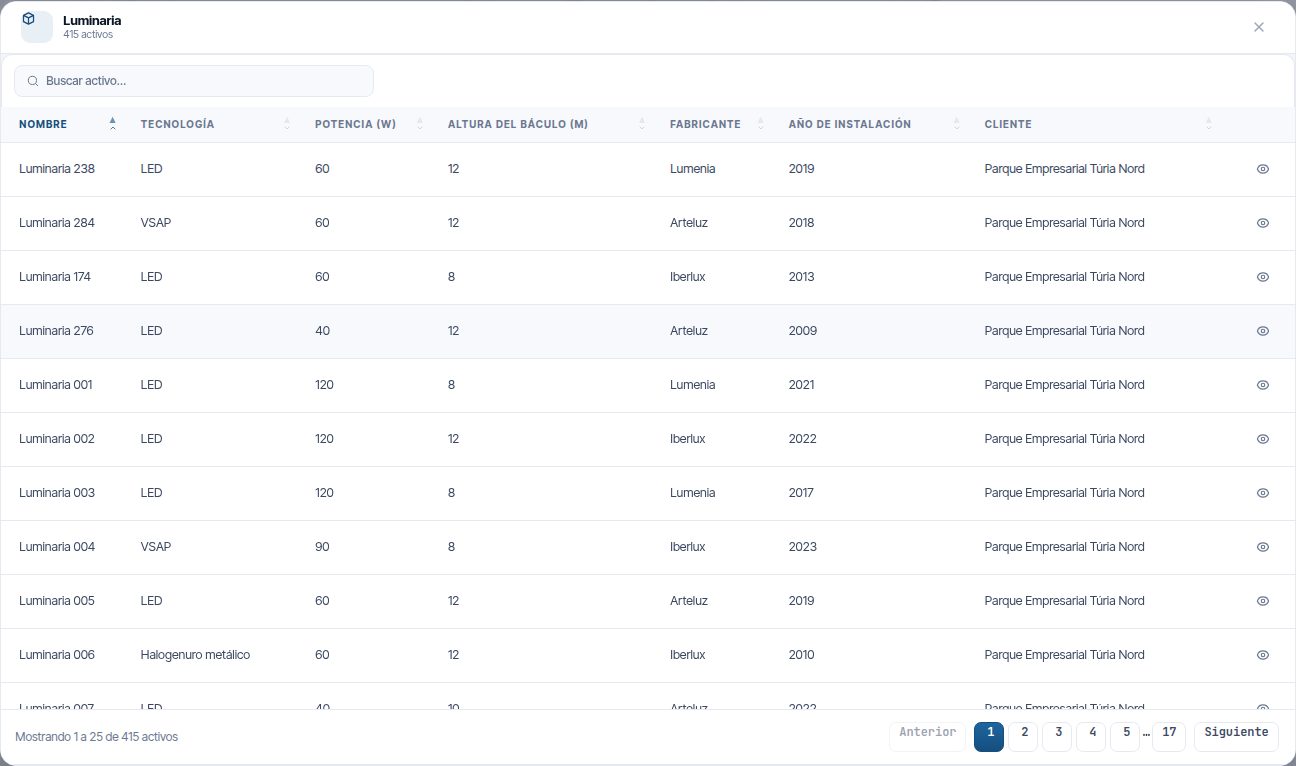
The Ver listado de activos icon opens a table with the layer's assets in use (without deleted or decommissioned ones). You sort it by clicking a column heading and download it with Exportar CSV (Export CSV); see Assets.
- Open the Capas panel and hover over the layer.
- Click Ver listado de activos.
- Type in Buscar activo… (Search asset…) to filter the table.
- Click the eye (Ver en mapa, View on map) on a row. The window closes, the map zooms to the asset and highlights it for a few seconds.
The table shows 25 assets per page, with one column for each field of the layer and another for Cliente (Customer). If you have a customer selected on the map, only their assets appear.
Thematic maps and legend
A temático (thematic map) colours the features of a layer according to one of their attributes. This lets you see at a glance, for example, which luminaires are out of service.
Thematic map for an asset layer
- Switch the layer on in the Capas panel.
- Hover over the layer and click Seleccionar temático.
- Choose an option from the Temático list.
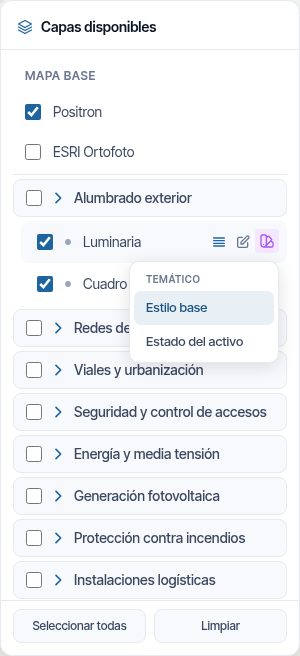
The options are:
- Estilo base (Base style), or the styles the administrator has configured for that layer.
- Estado del activo (Asset status): colours each asset according to its status (Operativo (Operational), En Mantenimiento (Under maintenance), Fuera de Servicio (Out of service), Pendiente de Validar (Pending validation)…). The colours come from the status catalogue.
Assets in Baja Definitiva (Permanently decommissioned) are not drawn on the map with any thematic map.
Legend
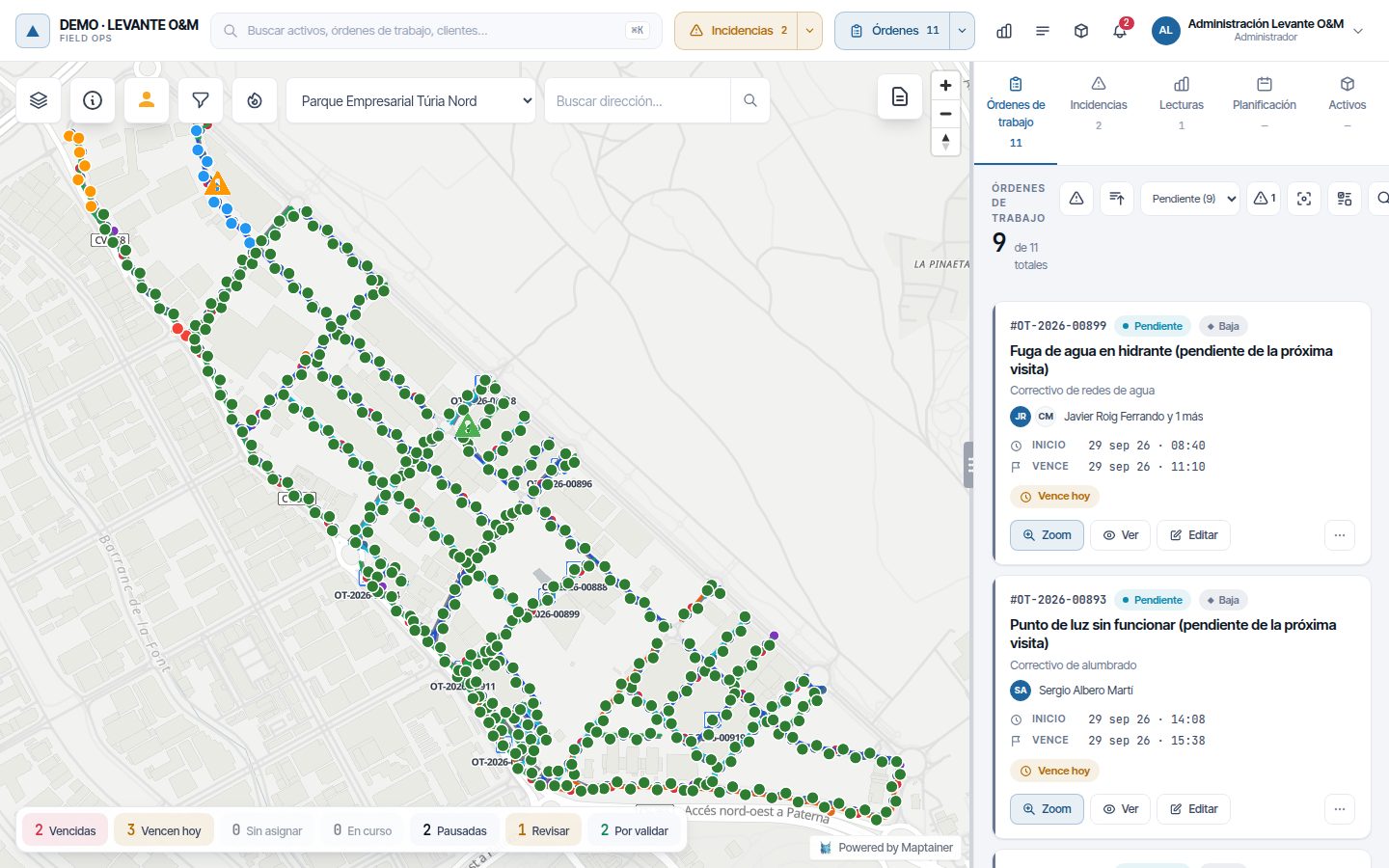
The Leyenda button (top right, next to the zoom) opens the Leyenda de Capas Activas (Legend of active layers) panel. For each layer switched on, it shows what each colour means:
- For an asset layer, the colours of the chosen thematic map.
- For a WMS layer, the legend image provided by the server, if it has one.
- For Órdenes de Trabajo (Work orders) and Incidencias, the colours of the thematic map chosen in the top bar: status or priority for work orders, criticality or status for incidents. They are the same ones the map draws.
The legend updates by itself when you switch layers on or off. If none is switched on, it says “No hay capas activas” (There are no active layers).
Work orders and incidents on the map
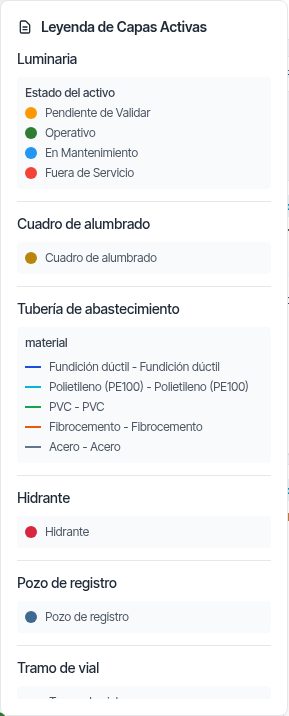
Work orders and incidents are switched on from the top bar, not from the layers panel.
- Click Órdenes or Incidencias in the top bar. The button is highlighted and its icons appear on the map.
- Click it again to hide them.
The number on the button is the same as on the corresponding tab of the right-hand panel. If a customer is selected, it only counts theirs.
By default, the work order layer only draws those in Pendiente (Pending), En Curso (In progress) or Pausada (Paused). To see others, use the day's pulse or the filters.
A click on the icon of a work order or an incident opens its record in the right-hand panel. If it has a drawn area, you can also click inside the area.
Thematic map and density
The arrow next to Órdenes or Incidencias opens a drop-down with two blocks:
| Block | Órdenes | Incidencias |
|---|---|---|
| Temático | Estado (Status) or Prioridad (Priority) | Criticidad (Criticality) or Estado |
| Densidad (Density) | Mapa de calor (90 días) (Heat map, 90 days) | Mapa de calor (90 días) |
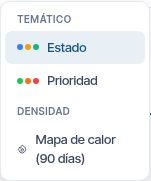
The heat map in this drop-down is the same as the one on the Mapa de calor button (see Heat map).
Identifying a feature
Identify mode opens an asset's record with one click on the map.
- Click Consultar información de elementos. The button turns blue and the cursor changes.
- Click an asset on the map. You do not need to hit it exactly: clicking nearby is enough, even on thin lines.
- The record opens in the Activos (Assets) tab of the right-hand panel and the asset is highlighted on the map.
- To leave identify mode, click the button again.
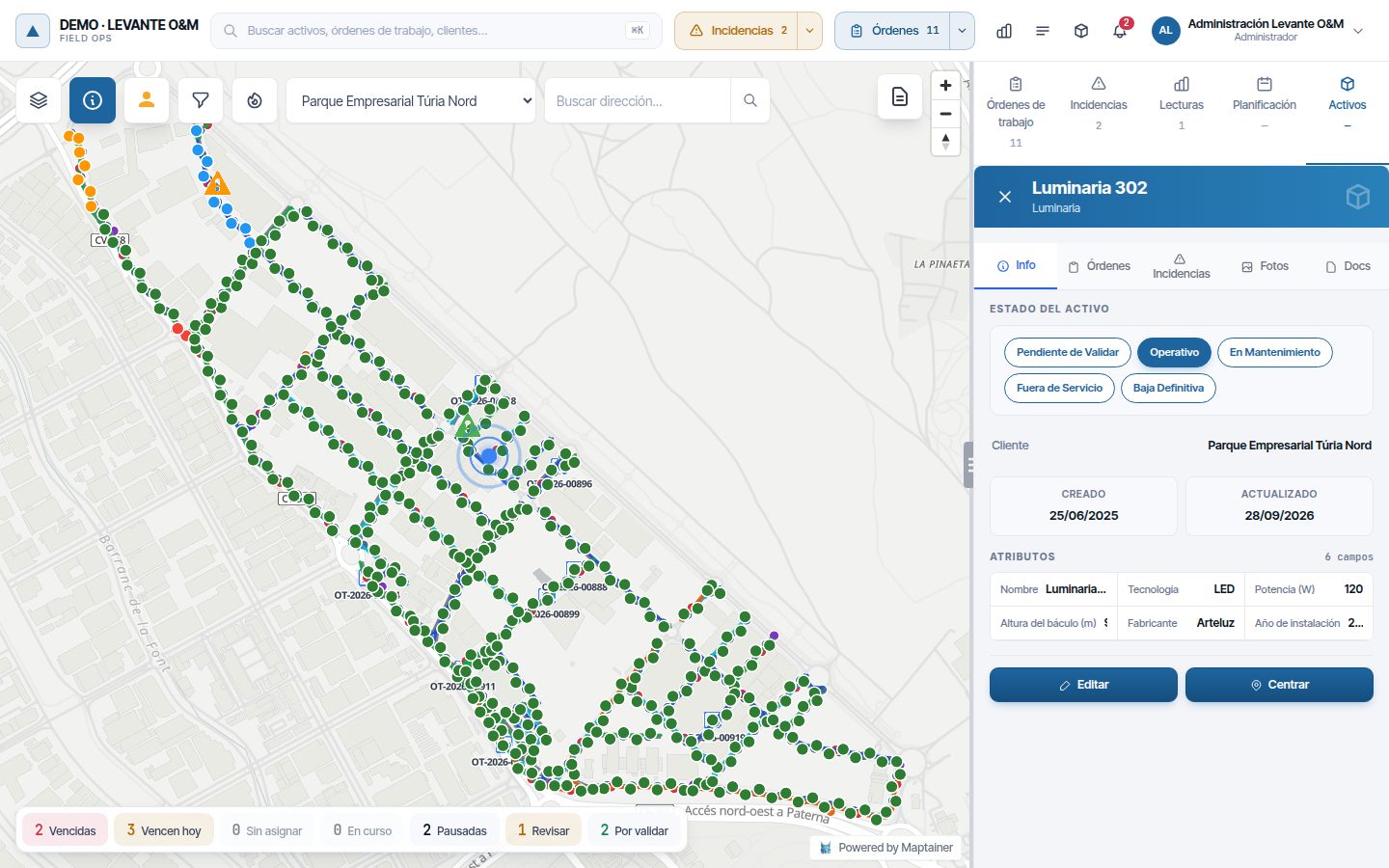
If several features are close together, the record of the one drawn on top opens. The asset record, its tabs and editing are explained in Assets.
Search
Searching for an address
The Buscar dirección... box finds streets, towns and places.
- Type at least 3 characters. Suggestions appear by themselves.
- Click a suggestion.
- The map zooms to the place and adds a red marker. The marker disappears after 30 seconds.
If there are no matches, “No se encontraron resultados” (No results found) appears.
Global search
The search box in the top bar finds work orders, incidents, assets and customers. It also opens with Ctrl+K (⌘K on Mac).
- Type at least 3 characters.
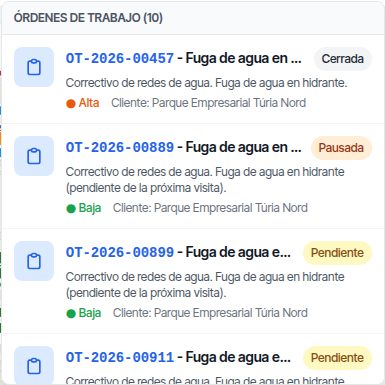
- Press Intro (Enter). The results are grouped by type, with a maximum of 10 of each.
- Click a result. The map zooms to it and opens its record. For assets, its layer is also switched on. A customer is selected as in the Seleccionar cliente drop-down: the map is restricted to them and zooms to their assets.
| Type | Where it searches |
|---|---|
| Work orders | Code, title, description and address |
| Incidents | Code, title, description and address |
| Assets | Code and, if there are fewer than 10 by code, the value of any attribute (address, material, street…). The matching attribute is shown below the result |
| Customers | Name, contact person, town and address. Only with the Clientes module and permission to view customers |
In companies with a very large number of assets, the attribute search is cut off after a few seconds if it finds nothing, and the search box says so. Type a more specific text or search by code.
Filtering by customer or sector
The drop-down next to Buscar dirección... restricts the map to one customer. If your company does not work with customers and has sectors, the drop-down shows sectors.
Selecting a customer
When you choose a customer in Seleccionar cliente, the map zooms to their assets and everything is restricted to them:
- The asset layers only draw their assets.
- The work order and incident layers, their lists and their counters.
- Meter readings, planning, the day's pulse and the heat map.
Your company's own customer appears first, with “· Propio” (Own). Inactive customers appear at the end, in the Clientes de baja (Inactive customers) group, so that you can look at their history. Choose Todos (All) to remove the filter.
If the customer has no assets with geometry, “Sin geometrías” (No geometries): “El cliente no tiene activos con geometría” (The customer has no assets with geometry) appears, and the map does not move. The filter is applied anyway.
The Cliente field in the advanced filters and this drop-down are the same filter: when you change one, the other changes. Customers are managed in Customers and SLA.
Selecting a sector
The Seleccionar sector (Select sector) drop-down shows the sectors as a tree. When you choose one, the map zooms to it. It only frames the view: it does not hide anything.
If the sector has no geometry, “Sin geometría” (No geometry) appears. Sectors are created in Branches and sectors.
Advanced filters
The Filtros (Filters) panel restricts the work orders or incidents on the map and in the right-hand panel list at the same time.
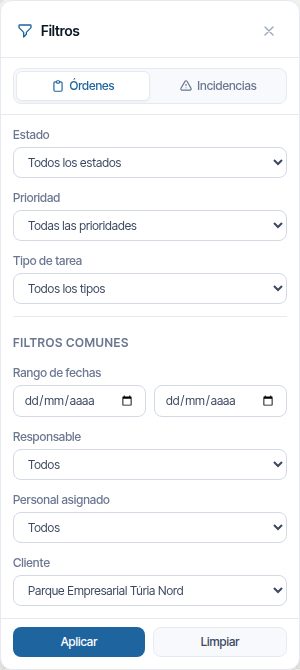
- Click Filtros avanzados.
- Choose the Órdenes or Incidencias tab. Only the filters in the open tab are applied.
- Fill in the fields you need.
- Click Aplicar (Apply).
When you apply them, the corresponding layer is switched on, the map is zoomed to the results and “Filtros de Órdenes de Trabajo aplicados” (Work order filters applied) or “Filtros de Incidencias aplicados” (Incident filters applied) appears. The button shows how many filters are set. If nothing matches, “No se encontraron órdenes con estos filtros” (No work orders found with these filters) or “No se encontraron incidencias con estos filtros” (No incidents found with these filters) appears.
To remove them, click Limpiar. The fields in both tabs are emptied and “Filtros eliminados” (Filters removed) appears.
| Tab | Field | What it filters |
|---|---|---|
| Órdenes | Estado | Pendiente, En Curso or Pausada |
| Órdenes | Prioridad | Work order priority |
| Órdenes | Tipo de tarea (Task type) | Maintenance type of the work order |
| Incidencias | Estado | Open statuses of the incident |
| Incidencias | Prioridad | Criticality: Baja (Low), Media (Medium), Alta (High) or Crítica (Critical) |
| Incidencias | Tipo de incidencia (Incident type) | Type registered in the catalogue |
| Filtros comunes | Rango de fechas (Date range) | For work orders, those whose planned start or planned end falls within the range. For incidents, those created on those days |
| Filtros comunes | Responsable (Person in charge) | Person in charge of the work order. For incidents, the person in charge of a work order created from the incident |
| Filtros comunes | Personal asignado (Assigned staff) | Technician assigned to the work order. For incidents, the one assigned to a work order created from the incident |
| Filtros comunes | Cliente | The same filter as Seleccionar cliente |
The filters replace the day's pulse: if you had a counter selected, it is deselected. They all restrict the map, the view and the right-hand panel list at the same time.
Responsable and Personal asignado list the staff records, so they are only filled in if your role can view staff.
Day's pulse
The day's pulse is the strip of counters at the bottom of the map. It summarises the work orders that need attention today and updates by itself every minute.

| Counter | Which work orders it counts |
|---|---|
| SLA incumplido (SLA breached) | Open work orders whose SLA resolution deadline has already passed. Only with SLA and if there are any |
| SLA en riesgo (SLA at risk) | Open work orders that have used up a large part of their SLA deadline. Only with SLA and if there are any |
| Vencidas (Overdue) | Pending, in progress or paused work orders whose due date has already passed. The due date is the deadline; if there is none, the SLA resolution deadline; and if there is none either, the planned end |
| Vencen hoy (Due today) | Pending, in progress or paused work orders whose due date falls today |
| Sin asignar (Unassigned) | Pending work orders with nobody assigned |
| En curso (In progress) | In progress |
| Pausadas (Paused) | Paused |
| Revisar (Review) | Paused work orders that have not moved for too many days. Only appears if there are any |
| Por validar (To validate) | Completed work orders awaiting validation |
Por validar changes depending on how your company closes work orders: it may be called Por cerrar (To close) or not appear. See Work orders.
To use it:
- Click a counter. The map and the work order list show only those work orders, and the counter stays selected.
- The legend shows “Mostrando:” (Showing:) and the chosen counter.
- Click it again to remove the filter.
Counters at zero are shown in grey and cannot be clicked. With a customer selected, only their work orders are counted. Clicking a counter empties the advanced filters, but keeps the customer.
Heat map
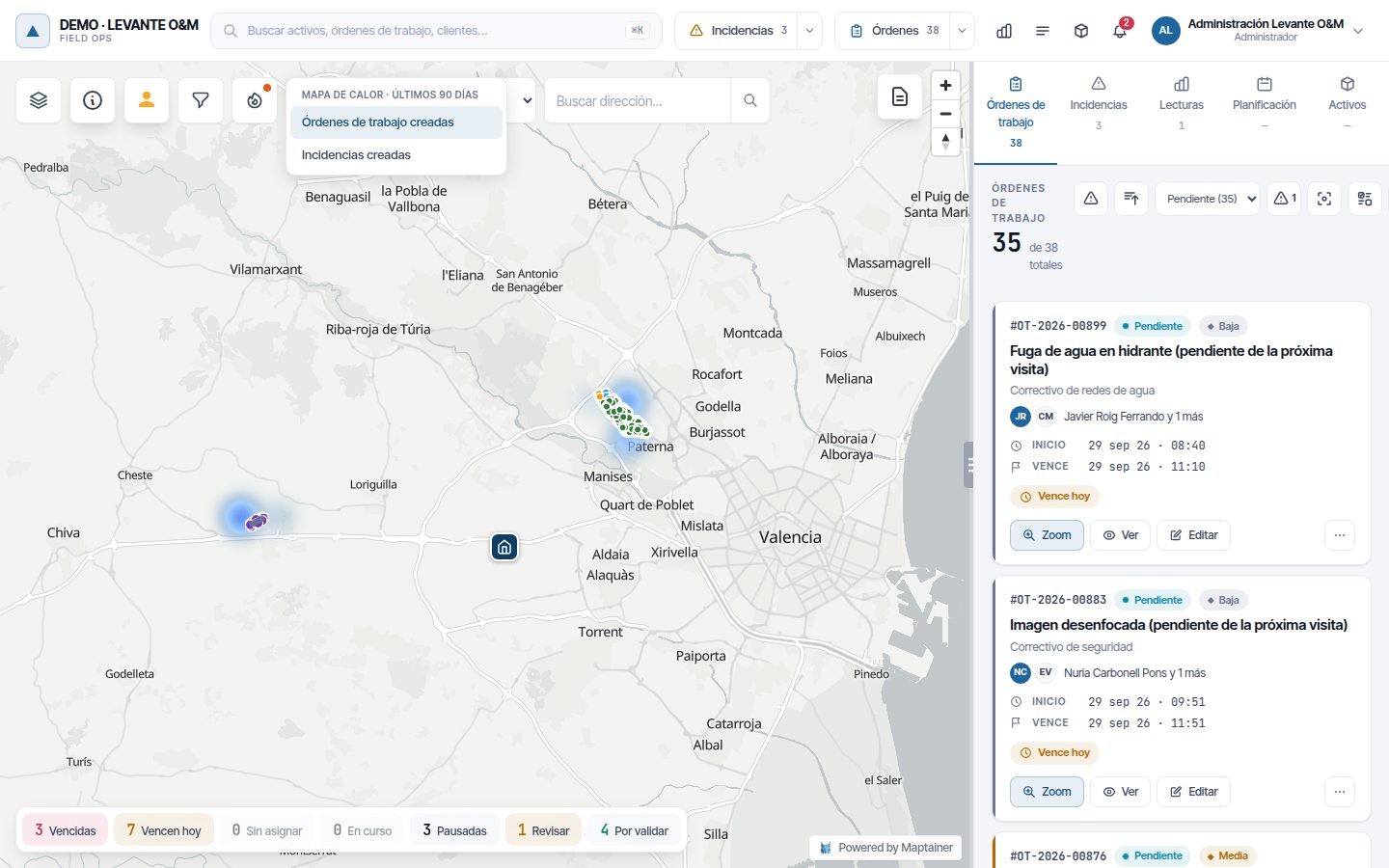
The heat map shows where the work orders or incidents created in the last 90 days have been concentrated. It helps you spot areas with repeated faults.
- Click Mapa de calor. The Mapa de calor · últimos 90 días (Heat map · last 90 days) menu opens.
- Click Órdenes de trabajo creadas (Work orders created), Incidencias creadas (Incidents created) or both.
- To switch it off, click the option again.
Work orders are drawn in shades of blue and incidents in shades of orange. An orange dot on the button shows that a heat map is switched on. It is recalculated when you move the map and respects the selected customer.
Tip
Switch off the Órdenes and Incidencias layers in the top bar to see the heat better: their icons are drawn on top.
Street View
Street View shows Google's street-level imagery in the right-hand panel.
- Click Street View. “Haz click en el mapa para ver Street View” (Click on the map to see Street View) appears and the cursor changes to a cross.
- Click a point on the map. The Street View panel shows the image and the coordinates.
- Click another point to change location.
- To leave, click the button again or the X on the panel. The right-hand panel returns to the tab you had open.
If there are no images within 50 metres, “Street View no disponible” (Street View not available) appears.
Context menu
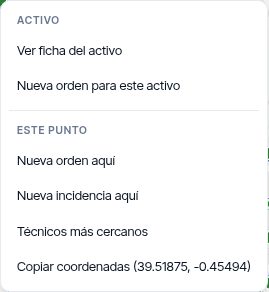
A right-click on the map opens a menu with actions for that point. The options depend on what is under the cursor.
| Block | Option | What it does |
|---|---|---|
| Orden (Work order) (over a work order) | Ver ficha (View record) | Opens the work order record in the right-hand panel |
| Orden | Asignar al más cercano… (Assign to the nearest…) | Suggests the nearest technician. Only for pending and paused work orders, with Tracking de personal |
| Orden | Más acciones… (More actions…) | Opens the work order actions menu |
| Activo (over an asset) | Ver ficha del activo (View asset record) | Opens the asset record |
| Activo | Nueva orden para este activo (New work order for this asset) | Opens the work order form with that asset |
| Este punto | Nueva orden aquí | Opens the work order form located at the point |
| Este punto | Nueva incidencia aquí | Opens the incident form with the location of the point |
| Este punto | Técnicos más cercanos | Lists the technicians by driving time. When you click one, the map goes to their position |
| Este punto | Copiar coordenadas (Copy coordinates) | Copies the latitude and longitude of the point |
The menu closes with Escape, when you click outside it or when you move the map. It does not open while you are drawing or picking a point for a form.
The work order and incident forms are explained in Work orders and Incidents.
Common problems
| Symptom | Probable cause | Solution |
|---|---|---|
| A layer is ticked but nothing is visible | The layer is only drawn from a certain zoom level, or the selected customer has no assets in it | Zoom in, or choose Todos in the customer drop-down |
| The Órdenes, Incidencias, filters or heat map buttons do not appear | The Mantenimiento module or the Ver permission in the Mantenimiento group is missing | Ask the administrator to check the role |
| The work order layer does not show completed or closed work orders | By default only pending, in progress and paused ones are drawn | Click Por validar in the day's pulse or use the work order list |
| The map or the list appear almost empty | A customer is selected, a pulse counter is selected or filters are applied | Choose Todos, click the counter again or click Limpiar in the filters |
| When you choose a customer “Sin geometrías” appears | The customer has no assets drawn on the map | It is a notice: the filter is applied even though the map does not move |
| The search box warns that the attribute search has been cut off | There are so many assets that going through them all takes too long | Type a more specific text, search by code or use Ver listado de activos on its layer |
| Seleccionar temático does not appear when you hover over a layer | The layer is not switched on yet | Tick the layer, wait for it to be drawn and hover over it again |
| Street View says “Street View no disponible” | There are no Google images near the point | Click on a nearby street |
| Técnicos más cercanos does not appear in the context menu | The Tracking de personal module or the Ver permission in the Personal group is missing | Ask the administrator to check it |
Last updated: