
Introduction
There are two entry points in the top bar of the map:
| Button | What it opens |
|---|---|
| Bar chart icon (Panel de Control (Dashboard)) | The dashboard, full screen, with the indicators for the chosen period |
| Three-line icon (Listados (Lists)) | A drop-down with your favourite lists and access to Todos los listados (All lists) |
The two are connected. Almost every figure on the dashboard can be clicked and opens the list with the rows behind that number. When you close that list you return to the dashboard with the same filters.
Each indicator has a traffic light: green if it meets the target, amber if it reaches the acceptable level and red if not. The targets are set by your company (see Changing the targets).
Period figures and today's snapshots
Each figure is one of these two types:
- Period: what happened between the two dates in the bar. For example, completed work orders or the average resolution time.
- Today's snapshot: the current status, regardless of the dates. For example, active, pending or overdue work orders, and SLA at risk.
The tables in this manual state which type each figure is. Changing the period does not change today's snapshots.
Prerequisites
| What | You need |
|---|---|
| View the dashboard and the work order and incident lists | A role with Reportes (Reports) → Ver (View) |
| Export a list to CSV or PDF | Also Reportes → Exportar (Export) |
| View the Costes reales (Actual costs) card | Also Reportes → Costes (Costs) |
| View Flota y seguimiento (Fleet and tracking) and each person's hours worked and utilisation in Capacidad del personal (Staff capacity) | Also Reportes → Seguimiento personal (Staff tracking) |
| View the meter reading lists | Lecturas (Readings) → Ver and the meter reading module contracted |
| View the stock list | Inventario (Inventory) → Ver and inventory enabled in your company |
| Create, change, delete or force a scheduled report | Configuración Global (Global settings) → Editar (Edit) |
| Change the targets | Be a company administrator (user menu → Configuración (Settings)) |
Reportes → Ver on its own does not show amounts or staff tracking. By default, Costes and Seguimiento personal are held by Administrador (Administrator) and Supervisor.
The permissions of each role are explained in Tenant administration.
What the dashboard shows also depends on what your company has:
- Dashboard level. With the Esencial (Essential) and Profesional (Professional) profiles of “Cómo trabaja tu empresa” (How your company works), the dashboard is basic: only the operational figures, the overdue WOs and the trend and breakdown charts, without Envíos (Scheduled reports) or the work type filter. With Avanzado (Advanced) it is shown in full. This is changed in Tenant administration.
- Modules and capabilities. Without SLA contracted, Resolución en plazo (On-time resolution) and the deadline indicators in the second row are not shown. Without incidents, preventive maintenance, inventory, branches or sectors, their figures and filters disappear. The customer filter only appears with the customers module (Customers and SLA).
This manual describes the full dashboard.
Opening the dashboard and filtering
Click the Panel de Control icon in the top bar. It always opens with the last month. The customer, zone and work type you chose are kept until you reload the page.
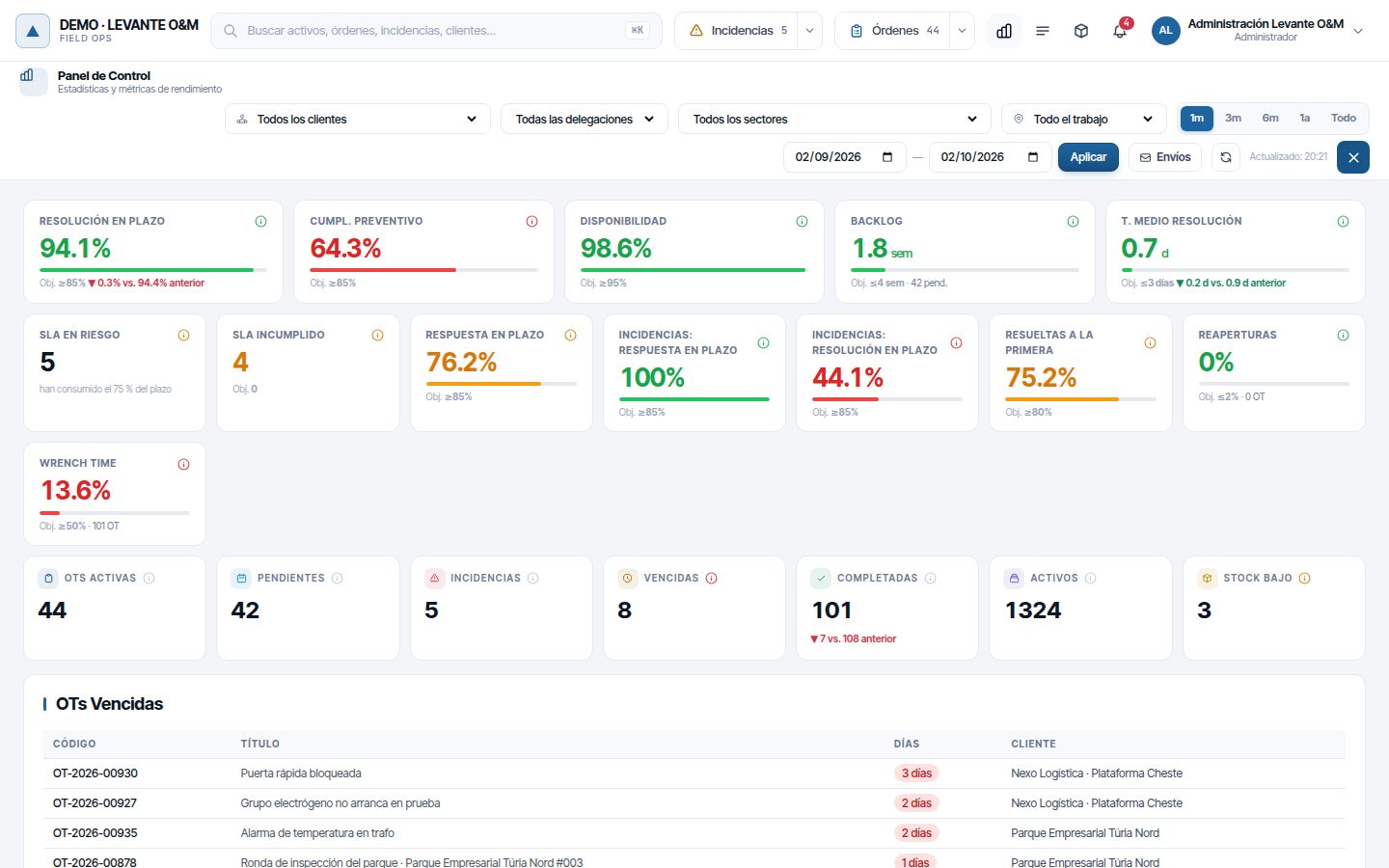
The bar at the top has all the filters. Any change recalculates the whole dashboard.

| Filter | What it does |
|---|---|
| Todos los clientes (All customers) | Limits the dashboard to one customer. Deactivated customers appear at the end, in the “Clientes de baja” (Deactivated customers) group |
| Todas las delegaciones (All branches) | Only the work of that branch. Not shown if your company has no branches |
| Todos los sectores (All sectors) | Only work located in that sector or its sub-sectors. Not shown if there are no sectors |
| Todo el trabajo (All work) / Sobre activos (On assets) / Sin activo (Without asset) | Separates work on inventory assets from work done on the public highway or in zones |
| 1m, 3m, 6m, 1a (1y), Todo (All) | Quick periods ending today. Todo has no start date |
| Dates and Aplicar (Apply) | A custom period. Choose the two dates and click Aplicar |
| Arrows button | Recalculates with the same filters. The time of the last refresh is shown next to it |
A work order is “on assets” if it has at least one linked asset. The rest are located at a point or in an area, or have no location.
To close the dashboard, click the blue X on the right or press Escape.
Tip
The map's customer filter does not apply to the dashboard: the dashboard has its own drop-down. Check both if the figures do not match what you see on the map.
The main indicators
The first two rows are the indicators with a traffic light. Below each value there is a progress bar and the target (“Obj.”). Hover over the (i) icon on each card to read its definition.
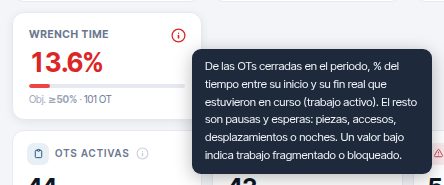
When a figure cannot be calculated, “s/d” (no data) is shown instead of 0. For example, Resolución en plazo when no work order with a deadline was completed in the period.
Row 1: the pulse
| Indicator | What exactly it measures | Type | Default target |
|---|---|---|---|
| Resolución en plazo | Of the WOs with a deadline completed in the period, % finished before it. The deadline is the SLA resolution deadline; if the WO has none, its Fecha límite (Due date) and, failing that, its Fin previsto (Planned end) | Period | ≥ 85 % (amber from 70 %) |
| Cumpl. Preventivo (Preventive compliance) | Of the WOs generated by schedules whose due date (or, without one, their planned end) fell within the period and has already passed, % completed on time. Each generated WO is created with a due date and rescheduling it does not move it. Cancelled ones do not count. Gives the same figure as the “Cumplimiento del preventivo” list | Period | ≥ 85 % (amber from 65 %) |
| Disponibilidad (Availability) | % of the time in which assets were not down because of an incident. Downtime = from when an incident with an asset is recorded until it is closed | Period | ≥ 95 % (amber from 85 %) |
| Backlog | Weeks the team would take to finish the pending WOs at the completion rate of the period. Below it, the pending WOs | Pending: today; rate: period | ≤ 4 weeks (amber up to 8) |
| T. Medio Resolución (Average resolution time) | Average days between the actual start and actual end of the WOs completed in the period. Includes pauses and waits | Period | ≤ 3 days (amber up to 7) |
Resolución en plazo and T. Medio Resolución are compared with the previous period of the same length: “▲ 2.2% vs. 92.1% anterior”. The colour says whether the figure has improved or worsened, not whether it has gone up. With Todo there is no comparison.
Note
With a branch or a sector selected, Disponibilidad shows “s/d”. The number of assets is for the whole company (or the customer), and mixing it with the downtime of a single zone would give a false figure.
The (i) explanations of Cumpl. Preventivo, Disponibilidad, Backlog and T. Medio Resolución end with your company's target and acceptable level, the same ones that colour the card.
With the Todo period, the Backlog rate is measured from the first completed WO up to today.
Row 2: service quality
The first three cards and the two incident cards only appear with SLA contracted (the incident cards also require your company to record incidents). The SLA deadline is counted in working hours: it only consumes the working day and excludes public holidays. Deadlines are configured in Customers and SLA.
| Indicator | What exactly it measures | Type | Default target |
|---|---|---|---|
| SLA en riesgo (SLA at risk) | Open WOs that have already used 75 % of their resolution deadline (or the % your company sets) and are not yet overdue | Today | No target: amber if there are any |
| SLA incumplido (SLA breached) | Open WOs whose resolution deadline has already passed | Today | 0 (amber up to 5) |
| Respuesta en plazo (On-time response) | Of the WOs closed in the period with a response deadline, % that were started within it | Period | ≥ 85 % (amber from 70 %) |
| Incidencias: respuesta en plazo (Incidents: on-time response) | Of the incidents created in the period, those attended (moved out of Pendiente) before their response deadline ÷ (attended + pending with the deadline already passed) | Period | ≥ 85 % (amber from 70 %) |
| Incidencias: resolución en plazo (Incidents: on-time resolution) | Of the incidents created in the period, those resolved or closed before their resolution deadline ÷ (resolved or closed + open with the deadline passed). Rejected ones do not count | Period | ≥ 85 % (amber from 70 %) |
| Resueltas a la primera (First-time fix) | Of the WOs closed in the period with work recorded, % done in a single stretch (no pauses or return visits) and never reopened | Period | ≥ 80 % (amber from 60 %) |
| Reaperturas (Reopenings) | Of the WOs closed in the period, % that returned to an active status after being closed. Next to it, how many there are | Period | ≤ 2 % (amber up to 5 %) |
| Wrench time | Of the WOs closed in the period, % of the time between their start and actual end during which they were in progress. The rest is pauses and waits: parts, access, travel or nights | Period | ≥ 50 % (amber from 25 %) |
A low Wrench time indicates fragmented or blocked work. For work orders lasting several days it is normal for it to be low, because nights count as waiting time.
Row 3: operational figures
| Figure | What it counts | Type | When clicked |
|---|---|---|---|
| OTs Activas (Active WOs) | Pending, in progress or paused | Today | List of those WOs |
| Pendientes (Pending) | Not started, whether or not they have staff assigned | Today | List of pending WOs |
| Incidencias (Incidents) | Recorded in the period and still awaiting review or approved but unresolved | Period | List of open incidents |
| Vencidas (Overdue) | Open WOs that are past their due point: the due date; if there is none, the SLA resolution deadline; and failing that, the planned end. Traffic light: green with 0, amber up to 5 | Today | List of overdue WOs |
| Completadas (Completed) | Completed, validated or closed in the period, with the comparison with the previous one | Period | List of completed WOs |
| Activos (Assets) | Assets registered, for the whole company or the chosen customer | Today | — |
| Stock Bajo (Low stock) | Items below the minimum for their warehouse. Traffic light: green with 0, amber up to 5 | Today | — |
SLA en riesgo, SLA incumplido, Resolución en plazo and Backlog can also be clicked.
Note
Activos only takes the customer filter into account, and Stock Bajo none: they do not change when you choose a branch, sector or work type.
Dashboard tables and charts
Scroll down with the mouse wheel to see the rest. All sections use the filters in the bar, except where stated.
OTs Vencidas (Overdue WOs)
The 10 open work orders that have been past their due point the longest (due date, SLA deadline or planned end, in that order), with the days of delay and the customer. It is a snapshot of today.
Análisis Técnico (Technical analysis)
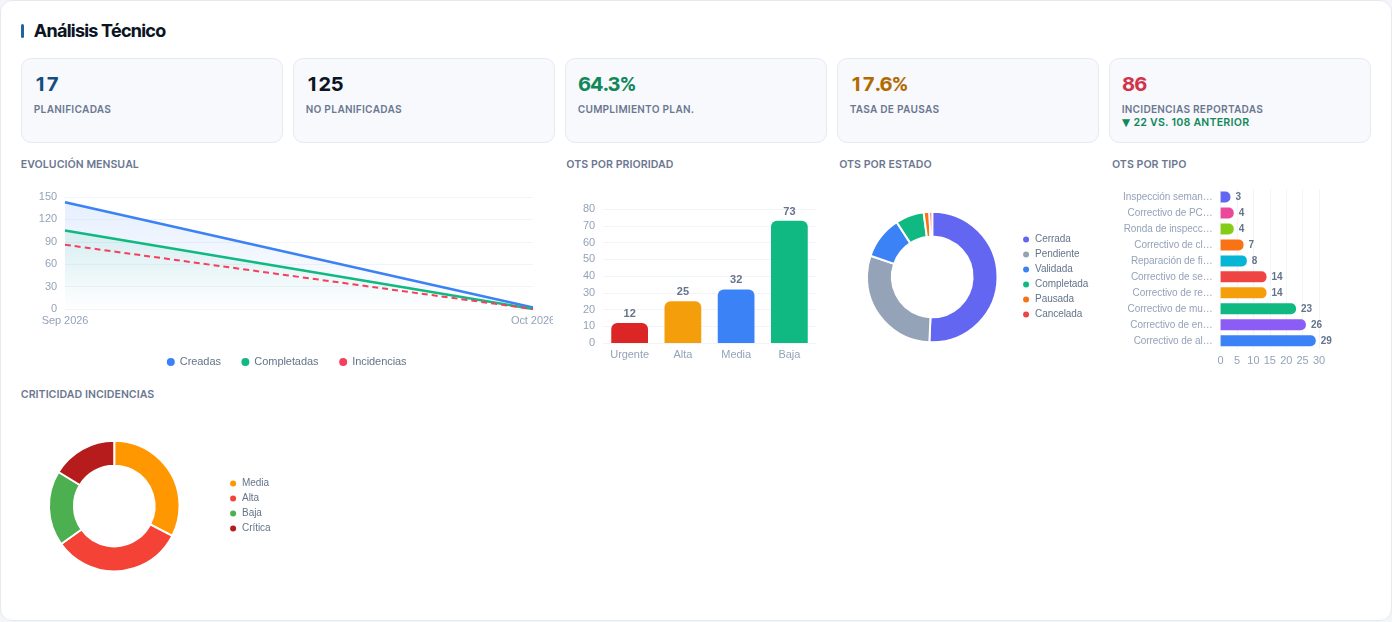
| Element | What it shows |
|---|---|
| Planificadas (Planned) / No Planificadas (Unplanned) | WOs created in the period of cyclic types (preventive maintenance) and of the rest |
| Cumplimiento Plan. (Plan compliance) | The same calculation as Cumpl. Preventivo |
| Tasa de Pausas (Pause rate) | % of the WOs created in the period that were paused at some point |
| Incidencias Reportadas (Reported incidents) | Incidents recorded in the period, with the comparison with the previous one |
| Evolución mensual (Monthly trend) | Per month: WOs created, WOs completed and incidents recorded |
| OTs por Prioridad (WOs by priority), por Estado (by status), por Tipo (by type) | Breakdown of the WOs created in the period. By type, the 10 most frequent |
| Criticidad Incidencias (Incident criticality) | Breakdown of the incidents in the period by criticality |
In the basic dashboard this section is called Evolución y Distribución (Trend and breakdown) and does not include the five figures at the top.
Análisis de Solicitudes (Request analysis)
Summarises the incidents recorded in the period: Reportadas (Reported), Solucionadas (Solved), Rechazadas (Rejected) and Pendientes (not reviewed, or approved but unresolved).
| Figure | Calculation |
|---|---|
| Tasa Solución (Solution rate) | (solved + rejected) ÷ reported. Every incident that is no longer open counts as resolved |
| T. Primera Resp. (First response time) | Average working hours from when it is recorded until it leaves Pendiente |
| T. Resolución (Resolution time) | Average working hours from when it is recorded until it is closed |
Working hours are counted in the same way as SLA deadlines: only within working hours and on working days, excluding public holidays. The two charts repeat these figures: Estado de Incidencias (Incident status) and Tiempos de Respuesta (horas de jornada) (Response times (working hours)).
Análisis de Performance (Performance analysis)
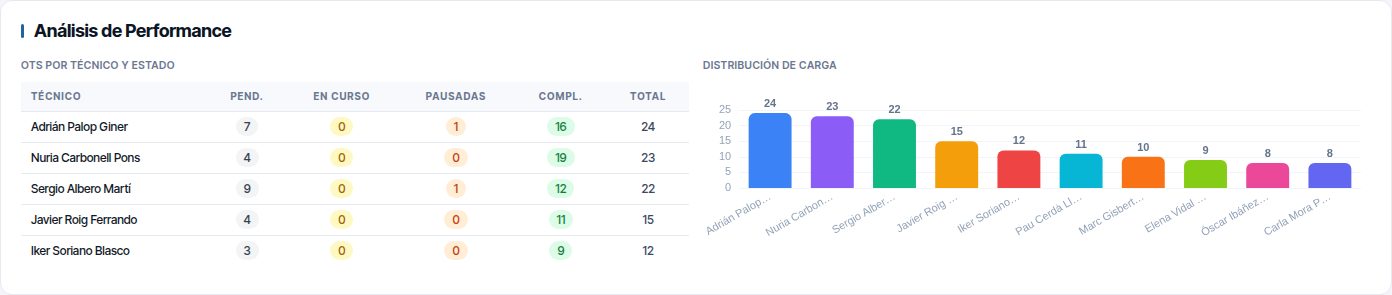
Counts, per person, the WOs created in the period for which they are the responsible person. The OTs por Técnico y Estado (WOs by technician and status) table breaks them down by status. Distribución de Carga (Workload distribution) compares each person's total. At most 15 people are shown, those with the most work orders first.
Trabajo con y sin activo (Work with and without asset)
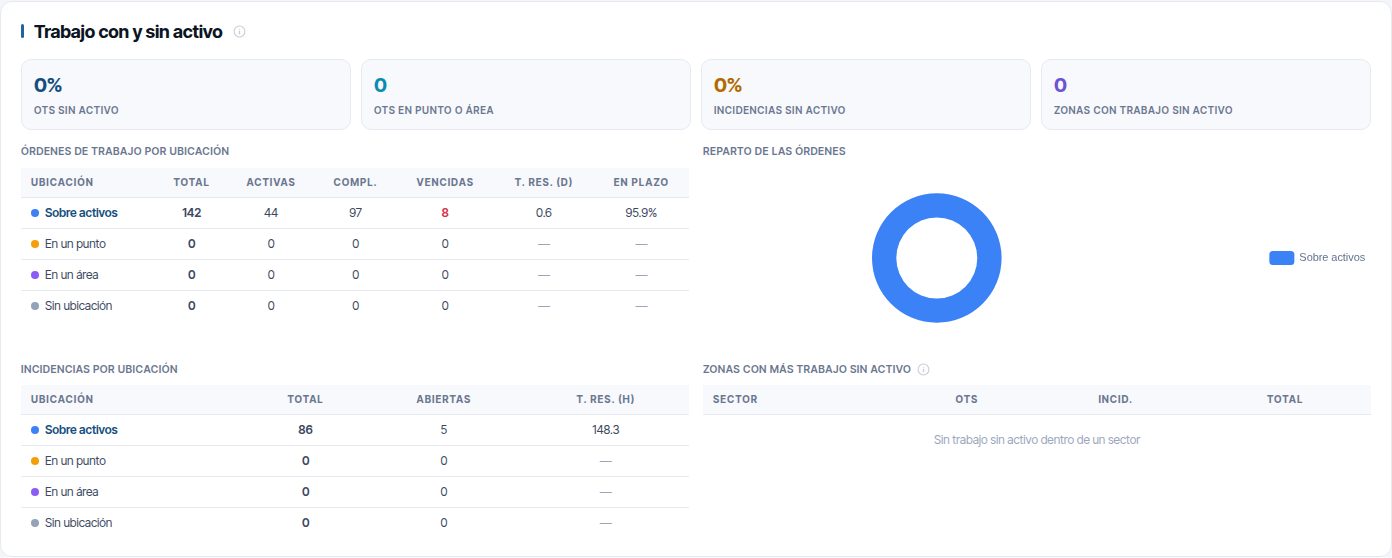
Compares work on assets with work done at a point (public highway, citizen report), in an area (a square, a stretch of road) or with no location. This section always uses all work: it ignores the Sobre activos / Sin activo filter in the bar.
- Órdenes de trabajo por ubicación (Work orders by location): per class, WOs created in the period, active, completed, overdue, average execution days (T. res. (d) (Res. time (d))) and % finished before their due point (En plazo (On time)).
- Incidencias por ubicación (Incidents by location): total, open and average hours until closure.
- Zonas con más trabajo sin activo (Zones with most work without an asset): sectors where work orders and incidents without an asset are concentrated. Whatever recurs in a zone is a candidate for registering in the inventory, so that it has its own history.
Click the name of a class (for example, En un punto (At a point)) to open the list of those work orders or incidents.
Por zona (By zone)
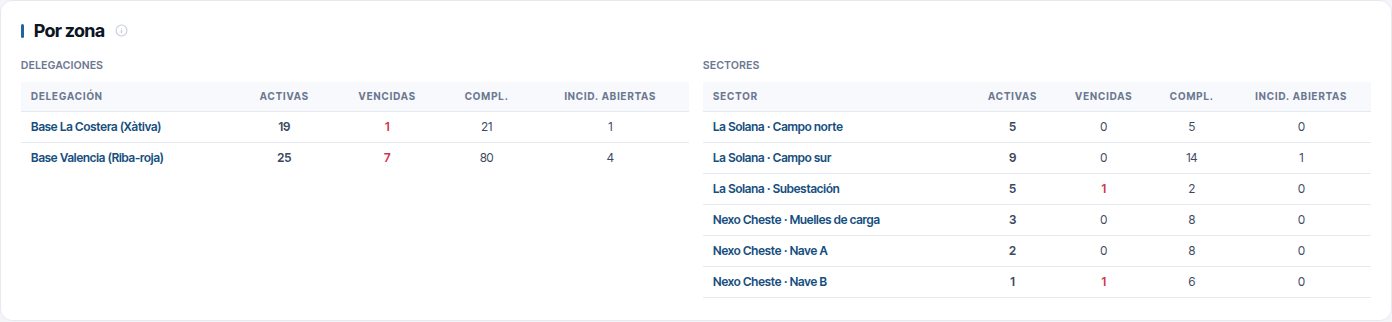
One row per branch and per sector. Activas (Active) and Vencidas are today's snapshot; Compl. (Completed), those closed in the period. Only shown if your company works with branches or sectors (Branches and sectors).
Click the name of a zone to filter the whole dashboard by it. Click it again to remove the filter.
Capacidad del personal
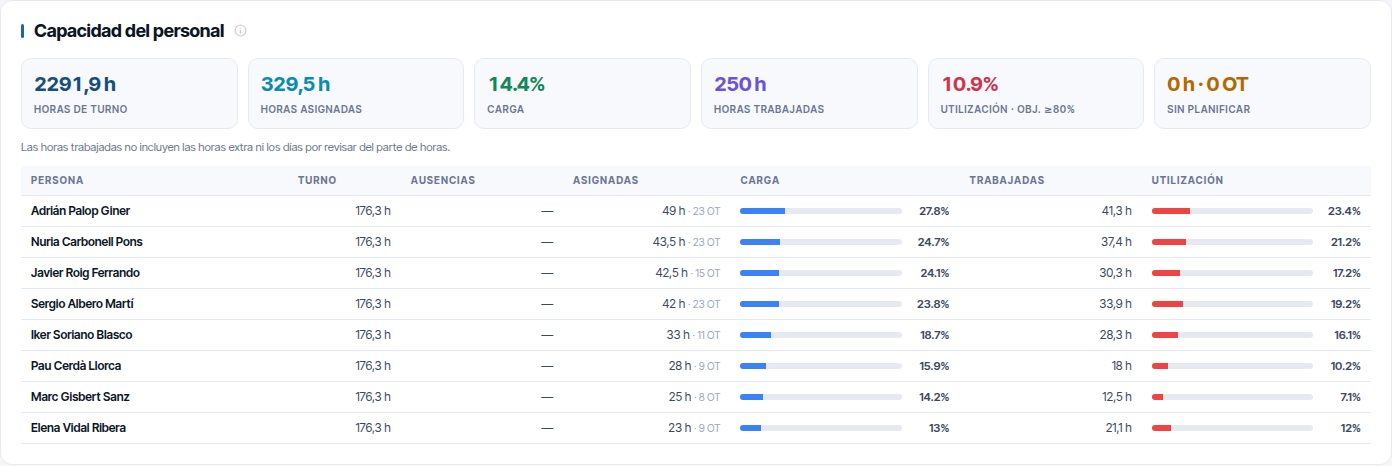
Compares each person's shift hours with the work they have.
| Figure | What it is |
|---|---|
| Horas de turno (Shift hours) | Hours of their shift in the period, excluding public holidays and absences. With no shift assigned, the time slots of their branch's or the company's working hours (the lunch break of a split working day does not count) |
| Horas asignadas (Assigned hours) | Estimated duration of the WOs assigned to them and scheduled in the period |
| Carga (Workload) | Assigned ÷ shift |
| Horas trabajadas (Hours worked) | Their timesheet: the in-progress time of their WOs within their working day, plus approved overtime (see Costs and reports). Only with staff tracking |
| Utilización (Utilisation) | Worked ÷ shift. Default target ≥ 80 % (amber from 60 %) |
| Sin planificar (Unscheduled) | Hours and number of pending or assigned WOs that do not yet have a date |
Without Reportes → Seguimiento personal, the section does not show each person's Horas trabajadas or Utilización.
The table runs from the most loaded person to the least. Shifts and absences are configured in Work calendar.
Note
This section calculates at most 93 days: with a longer period, it shows the last 93 and warns you. From the bar it only uses the dates and the branch.
Flota y seguimiento
Shown if your company has fleet control or staff tracking. It adds up the kilometres, driving hours and fuel of the trips in the period. With tracking, it adds three alerts: Visitas sin registrar (Unrecorded visits), En curso sin GPS (In progress without GPS) and Días fuera de turno (Days outside shift).
The drop-down groups the table Por persona (By person), Por vehículo (By vehicle) or Por mes (By month). Click a person to close the dashboard and see their position on the map. It only uses the dates in the bar. The details are in Fleet and GPS tracking.
This section only appears with Reportes → Seguimiento personal.
Costes reales
What was spent in the period: labour, materials and vehicle, grouped by customer, task type, branch, sector or month. The Ver por OT → (View by WO →) link opens the detail in the admin area with the same dates and filters as the dashboard. Everything is explained in Costs and reports.
This card only appears with Reportes → Costes.
Indicadores de Mantenimiento (Maintenance indicators)
They only count work on assets.
| Element | What it shows |
|---|---|
| Total Incidencias (Total incidents) | Incidents recorded in the period |
| Disp. por Falla (Availability by failure) | The same Disponibilidad as above |
| Disp. por Mant. (Availability by maintenance) | % of the time assets were not down because of preventive maintenance: WOs of cyclic types, from their start to their actual end |
| Activos Críticos (Critical assets) | How many assets appear in the Pareto |
| MTTR por Criticidad (SLA, horas de jornada) (MTTR by criticality (SLA, working hours)) | By criticality, incidents resolved or closed, average working hours until closure and the SLA incident resolution deadline. En plazo is the % resolved before each incident's due date (with its customer's SLA, if it has one). Estado (Status) says whether it is met |
| MTBF por Tipo de Activo (MTBF by asset type) | Average days between two consecutive incidents on the same asset, by type. Only types with repeated failures |
| Pareto 80/20 and Top 10 Activos (Top 10 assets) | The 10 assets with the most incidents, with the cumulative % line. Crít. (Crit.) are those with the highest criticality |
The Pareto 80/20, Top 10 Activos and Activos Críticos count the incidents recorded in the period, with the customer, zone and work type in the bar.
From the figure to the list
Click a card with a hand cursor (for example, Vencidas). The list opens with the same rows the dashboard counted:
- same customer, branch, sector and work type;
- same period for period figures, and no date for today's snapshots.
When you close the list with the X you return to the dashboard as you left it. Clicking the (i) icon on a card does not open the list.
Scheduled email reports
Envíos sends the dashboard summary as a PDF by email, every day, week or month. Each scheduled report carries the filters the dashboard had when it was scheduled. Recipients can be people outside Maptainer.
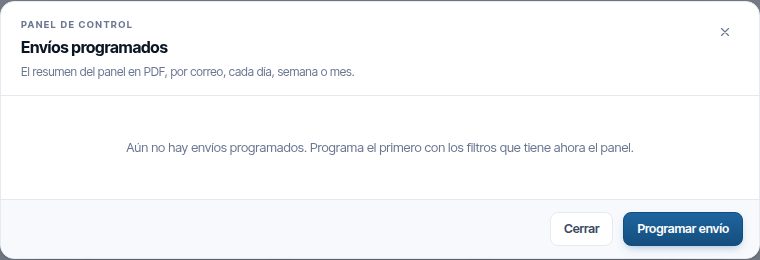
Scheduling a report
- Open the dashboard and choose the customer, zone or work type you want to summarise. The period in the bar is not saved.
- Click Envíos and then Programar envío (Schedule report).
- Fill in the form and click Programar (Schedule). “Envío programado” (Report scheduled) appears.
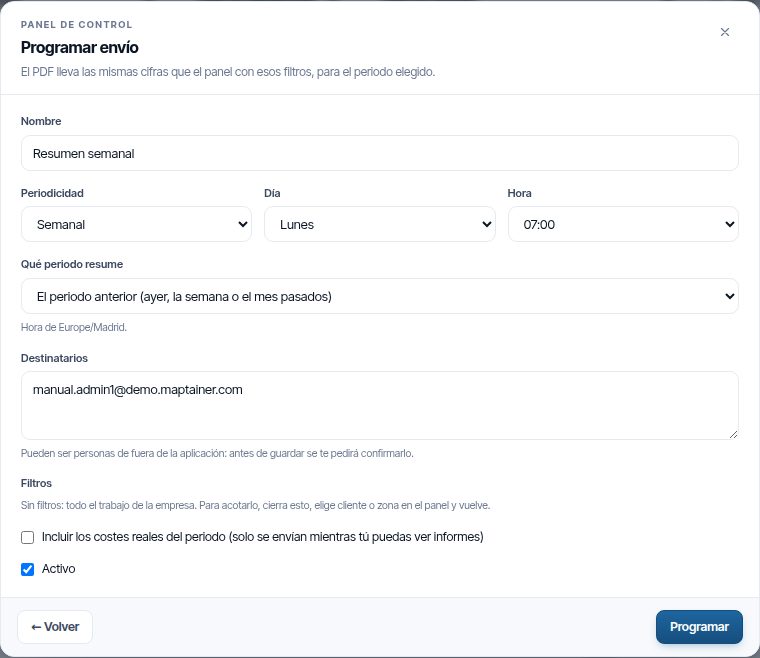
| Field | What you enter |
|---|---|
| Nombre (Name) | Appears in the email subject, together with the dates summarised |
| Periodicidad (Frequency) | Diario (Daily), Semanal (Weekly) or Mensual (Monthly) |
| Día (Day) / Día del mes (Day of the month) | The day of the week, or from 1 to 28 of the month |
| Hora (Time) | The hour on the hour for sending, in the time zone shown in the form |
| Qué periodo resume (Period summarised) | See the next table |
| Destinatarios (Recipients) | One email address per line, 20 at most. They can be outside Maptainer |
| Filtros (Filters) | For information: the dashboard filters that will be saved |
| Incluir los costes reales del periodo (Include actual costs for the period) | Adds the costs by task type. Only shown if your company works with costs |
| Activo (Active) | Untick it to pause the report without deleting it |
| Period | Which days it summarises |
|---|---|
| El periodo anterior (ayer, la semana o el mes pasados) (The previous period (yesterday, last week or last month)) | Daily: yesterday. Weekly: Monday to Sunday of last week. Monthly: last month |
| Lo que va de periodo (hoy, esta semana o este mes) (Period to date (today, this week or this month)) | From the start of the day, week or month up to today |
| Últimos 7 días (Last 7 days) / Últimos 30 días (Last 30 days) | The 7 or 30 days before the day of sending |
If any recipient is not a user of your company, when you click Programar or Guardar (Save) “Destinatarios de fuera” (External recipients) appears. It lists those addresses and says which figures they will receive in the PDF: the saved filters or “todo el trabajo de la empresa, de todos los clientes” (all the company's work, for all customers). Click Sí, enviárselo (Yes, send it to them) to save or Revisar (Review) to correct.
A portal user counts as external unless the report is filtered by their own customer.
Note
Costs are only sent while the person who created the report can still view reports. If they lose the permission or their user is deactivated, the PDF is sent without costs.
Monitoring and changing reports
The list shows, for each report, Cuándo (When) it is sent, the Destinatarios, the Próximo (Next) send and its Estado (“Pausado” (Paused), “Sin envíos” (No sends) or the result of the last one: “En cola” (Queued), “Enviando” (Sending), “Enviado” (Sent), “Fallido” (Failed)). “Con filtros” (With filters) under the name indicates that it does not summarise the whole company.
| Button | What it does |
|---|---|
| Enviar ahora (Send now) | Generates and sends the PDF immediately, without waiting for its scheduled time |
| Historial (History) | The latest sends: when, whether it was scheduled or manual, the period, the status, the attempts and the error detail |
| Editar | Changes any field. Tick Sustituir sus filtros (Replace its filters) to replace its filters with the ones the dashboard has now |
| Borrar (Delete) | Asks for confirmation. The report stops being sent and its history is lost |
A failed send is retried automatically up to 3 times. The history is kept for three months. Without Configuración Global → Editar you only see the list and the history.
Changing the targets
The targets only change the colour of the indicators. They do not change any deadline or any date.
- In the user menu, click Configuración.
- Scroll down to Objetivos del Panel de Control (Dashboard targets).
- For each indicator, enter the Objetivo (Target, green) and the Aceptable (Acceptable, amber). For those marked “menos es mejor” (less is better) they are maximums.
- Click Guardar configuración (Save settings).
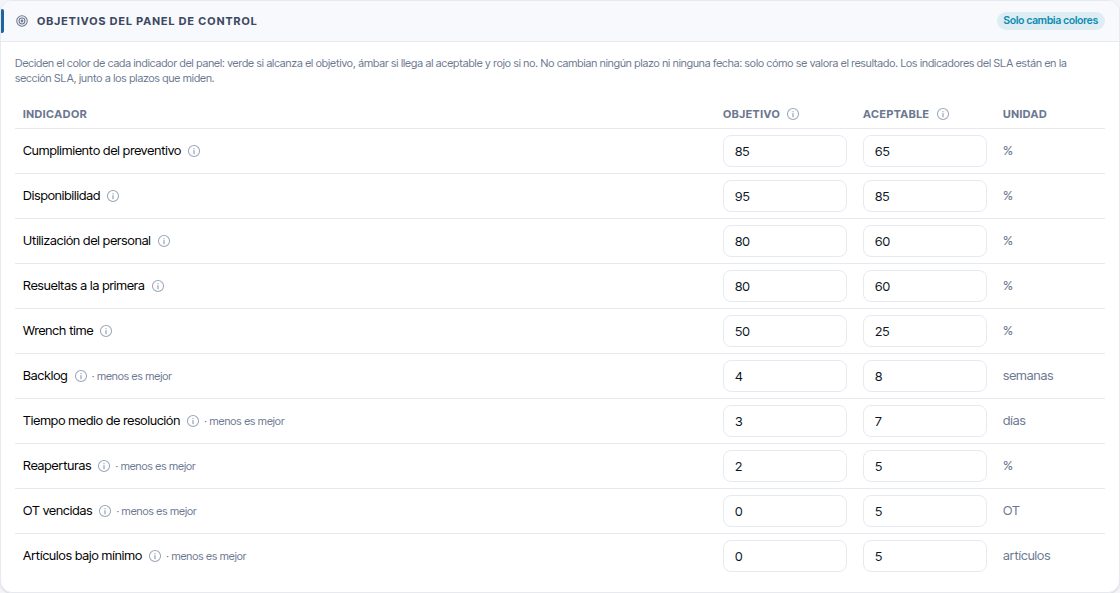
The acceptable level cannot be more demanding than the target. Resolución en plazo, Respuesta en plazo, SLA incumplido and the two incident indicators are not here: they are changed in the SLA section of the same page, together with the SLA en riesgo percentage. The rest of Configuración General (General settings) is explained in Tenant administration.
Lists
Opening a list
Click the Listados icon in the top bar. The drop-down shows your favourites or, if you have none, the featured lists: Órdenes de trabajo (Work orders), Incidencias and OT fuera de SLA o en riesgo (WOs outside SLA or at risk).
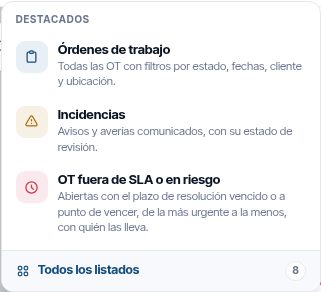
Click Todos los listados to see the full index, grouped by category.
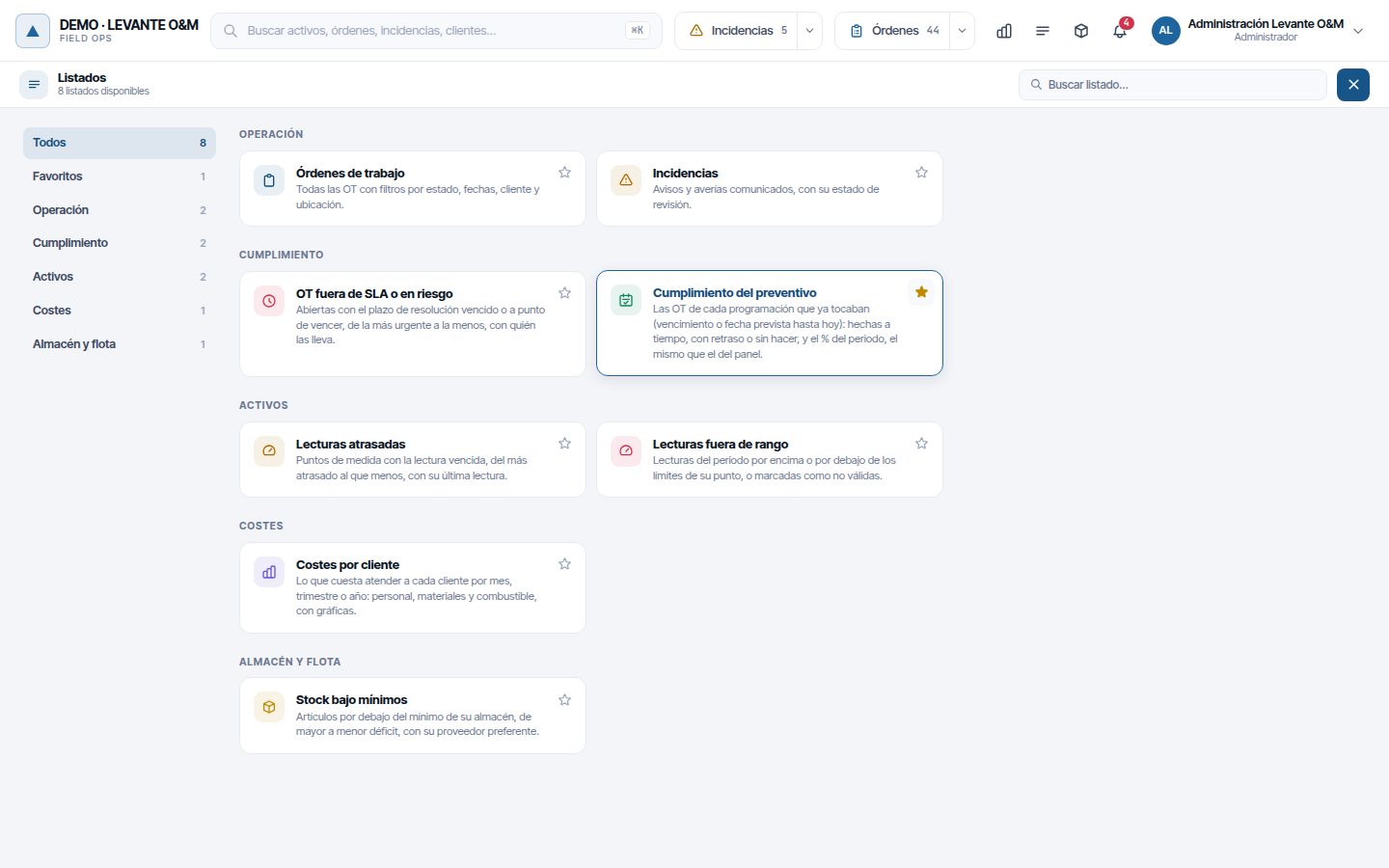
- Buscar listado… (Search list…) searches the name, the description and other related words (“contadores” (meters), “compras” (purchases)…). If only one is left, Enter opens it.
- The categories on the left filter the index. Favoritos (Favourites) appears when you have any.
- The star on each card adds it to or removes it from Favoritos. Favourites replace the featured lists in the drop-down.
Note
Favourites are only saved in the browser where you mark them. On another computer or browser you will see the featured lists again.
Available lists
You only see the ones your role allows and that your company has contracted.
| List | What it shows | Filters | Period |
|---|---|---|---|
| Órdenes de trabajo | All WOs: code, title, type, customer, priority, status, dates, location and address. The Vence (Due) column is the due point: due date, SLA deadline or planned end | Status, dates, location, customer | By creation date |
| Incidencias | Reports and faults with type, criticality, status, recording and closing dates, location and address | Status, dates, location, customer | By recording date |
| OT fuera de SLA o en riesgo | Open WOs with the resolution deadline passed or about to pass, from most to least urgent, with who is handling them | Status, location, customer | Today's snapshot |
| Cumplimiento del preventivo (Preventive maintenance compliance) | The WOs of each schedule by planned date and their result, with a summary of the % achieved | Status, dates, location, customer | By planned date |
| Lecturas atrasadas (Overdue readings) | Measuring points with the meter reading overdue (planned date plus tolerance), from the most to the least overdue, with their last reading | Customer | Today's snapshot |
| Lecturas fuera de rango (Out-of-range readings) | Readings above or below the limits of their point, or marked as invalid | Dates, customer | By reading date |
| Costes por cliente (Costs by customer) | Opens the costs by customer report in the admin area (Costs and reports) | — | — |
| Stock bajo mínimos (Stock below minimum) | Items below the minimum for their warehouse, from largest to smallest shortfall, with their preferred supplier and last price | — | Today's snapshot |
OT fuera de SLA o en riesgo requires SLA contracted; the reading lists, the meter reading module (Reading batches); Stock bajo mínimos, inventory (Inventory and warehouses).
Working with a list
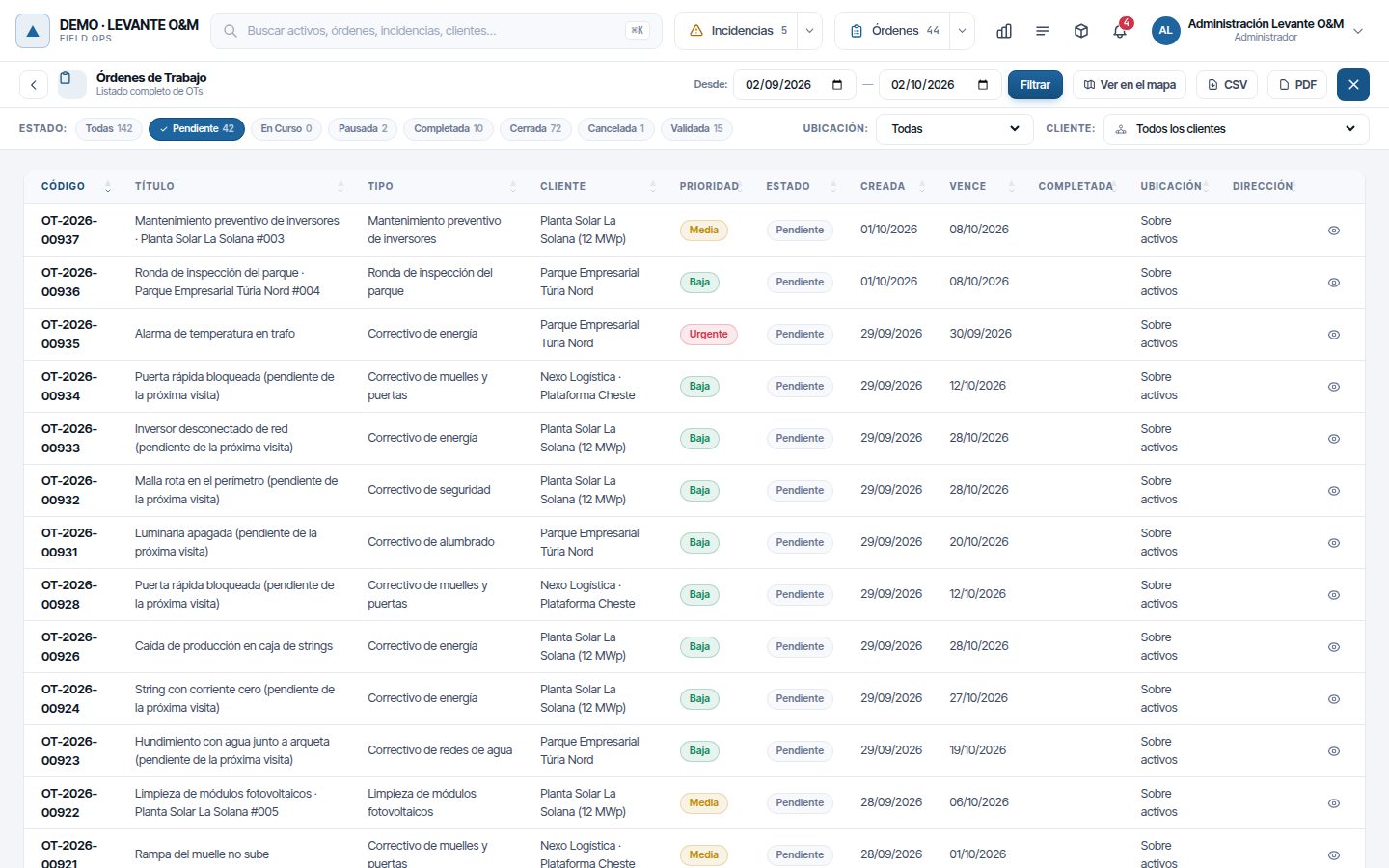
- Adjust Desde (From) and — (to) and click Filtrar (Filter). When you open it from the index, the dates are the last month.
- Under Estado, tick one or more statuses. Todas (All) removes the filter. For work orders, each status shows the number of WOs with the current filters.
- Choose the Ubicación (Location): Sobre activos, Sin activo, En un punto, En un área (In an area) or Sin ubicación (No location).
- Choose the Cliente (Customer). If you have a customer selected on the map, the list takes it from there.
- Click a column header to sort. At the bottom you choose how many rows to see per page.
Warning
Órdenes de trabajo opens from the index with only the Pendiente (Pending) status ticked. Click Todas to see the other statuses.
The eye at the end of each row opens the record: of the work order, the incident or the asset. The list is minimised into a floating box; click its title to expand it again.
Ver en el mapa (View on map) minimises the list and takes the same rows to the map and to the right-hand panel. It only exists in the work order and incident lists. When you close the list, the map returns to its previous filter.
The < button to the left of the title returns to the list index.
Cumplimiento del preventivo
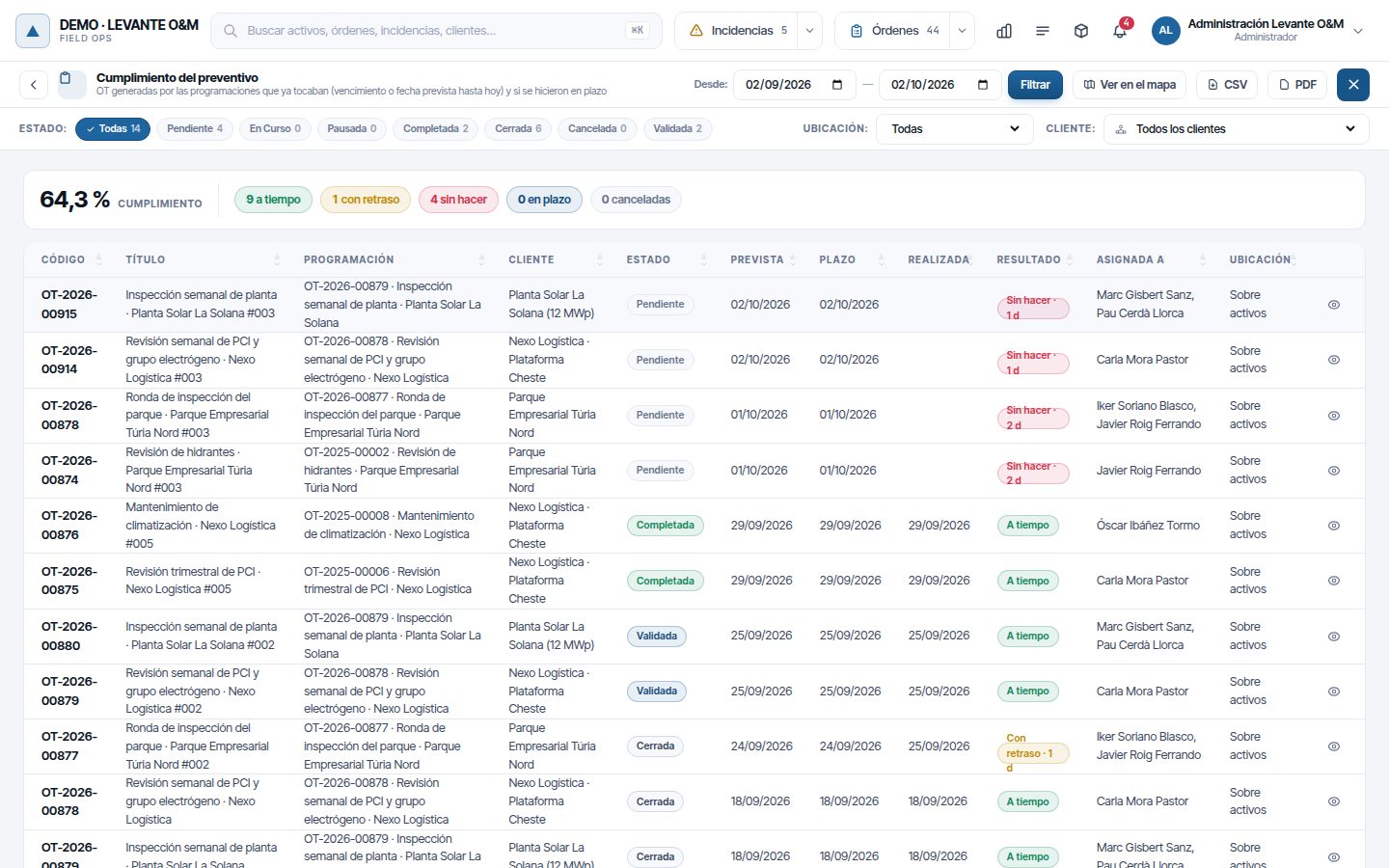
Each work order generated by a schedule has a Resultado (Result):
| Result | When |
|---|---|
| A tiempo (On time) | Finished before its due date (or its planned end, if it has no due date) |
| Con retraso (Late) | Finished afterwards, with the days of delay |
| Sin hacer (Not done) | Open and with the deadline already passed |
| En plazo | Open and still within the deadline |
| Cancelada (Cancelled) | Cancelled |
The percentage at the top is “on time” over what should already have been done: those still within the deadline and those cancelled do not count. Click one of the figures in the summary to see only those rows; click it again to remove the filter. Schedules are explained in Preventive maintenance and maintenance types.
Exporting
The CSV and PDF buttons export the rows visible with the current filters, in the order of the table.
- CSV: semicolon-separated, ready to open in a spreadsheet.
- PDF: landscape, with your company's name and logo and the generation date.
Exporting requires Reportes → Exportar. Without that permission the CSV and PDF buttons are not shown.
The work order, incident and reading lists bring at most 500 rows. If rows have been left out, when you export “El listado está recortado” (The list has been truncated) appears. Click Cancelar (Cancel) and narrow the dates, status or customer, or click Exportar lo que se ve (Export what is shown).
Common problems
| Symptom | Probable cause | Solution |
|---|---|---|
| I cannot see the dashboard or lists icon | Your role does not have Reportes → Ver (nor the readings or inventory permissions) | Ask your company's administrator for it |
| The dashboard only has the operational figures and the charts | Your company uses the basic dashboard (Esencial or Profesional profiles) | Your administrator can change it in “Cómo trabaja tu empresa” |
| A figure shows “s/d” | There is no data to calculate it in the period, or it does not apply (e.g. Disponibilidad with a zone selected) | Widen the period or remove the zone filter |
| OTs Activas or Vencidas do not change when the dates change | They are today's snapshots | This is expected |
| The list has fewer rows than the dashboard figure | You changed a list filter after opening it | Close the list and click the figure again |
| The work order list is almost empty | From the index it opens with Pendiente and the last month | Click Todas and widen the dates |
| The Costes reales card or the Flota y seguimiento section is not shown | Your role does not have Reportes → Costes or Seguimiento personal | Ask your administrator for it |
| The CSV and PDF buttons are not shown in the list | Your role does not have Reportes → Exportar | Ask your administrator for it |
| Programar envío does not appear | Your role does not have Configuración Global → Editar | Ask your administrator for it |
| A report shows “Fallido” | Error generating the PDF or sending the email | Open Historial and read the detail; it is retried automatically up to 3 times |
| My favourites have disappeared | You are in another browser or the browser data has been cleared | Mark them again with the star |
Last updated: