
Introduction
A reading batch is the assignment a team receives to read the meters (or any measuring point) of a set of assets within a period. Maptainer has two types:
| Date-based reading | Route-based reading | |
|---|---|---|
| Which assets are included | All those of a layer and a customer that have measuring points | A fixed list chosen on the map |
| Order | By asset code | The visit order, set when the route is created |
| Split between teams | One batch per team, according to the sectors | A single team per route |
| New assets | Join the open batch automatically | Are not included |
| Requirement for the mobile app | All points with a next reading date | None |
| Suitable for | Periodic campaigns covering a whole meter stock | Fixed rounds: large consumers, sector meters |
The setup is done once and in this order: module and modes, layers and measuring points, sectors and teams. After that, each schedule or route generates its batches, the technicians read them with the app and the office closes them.
The following sections follow that same order. If you are only going to use routes, you can skip Sectores (Sectors).
Prerequisites
Before setting anything up, the tenant needs the readings module contracted and at least one reading mode enabled. The tenant administrator also has to check the permissions of each role.
Contracted module
The Lecturas de contador (Meter readings) module is enabled by the provider, from the platform administration; the tenant cannot enable it on its own. While it is off, nobody in the tenant has access to readings, not even the administrator.
To check it, open the user menu (top right) → Configuración (Settings) → Configuración General (General settings). In the list of modules, “Lecturas de contador” appears as Contratado (Contracted) or No contratado (Not contracted).
Reading modes
On the same page, the Tipo de Lecturas (Reading type) section has two switches:
- Lectura por fechas (Date-based reading): batches generated by period with all the assets of a type.
- Lectura por rutas (Route-based reading): batches with a fixed list of assets in visit order.
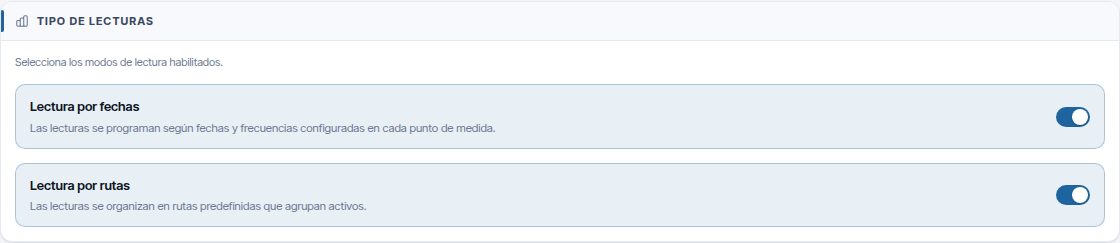
Enable the ones you are going to use and click Guardar configuración (Save settings). If you enable both, you are asked which type a batch is when you create it. If you enable neither, the date-based form opens by default.
How the company works
In Configuración General → Cómo trabaja tu empresa (How your company works) → Ajustar en detalle (Fine-tune) there are three options that affect readings. The rest of that screen is explained in Tenant administration.
| Option | What changes in readings |
|---|---|
| Trabajamos con equipos (We work with teams) | The team fields appear in batches and routes, as does the Equipos (Teams) menu |
| Dividimos el territorio en sectores (We divide the territory into sectors) | The Sectores menu appears, which lets you split date-based batches between teams |
| Trabajamos con delegaciones (We work with branches) | The team and its members must belong to the same branch |
Splitting a date-based batch between teams by sector is only available if the tenant also has the customers module.
Permissions
Permissions are managed in Gestión de Roles y Permisos (Role and permission management), group Lecturas (Readings).
| Permission | What it allows |
|---|---|
| Ver (View) | See the Lecturas tab, the batches and the schedules. It is essential for using readings on the mobile app |
| Crear (Create) | Create schedules and routes |
| Editar (Edit) | Edit schedules, assign dates and close batches |
| Eliminar (Delete) | Delete batches, schedules and routes |
| Configurar (Configure) (not shown on screen) | Create and edit the measuring points and the asset type rules |
This is how the roles created with each tenant come set up:
| Role | Ver | Crear | Editar | Eliminar | Configurar |
|---|---|---|---|---|---|
| Administrador (Administrator) | Yes | Yes | Yes | Yes | Yes |
| Supervisor | Yes | Yes | Yes | Yes | Yes |
| Técnico (Technician) | Yes | Yes | Yes | Yes | No |
| Solo Lectura (Read only) | Yes | No | No | No | No |
| Almacén (Warehouse) | No | No | No | No | No |
All the Lecturas permissions, Configurar included, are granted and removed per role in Gestión de Roles y Permisos, group Lecturas.
The buttons on the batches panel follow the role's permissions:
- Nuevo lote (New batch): Crear.
- Programaciones (Schedules): Crear, Editar or Eliminar. Inside, Crear nueva (Create new) requires Crear; opening a schedule to change it, Editar; the bin, Eliminar.
- Históricos (History): Ver.
- A batch's bin requires Eliminar, and Cerrar lote (Close batch), Editar.
From the app, taking a reading requires Crear and changing one already sent, Editar. Readings in a closed batch can no longer be changed. If something is rejected, the app shows the error for that reading and the rest is saved.
Note
The layers screen in the admin area is only visible to the tenant administrator.
Measurable layers and measuring points
A layer (asset type) is only included in readings if it is marked as medible (measurable) and has at least one measuring point. A measuring point is what is read on each asset, such as the accumulated volume of a meter or the pressure at a valve. Points are defined once on the layer and Maptainer copies them to all its assets.
Marking a layer as measurable
- Open the user menu → Ir al administrador (Go to admin area) → Activos / Capas (Assets / Layers).
- In the layer's row, click Editar (Edit).
-
In Lecturas de contador, tick Admite lecturas de contador (Accepts meter readings). Two more options appear:
- Fotografía obligatoria al registrar cada lectura (Photo required when recording each reading).
- Oficio para lecturas (Trade for readings): the trade used to choose a team when a schedule does not have one.
-
In Campos a medir (plantilla) (Fields to measure (template)), click Nuevo punto (New point) and create at least one (see the following table).
- Click Guardar cambios (Save changes).
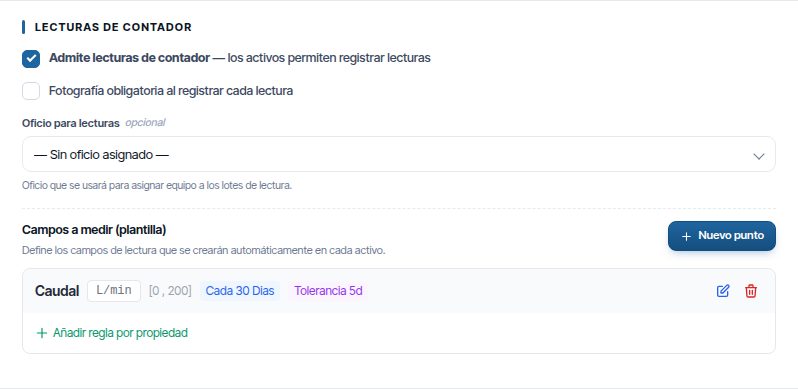
In the list of layers, measurable ones carry the lecturas (readings) tag.
Note
The field to measure is set up once the layer has been saved. If you tick Admite lecturas de contador in Nueva Capa (New layer), the layer is saved and Maptainer warns you that the field to measure is missing. Click Añadir ahora (Add now) to open Editar and add it with the steps above.
Creating a measuring point
Clicking Nuevo punto opens Nuevo campo a medir (New field to measure):
| Field | What it is for |
|---|---|
| Nombre (Name) (required) | What the technician sees, for example “Volumen acumulado” (Accumulated volume) |
| Unidad (Unit) (required) | For example m³, kWh or bar |
| Min valido / Max valido (Valid min / Valid max) | Normal range. Outside it, the reading is marked as an anomaly and the mobile app asks for confirmation |
| Frecuencia lectura (Reading frequency) and Unidad frecuencia (Frequency unit) | The point's reference frequency. It does not set the pace of the batches: that is set by the schedule |
| Tolerancia (días) (Tolerance (days)) | Days of margin after the expected date before the point counts as overdue |
| Generar alerta si se sobrepasa min/max (Generate alert if min/max is exceeded) | Marks the point to generate warnings for out-of-range values |
| Activo (Active) (only when editing) | An inactive point is no longer requested in new batches |
When you save, Maptainer applies the point to all the assets of the layer and shows “Punto creado — aplicado a N activos” (Point created — applied to N assets). Assets added later receive it automatically.
Rules by property
A rule changes a point's range or frequency according to the value of an asset field. For example, a meter with a 13 mm calibre can have a different maximum from one with a 40 mm calibre. The layer must have its fields defined in Gestionar campos (Manage fields).
- Open the point with Editar punto (Edit point).
- In Reglas por propiedad (Rules by property), click Añadir regla (Add rule) and fill in the property, the value and the new Min, Max or Frecuencia. Anything you leave empty is taken from the point.
- Order the rows: if an asset meets several rules, the first one wins.
- Click Guardar (Save).
The value must match the asset's value exactly, letter for letter.
You can also create a rule with Añadir regla por propiedad (Add rule by property) on the point's card. When you create, edit or delete a rule, Maptainer applies it to the existing assets and shows “aplicada a N activos” (applied to N assets). Points with a locked individual setting do not change.
Adjusting a specific asset
On the map, open the asset's record → Lecturas tab → Configurar parámetros (Configure parameters) cog. There you can change the Mínimo, the Máximo, the Frecuencia and the Fecha de inicialización (Initialisation date), which is the date of that asset's next reading. The point's tolerance and alert are kept. If the values no longer match those of the layer or its rule, the point becomes personalizado (customised), and later changes to the layer no longer affect it. If you save without changing anything, or go back to the inherited values, it does not become customised.
Deactivating or deleting
- Deactivating a point deactivates it on all assets, except customised ones.
- Deleting a point is only possible if it has no readings; if it has any, deactivate it.
- Unticking Admite lecturas de contador deletes the whole configuration if the layer has no readings. If it has any, the configuration is kept.
Map layers
In Maptainer each asset type is a map layer. For readings, the layer must be operativa (operational) and have its assets loaded with geometry, fields and, if you work with customers, a customer. Everything is managed in Ir al administrador → Activos / Capas (the Tipos de Activos & Capas (Asset types & layers) screen), which only the tenant administrator can see. Here we only summarise what matters for readings; the details are in Layers and asset types.
Creating the layer
Click Nueva Capa and fill in:
| Block | What to choose for readings |
|---|---|
| Información básica (Basic information) | Nombre de la capa (Layer name), Familia (Family) and, with the customers module, Cliente (Customer) |
| Geometría y capa (Geometry and layer) | Tipo de geometría (Geometry type): normally POINT for meters. Tipo de capa (Layer type): Operativa (genera activos) (Operational (generates assets)); a cosmetic layer is only drawn and has no assets to read |
| Visualización (Display) | Caché de teselas (Tile cache) and Cargar al inicio (Load on start-up) |
| Cargar geometrías (Load geometries) | A GeoJSON, GPKG, SHP (in .zip) or DXF file with the assets, stating its EPSG |
| Origen de datos externo (External data source) | Optional: synchronisation with a REST API |
Click Crear capa (Create layer). Then mark it as measurable from Editar (see the previous section).
Actions for each layer
| Action | Use in readings |
|---|---|
| Gestionar campos | Defines the asset fields. The identifying fields are the ones shown in the batches to recognise each asset, and the others are used for rules by property and for assigning dates via data |
| Subir archivo geoespacial (Upload geospatial file) | Loads more assets into the layer |
| Configurar simbología (Configure symbology) | Map styles and thematic maps |
| Sincronizar API Rest (Synchronise REST API) | Updates the assets from the external source |
| Editar | Layer data, readings and measuring points |
| Eliminar (Delete) | Deletes the layer |
Checks before scheduling readings
- The layer is Operativa and has assets with geometry: without geometry they cannot be selected in routes or have dates assigned via the map.
- It has identifying fields defined, so that the technician can recognise each asset.
- With the customers module, each asset has its customer. A schedule with a customer only picks up that customer's assets, and one without a customer only picks up those that have none.
- It is marked as measurable and has active measuring points.
Sectors
Sectors divide the territory into zones. In readings they serve one purpose: splitting a date-based batch between teams, because each sector has a main team and each team receives its own batch. Route-based batches do not use sectors.
The Sectores menu appears in the admin area when the Dividimos el territorio en sectores option is enabled (see Prerequisites). The screen is called Gestión de Sectores (Sector management). All its options are explained in Branches and sectors; here are the steps readings need.
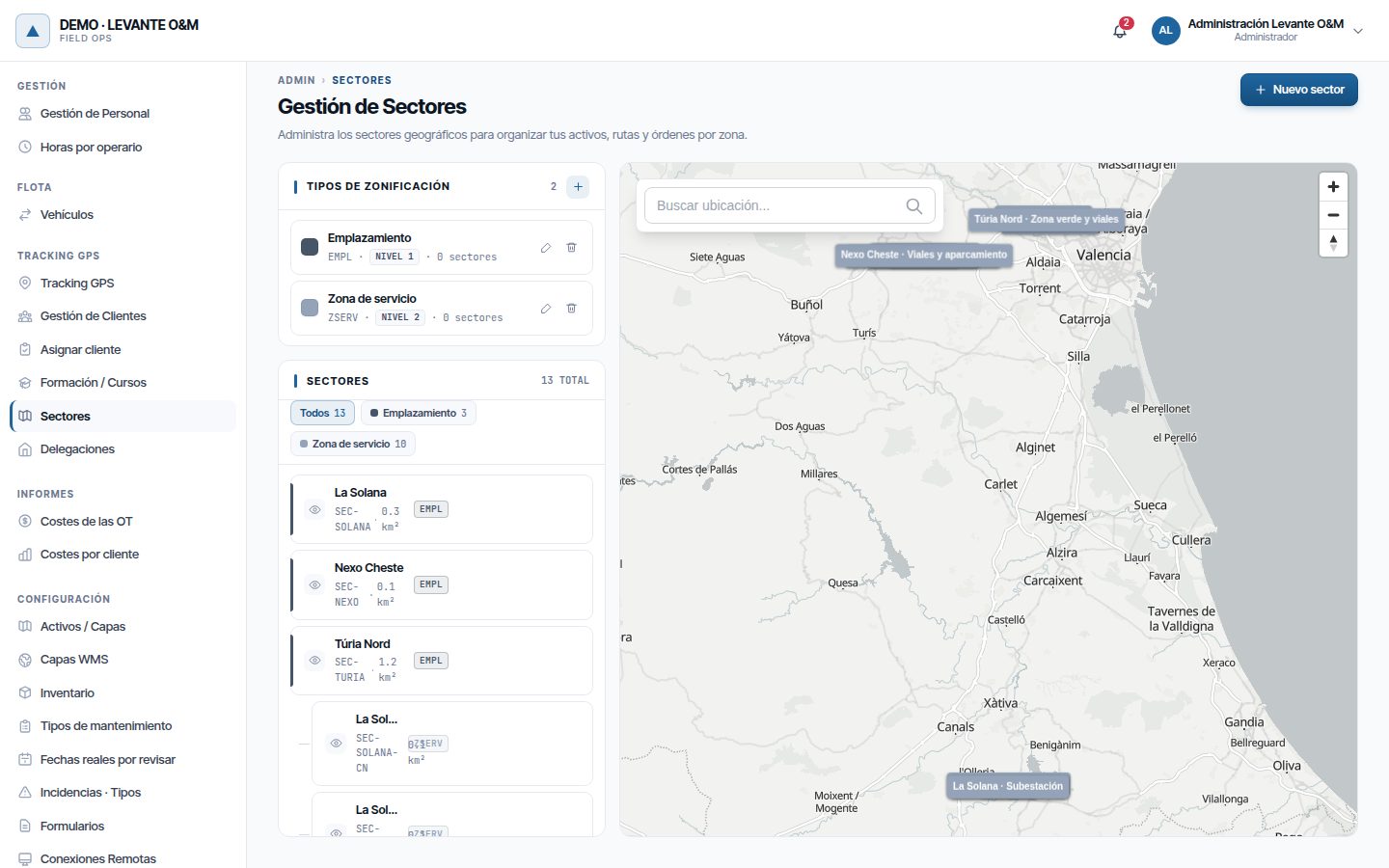
1. Create the zoning types
A zoning type is a level of the hierarchy, for example “Emplazamiento” (Site) (level 1) and “Zona de servicio” (Service zone) (level 2).
- In the Tipos de Zonificación (Zoning types) panel, click +.
- Fill in Nombre (Name), Código (Code), Nivel (Level) (1 is the top level) and Color (Colour). All sectors of that type are painted in that colour.
- Click Crear tipo (Create type).
2. Create the sectors
There are two ways to create them.
One by one:
- Click Nuevo sector (New sector) and choose Tipo de Zonificación, Código, Nombre, Nivel, Sector Padre (Parent sector) (if it depends on another), Delegación (Branch) and Equipo principal (Main team). If the company works with teams, the main team is required.
- Click Crear Sector (Create sector).
- In the sector's row, click Dibujar geometría (Draw geometry), draw the polygon with Añadir Polígono (Add polygon) (at least 3 vertices) and click Guardar Geometría (Save geometry).
From a file: in Nuevo sector, use Importar desde archivo (Import from file) (GeoJSON, Shapefile in .zip or GeoPackage). Each polygon in the file creates a sector. In Mapear campos (Map fields) you choose which field of the file is the code and which the name. Before importing you must choose the main team, which is assigned to all the sectors in the file. The import does not assign a branch: you have to set it afterwards from Editar sector (Edit sector).
3. Assigning the assets
Maptainer assigns each asset to a sector according to where it falls. It does so when the asset is created or moved, whether from the web, the map, an import or the app, and when a sector is saved, imported, reduced or deleted. If an asset falls within a sector and its subsector, it stays in the smaller one. An asset that does not fall within any sector is left without a sector and is not included in date-based batches split by sector.
4. Assign the main team
Each sector has a main team, which receives the date-based batches for its assets. If the company works with teams, it must be chosen when the sector is created, and the only main team of a sector cannot be removed. It is changed in Editar sector or in Gestionar equipos (Manage teams), and also from the team (see the next section).
A sector created before this rule may not have one: the list of sectors marks it with “Sin equipo principal” (No main team) and Editar sector asks you to choose one when you save.
Maintenance
- In Editar sector you can untick Sector activo (Active sector). Inactive sectors do not appear in the selectors.
- A sector that has subsectors cannot be deleted. When you delete one, its assets move to the parent sector, or are left without a sector if it has none.
Teams
A batch is assigned to a team, not to a person: all team members see it on their phone. For a technician to receive batches they need three things: a staff record, access to the app and membership of the team. The details of workers and teams are in Staff and teams.
1. Staff record and app access
Create the worker in Gestión de Personal (Staff management) → Nuevo trabajador (New worker) and tick Dar acceso a la aplicación (Give access to the application). If the record already exists, you can give access when editing it. The steps are in Giving access to the application.
Note
A user without a staff record cannot log in to the mobile app: they get the warning “Tu usuario no está vinculado a ninguna ficha de personal” (Your user is not linked to any staff record). This includes the administrator.
2. Create the team
The details are in Creating a team.
- In Gestión de Personal, click Equipos (Teams) → Nuevo equipo (New team).
- Fill in Nombre del equipo (Team name), Estado (Status) (Activo (Active)), Turno por defecto (Default shift) and Delegación.
- Click Crear equipo (Create team).
3. Add the members
The details are in Members.
In the team's row, click Gestionar miembros (Manage members), choose the worker in Añadir personal al equipo (Add staff to the team), their Rol en equipo (Role in team) and click Añadir (Add).
- Only active workers from the same branch as the team appear.
- The role (Supervisor, Líder (Leader), Miembro (Member) or Ayudante (Assistant)) is for information only: all members see the same batches.
- A person can be in several teams, and then sees the batches of all of them.
4. Assign the sectors
In the team's row, click Gestionar sectores (Manage sectors), select one or more sectors and click Asignar (Assign). With the Titular (Lead) box ticked, the team becomes the main team of those sectors; without it, it becomes Apoyo (Support). The details are in Team sectors and in Sector teams.
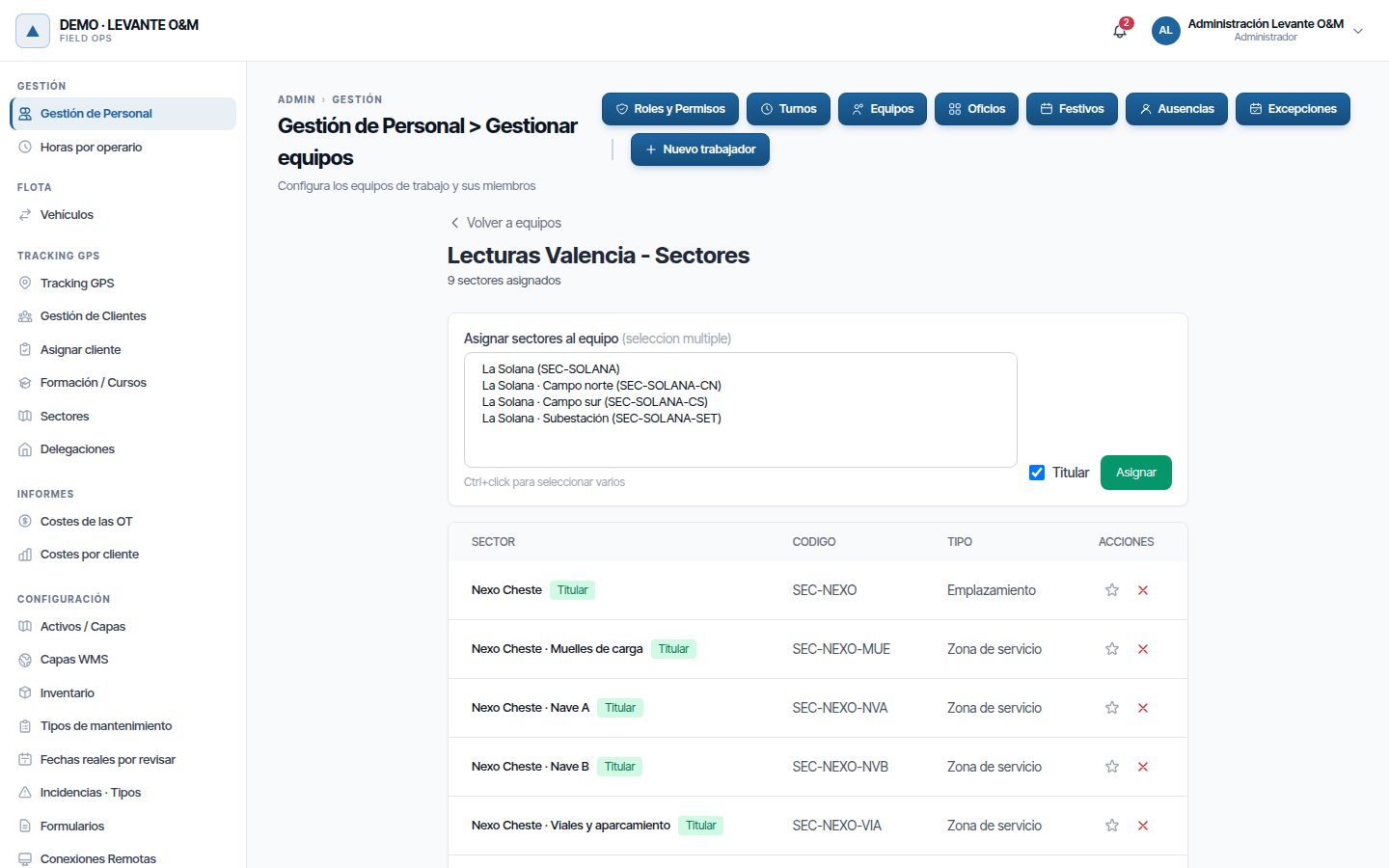
| Screen | What it calls the main team | What it calls the secondary team |
|---|---|---|
| Equipos → Gestionar sectores | Titular | Apoyo |
| Sectores → Gestionar equipos | Principal (Main) | Secundario (Secondary) |
When you create a date-based schedule, each sector comes with its main team selected. A sector you leave as “Sin equipo” (No team) is left out of the split, and its assets are not included in the batch.
Example
In the demo tenant, the Lecturas Valencia team (Base Valencia branch) has a plumber as leader and a civil works tradesman as member. It is the main team of the service zones of that branch, so a monthly meter schedule generates a batch for it with the meters of its zones, and both see it on their phones.
Date-based batches
In date-based reading you do not create a batch by hand: you create a schedule, and it generates a batch in each period (every month, every week…). The batch includes all the assets of a type and a customer that have active measuring points. The next reading date of each point does not decide whether the asset is included in the batch, but it is required for the batch to be downloadable on the mobile app.
Creating the schedule
- On the map, open the right-hand panel, Lecturas tab, and click Nuevo lote. You can also get there from Programaciones → Crear nueva.
-
If both modes are enabled, choose Lectura por fechas.
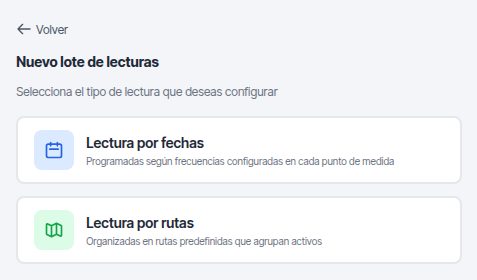
The “Nuevo lote de lecturas” (New reading batch) screen, which asks for the type: Lectura por fechas or Lectura por rutas. -
In Información general (General information), fill in:
- Nombre de la programación (Schedule name) (required). All the batches it generates will carry this name.
- Cliente (only with the customers module; the customer chosen on the map comes preselected).
- Tipo de activo (Asset type): only the types that accept readings appear.
-
Assign the teams. How this is done depends on whether the tenant has the customers module:
- With customers: when you choose the customer and type, the Equipo por sector (Team by sector) table appears. Each sector with assets of that customer and type already comes with its main team; you can change it or leave it as “Sin equipo”.
- Without customers: you choose an Equipo predeterminado (Default team) for the whole batch.
-
In Frecuencia y plazos (Frequency and deadlines), fill in:
- Frecuencia de lote (Batch frequency) (required): every how many days, weeks, months or years a batch is generated.
- Días de anticipación (Days in advance): how many days before the period starts its batch is generated.
- Fecha de inicio (Start date) (required) and Fecha de finalización (End date) (optional; after it no more batches are generated).
-
Click Crear programación (Create schedule). At that moment the batch for the current period is generated; past periods are not recovered.
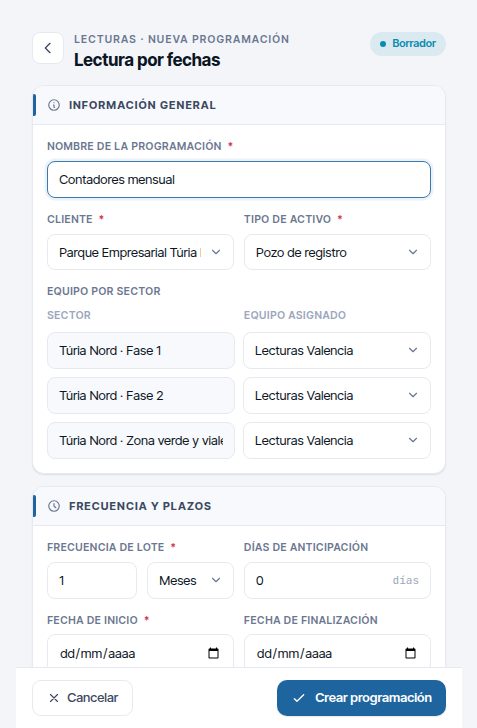
Note
Below the Equipo por sector table, Maptainer warns you about what would be left out: the sectors without a main team and how many assets are not in any sector. Choose a team for each sector in the list before creating the schedule.
If the warning “No se ha generado ningún lote” (No batch has been generated) appears, the schedule has been saved anyway. These are the causes:
| Message | What it means |
|---|---|
| No hay activos con puntos de medida activos para esta programación (There are no assets with active measuring points for this schedule) | The asset type has no measuring points, or the customer has no assets of that type |
| Ya existe un lote para este periodo (A batch already exists for this period) | That period has already been generated; the next one will be generated automatically |
| La programación terminó el fecha (The schedule ended on [date]) | The end date has already passed |
How the assets are split
- With a split by sectors: one batch per team is generated, with the assets of its sectors. All those batches carry the same name; they are told apart by the team.
- With a default team: a single batch with all the assets.
- Without a team: Maptainer assigns the active team with the most members who have the reading trade of the asset type. If there is none, the batch is left without a team, and all technicians with the readings permission see it on their phones.
Assets are sorted by code. Periods are counted from the Fecha de inicio: with a start on 28/09 and a monthly frequency, the first batch runs from 28/09 to 27/10 and the next one starts on 28/10.
Automatic generation
A nightly process (02:30) checks the active schedules and generates the batch for each one when the start day of the period minus the days in advance arrives. For example, with a monthly frequency, a start on day 1 and 5 days in advance, the batch that starts on 1 November is generated on 27 October.
- If the batch for the period already exists, it is not repeated.
- If the customer has been deactivated, that period is skipped.
- When a period goes past the end date, the schedule pauses itself.
Assigning the reading dates
As long as a single point has no next reading date, the batch cannot be downloaded on the mobile app. When you open the batch, the orange “N sin fecha” (N without date) tag appears next to its name, with the Asignar fechas (Assign dates) button. The card in the list does not show it.
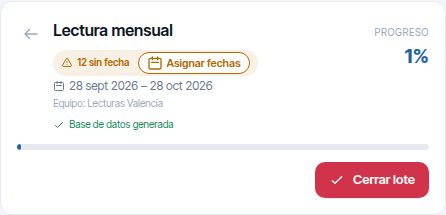
Clicking Asignar fechas opens Asignar fechas de lectura (Assign reading dates), which offers two methods:
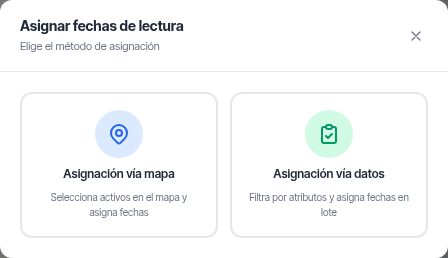
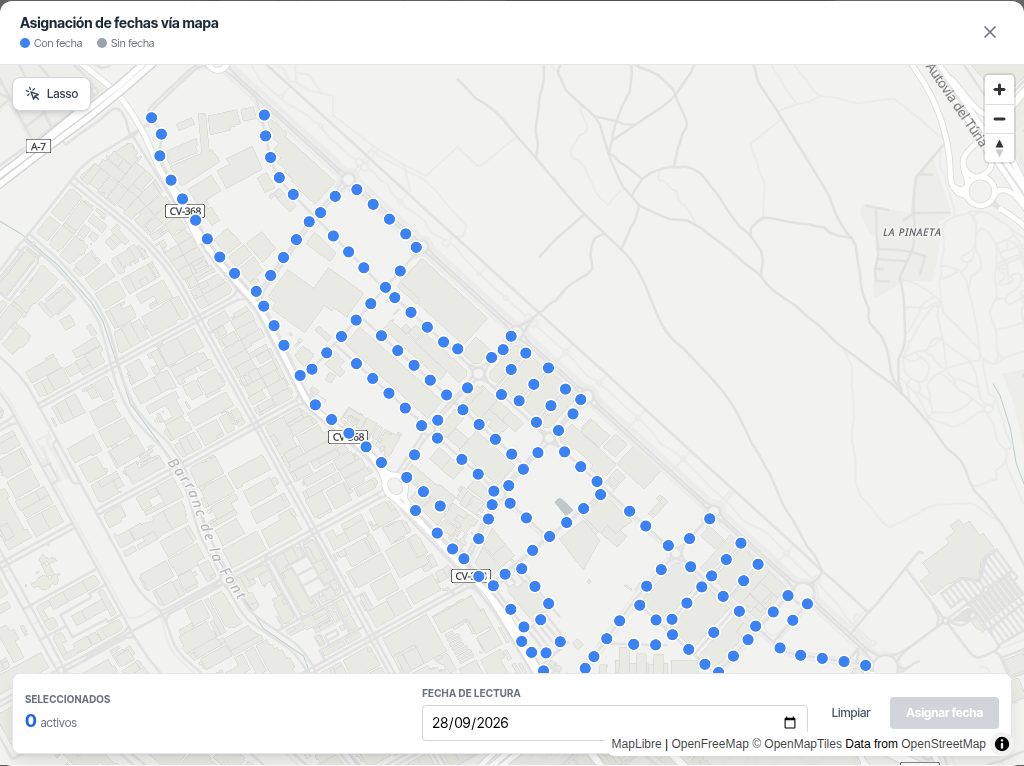
Asignación vía mapa (Assignment via map): used to give the same date to a group of assets.
- Assets with a date appear in blue and those without, in grey.
- Select them by clicking one by one, or with Lasso: click for each vertex and double-click to close.
- Choose the Fecha de lectura (Reading date) and click Asignar fecha (Assign date).
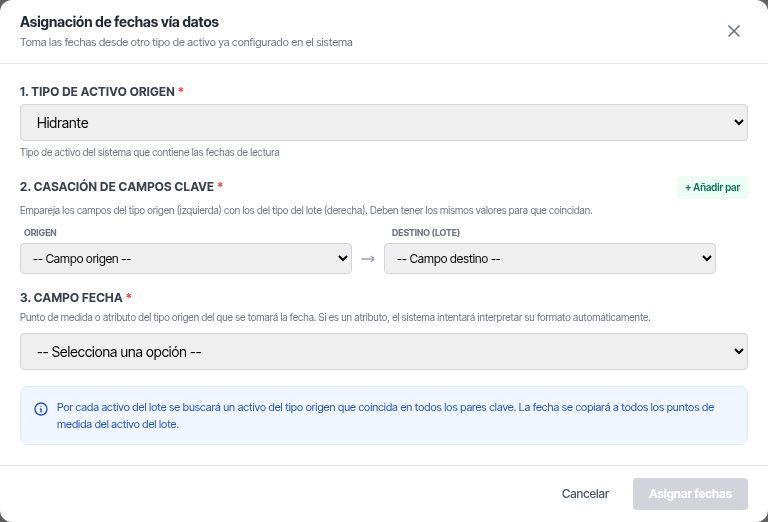
Asignación vía datos (Assignment via data): takes the date from another asset type that already has it. For example, the meter takes the date of the service connection it matches on a field.
- Choose the Tipo de activo origen (Source asset type).
- In Casación de campos clave (Key field matching), pair fields of the source with fields of the batch. With + Añadir par (+ Add pair) you can add more; they must all match.
- In Campo fecha (Date field), choose where the date comes from: the next reading of a measuring point of the source, or an attribute in date format (for example, dd/mm/yyyy).
- Click Asignar fechas.
Warning
Both methods overwrite any dates the affected assets already had.
When all the points have a date, Maptainer prepares the mobile package automatically and the batch appears at the next synchronisation.
From then on, the dates maintain themselves: each valid reading that arrives from the mobile app sets the next date for that point, which is the reading date plus the schedule's frequency. Each measuring point's own frequency plays no part.
New assets
When an asset of the type and customer of a date-based schedule is added, it joins the end of the open batch that corresponds to it by its sector and by its date, if it has one. Nothing needs to be regenerated.
Editing or pausing the schedule
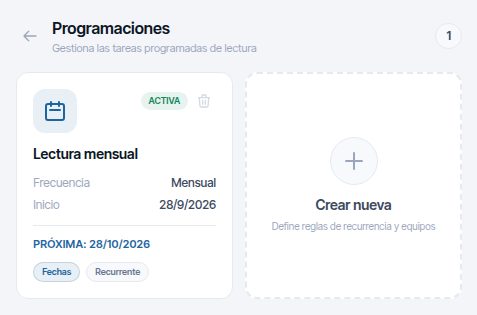
In Programaciones, click the card marked Fechas (Dates). Each card shows whether the schedule is Activa (Active) or Pausada (Paused), its frequency and the date of the next generation.
In Editar programación (Edit schedule) you can change the name, the default team, the frequency, the advance days and the dates, and pause the schedule with the Programación Activa (Schedule active) switch. Changes are saved with Guardar Cambios (Save changes).
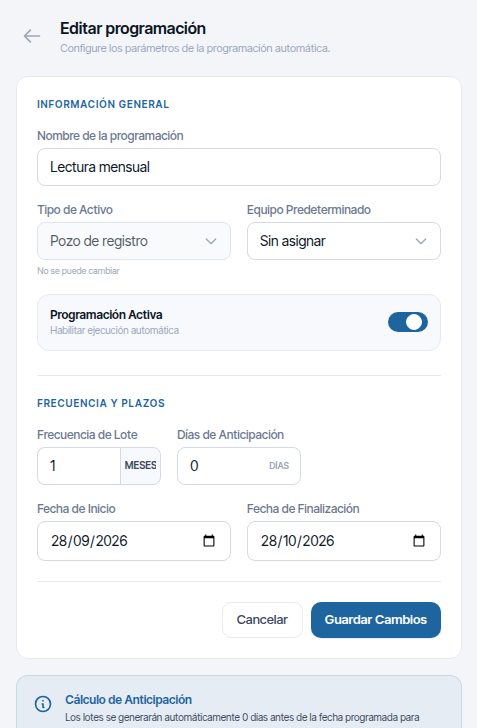
You cannot change the asset type, the customer or the split of teams by sector. To change them, create a new schedule and delete the old one. When you delete a schedule, its batches are kept, but the readings in those batches no longer calculate the next date.
Route-based batches
A route is a fixed list of assets in visit order, assigned to a team. When you create it, Maptainer immediately generates the first batch and leaves a schedule that creates the following ones at the frequency given. It does not use sectors or dates per point: the same assets are always included, in the same order.
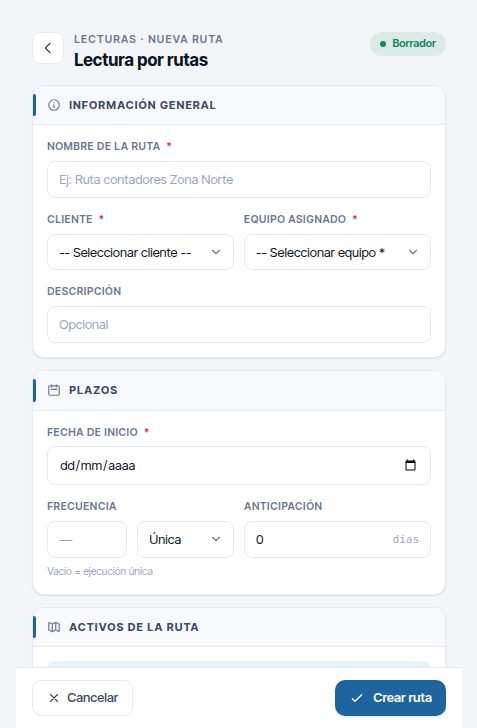
Creating a route
- On the map, open the right-hand panel, Lecturas tab, and click Nuevo lote.
- If both modes are enabled, choose the Lectura por rutas card. If only the route mode is enabled, the form opens directly.
-
In Información general, fill in:
- Nombre de la ruta (Route name) (required). It will also be the name of each batch.
- Cliente (required if the tenant has the customers module). All the assets of the route must belong to that customer.
- Equipo asignado (Assigned team) (required). Only its members will see the batches on their phones.
- Descripción (Description) (optional).
-
In Plazos (Deadlines), fill in:
- Fecha de inicio (required).
- Frecuencia (Frequency): a number and the unit (Única (One-off), Días (Days), Semanas (Weeks), Meses (Months) or Años (Years)). If you leave it empty, the route runs only once.
- Anticipación (Advance): how many days before each period the batch is generated (from 0 to 365).
-
In Activos de la ruta (Route assets), choose the Capa operativa (Operational layer) and a Modo de selección (Selection mode):
- Puntual (Point): click each asset on the map.
- Poligonal (Polygon): click to mark the vertices and double-click to close the polygon. All the assets of that layer that fall inside are added, already sorted by the shortest route.
-
Repeat step 5 with other layers if the route mixes asset types. Repeated assets are ignored, and those you add to an already sorted list are placed where they lengthen the route least.
- Check the visit order (see the next section). The X removes an asset and Limpiar (Clear) empties the list.
- Click Crear ruta (Create route). “Ruta creada: nombre (N activos)” (Route created: [name] (N assets)) appears, and the first batch is already in the list, in pending status.
Visit order
The Seleccionados (Selected) list is the order in which the technician covers the route: the number of each row is its position. On the map, each asset carries that number and a dashed line joins them in order.
- By hand: drag a row to its new place, or use the Subir (Move up) and Bajar (Move down) arrows.
- Automatic: in Orden de visita (Visit order), choose the start (Inicio: primer activo (Start: first asset), Inicio: delegación del equipo (Start: team's branch) or Inicio: punto en el mapa (Start: point on the map)), A pie (On foot) or En vehículo (By vehicle), and whether the route should Volver al inicio (Return to start). Click Optimizar orden (Optimise order).
With A pie, Aceras (Pavements) also appears: las dos a la vez (both at once) (zigzagging, the usual choice in narrow streets) or una y vuelta por la otra (one, then back along the other) (on avenues).
Maptainer does not calculate point to point: it groups the assets by street section, decides in which order the sections are covered and, within each one, lines the assets up along the street. By vehicle it respects the direction of traffic. The result shows the length and duration, for example “Recorrido a pie: 2,4 km · 29 min” (Route on foot: 2.4 km · 29 min), and how many sections it has found, for example “12 puntos en 10 tramos” (12 points in 10 sections). Below, it states how it has calculated it:
| Message | What it means |
|---|---|
| Cálculo por calles, con el optimizador (Calculation by streets, with the optimiser) | Real distances along the road network. This is the normal case |
| Cálculo en línea recta (estimado) (Straight-line calculation (estimated)) | There are too many sections to calculate by streets (about 250), or the routing service was not responding. The order within each street is still correct |
| …aproximado (…approximate) | Very large routes (more than 600 points) or no optimiser available: sorted by proximity |
After optimising you can fine-tune the order by hand. Assets without a location go at the end, with the mark “· sin ubicación” (· no location). If the assets span more than about 200 km, a warning appears: a reading route is local, so split it or check for misplaced assets.
Note
Routes are assigned to a team. If the company does not work with teams, Lectura por rutas appears disabled with the tag “No disponible” (Not available). To use it, an administrator has to enable “Trabajamos con equipos” in Configuración General → “Cómo trabaja tu empresa”.
All the route's batches carry its customer, so they appear in the list when that customer is chosen on the map.
What goes into each route batch
- All the assets of the route, in their order, with all their active measuring points.
- An asset without measuring points is still included, but with nothing to read. That batch will never reach 100 %.
- Assets added later are not added to the route automatically: add them with Editar ruta (Edit route).
Scheduling the following batches
Each route creates a schedule with its frequency. An automatic process generates the batch for each period when the start day minus the advance days arrives. If a batch already exists for that period, it is not repeated.
- A one-off route only generates the initial batch. After that, its schedule is left Pausada. In Editar programación the frequency can be Única: the number field is left empty and disabled.
- When a period goes past the Fecha de finalización, the schedule pauses itself.
- If the customer has been deactivated, the batch is not generated and the schedule moves on to the next period.
To change the team, the frequency or the dates, or to pause the schedule, open Programaciones and click the card marked Rutas (Routes): Editar programación opens. Changes are saved with Guardar Cambios.
Editing a route
Editar ruta is in the detail of an open route batch, next to Cerrar lote, and as an icon on the Rutas cards in Programaciones. It can only be edited while its current batch has no readings; if it already has some, the button appears disabled with the reason “La ruta tiene un lote en curso con lecturas: podrá editarla cuando se cierre” (The route has a batch in progress with readings: you can edit it when it is closed). It opens the same form with the route loaded: you can change the name, add or remove assets and change their order. Click Guardar cambios.
The changes apply to the following batches. If the route has a batch in progress, the Aplicar también al lote en curso (Also apply to the batch in progress) box (ticked by default) passes the new order and the added assets to it. Removed assets only leave that batch if they are still pending and have no readings; those that already have readings stay at the end.
Rescheduling a route
If you delete a route's schedule, the route stops generating batches, but it is not lost. It appears at the end of Programaciones, in the Rutas sin programación (Routes without a schedule) section, with the Editar ruta and Programar (Schedule) buttons.
- Click Programar. Lecturas · Programar ruta (Readings · Schedule route) opens.
- Choose Equipo asignado, Fecha de inicio, Frecuencia (empty or Única for a single run) and Anticipación.
- Click Programar. “Ruta programada: nombre” (Route scheduled: [name]) appears.
When you schedule it, the route's first batch is generated, unless it already has one open. A route can only have one schedule.
Tracking and managing batches on the web
All tracking is done on the map, right-hand panel, Lecturas tab. The number on the tab is the number of open batches for the customer chosen on the map.
List of open batches
It shows the open batches, with their number next to the buttons (“N abiertos” (N open)). Each card shows:
- The batch type: blue calendar for “por fechas” (date-based) and green map for “por rutas” (route-based).
- The name, the status, the asset types, the team, the number of assets and the period.
- Ver en mapa (View on map) (the location icon): highlights the batch's assets for 15 seconds.
- The bin: only appears if the batch has no readings yet.
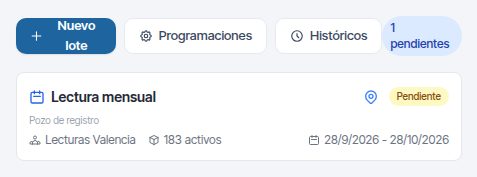
The Nuevo lote, Programaciones and Históricos buttons appear according to the role's permissions (see Permissions).
A new batch is Pendiente (Pending). With the first reading that arrives from the mobile app, including one for a meter marked as unreadable, it changes to En Curso (In progress). Both statuses are open batches: they can be closed and they remain on the mobile app.
Batch detail
Clicking a card opens the detail.
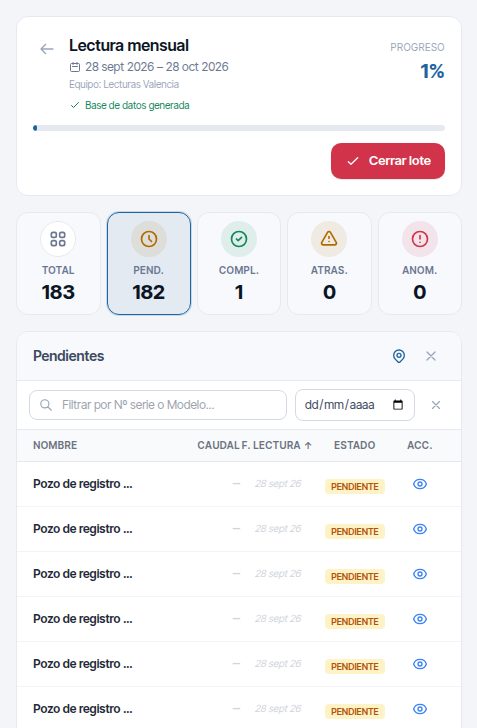
| Element | What it shows |
|---|---|
| Total, Pend. (Pending), Compl. (Completed) | Number of assets in the batch, pending and completed |
| Atras. (Overdue) | Number of points whose date plus the tolerance has already passed without a reading |
| Anom. (Anomalies) | Number of readings that are invalid or out of range |
| Progreso % (Progress %) | Completed assets over the total |
| Base de datos generada (Database generated) / Sin base de datos (No database) | Whether the mobile package is ready. Generar (Generate) prepares it manually |
The first five cards are filters: clicking them makes the list show only those assets.
The list of assets, 20 at a time, has:
- One column per measuring point with its value. It appears in red if it is out of range, “Ilegible” (Unreadable) if it was marked that way, and with a button to see the photo.
- F. Lectura (Reading date): the date of the last reading, or the expected one in grey if it has not been read yet. It can be sorted.
- Estado: PENDIENTE (PENDING), COMPLETADO (COMPLETED), ANOMALIA (ANOMALY), ERROR or NO LEGIBLE (UNREADABLE).
- Historial (History): the asset's last 50 readings.
When you click a row, the map centres on the asset. The search box filters by code and by the type's key fields, and the date selector shows the assets expected for that day.
Closing a batch
A batch does not close by itself, neither on reaching 100 % nor at the end of its period. To close it, click Cerrar lote in the detail.
- If there are points left without a reading, Maptainer warns you: “Está intentando cerrar un lote con N puntos pendientes de lectura” (You are trying to close a batch with N points pending reading). Points marked as unreadable count as done.
- Confirm with Cerrar igualmente (Close anyway) or with Sí, cerrar (Yes, close).
- The batch moves to Históricos and disappears from the phones.
Warning
Before closing, confirm that the team has synchronised. Readings that a technician still has unsent on their phone are rejected after closing and are lost. A closed batch cannot be reopened.
Closing does not recalculate any date: points left unread keep theirs and are included as overdue in the next batch.
History
Históricos shows the closed batches, with the status Cerrado (Closed): by default the last 10. With Desde (From), Hasta (To) and Filtrar (Filter) you can search further back, up to 200 batches.
Deleting a batch
Only a batch without any readings can be deleted. Its assets and points are deleted with it, but not the schedule. The batch for that period is not generated again; the schedule continues with the following periods.
Taking readings in the mobile app
A batch appears on a technician's phone only if all five conditions in this table are met. If any of them fails, the technician does not see the batch, and the app does not tell them why.
| Condition | Where to check it |
|---|---|
| The tenant has contracted the “Lecturas de contador” module | Configuración → Configuración General (enabled by the provider) |
| The user has an active staff record linked | Gestión de Personal → the worker's record |
| The user's role has the permission to view readings | Gestión de Roles y Permisos → Lecturas → Ver |
| The batch is Pendiente or En Curso (not closed) | Lecturas tab on the map |
| The batch belongs to a team the technician is a member of, or has no team | Equipos → Gestionar miembros |
A technician without a team only sees batches that have no team assigned.
Downloading the batch
- When the app opens, and periodically, the phone asks the server for the list of batches assigned to it.
- For each batch, a complete package that works offline is downloaded. It includes the assets in their order, their measuring points with units and ranges, the position on the map and the last 5 readings of each point.
- A date-based batch is only downloaded when all its points have a next reading date. If any is missing, the server holds it back and the batch does not appear on the phone (see Common problems). Route-based batches are always downloaded.
- While there is a connection, the phone only receives the changes. If a batch builds up more than 2,000 changes, the server prepares a new package and the phone downloads it in full again.
Taking a reading
On each asset the technician sees its measuring points. For each point they can:
- Enter the value read. If it falls outside the valid range, the app warns them and asks for confirmation; the server does not reject it.
- Add notes and a photo.
- Mark the point as unreadable or with an anomaly when it cannot be read. If it has a photo or notes, it is recorded in the history as an invalid reading, with a value of 0.
Readings are stored on the phone and sent to the server when the connection is restored.
After reading
- In batches that come from a schedule, each valid reading calculates the next date for that point: reading date + schedule frequency. This is the date the next date-based batch will use.
- If the office closes the batch while the technician is offline, the server rejects new readings for that batch and they can no longer be sent. Before closing a batch, it is advisable to confirm that the team has synchronised.
- By default, an upload is all or nothing: if one record fails, nothing from that upload is saved and the app retries it.
Common problems
Most problems come from a missing record, team or date. This table goes from the symptom to the solution.
| Symptom | Likely cause | Solution |
|---|---|---|
| The technician cannot log in to the app: “no está vinculado a ninguna ficha de personal” (is not linked to any staff record) | The user has no staff record (this also happens with the administrator) | Log in with a user who has a record, or create the record with access to the app |
| The batch is on the web but not on the phone, and its detail shows “N sin fecha” | Date-based batch with points without a next reading date | Asignar fechas in the batch's detail, via map or via data, until none are left |
| The batch does not appear on the phone and has all its dates | The technician is not a member of the batch's team, their record is inactive or their role lacks the permission to view readings | Check the members in Equipos, and the Lecturas group in Gestión de Roles y Permisos; then have the technician synchronise |
| There is no Lecturas tab on the map | The user lacks the permission to view readings, or the module is not contracted | Check the role, and in Configuración General that “Lecturas de contador” is listed as Contratado |
| “No se ha generado ningún lote” when creating the schedule | The layer has no active measuring points, or the customer has no assets in that layer | Check the layer in Activos / Capas and the customer of its assets |
| Assets are missing from the date-based batch | They do not fall within any sector, or their sector was left as “Sin equipo” | Draw a sector that covers them or choose its team in the schedule. The assets will be included in the next period's batch |
| The “Equipo por sector” table says there are no sectors | No sector contains assets of that customer and layer | Draw the sectors that cover them in Sectores |
| Editar ruta appears disabled | The route's batch in progress already has readings | Close the batch; then you will be able to edit the route |
| A route no longer generates batches | Its schedule was deleted | Schedule it again in Programaciones → Rutas sin programación |
| I cannot mark a new layer as measurable | Creating the layer does not allow you to create measuring points | Create the layer unticked and tick it from Editar |
| A route batch never reaches 100 % | It has assets without measuring points | Add measuring points to that layer, or create the route without those assets |
| The technician lost readings when synchronising | The batch was closed while they were offline | They cannot be recovered. Before closing a batch, confirm that the team has synchronised |
| A batch shows “Base de datos generada” but does not reach the phone | Date-based batch with dates pending: the download is still blocked | Assign the missing dates |
| The Nuevo lote button does not appear | The user's role lacks the Lecturas Crear permission | Grant it to the role in Gestión de Roles y Permisos, group Lecturas |
Last updated: