
Introduction
In Maptainer each asset type is a map layer: “Luminaria”, “Hidrante”, “Tubería de abastecimiento”… The assets in a layer share geometry, fields and symbology. The asset record and how to edit assets on the map are explained in Assets.
| Concept | What it is |
|---|---|
| Family | A group of layers, for example “Redes de agua”. It groups the layers in the map panel |
| Layer | An asset type, with its geometry: point, line, polygon, any of them or no geometry |
| Subtype | A layer that sits under another in the list, such as “Driver” under “Luminaria” |
| Field | An item of data for each asset: power, material, year of installation… |
| Identifying fields | The fields that make up the asset's name in records, work orders and incidents |
| Style | How the layer is drawn: a fixed colour or thematic, with one colour per value of a field |
| WMS layer | An image from an external map server, such as an orthophoto or the cadastre |
The usual order for setting up a new layer is this:
- Create the family, if it does not exist.
- Create the layer with Nueva Capa (New layer).
- Define its fields with Gestionar campos (Manage fields) and mark the identifying ones.
- Load the assets: with a file, with a REST API or by drawing them on the map.
- Configure the symbology.
Prerequisites
The Activos / Capas (Assets / Layers) and Capas WMS (WMS layers) screens are in the admin area, in the Configuración (Settings) block of the side menu. Only the tenant administrator can see them. You reach them from the user menu → Ir al administrador (Go to admin area).
No subscribed module is needed. Some blocks only appear with specific modules:
| Form block | Appears if… |
|---|---|
| Cliente (Customer) | The tenant has the customers module. See Customers and SLAs |
| Lecturas de contador (Meter readings) | The tenant has the meter readings module. See Reading batches |
| Origen de datos externo (External data source) with REST API | There is at least one connection in Conexiones Remotas (Remote connections). See Tenant administration |
The layers screen
Activos / Capas opens the Tipos de Activos & Capas (Asset types & layers) screen. At the top are the Gestionar Familias (Manage families) and Nueva Capa buttons, and below them the list of layers.
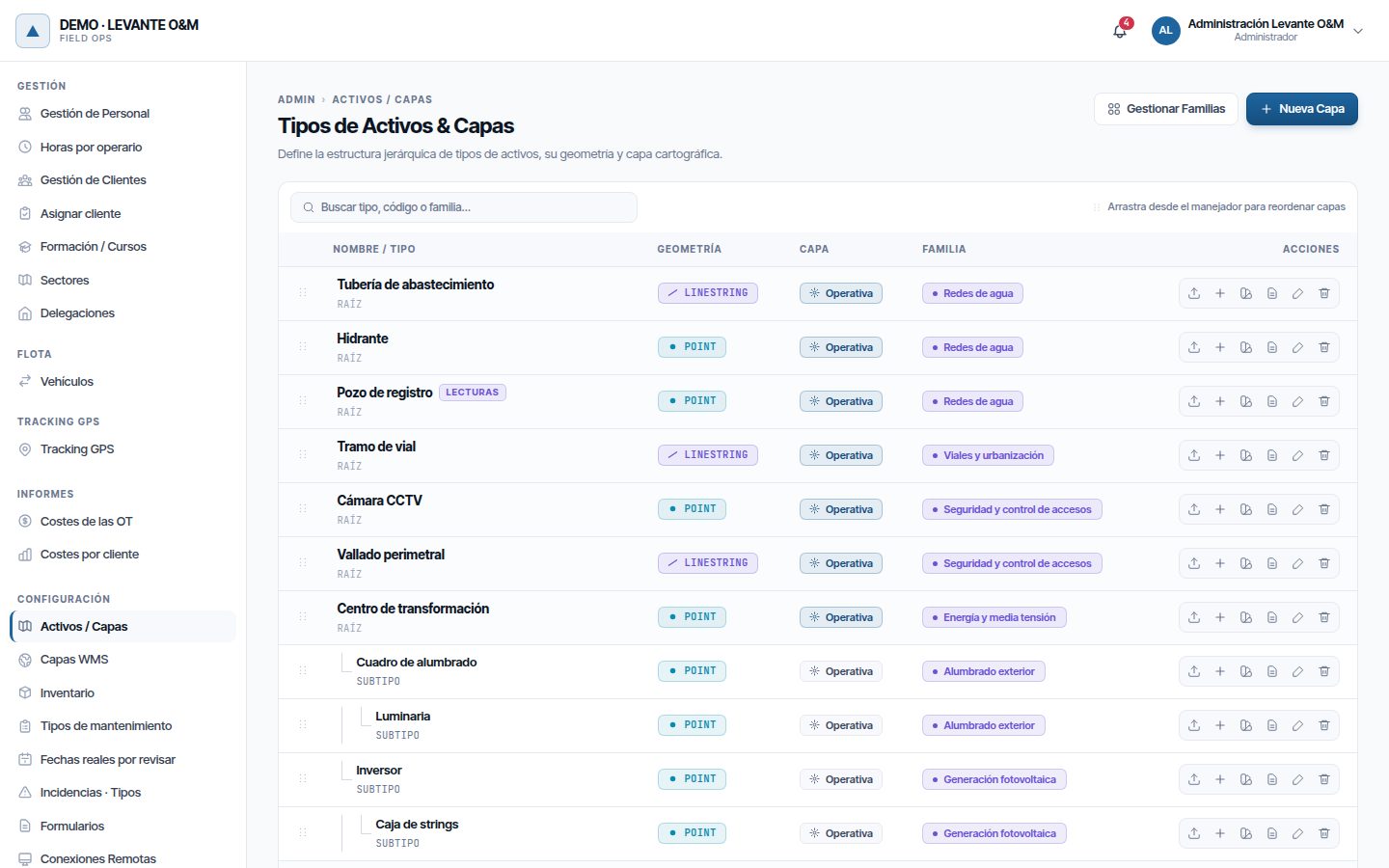
Each row shows:
| Column | What it shows |
|---|---|
| Nombre / Tipo (Name / Type) | The name of the layer. Below it, RAÍZ (Root) if it is a main layer or SUBTIPO (Subtype) if it sits under another. The lecturas (readings) tag marks measurable layers |
| Geometría (Geometry) | POINT, LINESTRING, POLYGON, their MULTI variants, MIXTO (Mixed: any type) or SIN GEOM. (No geom.) |
| Capa (Layer) | Operativa (Operational) or Cosmética (Cosmetic) |
| Familia (Family) | The layer's family, or “—” if it has none |
To search, type in Buscar tipo, código o familia… (Search type, code or family…).
To change the order, drag the row by the handle on the left. “Orden actualizado correctamente” (Order updated successfully) appears. The first layer in the list is drawn on top of the others on the map.
Row actions
The buttons on the right depend on the layer type. Hover over a button to see its name:
| Button | What it does | When it appears |
|---|---|---|
| Subir archivo geoespacial (Upload geospatial file) | Loads assets from a file | Layers with geometry |
| Crear subtipo de … (Create subtype of …) | Creates a layer that sits under this one | Operational layers |
| Sincronizar API Rest (Synchronise REST API) | Fetches the data from the external source | Layers with a REST API configured |
| Configurar simbología (Configure symbology) | Map styles and thematics | Layers with geometry |
| Ver datos (View data) | Table with the records | Layers without geometry |
| Gestionar campos | The assets' fields | Always |
| Editar (Edit) | The layer's data | Always |
| Eliminar (Delete) | Deletes the layer and its assets | Always |
Families
Families group the layers in the map's Capas (Layers) panel. For example, “Alumbrado exterior” brings together luminaires and lighting cabinets. A layer may have no family; it then appears on its own at the end.
Click Gestionar Familias to open Gestión de Familias (Family management).
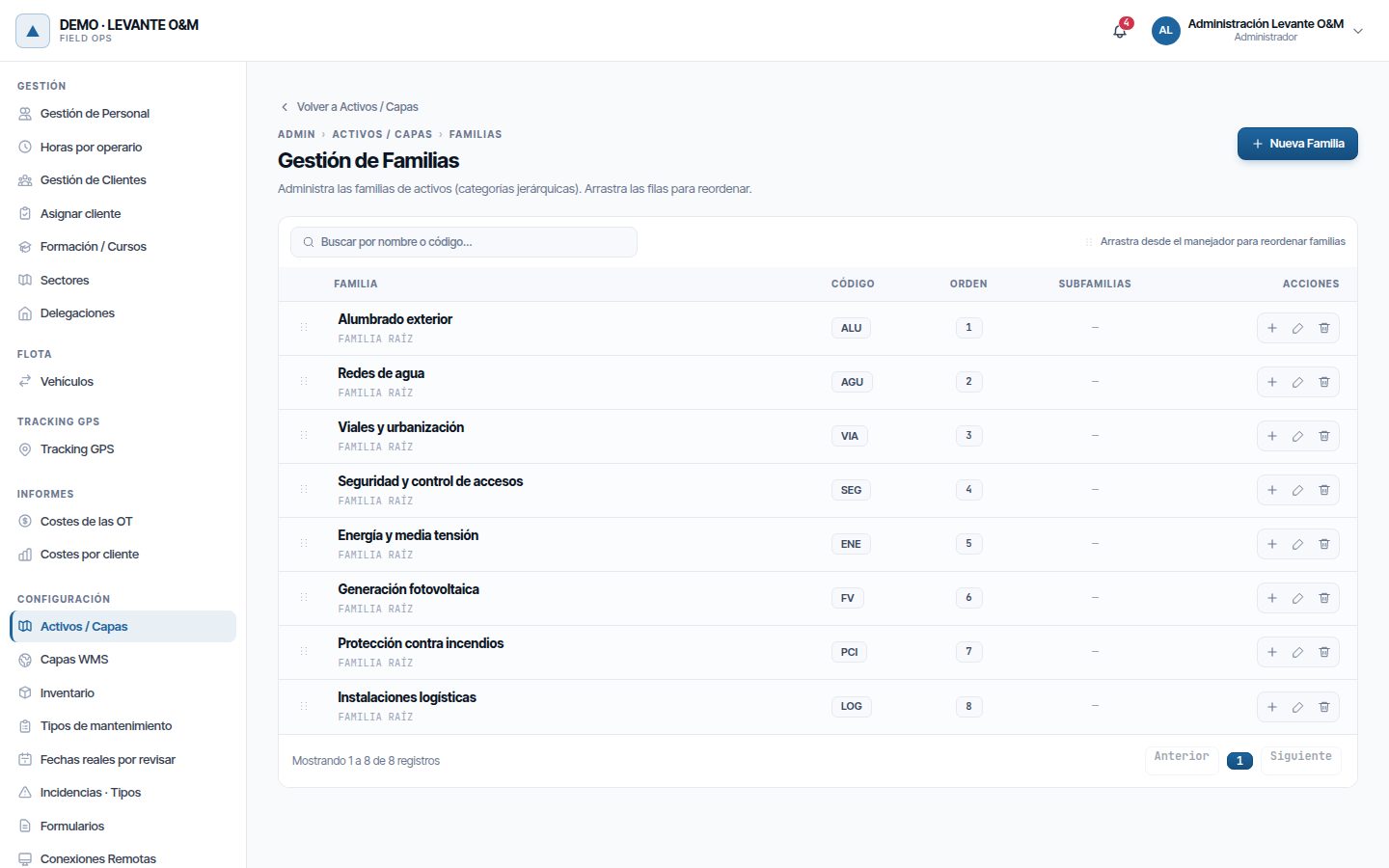
Creating a family
- Click Nueva Familia (New family).
- Fill in the Nombre (Name). The rest is optional:
- Orden (Order): position in the list.
- Código (Code): an abbreviation of up to 20 characters, such as “ELEC”.
- Familia padre (Parent family): choose one to create a subfamily.
- Descripción (Description).
- Click Crear familia (Create family).
To create a subfamily directly, click Crear subfamilia (Create subfamily) (the + button) on the parent family's row.
To reorder, drag the rows. To move a family inside another, open it with Editar and change the Familia padre; its subfamilies move with it.
Deleting a family
Click Eliminar on its row and confirm. Its subfamilies become root families and its layers are left without a family. No layer or asset is deleted.
Creating a layer
Click Nueva Capa. The Nueva Capa de Activos (New asset layer) form has several blocks; only the name and the geometry are essential.
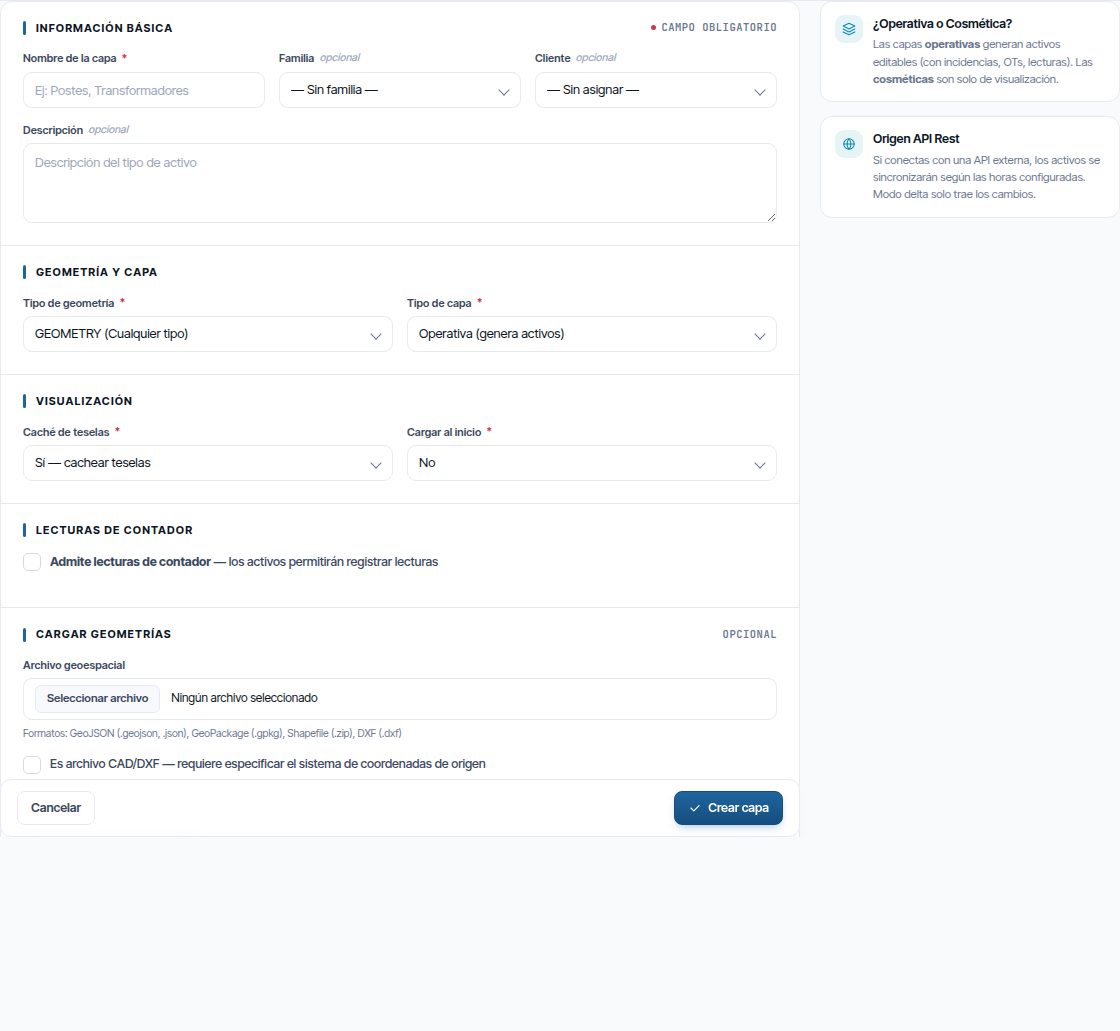
Basic information
| Field | What it is for |
|---|---|
| Nombre de la capa (Layer name), required | What is shown on the map, in records and in lists. It cannot be repeated |
| Familia | The group it appears in on the layers panel |
| Cliente | Only with the customers module. If you load a file when creating the layer, its assets will belong to this customer |
| Descripción | Free text |
Geometry and layer
| Field | Options |
|---|---|
| Tipo de geometría (Geometry type), required | POINT (Punto), LINESTRING (Línea), POLYGON (Polígono), their MULTI versions, GEOMETRY (Cualquier tipo) (any type) or Sin geometría (No geometry) |
| Tipo de capa (Layer type), required | Operativa (genera activos) (Operational, generates assets): its features have a record, work orders, incidents and readings. Cosmética (solo visualización) (Cosmetic, display only): it is only drawn |
Choose GEOMETRY only if the layer mixes points, lines and polygons. A Sin geometría layer is not drawn: it is for data without a position, such as components or spare parts. When you choose it, the display blocks disappear and Cargar datos (Load data) appears, with a CSV.
Warning
Changing the geometry or the layer type later from Editar can leave existing assets in a broken state. Decide the geometry before loading data.
Display
| Field | What it does |
|---|---|
| Caché de teselas (Tile cache) | Sí (Yes) stores already-drawn pieces of the map on the server, so the layer loads faster. Useful for large layers. When you edit or load assets, the cache renews itself |
| Cargar al inicio (Load at start-up) | Sí switches the layer on when the map opens. See The map |
Meter readings
Only appears with the meter readings module. The Admite lecturas de contador (Supports meter readings) checkbox makes the layer measurable. You can tick it when creating the layer, but the fields to be measured are added afterwards, from Editar. When you save a measurable layer, Maptainer warns that the field to be measured is missing; click Añadir ahora (Add now) to open Editar. The whole process is described in Reading batches.
Loading geometries
You can load the assets in the same creation step, with a GeoJSON, GeoPackage, zipped Shapefile or DXF file. It works the same as Uploading a geospatial file. For a DXF, tick Es archivo CAD/DXF (Is a CAD/DXF file) and enter the coordinate system in Sistema de coordenadas de origen (Source coordinate system), for example “EPSG:25830”. It is ticked automatically when you choose a .dxf.
If the upload fails, Maptainer deletes the newly created layer and shows the reason. Correct the file and start again.
Note
With the customers module, choose the Cliente if you load a file when creating the layer. All imported assets need a customer.
External data source
This block connects the layer to another system's REST API. It is explained in Synchronising with a REST API.
Saving
Click Crear capa (Create layer). “Capa creada exitosamente” (Layer created successfully) appears and you return to the list. If you chose a file, a bar shows the upload progress.
Subtypes
A subtype is a layer that sits under another in the list, for example the components of a luminaire. It has its own geometry, fields and symbology: it is just another layer. In addition, its assets can be children of an asset in the parent layer: see Layer hierarchy.
- On the parent layer's row, click Crear subtipo de … (the + button).
- Nuevo Subtipo de Activo (New asset subtype) opens, with the DEPENDIENTE DE (Dependent on) box and the name of the parent layer.
- Fill in the form as in Creating a layer and click Crear capa.
A subtype can in turn have subtypes; the form is then titled Nuevo Sub-subtipo de Activo (New asset sub-subtype).
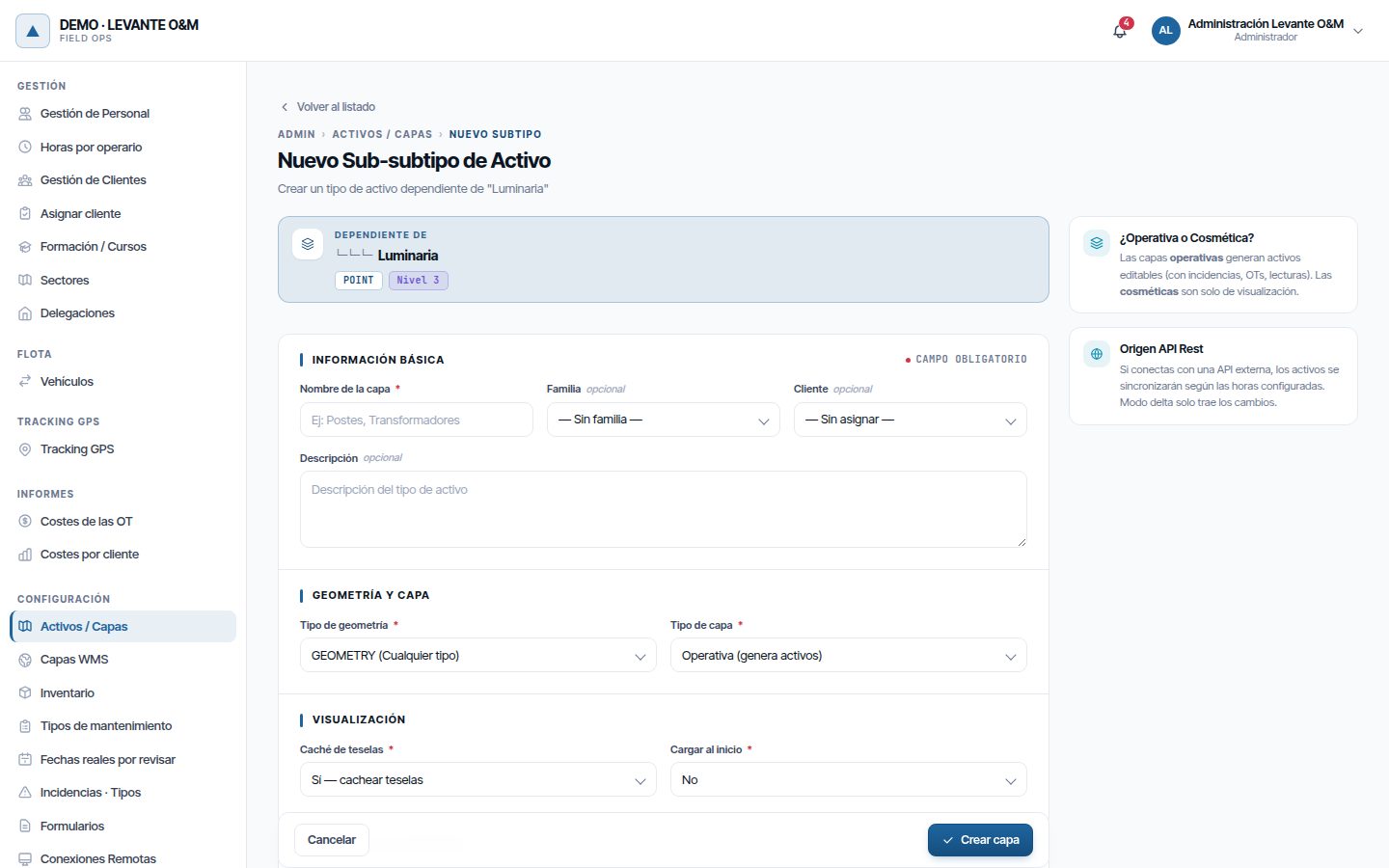
The parent layer can be changed later in Editar, in the Jerarquía (Hierarchy) block.
Editing a layer
Click Editar on the row. Editar tipo de activo (Edit asset type) has the same blocks as the creation form, except for file loading. On the right, a card summarises the layer: family, cache and whether it loads at start-up.
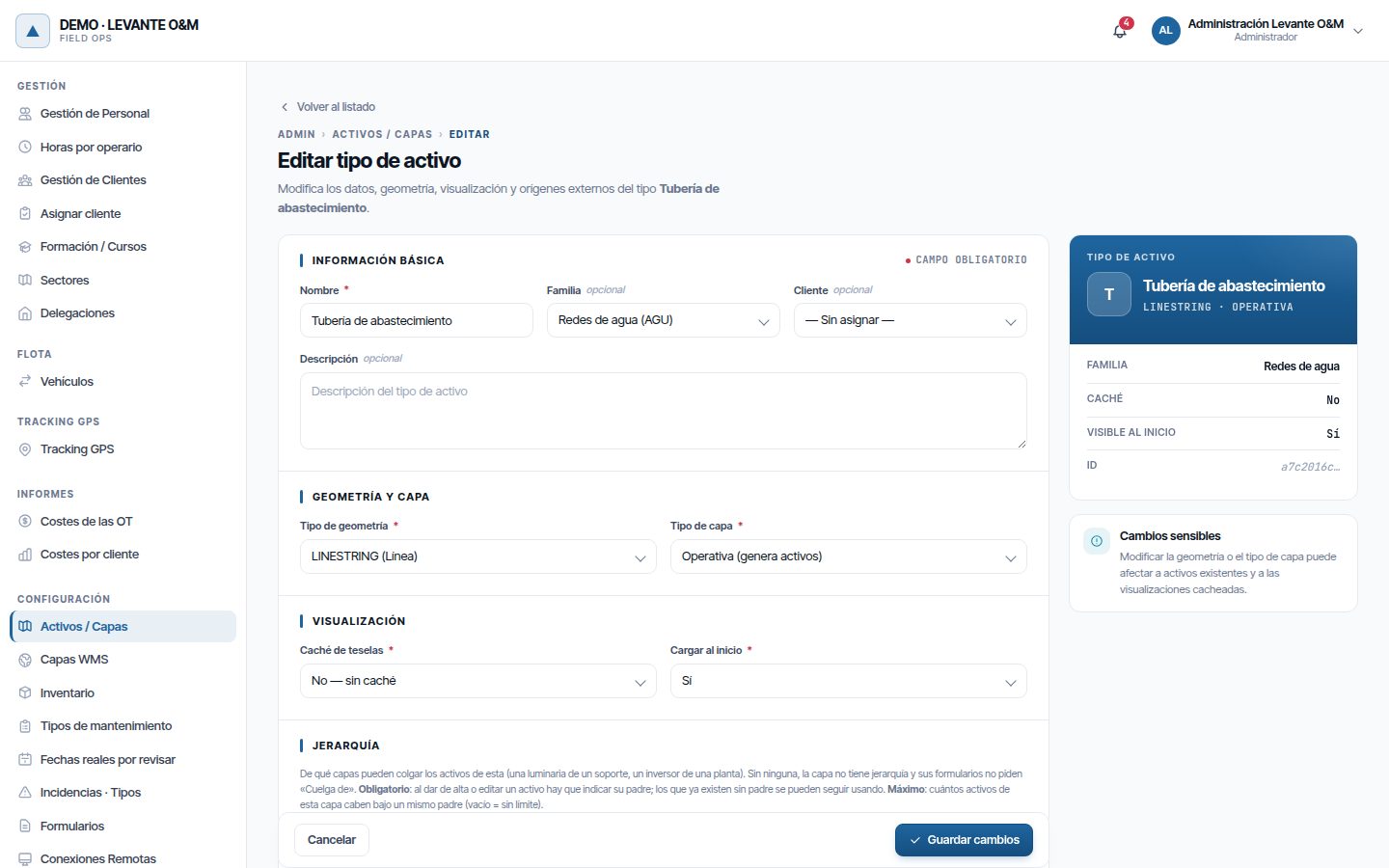
Change what you need and click Guardar cambios (Save changes). “Tipo de activo actualizado exitosamente” (Asset type updated successfully) appears.
For measurable layers, this is where the fields to be measured are created and edited: see Reading batches.
Layer hierarchy
The Jerarquía block states which layers the assets of this layer can be children of. A layer can have several parent layers, for example a pump that sits under a pumping station or under a tank.
- Click Añadir capa padre (Add parent layer) and choose the layer in Cuelga de (Child of).
- In Máximo (Maximum), enter how many assets of this layer fit under a single parent, for example 3 blades per rotor. Empty means no limit.
- Tick Obligatorio (Mandatory) if every asset in this layer must have a parent.
- Quitar (Remove) deletes the row. Click Guardar cambios.
With no parent layer, the layer has no hierarchy and its forms do not ask for Cuelga de. A layer cannot be a child of itself or of one of its child layers.
Changing the rules does not affect the assets. Assets without a parent in a layer that now requires one still exist; the parent is requested when you edit them. For day-to-day use, see Asset hierarchy.
Assigning parents to existing assets
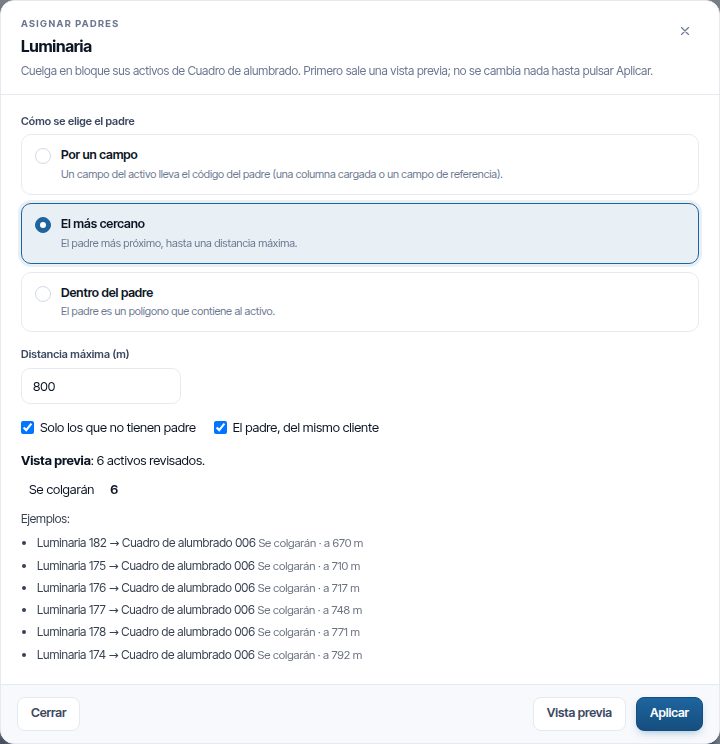
Asignar padres… (Assign parents…), in the Jerarquía block, attaches the layer's assets to their parents in one go. It is useful for a layer loaded without parents or for turning a reference field into a hierarchy. The parent layers must already be saved.
-
Choose Cómo se elige el padre (How the parent is chosen):
Method What it does Por un campo (By a field) A field of the asset holds the parent's code. In Se busca en (Look in), choose whether that code is the Código del activo padre (Parent asset code) or a field of the parent. A reference field pointing to the parent layer comes preselected, with its display field El más cercano (The nearest) The nearest parent, up to the Distancia máxima (m) (Maximum distance (m)) Dentro del padre (Inside the parent) The parent is a polygon (a building, a plot) that contains the asset -
Leave Solo los que no tienen padre (Only those without a parent) ticked (so as not to touch what is already done) and El padre, del mismo cliente (Parent from the same customer), unless you need something else.
- Click Vista previa (Preview). It shows how many will be attached and why the rest will not, with examples: “Sin padre que encaje” (No matching parent), “Con varios padres posibles” (Several possible parents), “Sin valor en el campo” (No value in the field), “Su padre está lleno” (Its parent is full).
- If it looks right, click Aplicar (Apply) and confirm. Nothing changes until then.
The maximum number of children per parent is respected: with El más cercano, an asset whose nearest parent is already full is shown as “Su padre está lleno” and is not attached to another one. On layers with hundreds of thousands of assets it may take a few seconds; if it goes over two minutes, it stops with a warning.
Managing fields
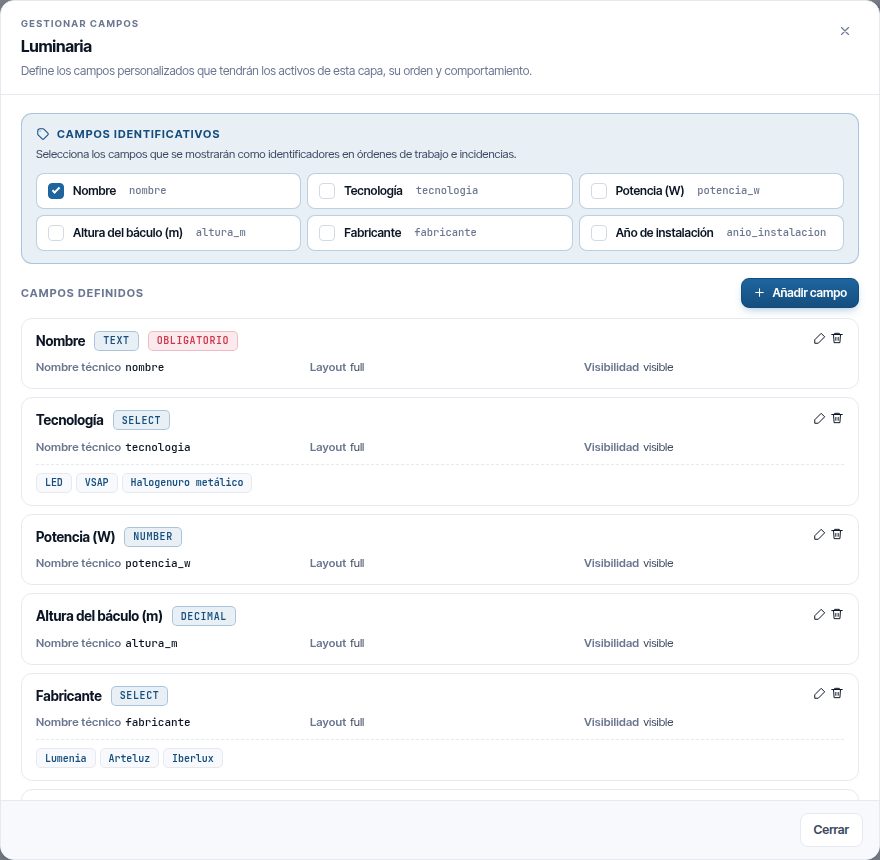
Fields are the data of each asset in the layer. Click Gestionar campos on the row: a window opens with two parts, Campos identificativos (Identifying fields) and Campos definidos (Defined fields).
Identifying fields
Tick the fields that make up the asset's name. That name is the one shown on the record, work orders, incidents and reading batches. If you tick several, they are joined with a hyphen, for example “CM-01 - Calle Mayor”.
The change is saved as soon as you tick the box, with no further buttons. Maptainer also recalculates the asset codes and reports “Se han actualizado N códigos de activo” (N asset codes have been updated).
Identifying fields also act as the key when you reload a GeoJSON or DXF file: see Existing assets.
Adding or editing a field
- Click Añadir campo (Add field), or Editar on the field's card.
- Fill in Identificación (Identification):
- Etiqueta (ES) (Label (ES)): the name the user sees. Required.
- Etiqueta (EN) (Label (EN)): optional.
- Nombre técnico (Technical name): no spaces, only letters, numbers and underscores. It is the data key and must match the column in the files you load.
- Tipo de campo (Field type): see the table below.
- If the type is a list, add the options with Añadir opción (Add option). Each option has a value and a label.
- In Comportamiento (Behaviour), set Valor por defecto (Default value), Orden de presentación (Display order), Ancho del campo (Field width), Visibilidad (Visibility) and Campo obligatorio (Required field).
- Click Crear campo (Create field) or Actualizar campo (Update field).
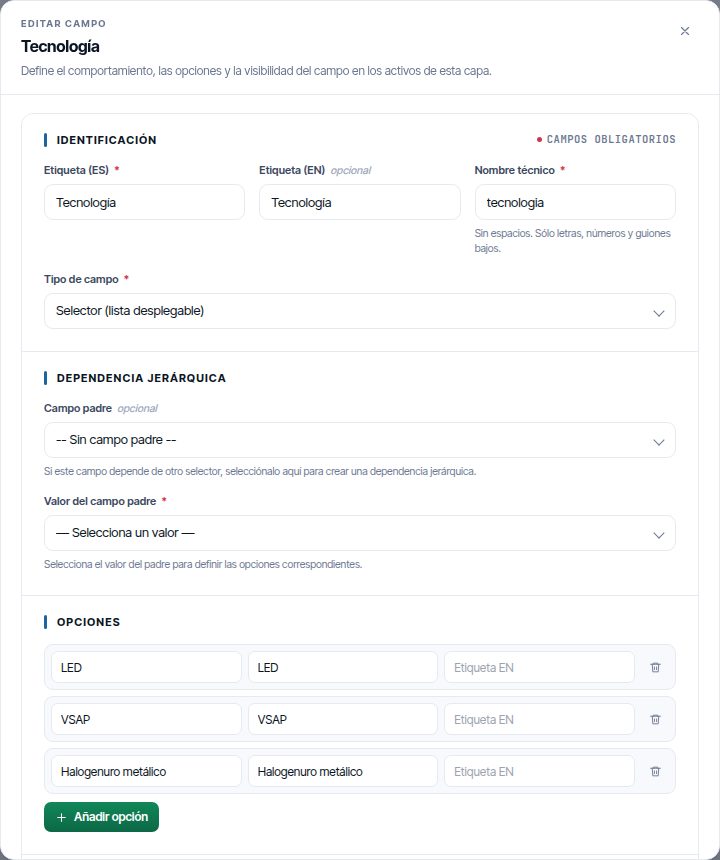
When you create a field, every asset in the layer receives it empty or with the default value.
| Field type | Use |
|---|---|
| Texto (Text), Área de texto (Text area) | Short or long text |
| Número (Number), Decimal, Entero (Integer) | Quantities |
| Fecha (Date), Fecha y hora (Date and time), Hora (Time) | Dates and times |
| Selector (lista desplegable) (Selector, drop-down list), Multi-selector, Radio buttons, Checkbox | Values from a list of options |
| Sí/No (Yes/No) | A true or false checkbox |
| Email, URL, Teléfono (Phone) | Contact details. On the record, the email and the URL open with one click |
| Color (Colour) | A colour, with its picker |
| Referencia a activo (Asset reference) | Links to an asset in another layer. It asks for Tipo de activo a referenciar (Asset type to reference), Campo clave (Key field) and Texto a mostrar (Text to display) |
| Autonumérico (Auto-number) | A number that Maptainer sets when the asset is saved: the highest in the layer plus one, also counting decommissioned assets. It cannot be changed. It is filled in the same way in file uploads, REST synchronisation and the mobile app; if the file already contains the number, it is kept. When you add the field to a layer that already has assets, they are numbered in order of creation |
| Archivo (File) | A file attached to the asset: Adjuntar… (Attach…) to upload it, Reemplazar… (Replace…) or Quitar. It opens from the record and also appears in the asset's documentation. Same formats and size as the asset documents |
Other editor options:
| Option | What it does |
|---|---|
| Orden de presentación | Position of the field in the asset form. Lower numbers come first |
| Ancho del campo | Completo (100%) (Full), Medio (50%) (Half), Tercio (33%) (Third) or Cuarto (25%) (Quarter) of the form |
| Visibilidad | Visible, Oculto (Hidden) or Solo lectura (Read-only) |
| Campo obligatorio | The asset cannot be saved without this data. In file uploads, rows without it are not imported |
| Campo padre (Parent field) | In lists and references: makes the options depend on the value of another field |
Lists that depend on another
A list field can depend on another. For example, Modelo (Model) can offer different options depending on the Fabricante (Manufacturer).
- Create the parent field first, with its options.
- In the child field, choose the Campo padre in Dependencia jerárquica (Hierarchical dependency).
- Save the field. Its card shows the Dependiente (Dependent) tag and the Gestionar opciones en cascada (Manage cascading options) button.
- Click Gestionar opciones en cascada, choose each parent value and enter the options that belong to it.
Renaming or deleting a field
If you change the Nombre técnico, Maptainer carries the change over to the asset data, the identifying fields and the map styles.
To delete a field, click Eliminar on its card. Before you confirm, it shows how many assets have a value in that field and which styles use it.
Warning
Deleting a field removes its value from every asset, and it cannot be recovered. The styles that used it are reset: a thematic becomes a simple style and the label based on that field is removed.
Uploading a geospatial file
This is how you load many assets at once. Click Subir archivo geoespacial on the layer's row.
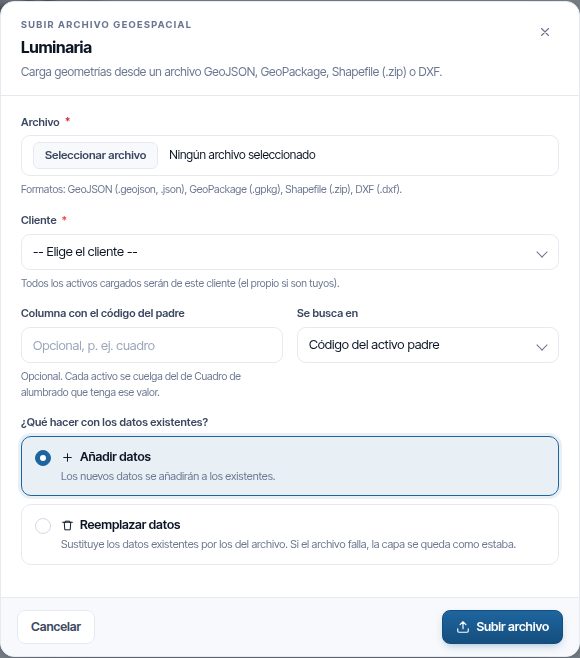
- In Archivo, choose the file. If it is a DXF, enter in Sistema de coordenadas de origen the EPSG it is drawn in, for example “EPSG:25830”. It is mandatory: without it, the file cannot be uploaded.
- With the customers module, choose the Cliente for all the assets in the file. If they belong to your company, choose your own customer.
- If the layer has parent layers, you can enter the Columna con el código del padre (Column with the parent code) and, in Se busca en, where that code is: the Código del activo padre or a field of the parent layer. See Parents during upload.
- In ¿Qué hacer con los datos existentes? (What to do with existing data?), choose Añadir datos (Add data) or Reemplazar datos (Replace data).
- Click Subir archivo (Upload file).
A bar shows the upload and the processing. When it finishes, a summary appears, for example “Se crearon 415 activos correctamente” (415 assets were created successfully). If any row fails, the message says how many and why.
Formats
| Format | What to upload | Coordinate system |
|---|---|---|
| GeoJSON | The .geojson or .json file | The file's own. If it does not state one, WGS84 (EPSG:4326) is assumed |
| GeoPackage | The .gpkg file | The file's own |
| Shapefile | A .zip with a single .shp and its companion files (.dbf, .shx, .prj) | The one in the .prj |
| DXF | The .dxf file | It must be specified, when creating the layer or when uploading the file |
The maximum size is 150 MB. Everything is converted to the map projection on loading.
How fields are read
There is no need to match columns by hand. Each column in the file is stored under its name, and shown in the field whose Nombre técnico matches.
- If the layer has no fields, Maptainer creates a text field for each column. You can then change their labels and types in Gestionar campos.
- If the layer already has fields, none is created. Columns with other names are stored, but they are not shown until you create a field with that technical name.
All loaded assets go into the Operativo (Operational) status. Rows without geometry or with an empty geometry are discarded.
Tip
Define the fields before the first upload and use the same technical names in the file. That way the data types and lists are right from the start.
Existing assets
With Añadir datos, what happens to the assets already in the layer depends on the format:
| Format | What happens to a repeated asset |
|---|---|
| GeoJSON and DXF | If the layer has identifying fields and the file contains them, the asset with the same value is updated: geometry and data. Otherwise, a new one is created |
| GeoPackage and Shapefile | A new one is always created |
Reemplazar datos replaces all the assets in the layer with those in the file. It first reads and checks the whole file; only if the file is correct does it delete the assets and load the new ones, all in one go. If anything fails, nothing is deleted and the layer stays as it was.
Because it clears the layer, Reemplazar datos also requires the Eliminar permission on Activos GIS (GIS assets). Without it, the upload is rejected without changing anything, and the message suggests using Añadir datos or asking an administrator for the permission.
In all formats, rows missing a required field are not loaded. The summary lists them, for example “Fila 12: falta la propiedad obligatoria código” (Row 12: required property código is missing).
Note
With GeoPackage and Shapefile, Añadir datos always creates new assets. If the file contains assets that are already in the layer, they are duplicated: to update the whole layer, use Reemplazar datos.
Warning
Reemplazar datos deletes the assets permanently, with their photos, documents and readings, and removes them from work orders. If any asset has incidents or quotes, nothing is replaced and the message explains why.
Parents during upload
If the file has a column with the code of the asset each row belongs under (for example, the cabinet of each luminaire), enter its name in Columna con el código del padre. When the upload finishes, each new asset is attached to the asset in the parent layer that has that code. The summary reports it: “Padres: 407 activos colgados de su padre; en la capa quedan 8 con código de padre sin colgar (8 sin padre con ese código)” (Parents: 407 assets attached to their parent; 8 in the layer still have a parent code but are not attached (8 with no parent matching that code)).
- The column is stored as just another field of the asset, so it can be reused with Assigning parents.
- Only assets without a parent are attached. The maximum number of children per parent is never exceeded.
- If a code appears in two parents, that asset is not attached.
Plan limit
If the file exceeds the number of assets your plan allows, nothing is loaded. A message such as “Tu plan admite N activos y ya hay M” (Your plan allows N assets and there are already M) appears. Upgrade the plan or split the file.
Synchronising with a REST API
A layer can take its assets from another system that publishes them through a REST API. The connection (address and credential) is set up beforehand in Conexiones Remotas; see Tenant administration.
Configuring the source
In Nueva Capa or Editar, under Origen de datos externo, choose API Rest and fill in:
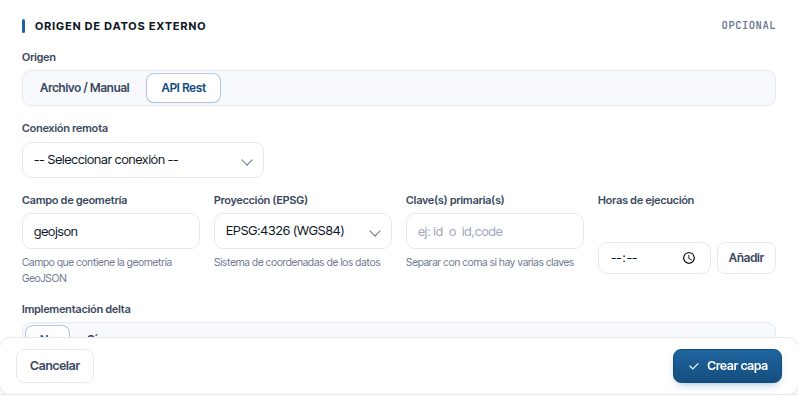
| Field | What to enter |
|---|---|
| Conexión remota (Remote connection) | The connection created in Conexiones Remotas |
| Base URL | Which of the connection's addresses the layer uses when synchronising. When you edit the layer, the chosen one is selected; if you did not choose one, the first one is |
| Ruta endpoint (Endpoint path) | The final part of the address, for example “/v1/assets” |
| Campo de geometría (Geometry field) | The item in each record that holds the geometry in GeoJSON. By default, “geojson” |
| Proyección (EPSG) (Projection (EPSG)) | The coordinate system of that geometry |
| Clave(s) primaria(s) (Primary key(s)) | The field or fields that identify each record, separated by commas. Required for importing |
| Horas de ejecución (Run times) | The times at which the layer synchronises automatically, in the local time of its customer (or of your company). Add each one with its time and Añadir (Add). Without any times, it only synchronises with the button |
| Implementación delta (Delta implementation) | Sí fetches only what has changed since the last successful synchronisation. It asks for the API's Campo fecha actualización (Update date field), Campo fecha de borrado (Deletion date field) and Formato de fecha (Date format) |
In a Sin geometría layer the block is called Cargar datos (when creating the layer) or Origen de datos (Data source) (when editing it), and it does not ask for geometry.
The API must return a list of records, or an object with the list inside “data”, “results”, “items”, “records” or “features”.
Synchronising
On the layer's row, click Sincronizar API Rest and confirm with Sincronizar (Synchronise).
- The first time, if the layer has no fields, Maptainer only reads the structure. It creates a field for each data item and warns: “Ejecute de nuevo para importar datos” (Run again to import data).
- Check the fields in Gestionar campos. The Clave primaria (Primary key) must be one of them, with the same technical name.
- Synchronise again. The records are now imported.
When it finishes, Sincronización completada (Synchronisation completed) gives the count: created, updated, unchanged and deactivated.
Warning
Without delta, assets that came through the API and are no longer in it are deactivated at each synchronisation. Assets drawn by hand or loaded from a file are not touched.
Automatic and delta synchronisation
With Horas de ejecución, Maptainer synchronises the layer automatically at each time set, with a few minutes' margin. If a synchronisation of the layer is already running at that time, that run is skipped.
With Implementación delta set to Sí:
- The first synchronisation fetches everything. Subsequent ones request only what has changed since the last successful one, with a 5-minute margin.
- Maptainer appends
?modified_since=to the address, with the date in the chosen Formato de fecha. If the API uses a different name, write{since}in the Ruta endpoint where the date should go, for example “/v1/items?updated_at[gte]={since}”. - If the API does not filter, Maptainer itself discards the records that have not changed, according to the Campo fecha actualización.
- A record with the Campo fecha de borrado filled in decommissions its asset. Records missing from the response are not touched.
- If on one occasion you want to fetch everything, disable delta, synchronise and enable it again.
Layers without geometry
Sin geometría layers are not drawn on the map. They have no Subir archivo geoespacial or Configurar simbología; they have Ver datos.
Ver datos opens a table with the layer's records. It has one column per field, plus Activo (Active) and Creado (Created). It shows 50 records per page and can be filtered with Buscar... (Search...). It closes with Cerrar (Close) or Escape.
The data is loaded from a CSV with headers in the first row: when creating the layer, in Cargar datos, or afterwards with Cargar datos CSV (Load CSV data) on the layer's row. Each column becomes a text field if the layer had no fields.
Cargar datos CSV works like Uploading a geospatial file: you choose the file, the Cliente and, if there are parent layers, the parent column, and then Añadir datos or Reemplazar datos. Rows without a required field are not loaded, and if the replacement fails the layer stays as it was.
Symbology
Symbology determines how the layer is drawn on the map. Click Configurar simbología on the row: Simbología (Symbology) opens with the layer's styles.
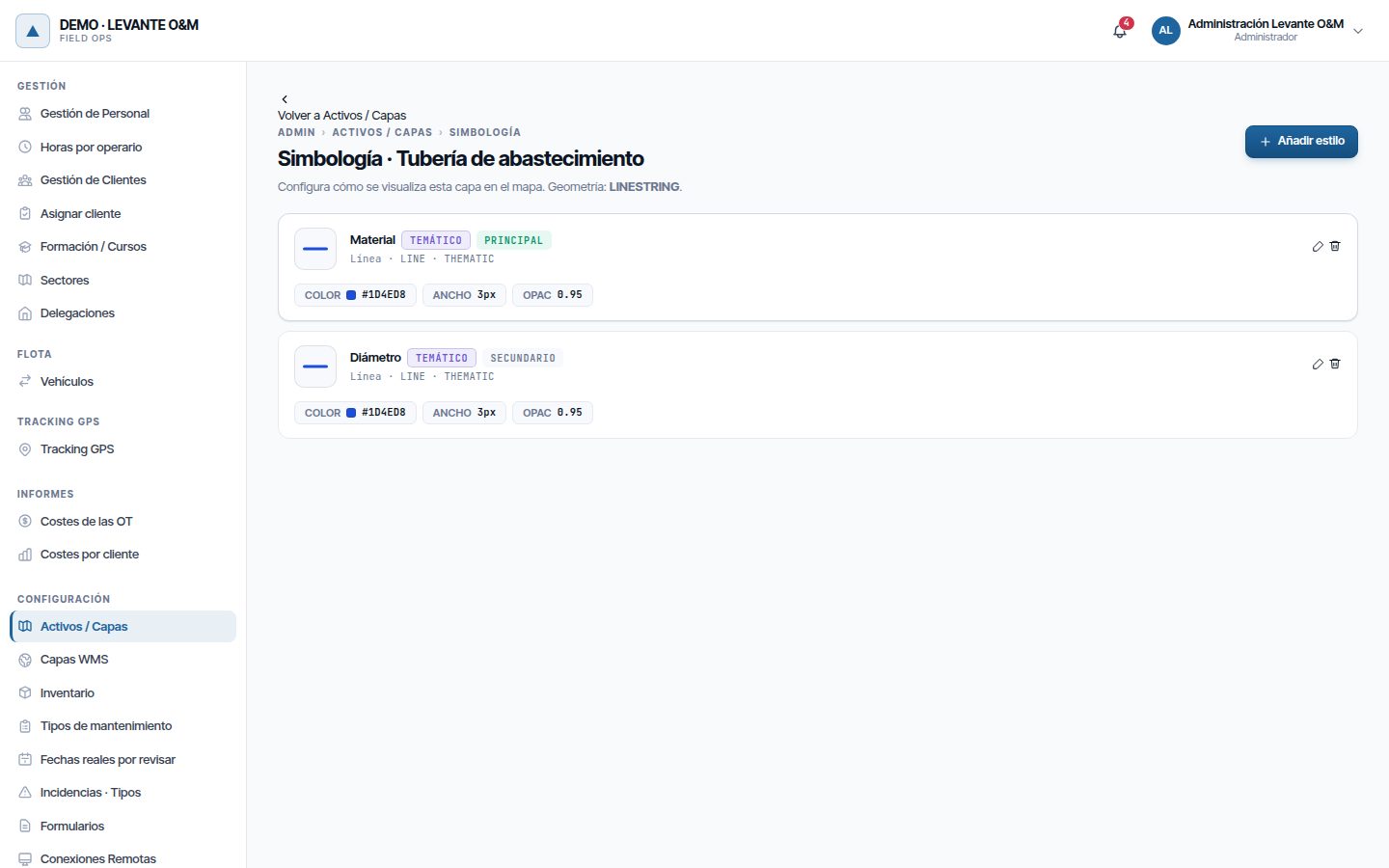
A layer can have several styles. On the map they are alternatives: one is shown and the others are chosen with Seleccionar temático (Select thematic) in the layers panel. The style's Nombre (ES) (Name (ES)) is what appears in that list. See The map.
With no style at all, the layer is drawn with a default green style.
Note
All operational layers also have the Estado del activo (Asset status) thematic, which colours by status. It does not need configuring.
Creating a style
- Click Añadir estilo (Add style). In a GEOMETRY layer, first choose the Geometría a simbolizar (Geometry to symbolise).
- In Capa, modo y zoom (Layer, mode and zoom), choose:
- Tipo de capa: Círculo (Circle) or Símbolo/Texto (Symbol/Text) for points, Línea (Line) for lines, Relleno (Polígono) (Fill (Polygon)) for polygons.
- Modo de estilo (Style mode): Fijo (Fixed, a single appearance) or Temático (Thematic, based on a field).
- Zoom mínimo (Minimum zoom) and Zoom máximo (Maximum zoom): the zoom levels between which it is drawn, in both modes.
- In Identificación, enter a Nombre (ES) and decide whether it is the Estilo principal (Main style): the one shown when the layer is opened on the web map, the portal and the mobile app. There is only one per layer; when you mark another one, the previous one stops being the main style.
- Fill in Configuración del estilo (Style settings) (see below).
- Click Crear estilo (Create style).
To change it, click Editar on its card and then Actualizar estilo (Update style). To delete it, click Eliminar.
Note
Each style is a separate thematic. In a GEOMETRY layer with one style for points and another for lines, the map shows one at a time; switch between them in Seleccionar temático.
Fixed style
All assets are drawn the same way. The settings depend on the layer type:
| Layer type | Settings |
|---|---|
| Círculo | Color Círculo (Circle colour), Radio (px) (Radius (px)), Opacidad (Opacity), Color Borde (Border colour), Ancho Borde (Border width), Opac. Borde (Border opacity) |
| Línea | Color, Ancho (px) (Width (px)), Opacidad, Guiones (Dashes) (for example “2,4”), Unión (Join) and Terminación (Cap) |
| Relleno (Polígono) | Color Relleno (Fill colour), Opacidad, Color Contorno (Outline colour), Ancho Contorno (px) (Outline width (px)) and Suavizado de bordes (antialias) (Edge smoothing (antialias)) |
| Símbolo/Texto | Texto block and Icono (Opcional) (Icon (Optional)) block |
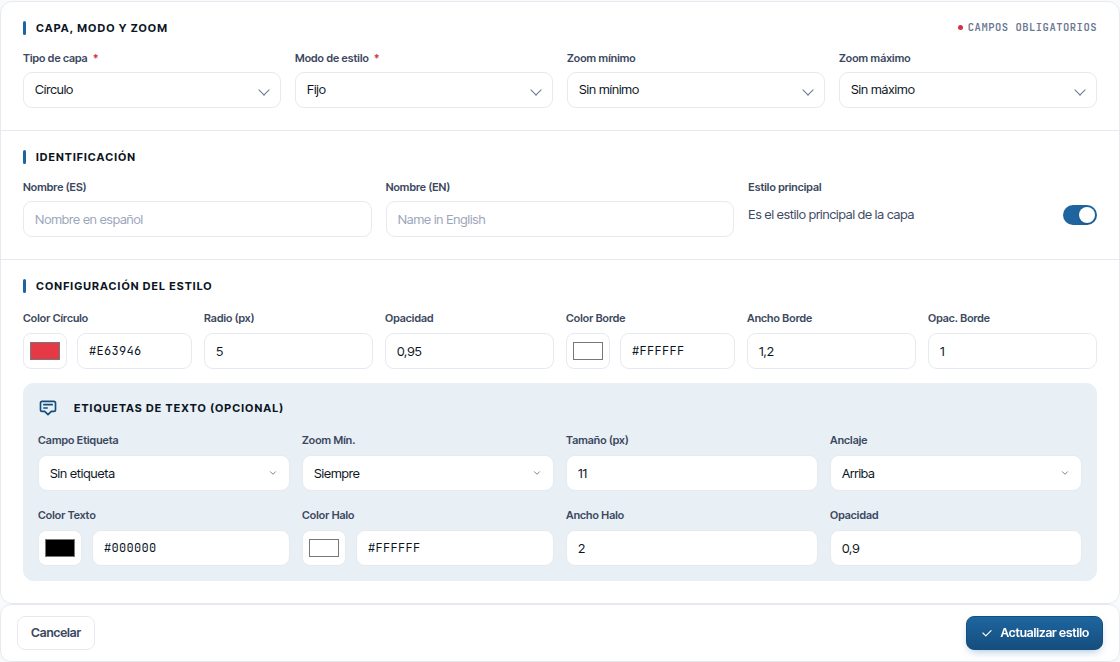
Opacity ranges from 0 (transparent) to 1 (opaque). Colours are chosen with the picker or entered in hexadecimal.
Labels
Circle, fill and symbol styles have the Etiquetas de Texto (Opcional) (Text labels (Optional)) block. It is used to write the value of a field next to each asset, such as its number.
| Setting | What it does |
|---|---|
| Campo Etiqueta (Label field) | The field that is written. Sin etiqueta (No label) removes it |
| Zoom Mín. (Min. zoom) | The zoom level from which labels are shown. Siempre (Always) shows them at every level |
| Tamaño (px) (Size (px)) | Font size |
| Anclaje (Anchor) | Where the text sits relative to the asset: Centro (Centre), Arriba (Top), Abajo (Bottom), Izquierda (Left) or Derecha (Right) |
| Color Texto (Text colour), Color Halo (Halo colour), Ancho Halo (Halo width) | Colour of the text and of the outline around it |
| Opacidad | Transparency of the text |
Tip
Set a high Zoom Mín., for example 17. With thousands of assets, labels at low zoom pile up and slow the map down.
Icons
In the Símbolo/Texto type, the Icono (Opcional) block draws an icon instead of a circle.
- Click Seleccionar (Select). Seleccionar Icono SVG (Select SVG icon) opens with the icon library.
- Search by name or filter by sector.
- Click the icon.
- Adjust Tamaño del Icono (escala) (Icon size (scale)): 1 is the original size.
The icon library is shared by all companies and maintained by Maptainer. You cannot upload your own icons. It has about 370 icons divided into ten sectors: Agua y saneamiento (Water and sanitation), Electricidad y alumbrado (Electricity and lighting), Eólica (Wind), Fotovoltaica (Photovoltaic), Riego (Irrigation), Señalización y tráfico (Signage and traffic), Instalaciones (Building services), Edificios y equipamientos (Buildings and facilities), Obra y herramientas (Works and tools), and Símbolos y estados (Symbols and statuses).
All icons are almost square. Objects that are naturally elongated, such as a hydrant, a wind turbine or a traffic light, sit inside a circle so that they read well on the map. The map paints the icon as a single-colour silhouette, in the style's colour; the colours of the original drawing are not shown.
Thematic by field
A Temático style colours each asset according to the value of a field. For example, pipes by material.
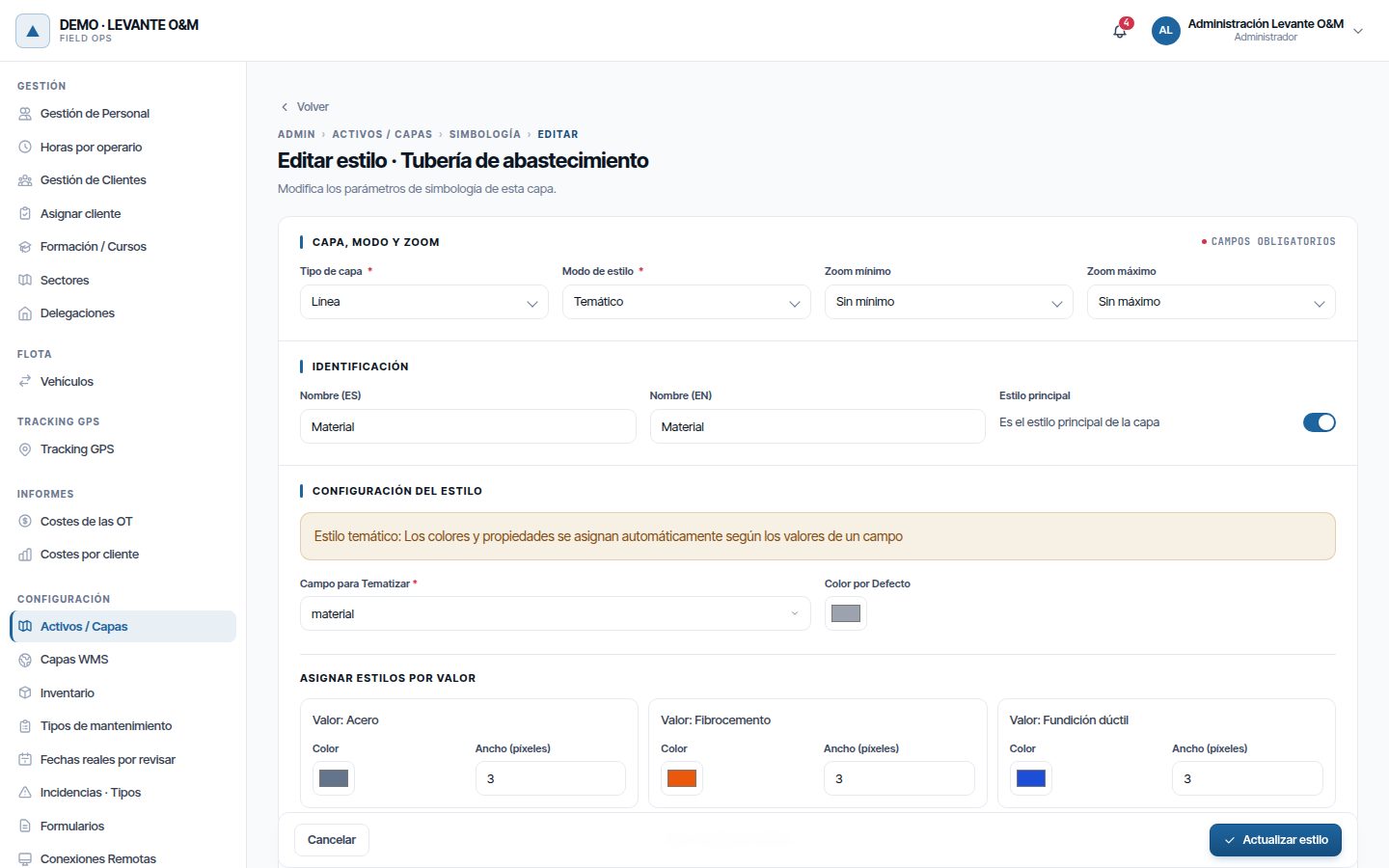
- Choose Temático in Modo de estilo.
- In Campo para Tematizar (Field to classify by), choose the field. Asignar Estilos por Valor (Assign styles by value) appears, with a card for each value.
- Adjust each value: colour and radius for circles, colour and width for lines, colour and opacity for fills.
- Choose the Color por Defecto (Default colour) for assets with a value that is not in the list.
- Optionally, add labels in Etiquetas de Texto (Opcional).
- Click Crear estilo or Actualizar estilo.
The values come from the field's options and from the values the assets already have, up to 100. Colours are suggested automatically and can be changed.
In the Símbolo/Texto type, Configuración de Iconos (Icon settings) offers Icono único para todos (Single icon for all), with one colour per value, or Icono por cada valor (One icon per value).
Deleting a layer
Click Eliminar on the row and confirm. “Tipo de activo eliminado exitosamente” (Asset type deleted successfully) appears.
Warning
Deleting a layer cannot be undone. All its assets are deleted with it, together with their photos, documents and readings, as well as its fields, its styles and its reading routes and schedules. Work orders are kept, but they lose those assets. Its subtypes are not deleted: they become root layers.
If any asset in the layer has incidents, the deletion fails with “Error al eliminar el tipo de activo” (Error deleting the asset type).
Tip
If you just want to stop seeing the layer, set Cargar al inicio to No. If the assets have been retired, decommission them on their record. See Assets.
WMS layers
A WMS layer shows on the map the image from an external map server: an orthophoto, the cadastre, the urban plan. It is only an image: it has no assets and cannot be queried. WMS layers are managed in Capas WMS, inside Configuración in the admin area.
The Gestión de Capas WMS (WMS layer management) screen lists the layers with their name, service address, layer and creation date. They are all of type Cosmética.
Adding a WMS layer
- Click Nueva capa WMS (New WMS layer).
- In Paso 1 · Conectar al servicio WMS (Step 1 · Connect to the WMS service), paste the address in URL del servicio WMS (WMS service URL) and click Conectar (Connect). “Servicio WMS conectado exitosamente” (WMS service connected successfully) appears.
- In Paso 2 · Identificación (Step 2 · Identification), enter the Nombre descriptivo (Descriptive name), which is the one shown on the map, and choose the Capa del servicio WMS (WMS service layer).
- In Servicio WMS (WMS service), check Sistema de referencia (Reference system), Versión WMS (WMS version), Formato de imagen (Image format) and Estilo (Style). The Sistema de referencia is chosen automatically (see below).
- In Visualización (Display), set Opacidad, Cargar al inicio and Transparencia (Transparency).
- Click Crear capa WMS (Create WMS layer).
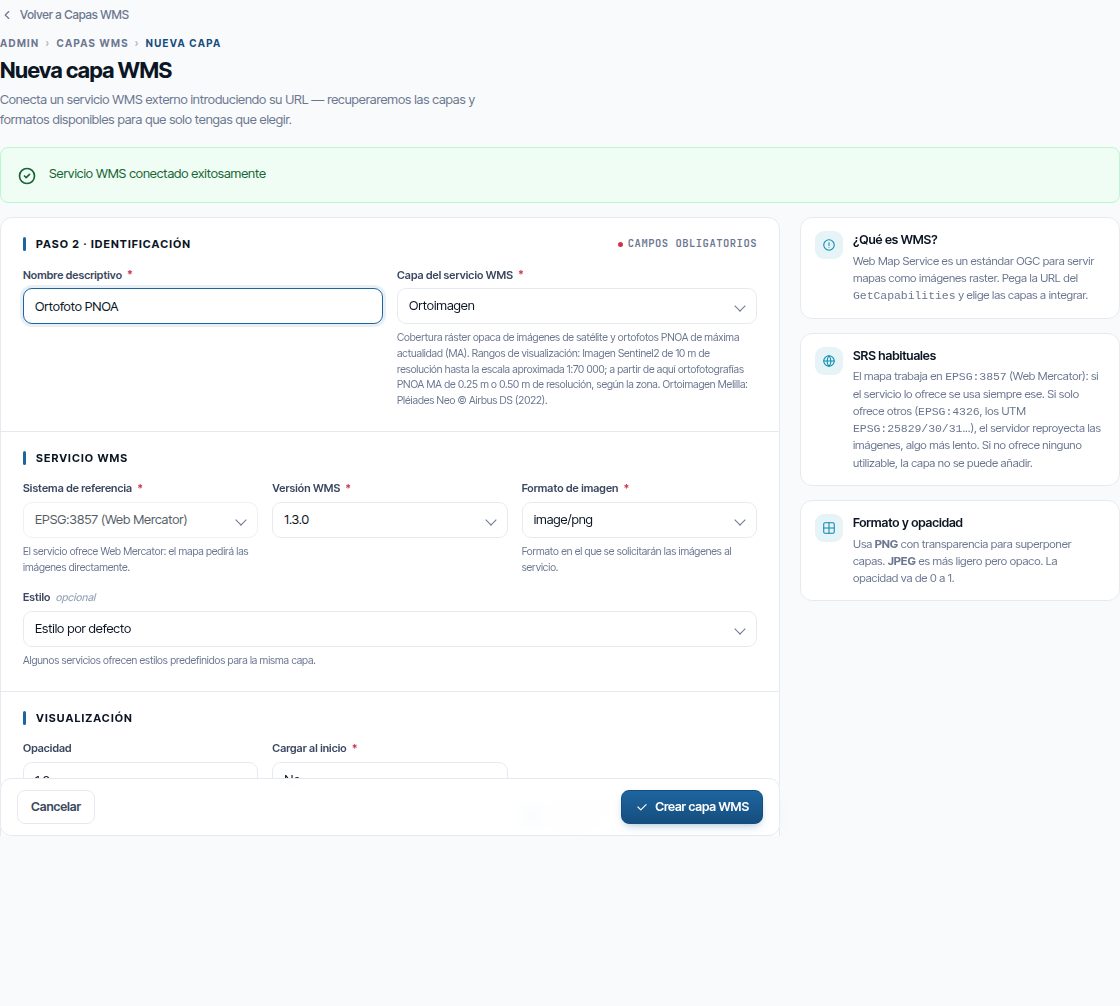
Use PNG with Transparencia to see the layers underneath. JPEG is lighter but covers everything.
Reference system
The map works in EPSG:3857. When you choose the layer, Maptainer checks which systems the service offers:
- If it offers EPSG:3857 (or an equivalent), it uses it and the drop-down is locked. This is the fastest option.
- If it does not offer it, it proposes one of those available, such as EPSG:4326 or EPSG:25830, and warns that the layer is reprojected. Maptainer requests the image in that system and converts it for the map. It appears in the right place, but loads somewhat more slowly.
- If it offers no system that can be converted, it says so and does not let you create the layer.
In ArcGIS services, a reprojected layer may show different line thicknesses or labels depending on the system. If the service offers one in metres, such as EPSG:25830, it usually looks better than in EPSG:4326.
On the map
WMS layers appear in the Capas panel, in the Capas WMS group, and are always drawn beneath the assets. If the server offers a legend, it is shown in the Leyenda (Legend) panel. See The map.
To change a layer, click Editar. Editar capa WMS (Edit WMS layer) also lets you change the URL, the layer's internal name and the URL de leyenda (Legend URL). To remove it, click Eliminar and confirm.
Common problems
| Symptom | Probable cause | Solution |
|---|---|---|
| I cannot see Activos / Capas in the admin area | Only the tenant administrator can see it | Log in with an administrator user |
| “Ya existe un tipo de activo con ese nombre en este tenant” (An asset type with that name already exists in this tenant) | There is another layer with the same name | Change the name |
| The new layer does not appear when the map opens | Cargar al inicio is set to No | Switch it on in the Capas panel or change the option in Editar |
| I cannot see the assets when I switch the layer on | The style has a minimum zoom, or the layer has no assets | Zoom in on the map; check the zoom in Configurar simbología |
| The upload ends with “falta la propiedad obligatoria” (required property is missing) | The file does not contain a field marked as required | Fill in that column, or remove the required mark before loading |
| The upload fails because of the geometry type | The file has geometries different from those of the layer | Split the file by geometry, or use a GEOMETRY layer |
| The upload asks for a customer | With the customers module, every asset needs a customer | Choose the Cliente; if the assets are yours, choose your own customer |
| The DXF assets appear in the wrong place | The Sistema de coordenadas de origen is not the one the drawing uses | Load it again with Reemplazar datos and the correct EPSG |
| The Shapefile assets appear in the wrong place | The .prj is missing from the .zip | Add the .prj and load again |
| After loading, the assets have no name | The layer has no identifying fields | Tick them in Gestionar campos |
| Reloading a file duplicates the assets | Añadir datos was chosen with GeoPackage or Shapefile, or the layer has no identifying fields | Use Reemplazar datos, or GeoJSON with identifying fields |
| The synchronisation says “Ejecute de nuevo para importar datos” | It was the first run and the layer had no fields | Check the fields that were created and synchronise again |
| “El campo primario … no está definido en las propiedades” (The primary field … is not defined in the properties) | The Clave primaria does not match any technical name | Correct the key in Editar or create the field |
| “La API devolvió HTTP 401” (The API returned HTTP 401) or another code | The service credential or path is not valid | Check the connection in Conexiones Remotas and the Ruta endpoint |
| A thematic does not show all the values | Only up to 100 values are listed | The rest take the Color por Defecto |
| I cannot delete a layer: “Error al eliminar el tipo de activo” | An asset has incidents | Resolve or delete those incidents first |
| The WMS layer appears blank or patchy | The service does not respond or drops connections | Check that the service is working; tiles that fail are retried when you move the map |
Last updated: