
Introduction
Your company is a Maptainer “tenant”: a space of its own, with its data, its users and its configuration. The administrator configures it from two places:
| Where | What is there |
|---|---|
| User menu → Configuración (Settings) | Configuración General (General settings): working day, formats, planning, Cómo trabaja tu empresa (How your company works), geofence, targets, subscribed modules, SLA and type of meter readings |
| User menu → Ir al administrador (Go to the administrator) | Gestión de Personal (Staff management) → Roles y Permisos (Roles and permissions), the users (through the staff records), Conexiones Remotas (Remote connections), Auditoría (Audit) and API y copias de datos (API and data backups) |
What each person sees and can do depends on three things, one after the other. Each one can only take away: a role permission is no use if the module is not subscribed to or if the company does not use that part.
Prerequisites
Almost all of this manual is only for the Administrador (Administrator) role:
| Screen | Who sees it |
|---|---|
| Configuración in the user menu | The administrator and the roles with Configuración Global (Global settings): with Ver (View), read-only; with Editar (Edit), they can save |
| Roles y Permisos in Gestión de Personal | Only the administrator |
| Conexiones Remotas, Auditoría and API y copias de datos in the administrator | Only the administrator |
| Giving access to the app, changing the role or the status of an account | Only the administrator (see Staff and teams) |
The permissions of the other roles are explained in Roles and permissions.
General settings
You open it from the user menu (top right) → Configuración. It is a single page with several sections, one below the other.
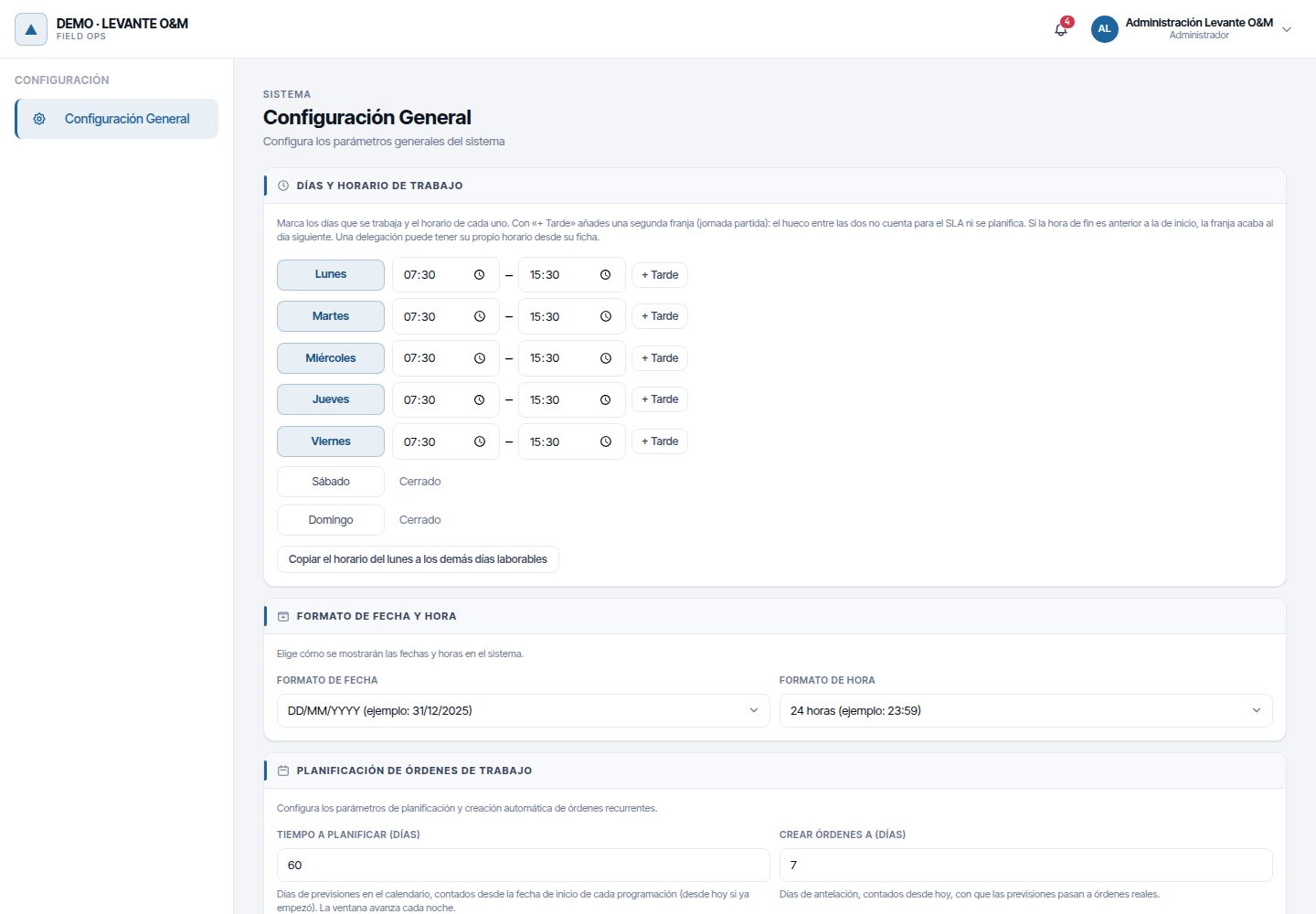
The Geovalla de órdenes de trabajo (Work order geofence), SLA and Tipo de Lecturas (Type of meter readings) sections only appear if you have subscribed to their module.
Saving changes
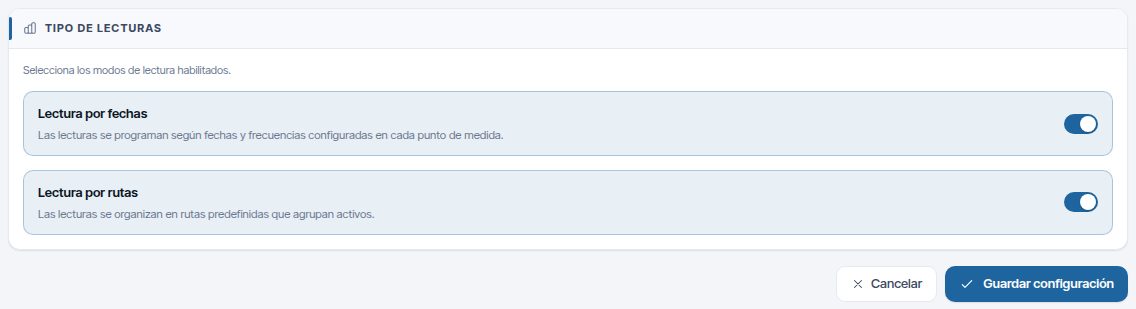
All the sections are saved together with Guardar configuración (Save settings), at the end of the page. “Configuración guardada” (Settings saved) appears.
- Change whatever you need in any section.
- Scroll to the end and click Guardar configuración.
- If you have changed anything in Ajustar en detalle (Fine-tune), the page reloads by itself: “Se han guardado los cambios. Recargamos para aplicar la nueva estructura de la empresa.” (The changes have been saved. Reloading to apply the new company structure.)
To discard what you have not saved, click Cancelar (Cancel), next to Guardar configuración: the page reloads the saved settings.
Warning
If you leave the page without clicking Guardar configuración, you lose the changes. Choosing a profile in Cómo trabaja tu empresa is the exception: it is applied immediately and reloads the page, so save everything else first.
The ⓘ icons next to many fields explain each setting when you hover over or tap them.
Working day, formats and planning
The first three sections have their own manual:
| Section | What it sets | Manual |
|---|---|---|
| Días y horario de trabajo (Working days and hours) | Which days the company works and its hours each day, with up to two time slots (split shift) and night slots. By default, Monday to Friday from 08:00 to 18:00 | Work calendar |
| Formato de Fecha y Hora (Date and time format) | Formato de fecha (Date format) and Formato de hora (Time format) | Work calendar |
| Planificación de Órdenes de Trabajo (Work order planning) | Tiempo a planificar (días) (Time to plan, days) and Crear órdenes a (días) (Create work orders at, days) for preventive maintenance | Preventive maintenance |
The company's working day is used for the SLA, the planner, preventive maintenance and staff capacity. With shifts, each worker also uses their own. A branch can have its own hours (see A branch's own hours).
Formato de fecha and Formato de hora decide how dates and times are written throughout the web app and in the customer portal (see Work calendar).
“Cómo trabaja tu empresa” profiles
This section adapts Maptainer to the size and the way of working of your company. Whatever is switched off is only hidden: no data is deleted and it appears again when you switch it back on.
At the top there are three starting profiles. Each one sets in one go the options in Ajustar en detalle and some settings that are not visible.
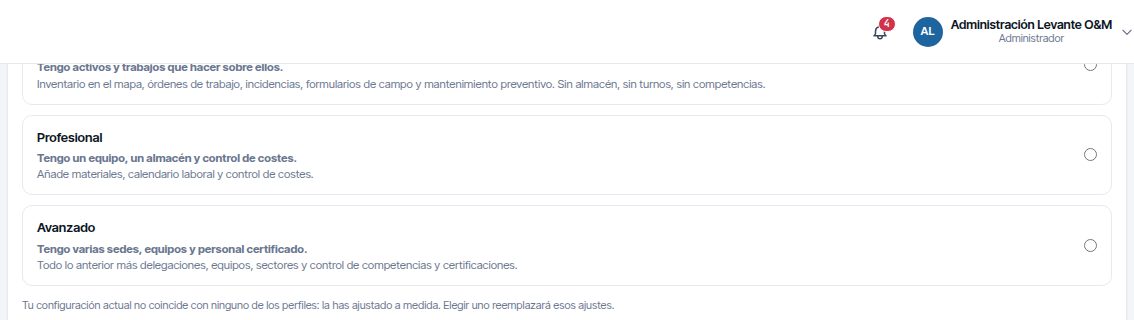
| Profile | For whom | “Ajustar en detalle” options switched on |
|---|---|---|
| Esencial (Essential) | “Tengo activos y trabajos que hacer sobre ellos.” (I have assets and work to do on them.) | Incidents, field forms and preventive maintenance |
| Profesional (Professional) | “Tengo un equipo, un almacén y control de costes.” (I have a team, a warehouse and cost control.) | Those of Esencial, plus warehouse, shifts and costs |
| Avanzado (Advanced) | “Tengo varias sedes, equipos y personal certificado.” (I have several sites, teams and certified staff.) | All |
The settings that the profile sets and that are not visible on the screen:
| Setting | Esencial | Profesional | Avanzado |
|---|---|---|---|
| WO life cycle (see Work orders) | Simple | Supervised | Full |
| Mandatory fields when creating a WO | Only title and type | Also, a person in charge | Also, a person in charge |
| Dashboard (see Dashboard) | Basic | Basic | Full |
| Criticality | Priority only | Priority only | Priority and criticality |
With Priority only, the dashboard does not show the charts by criticality (Criticidad Incidencias (Incident criticality) and MTTR por Criticidad (SLA, horas de jornada) (MTTR by criticality, SLA, working hours)).
To change profile:
- Click the profile you want.
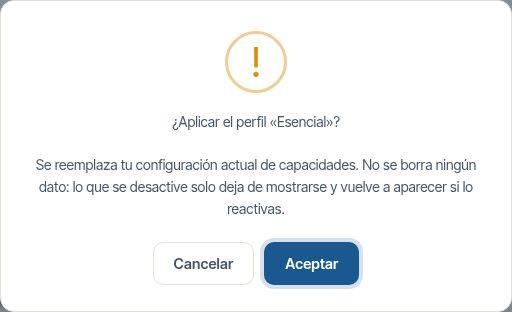
- Read the message: “¿Aplicar el perfil “…”? Se reemplaza tu configuración actual de capacidades…” (Apply the profile “…”? Your current capabilities configuration will be replaced…).
- Click Aceptar (OK). The profile is saved immediately and the page reloads.
If you then change a single option in Ajustar en detalle, your company no longer has an exact profile. Below the profiles you see: “Tu configuración actual no coincide con ninguno de los perfiles: la has ajustado a medida. Elegir uno reemplazará esos ajustes.” (Your current configuration does not match any of the profiles: you have customised it. Choosing one will replace those settings.). The hidden settings (life cycle, mandatory fields, dashboard and criticality) stay as the last profile left them.
Warning
Changing profile changes the WO life cycle and the mandatory fields. Do it at the start, not while operations are running. If you only want to switch a part on or off, use Ajustar en detalle.
Fine-tuning
Click Ajustar en detalle to see the ten switches. Switch them on or off and click Guardar configuración.
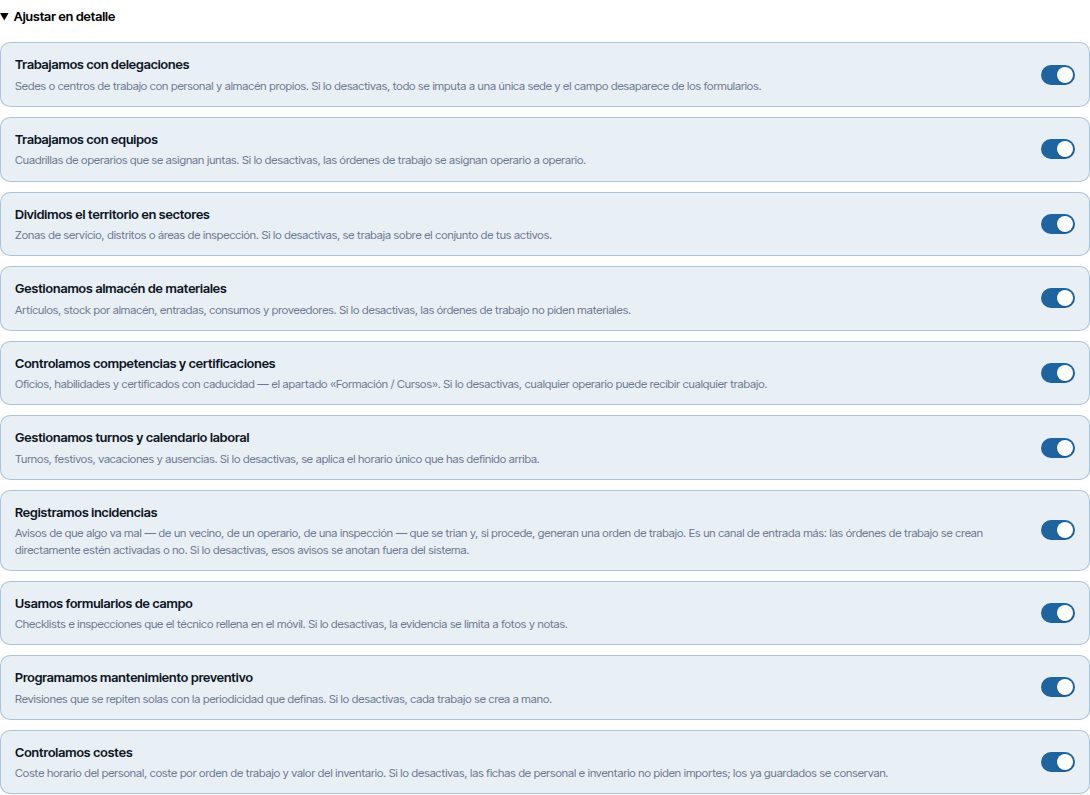
| Option | What appears when you switch it on | Manual |
|---|---|---|
| Trabajamos con delegaciones (We work with branches) | The Delegaciones (Branches) menu, its map layer and the Delegación (Branch) field, mandatory, in staff, teams and other forms | Branches and sectors |
| Trabajamos con equipos (We work with teams) | The Equipos (Teams) button in Gestión de Personal and the teams in WOs, sectors, the planner and reading batches | Staff and teams |
| Dividimos el territorio en sectores (We divide the territory into sectors) | The Sectores (Sectors) menu, its map layer and the sector filter | Branches and sectors |
| Gestionamos almacén de materiales (We manage a materials warehouse) | The Inventario (Inventory) (map button and administrator menu) and the WO Materiales (Materials) | Inventory and warehouses |
| Controlamos competencias y certificaciones (We control skills and certifications) | The Oficios (Trades) button, the Formación / Cursos (Training / Courses) menu and the warning when the staff do not cover what the task requires | Staff and teams |
| Gestionamos turnos y calendario laboral (We manage shifts and work calendar) | The Turnos (Shifts), Festivos (Public holidays), Ausencias (Absences) and Excepciones (Exceptions) buttons. Without it, everyone uses the company hours (Días y horario de trabajo) | Work calendar |
| Registramos incidencias (We record incidents) | The Incidencias (Incidents) tab, its map layer and the Incidencias · Tipos (Incidents · Types) menu | Incidents |
| Usamos formularios de campo (We use field forms) | The Formularios (Forms) menu and the forms linked to WOs | Forms |
| Programamos mantenimiento preventivo (We schedule preventive maintenance) | The WO Recurrencia (Recurrence) and the Cumpl. Preventivo (Preventive compliance) indicator | Preventive maintenance and maintenance types |
| Controlamos costes (We control costs) | The administrator's Informes (Reports) group, the dashboard's Costes reales (Actual costs) card and the WO Coste real (Actual cost) | Costs and reports |
When you switch off Trabajamos con delegaciones a warning appears: the route optimiser needs to know where each technician starts from. Before doing so, give the head office an address with coordinates (see Branches and sectors).
Suggestions
Maptainer looks at how you work and, if your data justifies it, suggests switching something on. Suggestions are shown in two ways:
- Below an option in Ajustar en detalle, with the label Te lo sugerimos: (We suggest:) and the reason. In that case Ajustar en detalle opens by itself.
- Above the profiles, for a module you have not subscribed to, with the text “Habla con tu proveedor para contratarlo” (Speak to your provider to subscribe to it).
They are only suggestions: they do not change anything unless you act.
Work order geofence
This section sets how the system detects that a technician arrives at or leaves the area of a WO. It only appears with the Tracking de personal (Staff tracking) module. What the geofence does with WOs is described in Work orders.
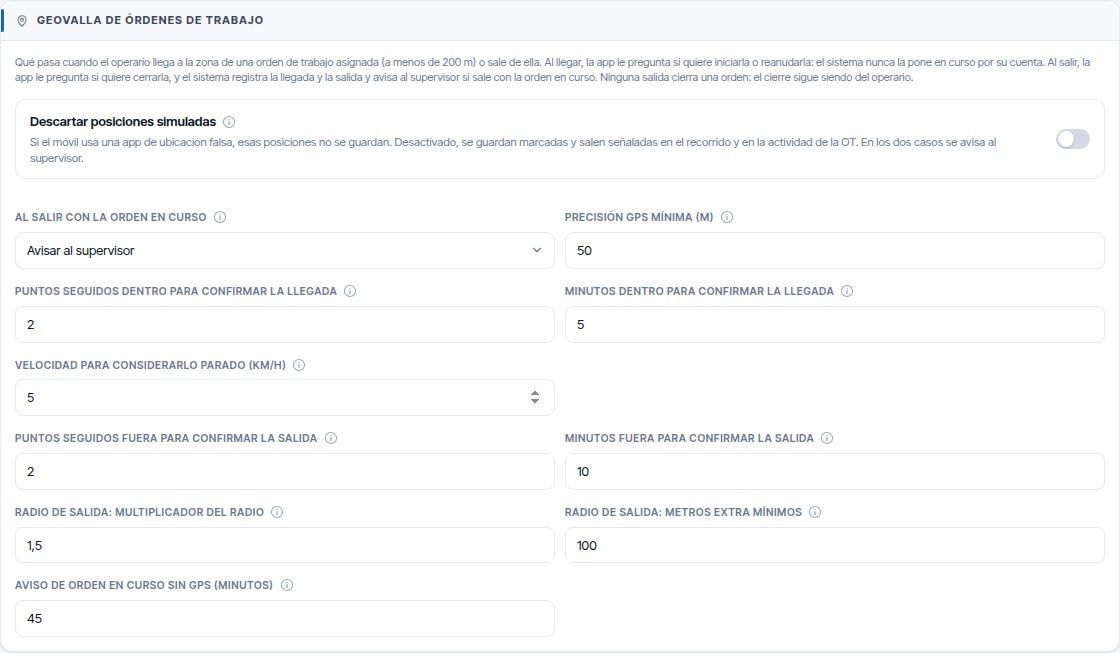
The entry zone is 200 m around the assets, the point or the area of the WO. The geofence never changes the status of a WO.
| Field | What it does | Default | Accepts |
|---|---|---|---|
| Descartar posiciones simuladas (Discard simulated positions) | On: positions from a fake location app are not saved. Off: they are saved and flagged. In both cases the supervisor is alerted. Only works on Android | No | — |
| Al salir con la orden en curso (When leaving with the order in progress) | Avisar al supervisor (Alert the supervisor) or Solo registrar la salida (Only record the exit) | Avisar al supervisor | — |
| Precisión GPS mínima (m) (Minimum GPS accuracy, m) | Positions with a larger error do not count for arrivals or exits. Raise it with poor coverage; lower it if there are false arrivals | 50 | 5 to 100 |
| Puntos seguidos dentro para confirmar la llegada (Consecutive points inside to confirm arrival) | Consecutive positions inside the zone to accept the arrival if the technician keeps moving | 2 | 1 to 10 |
| Minutos dentro para confirmar la llegada (Minutes inside to confirm arrival) | Time inside the zone if the technician does not stop. This way, driving past is not arriving | 5 | 0 to 60 |
| Velocidad para considerarlo parado (km/h) (Speed to consider it stopped, km/h) | Below it, the technician is stopped: one stopped position inside confirms the arrival | 5 | 0 to 30 |
| Puntos seguidos fuera para confirmar la salida (Consecutive points outside to confirm exit) | Consecutive positions outside the exit radius | 2 | 1 to 10 |
| Minutos fuera para confirmar la salida (Minutes outside to confirm exit) | Time outside before accepting the exit, for example if they go to the van to fetch material | 10 | 0 to 120 |
| Radio de salida: multiplicador del radio (Exit radius: radius multiplier) | The exit radius is the greater of 200 m times this number or 200 m plus the extra metres | 1,5 | 1 to 5 |
| Radio de salida: metros extra mínimos (Exit radius: minimum extra metres) | Metres added to the 200 m. With the default values, the exit is at 300 m | 100 | 0 to 2000 |
| Aviso de orden en curso sin GPS (minutos) (Alert for order in progress without GPS, minutes) | If the technician was in the zone and the mobile stops sending positions for this time, the WO is flagged for review | 45 | 10 to 720 |
If a value is out of range, when you save a message appears with the name of the field and what it accepts, for example “Revisa “Precisión GPS mínima (m)”: admite de 5 a 100.” (Check “Precisión GPS mínima (m)”: accepts 5 to 100.), and the cursor goes to that field. Nothing is saved until you correct it.
Dashboard targets
This section only changes the colour of the dashboard indicators: green, amber or red. It does not change any deadline. It is explained in Dashboard.
Subscribed modules
This section shows which modules your company has. It is for information only: modules are enabled by your provider.
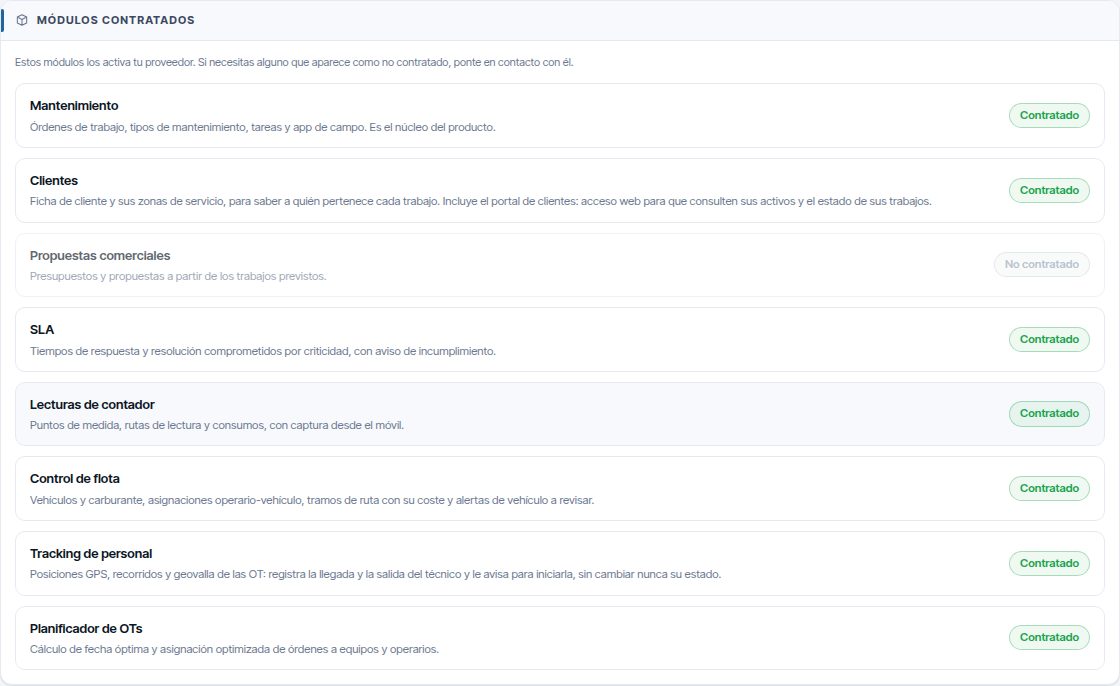
| Module | What it includes | Manual |
|---|---|---|
| Mantenimiento (Maintenance) | Work orders, maintenance types, tasks, inventory and field app | Work orders |
| Clientes (Customers) | Customers, their zones and the customer portal | Customers and SLA, Customer portal |
| Propuestas comerciales (Commercial proposals) | Quotes based on the planned work | — |
| SLA | Response and resolution deadlines by criticality | Customers and SLA |
| Lecturas de contador (Meter readings) | Measuring points, routes and reading batches | Reading batches |
| Control de flota (Fleet control) | Vehicles, fuel, assignments, journeys and vehicle alerts | Fleet and GPS tracking |
| Tracking de personal | GPS positions, tracks and WO geofence | Fleet and GPS tracking |
| Planificador de OTs (WO planner) | The optimiser that distributes WOs among teams and technicians | Planning and dispatch |
If you need a module that is shown as No contratado, speak to your provider. Without the module, its screens do not appear and its permissions have no effect, not even for the administrator.
SLA
The SLA de la organización (Organisation SLA) section brings together the response and resolution deadlines, which deadline each priority uses, the “SLA en riesgo” (SLA at risk) alert and how compliance is assessed. It only appears with the SLA module. It is explained in Customers and SLA.
Type of meter readings
It only appears with the Lecturas de contador module. It switches on the reading modes your company uses:
| Option | What it allows |
|---|---|
| Lectura por fechas (Reading by date) | Batches generated by period, with dates and frequencies per measuring point |
| Lectura por rutas (Reading by route) | Batches based on routes that group assets in visiting order |
The two modes are explained in Reading batches.
Roles and permissions
Each user has a role, and the role decides what they can do on the web and in the app. Roles belong to your company: whatever you change here does not affect other companies.
Where it is
- Click Ir al administrador in the user menu.
- Open Gestión de Personal.
- Click Roles y Permisos, at the top right.
Gestión de Roles y Permisos (Roles and permissions management) opens. On the left are the roles; on the right, the permissions of the chosen role. The padlock marks the system roles, which cannot be deleted.
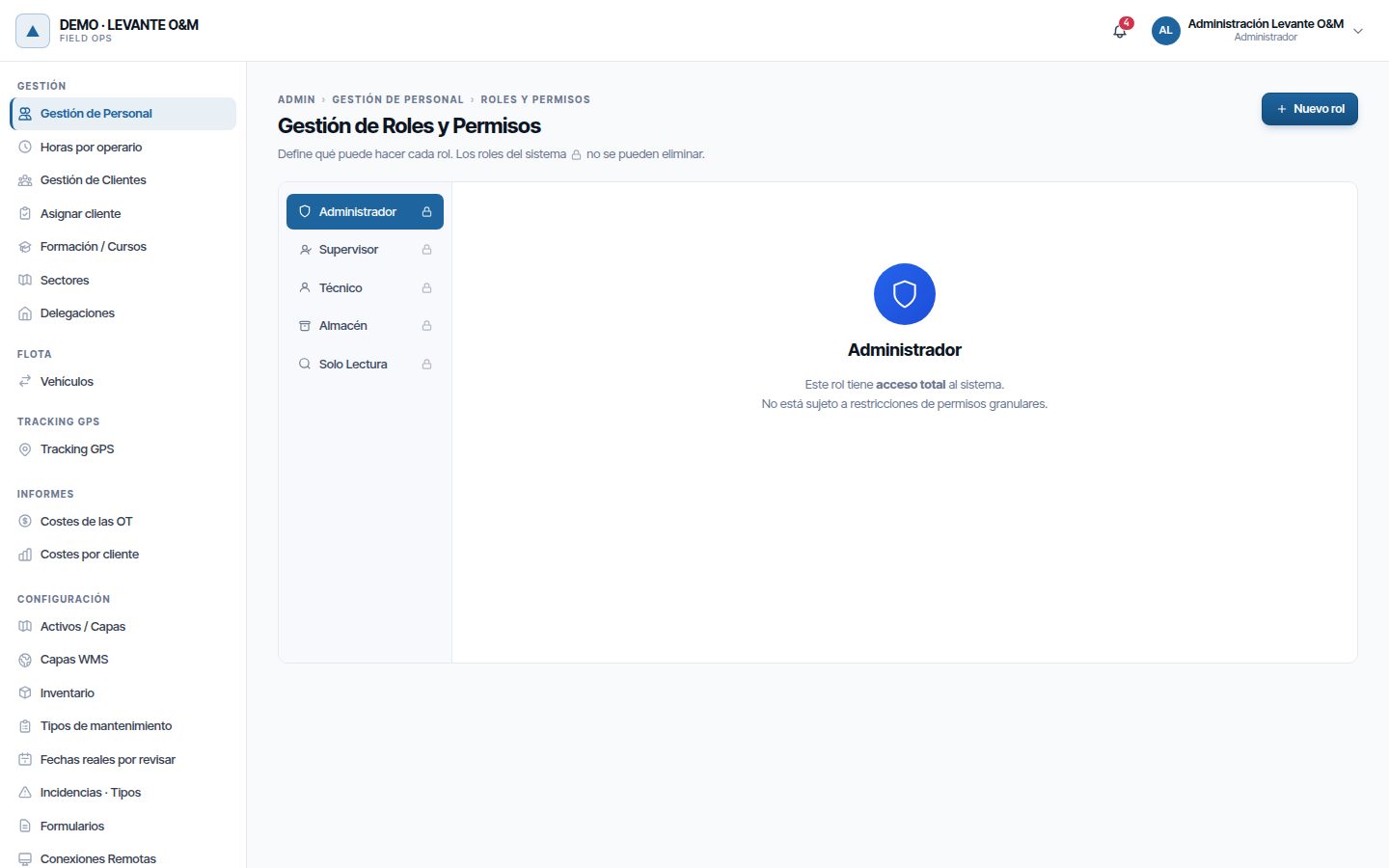
Starting roles
Each company starts with five system roles:
| Role | For whom |
|---|---|
| Administrador | Whoever configures the company. It has full access: it does not use the permissions table |
| Supervisor | Whoever organises the work: creates, assigns and closes WOs, manages assets and meter readings, approves asset changes and sees costs and staff tracking |
| Técnico (Technician) | The field worker. Works mainly with the app |
| Almacén (Warehouse) | Whoever manages the inventory and materials |
| Solo Lectura (Read only) | Whoever views everything without changing anything, for example an auditor |
This is how their permissions come when the company is created. Your company may have changed them since.
| Module | Supervisor | Técnico | Almacén | Solo Lectura |
|---|---|---|---|---|
| Mantenimiento | All | Ver, Crear (Create), Editar | Ver | Ver |
| Activos GIS (GIS assets) | All | Ver, Crear, Editar | Ver | Ver |
| Inventario | Ver, Crear, Editar, Movimientos (Movements) | Ver, Movimientos | All | Ver |
| Lecturas (Meter readings) | All | Ver, Crear, Editar, Eliminar (Delete) | — | Ver |
| Reportes (Reports) | All | Ver | Ver | Ver, Exportar (Export) |
| Personal (Staff), Delegaciones, Clientes, Sectores | Ver | — | — | Ver |
| SLA | Ver | — | — | — |
| Configuración Global | — | — | — | — |
| Control de Flota, Portal del cliente (Customer portal), Presupuestos (Quotes) | — | — | — | — |
| Avisos (Alerts) | All five | — | Stock | — |
In Activos GIS, “All” includes Aprobar cambios (Approve changes), and in Reportes, Costes (Costs) and Seguimiento personal (Staff tracking). With these starting permissions:
- Costes, Seguimiento personal and Aprobar cambios are held by Supervisor and Administrador. Técnico, Almacén and Solo Lectura do not have them.
- Control almacén (Warehouse control) is held by Almacén, but not by Supervisor: the supervisor does not adjust the inventory or record valued receipts.
- Configuración Global → Editar, which gives access to the maintenance catalogue, is held only by Administrador.
- Personal → Editar, which shows the rate, the home address and the reason for absences, is held only by Administrador.
- The Técnico completes their WOs from the app, but does not validate or close them. If you want them to, tick Cerrar (Close) under Mantenimiento (see Changing a role's permissions).
What each role sees on screen is summarised in Getting started.
The permissions table
Click a role to see its table. Each row is a module and each checkbox, a permission. The rows are in four groups: Operativa Diaria (Daily operations), Administración y Catálogos (Administration and catalogues), Módulos Contratados (Subscribed modules) and Avisos que recibe (Alerts received).
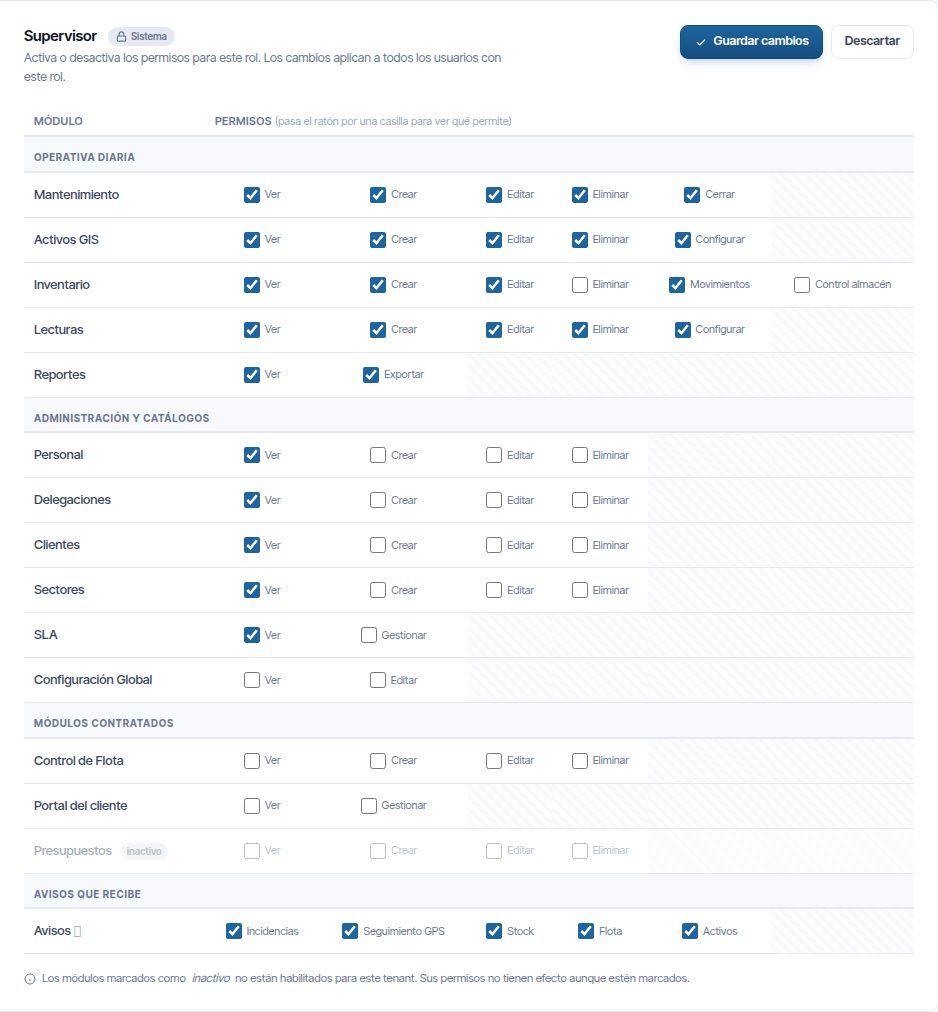
A grey row with the label inactivo (inactive) belongs to a module that your company has not subscribed to. Its permissions have no effect even if they are ticked.
Each checkbox has its name beside it, and hovering over it shows what it allows. These are the checkboxes in each row:
| Row | Checkboxes, from left to right |
|---|---|
| Mantenimiento | Ver, Crear, Editar, Eliminar, Cerrar |
| Activos GIS | Ver, Crear, Editar, Eliminar, Configurar (Configure), Aprobar cambios |
| Inventario | Ver, Crear, Editar, Eliminar, Movimientos, Control almacén |
| Lecturas | Ver, Crear, Editar, Eliminar, Configurar |
| Reportes | Ver, Exportar, Costes, Seguimiento personal |
| Personal, Delegaciones, Clientes, Sectores, Control de Flota, Presupuestos | Ver, Crear, Editar, Eliminar |
| SLA | Ver, Gestionar (Manage) |
| Configuración Global | Ver, Editar |
| Portal del cliente | Ver, Gestionar |
| Avisos | Each checkbox has its name: Incidencias (Incidents), Seguimiento GPS (GPS tracking), Stock, Flota (Fleet) and Activos (Assets) |
What each permission allows
The detail for each module is in its manual. This is the summary:
| Module | What it allows | Detail |
|---|---|---|
| Mantenimiento | View, create, edit and delete WOs and incidents. Cerrar: complete, validate and close WOs, also from the app. Eliminar is also needed to cancel from the app and to change or remove a schedule that has already generated pending WOs | Work orders, Incidents, Preventive maintenance |
| Activos GIS | View, create, edit and delete assets. Eliminar also to permanently decommission an asset and to Reemplazar datos (Replace data) when loading a layer. Configurar: layers, families and styles. Aprobar cambios: approve or reject the change requests that come from the app; nobody decides on their own request except the administrator, and approving a decommissioning also requires Eliminar | Assets, Layers and asset types |
| Inventario | Items, stock and movements, including the material consumed from the app. Control almacén: inventory adjustment, receipts with purchase price (those that recalculate the average price, when the company controls costs), minimum stock, valued inventory and consumption per asset | Inventory and warehouses |
| Lecturas | View, create, edit and delete meter readings. Configurar: measuring points and rules | Reading batches |
| Reportes | Ver: dashboard and lists, without amounts. Exportar: download the data. Costes: WO and customer costs, actual cost on the WO record, cost reports, inventory value and valued consumption per asset. Seguimiento personal: fleet panel and tracking per person, geofence review (visits and silent GPS), and hours worked and utilisation per person in the team capacity | Dashboard, Costs and reports, Fleet and GPS tracking |
| Personal | Workers, teams, trades, training, shifts and absences. Editar also shows the hourly rate, the home address and the notes of each worker and the reason for absences; without it, the absence is shown as No disponible (Not available) | Staff and teams |
| Delegaciones and Sectores | Their administrator screens | Branches and sectors |
| Clientes and SLA | Customers, their zones and their SLA. SLA Gestionar: change deadlines | Customers and SLA |
| Configuración Global | Ver: open Configuración from the user menu, read-only. Editar: save changes in Configuración, schedule periodic dashboard reports and configure the maintenance catalogue: maintenance types and their tasks, standard tasks and their trades, form templates and their layout editor, and incident types | Dashboard, Preventive maintenance, Forms |
| Control de Flota | Vehicles, assignments and fuel prices | Fleet and GPS tracking |
| Portal del cliente | View and manage the portal users of each customer | Customer portal |
| Avisos | Which general alert families reach the bell | Getting started |
What the technician sends from the app is also checked against their role: Cerrar to validate, close or reopen a finished WO, Eliminar to cancel it; asset Crear, Editar and Eliminar to create, modify or decommission assets; meter reading Crear and Editar; and inventory Movimientos for materials. If something is rejected, the app shows the error for that record and the rest is saved. See Permissions in the app.
Anyone who does not have Configuración Global and is not an administrator does not see Configuración in the menu. If they open the page by typing its address, they only see “No tienes permiso para acceder a Configuración” (You do not have permission to access Configuración).
Changing a role's permissions
- Click the role on the left.
- Tick or untick the checkboxes. The ones you have changed are highlighted.
- Click Guardar cambios (Save changes). “Permisos guardados correctamente” (Permissions saved successfully) appears.
Descartar (Discard) puts the checkboxes back as they were saved. The changes apply to all users with that role. They reach them within a minute at most; menus change when they reload the page.
The Administrador role has no checkboxes: it always has full access to everything subscribed.
Current limitation
Guardar cambios and Descartar are always visible, even if you have not changed anything. How to avoid it: they do nothing if there are no changes.
Creating a role
Create your own role when none of the starting ones fits, for example an area manager who only views and assigns.
- Click Nuevo rol (New role), at the top right.
- Enter the Nombre del rol (Role name) (mandatory).
- If you want, enter a Descripción (Description).
- In Copiar permisos base de (Copy base permissions from), choose the role to start from, or leave it as “— Sin permisos base —” (No base permissions).
- Click Crear rol (Create role). “Rol creado correctamente” (Role created successfully) appears.
- Click the new role on the left and adjust its permissions.
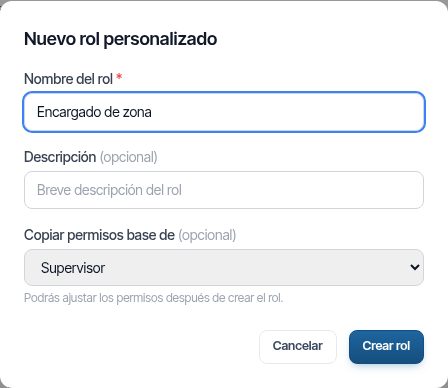
- You can only copy the permissions of Supervisor, Técnico, Almacén and Solo Lectura. A custom role cannot have the administrator's full access.
- You cannot use a name that already exists (“Ya existe un rol con ese nombre.”, A role with that name already exists.) or the internal names of the system roles: admin, supervisor, technician, warehouse, readonly or superadmin.
The role's tab and the Rol de sistema (System role) drop-down on the staff record show the name. The description appears when you hover over the tab and below the role title.
Deleting a role
You can only delete custom roles that no user has. System roles are never deleted.
- Click the role on the left.
- Click Eliminar rol (Delete role) and confirm with Eliminar.
If someone has the role, Eliminar rol does not appear: instead, a notice says how many users have it and who they are. Change their role on their Gestión de Personal record and the button will appear. If someone is given the role just as you delete it, Maptainer rejects the deletion and shows the list of users.
Exceptions for one user
There is no screen for giving or removing a permission for a single person. If someone needs permissions different from those of their role, create a role for them.
Company users
Company users are not created separately: each account is linked to a staff record. Everything is done in Gestión de Personal and is explained in Staff and teams.
| You want to | How | Manual |
|---|---|---|
| Create a user | Nuevo trabajador (New worker) with Dar acceso a la aplicación (Give access to the application) switched on. They receive an email to choose their password | Giving access to the application |
| Change their role | On their record, Rol de sistema | Editing a worker |
| Stop them signing in | On their record, Estado de la cuenta (Account status) → Inactivo / Bloqueado (Inactive / Locked) | Deactivating or deleting |
| Lift a lock caused by a failed password | Desbloquear (Unlock) next to “Bloqueado hasta HH:MM” (Locked until HH:MM) in the list | List and filters |
| Delete the account (data erasure) | Eliminar the record. It anonymises the record and the account; WOs and costs are kept | Deleting a person |
| Give them a copy of their data | Exportar datos (Export data) in their row. It downloads a ZIP | Exporting a person's data |
- Your plan sets a maximum number of users. All accounts count, including inactive ones and those that have not been activated. When you reach the maximum, “Has alcanzado el límite de … usuarios de tu plan. Amplía tu suscripción para poder añadir más.” (You have reached your plan's limit of … users. Upgrade your subscription to add more.) appears. Only deleting an account frees a place: the deleted person is anonymised and no longer counts.
- Rol de sistema lists Administrador, Supervisor, Técnico, Almacén and Solo Lectura, followed by the custom roles by name. The ⓘ help explains what each system role does.
- Your customers' portal users are managed in Gestión de Clientes (Customer management). See Customer portal.
Remote connections
A remote connection stores the address and access key of another system's API, for example your ERP or an external inventory. Asset layers use it to fetch their data (see Layers and asset types).
It is in the administrator → Conexiones Remotas. Only the administrator sees it.
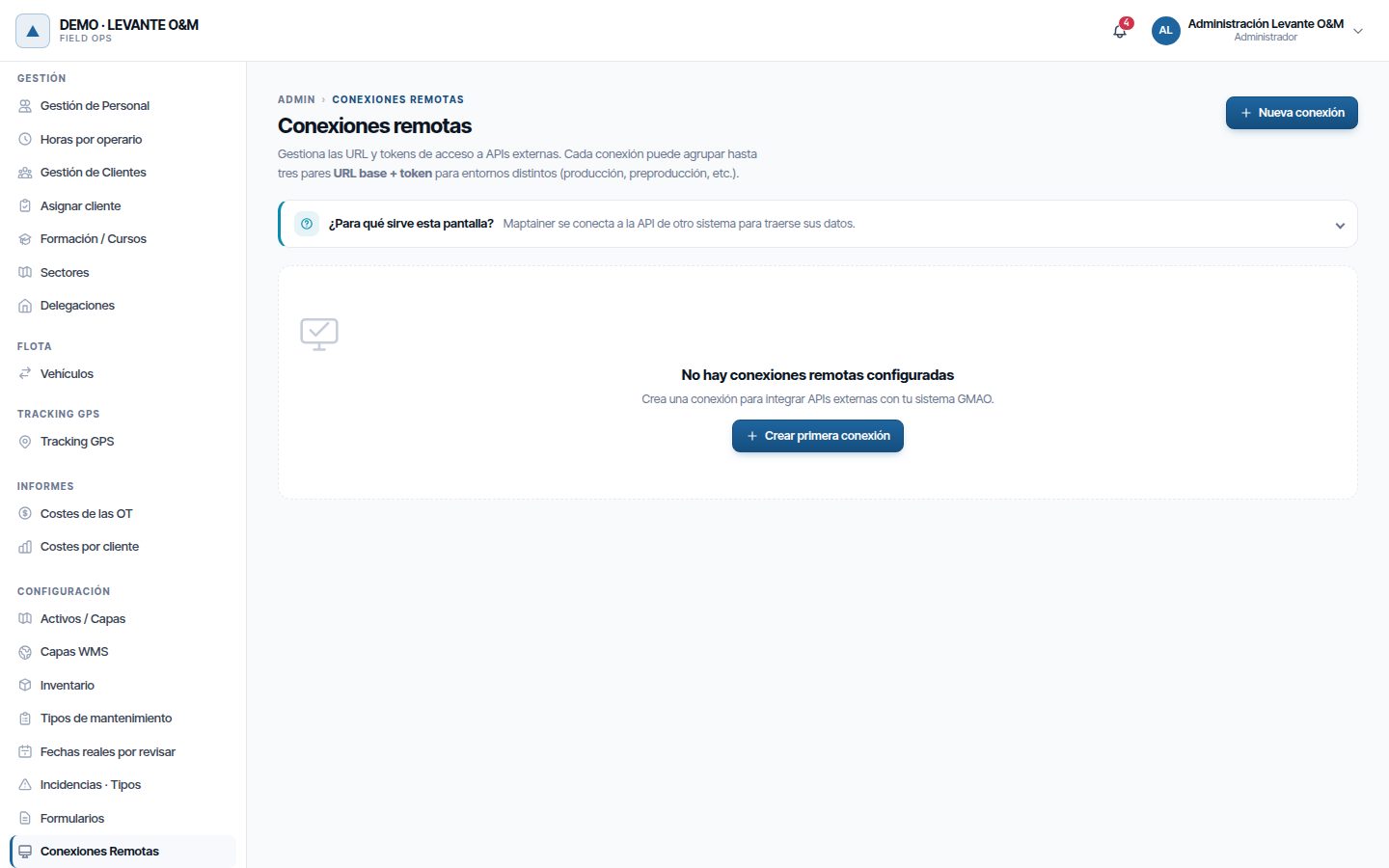
If you are unsure whether to use this screen or API y copias de datos, open ¿Para qué sirve esta pantalla? (What is this screen for?) below the title, or see Remote connections or API keys.

Each connection has a name and up to three URL base (Base URL) + token pairs, for example for production and pre-production. Each connection is shown as a card with its addresses and whether the token is Configurado (Configured) or Sin token (No token). The token is never shown again.
Creating a connection
- Click Nueva conexión (New connection) (or Crear primera conexión (Create first connection) if there are none).
- Enter the Nombre (Name), for example “API ERP de producción”.
- In URL 0, enter the base address of the API, for example “https://erp.ejemplo.com/api/v1”.
- Next to it, enter the Token de acceso (Access token) if the API requires one.
- If necessary, fill in URL 1 and URL 2. Empty rows are ignored.
- Click Crear conexión (Create connection). “Conexión creada” (Connection created) appears.
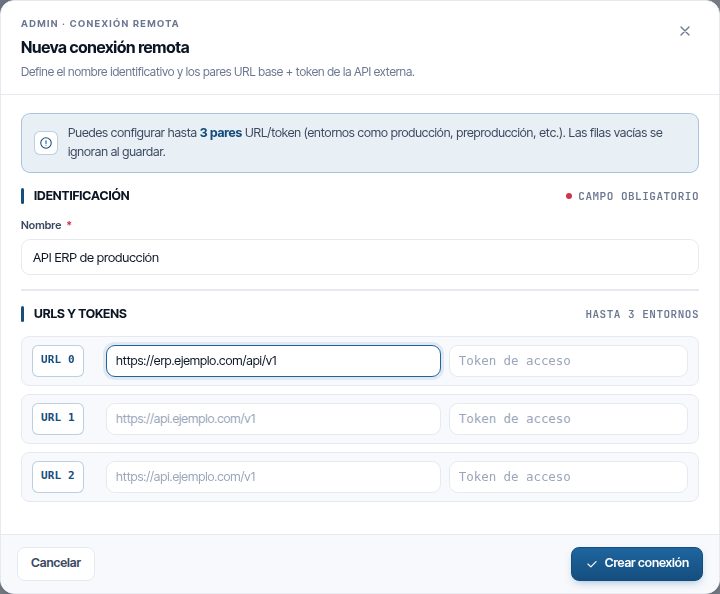
Maptainer sends the token to the API as a “Bearer” credential. It only connects to public Internet addresses and does not follow redirects.
Editing or deleting a connection
- Editar conexión (Edit connection) (the pencil on the card): change the name or the addresses. Leave the token empty to keep the saved one, or tick Quitar el token guardado (Remove the saved token). Click Guardar cambios.
- Eliminar conexión (Delete connection) (the bin): confirm with Eliminar. It cannot be undone.
If any layer uses the connection, it is not deleted: a message appears with the names of those layers. Remove the connection from their Origen de datos externo (External data source), or delete those layers, and try again. Nor can you empty an address that a layer uses. If you change the order of the addresses, each layer keeps using its own.
Each layer uses the address you choose in its Base URL (see Layers and asset types).
API and data backups
This screen is used for two things: giving other systems read access to Maptainer data, and downloading a full copy of everything. It is in the administrator → API y copias de datos. Only the administrator sees it.
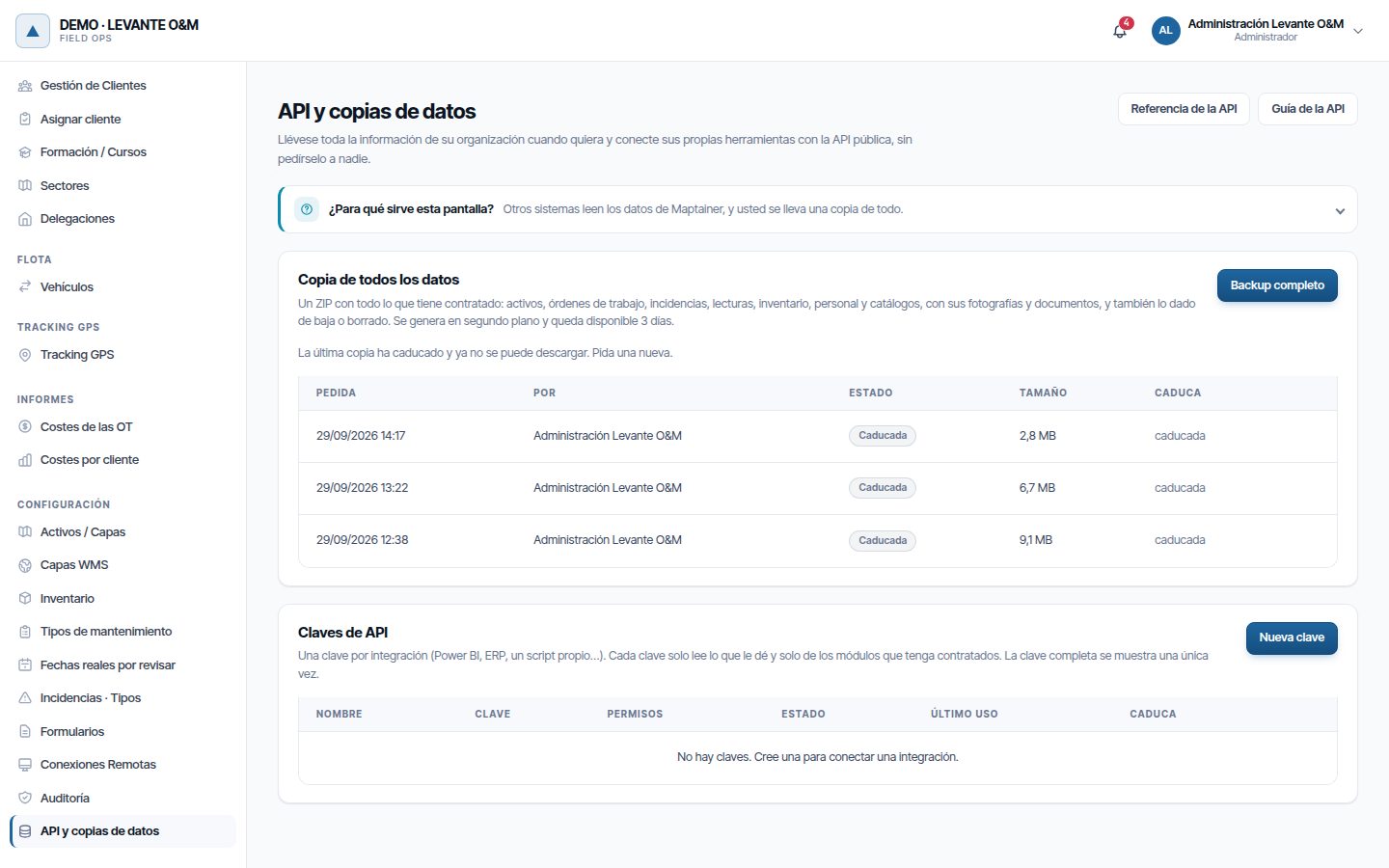
Remote connections or API keys
Both screens store credentials, but in opposite directions:
| Conexiones Remotas | Claves de API (API keys) | |
|---|---|---|
| Who calls whom | Maptainer calls another system | Another system calls Maptainer |
| Who creates the credential | The other system; you copy it here | Maptainer; you give it to the other system |
| What for | Bringing assets into a layer from an external API | Power BI, an ERP or your own program that reads your data |
Both screens explain it in ¿Para qué sirve esta pantalla?, below the title. Click that strip to open it. From there you can jump to the other screen or to this manual.

Full backup
Backup completo (Full backup) generates a ZIP with everything your company has subscribed to: assets, work orders, incidents, meter readings, inventory, staff and catalogues. It also includes the photographs and attached documents, and whatever has been decommissioned or deleted.
- Click Backup completo.
- Confirm with Generar copia (Generate backup).
- Wait. A bar shows the progress. You can leave the screen: the backup keeps being generated.
- When it finishes, click Descargar el ZIP (Download the ZIP).
Only one backup is generated at a time: meanwhile, the button is locked. Each backup can be downloaded for 3 days and is then deleted. The history says who requested it, its status (En cola (Queued), Generándose (Generating), Disponible (Available), Fallida (Failed) or Caducada (Expired)) and its size.
When you open the ZIP you will find:
| Folder or file | What it contains |
|---|---|
| LÉAME.txt | What is in the backup and how to read it |
| Hojas de cálculo (Spreadsheets) | Your data in sheets that open in Excel: the assets, one sheet per layer with its fields as columns, the work orders with their tasks, staff, materials and signatures, the incidents, the meter readings, the customers, the staff and the inventory. Wherever there is a customer, a status or a person, it shows the name |
| files | The photographs, documents and signatures. In each sheet, the Fichero (File) column says which one belongs to each row |
| data and manifest.json | The same data in a technical format, for loading into another tool |
Dates are in the time zone of your main branch and numbers use a decimal comma. Hours are in decimals: 1,50 is one and a half hours.
Warning
The ZIP contains all your company's data, including your workforce's personal data. Keep it somewhere safe and do not send it by email.
Creating an API key
Create one key for each tool that connects. That way you can remove access for one without touching the others.
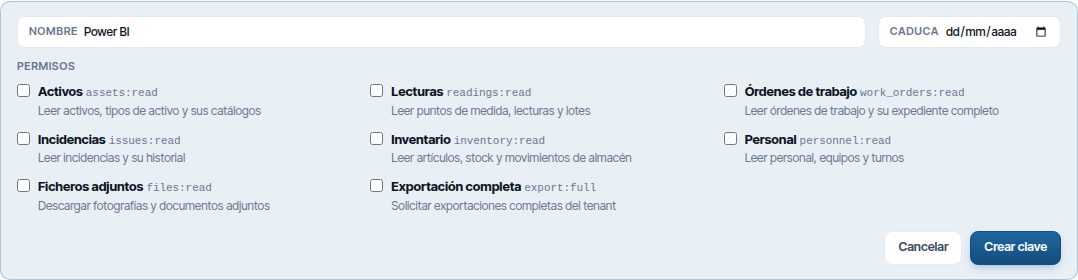
- Click Nueva clave (New key).
- Enter the Nombre, for example “Power BI”.
- If you want, choose when it Caduca (Expires). Without a date, it never expires.
- Tick the Permisos (Permissions): what the key will be able to read. Modules not subscribed to are shown in grey and cannot be ticked.
- Click Crear clave (Create key).
- Click Copiar (Copy) and paste the key into the other tool. Then click Hecho (Done).
Warning
The full key is only shown once, right when you create it. If it is lost, you have to rotate it or create another.
| Permission | What it allows reading |
|---|---|
| Activos | Assets, asset types and their catalogues |
| Lecturas | Measuring points, meter readings and batches |
| Órdenes de trabajo (Work orders) | Work orders and their full file |
| Incidencias | Incidents and their history |
| Inventario | Items, stock and warehouse movements |
| Personal | Staff, teams and shifts |
| Ficheros adjuntos (Attached files) | Photographs and attached documents |
| Exportación completa (Full export) | Request from the other tool the same backup as Backup completo |
Keys are read-only: none can create, change or delete data. Each key allows 120 requests per minute, and the company can have up to 50 keys.
Whoever is going to program the integration will find the technical details in Referencia de la API (API reference) and Guía de la API (API guide), at the top right.
Deactivating, rotating or deleting a key
The keys table shows, for each one, its permissions, its status (Activa (Active), Desactivada (Deactivated) or Caducada), its Último uso (Last used) and when it Caduca.
- Desactivar (Deactivate): the key stops working until you click Activar (Activate). Useful for cutting off access for a while.
- Rotar (Rotate): creates a new key with the same permissions. You choose whether the previous one is deactivated now or keeps working for 1, 7 or 30 more days, to allow time to change it in the other tool.
- Eliminar: the key stops working for good. It cannot be undone.
Tip
Rotate keys from time to time and whenever someone who knew a key leaves the company. A key whose Último uso is very old is probably not needed: deactivate it.
Audit
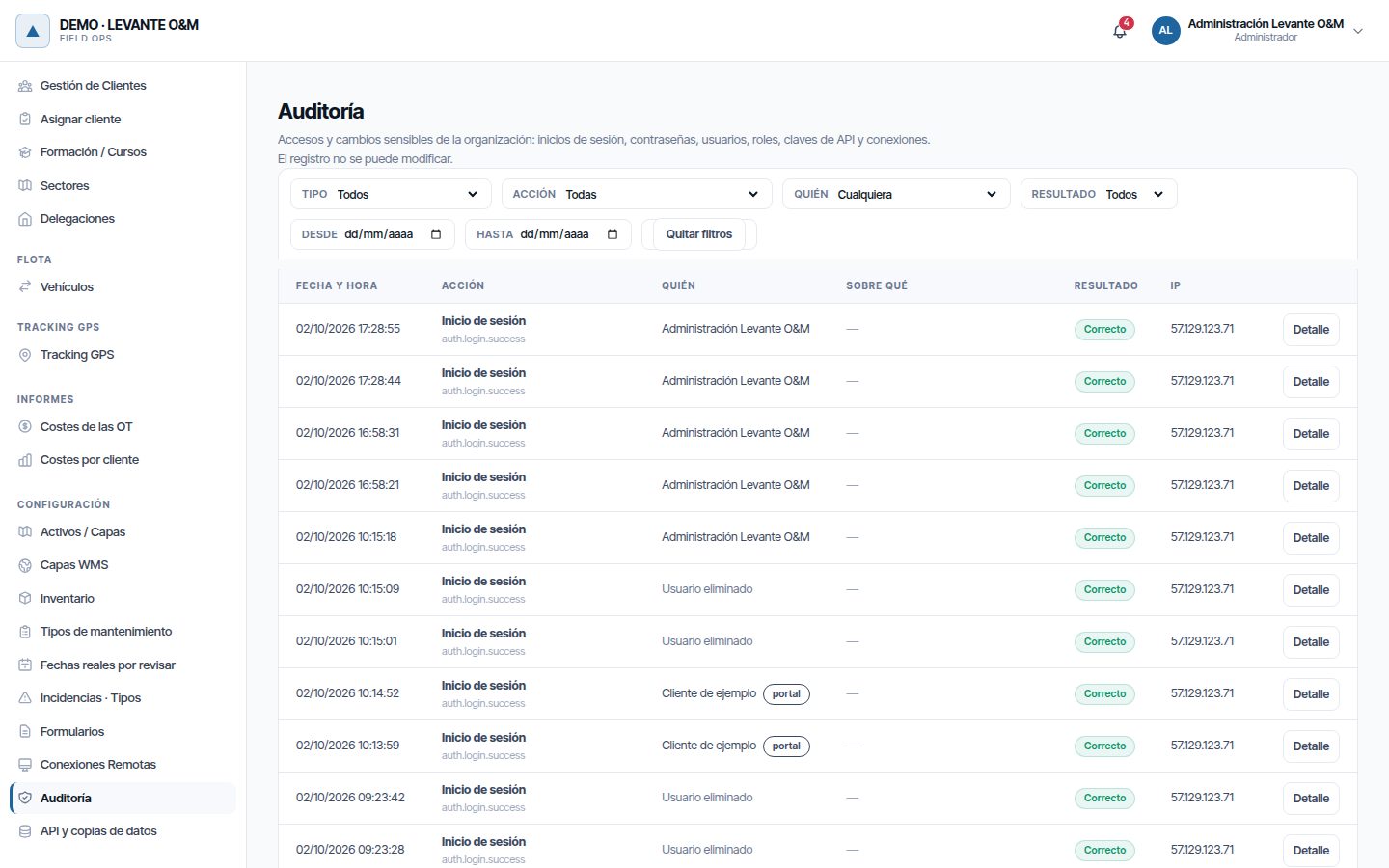
The audit log records your company's sign-ins and sensitive changes: who signs in, from which IP and what they change in users, roles and credentials. Nobody can modify or delete the log from Maptainer.
It is in the administrator → Auditoría. Only the administrator sees it.
What is recorded
| Type | Actions |
|---|---|
| Sign-ins and passwords | Sign-in, successful, failed or locked; sign-out; password change, recovery and reset; account activated; mobile session revoked |
| Users | User created from Gestión de Personal, user deleted (anonymised), user unlocked and activation resent |
| Staff | A person's sign-in account modified from their record: role, status or login email (for the email it only records that it changed, not the addresses). Person deleted (anonymised), with the count of what was deleted |
| Personal data (GDPR) | A person's data exported by the administrator, and download of their own data from the profile |
| Portal users | Portal user created, modified, deleted or unlocked, and activation resent, also when the customer's administrator does it from the portal |
| Roles and permissions | Role created or deleted; permission granted to or withdrawn from a role |
| API keys | Key created, modified or deleted |
| Remote connections | Connection created, modified or deleted. The token is never stored |
| Organisation | Changes to the company's data, such as Tipo de Lecturas |
| Work orders | Actual dates corrected or reviewed; automatic start reverted; geofence visit confirmed or discarded; customer sign-off on a job |
| Asset requests | Asset request approved or rejected, with the request type and the review notes (see Assets) |
| Customers | Customer assigned in bulk |
Note
Changes to Configuración General (working day, profiles, Ajustar en detalle, geofence, targets and SLA) are not recorded in the audit log.
Searching the log
Each row has Fecha y hora (Date and time), Acción (Action), Quién (Who), Sobre qué (On what), Resultado (Result) (Correcto (Successful) or Fallido (Failed)) and IP.
- Filter with Tipo (Type), Acción, Quién, Resultado, Desde (From) and Hasta (To). The list updates immediately.
- Click Detalle (Detail) on a row to see the data: what changed (“antes → después”, before → after), the IP and the browser or the app.
- Click the name under Quién to see only what that person did.
- Click historial (history), under Sobre qué, to see everything that affects that user, role or WO. quitar (remove) undoes that filter.
- Quitar filtros (Clear filters) returns to the full list.
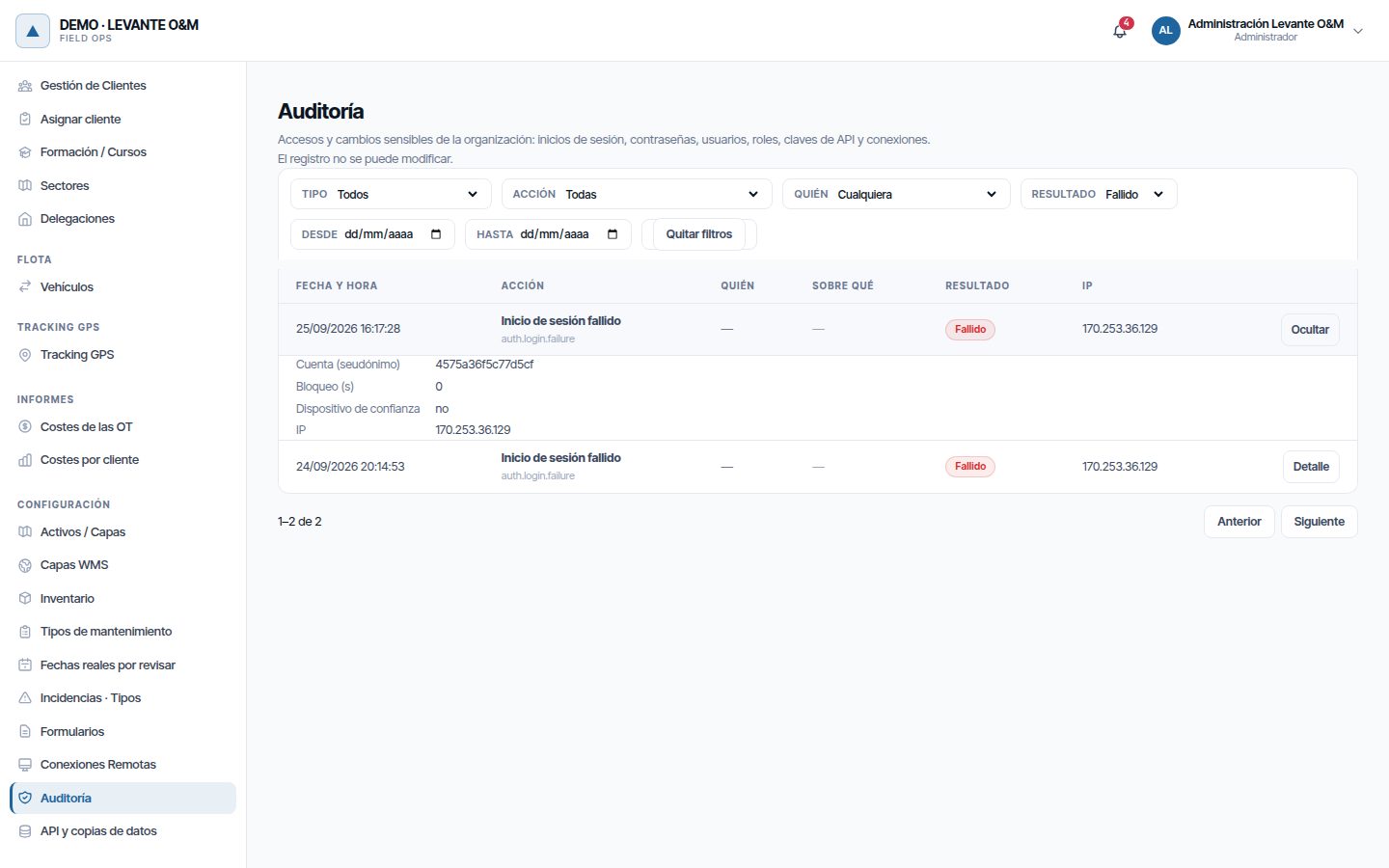
The list shows 50 entries per page; use Anterior (Previous) and Siguiente (Next). For failed attempts, Cuenta (seudónimo) (Account, pseudonym) shows a code instead of the email that was typed.
The audit log cannot be exported from the screen.
Account security and good practice
The access rules are the same for all users and are explained in Getting started:
| Rule | Where it is explained |
|---|---|
| The session closes after 90 minutes without activity, or lasts 30 days with Mantener sesión iniciada (Keep me signed in) | How long the session lasts |
| Only one web session per user: signing in on another computer closes the previous one | Only one session per user |
| After several failures in a row, the account is locked for 1 to 30 minutes and its owner receives an email | Error messages when signing in |
| Password rules | Password rules |
When your company's subscription is 30 days or less from expiring, a strip appears at the top: “Tu suscripción vence en N días. Ponte en contacto con tu proveedor para renovarla.” (Your subscription expires in N days. Contact your provider to renew it.). Entendido (Understood) hides it for the rest of the browser session.
Good practice for the administrator:
- One account per person. Do not share users: each sign-in throws the other person out and the audit log can no longer say who did what.
- Few administrators, but more than one. The administrator can do everything. Give that role only to whoever configures the company, and have at least two so that you are not left without access.
- The right role. Start from the most similar role and remove what is not needed. For a special case, create a custom role.
- Same-day deactivation. When someone leaves, set their account to Inactivo / Bloqueado and their record to Inactivo (Inactive) (see Deactivating or deleting).
- Lost mobile. Ask that person to close the mobile session from their profile (see Closing the mobile session). If they cannot, set their account to Inactivo / Bloqueado in the meantime.
- Check the audit log from time to time. Filter by Resultado → Fallido to see unusual sign-in attempts.
- Tokens with the minimum permission. In Conexiones Remotas, use read-only keys if the other API allows it. In Claves de API, tick only the permissions each tool needs.
- One API key per tool. That way you can cut one off without affecting the others, and Último uso tells you which one is still in use.
- Profile changes, at the start. Changing profile while operations are running changes the WO life cycle.
Current limitations
- Guardar cambios and Descartar are always visible in the permissions table.
Common problems
| Symptom | Probable cause | Solution |
|---|---|---|
| I do not see Configuración in the user menu | Your role does not have Configuración Global | Ask an administrator to give you that permission or the Administrador role |
| I do not see Roles y Permisos in Gestión de Personal | Only the administrator sees it | Ask an administrator for the change |
| The Geovalla (Geofence), SLA or Tipo de Lecturas section is missing | Its module is not subscribed to | Check Módulos contratados and speak to your provider |
| An administrator menu has disappeared | Its option was switched off in Ajustar en detalle or the profile was changed | Switch it on and click Guardar configuración |
| I have changed a profile and the WOs have other statuses | The profile changes the WO life cycle | Go back to the previous profile or adjust the workflow |
| I tick a permission and the user still cannot do it | The row is inactivo (module not subscribed to), the company does not use that part or the user has not reloaded the page | Check Módulos contratados and Ajustar en detalle; ask them to reload |
| A user does not see costs, does not approve asset changes or does not change maintenance types or form templates | They are separate permissions, which do not come with Reportes → Ver, Activos GIS → Editar or Mantenimiento → Editar: Reportes → Costes, Activos GIS → Aprobar cambios and Configuración Global → Editar | Tick them in their role if they need them |
| A technician's app shows an error when closing or cancelling a WO | Their role does not have Cerrar or Eliminar under Mantenimiento | Tick the permission in the role or have the office do it |
| The user can do more than their role says | They have the Administrador role, which does not use the table | Change their role on their record |
| “No se puede eliminar” (It cannot be deleted) when deleting a role | The role has users | Change those people's role and try again |
| “Has alcanzado el límite de … usuarios de tu plan” | All places are taken, including by inactive accounts | Delete unused accounts or upgrade the plan |
| Sincronizar API Rest (Synchronise REST API) fails | The connection has been deleted, the address is not public or the token has expired | Check the connection in Conexiones Remotas |
| Backup completo cannot be clicked | A backup is already being generated | Wait for it to finish; the bar shows the progress |
| Descargar (Download) no longer appears on a backup | 3 days have passed and it has expired | Click Backup completo to generate another |
| I cannot tick a permission when creating a key | Its module is not subscribed to | Check Módulos contratados and speak to your provider |
| I have lost an API key | It is only shown when it is created | Click Rotar on that key and copy the new one |
| An integration has stopped working | The key is deactivated, has expired or was deleted | Check its Estado (Status) and Caduca in Claves de API |
| The audit log is empty | The filters do not match any entry | Click Quitar filtros |
Last updated: