
Introduction
Everything revolves around each worker's staff record. The record is what gets assigned to work orders, what adds up hours and costs and what forms part of teams.
| Concept | What it is |
|---|---|
| Staff record | The worker's data: name, branch, shift, cost per hour, warehouse… Everyone who works in the field needs one |
| User account | The username and password to log in to the web or the app. It is optional and is always linked to a record |
| Trade | The worker's speciality: Electricista (Electrician), Fontanero (Plumber)… A worker can have several |
| Skill (Formación / Cursos (Training / Courses)) | A competence, certification, licence or training, with an expiry date if it has one |
| Team | A group of workers from the same branch that is assigned together to work orders and reading batches |
Record and user account
The mobile app always works on the record: assignments, timesheets, materials and meter readings. That is why without a staff record you cannot log in to the app. If you try, this warning appears: “Tu usuario no está vinculado a ninguna ficha de personal, así que la aplicación no puede darte trabajo. Pídele al administrador que te vincule.” (Your user is not linked to any staff record, so the application cannot give you work. Ask the administrator to link you.).
This also applies to the administrator. If someone from the office is going to use the app, they need their own record.
The account is created from the record with Dar acceso a la aplicación (Give access to the application), when you register the worker or later, when you edit them. A record without an account works just as well for assigning work from the web, but that person cannot log in to Maptainer.
Prerequisites
“Cómo trabaja tu empresa” options
Several parts of this manual only appear if they are enabled in Configuración General (General settings) → Cómo trabaja tu empresa (How your company works) → Ajustar en detalle (Fine-tune). That screen is explained in Tenant administration.
| Option | What appears |
|---|---|
| Trabajamos con delegaciones (We work with branches) | The Delegación (Branch) field, mandatory, for workers and teams |
| Trabajamos con equipos (We work with teams) | The Equipos (Teams) button in Gestión de Personal (Staff management) |
| Controlamos competencias y certificaciones (We control skills and certifications) | The Oficios (Trades) button and the Formación / Cursos menu. WOs show a warning if the staff do not cover what the tasks require |
| Gestionamos turnos y calendario laboral (We manage shifts and a work calendar) | The Turnos (Shifts), Festivos (Public holidays), Ausencias (Absences) and Excepciones (Exceptions) buttons (see Work calendar) |
| Dividimos el territorio en sectores (We divide the territory into sectors) | The team's sectors become meaningful: they are used to distribute reading batches |
Horas por operario (Hours per technician) only appears if the tenant has the maintenance module. With the Tracking GPS (GPS tracking) module, the record also shows the Zona horaria (Time zone) and the Zona de peligro (Danger zone), and the list shows the Posiciones GPS (GPS positions) button.
Permissions
Permissions are managed in Roles y Permisos (Roles and permissions), Personal (Staff) group. They cover workers, teams, trades, training, shifts and absences. Roles are explained in Tenant administration.
| Permission | What it allows |
|---|---|
| Ver (View) | View Gestión de Personal, teams, trades, Formación / Cursos and Horas por operario |
| Crear (Create) | Nuevo trabajador (New worker), create teams, trades and skills, and add skills to a worker |
| Editar (Edit) | Edit workers and their skills, verify and revoke skills. Also view restricted data: the worker's hourly rate, home address and notes, and the reason for absences |
| Eliminar (Delete) | Delete workers, teams and trades, and deactivate skills |
This is how the roles created with each tenant come set up:
| Role | Ver | Crear | Editar | Eliminar |
|---|---|---|---|---|
| Administrador (Administrator) | Yes | Yes | Yes | Yes |
| Supervisor | Yes | No | No | No |
| Solo Lectura (Read only) | Yes | No | No | No |
| Técnico (Technician) | No | No | No | No |
| Almacén (Warehouse) | No | No | No | No |
Restricted data
Each worker's hourly rate, home address and notes, and the reason for their absences (holiday, sick leave…), are only visible to whoever has Personal → Editar. With the initial roles, only the administrator. Everyone else, for example Supervisor or Solo Lectura:
- Does not see the cost per hour column in the list or the Coste medio / hora (Average cost / hour) indicator.
- Sees each absence as No disponible (Not available), without the reason or the notes.
- Does not have the absence Tipo (Type) filter or the Vacaciones (Holidays) and Bajas (Sick leave) counters.
This way you know who is available without seeing health data or what each person earns. Each person still sees their own absences in full in their profile (see Getting started).
Note
Only the administrator can give access to the app or change the role, the login email or the account status. Any other role gets “Solo un administrador puede dar acceso a la app o cambiar el rol, los permisos o la cuenta de un usuario.” (Only an administrator can give access to the app or change a user's role, permissions or account.), even if it has permission to edit staff.
Staff management
In the admin area, click Gestión de Personal. At the top are the buttons for the other screens: Roles y Permisos, Turnos, Equipos, Oficios, Festivos, Ausencias, Excepciones and Nuevo trabajador.
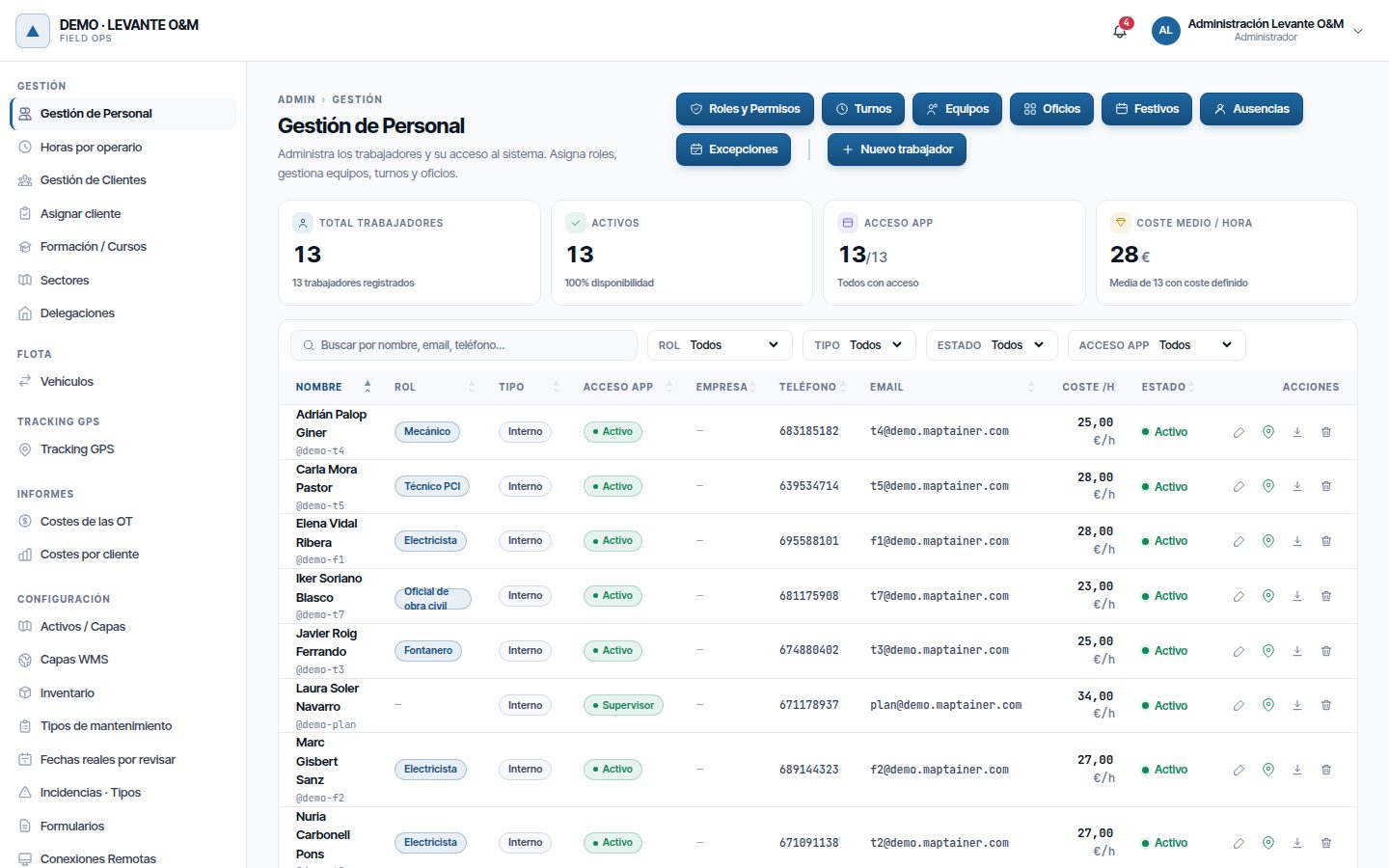
Indicators
| Indicator | What it counts |
|---|---|
| Total trabajadores (Total workers) | All records, active or not |
| Activos (Active) | Records with Activo (Active) status. Below, how many are inactive |
| Acceso app (App access) | Records with a user account, out of the total |
| Coste medio / hora | Average Coste por hora (Cost per hour) of those who have it defined. Only with the Controlamos costes (We control costs) option (Costs and reports) and with Personal → Editar |
List and filters
Each row shows the name and username, trades (Rol (Role) column), Tipo (Interno (Internal) or Externo (External)), Acceso app, company, phone, email, cost per hour (only with Personal → Editar) and status. Under Acceso app you see “— sin acceso” (— no access), Activo, Supervisor or Admin.
- The search box searches by name, email or phone.
- Tipo, Estado (Status) and Acceso app narrow down the list.
- If someone has entered the wrong password too many times, Acceso app shows “Bloqueado hasta HH:MM” (Locked until HH:MM). The lock expires by itself; the administrator can lift it earlier with Desbloquear (Unlock).
The actions on each row are Editar, Posiciones GPS (with GPS tracking), Exportar datos (Export data) (the down arrow) and Eliminar. Editar appears with its permission; Exportar datos and Eliminar, with the delete permission.
Deleted people no longer appear in the list.
Registering a worker
- In Gestión de Personal, click Nuevo trabajador.
- Fill in Nombre completo (Full name) and, if you work with branches, the Delegación.
- Complete the employment details you need (table below).
- If the person is going to use Maptainer, switch on Dar acceso a la aplicación (see the next section).
- Click Crear trabajador (Create worker).
Once created, their record opens in edit mode so you can add trades and skills. The right-hand column shows a preview as you type.
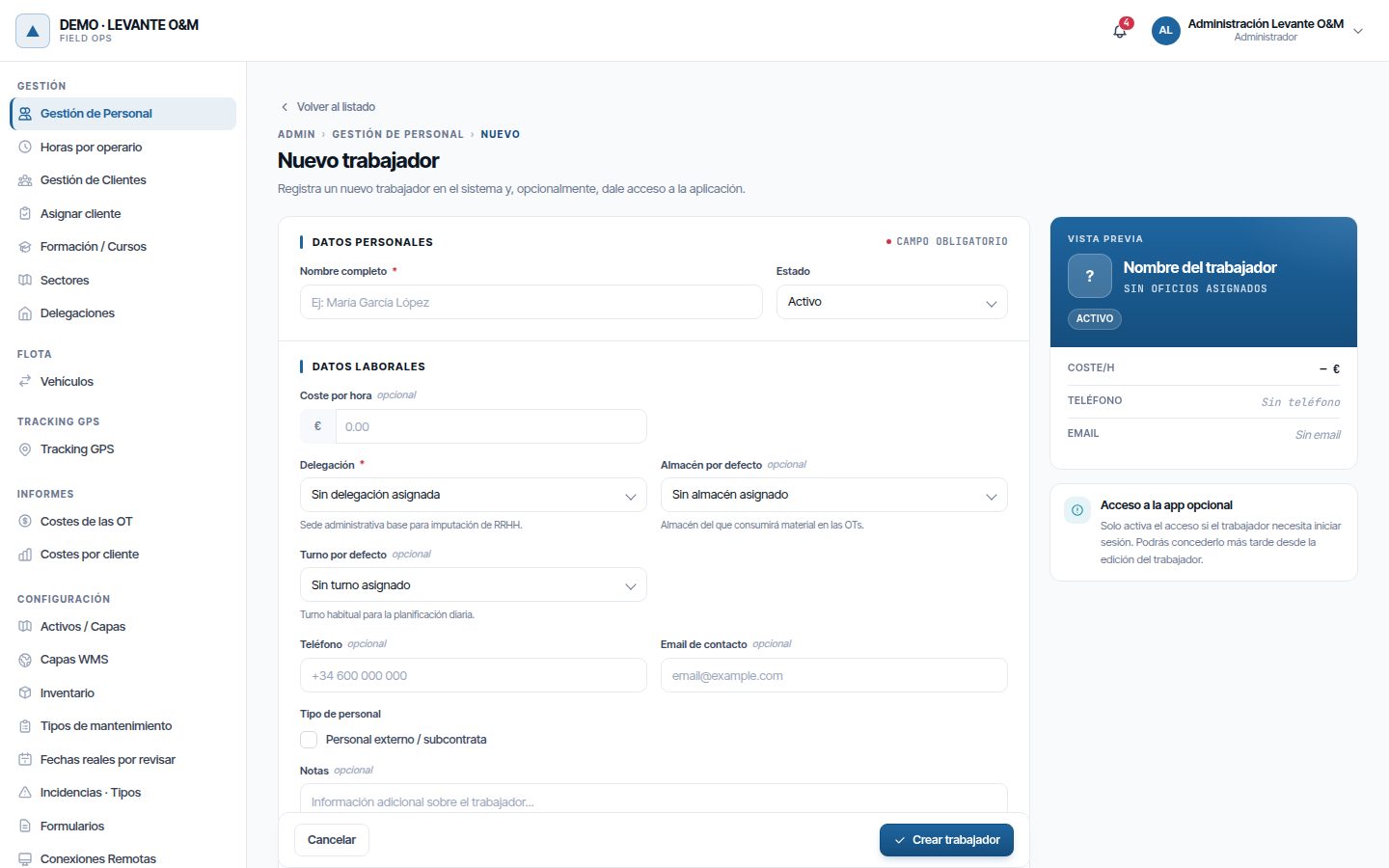
| Field | What it is for |
|---|---|
| Nombre completo | Mandatory. It is the name shown on WOs, teams and reports |
| Estado | Activo or Inactivo (Inactive). An inactive worker cannot be assigned: they appear as “dado de baja” (deactivated) |
| Coste por hora | Cost of their labour in WOs and in cost reports. Only shown with the Controlamos costes option; without it, the saved rate is kept |
| Delegación | Office they belong to. Mandatory if you work with branches. If there is only one, it is already selected |
| Almacén por defecto (Default warehouse) | Warehouse from which they consume material in WOs |
| Turno por defecto (Default shift) | Their usual shift. Used to know whether they are available and for planning |
| Teléfono (Phone), Email de contacto (Contact email) | Contact details. They cannot be used to log in to the app |
| Personal externo / subcontrata (External staff / subcontractor) | Tick it if they are not your own employee. The Empresa (Company) field appears |
| Notas (Notes) | Free text |
In edit mode, Zona horaria also appears if you have GPS tracking. Leave it empty to use the one of their branch, which is chosen in the branch record. Fill it in only if the person works in a different time zone from their branch.
With Control de flota (Fleet control) or GPS tracking, the Jornada y desplazamientos (Working day and travel) section sets where the working day empieza (starts) and where it acaba (ends) (Su delegación (Their branch) or Su domicilio (Their home)) and the Domicilio (Home address) on the map. This determines the first trip of the day and where the return trip is counted to (see Fleet). The home address is personal data: it is only shown in the record, not in the list.
Note
The default vehicle cannot be changed from the record. The planner makes each worker start and end the working day at their branch. See Planning and dispatch.
Giving access to the application
Access creates a user account linked to the record. Only the administrator can give it, when creating the worker or later when editing them.
- In Acceso a la aplicación (Access to the application), switch on Dar acceso a la aplicación.
- Fill in Nombre de usuario (Username), Email de login (Login email) and Rol de sistema (System role). All three are mandatory.
- Click Crear trabajador, or Guardar cambios (Save changes) if you are editing an existing record.
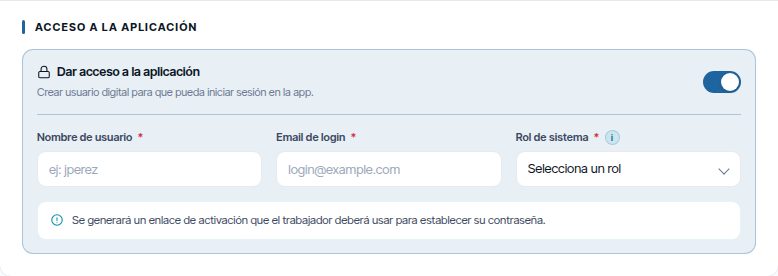
Maptainer sends an email to the Email de login with an activation link. The worker opens it and chooses their password. The same “Trabajador creado” (Worker created) window shows the Enlace de activación (Activation link), in case you prefer to give it to them yourself.
- The login email cannot be in use by another Maptainer account, whether in your company or another.
- The link expires after 24 hours. If it expires or is lost, send another one (see Resending the activation).
- The role decides what they can do on the web and in the app. Roles are explained in Tenant administration.
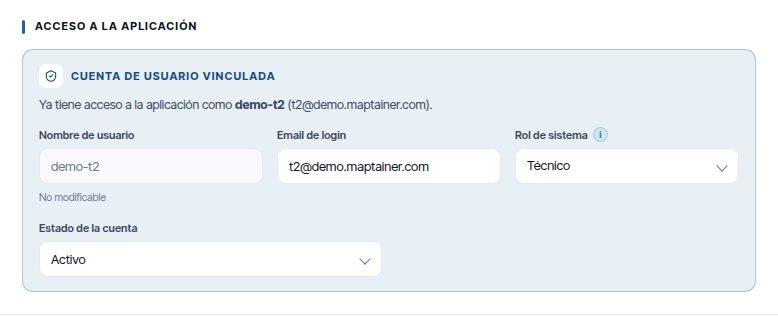
When you edit a record without an account, the Acceso a la aplicación section shows the same switch. When you save, the account is created and the “Acceso concedido” (Access granted) window appears with the Enlace de activación. If the record already has an account, the Cuenta de usuario vinculada (Linked user account) section shows “Ya tiene acceso a la aplicación como…” (Already has access to the application as…) with their username and email.
If the account cannot be created, for example because the email is already in use, the record data is saved anyway and “Se han guardado los datos del trabajador, pero no se ha podido dar acceso a la aplicación: …” (The worker's data has been saved, but access to the application could not be given: …) appears. Correct the data and save again.
Editing a worker
- In the list, click Editar on their row.
- Change whatever you need.
- Click Guardar cambios.
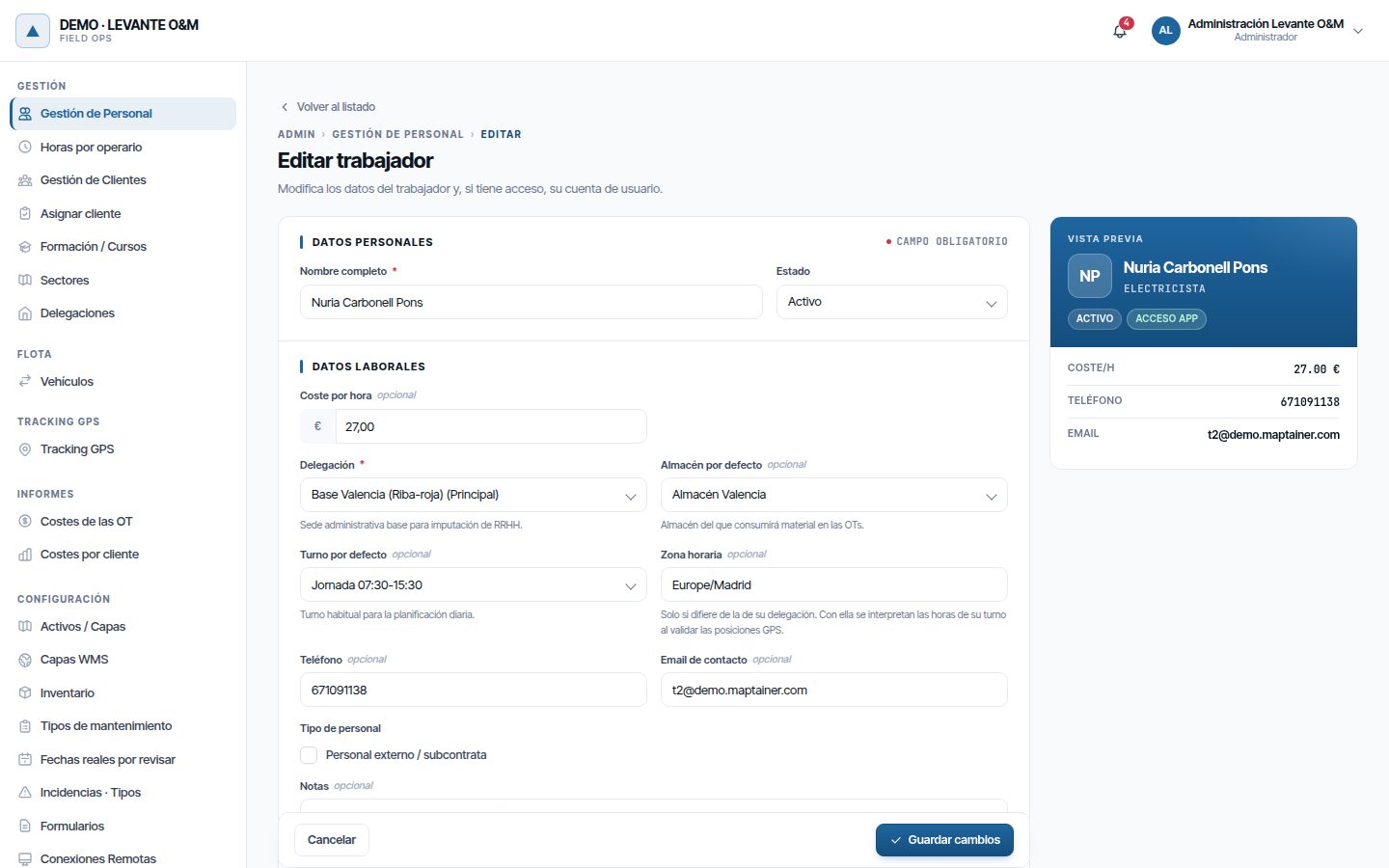
If they have access to the app, the Acceso a la aplicación section shows Cuenta de usuario vinculada:
| Field | What you can do |
|---|---|
| Nombre de usuario | Cannot be changed |
| Email de login | Change it. It cannot be in use by another account |
| Rol de sistema | Change their role |
| Estado de la cuenta (Account status) | Activo or Inactivo / Bloqueado (Inactive / Locked). Inactive prevents logging in to the web and the app. If they have not yet activated the account, Pendiente de activación (Pending activation) is shown |
Resending the activation
Until the worker activates their account, the Acceso app column in the list shows Sin activar (Not activated). In their record, Estado de la cuenta says Pendiente de activación.
- In the list, click Editar on their row.
- In Cuenta de usuario vinculada, click Reenviar activación (Resend activation).
- Confirm with Reenviar (Resend).
- “Activación reenviada” (Activation resent) appears, with the Enlace de activación, in case you prefer to give it to them yourself.
The new link lasts 24 hours and the previous one stops working. The worker can also request it themselves with ¿Has olvidado tu contraseña? (Forgotten your password?) on the login screen.
If you choose Activo or Inactivo / Bloqueado and save, the pending link is cancelled. With Inactivo / Bloqueado the worker can no longer activate the account on their own; with Activo they get in by requesting a new password with ¿Has olvidado tu contraseña?.
Warning
Trades are saved when you click them, and Añadir habilidad (Add skill) opens another screen. If you have changed other data in the record, click Guardar cambios first or you will lose it.
Worker's trades
The Oficios section of the record shows all the active trades in the catalogue. Click one to assign it (it is marked with ✓) and again to remove it. The change is saved immediately.
Worker's skills
The Habilidades y Certificaciones (Skills and certifications) section lists their training: status, issue date, expiry, level and whether it is verified.
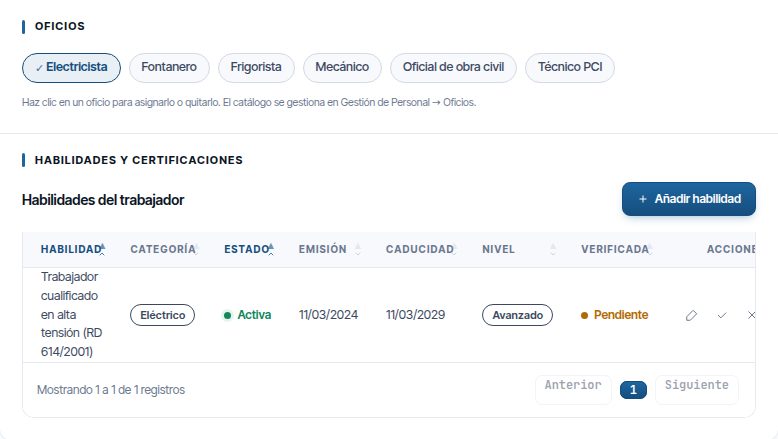
- Click Añadir habilidad.
- Choose the Habilidad (Skill) from the catalogue and, if applicable, the Nivel (Level) (Básico (Basic), Intermedio (Intermediate), Avanzado (Advanced) or Experto (Expert)).
- Fill in Fecha de emisión (Issue date). If the skill expires, the Fecha de caducidad (Expiry date) is calculated automatically from its validity, and it is mandatory.
- Complete N.º Certificado (Certificate no.), Organismo emisor (Issuing body), URL Documento (Document URL) and Notas if you have them. Do not put medical data in the notes.
- Click Añadir habilidad.
Each row has three actions:
| Action | What it does |
|---|---|
| Editar | Changes dates, number, level, document, notes and Estado (Activa (Active), Caducada (Expired), Revocada (Revoked) or Suspendida (Suspended)). Use it to record a renewal |
| Verificar (Verify) | Confirms that someone has seen the document. Who and when is recorded |
| Revocar (Revoke) | Sets the skill to Revocada. The record is kept in the history |
Note
Whoever recorded a skill cannot verify it: verification is done by another person. If you try, “El creador del registro no puede verificar su propio registro. Esta validación tiene valor legal.” (The creator of the record cannot verify their own record. This validation has legal value.) appears.
Deactivating or deleting
When someone stops working with you, deactivate them; do not delete them.
- Open their record with Editar.
- Set Estado to Inactivo. Work can no longer be assigned to them.
- If they have an account, set Estado de la cuenta to Inactivo / Bloqueado so that they cannot log in.
- Click Guardar cambios.
These are two different statuses: making the worker inactive does not lock their account, and locking the account does not remove them from assignment. Change both.
Deleting a person (right to erasure)
Eliminar handles a data erasure request (art. 17 of the GDPR) or removes a record created by mistake. It does not delete the history: it anonymises the person.
- If the person themselves requests it, first download their data with Exportar datos (see Exporting a person's data).
- Click the bin icon (Eliminar) on their row.
- Read the warning and click Eliminar y anonimizar (Delete and anonymise).
What happens:
| Deleted or emptied | Kept |
|---|---|
| Name (becomes “Persona eliminada #…” (Deleted person #…)), phone, email, notes and home address | Their work orders and their assignments |
| Their account: username, login email, password and web and app sessions. They can no longer log in | Their hours in Horas por operario and their labour in costs |
| Name and ID number on the signatures they made as a technician | The image of those signatures and the photos they uploaded, as evidence of the work |
| Name and contact details on the incidents they reported | The incidents, comments and status histories |
| Notes on their absences and working-hours exceptions | The absences and exceptions, without notes |
| Skills, trades and teams | — |
| GPS positions and tracking sessions, as Suprimir datos GPS (Erase GPS data) does | The kilometres and cost of the trips, without the route |
The deleted person no longer counts towards your plan's maximum number of users. On WOs and in reports they appear as “Persona eliminada #…”.
Warning
This cannot be undone. If someone simply stops working with you, deactivate them (steps above); do not delete them. Nobody can delete their own record.
With GPS tracking, the record has a Zona de peligro with Suprimir datos GPS. It permanently deletes their positions and tracking sessions, without touching the rest of the record. It asks you to type SUPRIMIR to confirm. It is used when the person asks for only their location to be deleted; this is described in Fleet and GPS tracking.
Exporting a person's data
Exportar datos handles an access or portability request (arts. 15 and 20 of the GDPR). It downloads a ZIP with everything Maptainer holds about that person:
- their record and their account;
- absences, working-hours exceptions, skills, trades, teams and vehicles;
- assigned work orders, comments, photos they uploaded, signatures, forms and status changes;
- incidents they reported;
- location consents, GPS positions and who has viewed them;
- what they did or what was done to their account according to the audit log.
Inside are datos.json (everything together), a csv folder with one file per section to open in a spreadsheet, the photos and signatures in ficheros (up to 50 MB) and a LEEME.txt that explains it. Each export is recorded in the audit log.
The person can download their own data without asking you, from their profile with Descargar todos mis datos (Download all my data) (see Your profile).
Trades
Trades are your company's catalogue of specialities. They are assigned to workers and required by tasks: that is how Maptainer knows who can do each job.
- In Gestión de Personal, click Oficios.
- Click Nuevo oficio (New trade).
- Enter the Nombre (Name) and, if you wish, a Descripción (Description).
- Click Crear oficio (Create trade).
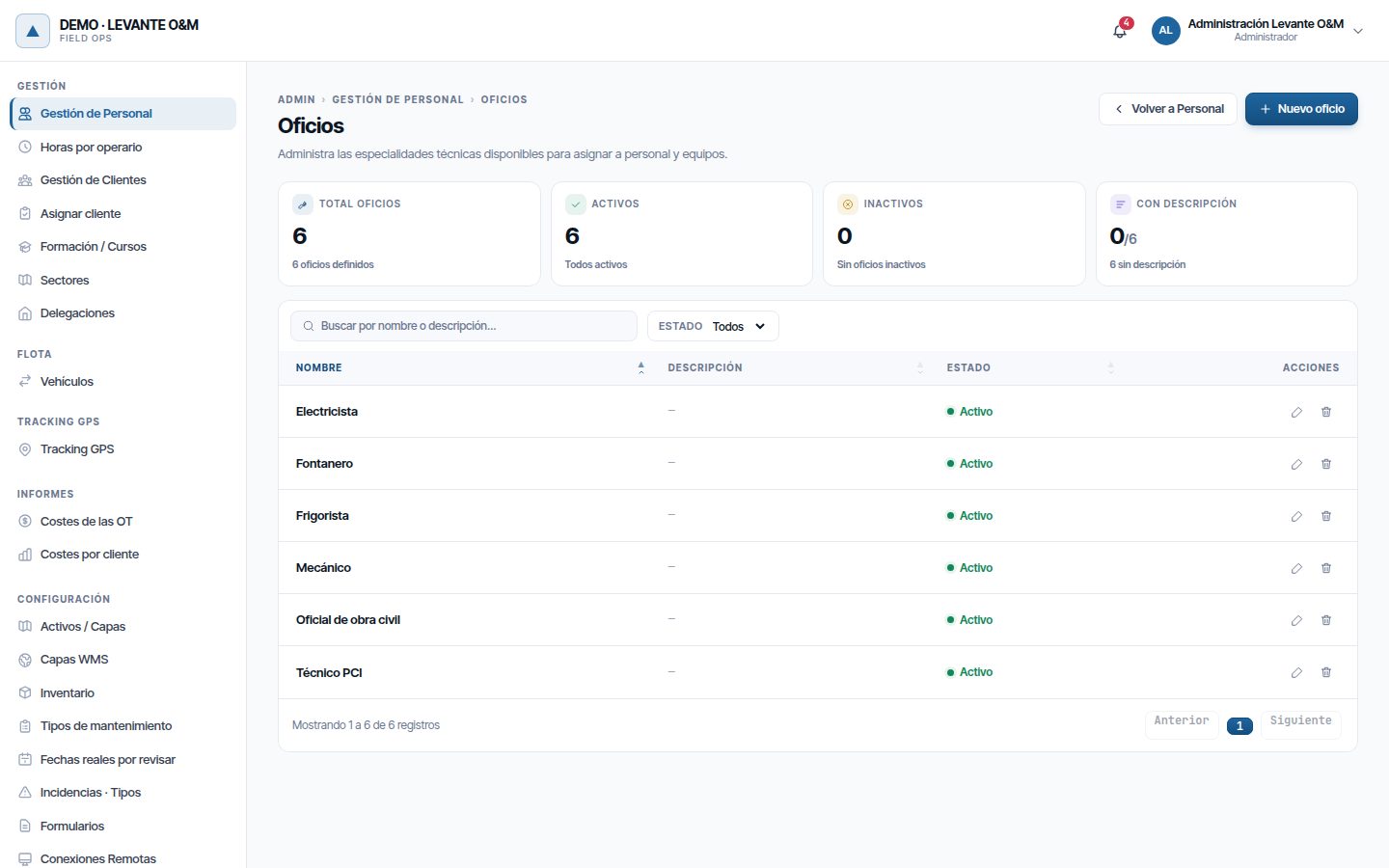
In edit mode you can untick Activo. An inactive trade no longer appears in the worker's record for assignment.
A trade that has any worker or that is required by any task cannot be deleted: the warning “Oficio vinculado a uno o varios trabajadores y/o tareas.” (Trade linked to one or more workers and/or tasks.) appears. If you no longer use it, untick Activo.
Training / Courses
Formación / Cursos is the catalogue of skills: competences, certifications, licences and training courses. It is in the admin area menu, outside Gestión de Personal.
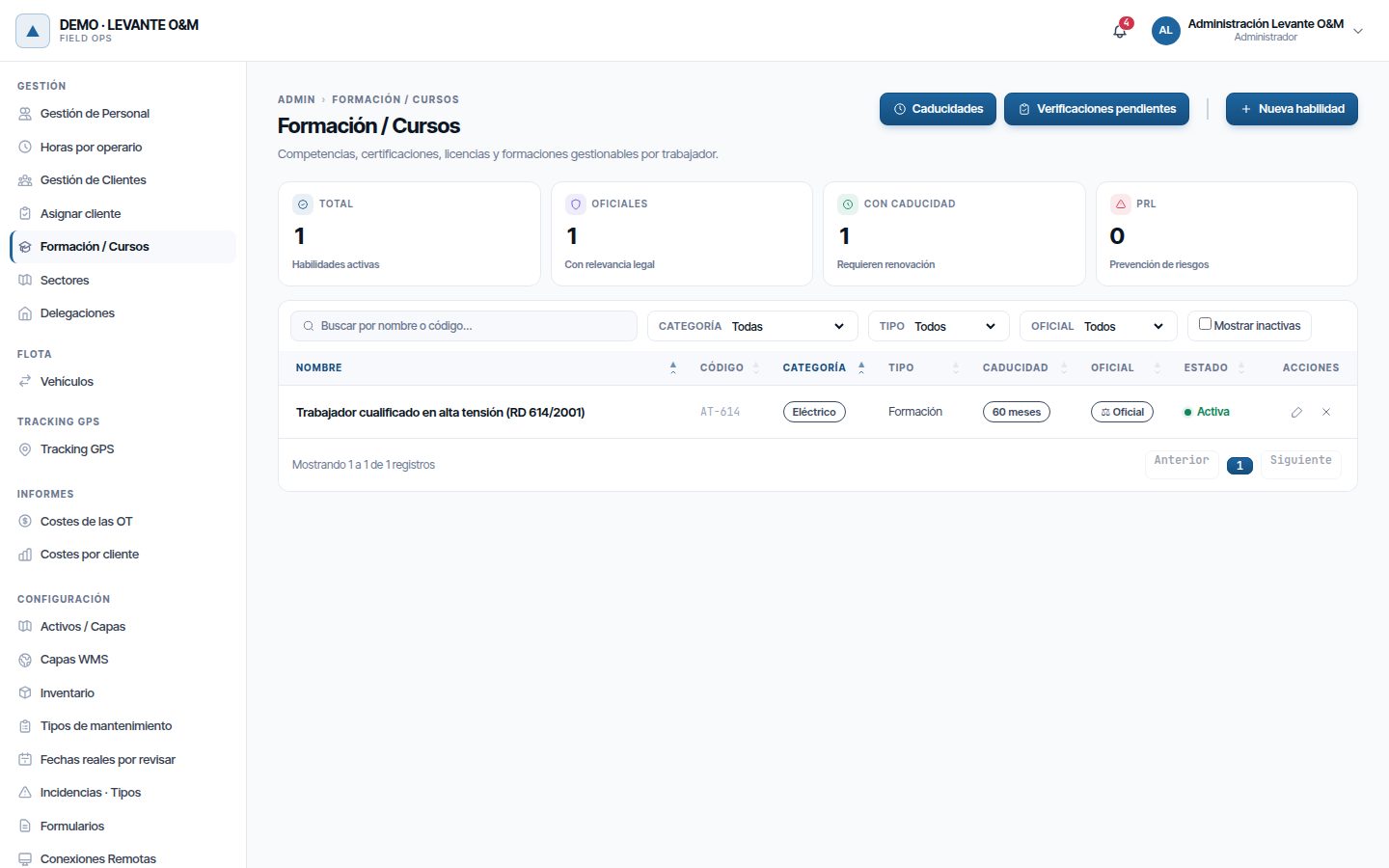
The indicators count the active skills, the official ones (Con relevancia legal (With legal relevance)), those that expire and the occupational health and safety (PRL) ones. The list is filtered by Categoría (Category), Tipo and Oficial (Official), and Mostrar inactivas (Show inactive) also shows the deactivated ones.
Creating a skill
- Click Nueva habilidad (New skill).
- Fill in Nombre, Categoría and Tipo. The Código interno (Internal code) is optional.
- Tick Tiene relevancia legal o regulatoria (Has legal or regulatory relevance) if it is an official certification.
- If it expires, tick La skill caduca y debe renovarse (The skill expires and must be renewed) and enter the Validez (meses) (Validity (months)).
- Complete Organismo emisor habitual (Usual issuing body) and Descripción / Alcance (Description / Scope) if you wish.
- Click Crear habilidad (Create skill).
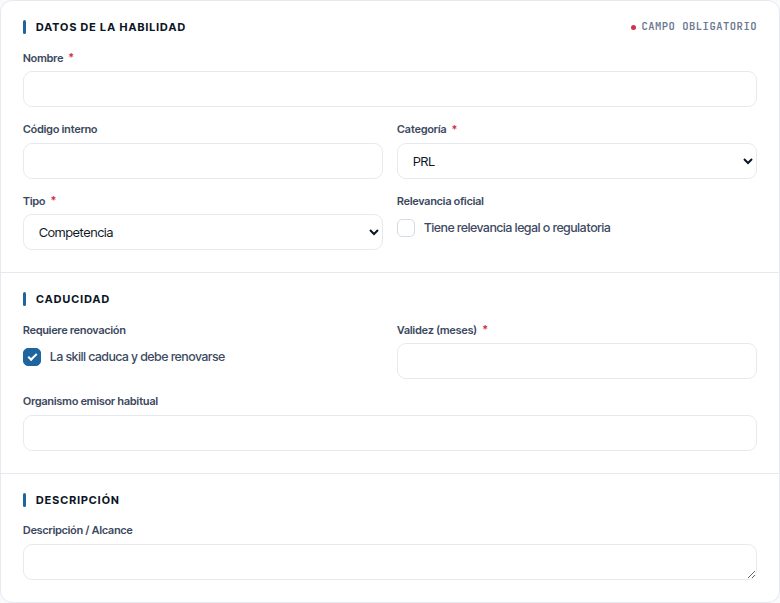
| Field | Values |
|---|---|
| Categoría | PRL (Occupational health and safety), Eléctrico (Electrical), Mecánico (Mechanical), HVAC, Trabajos Especiales (Special works), Software, Idioma (Language), Otros (Other) |
| Tipo | Competencia (Competence), Certificación (Certification), Licencia (Licence), Formación (Training) |
| Validez (meses) | Used to calculate the expiry when the skill is added to a worker |
| Organismo emisor habitual | Copied when the skill is added to a worker |
Skills are not deleted: the X on each row deactivates them, and they can be reactivated.
Expiries
Caducidades (Expiries) shows the training of all staff with its expiry date and the days remaining. At the top it counts the Caducadas (Expired), the Críticas (Critical) (less than 30 days), the Aviso (Warning) (less than 60) and the Aviso leve (Minor warning) (less than 90).
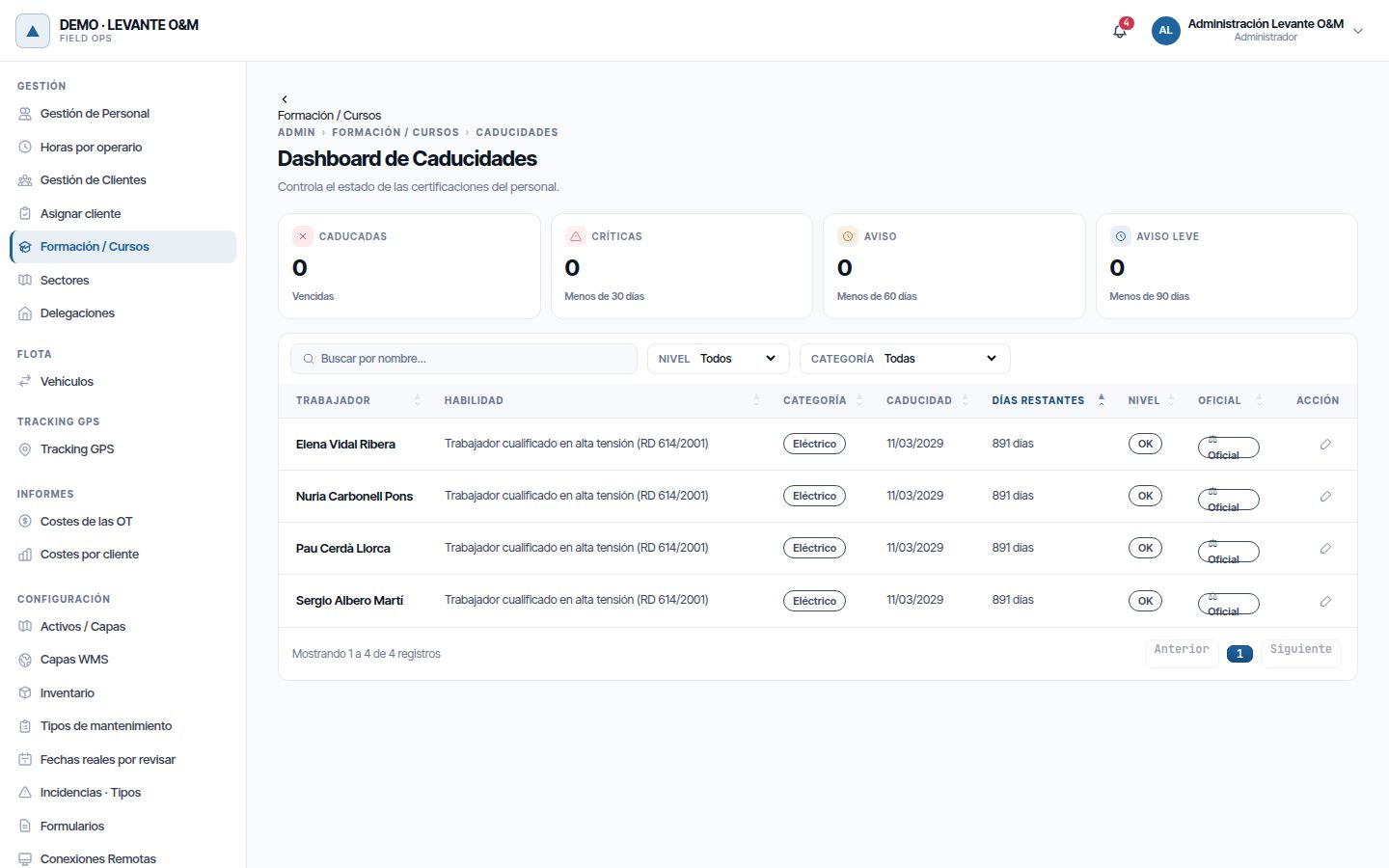
Filter by Nivel or Categoría. The pencil on each row (Renovar / Editar (Renew / Edit)) opens the worker's skill so you can enter the new dates.
Maptainer does not send expiry alerts: check this screen regularly.
Pending verifications
Verificaciones pendientes (Pending verifications) lists the workers' skills that nobody has verified yet. Click Verificar once you have checked the document. Remember that whoever recorded it cannot verify it.
How they are used in assignment
Tasks and maintenance types can require trades and training. These are configured in Preventive maintenance and maintenance types.
When searching for staff for a WO, Maptainer compares what its tasks require with what each worker has:
- Only Activas skills that have not expired on the date of the work count. They do not need to be verified.
- If they are missing a Obligatoria (Mandatory) training, they appear with the reason “le faltan competencias obligatorias” (missing mandatory skills).
- If they do not have the required trade, they appear with “no tiene el oficio requerido” (does not have the required trade).
- Recomendada (Recommended) and Preferida (Preferred) training does not block, but it ranks the candidates.
In a team, the trades and training of all its members are added together. The details are in Work orders.
Teams
A team is a group of workers that is assigned together. It is used in work orders, in the planner and in reading batches.
In Gestión de Personal, click Equipos. The list shows the shift, members and status of each team. The Estado and Miembros (Members) filters help you find inactive or empty teams.
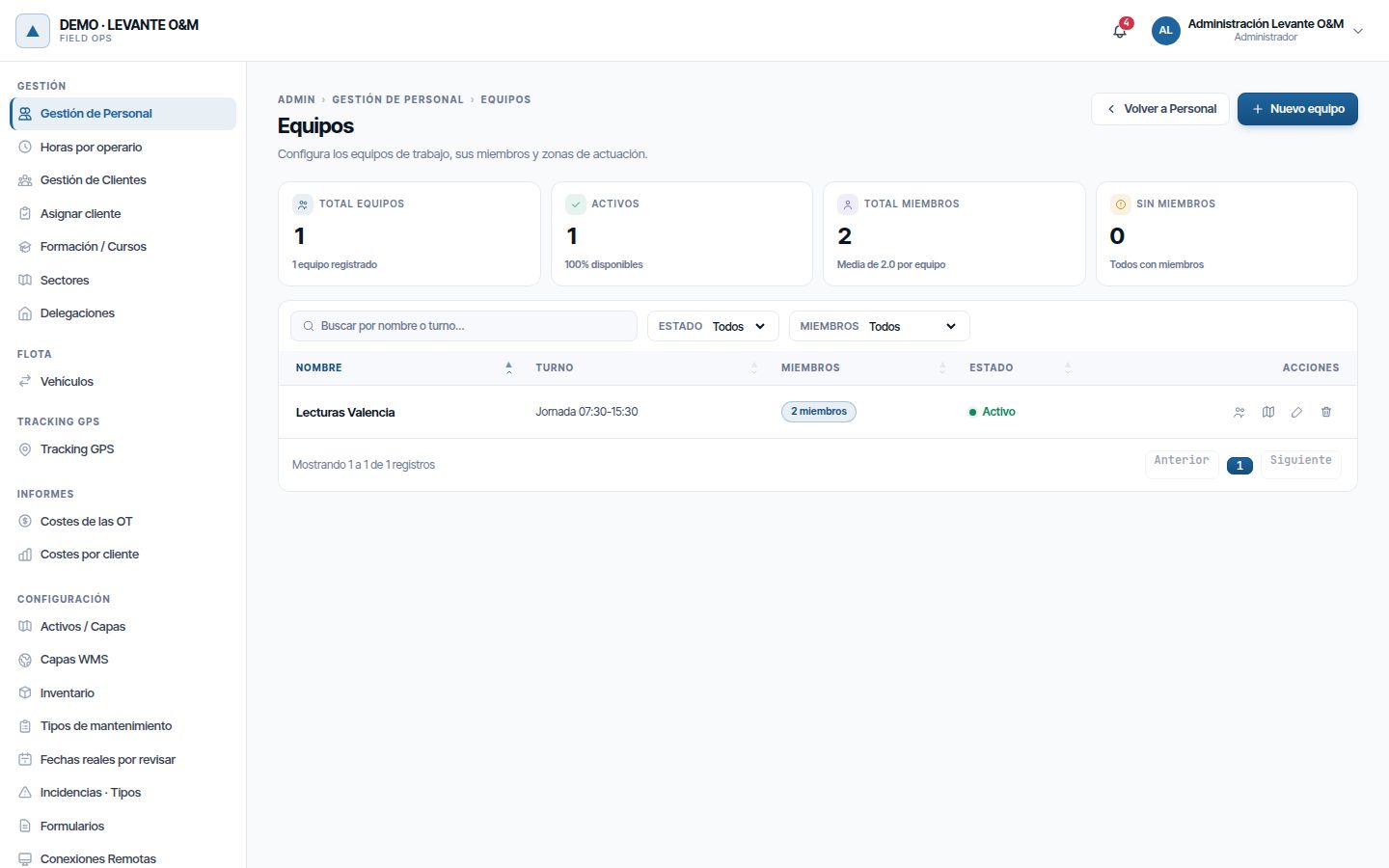
Creating a team
- Click Nuevo equipo (New team).
- Fill in Nombre del equipo (Team name), Estado, Turno por defecto and Delegación (mandatory if you work with branches).
- Click Crear equipo (Create team).
Members and sectors are added afterwards, from the team's row. Editar changes the name, status, shift and branch.
Members
- On the team's row, click Gestionar miembros (Manage members).
- In Añadir personal al equipo (Add staff to the team), choose the worker.
- Choose their Rol en equipo (Team role) and click Añadir (Add).
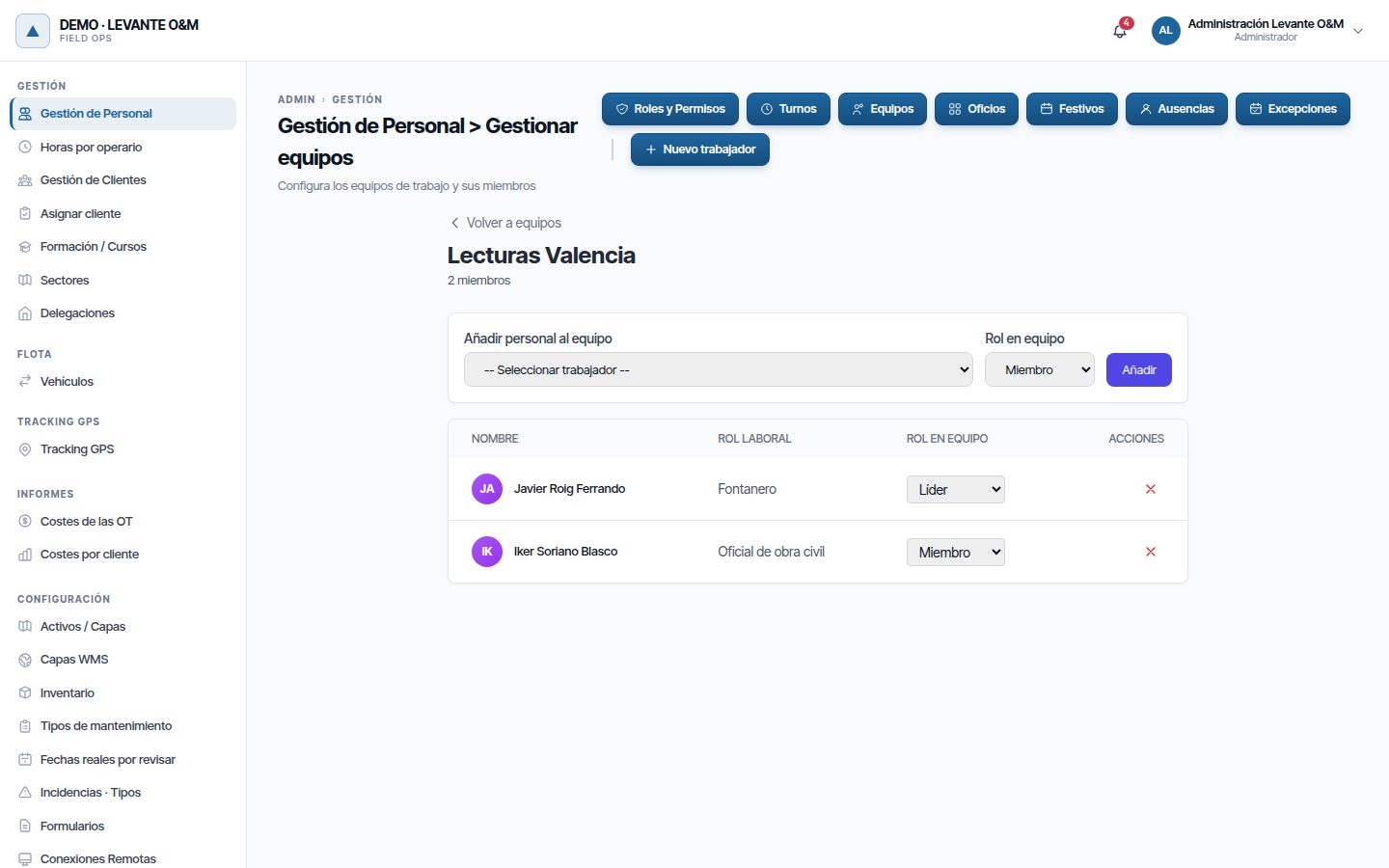
- Only active workers from the same branch as the team appear. If there are none, “Sin personal disponible en esta delegación” (No staff available in this branch) appears.
- The Rol laboral (Job role) column shows their trades.
- The role is changed in the row's drop-down, and the X removes the person from the team.
- A person can be in several teams.
| Team role | Use |
|---|---|
| Supervisor, Líder (Leader), Miembro (Member), Ayudante (Assistant) | For information: it orders the list. All members receive the same work |
Team sectors
Sectors indicate which zones the team works in. They are used mainly to distribute reading batches.
- On the team's row, click Gestionar sectores (Manage sectors).
- Select one or more sectors (Ctrl + click for several).
- Leave Titular (Primary) ticked if the team is the main one for those sectors; untick it for Apoyo (Support).
- Click Asignar (Assign).
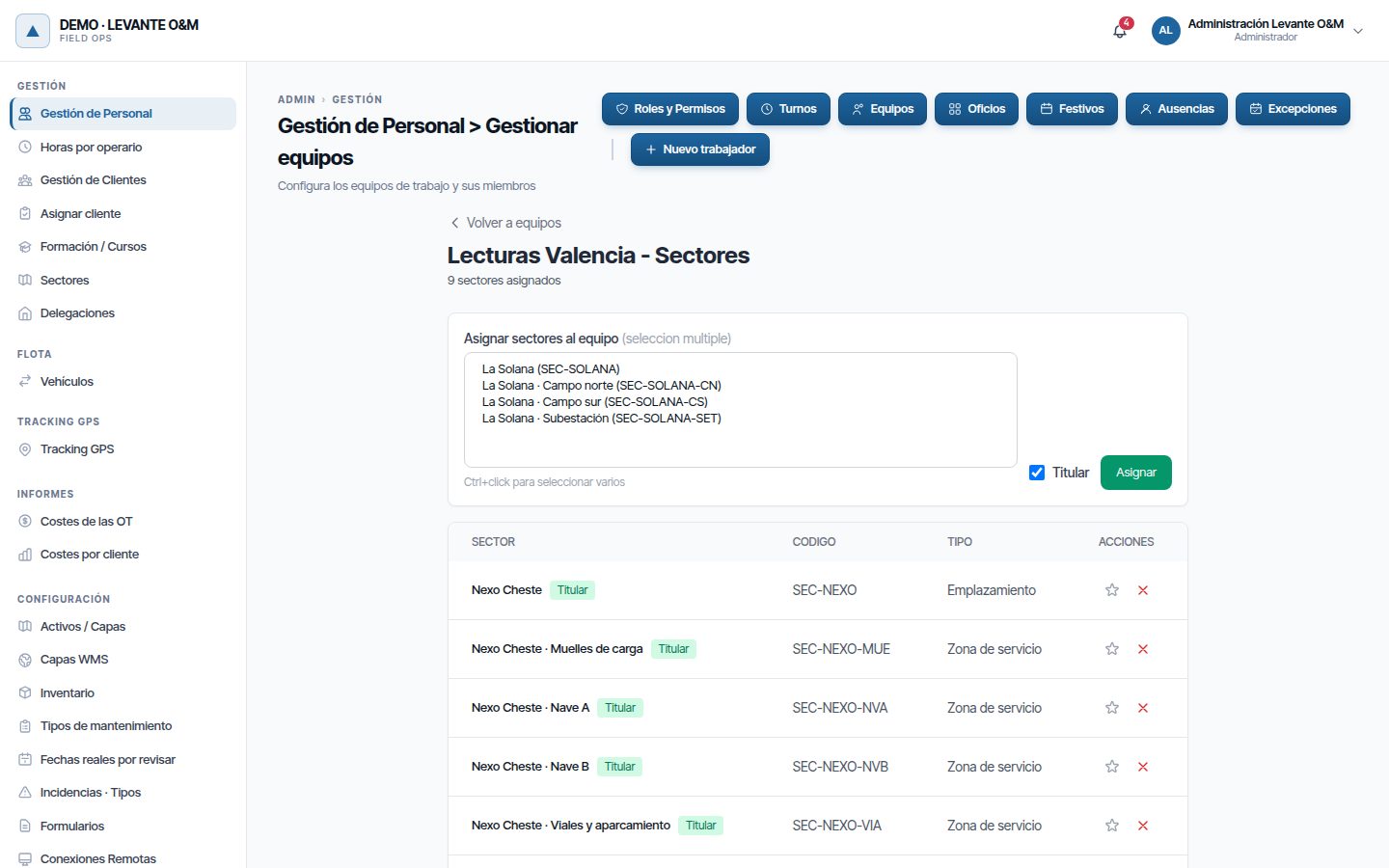
The star on each row switches between Titular and Apoyo, and the X removes the sector. Sectors are created in Branches and sectors; how batches are distributed is in Reading batches.
Where teams are used
| Where | What the team does |
|---|---|
| Work order | In Equipos de trabajo (Work teams), Añadir equipo (Add team) assigns all its active members. See Work orders |
| Planner | The team is planned as a single unit. See Planning and dispatch |
| Reading batches | The batch is assigned to the team and all its members see it on their phone. See Reading batches |
Eliminar on a team removes all its member and sector assignments. The batches it had are left without a team.
Hours per technician
Horas por operario adds up each worker's timesheet: the time of their work orders En Curso (In progress) within their working day, plus approved overtime. It is in the admin area menu, under Gestión de Personal. How the timesheet is built is explained in Costs and reports.
- Choose Desde (From) and Hasta (To). By default, from the 1st of the month to today. The period cannot exceed one year.
- Tick Incluir horas por revisar (Include hours pending review) if you also want to add those that nobody has approved yet.
- Click Aplicar (Apply).
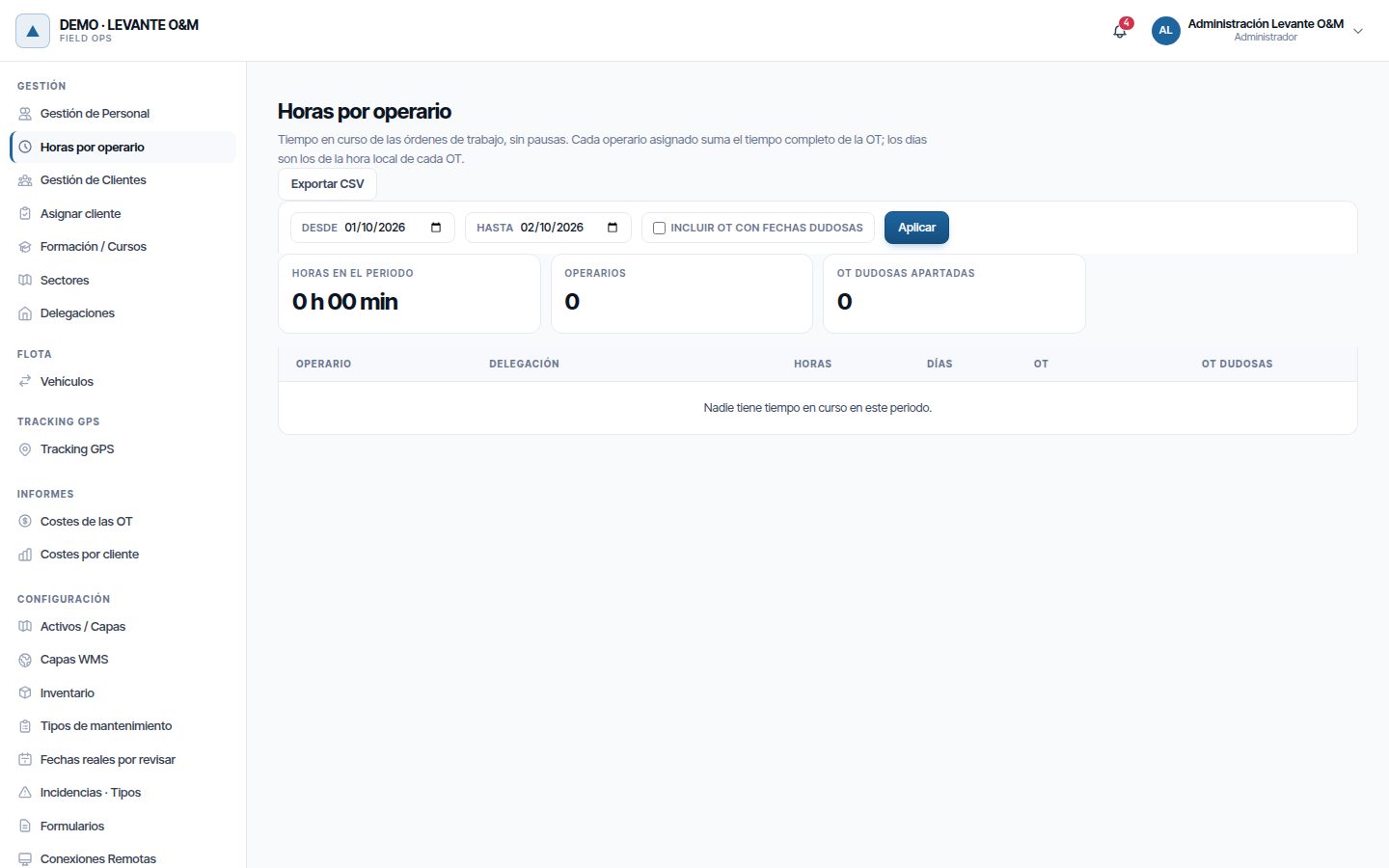
The table gives, per technician, their branch, the Horas (Hours), De ellas extra (Of which overtime) (the approved ones), the Días (Days) with work, the number of OT (WOs) and the hours Por revisar (Pending review). Exportar CSV (Export CSV) downloads the same, day by day.
Detalle (Detail) opens the breakdown by day and by WO. Click a WO code to open it.
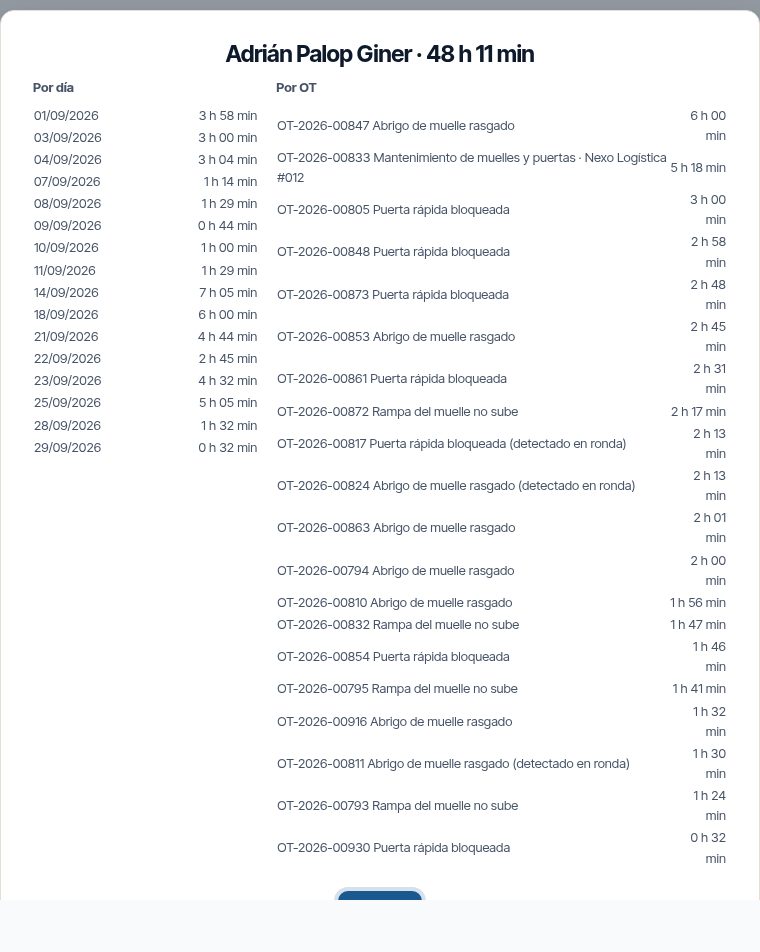
How hours are counted:
- Each person adds up the in-progress time of their WOs within their working day: their shift or, if they have none, the working hours of their branch or of the company. Nights, public holidays and absences do not count.
- Outside the working day, time with signs of work is overtime pending review. It is approved or rejected in Horas por revisar (Hours pending review).
- The responsible person for a WO only adds hours if they worked on it: they started or paused it, the geofence saw them arrive or they filled in a quick timesheet.
- Days are those of the person's local time. A stretch that crosses midnight is split between the two days.
Current limitations
- The default vehicle and the starting point of the working day cannot be changed from the record.
Common problems
| Symptom | Probable cause | Solution |
|---|---|---|
| When logging in to the app, “Tu usuario no está vinculado a ninguna ficha de personal” appears | The account has no record, like the initial administrator's | Create a worker with app access and a different login email |
| The Dar acceso a la aplicación switch does not appear when editing | The record already has an account: Cuenta de usuario vinculada shows this | If the email does not arrive, use Reenviar activación (see Resending the activation) |
| “Solo un administrador puede dar acceso a la app…” | Your role is not administrator | Ask the administrator to make the change |
| The worker does not receive the activation email or gets “Token expirado” (Token expired) | Login email misspelt, spam folder or link expired (24 h) | Check the Email de login, save and click Reenviar activación (see Resending the activation) |
| A worker does not appear in Añadir personal al equipo | They are inactive, belong to another branch or are already a member | Check their Estado and their Delegación in the record |
| A worker appears on the WO as “dado de baja” | Their record is set to Inactivo | Set it to Activo if they return to work |
| “le faltan competencias obligatorias” appears | They are missing a Obligatoria training, it has expired or it is not Activa | Add it or renew it in their record |
| “no tiene el oficio requerido” appears | They do not have the trade the task requires | Assign them the trade in their record |
| Neither Oficios nor Formación / Cursos appears | Controlamos competencias y certificaciones is switched off | Switch it on in Cómo trabaja tu empresa |
| A trade cannot be deleted | It is assigned to workers or tasks | Untick Activo |
| A technician's hours seem very high | Hours pending review are included, or too much overtime was approved | Untick Incluir horas por revisar and check the Parte de horas (Timesheet) of their WOs |
| A technician does not appear in Horas por operario | They have no hours in the period (nor in-progress time within their working day), or they were deleted | Widen the dates. If they were deleted, their hours appear under the name “Persona eliminada #…” |
| “No puedes eliminar tu propia ficha” (You cannot delete your own record) appears | You are trying to delete yourself | Ask another administrator to do it |
Last updated: