
Introduction
Planning a WO means giving it personal operativo (operational staff), an Inicio previsto (Planned start) and a Fin previsto (Planned end). The WO's Fecha límite (Due date) does not change when you plan it: not by hand, not by dragging, not with the optimiser. Assigning does not change the status: a planned WO stays Pendiente (Pending) until the technician starts it in the app. The statuses and staff of a WO are explained in Work orders.
| Tool | What it is for |
|---|---|
| Calendar (Día (Day), Semana (Week), Mes (Month), Lista (List)) | See what is scheduled, change dates by dragging and create WOs in a free slot |
| Kanban | See WOs by status and change the status by dragging the card |
| Vista Usuario (User view) | See each technician's workload by day and dispatch by dragging WOs from the Por despachar (To dispatch) queue |
| Optimizador (Optimiser) | Distribute many pending WOs at once among teams and technicians over a range of up to 14 days, with road routes |
| Asignar al más cercano… (Assign to nearest…) | Send an urgent WO to the technician who is closest right now, according to their GPS position |
All views respect the customer chosen in Seleccionar cliente (Select customer) on the map, except where stated in each section.
Prerequisites
The Planificación tab requires the maintenance module. In addition:
| Module contracted | What it adds |
|---|---|
| Planificador de OTs (WO planner) | The Optimizador button and, in the WO form, Planificar esta OT (equipo u operario apto más cercano) (Plan this WO (nearest suitable team or technician)) |
| Tracking de personal (Staff tracking) | Asignar al más cercano… and the technicians' GPS positions on the map |
The contracted modules are shown in Configuración General (General settings). If one is missing, ask Maptainer for it.
Permissions
Permissions are in Gestión de Roles y Permisos (Roles and permissions management).
| What you want to do | Permission required |
|---|---|
| See the tab, the calendar, the Kanban and the Vista Usuario | Ver (View) in the Mantenimiento (Maintenance) group |
| Drag WOs in the calendar, in the Kanban or from the Por despachar queue | Editar (Edit) in the Mantenimiento group |
| Use the optimiser: generate, apply and discard plans | Editar in the Mantenimiento group |
| Asignar al más cercano… | Editar in the Mantenimiento group and Ver in the Personal (Staff) group |
Without Editar, the Por despachar queue and the Optimizador button do not appear.
“Cómo trabaja tu empresa” options
| Option | What changes in planning |
|---|---|
| Trabajamos con equipos (We work with teams) | The optimiser offers the Equipos (Teams) list: each team is planned as a single crew |
| Trabajamos con delegaciones (We work with branches) | The Vista Usuario lets you filter by branch. The location of each branch is the starting point of the routes |
| Gestionamos turnos y calendario laboral (We manage shifts and a work calendar) | Shifts, public holidays, absences and exceptions that the optimiser respects (see Work calendar) |
| Controlamos competencias y certificaciones (We control skills and certifications) | Trades and mandatory training that the optimiser and Asignar al más cercano… require |
Settings that affect planning
Working days and company working hours
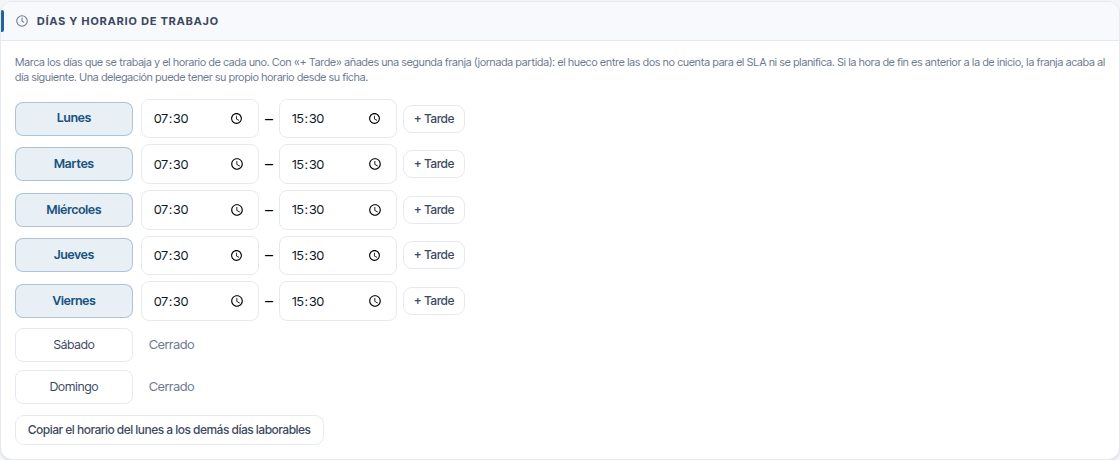
In Configuración General, Días y horario de trabajo (Working days and hours) sets the limit for any planning. A branch with its own working hours uses those (see Work calendar):
- The calendar only shows working days, and the Día and Semana views run from the earliest opening time of the week to one hour after the latest closing time, with each day's working hours shaded.
- The optimiser does not plan on non-working days and trims each shift to that day's working hours. With a split working day, the gap between the two time slots is a break. If less than one hour of the shift remains, that day does not count.
- The WO form warns you if the dates fall outside working days or hours (see Work orders).
Work order planning
The Planificación de Órdenes de Trabajo (Work order planning) section of Configuración General has two fields: Tiempo a planificar (días) (Time to plan (days)) and Crear órdenes a (días) (Create orders at (days)). They only affect preventive maintenance: how far ahead forecasts are shown in the calendar and how many days in advance the real WOs are created. They change nothing in the optimiser or in dispatching. They are explained in Preventive maintenance and maintenance types.

Data the optimiser uses
The optimiser has no settings of its own: it reads data from other screens. If a plan looks odd, one of these is almost always missing.
| Data | Where it is configured | What it is used for |
|---|---|---|
| Each technician's shift and its exceptions (day off, shift change, extra working day, extended hours, on-call) | Work calendar | Hours available each day. The shift break is respected. A technician with no shift works the working hours of their branch or of the company |
| Default shift of each team | Staff and teams | Hours available for the team |
| Public holidays (for the whole company or for a branch) | Work calendar | Non-working day for the staff of that branch |
| Confirmed absences | Work calendar | A whole day off or a shortened working day |
| Branch location | Branches and sectors | Starting and return point for each technician and team |
| Staff trades and training | Staff and teams | A WO only goes to someone who meets the mandatory training and at least one trade of its tasks. Training counts day by day: a certificate that expires in the middle of the range is no longer valid from the following day |
| Estimated duration of the WO | The WO itself or its maintenance type (Preventive maintenance and maintenance types) | Working time at each stop. Without an estimate, 30 minutes |
If a technician's branch has no location, they start from the warehouse of their branch or of the company and the plan warns you.
The calendar
The calendar opens when you click the Planificación tab. It shows WOs with dates, preventive maintenance forecasts and reading batches. How to read it (colours, legend, forecasts) is described in Preventive maintenance and maintenance types.
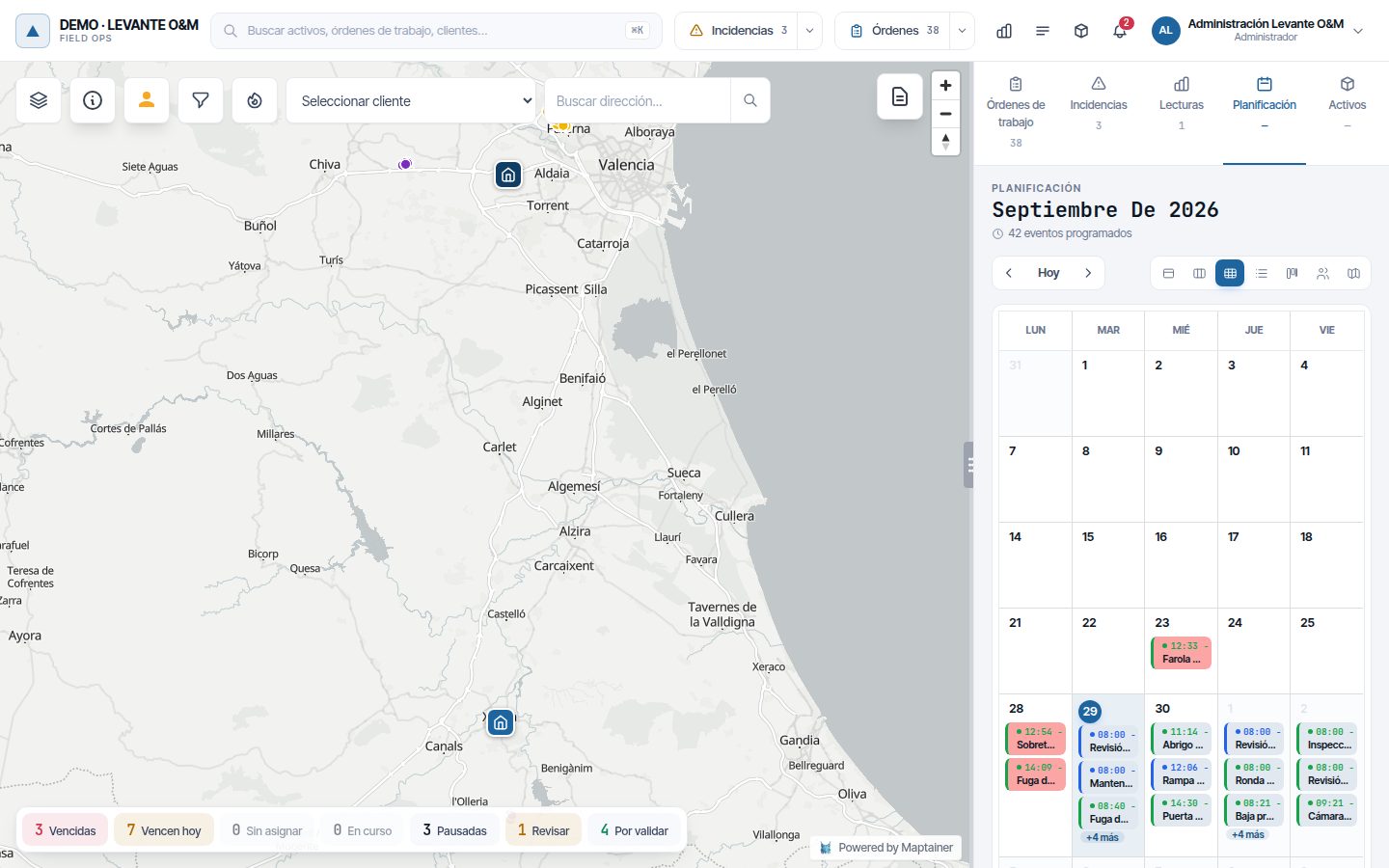
The buttons on the right change the view: Día, Semana, Mes, Lista, Kanban, Vista Usuario and Optimizador. Hoy (Today) and the arrows move the period.
- When you click a WO, the map centres on it and its record opens.
- WOs without dates are shown on today's date.
- Clicking a reading batch opens it in the Lecturas (Readings) tab (see Reading batches).
Creating a WO in a free slot
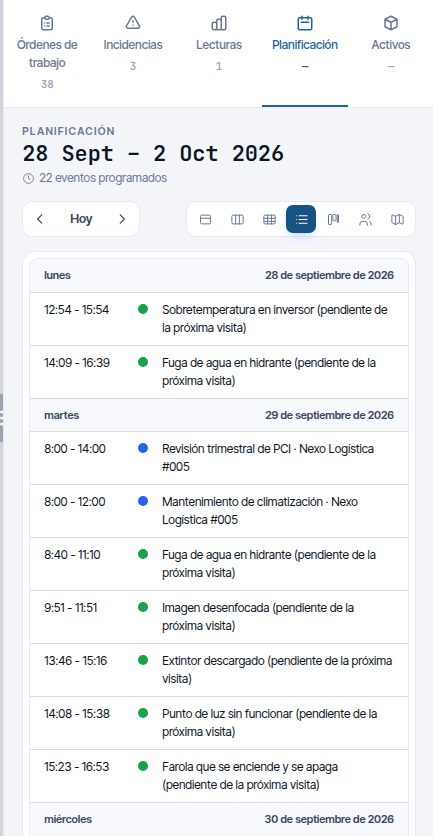
- Switch to the Día or Semana view. At the top it says “Haz clic en cualquier hora para crear una nueva orden de trabajo.” (Click any time to create a new work order.).
- Click the time you want.
- The new WO form opens with that date and time. Fill it in as described in Work orders.
Changing dates by dragging
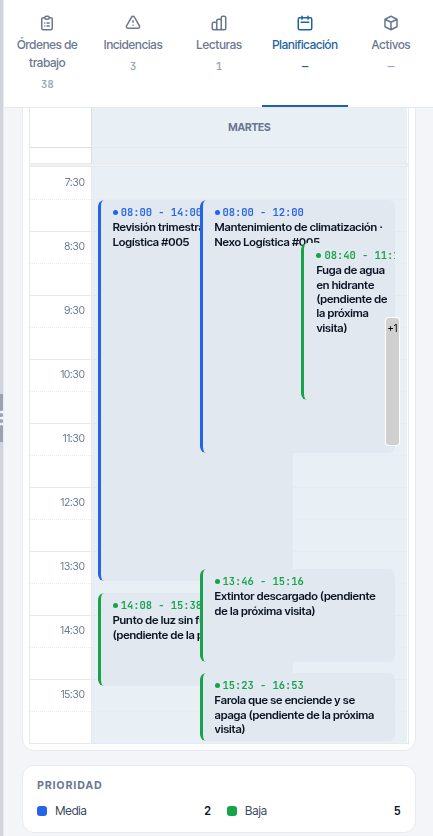
Drag a WO to another day or another time to reschedule it. The change is saved when you drop it and “Fechas actualizadas correctamente” (Dates updated successfully) appears.
| View | What changes when you drop it |
|---|---|
| Mes | Only the day. The start and end times are kept, and the WO lasts the same number of working days |
| Semana and Día | The day and the time. Planned start and planned end move by the same amount |
To change only the planned end, stretch the end edge of the WO. “Fin previsto actualizado” (Planned end updated) appears. If it would fall before the start, “El fin previsto tiene que ser posterior al inicio” (The planned end must be after the start) appears and it is not saved. Neither dragging nor stretching moves the due date.
Only open WOs can be dragged (Pendiente, En Curso (In progress) and Pausada (Paused)). Completadas (Completed), Validadas (Validated), Cerradas (Closed) and Canceladas (Cancelled) stay fixed, as do preventive maintenance forecasts and reading batches.
The planned start and planned end must fall on working days: not on a public holiday of the company or of the WO's branch, nor on a day the company does not work. Otherwise the WO goes back to its place and the reason is shown, for example “El fin previsto no puede caer en un día no laborable: el 12/10/2026 es festivo (Fiesta Nacional)” (The planned end cannot fall on a non-working day: 12/10/2026 is a public holiday (National Day)). Any other error also shows its reason.
Note
The calendar shows times in your computer's time zone. This only makes a difference if you work from a time zone other than that of the WO's branch.
The Kanban board
The Kanban places each WO in the column for its status. Only the columns of your company's life cycle appear (see Work orders): with the full cycle, Pendiente, En Curso, Pausada, Completada, Validada, Cerrada and Cancelada; with the supervised cycle Validada is missing, and with the simple cycle Completada and Validada are missing. If there are WOs from before the cycle was changed in a status you no longer use, its column keeps appearing as long as it has any. Each column shows its total and the first 25 WOs; Cargar más (N) (Load more (N)) brings the next ones. The columns of finished WOs only show the last 30 days.
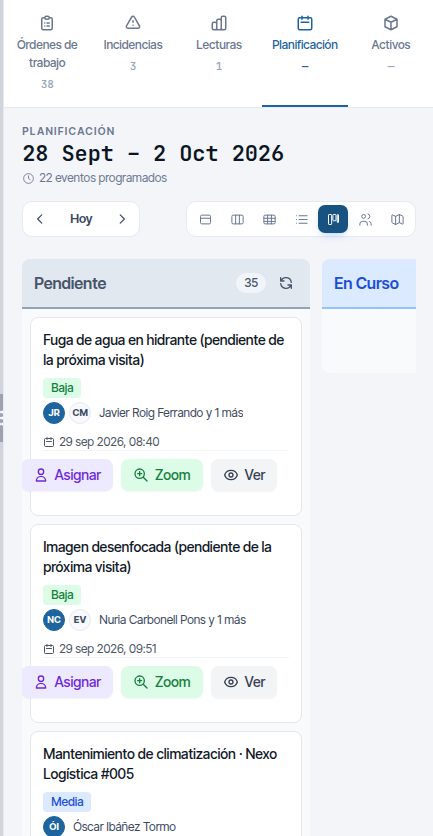
Each card shows the title, priority, staff, start and address. Its buttons:
| Button | What it does |
|---|---|
| Asignar (Assign) | Opens Asignar orden de trabajo (Assign work order), the same as Assigning staff. Only in Pendiente, En Curso and Pausada |
| Zoom | Centres the map on the WO |
| Ver | Opens the record |
To change the status, drag the card to another column. While you drag it, the columns it cannot move to are dimmed and do not accept it: only the changes allowed by your cycle and your permissions are valid. When you drop it on Completada, Validada or Cerrada you are asked for confirmation, and on Cancelada, for the reason. Cerradas and Canceladas cards cannot be moved.
The Vista Usuario
The Vista Usuario shows one row per active technician and one column per day, with the WOs assigned to them each day. It is used to see who is free and to dispatch.
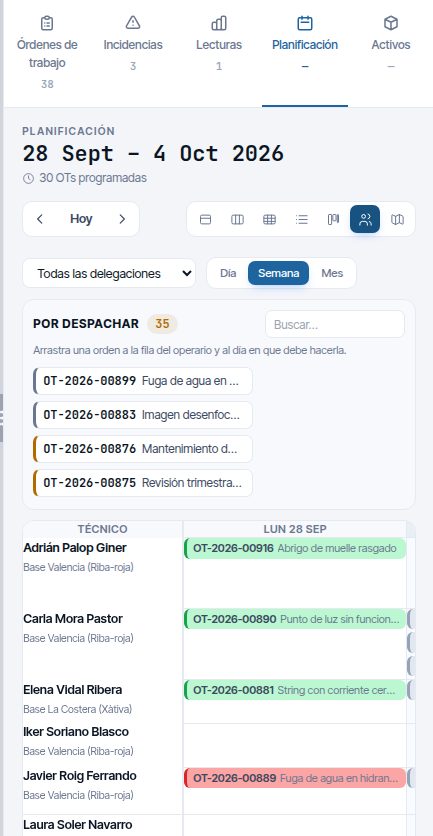
- Día, Semana and Mes change the period; Hoy and the arrows move it.
- With branches, the Todas las delegaciones (All branches) drop-down limits the rows to one branch.
- Each WO is shown with its code and title. The colour indicates the status, and overdue ones are in red (what the due point is).
- If a day has more than three WOs, click +N más (+N more) to see them all.
- When you click a WO, the map centres on it and its record opens.
Dispatching from the “Por despachar” queue
The Por despachar queue is above the Vista Usuario. It contains the Pendientes (Pending) WOs: first those with nobody assigned, then those due soonest (by their due date, their SLA deadline or their planned end) and, for the same date, the most urgent. It shows the first 60; to reach the rest, use Buscar… (Search…).
Assigning a WO from the queue
- Open Planificación → Vista Usuario.
- Drag the WO from the queue to the technician's row and the day's column.
- In the Asignar … (Assign …) dialog, check Inicio (Start) and Fin (End) (the planned ones; the due date does not change). The time the WO already had (or 08:00) and its duration are proposed.
- Click Asignar. Volver (Back) cancels without saving.
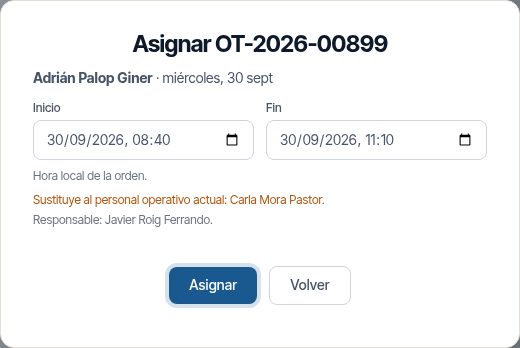
The chosen technician replaces the operational staff the WO had; the dialog warns you with “Sustituye al personal operativo actual: …” (Replaces the current operational staff: …). The responsible people do not change. If the technician does not meet the WO's training, the WO is assigned anyway and “La persona asignada no cumple toda la formación de la orden: revisa las alertas” (The assigned person does not meet all the order's training: check the alerts) appears.
Moving or rescheduling a WO already assigned
Drag the WO from a technician's cell:
- To another technician's row: the dialog is called Mover (Move). The original technician is replaced by the destination one, even if they were the responsible person.
- To another day for the same technician: the dialog is called Reprogramar (Reschedule) and only the dates change.
Only Pendientes, En Curso and Pausadas WOs can be dragged.
With a customer chosen in Seleccionar cliente, the queue shows only that customer's WOs.
Assigning to the nearest technician
Asignar al más cercano… proposes the technicians who are closest to the WO right now, by driving time. It is in the ⋯ menu of Pendientes and Pausadas WOs and in the map's context menu on a WO (see The map).
Only technicians who meet all of the following are shown:
- They have GPS tracking active and have sent their position in the last 2 hours.
- They are active and have no confirmed absence at this moment.
- They have the mandatory training for the WO's tasks (or for its type, if it has no tasks).
- They are less than 20 km away in a straight line. If there is nobody, the search extends to 40 km.
- In the WO's ⋯ menu, click Asignar al más cercano….
- Choose a technician from the list. Each one shows the time and kilometres by road, when they were last seen and, if applicable, “con una orden en curso” (with an order in progress).
- If the WO is Pendiente, check Inicio and Fin. The proposed start is now plus the travel time of the first one on the list.
- Click Asignar.
The chosen technician replaces the WO's operational staff. If there is nobody, “Nadie cerca” (Nobody nearby) appears with the radius searched.
Each technician's position on the map is shown with the Posiciones GPS (GPS positions) layer (see The map). Tracking is explained in Fleet and GPS tracking.
The multi-day optimiser
The Optimizador distributes pending WOs among the teams and technicians you choose, over a range of up to 14 days. It looks for the distribution with the fewest kilometres that respects shifts, public holidays, absences, training, trades and the dates of each WO. It first generates a draft; nothing changes in the WOs until you apply it.
Which WOs go into the plan
The WOs that meet all of the following go in:
- They are Pendientes and not yet planned: they are missing operational staff, planned start or planned end. Having only a responsible person does not count as planned.
- They have a location: assets placed on the map, a point or an area.
- They have no due point or they fall due, at the latest, on the last day of the range. The due point is the due date; if there is none, the SLA resolution deadline; and failing that, the planned end. Those already overdue go in and come first.
If you do not tick any WO, all those that meet the above and are less than 200 km from the centre of the branches of the chosen resources go in. If you tick some, only those go in and the 200 km limit does not apply.
A WO that already has operational staff but no dates does not go in on its own: someone has already decided who does it. If you tick it, the plan only gives it to a resource that includes that staff and, when applied, gives it dates without changing anyone. If none of the chosen resources includes that staff, it appears in Sin cubrir (Not covered).
The order of preference comes from the priority and how close the due point is. An overdue Media (Medium) WO weighs the same as an Alta (High) one with no urgency.
Note
A WO that falls due after the last day of the range does not go in, even if there are free slots. To bring it forward, extend the range up to its due point or assign it from the Por despachar queue.
Which resources are planned
A resource is a team or a technician. Each day of each resource is a working day, with the hours of its shift.
- Equipos (if your company works with teams): they do a single route per day. They can do whatever any of their members present that day knows how to do. The team needs a default shift, a branch with a location and at least one active member. A team without a shift appears dimmed and with ⚠: it will not be planned.
- Operarios (Technicians): their shift and its exceptions for each day; without a shift, the working hours of their branch or of the company. A technician who is already in a ticked team appears as “en equipo” (in team) and cannot be ticked individually.
Each working day starts from and returns to the resource's branch.
A day does not count for a resource if:
| Reason in the plan | What happens |
|---|---|
| sin turno (no shift) | The technician's shift does not work that day, or they have no shift and the company has no working hours |
| día no laborable del turno (non-working day of the shift) | The team's shift does not work on that day of the week |
| día no laborable de la empresa (company non-working day) | It is not a working day in Configuración General |
| turno fuera del horario laboral de la empresa (shift outside company working hours) | Less than one hour of the shift remains within the company's working hours. A shift that crosses midnight is not trimmed to those hours |
| ocupado por el turno nocturno del día anterior (taken up by the previous day's night shift) | The night shift of the day before takes up that morning and at least one free hour does not remain |
| festivo: (nombre) (public holiday: (name)) | Public holiday of the company or of its branch |
| ausencia (absence) | Confirmed absence covering the whole working day. If it covers only part, the working day is shortened |
| todos los miembros ausentes (all members absent) | No team member is present that day |
| agenda completa: ya tiene N OT asignadas (schedule full: already has N WOs assigned) | The WOs they already had that day fill the working day (see The schedule they already have) |
The schedule they already have
The optimiser does not treat a working day that already has work as free. It counts the WOs in which the chosen staff are already operational staff, with dates that touch the range and that are Pendientes, En Curso or Pausadas. It makes no difference whether they were assigned by a person or by a previous plan.
- Each one takes up its estimated duration and the travel to it, between its planned start and its planned end. If those dates span several days, the optimiser chooses which day to count it on.
- They are not moved or changed: the plan shows them so you can understand the working day, but applying it does not touch them.
- For a team, the schedule of any of its members counts.
- If a day's schedule already fills the working day, that day receives nothing new: it appears as “agenda completa”.
- If the working day is so tight that the optimiser would prefer to swap some of them for new WOs, it does not do so. It reserves the slot of each WO already there, with the travel from the starting point, and warns you with “La agenda de … va justa” (…'s schedule is tight).
Generating a plan
- Open Planificación and click Optimizador.
- In Nuevo plan (New plan), enter Desde (From) and Hasta (To). By default, the next 7 days; the maximum is 14.
- Tick the Equipos and the Operarios who are going to work. Filtrar… (Filter…) searches technicians by name.
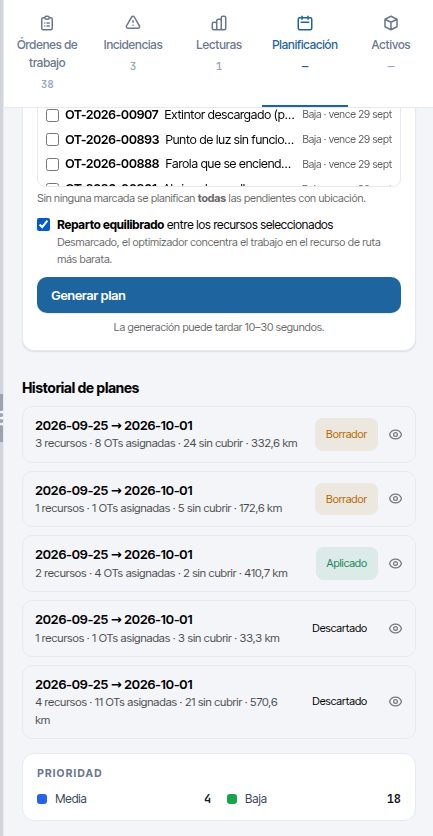
- In Órdenes de trabajo pendientes (Pending work orders), tick the WOs you want to plan or tick none to plan them all. The list only has the pending WOs not yet planned: those that already have operational staff and dates are not shown. With a customer chosen in Seleccionar cliente, only that customer's WOs are shown and, if you tick none, the plan only takes that customer's WOs. Filtrar por código o título… (Filter by code or title…) searches among them; marcar / desmarcar todas (tick / untick all) ticks the ones shown. When you change customer, all are unticked.
- Leave Reparto equilibrado (Balanced distribution) ticked to share the work among everyone. Unticked, the optimiser loads more onto the resource with the cheapest route.
- Click Generar plan (Generate plan). It can take between 10 and 30 seconds.
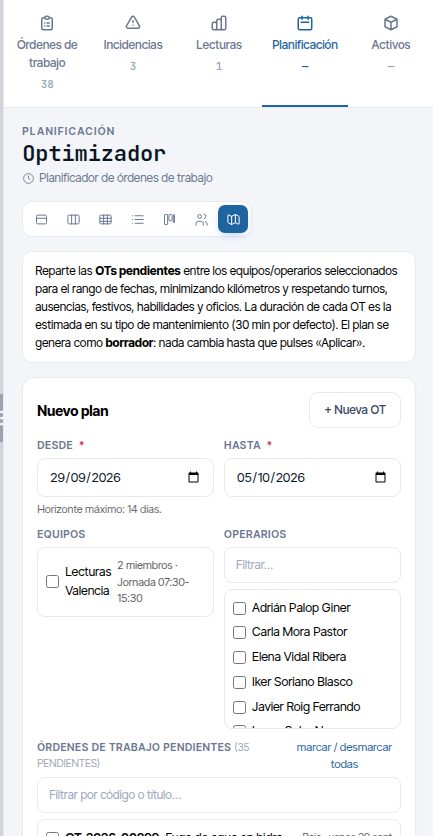
When it finishes, “Plan generado (borrador)” (Plan generated (draft)) appears and its detail opens. + Nueva OT (+ New WO) opens the WO form with the Desde day at 08:00.
Warning
Generar plan always saves the draft in the Historial de planes (Plan history), even if you do not apply it. Discard the ones you are not going to use so you do not get confused later.
The WO list shows 100 at most; if there are more, “y N más: usa el filtro” (and N more: use the filter) appears. Ticked WOs are kept even if you change the filter.
If you have not ticked any team or technician, “Recursos requeridos” (Resources required) appears. If the plan cannot be generated, “No se ha podido generar el plan” (The plan could not be generated) appears with the reason:
| Reason | What to do |
|---|---|
| “Ningún recurso seleccionado es planificable.” (None of the selected resources can be planned.) | Check the shift, branch and members of the resources; the message says what is wrong with each one |
| “Ningún recurso tiene disponibilidad en el rango indicado.” (No resource has availability in the given range.) | Check the shifts, public holidays and absences in the range |
| “No hay órdenes de trabajo candidatas en el rango indicado.” (There are no candidate work orders in the given range.) | There are no WOs that meet the conditions. Extend the range or tick the WOs |
| “Ninguna de las … OTs candidatas pudo asignarse en el rango; no se ha guardado el plan.” (None of the … candidate WOs could be assigned in the range; the plan has not been saved.) | The reason for each WO is shown below. In this case nothing is saved |
| “Demasiadas combinaciones recurso×día…” (Too many resource×day combinations…) or “Demasiadas ubicaciones distintas…” (Too many different locations…) | Shorten the range or choose fewer resources or WOs |
| “El servicio de rutas no responde…” (The routing service is not responding…) | Wait for the time indicated and click Generar plan again; if it happens again, contact support |
| “El servicio de rutas no ha podido calcular este plan…” (The routing service could not calculate this plan…) | Try with fewer WOs or fewer days; if it happens again, contact support |
Reading the result
The plan detail has four figures: Recursos (Resources), OTs asignadas (WOs assigned), Sin cubrir and Distancia total (Total distance). Below, the working days grouped by day.
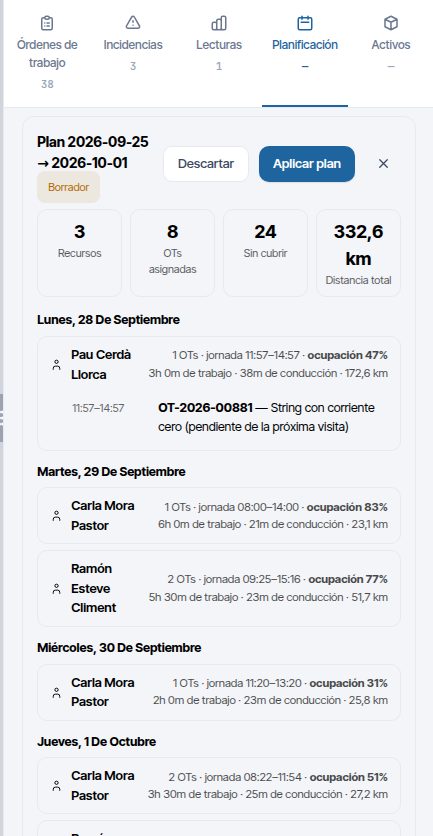
Each working day shows the team or technician, the number of WOs, the working day (from arrival at the first WO to the end of the last), the occupancy, the working and driving hours and the kilometres. Occupancy compares work and driving with the shift hours excluding the break; above 95 % it is shown in amber. Click the working day to see the route: the WOs in order, with their arrival and end times. On a night shift, a time that falls after midnight carries “(+1)”: it belongs to the following day.
The WOs the resource already had are shown dimmed, with “ya en su agenda” (already in their schedule), and are counted separately (“3 OTs + 2 ya en agenda”). They are included in the working day and in the occupancy, but not in OTs asignadas.
Note
The plan is shown as a list in the panel; the routes are not drawn on the map. To locate a WO, search for it in the WO list and click Zoom.
Three blocks can appear below the working days:
- Sin cubrir (N): the WOs that did not fit, with the reason and an explanation.
- Recursos sin disponibilidad (N días) (Resources without availability (N days)): the days that do not count, with the reason from the table above. It expands when you click it.
- Warnings in yellow: excluded teams, technicians who are already in a team, technicians starting from the warehouse…
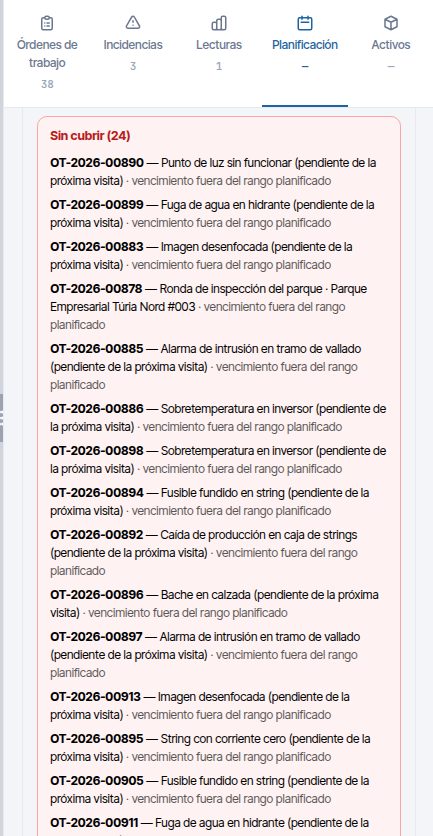
| “Sin cubrir” reason | What it means |
|---|---|
| sin ubicación (no location) | The WO has no placed assets, no point and no area |
| sin recurso cualificado (no qualified resource) | None of the chosen resources has the training or trade it requires, valid on any day of the range. The explanation says which |
| duración mayor que la jornada (duration longer than the working day) | Its estimated duration does not fit in any shift |
| demasiado lejos (too far) | Going there, doing it and coming back does not fit in the working day. The explanation gives the kilometres and hours |
| fechas incompatibles (incompatible dates) | Its planned start and its due point do not match any free working day, counting the travel |
| jornadas completas (working days full) | It would fit, but the working days are already full. If it is because of Reparto equilibrado, it says so |
| ya no está pendiente (está En Curso…) (no longer pending (it is En Curso…)) | Someone has started or closed it in the meantime |
| ya planificada: tiene personal y fechas (already planned: it has staff and dates) | Someone has planned it in the meantime |
| vencimiento fuera del rango planificado (due point outside the planned range) | The ticked WO falls due after the last day of the range |
| su personal no está en el plan (its staff are not in the plan) | The ticked WO already has operational staff and none of the chosen resources includes them |
Applying or discarding the plan
A plan in Borrador (Draft) has two buttons: Aplicar plan (Apply plan) and Descartar (Discard).
- Review the working days and what remains not covered.
- Click Aplicar plan. “¿Aplicar el plan?” (Apply the plan?) appears.
- Click Aplicar (Apply).
When applied, each new WO in the plan receives:
- As operational staff, the technician for its working day or all the active members of the team. If it already had operational staff (this only happens if you ticked it), it keeps them.
- As Inicio previsto, the arrival time, and as Fin previsto, the time the work ends. The Fecha límite is not touched.
The responsible people do not change and the WO stays Pendiente. It appears immediately in the calendar, in the Kanban and in the Vista Usuario. In its activity, the assignment is recorded as made by the planner. The WOs that were already in each resource's schedule do not change.
If everything goes well, “Plan aplicado: las OTs han sido asignadas y programadas” (Plan applied: the WOs have been assigned and scheduled) appears and the plan changes to Aplicado (Applied). If any WO fails (it has been started, cancelled or deleted in the meantime), “Plan aplicado parcialmente: N OTs con fallos” (Plan partially applied: N WOs with errors) appears. The plan stays in Borrador with the block Fallos al aplicar (N) — puedes reintentar (Errors when applying (N) — you can retry). When you apply it again, the WOs already planned are skipped.
Descartar asks for confirmation (“¿Descartar el plan?” (Discard the plan?)) and sets the plan to Descartado (Discarded). A discarded plan cannot be applied.
Plan history
Historial de planes shows the last 30 plans with their range, resources, WOs assigned, not covered, kilometres and status: Borrador, Aplicado or Descartado. Click one to see its detail; the X closes it.
Optimiser limits
- Local scale: with no WOs ticked, only those less than 200 km from the resources' branches go in. A distant WO is not planned by mistake hundreds of kilometres away.
- Range: 14 days at most. For a month, generate several plans in a row.
- Size: up to 500 working days (resources × days) and 2,000 different locations per plan.
- Routing service: times and kilometres come from a road routing service. If it fails several times in a row, Maptainer stops calling it for about 5 minutes so as not to block the application, and the plan is not generated. The message says how long to wait before clicking Generar plan again; if it happens again, contact support.
Planning a single WO
For a single WO you do not need the optimiser. In the WO form, Planificar esta OT (equipo u operario apto más cercano) proposes a date and staff, and Sugerir próxima fecha disponible (Suggest next available date) finds the responsible person's first free slot. They are explained in Work orders.
Common problems
| Symptom | Probable cause | Solution |
|---|---|---|
| The Optimizador button does not appear | The Planificador de OTs module or the Mantenimiento Editar permission is missing | Check the modules in Configuración General and the role in Gestión de Roles y Permisos |
| The Por despachar queue does not appear | Your role does not have Mantenimiento Editar | Ask the administrator for the permission |
| A technician does not appear in any working day of the plan | They have no shift and the company has no working hours, or they are on holiday or it is a public holiday for the whole range | Open Recursos sin disponibilidad in the plan and check their shift in Work calendar |
| A team appears dimmed with ⚠ | It has no default shift | Assign it a shift in Staff and teams |
| Many WOs in Sin cubrir with “jornadas completas” | Few resources or a short range | Add resources, extend the range or untick Reparto equilibrado |
| WO in Sin cubrir with “demasiado lejos” | The WO is far from the resource's starting point | Choose resources from a closer branch |
| WO in Sin cubrir with “sin recurso cualificado” | None of the chosen people has the training or the trade | Add someone who has them or check the training in Staff and teams |
| A pending WO does not appear in the plan or in the list | It already has staff and dates, belongs to a customer other than the one chosen, has no location or falls due after the range | Check its card and the chosen customer; extend the range or tick it by hand |
| “Nadie cerca” when using Asignar al más cercano… | No technician within 40 km has sent their position in the last 2 hours, or they do not meet the training | Assign with the Por despachar queue or with Asignar personal… (Assign staff…) |
| When dragging in the calendar, the WO goes back to its place with a message | The WO is not open, the new day is a public holiday or non-working day, or the Editar permission is missing | Read the reason in the message and choose another day |
Last updated: