
Introduction
Each asset belongs to a layer, which is its type: “Luminaria”, “Hidrante”, “Tubería de abastecimiento”… The layer decides three things:
- The geometry: point, line or polygon. Some layers accept all three.
- The fields: the data stored for each asset, such as power or year of installation.
- The identifying fields: those that make up the asset's name in the record and in lists, for example “Cuadro de alumbrado 001”.
Layers are created and configured in the admin area; see Layers and asset types. Only operational layers have assets with a record, work orders and incidents.
As well as its fields, each asset has:
| Data | What it is |
|---|---|
| Customer | Who it belongs to. Only with the customers module, and then it is required |
| Status | Its situation: operational, under maintenance, decommissioned… (see below) |
| Code | An identifier that comes with file uploads or from the app. It is used to find the asset in the global search |
| Dates | When it was created and when it was last modified |
| Photos and documents | Attached files: manuals, data sheets, field photos |
| Readings | Only in measurable layers. See Reading batches |
Asset statuses
The status catalogue is the same for all companies and cannot be changed:
| Status | When it is used |
|---|---|
| Pendiente de Validar (Pending validation) | Asset added from the app, waiting for someone in the office to approve it |
| Operativo (Operational) | Working normally. It is the status of assets you add in the web app |
| En Mantenimiento (Under maintenance) | Work is being carried out on it |
| Fuera de Servicio (Out of service) | It is stopped or broken down |
| Baja Definitiva (Permanently decommissioned) | Withdrawn. It is no longer drawn on the map |
The status is changed by hand in the record (see Change the status). To see the assets on the map coloured by status, use the layer's Estado del activo (Asset status) thematic map: see The map.
Prerequisites
Permissions
Asset permissions are in Gestión de Roles y Permisos (Role and permission management), Activos GIS (GIS assets) group.
| Permission | What it allows |
|---|---|
| Ver (View) | View the Activos (Assets) tab, the records, the layers and each layer's list |
| Editar (Edit) | The Editar button in the record, changing the status, adding and deleting the asset's photos and documents, moving assets and editing their data on the map, and viewing the Solicitudes (Requests) layer |
| Crear y Eliminar (Create and Delete) | Drawing new assets on the map and deleting them. Eliminar (Delete) is also needed to change an asset to Baja Definitiva |
| Aprobar cambios (Approve changes) | Approving or rejecting the change requests that come from the app (see Change requests) |
By default, Aprobar cambios is held by the Administrador (Administrator) and the Supervisor. No one approves or rejects their own request, except the administrator. Approving a decommissioning also requires Eliminar.
From the app, adding an asset requires Crear (Create); modifying it, Editar; and decommissioning it, Eliminar. If the technician's role does not have it, the app shows the error for that asset and the rest of what was sent is saved.
The map's edit mode is available to any role with at least one of the Crear, Editar or Eliminar permissions. Its toolbar only shows the tools for the permissions you have.
Documents linked to a whole layer or by property appear in many assets at once. Only the Administrador role can delete them.
The Nueva OT (New WO) and Nueva (New, for incidents) buttons in the record depend on the Crear permission of the Mantenimiento (Maintenance) group.
Company options
- Customers module. If your company works with customers, each asset must have one. Your own assets go to your company's internal customer. See Customers and SLA.
- Work orders and incidents. If your company does not use maintenance, the record does not show the Órdenes (Work orders) and Incidencias (Incidents) tabs.
- Readings. The Lecturas (Readings) tab only appears on assets in measurable layers. See Reading batches.
View an asset
Open the record
The record opens in the Activos tab of the right-hand panel. There are three ways to get to it:
- Turn on query mode (Consultar información de elementos (Query element information), the “i” button) and click the asset on the map. See Query an element.
- Right-click the asset and choose Ver ficha del activo (View asset record).
- Search for its code in the search box in the top bar. See Global search.
While the record is open, the asset flashes on the map. The X in the header (Cerrar ficha (Close record)) closes it and removes the highlight.
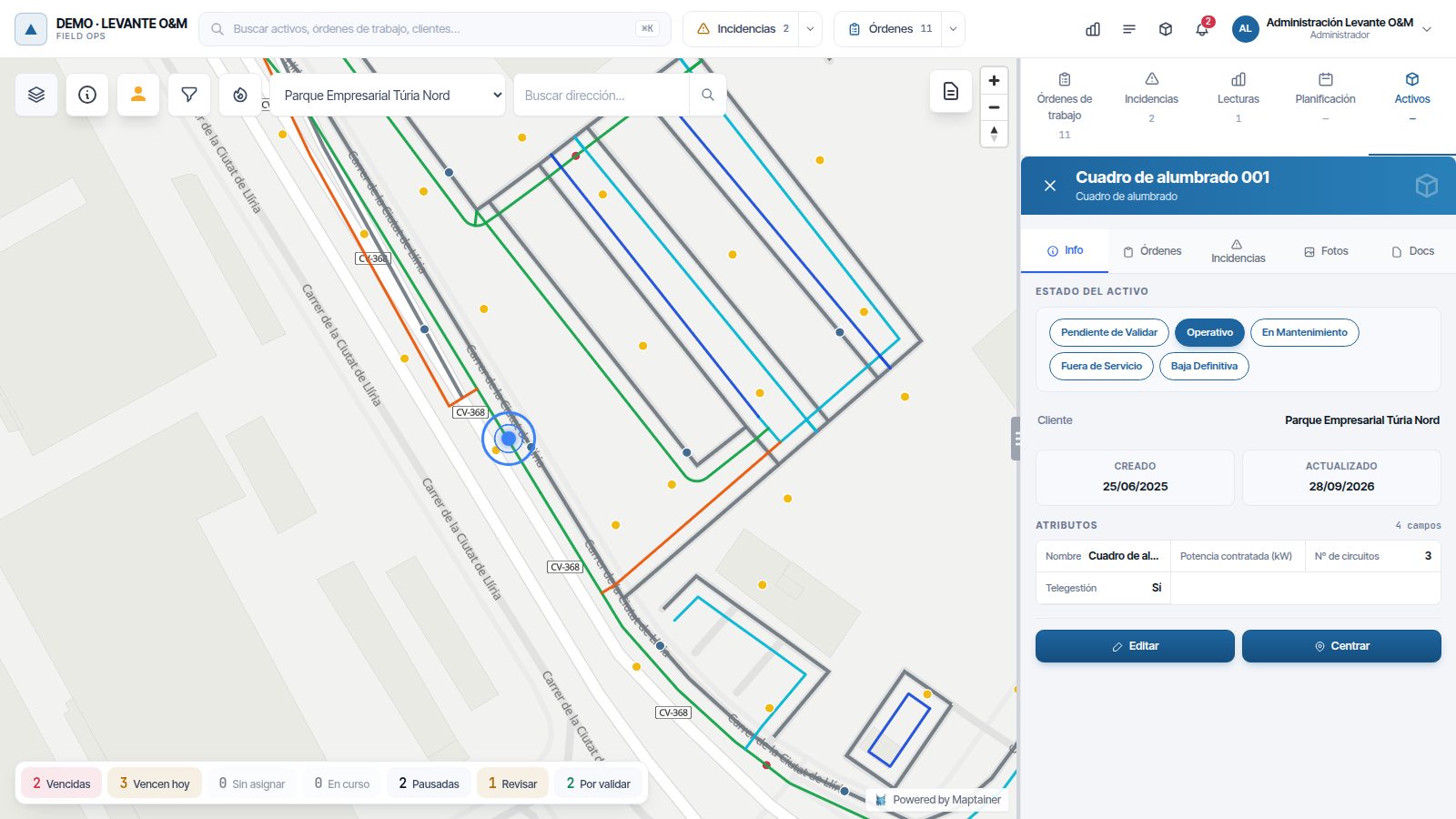
Info tab
The header shows the asset's name (its identifying fields) and the layer. Below it you find:
| Section | Content |
|---|---|
| Código (Code) | The asset's code, if it has one |
| Estado del activo | One button per status. The highlighted one is the current status |
| Cliente (Customer) | The asset's customer |
| Sector | The sector it belongs to, if any |
| Creado y Actualizado (Created and Updated) | Dates it was added and last modified |
| Atributos (Attributes) | The layer's fields with their values. Fields marked as hidden in the layer are not shown |
At the bottom are Editar, which opens the form (see Edit the data), and Centrar (Centre), which zooms the map to the asset.
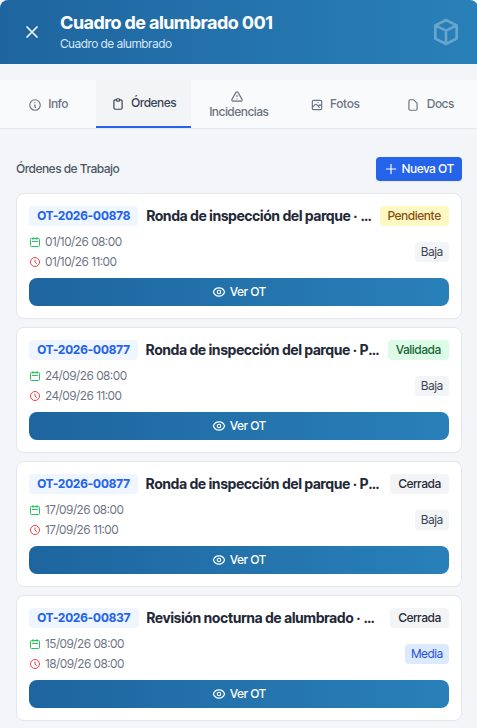
Órdenes tab
It lists all the asset's work orders, open and closed, from newest to oldest. Each card shows the code, the title, the status, the start and end dates, and the priority. If the WO comes from an incident, the incident's code appears next to it.
- Ver OT (View WO) opens the order in the Órdenes de trabajo (Work orders) tab.
- Nueva OT opens the work order form with this asset already added. The notice “Activo añadido” (Asset added) appears. The rest is explained in Work orders.
Incidencias tab
It lists the asset's incidents from the last 12 months. Open ones (Pendiente (Pending) and Aprobada / OT Creada (Approved / WO created)) always appear. Resolved, closed and rejected ones appear if they were closed within that period, with their closing date. Ver Incidencia (View incident) opens it in its tab, and Nueva opens the incident form with the asset already selected. See Incidents.
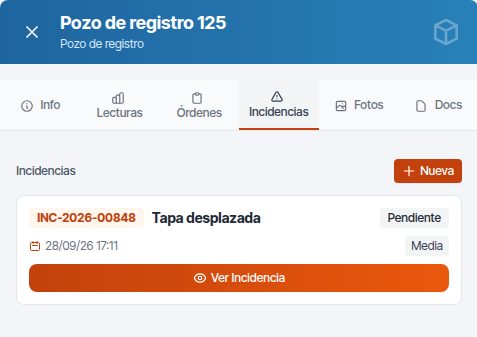
To see older incidents, use Listados (Lists) → Incidencias and search for the asset.
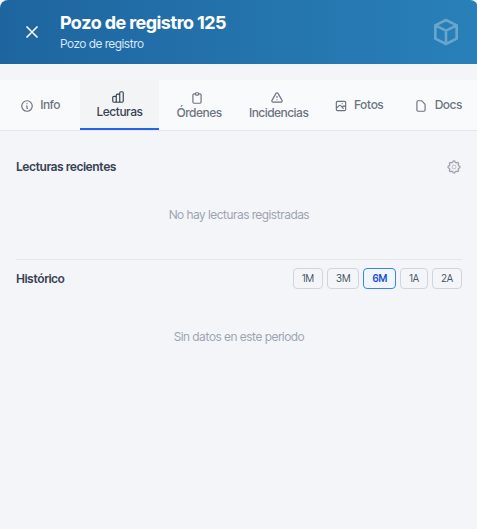
Lecturas tab
It only appears in measurable layers. It shows the Lecturas recientes (Recent readings) grouped by day, with one column per measuring point, and a Histórico (History) chart from 1 month to 2 years. A reading the technician marked as impossible appears as “Ilegible” (Illegible).
With the edit readings permission, the Configurar parámetros (Configure parameters) cog appears, to adjust the limits and frequency for that asset. All of this is explained in Reading batches.
Photos and documents
The Fotos (Photos) tab shows the asset's photos, including those technicians upload from the app. Click one to see it full size and move to the others with the arrows.
To add photos, click Añadir fotos (Add photos) and choose one or more. JPG, PNG, GIF and WEBP are accepted, up to 20 MB each. To delete one, hover over it and click the red X.
Photos that do not meet the requirements are discarded before uploading. When it finishes, “Fotos no subidas” (Photos not uploaded) appears with each rejected photo and the reason: unsupported format, size or the error returned by the server. The others are uploaded anyway.
The Docs tab gathers the documents. Click Añadir documento (Add document) and choose what it is linked to:
| Option | Where it is shown |
|---|---|
| Este activo específico (This specific asset) | Only on this asset |
| Tipo: nombre de la capa (Type: layer name) | On all assets in the layer. Useful for a shared manual |
| Por propiedad (modelo, etc.) (By property (model, etc.)) | On the layer's assets with a specific value in a field, for example a manufacturer. Choose Campo: (Field:) and Valor: (Value:) |
Then choose the Archivo (File), enter a Título (Title) and a Descripción (Description) if you wish, and click Subir documento (Upload document). PDF, images, Word, Excel, CSV, text, OpenDocument, DWG, DXF and ZIP are accepted, up to 50 MB. Click a document in the list to open it.
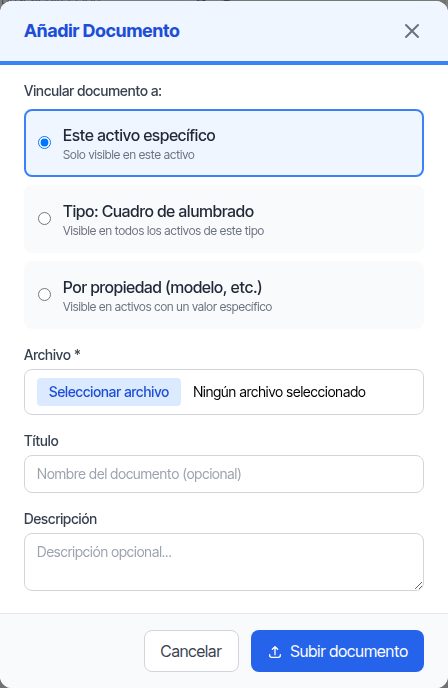
To delete a document, hover over it and click the bin. Those linked to this asset can be deleted by anyone with the Editar permission. Those linked to the whole layer or by property only show the bin to the administrator; before deleting them, a warning says they will disappear from all records.
The record does not have a change history for the asset. The closest things are the Creado and Actualizado dates, and the work order and readings tabs.
Change the status
- On the Info tab, click the new status in Estado del activo.
- “¿Cambiar estado?” (Change status?) appears. Click Sí, cambiar (Yes, change), or Cancelar (Cancel) to leave it as it was.
- “Estado actualizado” (Status updated) appears and the layer is redrawn with the new status.
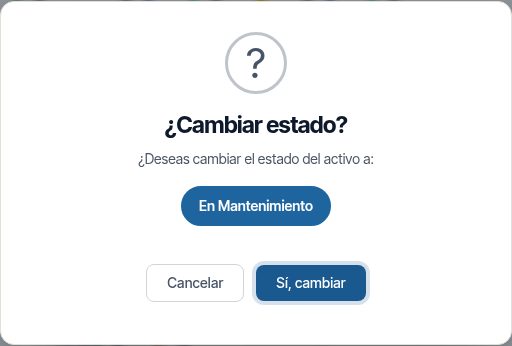
Warning
When you change an asset to Baja Definitiva, it is no longer drawn on the map. To open its record again you will have to search for it by its code in the global search. And do not change an asset to Pendiente de Validar by hand: it will appear in the Solicitudes layer, and if someone rejects it, the asset is deleted.
Without the asset Editar permission, the status buttons are greyed out: you can see the current status but cannot change it. Changing an asset to Baja Definitiva also requires Eliminar.
Edit the data
- Open the record and click Editar. The panel shows “Editando:” (Editing:) and the layer name.
- Change the Cliente or the fields in Propiedades (Properties). Required fields have an asterisk.
- In measurable layers, Campos a medir (Fields to measure) also appears, with the limits, frequency and tolerance of each measuring point.
- Click Guardar (Save) (or the green tick at the top). “Los cambios se han guardado correctamente” (The changes have been saved successfully) appears. Cancelar (or the red X) leaves without saving. In both cases you go back to the full record.
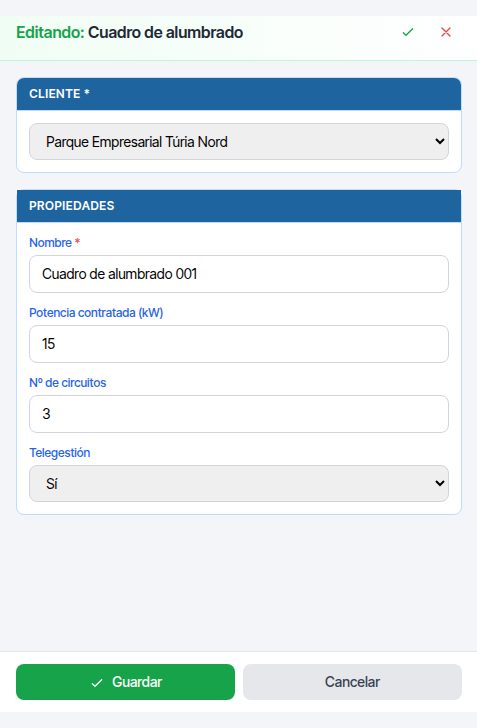
If you change the customer and the asset has open work orders or incidents from the previous customer, Maptainer asks “¿Mover también el trabajo abierto?” (Also move the open work?). Click Moverlo también (Move it too) to transfer them to the new customer, or Dejarlo como está (Leave it as it is).
Fields that are a reference to another asset have a search box: type a few letters and choose the asset from the list. Drop-downs that depend on another field only show the options that match it.
Fields the layer has as Oculto (Hidden) are not shown in the form, and Solo lectura (Read only) fields appear in grey, with “(solo lectura)” (read only), and cannot be changed. When you save, they keep their value. The same happens in the map's attribute form; when adding an asset they take their default value.
Add and edit on the map
Assets are drawn layer by layer, in edit mode. It is available to anyone with the permission to create, edit or delete assets (see Permissions). To add many assets at once, use file upload: see Layers and asset types.
Turn on edit mode
- Click Capas (Layers) and turn on the layer you want to edit. It must be visible on the map.
- Hover over its row and click the pencil (Editar capa (Edit layer)). The other icon, Ver listado de activos (View asset list), opens its table.
- At the top of the map, “Editando:” appears with the layer name and the toolbar.
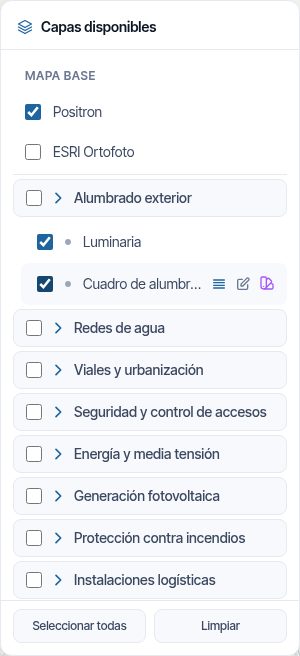
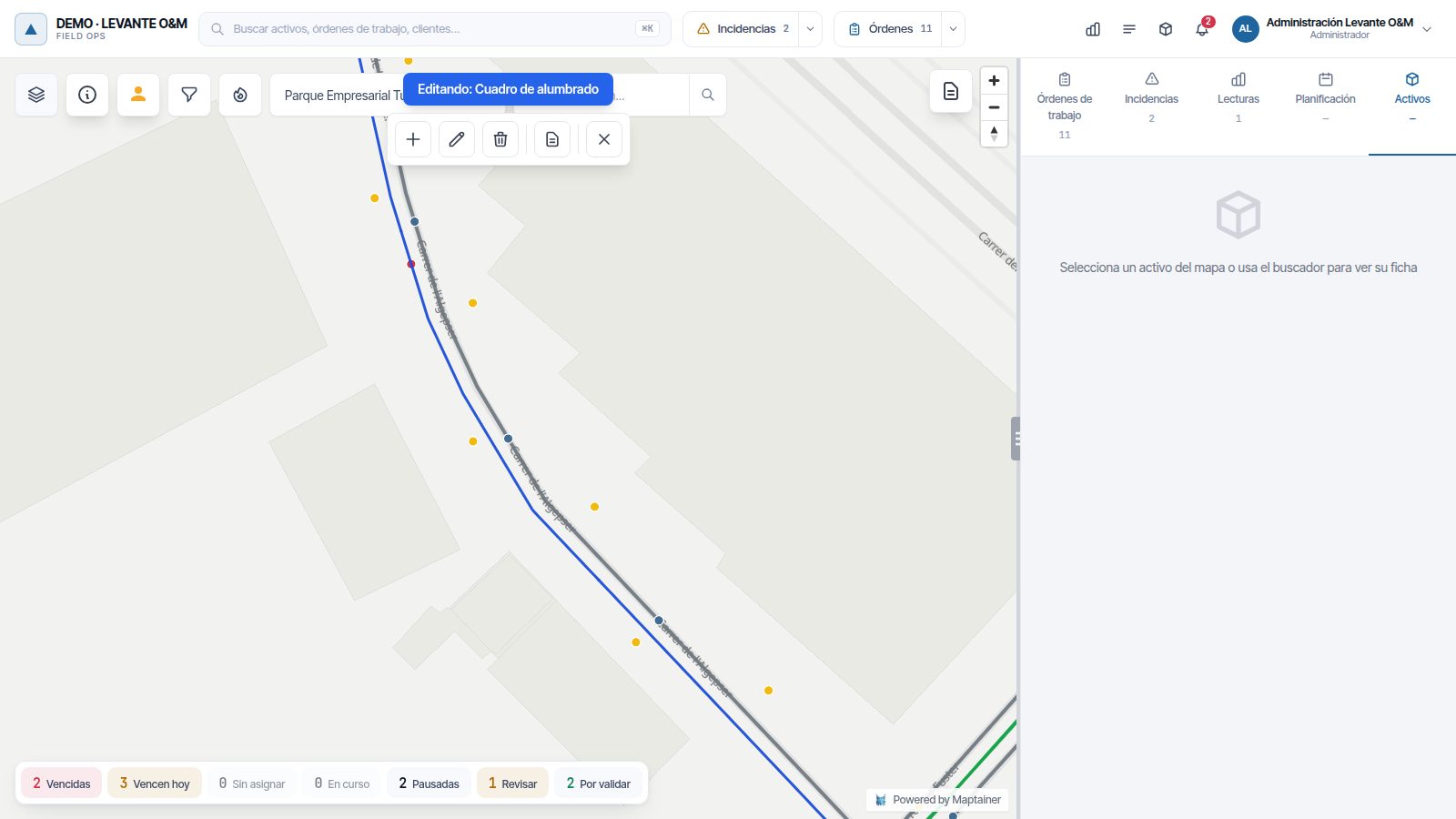
| Button | What it does |
|---|---|
| + (Añadir geometría) (Add geometry) | Draws a new asset |
| Pencil (Editar geometría) (Edit geometry) | Moves a point or the vertices of a line or polygon |
| Bin (Eliminar geometría) (Delete geometry) | Deletes the asset you click |
| Document (Editar atributos) (Edit attributes) | Opens the data form of the asset you click |
| Green tick (Guardar cambios) (Save changes) | Saves the drawing. It only appears when there is something to save |
| Red X (Cancelar cambios) (Cancel changes) | Discards the drawing. It only appears next to the previous one |
| X (Cerrar edición) (Close editing) | Leaves edit mode |
Añadir geometría appears with the Crear permission; Editar geometría and Editar atributos, with Editar; and Eliminar geometría, with Eliminar.
Clicking an active tool's button again turns it off.
Draw a new asset
- Click Añadir geometría. If the layer accepts several geometries, choose Punto (Point), Línea (Line) or Polígono (Polygon).
- Click on the map. A point is placed with one click. For a line or polygon, click each vertex and finish with a double click or the Enter key.
- The green tick and the red X appear. Click the green tick (Guardar cambios).
- “Atributos del nuevo elemento” (Attributes of the new element) opens. Choose the Cliente: the one you have selected on the map is already filled in.
- Fill in the fields. Required fields have an asterisk. In measurable layers there is also Fecha primera lectura prevista (Planned first reading date), which applies to all its measuring points.
- Click Guardar. “Elemento creado correctamente” (Element created successfully) appears and the asset appears in the layer as Operativo.
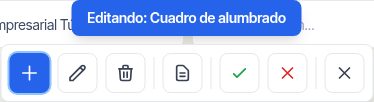
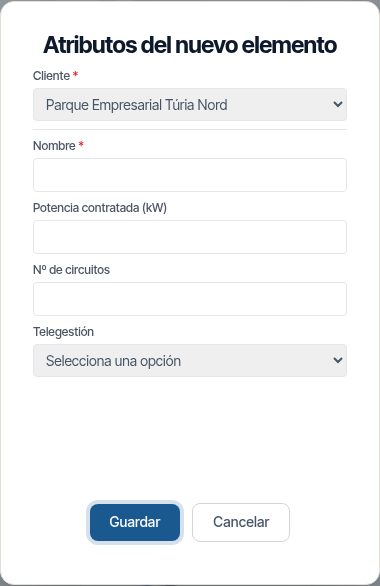
If a required field is missing, the form says “El campo … es obligatorio” (The field … is required). With no customer, “Elige el cliente del activo (el propio si es tuyo)” (Choose the asset's customer (your own if it is yours)). To create nothing, click Cancelar in the form and then the red X.
If adding fails on saving (for example, because the customer is deactivated), “No se ha creado el elemento” (The element was not created) appears with the reason. The drawing is kept: click the green tick again, correct the data and save.
Move or redraw an asset
- Click Editar geometría and then the asset on the map. “Arrastra el punto para moverlo” (Drag the point to move it) or “Arrastra los vértices para editar la geometría” (Drag the vertices to edit the geometry) appears.
- Drag the point or the vertices into place.
- Click the green tick. “Geometría actualizada correctamente” (Geometry updated successfully) appears. The red X undoes the change.
If saving fails, “La geometría no se ha guardado” (The geometry was not saved) appears with the reason. The asset stays where it was and the change remains on screen: click the green tick again or discard it with the red X.
Edit the data from the map
Click Editar atributos and then the asset. “Editar atributos” opens, the same form as when adding. Click Guardar and “Atributos actualizados correctamente” (Attributes updated successfully) appears. With Editar geometría active, double-clicking the selected asset opens the same form.
Delete an asset
- Click Eliminar geometría and then the asset.
- “¿Eliminar elemento?” (Delete element?) appears. Click Sí, eliminar (Yes, delete).
- “Elemento eliminado correctamente” (Element deleted successfully) appears and the asset disappears from the map.
Warning
Deleting an asset changes it to Baja Definitiva and removes it from the map and from the search. It cannot be recovered from the web app. Its work orders and incidents are not deleted. If it is only out of use for a while, change its status to Fuera de Servicio.
Asset list of a layer
The Ver listado de activos icon of each operational layer opens a table with its assets in use: deleted assets and those in Baja Definitiva are not shown. It has a search box, the Código and Estado (Status) columns, one column per field and the Cliente column. The eye on each row (Ver en mapa (View on map)) zooms the map to the asset. Basic use is explained in The map.
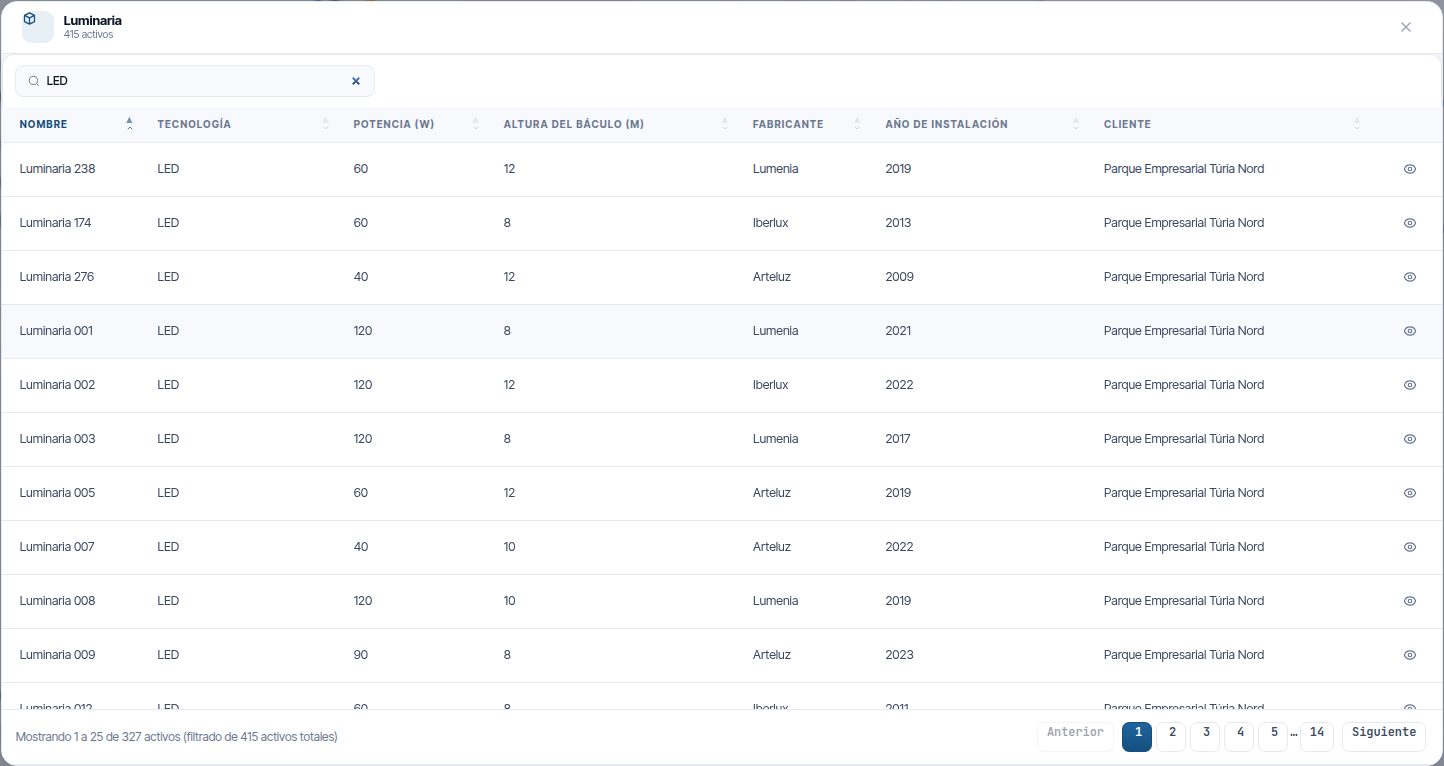
The search looks in the code, the status, all the asset's fields and the customer name. If you have a customer selected on the map, only their assets are shown.
Click a column heading to sort by it; click again to reverse the order. When it opens, the table is sorted by code.
Exportar CSV (Export CSV) downloads the table in a file that opens in Excel. It includes the code, the status, the fields and the customer, with the same search, customer and sort order you have on screen. It allows up to 50,000 assets; if there are more, narrow it down with the search box or the customer.
Asset hierarchy
Maptainer stores which asset each one hangs from: the luminaires of a lighting panel, the inverters of a plant. The rules belong to the layer: it states which layers its assets can hang from, how many fit under the same parent and whether having a parent is required. They are configured in Layers and asset types.
If the layer has no parent layers, its assets do not hang from anything and the forms show none of this.
Specify which asset it hangs from
The add and edit forms of layers with a hierarchy have the Cuelga de (Hangs from) field. Next to the title, the layers it can hang from appear in brackets.
- Click Buscar por código o nombre… (Search by code or name…). The assets of those layers appear, from nearest to farthest, with their layer, code, customer and distance.
- Type part of the code or of any field to narrow the list, and click the right one.
- You can also click Elegir en el mapa (Choose on the map): the form moves aside and a notice asks you to click the asset it hangs from. The parent's layer must be turned on. Esc cancels.
- To remove the parent, click Quitar (Remove).
When drawing a new asset, if there is a possible parent less than 1 km away, the field comes already filled in with “Propuesto: el más cercano” (Proposed: the nearest). Check it: change it or remove it if it is not right.
Only in-use assets from the allowed layers appear. The asset itself and those hanging from it are not shown, because the relationship would loop back.
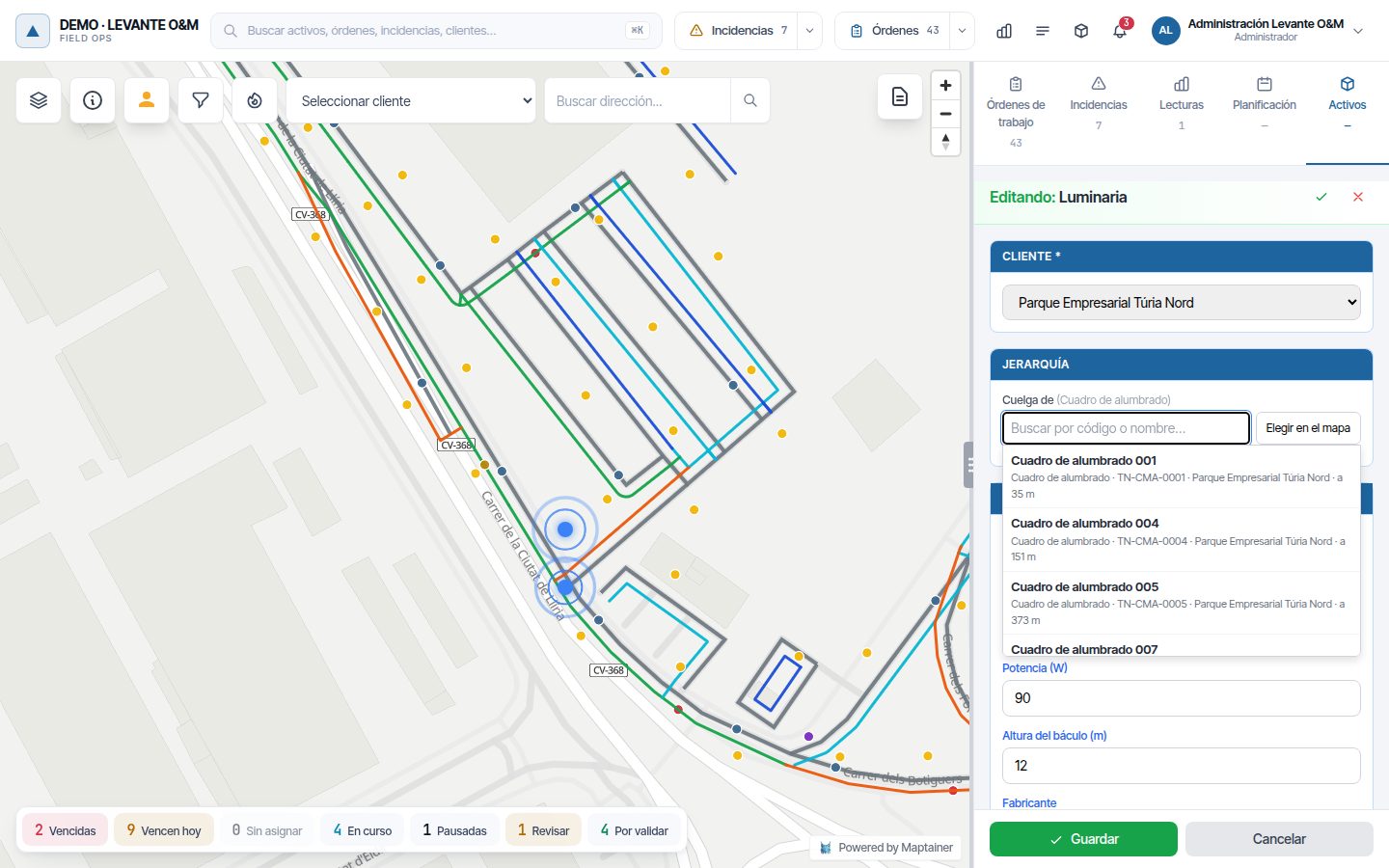
If the parent is not valid when you save, the notice says why: “El activo padre tiene que ser de la capa …” (The parent asset must be from the layer …), “El activo padre ya tiene 3 de 3 activos de esta capa” (The parent asset already has 3 of 3 assets from this layer) or “El activo padre cuelga de este activo: la jerarquía sería circular” (The parent asset hangs from this asset: the hierarchy would be circular).
Required parent
If the layer requires a parent, Cuelga de has an asterisk and you cannot save without it, either when adding or when editing the data. Assets that already existed without a parent can still be used and moved; their record warns with “Falta: la capa lo exige” (Missing: the layer requires it). Complete them gradually with Editar.
In the record
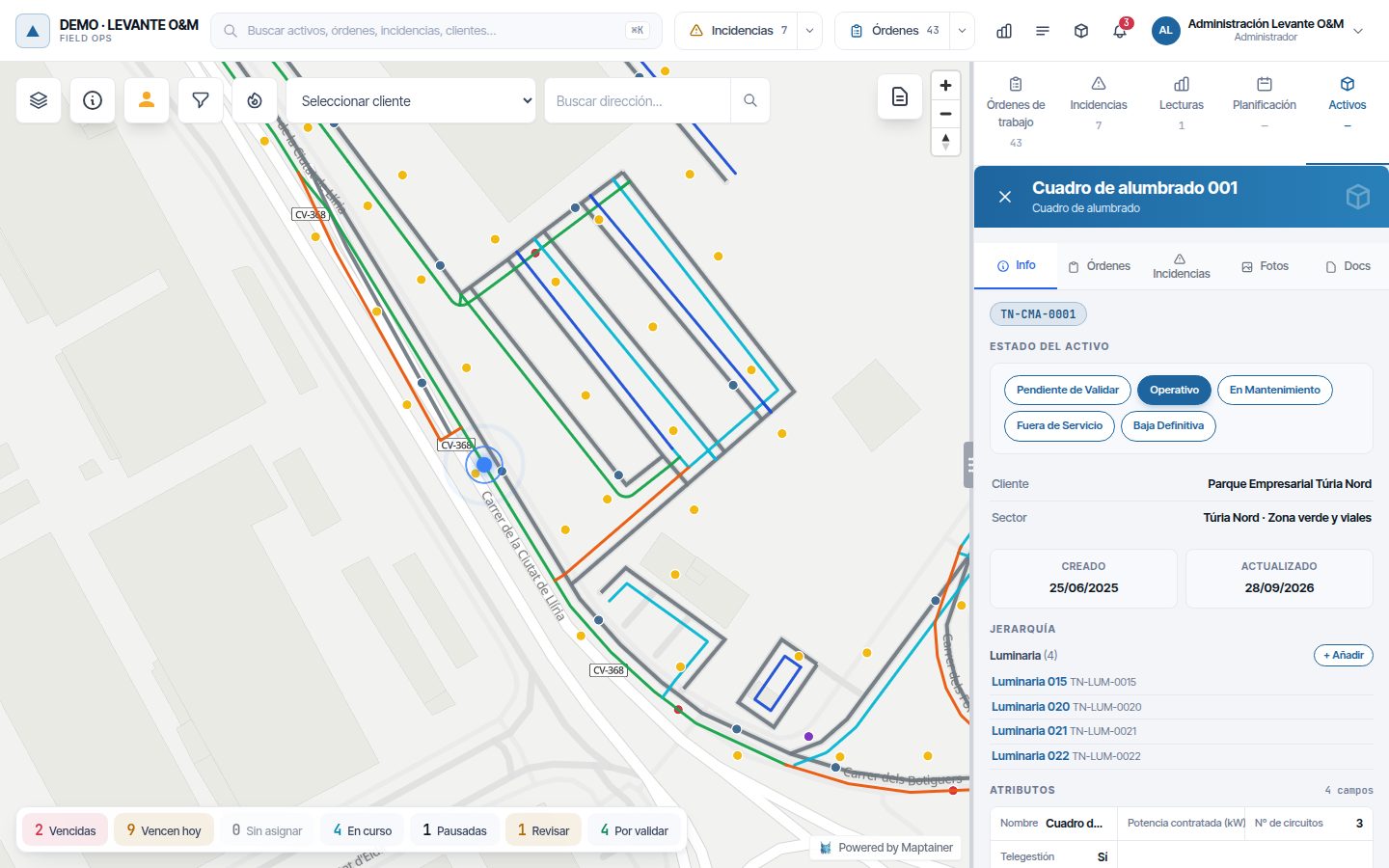
The Info tab has the Jerarquía (Hierarchy) section when the layer has parent or child layers:
| Part | Content |
|---|---|
| Cuelga de | The parent asset, with its layer. Click the name to open its record |
| One line per child layer | How many assets of that layer hang from this one (and the maximum, if there is one) and the list of up to 50. Click one to open its record |
| + Añadir (+ Add) | Opens edit mode for the child layer to draw an asset that already hangs from this one. It appears with the Crear permission and as long as more will fit |
Change the parent of several at once
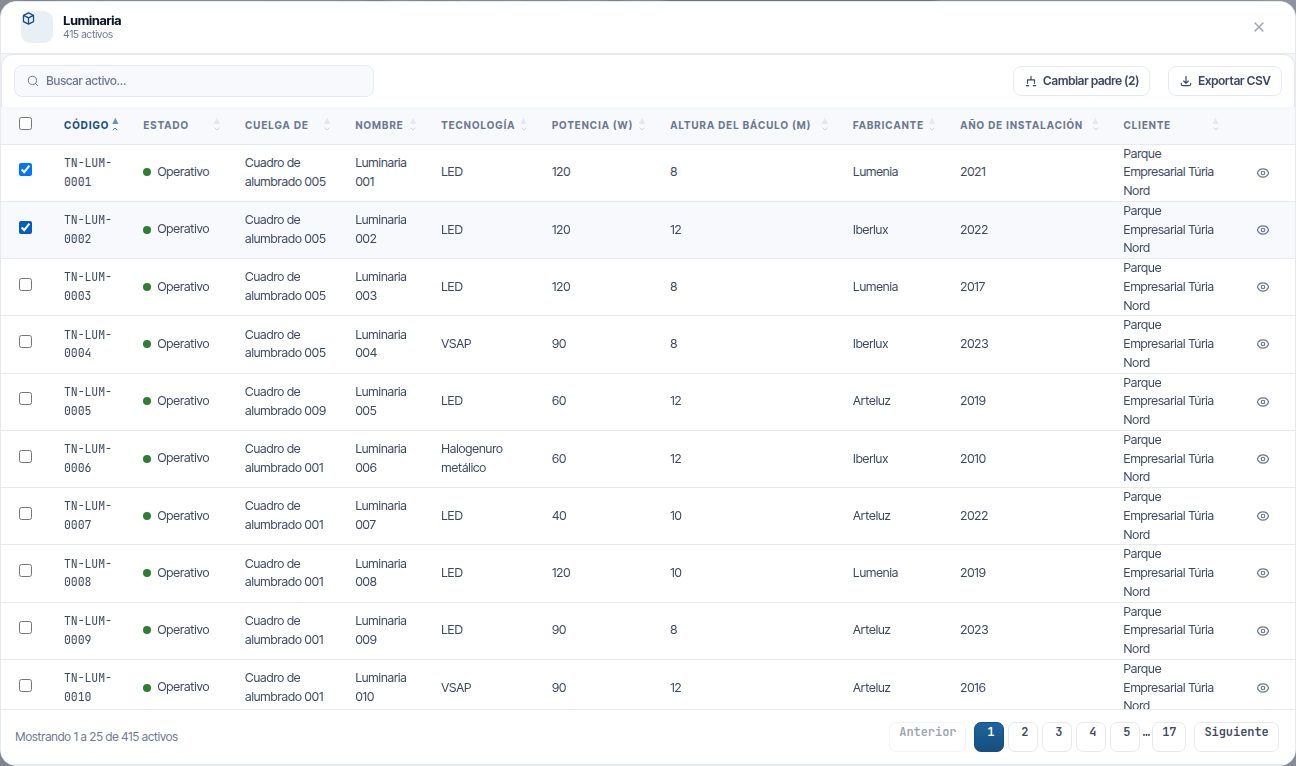
In the list of a layer with a hierarchy there is a Cuelga de column (also in the CSV) and a checkbox on each row.
- Tick the assets. The checkbox in the heading ticks those on the page; ticked rows are kept when you change page.
- Click Cambiar padre (N) (Change parent (N)).
- Choose the parent with the same search as Cuelga de, or with Elegir en el mapa. To leave them without a parent, click Quitar.
- Click Aplicar (Apply).
Each asset is checked as when editing it. Those that cannot be changed (the parent is full, their layer requires a parent and you were removing it…) appear in a notice with the reason and stay ticked.
To hang many assets by a criterion (their code, proximity or the polygon that contains them), use Asignar padres… (Assign parents…) on the layer: see Layers and asset types. When uploading a file you can specify the column with the parent's code: see Parents in the upload.
If the mobile app sends an asset's parent, the same rules apply.
A field that references another asset is still useful for other links that are not dependencies, such as a customer's meter.
Change requests
Technicians can propose changes to assets from the mobile app. The proposals are not applied until someone in the office reviews them in the Solicitudes layer.
| Colour | Type | What is proposed |
|---|---|---|
| Green | Nuevo Activo Pendiente (Pending new asset) | An asset added in the app. Meanwhile it is in Pendiente de Validar |
| Orange | Solicitud de Modificación (Modification request) | Changes to an asset's data, location or status |
| Red | Solicitud de Eliminación (Deletion request) | Decommissioning an asset |
Review a request
- Click Capas and turn on Solicitudes (Pendientes) (Requests (Pending)), below the asset layers. It is visible to anyone with the asset Editar permission. To decide, Aprobar cambios is also needed.
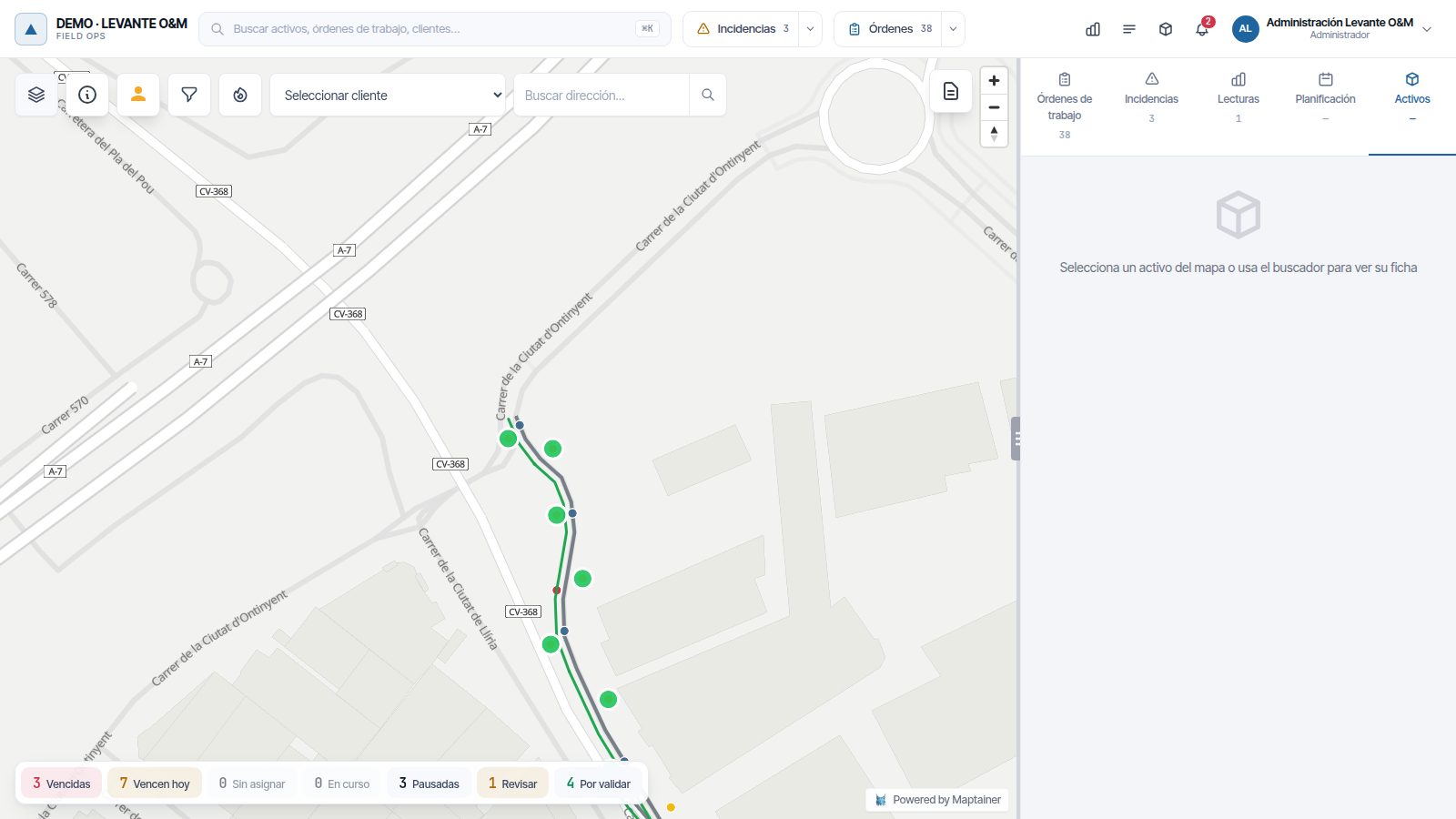
- Look for the coloured points or lines on the map and click one.
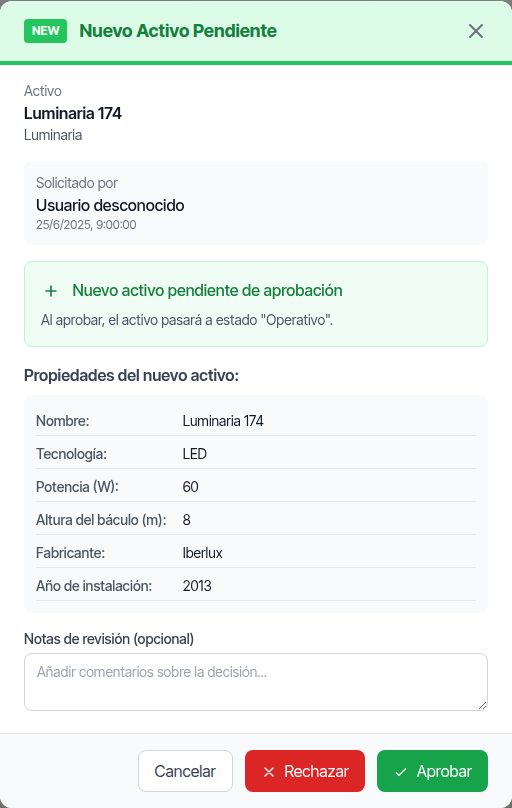
- The review window opens with the asset, who requested it and when, and their notes.
- In modifications, the fields that change are highlighted: the previous value struck through and the new one below. If the location or the status changes, this is indicated separately.
- If you wish, enter some Notas de revisión (opcional) (Review notes (optional)).
- Click Aprobar (Approve) or Rechazar (Reject). Cancelar closes the window without deciding.
What happens when you decide
| Type | On approval | On rejection |
|---|---|---|
| New asset | It changes to Operativo: “El activo ha pasado a estado "Operativo".” (The asset has changed to "Operativo" status.) | The asset is deleted: it changes to Baja Definitiva and is no longer visible on the map |
| Modification | The changes are applied: “Los cambios se han aplicado al activo.” (The changes have been applied to the asset.) | The asset stays as it was |
| Deletion | It changes to Baja Definitiva: “El activo se ha dado de baja.” (The asset has been decommissioned.) | The asset stays as it was |
Rejecting asks for confirmation with “¿Rechazar la solicitud?” (Reject the request?). Click Sí, rechazar (Yes, reject).
Who can decide:
- The asset Aprobar cambios permission is required. Without it, the window warns: “Tu rol no puede aprobar ni rechazar solicitudes de cambio.” (Your role cannot approve or reject change requests.)
- No one decides on their own request, except the administrator: “Es una solicitud tuya: la tiene que revisar otra persona.” (This is your own request: someone else has to review it.)
- Approving a deletion, or a change that moves the asset to Baja Definitiva, also requires the asset Eliminar permission: “Aprobar una baja exige el permiso de eliminar activos.” (Approving a decommissioning requires the delete assets permission.)
A rejected new asset is not erased from the database: it is marked as deleted, with its data.
Where the review notes are kept
Each decision is saved with who made it, when, and the Notas de revisión. If the technician asks why their proposal was rejected, look it up in the audit log:
- Go to the admin area → Auditoría (Audit). Only the administrator can see it.
- In Tipo (Type), choose Solicitudes de activos (Asset requests).
- Click Detalle (Detail) on the Solicitud de activo rechazada (Asset request rejected) or Solicitud de activo aprobada (Asset request approved) row. You will see the Tipo de solicitud (Request type) and the Nota (Note).
- To see all decisions for an asset, click historial (history) in the Sobre qué (About what) column.
Common problems
| Symptom | Likely cause | Solution |
|---|---|---|
| I do not see the Editar capa pencil in the layer list | Your role does not have permission to create, edit or delete assets | Ask an administrator to give it to your role |
| I click on the map with Editar geometría and nothing is selected | The layer is not turned on, or the asset belongs to another layer | Turn on the layer and edit the layer the asset belongs to |
| When saving a new asset, “Elige el cliente del activo (el propio si es tuyo)” appears | Your company works with customers and you have not chosen one | Choose the customer; for your own assets, your company's internal customer |
| The record has no Lecturas tab | The layer is not measurable | See Reading batches |
| The record has no Órdenes or Incidencias tabs | Your company does not use maintenance | See Tenant administration |
| An asset has disappeared from the map | It is in Baja Definitiva or was deleted | If it has a code, search for it in the global search and change its status |
| The Solicitudes layer does not appear | Your role does not have the asset Editar permission | Ask an administrator to give it to your role |
| I cannot approve or reject a request | Your role does not have Aprobar cambios, the request is yours, or it is a decommissioning and you do not have Eliminar | Ask someone else to review it or ask to be given the permission |
| I cannot change an asset to Baja Definitiva | The asset Eliminar permission is required | Ask someone who has it |
Last updated: