
Introduction
Stock is kept per warehouse. An item does not have a single stock figure: it has a quantity in each warehouse where it is held, with its own minimum. The totals you see in the lists are the sum of all warehouses.
| Concept | What it is |
|---|---|
| Warehouse | A place where there is material: a building (physical), a technician's van (mobile) or a quarantine or scrap warehouse (virtual). It belongs to a branch |
| Item | A material or a tool: name, code, unit, prices, supplier and images |
| Minimum stock | The quantity below which the item is “below minimum” in that warehouse |
| Movement | Each stock change. It is kept in the history with date, quantity, resulting stock and WO if there is one |
| Supplier | The company that sells you the material |
Each stock change leaves a movement of one of these types:
| Type | When it occurs |
|---|---|
| Entrada (Stock in) | Purchases or restocking, with Añadir stock (Add stock) |
| Salida (Stock out) | Manual issues that are not for a WO: internal use, loss, breakage, expiry |
| Ajuste (Adjustment) | Corrections after counting the actual stock, or when setting a warehouse to zero |
| Traspaso (Transfer) | Moving material from one warehouse to another. It leaves two movements: one in each warehouse |
| Consumo (Consumption) | Material used in a work order |
| Devolución (Return) | Material from a WO that goes back to the warehouse because it was not used |
Prerequisites
Module and company option
Inventory needs the maintenance module and the Gestionamos almacén de materiales (We manage a materials warehouse) option, in Configuración General (General settings) → Cómo trabaja tu empresa (How your company works). That screen is explained in Tenant administration. Without the option, the Inventario (Inventory) button, the admin area section and the WO Materiales (Materials) do not appear.
Before you add warehouses you need at least one branch. This is covered in Branches and sectors.
Permissions
The permissions are in Roles y Permisos (Roles and permissions), Inventario group. Roles are explained in Tenant administration.
| Permission | What it allows |
|---|---|
| Ver (View) | View items, stock, movements, warehouses and suppliers |
| Crear (Create) | Nuevo item (New item), categories and suppliers |
| Editar (Edit) | Edit items and suppliers |
| Eliminar (Delete) | Delete items, categories and suppliers |
| Movimientos (Movements) | Añadir stock, Registrar salida (Record stock out) and Traspaso, and the material consumed in WOs from the app |
| Control almacén (Warehouse control) | The Ajuste de inventario (Inventory adjustment) button, stock-in entries with purchase price, minimum stock, stock per warehouse inside the item record, and the Inventario valorado (Inventory valuation) and Consumo por activo (Consumption by asset) reports |
Three permissions from outside the group also count:
- Delegaciones (Branches) → Crear, Editar and Eliminar: create, edit, deactivate and delete warehouses.
- Reportes (Reports) → Costes (Costs): the Inventario valorado and Consumo por activo reports, even without Control almacén.
- Avisos (Alerts) → Stock: receive low stock or stock-out alerts.
This is how the roles created with each tenant come set up:
| Role | Ver | Crear | Editar | Eliminar | Movimientos | Control almacén | Stock alerts |
|---|---|---|---|---|---|---|---|
| Administrador (Administrator) | Yes | Yes | Yes | Yes | Yes | Yes | Yes |
| Supervisor | Yes | Yes | Yes | No | Yes | No | Yes |
| Almacén (Warehouse) | Yes | Yes | Yes | Yes | Yes | Yes | Yes |
| Técnico (Technician) | Yes | No | No | No | Yes | No | No |
| Solo Lectura (Read only) | Yes | No | No | No | No | No | No |
Adding an item requires Crear and Control almacén together: with the default roles, the Supervisor cannot do it.
The Ajuste de inventario and stock-in entries with a purchase price, which recalculate the average price, require Control almacén. With the Controlamos costes (We track costs) option every stock-in entry carries a price, so Añadir stock only appears with Movimientos and Control almacén. Without that option, Movimientos is enough. With the default roles, the Supervisor records stock out and transfers, but not valued stock-in entries or adjustments.
Note
Warehouses and suppliers are only managed from the Inventario section of the admin area, which only the Administrador role can see. With the Almacén role you view and move stock from the Inventario button on the map; warehouses and suppliers are added by the administrator.
Who manages stock is decided by the role alone: give the person the Almacén role or the Inventario permissions they need.
Where it is
There are two entry points:
- On the map, the Inventario button in the top bar (the box icon) opens the Gestión de Inventario (Inventory management) window. It lets you view and move stock without leaving the map. Close it with the X or with Escape.
- In the admin area, the Inventario section of the Configuración (Settings) group. It has the same content plus the Almacenes (Warehouses) and Proveedores (Suppliers) buttons. Only the Administrador role can see that group (see What each role sees).
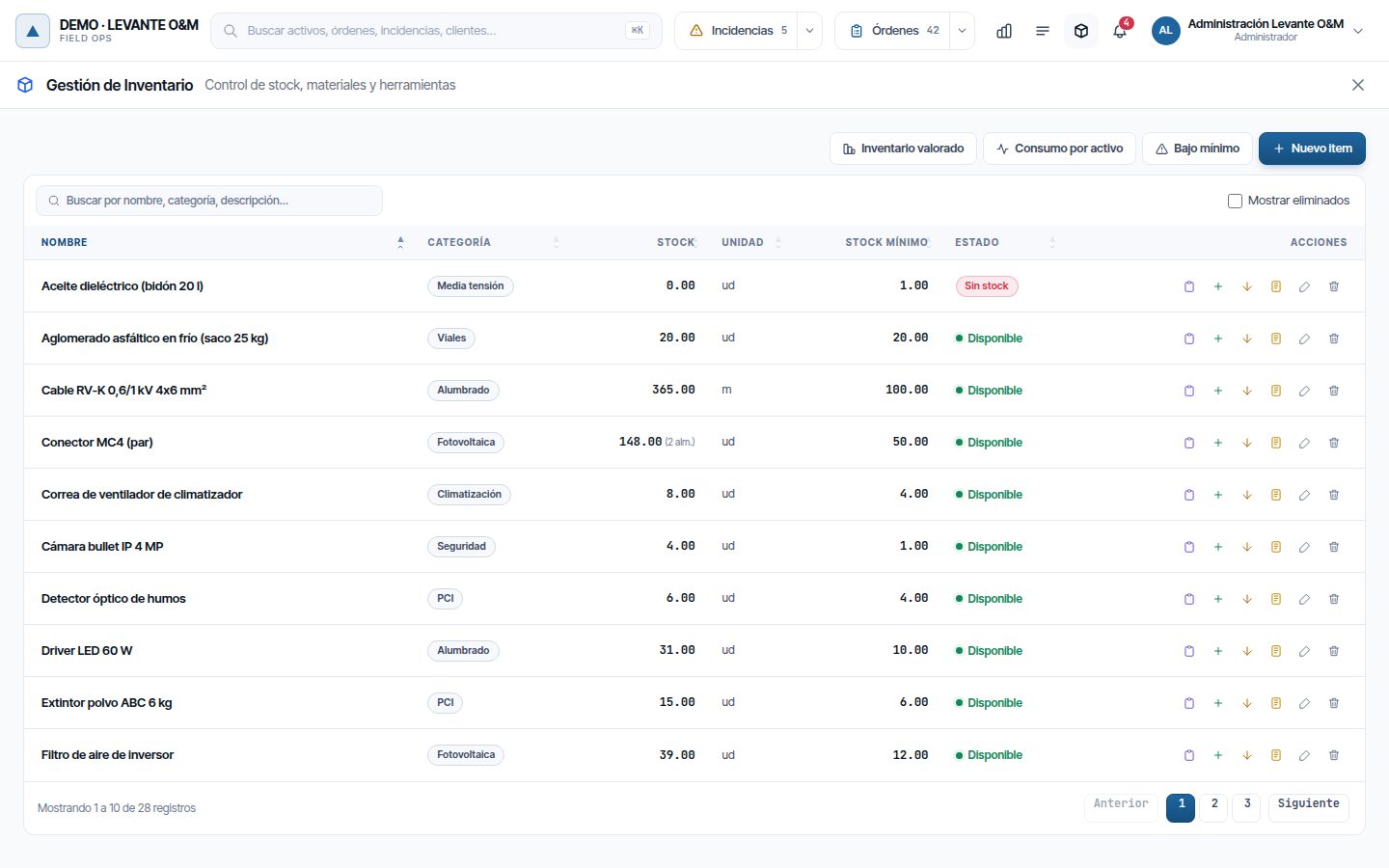
Stock alerts in the bell carry the Ver Inventario (View inventory) button. It opens this window already filtered by the alert's material.
Warehouses
In the admin area, click Inventario and then Almacenes. The warehouses are counted at the top: Total, Físicos (Physical), Móviles (Mobile) and Virtuales (Virtual). The list can be filtered by branch, type and status.
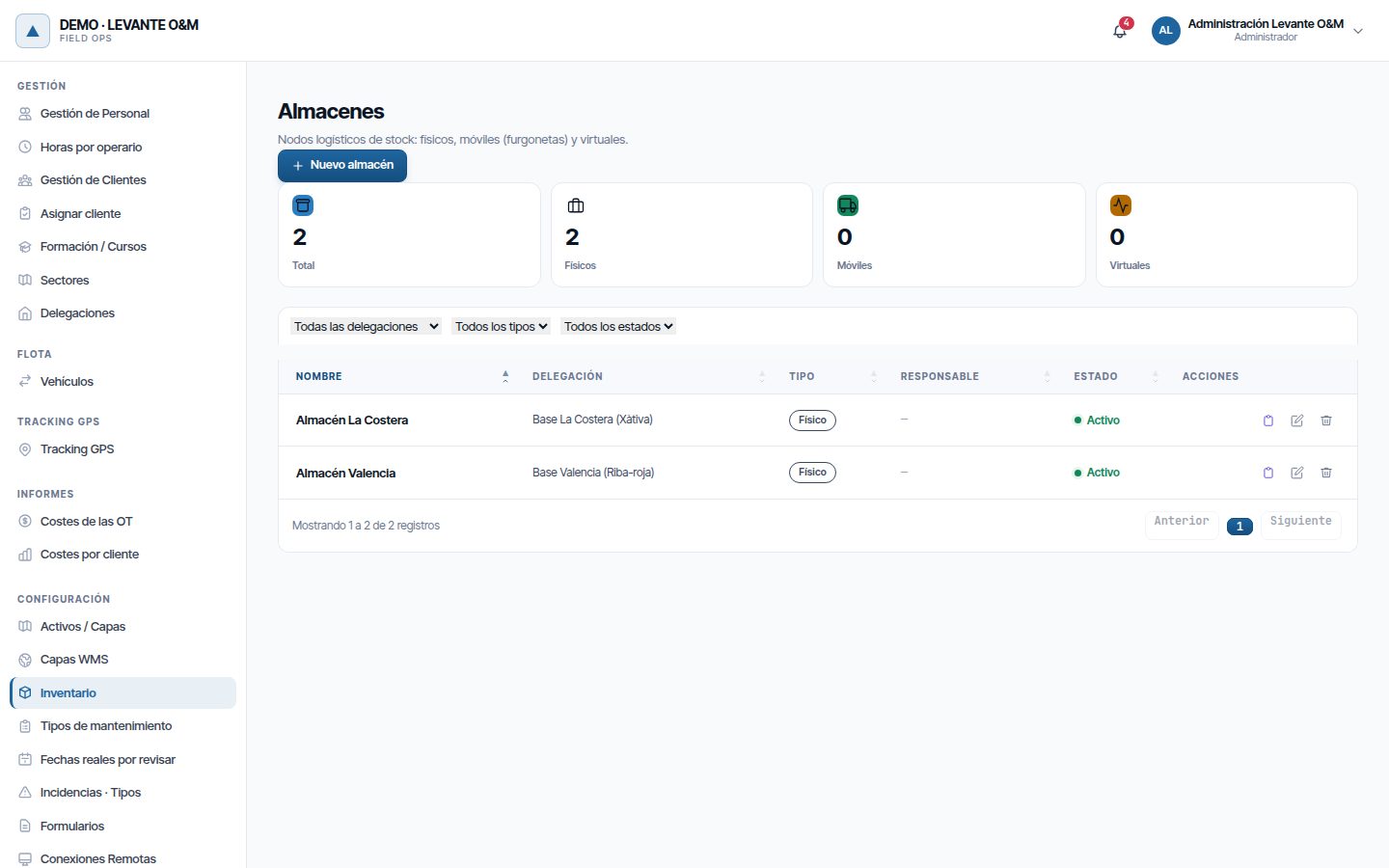
Each row has three actions: Ver stock (View stock), Editar and Eliminar.
Create a warehouse
- Click Nuevo almacén (New warehouse).
- Enter the Nombre (Name) and choose the Delegación (Branch).
- Choose the Tipo (Type) (table below).
- For a physical warehouse, click on the map to set its location. You can drag the marker or enter Latitud (Latitude) and Longitud (Longitude).
- For a mobile warehouse, choose the Técnico responsable (Responsible technician).
- Click Guardar almacén (Save warehouse).
| Type | What for | What it requires |
|---|---|---|
| Físico (nave / edificio) (Physical (building / premises)) | The branch's buildings and warehouses | Location on the map, required |
| Móvil (furgoneta del técnico) (Mobile (technician's van)) | The material a technician carries in their van | Técnico responsable, optional |
| Virtual (cuarentena / chatarra) (Virtual (quarantine / scrap)) | Material set aside: pending review, to be discarded… | Nothing else |
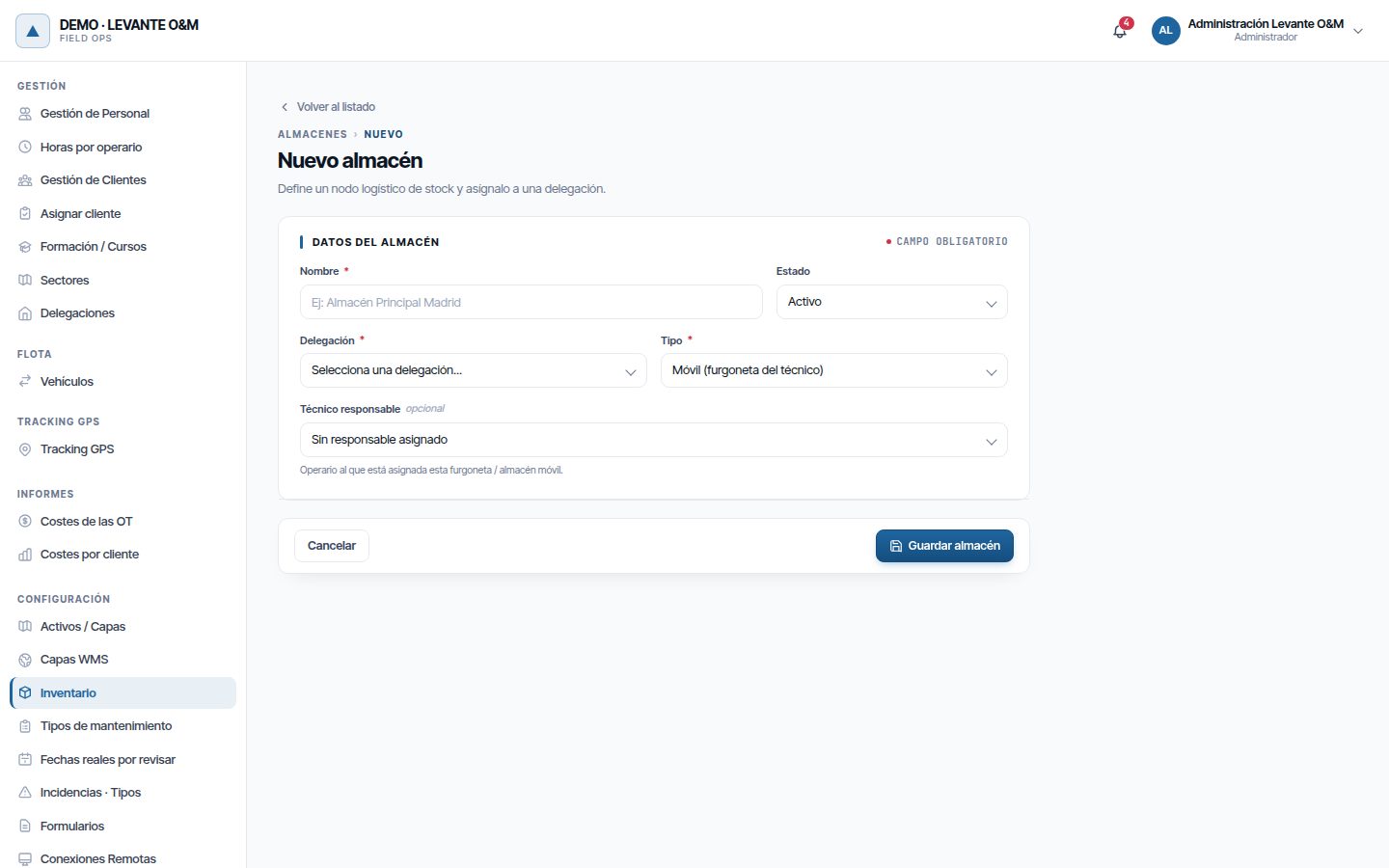
The mobile warehouse matters for WOs: the material a technician uses comes out of their van first. This is explained in Which warehouse the material comes from.
In the list, the Responsable (Responsible) column shows the name of the technician for each mobile warehouse.
Default warehouse
Two records indicate which warehouse is used when there is no other:
- Each worker's record has Almacén por defecto (Default warehouse) (see Staff and teams).
- Each branch has Almacén por defecto: the one used by its staff who have no warehouse of their own (see Branches and sectors).
Deactivate or delete a warehouse
- Desactivar (Deactivate): in Editar, change Estado (Status) to Inactivo (Inactive) and click Guardar cambios (Save changes). This is only possible if the warehouse is empty. Otherwise, “No puedes desactivar un almacén que aún contiene stock…” (You cannot deactivate a warehouse that still contains stock…) appears. Empty it first with a transfer or an adjustment to zero.
- Eliminar: only possible if the warehouse has never had movements. If it has, empty it and deactivate it.
An inactive warehouse no longer appears when choosing a warehouse for stock in, adjustments or transfers.
Suppliers
In the admin area, click Inventario and then Proveedores. At the top, the suppliers are counted, along with the active ones, those with an email and the cities.
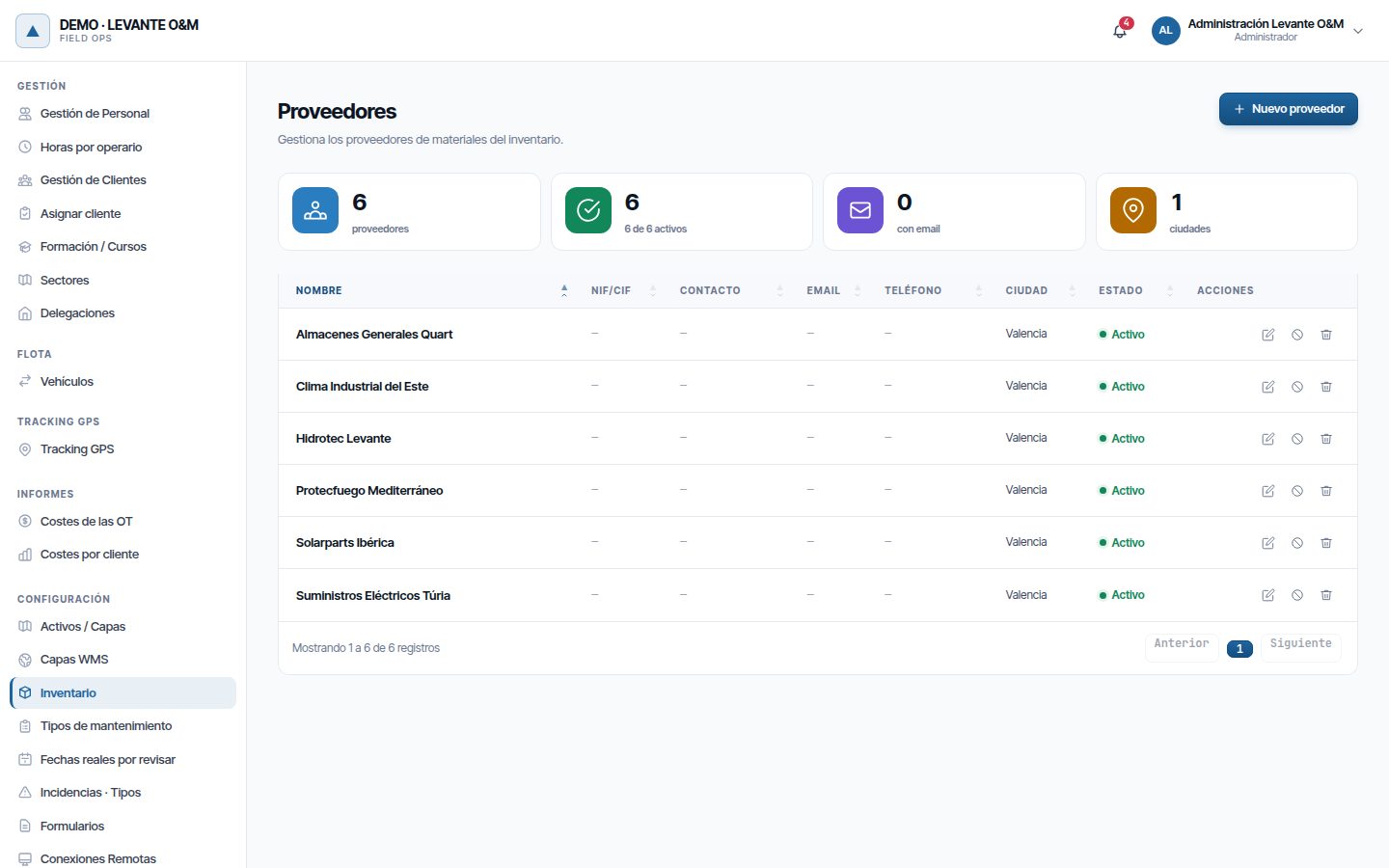
To add one:
- Click Nuevo proveedor (New supplier).
- Fill in the Razón social (Company name). It is the only required field.
- Add, if you wish, NIF / CIF (Tax ID), Persona de contacto (Contact person), Ciudad (City), Email, Teléfono (Phone) and Notas (Notes).
- Leave the Estado as Activo (Active).
- Click Crear proveedor (Create supplier).
To change it, click Editar on its row and then Guardar cambios.
If you stop working with a supplier, deactivate it instead of deleting it: click Desactivar on its row and confirm, or in Editar change Estado to Inactivo. An inactive supplier stays in the list, with its data and history, but is no longer offered when choosing an item's Proveedor preferido (Preferred supplier). If an item already had it, the item keeps it and it is shown as “(inactivo)” (inactive). To restore it, click Activar (Activate).
Eliminar removes it from the list, but does not delete the movements in which it appears.
A supplier is used as the Proveedor preferido of items and appears in the Bajo mínimo (Below minimum) list, so you know whom to order from.
Items
The list shows each item with its Categoría (Category), total Stock, Unidad (Unit), Stock mínimo (Minimum stock) and Estado. If an item is in several warehouses, the number is shown next to the stock, for example “(2 alm.)” (2 whs.).
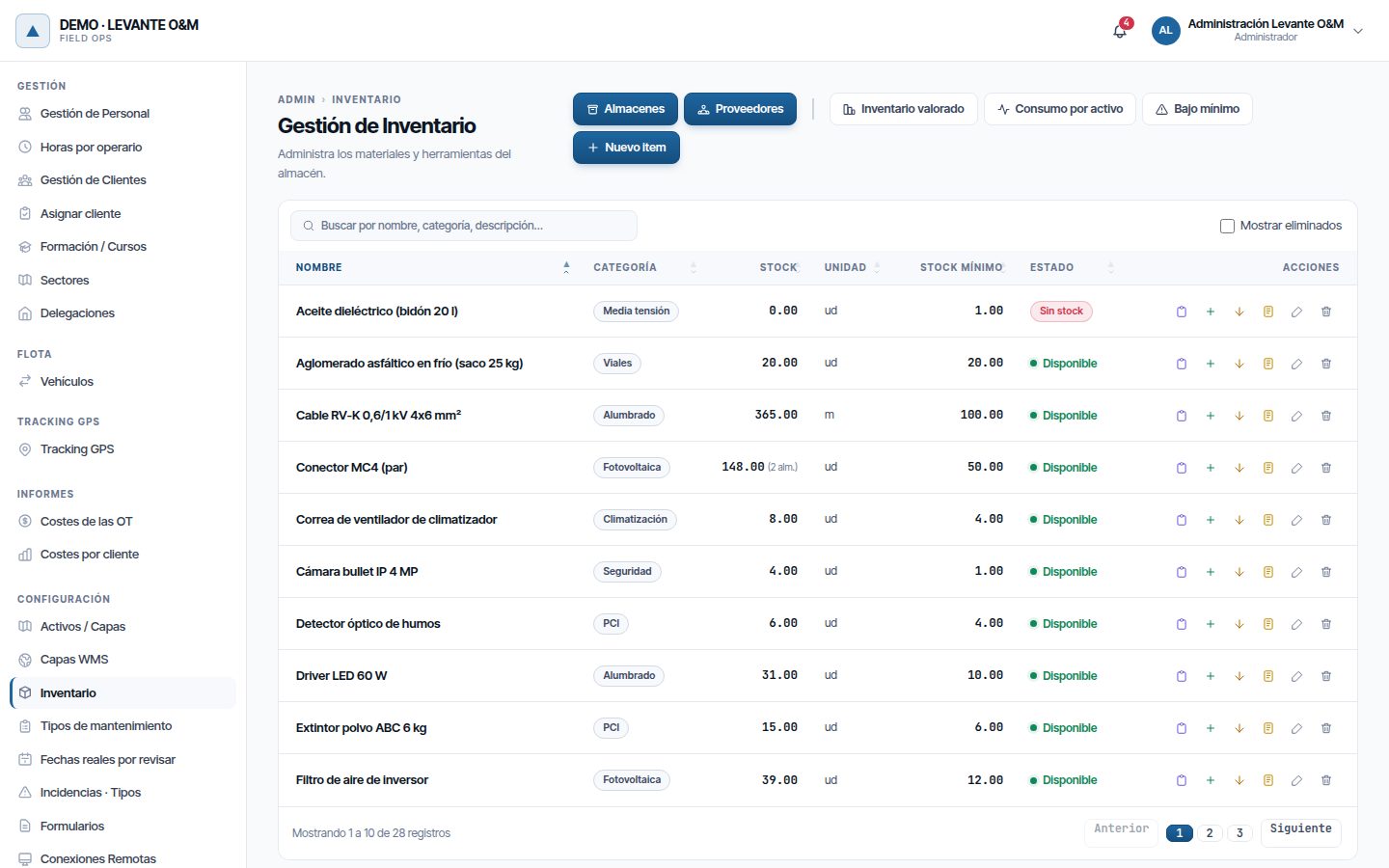
| Status | What it means |
|---|---|
| Disponible (Available) | No warehouse is below its minimum |
| Stock bajo (Low stock) | Some warehouse is below its minimum. If the item is in several, the number of warehouses is shown, for example “Stock bajo (1 alm.)”; hovering over it shows which ones |
| Sin stock (Out of stock) | Total stock is zero or negative |
| No disponible (Not available) | The item has Activo unticked |
| Eliminado (Deleted) | Only with Mostrar eliminados (Show deleted) ticked |
The search box searches by name, category and description. Mostrar eliminados shows only the deleted items; it does not add them to the others.
The actions on each row are:
| Action | What it does | Permission |
|---|---|---|
| Ver movimientos (View movements) | Opens the item's history | Ver |
| Añadir stock | Records a stock-in entry | Movimientos, and Control almacén if the company tracks costs |
| Registrar salida | Records a direct stock out | Movimientos |
| Ajuste de inventario | Corrects the stock of a warehouse | Control almacén |
| Editar | Opens the record | Editar |
| Eliminar | Sets the stock to zero and deletes the item | Eliminar, and Control almacén if it still has stock |
Stock bajo uses the same criterion as the Bajo mínimo list, stock alerts and the dashboard's Stock Bajo (Low stock) indicator: each warehouse is compared with its own minimum. Every item in “Stock bajo” appears in Bajo mínimo, and vice versa. An item that is “Sin stock” appears in Bajo mínimo if some warehouse has a minimum.
Add an item
To add items you need the Crear permission and also Control almacén, because adding an item includes the opening stock of each warehouse. Without both, the Nuevo item button does not appear.
- Click Nuevo item.
- Fill in Nombre and Unidad. They are the only required fields.
- Complete the rest of the record (table below).
- In Stock y ubicación por almacén (Stock and location per warehouse), click Añadir almacén (Add warehouse) for each warehouse where you already have this material. Enter Stock inicial (Opening stock), Stock mínimo and, if you wish, the Ubicación interna (Internal location) (for example, “Nave A, Estante 3”).
- Click Crear item (Create item).
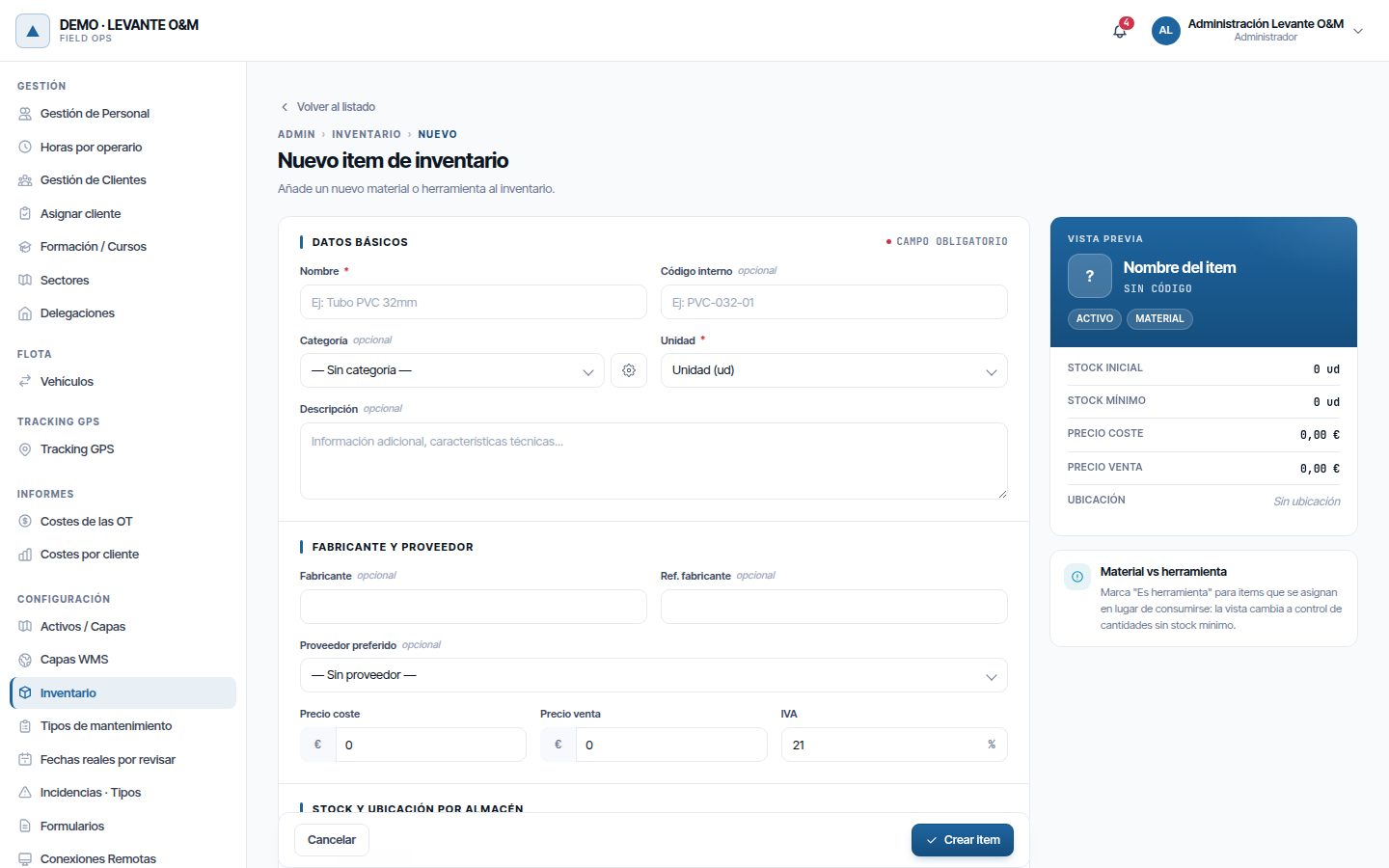
| Field | What it is for |
|---|---|
| Nombre | Required. It cannot be repeated |
| Código interno (Internal code) | Your reference for the item |
| Categoría | For grouping. The cog next to it opens Gestión de Categorías (Category management) |
| Unidad | Required: unit, metre, kilo, litre, box, roll… |
| Descripción (Description) | Technical characteristics. The search also looks here |
| Fabricante, Ref. fabricante (Manufacturer, Manufacturer ref.) | Manufacturer details |
| Proveedor preferido | Who you normally buy it from |
| Precio coste (Cost price) | What each unit costs. It is the price used to value consumption in WOs |
| Precio venta, IVA (Sale price, VAT) | Item information only |
The three prices only appear with the Controlamos costes option (Costs and reports). Without it, the item is saved without touching the prices it already had. | Activo | Untick it so the item appears as “No disponible” | | Es herramienta (Is a tool) | For tools that are lent and not used up: they do not deduct stock in WOs | | Control por Nº de serie (Serial number control) | Marks that the item is tracked by serial number | | Imágenes (Images) | Photos of the item. Click Añadir (Add); the first one is the main one. Click another one to make it the main one |
The opening stock you enter when creating the item is recorded as an adjustment movement. If the stock for some warehouse cannot be saved, you are warned: “Artículo creado, pero no se ha guardado el stock de: …” (Item created, but the stock was not saved for: …). In that case, record it with Añadir stock.
Categories
Categories are managed from the cog next to Categoría, in the item record.
- Enter the category name.
- If it is a subcategory, choose its parent category.
- Click Añadir.
A category can only be deleted if it has no items and no subcategories. Categories cannot be renamed.
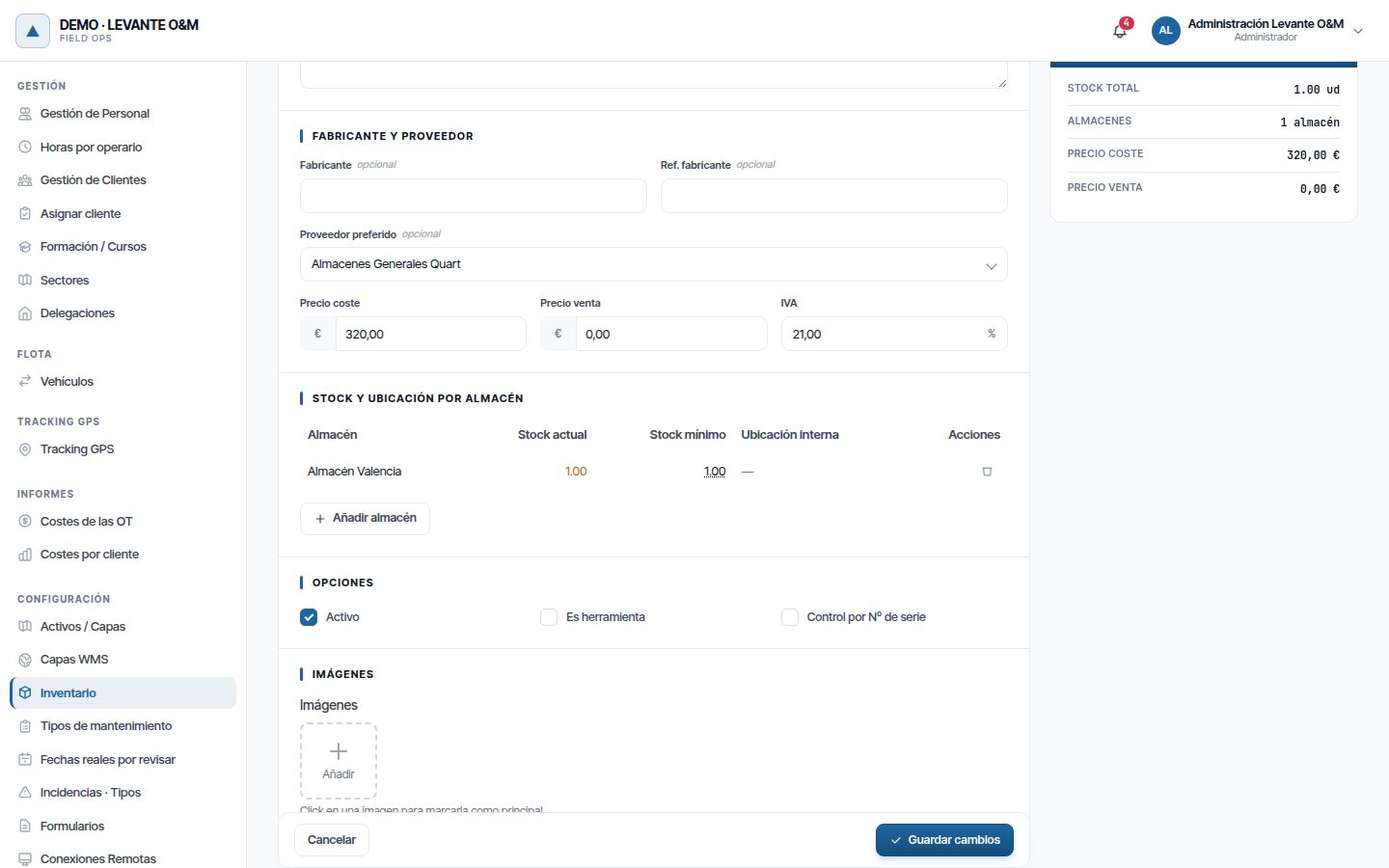
Edit an item
Click Editar on its row, change what you need and click Guardar cambios.
The Stock y ubicación por almacén section shows the stock in each warehouse. With Control almacén you can:
- Click a warehouse's Stock mínimo to change it. It is saved when you press Enter or leave the field.
- Click Añadir almacén to add the item to another warehouse, with its opening stock.
- Click the bin icon to set that warehouse's stock to zero. An adjustment movement is recorded.
Tip
To change stock, use Añadir stock, Registrar salida or Ajuste de inventario from the list. That way each change is recorded with its reason in the history.
When you save, exactly what is in the record is kept. To remove the category or the preferred supplier, choose “— Sin categoría —” (— No category —) or “— Sin proveedor —” (— No supplier —). If you clear the description, the internal code or the manufacturer, they are left empty. An IVA of 0 % is shown and saved as 0 %.
If the preferred supplier is inactive, it stays in place with “(inactivo)” after it, so that saving the record does not remove it.
Delete an item
- Click Eliminar on its row.
- First of all, it checks whether any open WO (neither closed nor cancelled) uses the item. If so, “No se puede eliminar este artículo porque está en órdenes de trabajo abiertas (…)” (This item cannot be deleted because it is in open work orders (…)) appears, with the codes of those WOs, and nothing is touched: neither the stock nor the item.
- If it can be deleted, the window shows the stock remaining in each warehouse.
- Click Ajustar a cero y eliminar (Adjust to zero and delete), or Eliminar if it has no stock.
The adjustment to zero and the deletion are done in a single step: either both happen or neither does. The item moves to Mostrar eliminados and its movements are kept. A deleted item cannot be recovered from the screen.
Stock movements
Record a stock-in entry
Use it when you receive material from a supplier. With the Controlamos costes option it requires Control almacén (see Permissions).
- On the item's row, click Añadir stock.
- Choose the Almacén (Warehouse) it goes into. Each warehouse in the drop-down shows its stock. If the item is in several, a table below shows the stock and the minimum of each one.
- Enter the Cantidad a añadir (Quantity to add) and the Precio de compra unitario (Unit purchase price). Both are required. Without the Controlamos costes option the price is not requested: the entry is valued at the item's Precio coste.
- Choose, if you wish, the Proveedor (Supplier). The item's preferred supplier comes preselected.
- In Notas, note the delivery note number if you wish.
- Click Añadir stock.
Stock actual (Current stock) and the minimum, both in the form and in the summary on the right, are those of the chosen warehouse and change when you choose another.
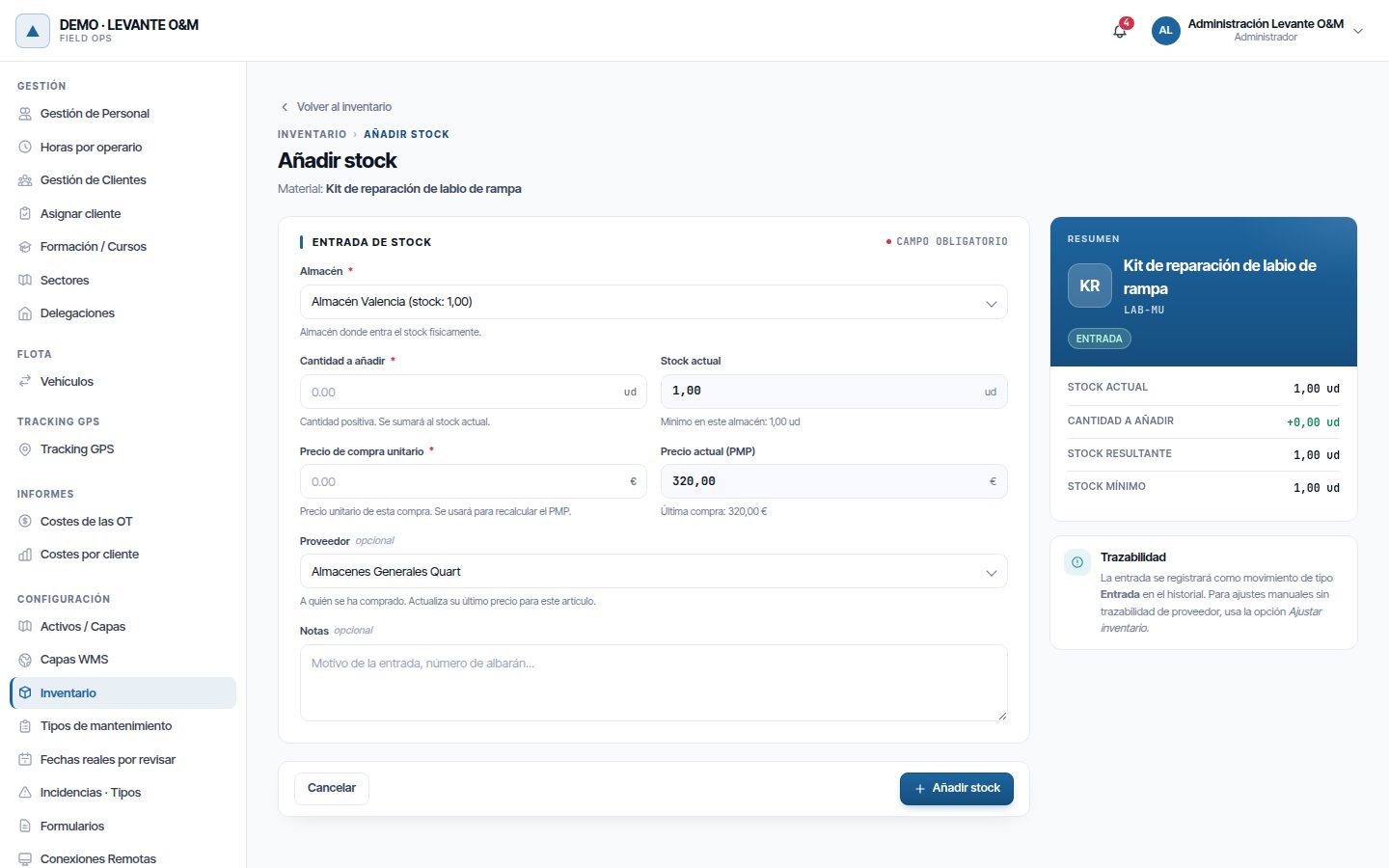
The purchase price recalculates the item's Precio coste as a weighted average price (WAP). It is also stored as “Última compra” (Last purchase). If you specify a supplier, this price is recorded as that supplier's last price for the item.
Record a stock out
Use it for material that leaves without a WO.
- Click Registrar salida on the item's row.
- Choose the Almacén (each one shows its stock), the Cantidad (Quantity) and the Motivo (Reason): Consumo interno (Internal use), Pérdida (Loss), Rotura (Breakage), Caducidad (Expiry) or Otro (especificar) (Other (specify)).
- If the reason is Otro, the Notas are required.
- Click Registrar salida.
The stock out is recorded even if it leaves the stock negative. In that case “Salida registrada. ⚠ Stock negativo — revisa el inventario.” (Stock out recorded. ⚠ Negative stock — check the inventory.) appears. If it leaves it below the minimum, “Salida registrada. ⚠ Stock por debajo del mínimo.” (Stock out recorded. ⚠ Stock below minimum.) appears.
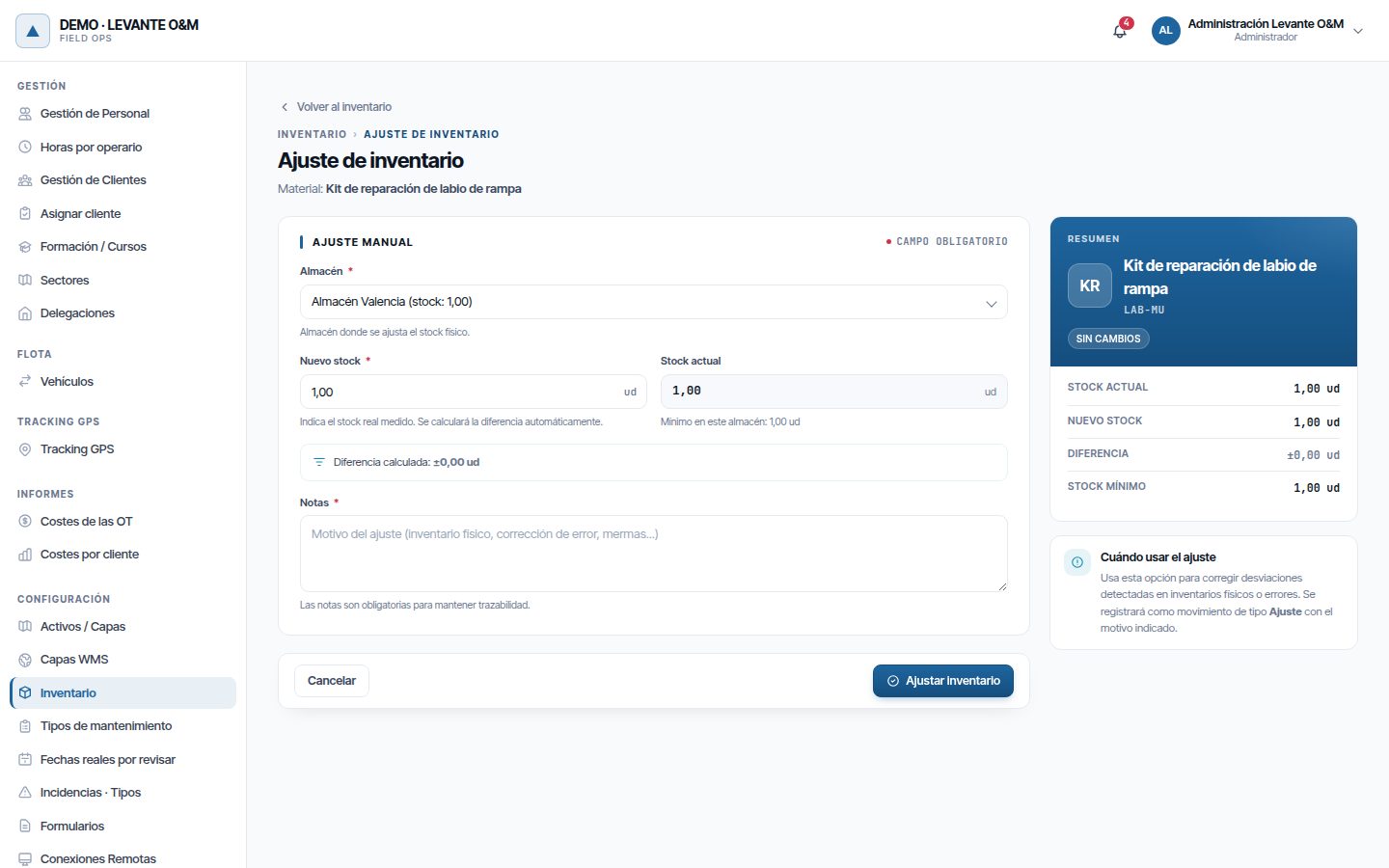
Adjust the inventory
Use it after counting the material, to set the stock to what is really there. It requires Control almacén.
- Click Ajuste de inventario on the item's row.
- Choose the Almacén. Stock actual, the minimum and the summary on the right become those of that warehouse.
- In Nuevo stock (New stock), enter the quantity you counted. The Diferencia calculada (Calculated difference) is shown automatically.
- Enter the reason in Notas. It is required.
- Click Ajustar inventario (Adjust inventory).
Movement history
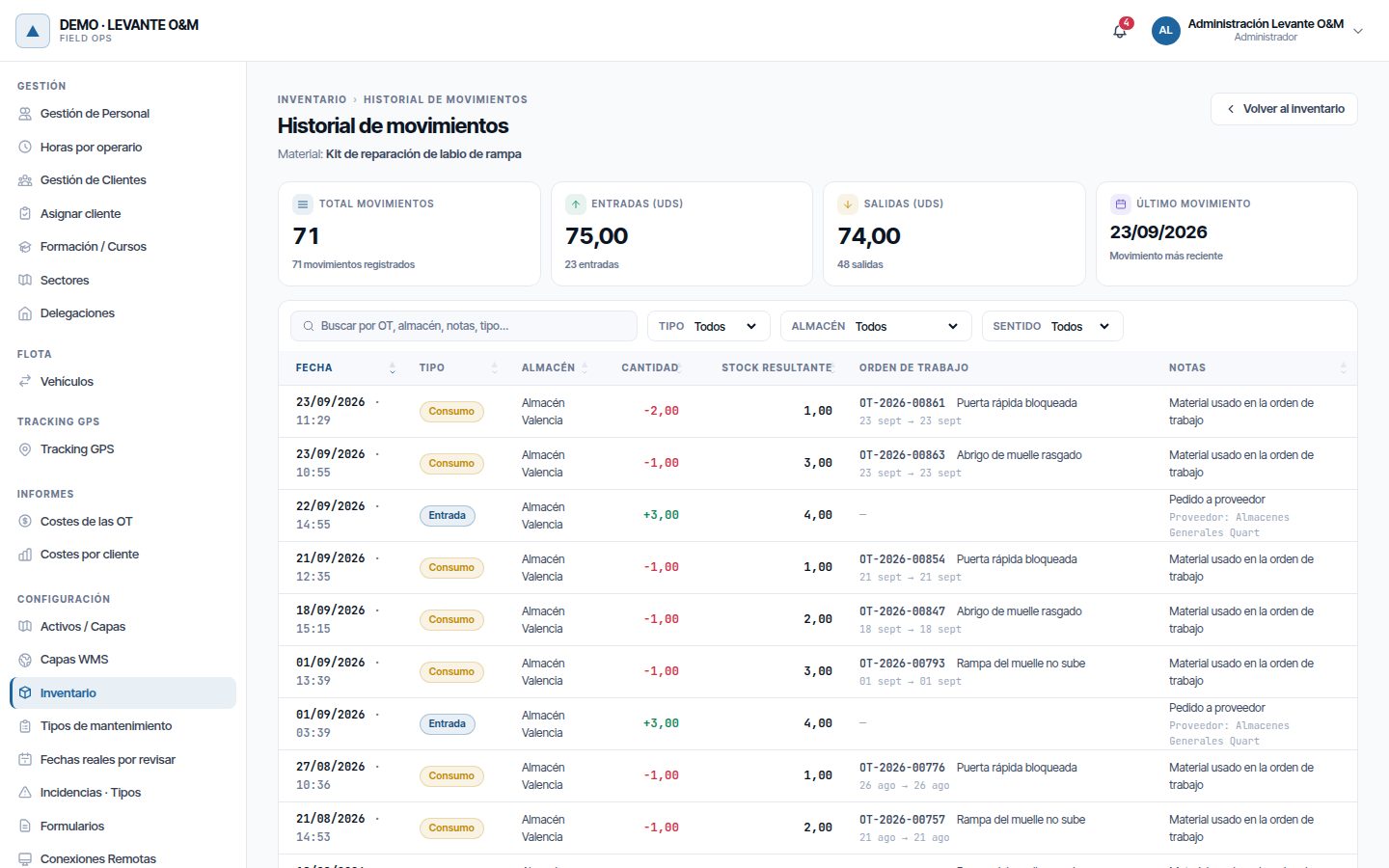
Click Ver movimientos on the item's row. At the top, the Total movimientos (Total movements), Entradas (uds) (Stock in (units)), Salidas (uds) (Stock out (units)) and Último movimiento (Last movement) are summarised.
The table shows the Fecha (Date), Tipo, Almacén, Cantidad, Stock resultante (Resulting stock), Orden de trabajo (Work order) and Notas. The Stock resultante is that of the warehouse on that row. For a transfer, the other warehouse is also shown (“desde …” (from …) or “hacia …” (to …)), and for a stock-in entry with a supplier, the supplier appears below the notes. Click a WO code to open it. You can search by WO, warehouse, notes or type, and filter by Tipo, Almacén and Sentido (Direction) (stock in or stock out).
Stock in a warehouse
In Almacenes, click Ver stock on the warehouse's row. You see each item with its Categoría, Cantidad, Mínimo (Minimum), Ubicación (Location) and Última inv. (Last count). Items at or below the minimum carry the “Stock bajo” tag, and those at zero, “Sin stock”.
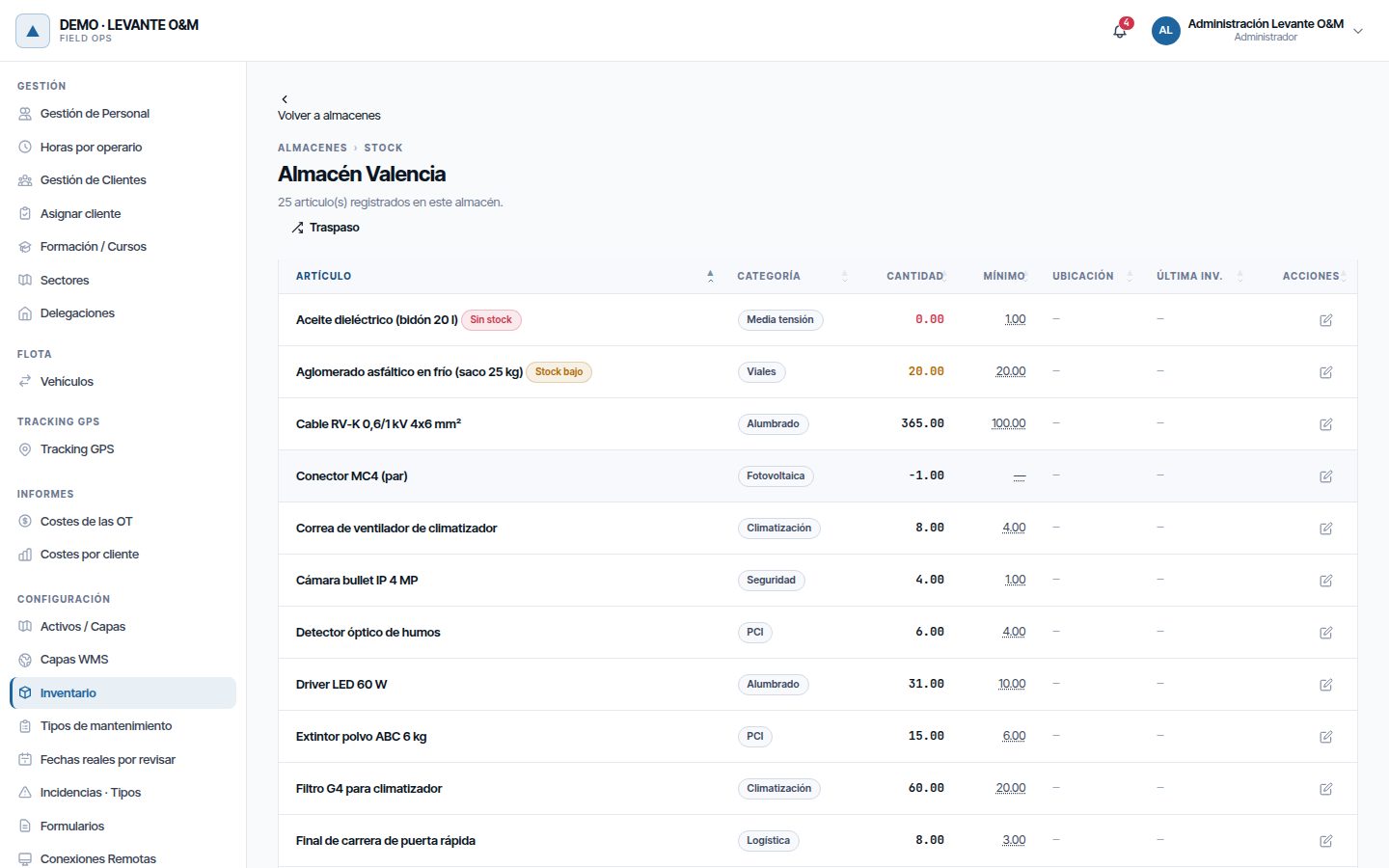
- Click the Mínimo to change it. Control almacén is required.
- Ajustar stock (Adjust stock) opens an adjustment for that item in this warehouse. It asks for the Nuevo stock and the Motivo del ajuste (Reason for adjustment).
Transfer material to another warehouse
- In the stock of the source warehouse, click Traspaso.
- Choose the Artículo (Item), the Almacén destino (Destination warehouse) and the Cantidad.
- Enter the reason in Notas if you wish.
- Click Traspasar (Transfer).
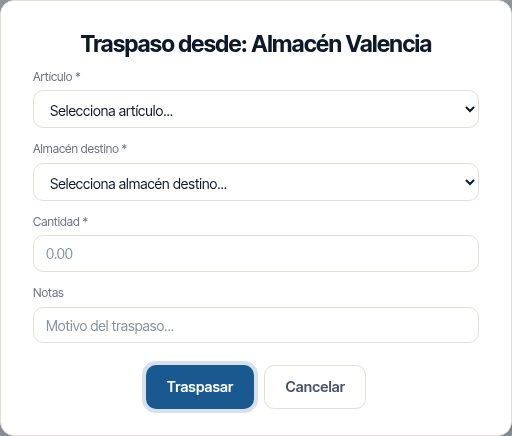
You cannot transfer more than there is in the source. “Stock insuficiente en almacén origen…” (Insufficient stock in source warehouse…) appears. The transfer leaves a movement in each warehouse.
Minimum stock and alerts
Each item has a Stock mínimo in each warehouse. If the minimum is 0, that warehouse gives no low stock alerts, only stock-out alerts.
Maptainer opens an alert in the bell when a warehouse's stock changes and is left:
- below the minimum: Stock Bajo alert;
- negative: Stock en Ruptura (Stock-out) alert.
The alert is updated with each movement and closes on its own when stock is replenished. Users with Avisos → Stock receive it. If you work with branches, the alert goes to the warehouse's branch.
There are three places to keep track of low stock:
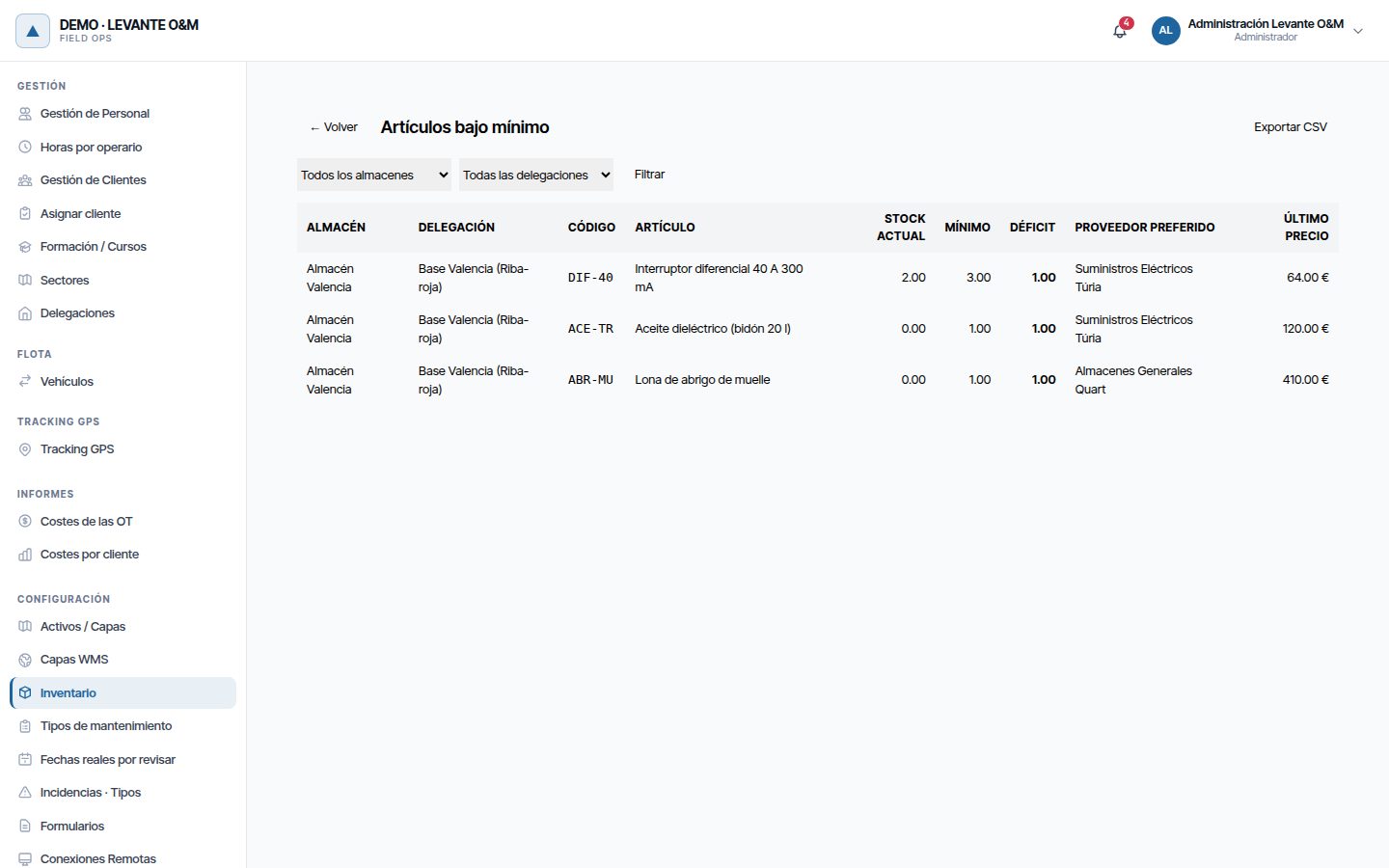
- Bajo mínimo, in the item list: the items below the minimum in each warehouse, from the largest shortfall to the smallest. It shows the Proveedor preferido and the Último precio (Last price). It can be filtered by warehouse and branch and downloaded with Exportar CSV (Export CSV).
- The Stock Bajo indicator on the Dashboard.
- The Stock bajo mínimos (Stock below minimum) list, in the Listados (Lists) index of the Dashboard.
Materials in work orders
A WO carries the materials expected to be used. Stock is not deducted when planning: it is deducted when the material is consumed. How to create a WO is explained in Work orders.
Plan material
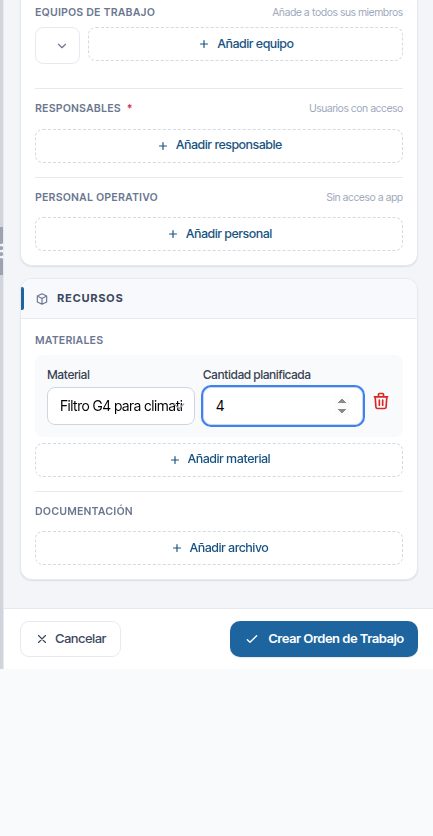
- In the WO form, Recursos (Resources) section, click Añadir material (Add material).
- In Material, search for the item. Its total stock is shown next to each one.
- Enter the Cantidad planificada (Planned quantity).
- Repeat for each material and save the WO.
Only items with stock in some warehouse can be chosen. When you save, each line is compared with the stock and minimum of its warehouse (if the same item comes from the same warehouse on several lines, they are added together). If there is not enough, the Avisos de Stock (Stock alerts) window appears with “Stock insuficiente” (Insufficient stock); if there is enough but it would leave the stock below the minimum, with “Stock bajo”. For each alert you see the warehouse, its stock, what the WO needs and what would be left. The WO is saved anyway.
A Falta material para una OT (Material missing for a WO) alert is also created in the bell, one per WO and warehouse. It is received by the same people as the other stock alerts (Avisos → Stock: by default, the Almacén, Supervisor and Administrador roles); with branches, those of the warehouse's branch. Never the person who saved the WO. Clicking it opens the WO. The footer of the window says who has been alerted.
Saving the WO again does not repeat the alert: it is updated if the shortfall has changed and closed if nothing is missing any more. It is also closed when the WO is completed or cancelled. It does not close on its own when stock is replenished: it is updated the next time the WO is saved.
Which warehouse the material comes from
The warehouse for each line is chosen automatically when the WO is saved. The technician does not choose it. It is looked for in this order:
- The mobile warehouse (van) of an assigned technician.
- The Almacén por defecto in their record.
- The Almacén por defecto of their branch or, if it has none, the branch's first physical warehouse.
- The default warehouse of the main branch.
- The company's first active warehouse.
The warehouse stays fixed on the line even if you later change the WO's staff. For now it cannot be chosen by hand from the web app.
Consumption and return
| What happens | Effect on stock |
|---|---|
| You save the WO with material | Nothing: it is only planned |
| The technician reports in the app what they have used | What was used is deducted (consumption movement) |
| The technician adds material in the app that was not planned | It is deducted from their warehouse: van, the one in their record or the one of their branch |
| The WO is completed without anyone reporting what was used | Nothing: what is planned is not what is used. The record shows “USADO 0” (USED 0) and the stock does not change |
| The WO is cancelled | Consumed material that the technician had not reported as used goes back to the warehouse |
| The quantity used is corrected downwards | The difference goes back (return movement) |
To report material from the app, the technician needs Inventario → Movimientos. Without it, the app shows them the error on that material and the rest of the WO is saved.
Reporting the same thing twice does not deduct twice: only the difference is moved. Stock can go negative if more is consumed than there is. In that case a Stock en Ruptura alert is opened.
Tools (Es herramienta (Is a tool)) can be added to a WO, but do not deduct stock.
What you see in the WO
The WO record has the Materiales section, with what was planned (“PLAN”) and what was used (“USADO”) for each item. In Coste real (Actual cost), the Materiales line adds up what was consumed minus what was returned. If there were returns, “Consumido … , devuelto …” (Consumed … , returned …) is shown.
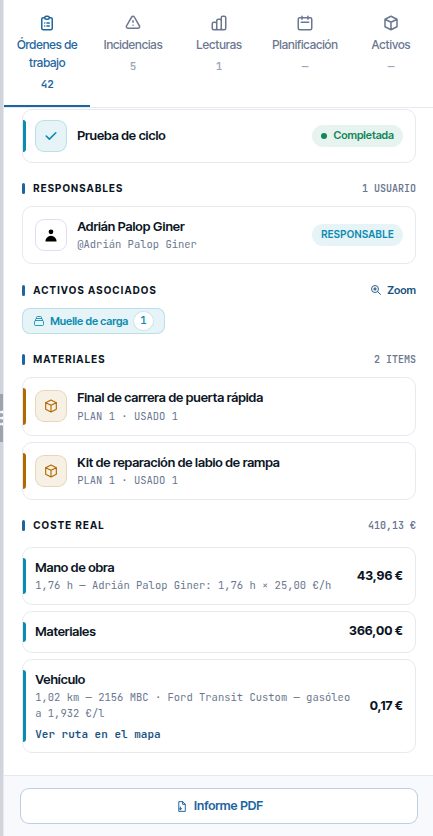
Consumption is valued at the Precio coste the item had at that moment. A return is valued at the same price as the consumption it reverses. Costs per WO, per customer and per period are explained in Costs and reports.
Only the reported quantity used counts: if a WO is completed without a report, its materials cost is zero and the stock is not touched. WOs completed before 30/09 without a report did deduct the planned quantity; that consumption is kept, and goes back to the warehouse if they are cancelled.
Reports
From the item list there are two more reports. Both need Reportes → Costes or Inventario → Control almacén: the warehouse manager can see them without having access to the rest of the company's costs.
| Report | What it shows |
|---|---|
| Inventario valorado | The total value of the stock and its breakdown Por almacén (By warehouse) and Por categoría (By category). It can be filtered by warehouse and branch. Only with the Controlamos costes option |
| Consumo por activo | What was consumed between two dates (by default, the last 90 days) per asset, with the lines, the total and the most used items. It is downloaded with Exportar CSV |
Common problems
| Symptom | Likely cause | Solution |
|---|---|---|
| The Inventario button does not appear on the map | The Gestionamos almacén de materiales option is disabled or your role does not have Inventario → Ver | Enable it in Cómo trabaja tu empresa or ask for the permission |
| Inventario does not appear in the admin area | Only the Administrador role can see that section | Use the Inventario button on the map, or ask the administrator for what you need regarding warehouses and suppliers |
| I cannot find Almacenes or Proveedores in the map window | They are only in the admin area | Open Inventario in the admin area |
| I cannot create a warehouse | Warehouses are only managed from the admin area, and Delegaciones → Crear is required | Ask the administrator |
| “Debes fijar la ubicación en el mapa antes de guardar.” (You must set the location on the map before saving.) | A physical warehouse needs a location | Click on the map in the form |
| “No puedes desactivar un almacén que aún contiene stock…” | The warehouse has material | Transfer it to another warehouse or adjust it to zero |
| I cannot delete a warehouse | It has a movement history | Empty it and set it to Inactivo |
| I do not see the Ajuste de inventario button | Your role does not have Control almacén | Ask the administrator for the permission |
| An item does not appear when adding material to a WO | It has no stock in any warehouse | Record a stock-in entry with Añadir stock |
| I planned material and the stock has not gone down | Stock goes down on consumption, not on planning | This is expected. It goes down when the technician reports what was used or when the WO is completed |
| “Stock insuficiente en almacén origen…” | You are trying to transfer more than there is | Check the quantity in the source warehouse |
| An item does not appear in the list | It has been deleted | Tick Mostrar eliminados |
| Low stock alerts do not arrive | The warehouse minimum is 0, or your role does not have Avisos → Stock | Set a Stock mínimo or ask for the permission |
| Inventario valorado and Consumo por activo are not visible | Your role has neither Reportes → Costes nor Control almacén | Ask the administrator for the permission |
| Añadir stock does not appear on the item's row | Your company tracks costs and your role does not have Control almacén | Ask someone who has it to record the entry, or ask the administrator for the permission |
Last updated: