
Introduction
Maptainer works out each person's working day, day by day, from five pieces:
| Piece | What it is | Where it is set up |
|---|---|---|
| Working days and hours | The company's general working hours: which days it opens and its hours on each day, with a split day if there is one. A branch can have its own | Configuración General (General settings) and the branch record |
| Shift | A timetable with working days and a break, assigned to workers and teams | Gestión de Personal (Staff management) → Turnos (Shifts) |
| Public holiday | A non-working day for the whole company or for one branch | Gestión de Personal → Festivos (Public holidays) |
| Absence | Holiday, sick leave, personal leave… for one person between two dates | Gestión de Personal → Ausencias (Absences) |
| Exception | A single-day change for one person: on-call duty, day off, shift change… | Gestión de Personal → Excepciones (Exceptions) |
How a day's working hours are calculated
For each person and each day, Maptainer always follows the same order:
- If they have a Día libre (Day off) that day, they do not work.
- If they have a Cambio de turno (Shift change), they work the alternative shift. Otherwise, their Turno por defecto (Default shift).
- The Guardia (On-call), Jornada extra (Extra day) and Ampliación horaria (Extended hours) time slots for that day are added.
- Public holidays of their branch and their confirmed absences remove working time.
- In planning and in work order dates, the company's working hours (or those of their branch) limit the result.
What it is used for
| Where you notice it | What it uses |
|---|---|
| WO form: dates | Working days and hours of the company or of the user's branch |
| WO form: Técnicos recomendados (Recommended technicians) and available staff | Shift, exceptions, public holidays and confirmed absences of each person |
| Multi-day planner | Shifts of people and teams, exceptions, public holidays, absences and company working hours |
| Dispatch queue | Leaves out anyone with a confirmed absence at that moment |
| WO SLA deadlines | Hours of each day (of the WO's branch or of the company) and public holidays of the WO's branch |
| Capacidad del personal (Staff capacity) on the dashboard | Shift hours minus public holidays and absences |
| End-of-day pause and GPS tracking | Shift and exceptions of each person; with no shift, the hours of their branch or the company |
The planner and dispatch are explained in Planning and dispatch; capacity, in Dashboard and lists.
Prerequisites
- Días y horario de trabajo (Working days and hours) is in Configuración (Settings) (user menu), which tenant administrators can see. It exists in every company. A branch's own hours are set in its record.
- Shifts, public holidays, absences and exceptions need the Gestionamos turnos y calendario laboral (We manage shifts and the work calendar) option, in Configuración General → Cómo trabaja tu empresa (How your company works) → Ajustar en detalle (Fine-tune). It is enabled in the Profesional (Professional) and Avanzado (Advanced) profiles, and disabled in Esencial (Essential).
- Without that option, the Turnos, Festivos, Ausencias and Excepciones buttons do not appear, and only the company's working hours apply.
- The automatic end-of-day pause and each person's time zone need the staff tracking module.

Permissions
Shifts, public holidays, absences and exceptions use the permissions of the Personal (Staff) group in Gestión de Roles y Permisos (Role and permission management). Company working hours use those of Configuración Global (Global settings).
| Action | Permission required |
|---|---|
| View shifts, public holidays, absences and exceptions | Personal → Ver (View) |
| Create a shift, a public holiday, an absence or an exception; import public holidays | Personal → Crear (Create) |
| Edit them or cancel an absence | Personal → Editar (Edit) |
| View the reason and notes of an absence, and filter by type | Personal → Editar |
| Delete them | Personal → Eliminar (Delete) |
| View company working hours | Configuración Global → Ver |
| Change company working hours | Configuración Global → Editar |
Company working hours
Company working hours are the general timetable: which days are worked and from what time to what time each day. They apply to everyone, whether they have a shift or not.
- Open the user menu and click Configuración.
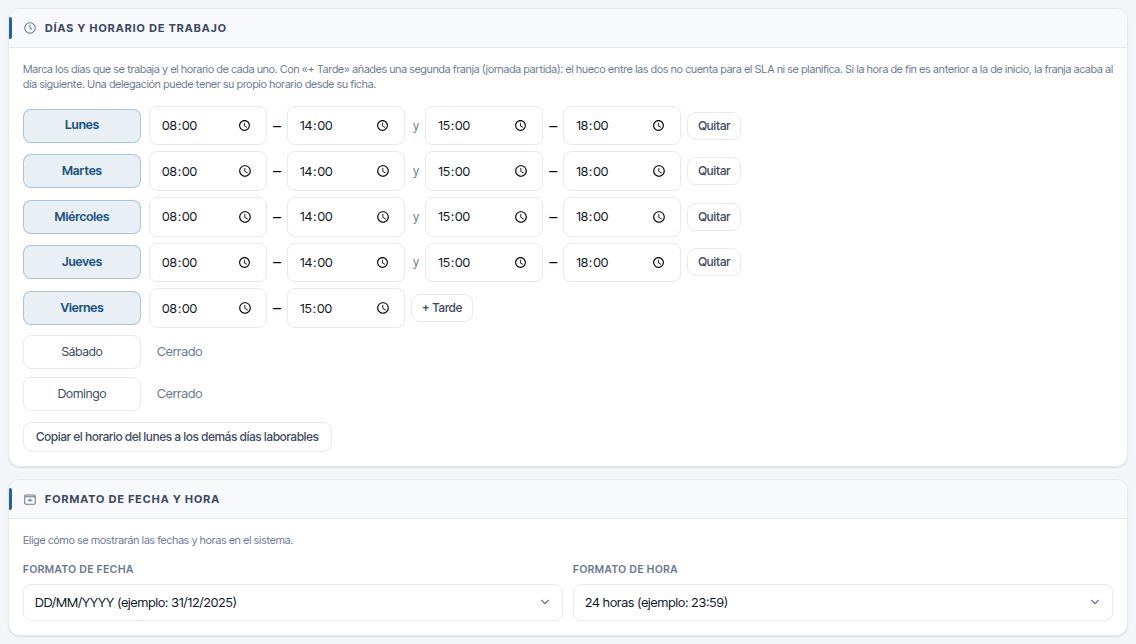
- In Días y horario de trabajo, tick each day the company works and enter its start and end time.
- For a split day, click + Tarde (+ Afternoon) on that day and enter the second time slot; Quitar (Remove) deletes it. Each day allows at most two time slots.
- If all working days have the same hours, enter them on Monday and click Copiar el horario del lunes a los demás días laborables (Copy Monday's hours to the other working days).
- Click Guardar configuración (Save settings). “Configuración guardada” (Settings saved) appears.
By default it is Monday to Friday, 08:00 to 18:00. The rest of Configuración General is explained in Tenant administration.
For example, Monday to Thursday from 08:00 to 14:00 and from 15:00 to 18:00, and Friday from 08:00 to 15:00: the gap from 14:00 to 15:00 does not count for the SLA and is not planned, and Friday afternoon is not a working period.
A time slot whose end time is earlier than its start time ends the next day, and “acaba al día siguiente” (ends the next day) appears beside it. This is for night work: Saturday from 22:00 to 06:00 runs until 06:00 on Sunday, and those early hours count as Saturday. The second time slot must start after the first one ends, and a night time slot cannot overlap the first slot of the next day. Otherwise, the reason appears when you save, for example “En el lunes la segunda franja debe empezar después de que acabe la primera.” (On Monday the second time slot must start after the first one ends.).
A branch's own working hours
A branch with different hours (another city, a site that opens on Saturdays) can have its own:
- In Delegaciones (Branches), open the branch and click edit.
- In Días y horario de trabajo, choose Horario propio de esta delegación (This branch's own hours). It starts from the company's hours; change them as in Configuración General.
- Click Guardar cambios (Save changes).
With El de la empresa (Configuración General) (The company's (General settings)) it inherits the general hours again. The branch's own hours apply to that branch's WOs (dates, SLA, preventive maintenance) and to its staff with no shift (availability, planning, capacity and GPS tracking). Public holidays are still those of the company plus those of the branch.
What company working hours change
| Where | Effect |
|---|---|
| WO dates | When you choose the planned start or planned end on a non-working day or outside that day's hours, a warning appears, for example “Sábado no es un día laboral configurado.” (Saturday is not a configured working day.) or “La hora seleccionada (14:30) está fuera del horario laboral del lunes (08:00 - 14:00 y 15:00 - 18:00).” (The selected time (14:30) is outside Monday's working hours (08:00 - 14:00 and 15:00 - 18:00).). When you save, the WO is not saved until the dates are within the hours |
| Planning calendar | Hides non-working days, shows from the earliest opening time to one hour after the latest closing time, and shades each day's working hours |
| Planner | Trims shifts to that day's hours and does not plan non-working days. With a split day, lunch is a break. Trimmed days appear in Recursos sin disponibilidad (Resources without availability) with the reason |
| Propose a slot and “Planificar esta OT” (Plan this WO) | They propose the start of each time slot, and only if the whole job fits in it: never at lunchtime |
| SLA deadlines | They only run within each day's time slots, excluding public holidays. A WO created outside working hours starts counting at the next opening time |
| People with no shift | WO availability, dashboard capacity, the planner and GPS tracking use these hours (or those of their branch) |
Tip
Set hours that cover all your shifts. If the company closes at 15:30, the planner gives no work to the afternoon shift. Nor can WOs be saved in the afternoon.
Note
SLA deadlines are calculated when the WO is created, and recalculated when its priority, customer or branch changes. Rescheduling the WO (moving its planned start) does not move them. When you change the company's or a branch's working hours, or the public holidays, open WOs and incidents are also recalculated; closed ones keep their deadline.
If the company (or the branch with its own hours) has no working day, SLA deadlines are counted in calendar hours. Deadlines are defined in Customers and SLA.
Date and time format
The Formato de Fecha y Hora (Date and time format) section has Formato de fecha (Date format) and Formato de hora (Time format), and is saved with the rest of the settings.
They set how dates and times are written across the web app and the customer portal (lists, records, calendar, planner, dashboards and exports), in the WO PDF, in scheduled reports and their emails, in the spreadsheets of the data copy and in the warnings that screens show. Files for other programs (the API and the data in the copy) stay in ISO format, YYYY-MM-DD. For example, with YYYY-MM-DD and 12 horas (12-hour), a WO on 14 September at five past three in the afternoon appears as “2026-09-14 3:05 PM”.
| Date format | Example |
|---|---|
| DD/MM/YYYY | 31/12/2026 |
| MM/DD/YYYY | 12/31/2026 |
| YYYY-MM-DD | 2026-12-31 |
| DD-MM-YYYY | 31-12-2026 |
Short labels without a year, such as “14 sept” or “lun 14”, keep their form; they only switch the time to 12-hour if you choose it. Fields where you type a date or time use the browser's picker, which follows the browser's language. The change shows when you save on the Configuración page and, on the other pages, when you open them again.
Shifts
A shift is a timetable with its working days and, if needed, a break. It is assigned as the Turno por defecto to each worker and each team.
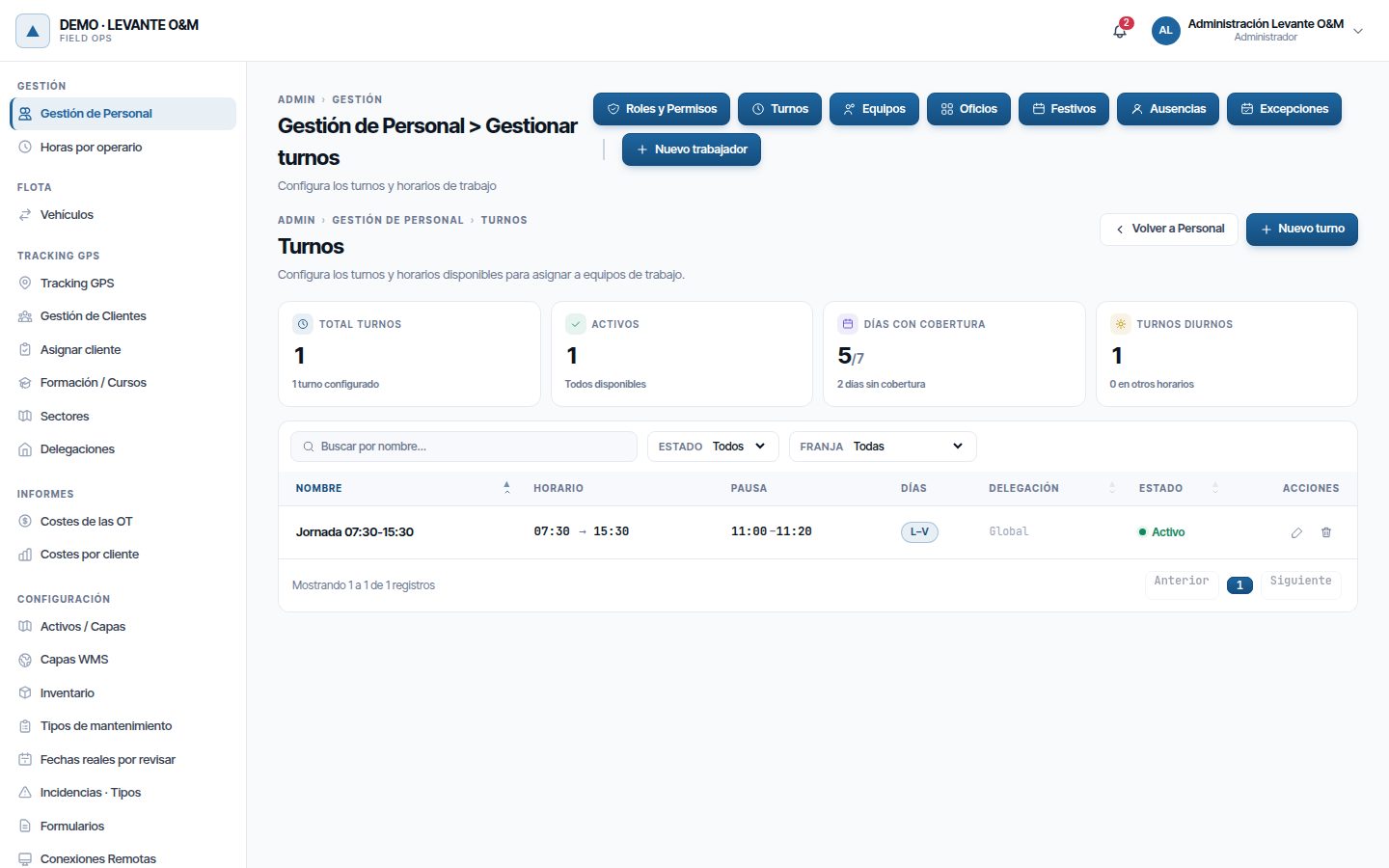
To open them, go to Ir al administrador (Go to the admin area) → Gestión de Personal and click Turnos. The Festivos, Ausencias and Excepciones buttons are in the same row.

The Turnos screen shows four counters (Total turnos (Total shifts), Activos (Active), Días con cobertura (Days covered) and Turnos diurnos (Day shifts)) and the list. You can search by name and filter by Estado (Status) and by Franja (Time band) (day, afternoon or night, depending on the start time).
Create a shift
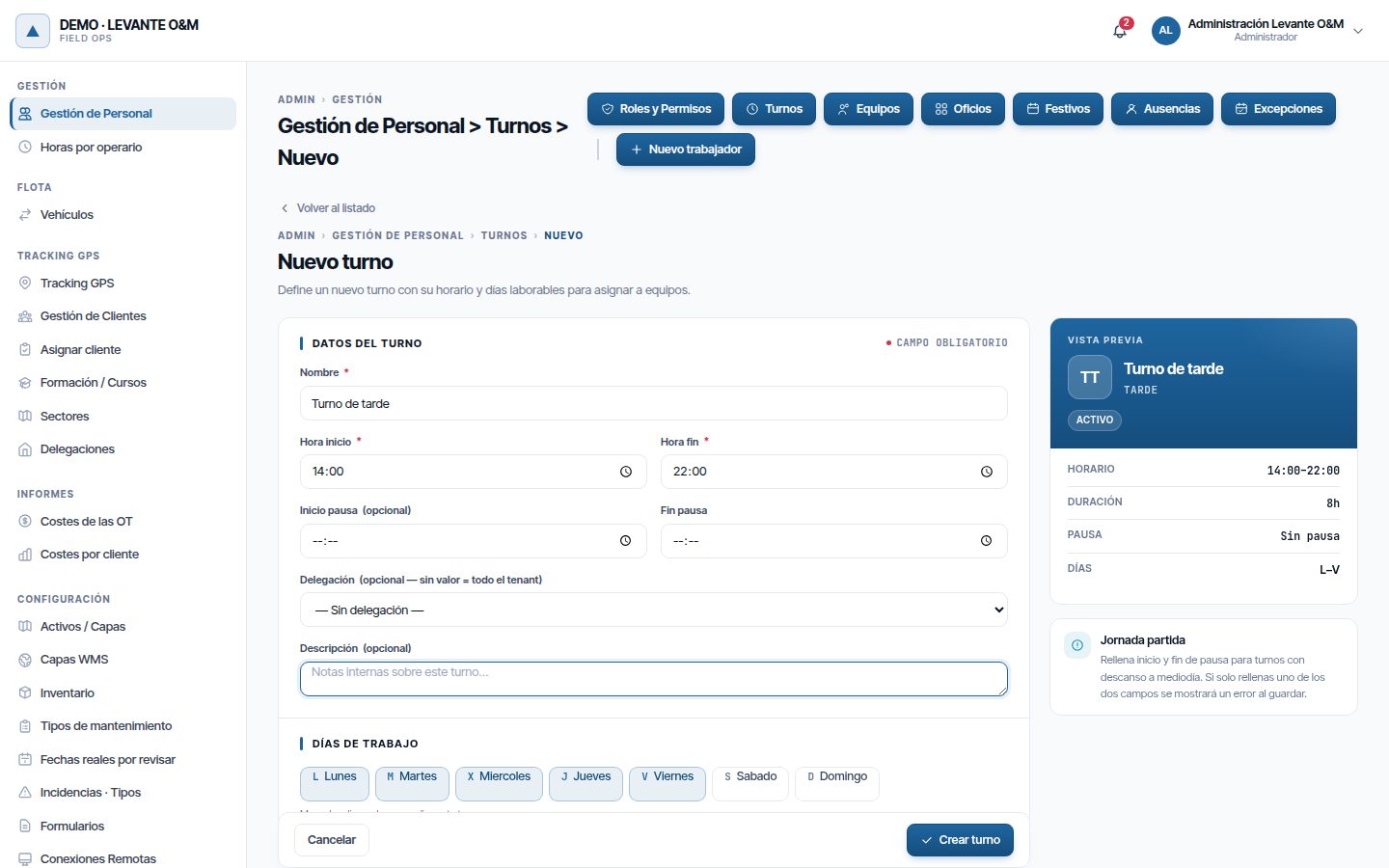
- Click Nuevo turno (New shift).
- Enter the Nombre (Name).
- Enter the Hora inicio (Start time) and the Hora fin (End time).
- If there is a break, fill in Inicio pausa (Break start) and Fin pausa (Break end). Either both or neither are needed.
- Tick the Días de trabajo (Working days). Monday to Friday come ticked.
- Click Crear turno (Create shift). “Turno creado correctamente” (Shift created successfully) appears.
The Vista previa (Preview) on the right summarises the hours, the duration, the break and the days. Cancelar (Cancel) or Volver al listado (Back to the list) leave without saving.
| Field | What it is for |
|---|---|
| Nombre | Required. It is what you choose in the worker and team records |
| Hora inicio / Hora fin | Required. If the end is equal to or earlier than the start, the shift ends the next day (22:00 to 06:00) |
| Inicio pausa / Fin pausa | Break within the shift. The planner does not place work in it and capacity deducts it |
| Delegación (Branch) | Optional. It only helps identify the shift in the list: any worker can have any shift |
| Descripción (Description) | Internal notes |
| Días de trabajo | Days of the week on which it applies. At least one is required |
A shift that crosses midnight counts for the day on which it starts: Monday's 22:00 to 06:00 shift runs until 06:00 on Tuesday. The planner, capacity, the end-of-day pause and GPS tracking all read it the same way. The planner does not trim it to the company's working hours, but does respect its working days.
Edit, deactivate or delete a shift
Click the pencil on the row, change what you need and click Guardar cambios. “Turno actualizado correctamente” (Shift updated successfully) appears. The change applies from that moment on to planning and availability; work already done does not change.
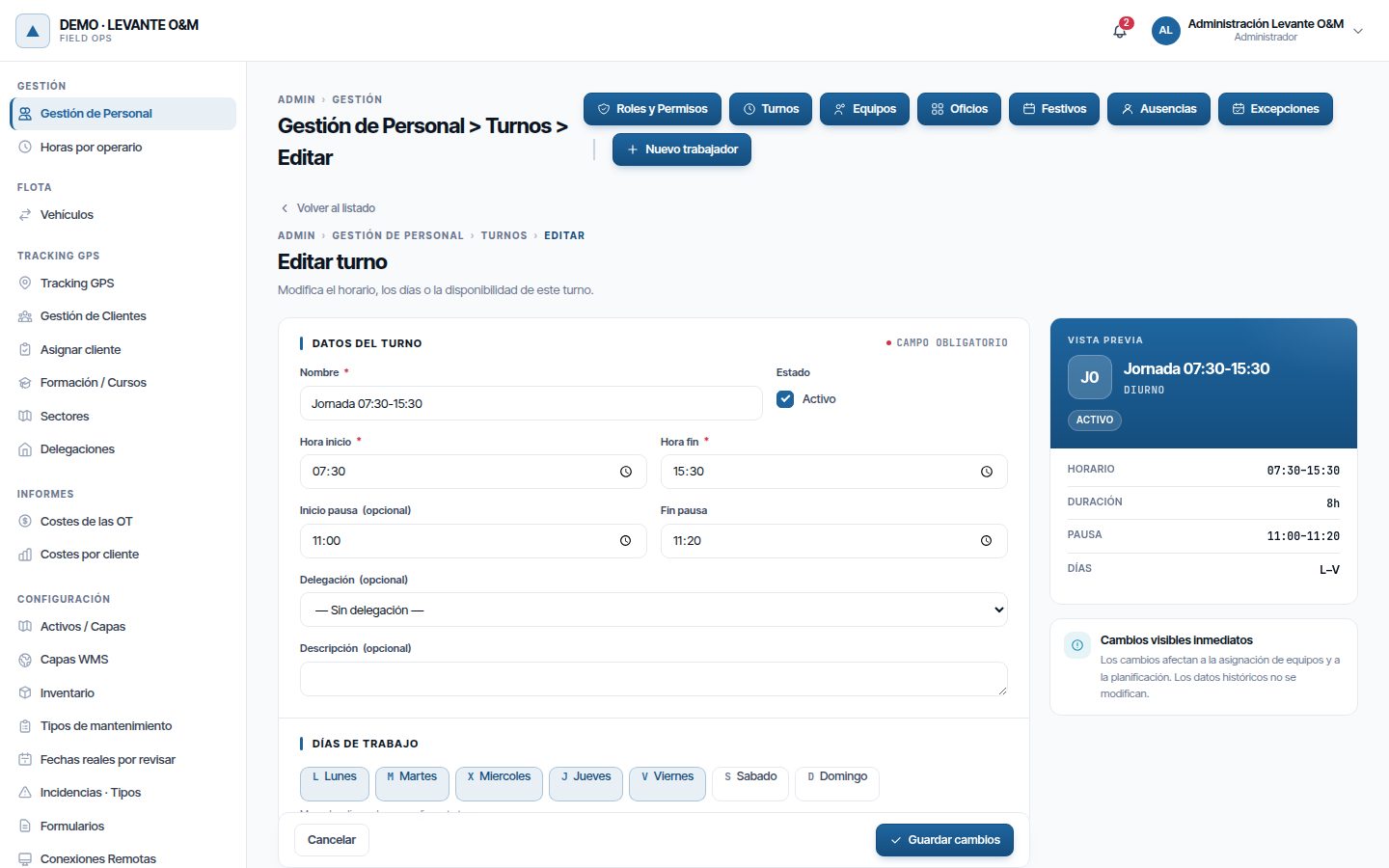
To withdraw a shift without affecting anyone, untick Activo (Active) and save. An inactive shift is not offered in records, and anyone who has it assigned is left without shift hours.
To delete it, click the bin and confirm with Eliminar (Delete). A shift in use cannot be deleted. The message says who uses it: “No se puede eliminar el turno: 3 persona(s) lo tienen por defecto…” (The shift cannot be deleted: 3 person(s) have it as default…). Assign them another shift or deactivate it.
Assign the shift to workers and teams
The shift is assigned in each person's or team's record, in the Turno por defecto field. This is explained in Staff and teams.
| Who | What happens |
|---|---|
| Worker with a shift | Works the days and hours of their shift, with their exceptions |
| Worker with no shift | Works the hours of their branch or the company: this is what the planner, WO availability, dashboard capacity, the end-of-day pause and GPS tracking use |
| Team with a shift | The planner treats it as a single unit with its shift's hours. One member present is enough to count on it |
| Team with no shift | The planner leaves it out with the warning “sin turno por defecto activo” (no active default shift) |
Note
The planner uses the team's shift as it is: it does not take its members' exceptions into account. It does take absences into account: on a day when all members are absent, the team is not planned.
The automatic end-of-day pause
With staff tracking, each technician has a working day opened from the app. When their last time slot of the day ends (shift, on-call or extended hours), Maptainer waits 15 minutes and closes the working day:
- Their WOs that are En Curso (In progress) change to Pausada (Paused), with the note “Pausa automática al finalizar la jornada del operario.” (Automatic pause at the end of the technician's working day.).
- The notice “OT auto-pausada al finalizar jornada” (WO auto-paused at end of working day) appears.
On a split shift it does not close during the break, and on a night shift it waits until it ends the next day. A technician with no shift and no time slots that day has no automatic pause. More detail in Work orders and in Fleet and GPS tracking.
Public holidays
A public holiday is a non-working day. It can apply to the whole company or to one branch only. Maptainer uses it in the planner, in staff availability, in dashboard capacity and in SLA deadlines.
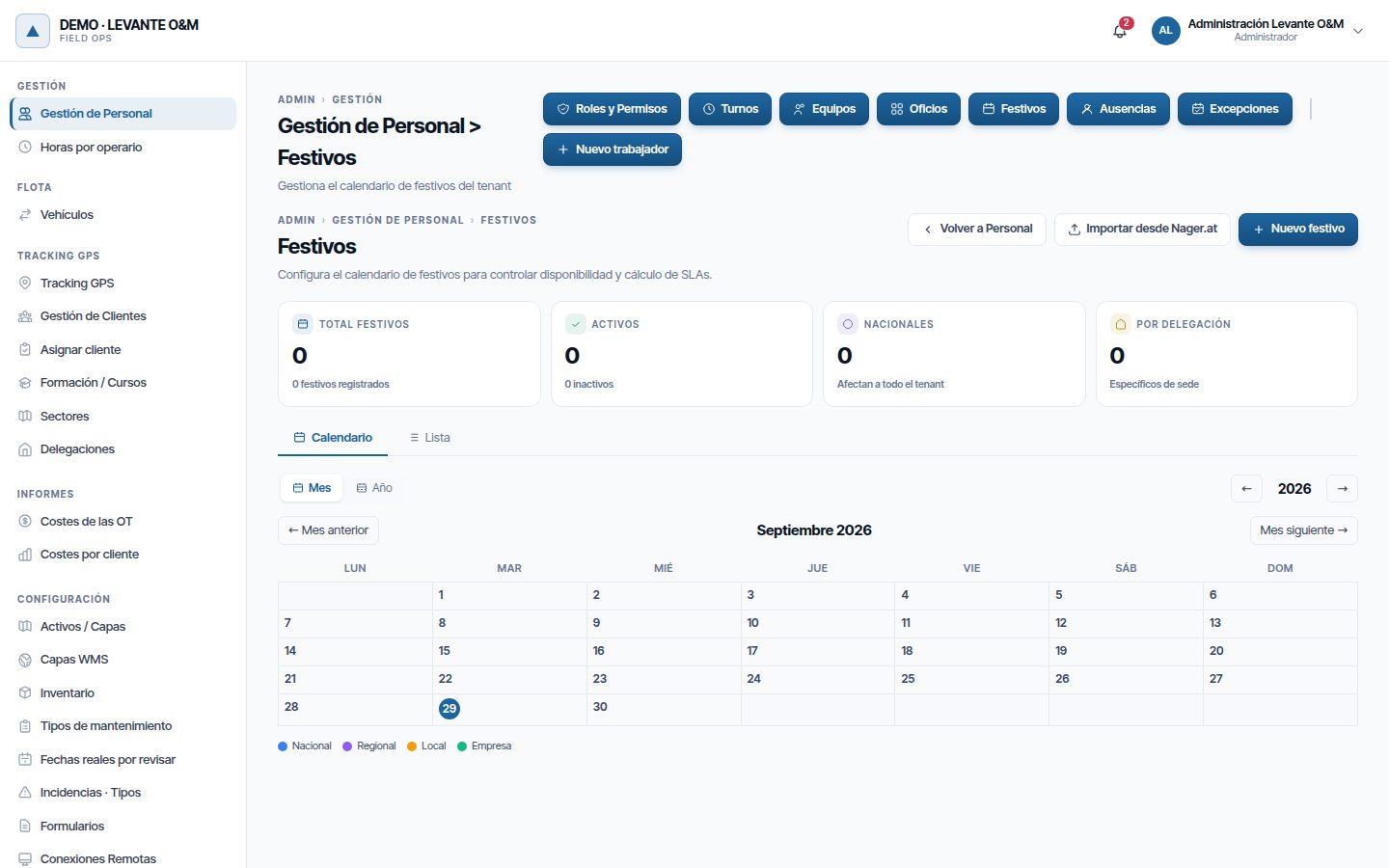
The Festivos screen has four counters and two tabs:
- Calendario (Calendar): the month (Mes (Month)) or the whole year (Año (Year)), with each public holiday in the colour of its scope. Click a public holiday to edit it.
- Lista (List): all public holidays, with a search box and the Año, Ámbito (Scope) and Estado filters.
Import the official public holidays
The quick way to load the year is to import it from the public Nager.at service:
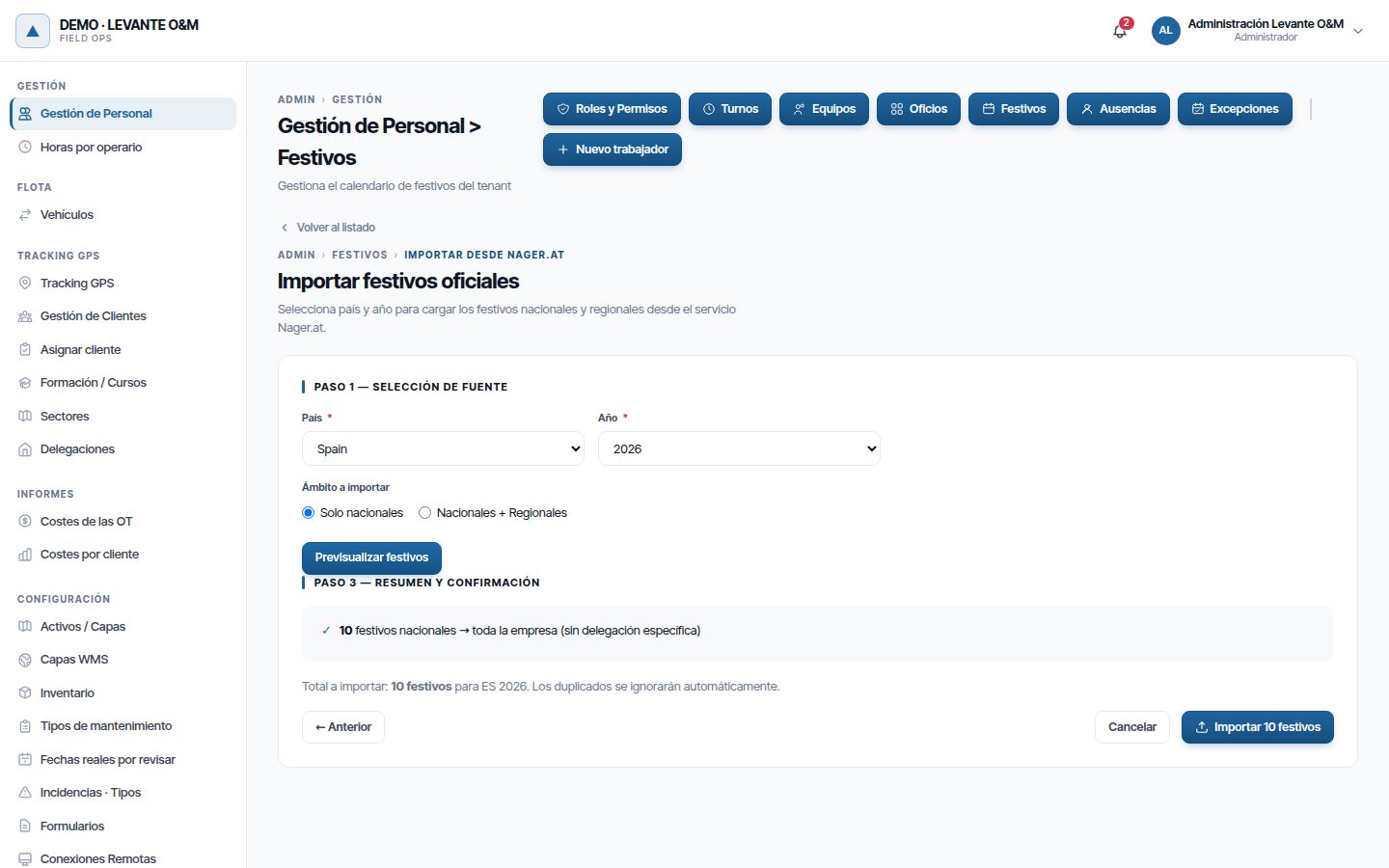
- Click Importar desde Nager.at (Import from Nager.at).
- Choose País (Country) and Año.
- In Ámbito a importar (Scope to import), choose Solo nacionales (National only) or Nacionales + Regionales (National + Regional).
- Click Previsualizar festivos (Preview public holidays).
- With regional holidays, in Paso 2 — Selección de regiones (Step 2 — Region selection) choose Importar (Import) or No importar (Do not import) for each region. Click Ver resumen → (View summary →).
- Review Paso 3 — Resumen y confirmación (Step 3 — Summary and confirmation) and click Importar N festivos (Import N public holidays).
A summary appears such as “Nuevos: 10 | Reemplazados: 0 | Omitidos (sin datos): 0” (New: 10 | Replaced: 0 | Skipped (no data): 0).
National public holidays are saved for the whole company. Regional ones are saved in each branch that has that Comunidad Autónoma (Autonomous community) in its record; if no branch has it, the region cannot be imported. The region is assigned in Branches and sectors.
Warning
Importing a year replaces all its national public holidays, and the regional ones of each imported branch. This includes those created or deactivated by hand with those scopes. Those with the Local and Empresa (Company) scopes are not touched.
Each public holiday is valid only for its date: it does not repeat the following year. Import each year before it starts, so that movable dates (Maundy Thursday, Good Friday, Easter Monday) fall on the right day.
Create a public holiday by hand
Local or company public holidays are created one by one:
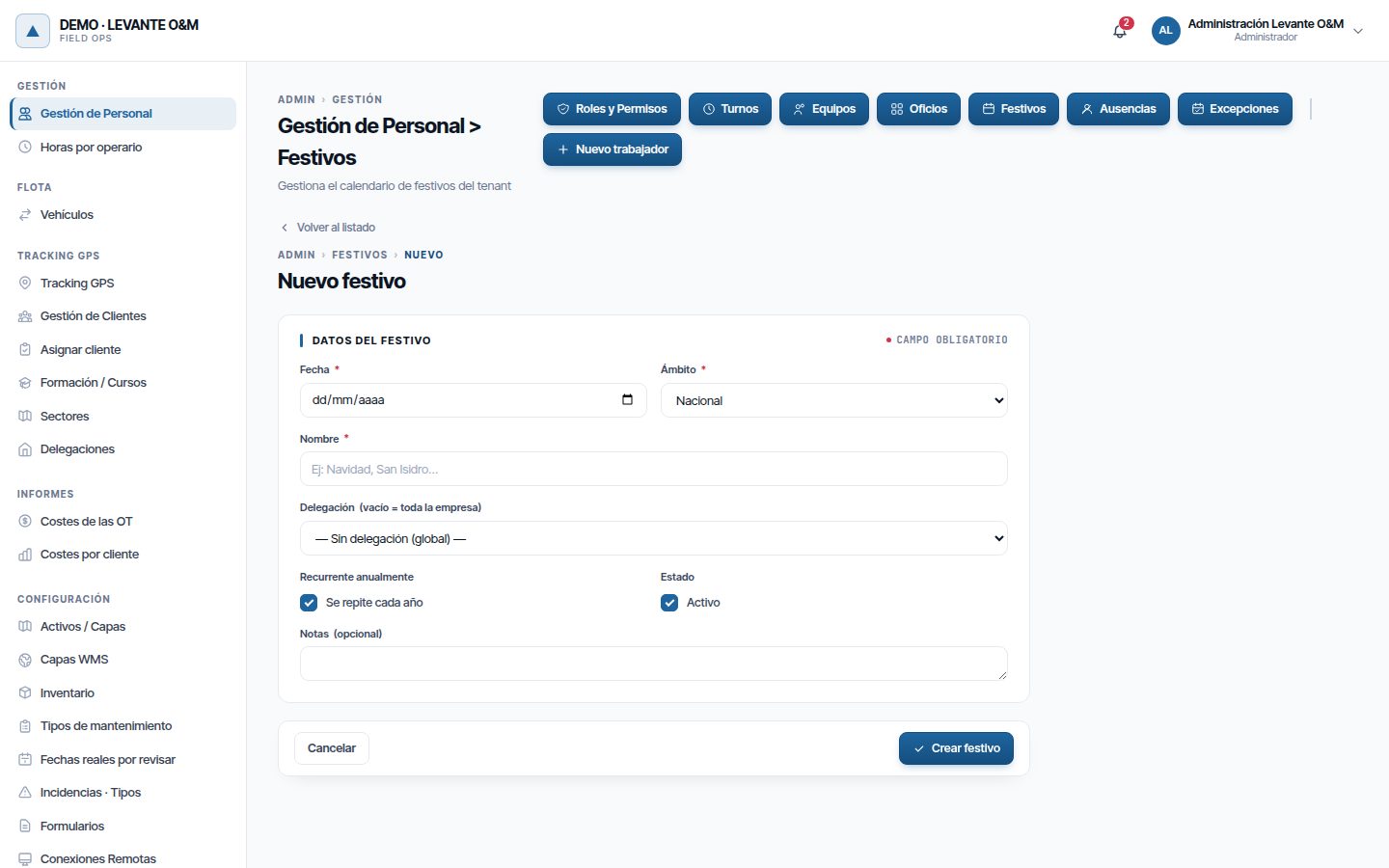
- Click Nuevo festivo (New public holiday).
- Choose the Fecha (Date) and the Ámbito, and enter the Nombre.
- In Delegación, leave — Sin delegación (global) — (— No branch (global) —) for the whole company or choose a branch.
- Click Crear festivo (Create public holiday). “Festivo creado correctamente” (Public holiday created successfully) appears.
| Field | What it is for |
|---|---|
| Ámbito | Nacional (National), Regional, Local or Empresa. It sets the colour in the calendar and the list filter; it does not change who is affected |
| Delegación | Decides who is affected: empty, the whole company; with a value, only the staff, teams and WOs of that branch |
| Estado | A public holiday without Activo counts for nothing, but is kept |
A day cannot have two public holidays with the same scope in the same calendar. If you try, “Ese día ya es festivo en este calendario con el mismo ámbito («…»)” (That day is already a public holiday in this calendar with the same scope (“…”)) appears.
A public holiday that falls on the same day every year (Christmas, the local festival) is created once per year. That way, what you see in each year's calendar is exactly what the planner, the SLA, capacity and WO availability count.
Edit or delete a public holiday
Click the public holiday in the calendar, or the pencil in the list. Change what you need and click Guardar cambios. With — Sin delegación (global) —, the public holiday applies to the whole company. To delete it, click the bin in the list and confirm with Eliminar. To make it ineffective without deleting it, untick Activo.
The counters at the top count all years. Total festivos (Total public holidays) includes inactive ones; Activos says how many of them are active and how many are not. Nacionales (National) and Por delegación (By branch) count active ones only.
Absences
An absence marks that a person does not work between two dates and times: holiday, sick leave, a course… Only Confirmada (Confirmed) absences count.
The Ausencias screen shows the Total, Confirmadas (Confirmed), Vacaciones (Holidays) and Bajas (Sick leave) counters, and the list with Personal, Tipo (Type), Desde (From), Hasta (To), Duración (Duration), Estado and Cobertura (Cover). You can filter by name, Tipo, Estado and the Desde and Hasta dates.
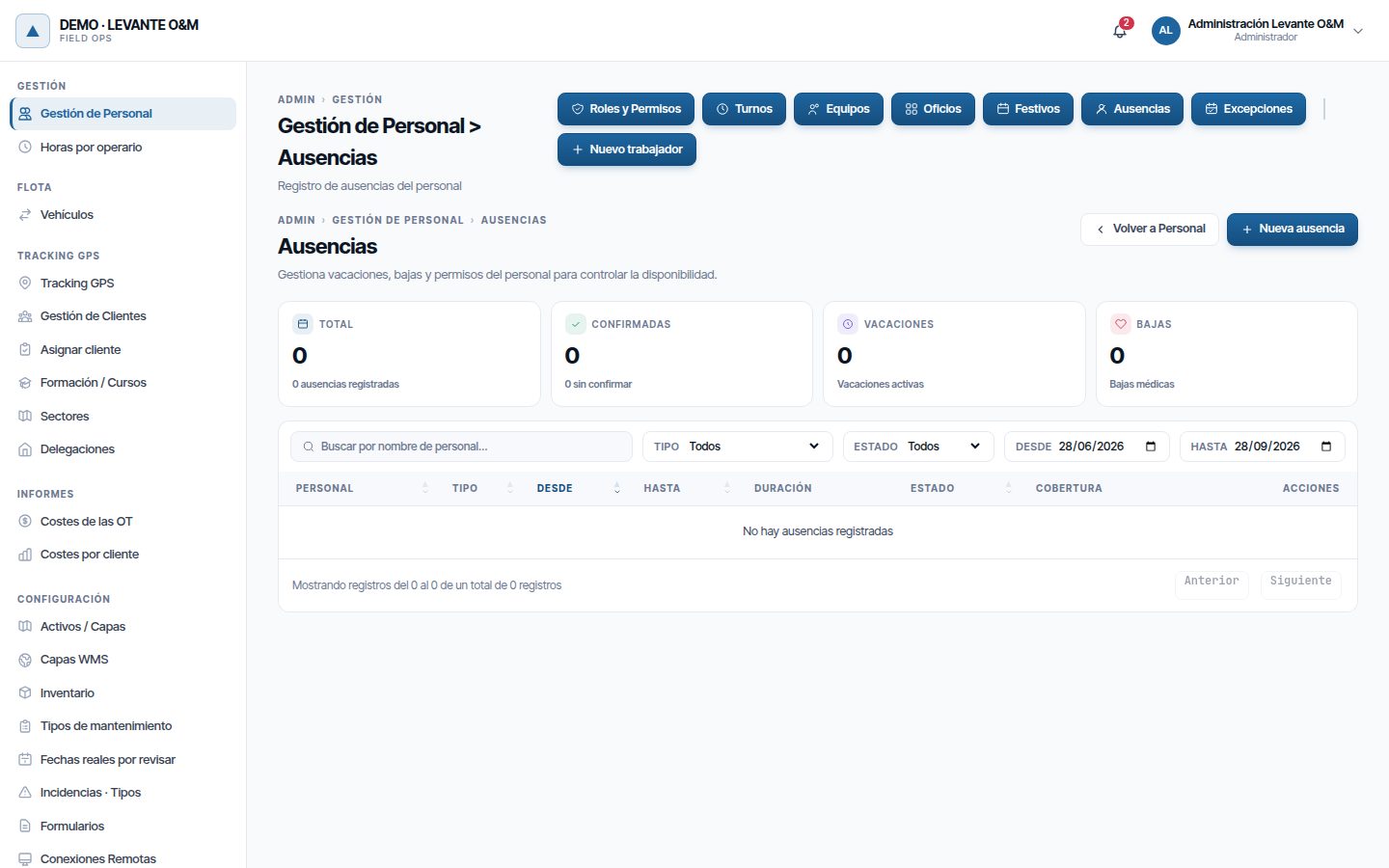
The list opens with Desde three months back and Hasta empty, so future absences, such as already approved holidays, also appear. An absence appears if it touches the filter period, even if it starts before Desde. The counters count what the list shows with the filters applied.
Record an absence
- Click Nueva ausencia (New absence).
- Choose the worker in Personal.
- Choose the Tipo de ausencia (Absence type) and the Estado (Confirmada or Provisional (Provisional)).
- Enter Inicio (Start) and Fin (End), with date and time.
- If someone covers for the person, choose them in Sustituto (Substitute).
- Click Registrar ausencia (Record absence). “Ausencia registrada correctamente” (Absence recorded successfully) appears.
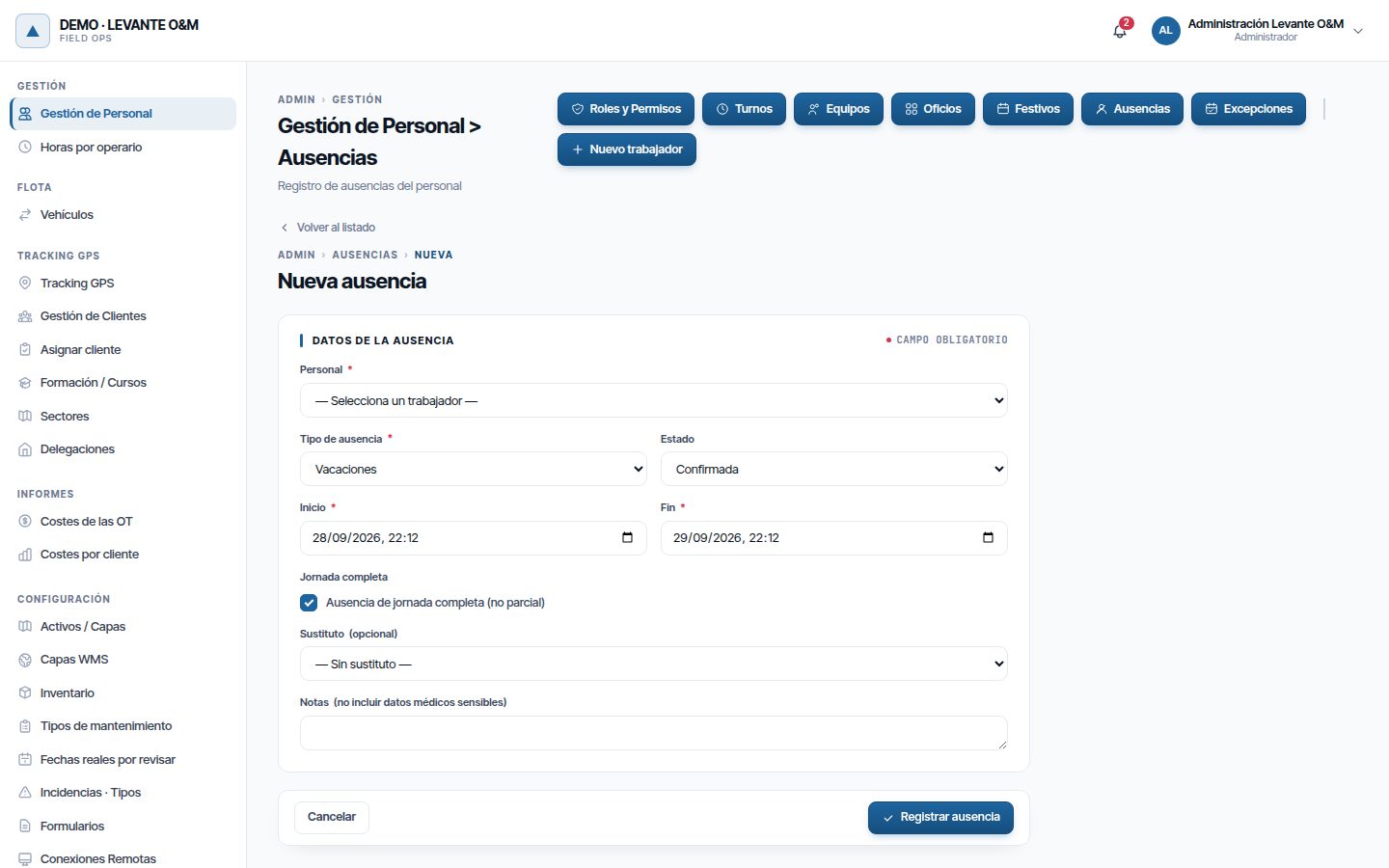
| Field | What it is for |
|---|---|
| Tipo de ausencia | Vacaciones, Baja médica (Sick leave), Asuntos propios (Personal matters), Formación (Training), Maternidad/Paternidad (Maternity/Paternity), Excedencia (Leave of absence) or Otro (Other). It is for information only: all of them subtract the same way |
| Estado | Confirmada counts everywhere. Provisional is recorded but does not remove availability |
| Inicio / Fin | The exact period the person does not work. The end must be later than the start |
| Jornada completa (Full day) | For information only: it changes how the duration is shown, not the period |
| Sustituto | For information only: the list marks the absence as Cubierta (Covered). It does not reassign anything |
| Notas (Notes) | Free text. Do not enter medical data |
Tip
For full-day holidays, set Inicio to 00:00 on the first day and Fin to 00:00 on the day after the last one. The Jornada completa checkbox does not extend the hours on its own.
Inicio and Fin open with today from 00:00 to 00:00 tomorrow. Times are entered and read in the company's time or, if you work with branches, in your branch's time. So, in a branch in the Canary Islands, they are entered in island time.
A person cannot have two confirmed absences that overlap. If there is already another confirmed absence in that period, “Solape de ausencias” (Overlapping absences) appears. You can save it as provisional with Sí, guardar como provisional (Yes, save as provisional).
Change, cancel or delete an absence
Each row has three buttons:
- Editar (the pencil): changes type, status, dates, Jornada completa and notes. Click Guardar cambios.
- Cancelar: changes it to Cancelada (Cancelled) after you confirm with Sí, cancelar (Yes, cancel). It stays in the list, but no longer counts.
- Eliminar (the bin): deletes it completely after you confirm with Eliminar.
When you edit, Inicio and Fin show the same times they were saved with, in your time zone.
Without Personal → Editar, each absence appears as No disponible (Not available), without the reason or the notes, and there is no Tipo filter and no Vacaciones and Bajas counters (see Staff and teams).
Workers see their own absences in full in their profile, in Mi calendario (My calendar) (see Getting started).
Calendar exceptions
An exception changes a person's hours for a single day, without touching their shift. It is used for on-call duty, shift changes, single days off and overtime.
The Excepciones de calendario (Calendar exceptions) screen shows the Total, Guardias (On-call), Días libres (Days off) and Jornadas extra (Extra days) counters, and the list with Personal, Fecha, Tipo, Horario (Hours) and Notas. You can filter by name, Tipo, Origen (Source) and the Desde and Hasta dates.
As with absences, the list opens with Desde three months back and Hasta empty: future exceptions also appear. The counters count what the list shows.
| Type | What it does that day | Requires |
|---|---|---|
| Día libre | The person does not work, even if their shift says otherwise | Nothing else |
| Cambio de turno | The person works another shift instead of their own | Turno alternativo (Alternative shift) |
| Guardia | Adds a working time slot | Hora inicio and Hora fin |
| Jornada extra | Adds a time slot, intended for a day they would not normally work | Hora inicio and Hora fin |
| Ampliación horaria | Adds a time slot, intended to extend their working day | Hora inicio and Hora fin |
If the end time is earlier than the start time, the time slot ends the next day (an on-call shift from 22:00 to 06:00).
Create an exception
- Click Nueva excepción (New exception).
- Choose the worker in Personal and the Fecha.
- Choose the Tipo. The form opens with Guardia, which requires Hora inicio and Hora fin. With Cambio de turno, Turno alternativo appears.
- Fill in those fields and, if you wish, the Notas.
- Click Crear excepción (Create exception). “Excepción creada correctamente” (Exception created successfully) appears.
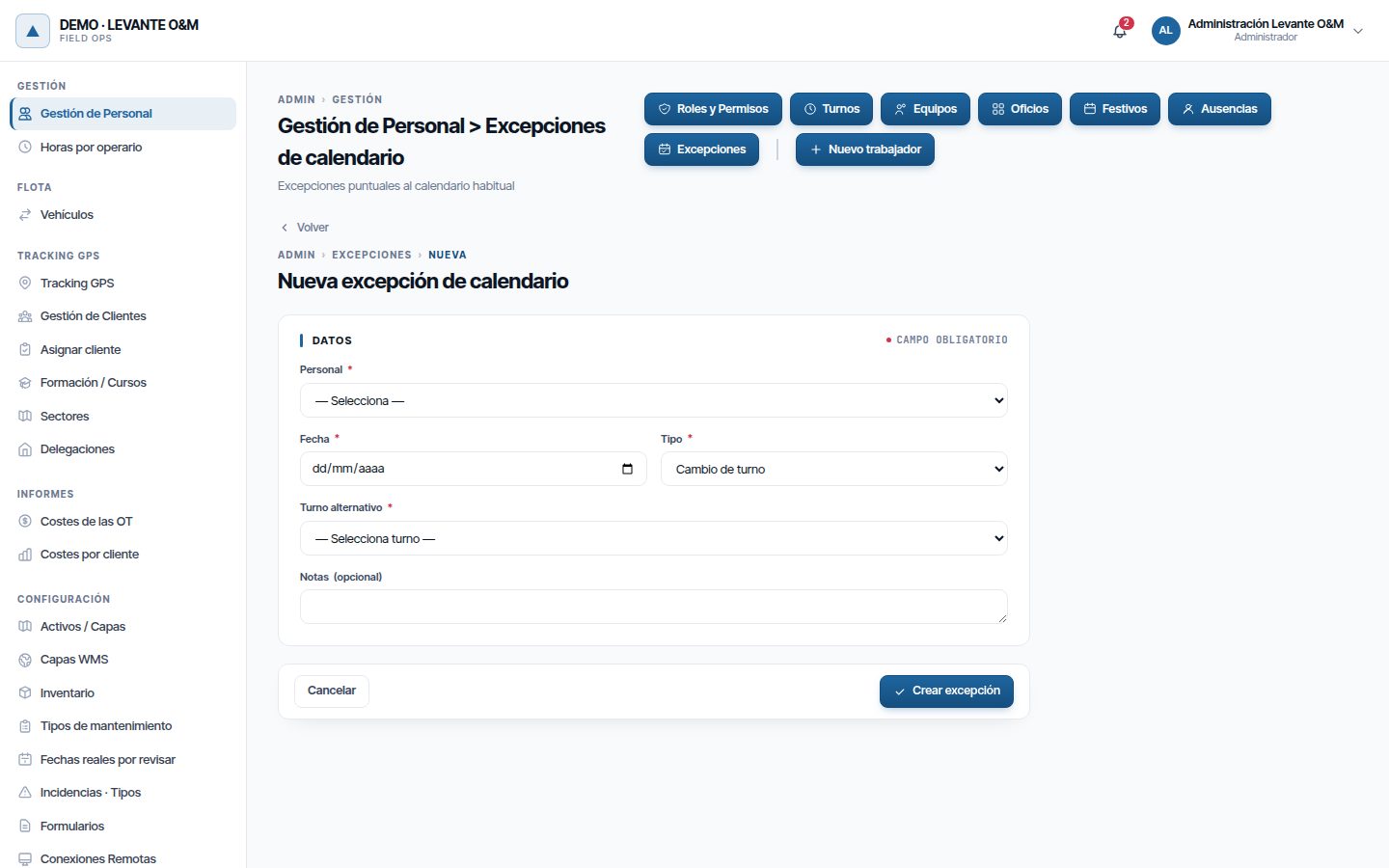
A person cannot have two exceptions of the same type on the same day. If you try, “Ya existe una excepción de ese tipo para esa fecha y ese trabajador” (An exception of that type already exists for that date and worker) appears. If a value the type requires is missing, a message says what is missing, for example “Indica la hora de inicio y la de fin: una guardia las necesita” (Enter the start and end time: an on-call shift needs them).
A Cambio de turno applies that day even if the alternative shift does not have that day of the week in its Días de trabajo: a Monday-to-Friday shift set on a Saturday makes the person work that Saturday with its hours and its break.
Edit or delete an exception
Click the pencil on the row, change what you need and click Guardar cambios. You can also change Personal to move the exception to another person. If it clashes with another exception of the same type or a value is missing, the same message appears as when creating it.
To delete it, click the bin and confirm with Eliminar.
Exceptions that come from the app and from GPS tracking
- Technicians can declare a Guardia, a Jornada extra or an Ampliación horaria for themselves from the app, for example for a night-time emergency. In their profile they see it as “Tú, pendiente de revisar” (You, pending review).
- In Tracking GPS (GPS tracking), the review of out-of-shift activity lets you create the exception that justifies it (see Fleet and GPS tracking).
An exception declared by the technician applies from that moment, without waiting for anyone. In the list it carries the App · por revisar (App · to review) tag next to the name. The Total counter says how many are awaiting review.
To review them:
- In Origen, choose Por revisar (app) (To review (app)).
- Check each one. If it is not correct, edit or delete it.
- If it is correct, click the tick button on the row and confirm with Dar por revisada (Mark as reviewed).
The tag changes to App · revisada (App · reviewed), and hovering over it shows who reviewed it. The technician sees it in their profile as “Tú, revisada” (You, reviewed). The review is recorded in Auditoría (Audit), in the Personal category. The edit staff permission is required. If the technician declares another time slot of the same type that day, the two are merged and it becomes pending review again.
Time zones
Shifts, exceptions and company working hours are entered in local time. Maptainer reads them in the time zone that applies to each case:
| What | Zone used |
|---|---|
| A person's shift and exceptions (end-of-day pause, GPS tracking, capacity) | The Zona horaria (Time zone) in their record; if empty, that of their branch; otherwise, that of the company |
| SLA deadlines of a WO or an incident | That of its branch; if it has none, that of the company |
| Company time zone | That of its main branch |
Each branch's time zone is chosen in its record, in the Zona horaria field. For a branch in the Canary Islands, choose Canarias (Canary Islands): its shifts and SLA deadlines are read in island time. See Branches and sectors.
When you change a branch's time zone, or which one is the main office, the SLA deadlines of open work orders and incidents are recalculated. Closed ones keep the deadline they were closed with.
A worker's Zona horaria is set in their record, when editing it, and only appears with staff tracking. Leave it empty unless they work in a different zone from their branch. See Staff and teams.
Current limitations
- Importing a year also replaces the national and regional public holidays created by hand for that year.
Common problems
| Symptom | Likely cause | Solution |
|---|---|---|
| The Turnos, Festivos, Ausencias and Excepciones buttons do not appear | The Gestionamos turnos y calendario laboral option is disabled, or you do not have the view staff permission | Enable it in Configuración General or ask for the permission |
| When saving a WO, “… no es un día laboral configurado.” (… is not a configured working day.) or “… fuera del horario laboral …” (… outside working hours …) appears | The date falls outside that day's hours | Change the date or extend the hours in Días y horario de trabajo |
| The planner does not count on a worker | They have no Turno por defecto, their shift is inactive, or that day they have a public holiday, absence or day off | Check the reason in Recursos sin disponibilidad and assign them an active shift |
| A team appears with “sin turno por defecto activo” | The team has no shift or its shift is deactivated | Assign it an active shift in its record |
| An afternoon shift receives no work in the planner | The company's working hours end before the shift | Extend the hours in Días y horario de trabajo to cover all shifts |
| An absence does not remove availability | It is Provisional or Cancelada | Edit it and set it to Confirmada |
| I cannot find an absence or exception I recorded | It falls outside the filter's Desde and Hasta dates; on opening, Desde is three months ago | Move Desde back or clear Hasta |
| A shift cannot be deleted | It is used by workers, teams or future exceptions | Assign them another shift, or untick Activo instead of deleting it |
| The new year has no public holidays | Each public holiday is valid only for its date | Import the new year from Nager.at and create the local and company ones |
| An SLA deadline does not change after modifying the hours or the public holidays | Deadlines are calculated when the WO is created | This is expected: the change applies to new WOs |
| A technician's WOs in progress change to Pausada on their own in the afternoon | It is the automatic pause, 15 minutes after their shift ends | If they work longer, record an Ampliación horaria or a Guardia for them |
Last updated: