
Introduction
The Maptainer web app has two working screens:
- The map (main screen): daily work. Work orders, incidents, meter readings, planning and assets, all on the map.
- The administrator (admin area): configuration and management. Staff, customers, layers, maintenance types, reports.
You switch from one to the other from the user menu, at the top right. What each person sees depends on their role and on what the company has subscribed to.
To sign in you need an account. Your company creates it and you activate it with the link you receive by email.
Prerequisites
All you need is a Maptainer user and an up-to-date browser. Your company's administrator creates your user:
- If you work in the field or have a staff record, from Gestión de Personal (Staff management) → Nuevo trabajador (New worker) → Dar acceso a la aplicación (Give access to the application). This is explained in Staff and teams.
- The Rol de sistema (System role) assigned to you decides what you see. There is a summary in What each role sees.
The same account works for the web app and for the mobile app. The two sessions are independent: signing in to one does not close the other.
Activating your account
When you are registered, you receive an email with the subject “Completa tu registro - Maptainer” (Complete your registration). The link opens the Completar Registro (Complete registration) screen.
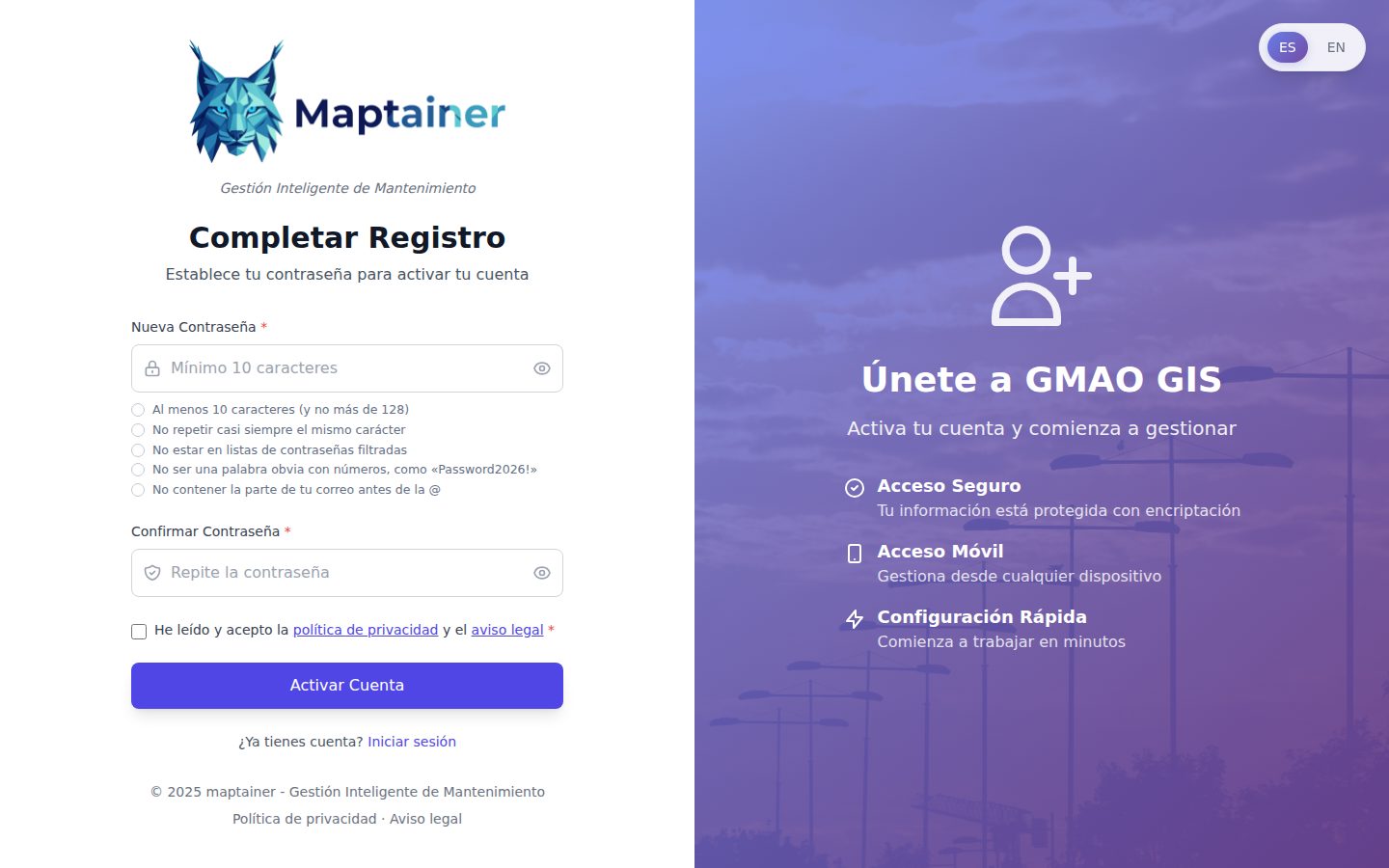
- Enter your password in Nueva Contraseña (New password) and repeat it in Confirmar Contraseña (Confirm password).
- Tick the He leído y acepto la política de privacidad y el aviso legal (I have read and accept the privacy policy and the legal notice) checkbox. The two links open those texts on the Maptainer website. It is mandatory: if you do not tick it, the account is not activated. The system records which version of the texts you accepted and when.
- Click Activar Cuenta (Activate account).
- “¡Cuenta Activada!” (Account activated!) appears. Click Ir al Login (Go to login) and sign in.
The link expires after 24 hours and can only be used once. If it expires, “Token expirado” (Token expired) is shown. Request another one in one of these two ways:
- On the sign-in screen, click ¿Has olvidado tu contraseña? (Forgotten your password?) and enter your email. As the account has not been activated, you receive a new activation email instead of the password recovery one.
- Ask your administrator to click Reenviar activación (Resend activation) on your record. This is explained in Staff and teams.
Each new link cancels the previous one: always use the latest one you receive.
Password rules
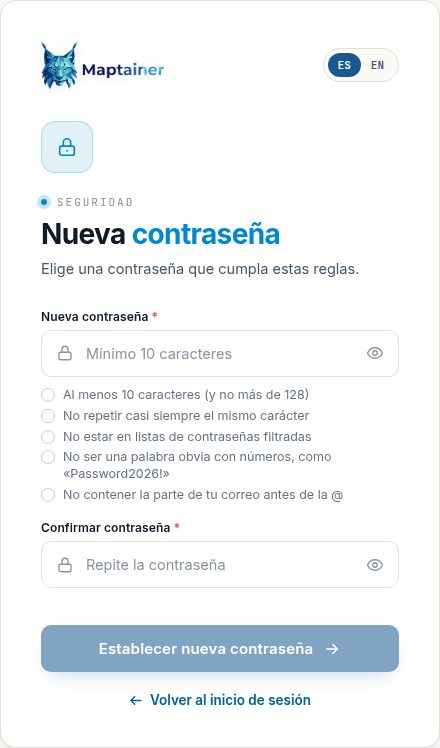
They are the same when you activate the account, when you recover it and when you change it from your profile. As you type, below the password field each rule that is met is marked in green and any rule that is not met in red:
| Rule | Message if it is not met |
|---|---|
| At least 10 characters (and no more than 128) | “La contraseña debe tener al menos 10 caracteres” (The password must have at least 10 characters) |
| Not repeating almost always the same character | “La contraseña repite demasiado los mismos caracteres” (The password repeats the same characters too often) |
| Not appearing in lists of leaked passwords | “Esa contraseña aparece en listas de contraseñas filtradas; elige otra” (That password appears in lists of leaked passwords; choose another) |
| Not being an obvious word with numbers, such as “Password2026!” | “La contraseña es demasiado fácil de adivinar; elige otra” (The password is too easy to guess; choose another) |
| Not containing the part of your email before the @ | “La contraseña no puede contener tu correo” (The password cannot contain your email) |
Capital letters, numbers and symbols are not required. A long phrase you can remember is the best option.
Signing in
The sign-in screen is your Maptainer address followed by /login.html. If you open any page without a session, it takes you there.
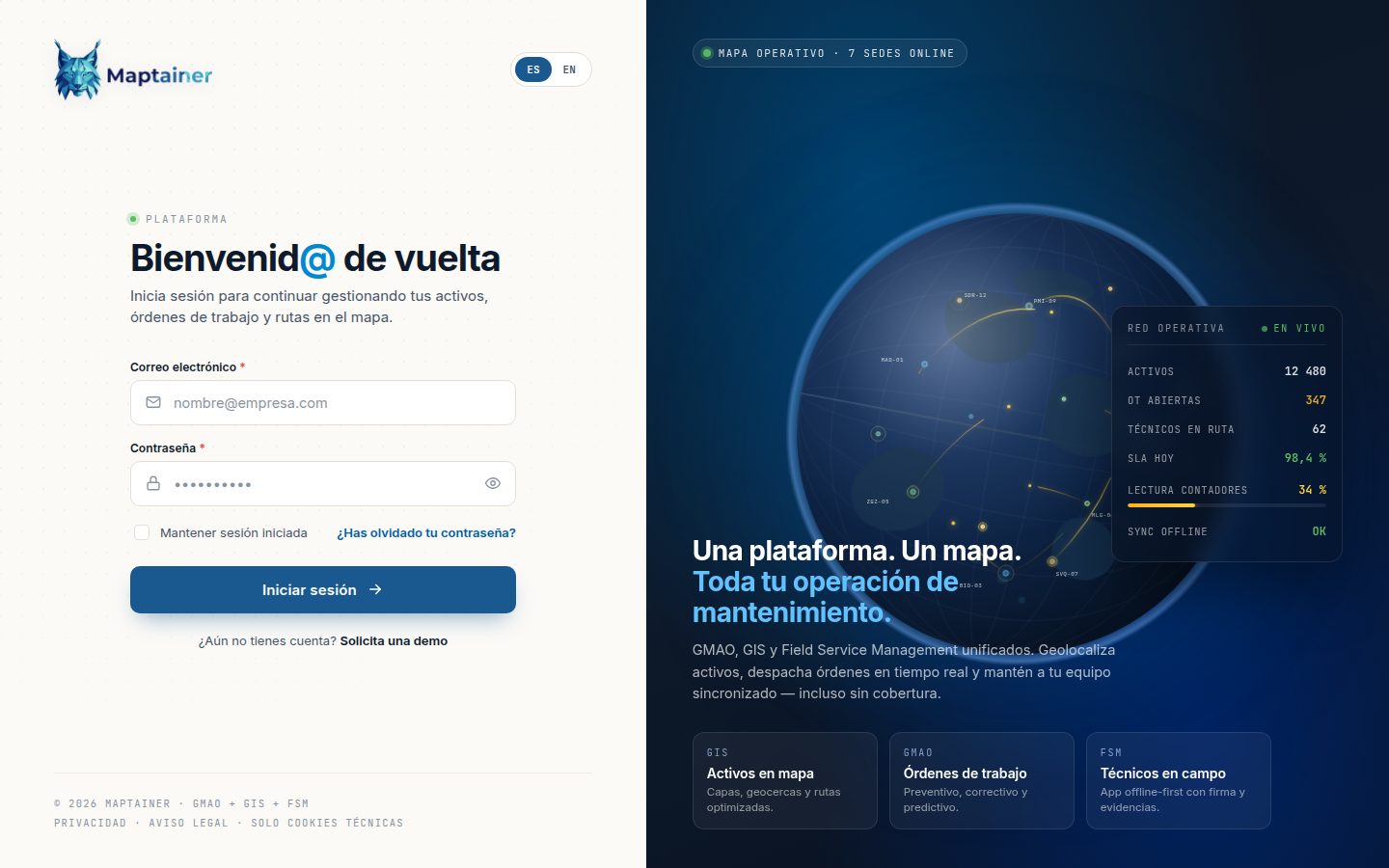
- Enter your Correo electrónico (Email) and your Contraseña (Password). The eye on the right shows the password as you type it.
- If you are on your own computer, tick Mantener sesión iniciada (Keep me signed in).
- Click Iniciar sesión (Sign in). After the message “Bienvenid@ a Maptainer” (Welcome to Maptainer) the map opens.
The ES and EN buttons change the language of the sign-in screens. The Privacidad (Privacy) and Aviso legal (Legal notice) links open those texts on the Maptainer website, and Solicita una demo (Request a demo) opens the Maptainer contact page. At the bottom, Solo cookies técnicas (Technical cookies only) reminds you that the application only stores the cookies needed to start and keep the session: no analytics or advertising cookies, which is why there is no cookie banner.
How long the session lasts
| Option | Duration |
|---|---|
| Without Mantener sesión iniciada | Up to 90 minutes without activity |
| With Mantener sesión iniciada | 30 days |
Without Mantener sesión iniciada, the session is extended while you work: every time you type, click or move the mouse, the 90 minutes start again. It ends when 90 minutes pass without you touching anything. Having the screen open does not count, even though the map and the bell keep updating by themselves.
Only one session per user
Each user has only one web session open. If you sign in on another browser or another computer, the previous session is closed. The mobile app does not count: you can have the web app and the mobile app open at the same time.
When your session ends with the screen open, Maptainer takes you to the sign-in screen. Sometimes it first shows: “Tu sesión ha terminado: se ha cerrado, ha caducado o se ha iniciado otra con tu usuario (quizá en otro dispositivo). Vuelve a iniciar sesión.” (Your session has ended: it was closed, it expired or another one was started with your user, perhaps on another device. Sign in again.)
Warning
Do not share a user between two people. Each time one signs in, the other is thrown out, and anything they had half saved is lost.
Error messages when signing in
| Message | What it means |
|---|---|
| “Correo o contraseña incorrectos” (Incorrect email or password) | The email does not exist or the password is not the right one. For security reasons the message does not say which of the two |
| “Demasiados intentos. Vuelve a intentarlo en N minutos.” (Too many attempts. Try again in N minutes.) | There have been several failures in a row with that email. The lock starts at 1 minute (5 failures) and grows up to 30 minutes (20 failures) |
| “Tu usuario está desactivado y ya no puede acceder…” (Your user is deactivated and can no longer sign in…) | Your company has deactivated your user |
| “La organización “…” está desactivada…” (The organisation “…” is deactivated…) | Your company's Maptainer account has been closed |
| “La suscripción de “…” venció el …” (The subscription of “…” expired on …) | Your company's subscription has expired |
When an account is locked because of failed attempts, its owner receives the email “Intentos de acceso fallidos a tu cuenta - Maptainer” (Failed sign-in attempts on your account). If it was not you, change your password as soon as you can sign in.
Recovering your password
If you cannot remember your password, request a link to create a new one.
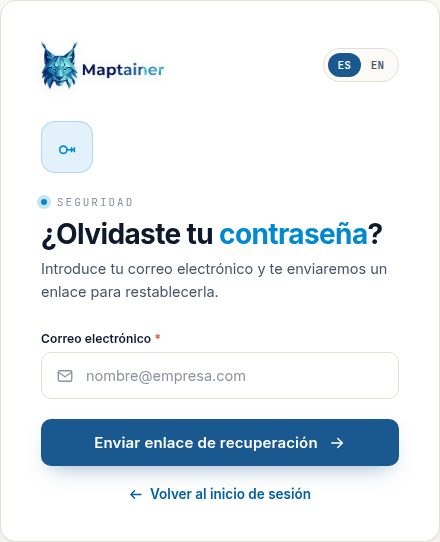
- On the sign-in screen, click ¿Has olvidado tu contraseña?.
- Enter your Correo electrónico and click Enviar enlace de recuperación (Send recovery link).
- “Revisa tu bandeja” (Check your inbox) appears. It is always shown, even if the email is not registered, so as not to reveal which accounts exist.
- Open the email and click the link. It expires after one hour.
- In Nueva contraseña (New password), enter the password twice and click Establecer nueva contraseña (Set new password). The password rules are marked below the field. The button is enabled when the password meets them all and the two passwords match.
- “Contraseña actualizada” (Password updated) appears. Click Ir al inicio de sesión (Go to sign-in).
Changing your password this way closes all your sessions, including the mobile app one. Each new link cancels the previous one: always use the latest one you receive.
The email arrives with the subject “Recuperación de contraseña de Maptainer” (Maptainer password recovery). Depending on the status of your account, you receive a different one:
| Your account | Which email you receive |
|---|---|
| Active | “Recuperación de contraseña de Maptainer”, with the link |
| Not yet activated | “Completa tu registro - Maptainer”, with a new activation link (see Activating your account) |
| Deactivated by your company | “Cuenta inactiva. Maptainer.” (Inactive account), which tells you to ask the administrator to reactivate it |
You can request a maximum of 5 links per hour.
Signing out
Open the user menu (your name, at the top right) and click Cerrar sesión (Sign out). The session is cancelled on the server and the browser forgets your data. Always do this on shared computers.
The main screen
When you sign in, the map opens. The screen has three areas: the top bar, the map and the right-hand panel.
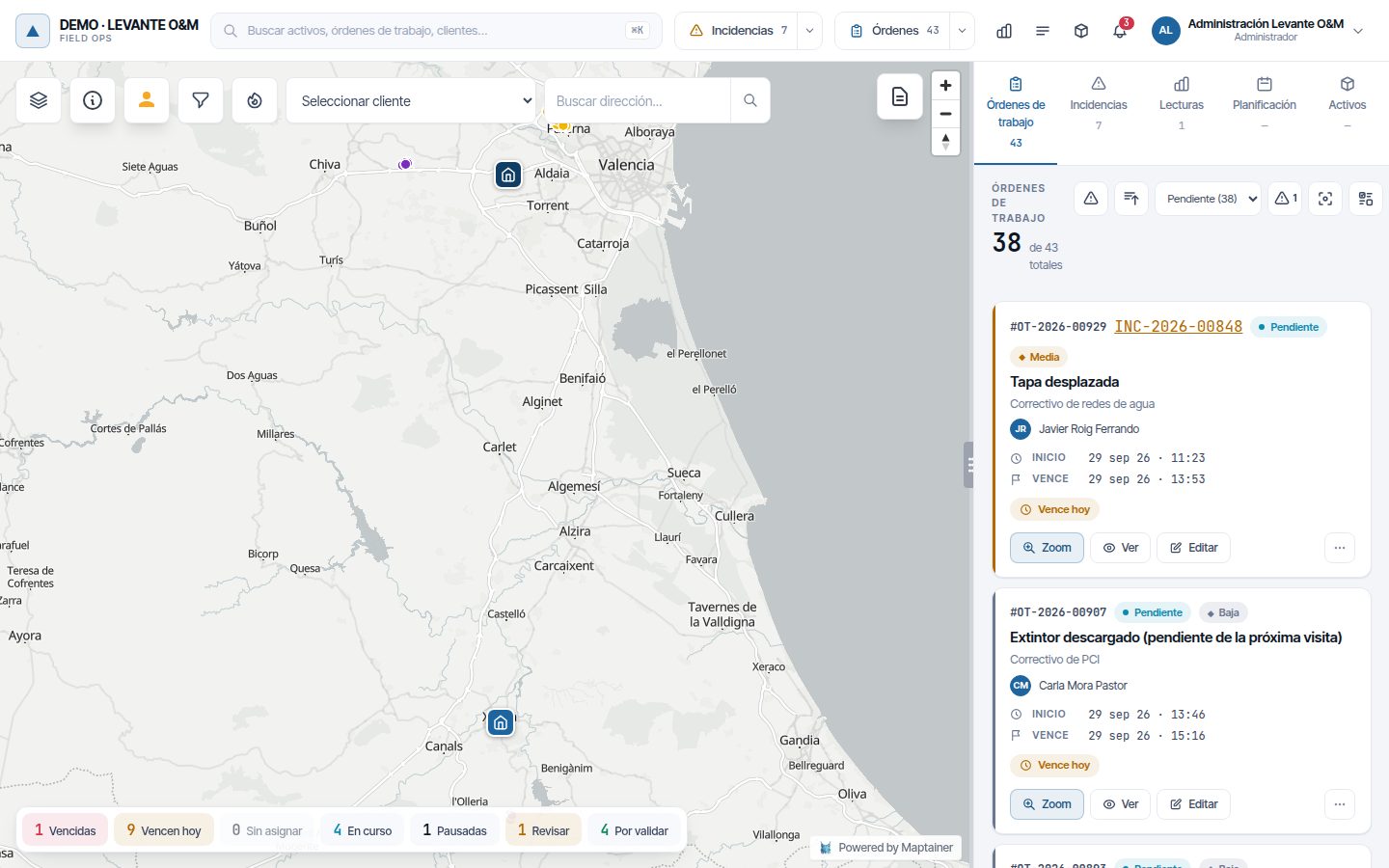
Top bar

From left to right:
| Element | What it is for | More information |
|---|---|---|
| Company logo and name | Shows which company you are in | — |
| Search box (“Buscar activos, órdenes de trabajo, clientes…”, Search assets, work orders, customers…) | Searches from 3 letters. Ctrl+K (⌘K on Mac) takes you to it | The map |
| Incidencias and Órdenes | Turn those layers on and off on the map, with their number beside them. The arrow chooses the thematic map and the heat map | The map |
| Bars icon (Panel de Control, Dashboard) | Indicators, targets and scheduled reports | Dashboard and lists |
| Lines icon (Listados, Lists) | Your favourite lists and Todos los listados (All lists) | Dashboard and lists |
| Box icon (Inventario, Inventory) | Warehouses, items and stock. Only if your company manages a warehouse | Inventory and warehouses |
| Bell | Alerts and notifications | Alerts and notifications |
| Your name and your role | User menu | User menu |
Each icon only appears if your role has permission for that part. The dashboard, the inventory and each list open full screen over the map; you close them with their button or with Escape.
The map
It takes up the left-hand side. At the top it has the buttons for layers, identify, Street View, filters and heat map, the customer drop-down and the address search box. At the bottom, the strip with the day's summary (“Vencidas” (Overdue), “Vencen hoy” (Due today), “Sin asignar” (Unassigned)…), which filters the work orders when you click it.
All of this is explained in The map and in Work orders. The customer drop-down, in Customer filter.
Right-hand panel
It shows the work as a list and as records. It has up to five tabs, with their counter below:
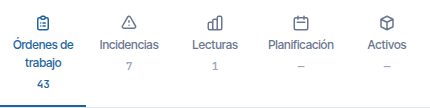
| Tab | What it contains | Manual |
|---|---|---|
| Órdenes de trabajo | List, detail, creation and editing of work orders | Work orders |
| Incidencias | List, detail and creation of incidents. Only if your company uses them | Incidents |
| Lecturas | Open reading batches | Reading batches |
| Planificación | Calendar, board and planner | Planning and dispatch |
| Activos | The record of the asset you choose on the map or in the search box | Assets |
To give the panel more space, drag the vertical bar that separates it from the map. It cannot be made narrower than its initial width. If you drag it almost to the left edge, the panel takes up the whole screen and the map is hidden.
On a phone, the panel sits below the map, collapsed. You open it with Ver lista (View list).
User menu
Click your name, at the top right. The menu opens with your name and your email.
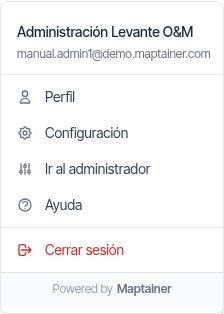
| Option | What it does | Who sees it |
|---|---|---|
| Perfil (Profile) | Your details, your password and your mobile session | Everyone |
| Configuración (Settings) | The company's Configuración General (General settings): subscribed modules and way of working See Tenant administration | Only the administrator |
| Ir al administrador (Go to the administrator) | Opens the administrator. Inside it, the option is called Ir al mapa (Go to the map) | The administrator and the roles with management permission (see What each role sees) |
| Ayuda (Help) | Opens these manuals in another tab | Everyone |
| Cerrar sesión | Closes the session | Everyone |
Your profile
In Perfil you check your details and the security of your account. What appears depends on whether you have a staff record and on what your company uses.
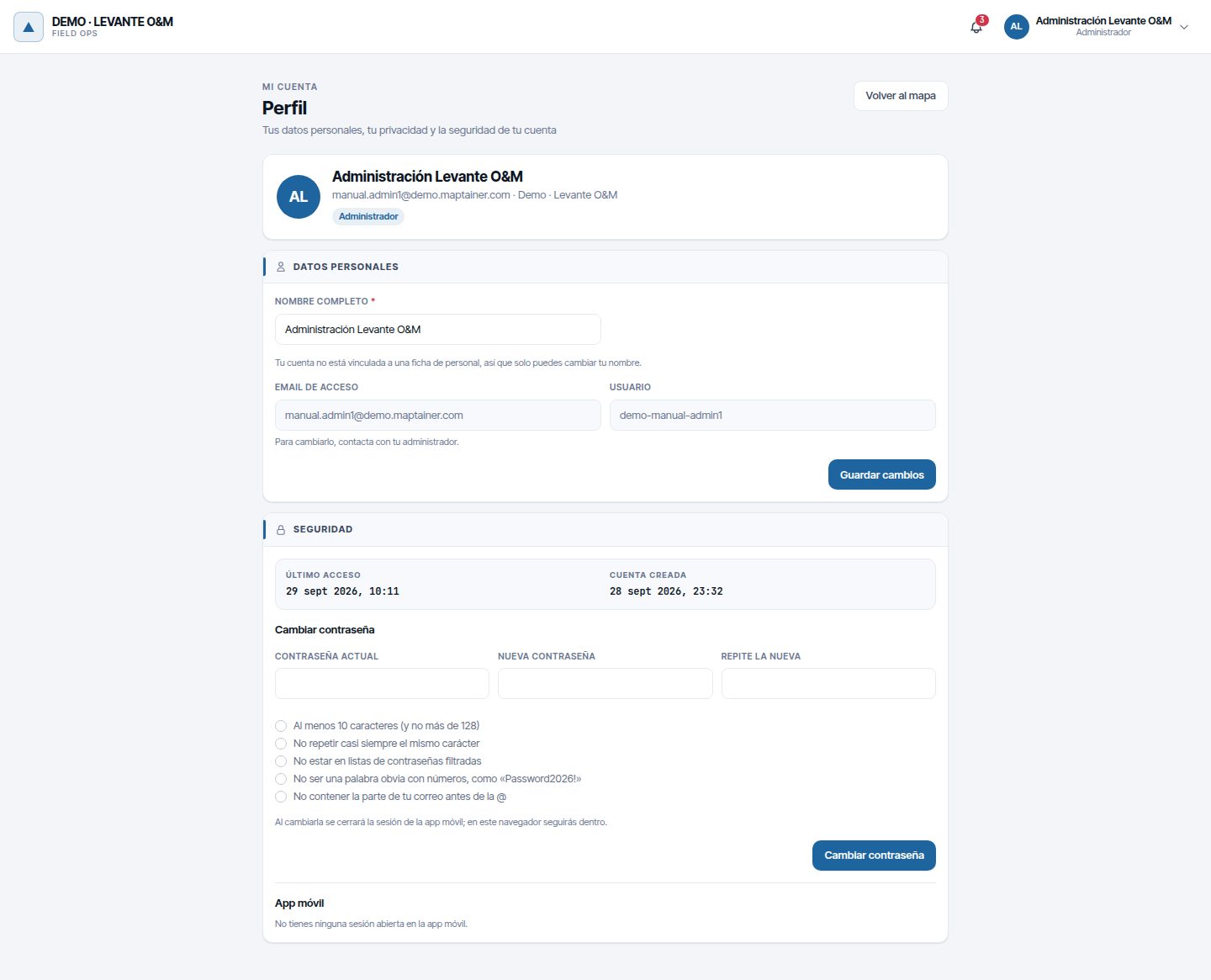
| Section | What it contains | When it appears |
|---|---|---|
| Header | Initials, name, email, company and role | Always |
| Datos personales | Nombre completo (Full name) and Teléfono (Phone), which you can change. Email de acceso (Sign-in email) and Usuario (User), read-only | Always. The phone, only with a staff record |
| Tu puesto (Your position) | Branch, usual shift, teams, warehouse and usual vehicle | With a staff record |
| Mi calendario (My calendar) | Turno habitual (Usual shift), Ausencias (Absences, with their reason) and Excepciones de horario (Schedule exceptions) from 30 days ago | With a record and if your company works with shifts |
| Cualificaciones (Qualifications) | Oficios (Trades) and Habilidades y certificaciones (Skills and certifications), with their expiry | With a record and if your company manages trades |
| Privacidad y localización (Privacy and location) | Your location consent, its history, your location sessions and the download of your data | With a record and with GPS tracking subscribed |
| Seguridad | Último acceso (Last sign-in), Cuenta creada (Account created), Cambiar contraseña (Change password) and App móvil (Mobile app) | Always |
| Mis datos (My data) | Descargar todos mis datos (Download all my data) in a ZIP | Always |
Whatever is read-only is maintained by your manager. If something is not correct, let them know. To change your sign-in email, speak to the administrator.
Changing your details
- In Datos personales, change Nombre completo or Teléfono.
- Click Guardar cambios (Save changes). “Datos guardados” (Details saved) appears and the name in the top bar is updated.
Without a staff record you can only change your name. The page says so: “Tu cuenta no está vinculada a una ficha de personal, así que solo puedes cambiar tu nombre.” (Your account is not linked to a staff record, so you can only change your name.)
Changing your password
- In Seguridad, fill in Contraseña actual (Current password), Nueva contraseña and Repite la nueva (Repeat the new one).
- Click Cambiar contraseña.
- “Contraseña actualizada” appears.
In this browser you stay signed in, but the mobile app session is closed and you will have to sign in again on the phone. The new password must meet the password rules and be different from the current one. After 5 wrong current passwords, changing it is locked for 15 minutes.
Closing the mobile session
In App móvil you see the phone with an open session and when it was last used. If you have lost it or no longer use it:
- Click Cerrar sesión en el móvil (Sign out on the mobile).
- Confirm with Cerrar sesión.
The app will ask you to sign in again. If it was recording your working day, it stops doing so.
Privacy and location
It only appears if your company has GPS tracking and you have a staff record. It shows whether you have accepted the current location notice. The notice is always accepted from the mobile app.
- Retirar consentimiento (Withdraw consent): the app stops recording your location from that moment. What has already been recorded is not deleted.
- Descargar mis datos de localización (Download my location data): choose Desde (From), Hasta (To) and Formato (Format) (CSV or JSON) and click Descargar (Download). Each download contains at most 50,000 positions; if you reach that limit, request a shorter period.
GPS tracking is explained in Fleet and GPS tracking.
Downloading all my data
In Mis datos, at the end of the profile, click Descargar todos mis datos. A ZIP is downloaded with everything Maptainer stores about you: your account, your staff record, absences, skills, assigned work orders, comments, photos you have uploaded, signatures, histories, your activity according to the audit log and your GPS positions. It comes in JSON and CSV, with a LEEME.txt that explains it. It is your right of access and portability (Articles 15 and 20 of the GDPR) and you do not have to ask anyone for it. The download is logged.
To have your data deleted, ask your company's administrator: they do it with Eliminar (Delete) on your record.
Alerts and notifications
The bell in the top bar gathers the alerts that concern you: low stock, new incidents, changes to assets, technicians out of zone… The red number is the number of pending alerts.
Which alerts you receive
There are two kinds of alert:
- Addressed to you: only you see them.
- General: seen by everyone who has the permission for that alert family.
| Family | Examples | Roles that receive it by default |
|---|---|---|
| Incidents | New incident, high-priority incident | Administrator and supervisor |
| GPS tracking | Technician out of zone with a WO in progress, WO paused at the end of the working day, simulated positions on the mobile | Administrator and supervisor |
| Stock | Low stock, out of stock | Administrator, supervisor and warehouse |
| Fleet | Vehicle assignment to review | Administrator and supervisor |
| Assets | New asset, asset deleted, geometry or data modified | Administrator and supervisor |
In addition:
- If your company works with branches, you only receive the alerts for your branch. The administrator and anyone without a branch receive them all.
- You do not receive the alert for something you did yourself, such as the incident you have just created.
- Alerts from a module that has not been subscribed to are not shown to anyone.
- A general alert that does not belong to any of these families is seen by everyone.
The permissions for each family are changed in Roles y Permisos (Roles and permissions), group Avisos (Alerts). See Tenant administration.
The alerts panel
Click the bell. Notificaciones (Notifications) opens with the pending alerts, from newest to oldest.
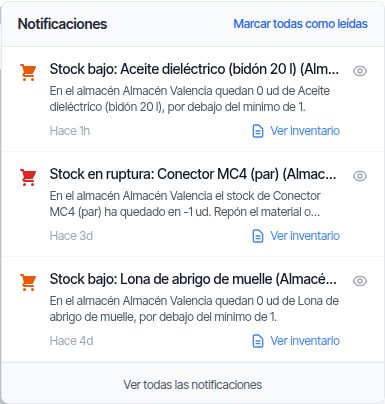
- Click an alert to see its detail: type, severity, status, message, date and additional information.
- Ver orden de trabajo (View work order), Ver incidencia (View incident), Ver activo (View asset) or Ver inventario (View inventory) take you to whatever caused the alert.
- The eye marks it as seen and it no longer appears in the bell.
- Marcar todas como leídas (Mark all as read) marks all the pending ones.
Marking an alert addressed to you as seen closes it. Marking a general one only removes it from your bell: the others keep seeing it until it is resolved.
If you open the bell outside the map, in Perfil or in the administrator, these buttons take you to the map and open the work order, the incident, the asset or the inventory there.
All notifications
Click Ver todas las notificaciones (View all notifications) at the bottom of the panel. The full history opens: pending, seen and closed.
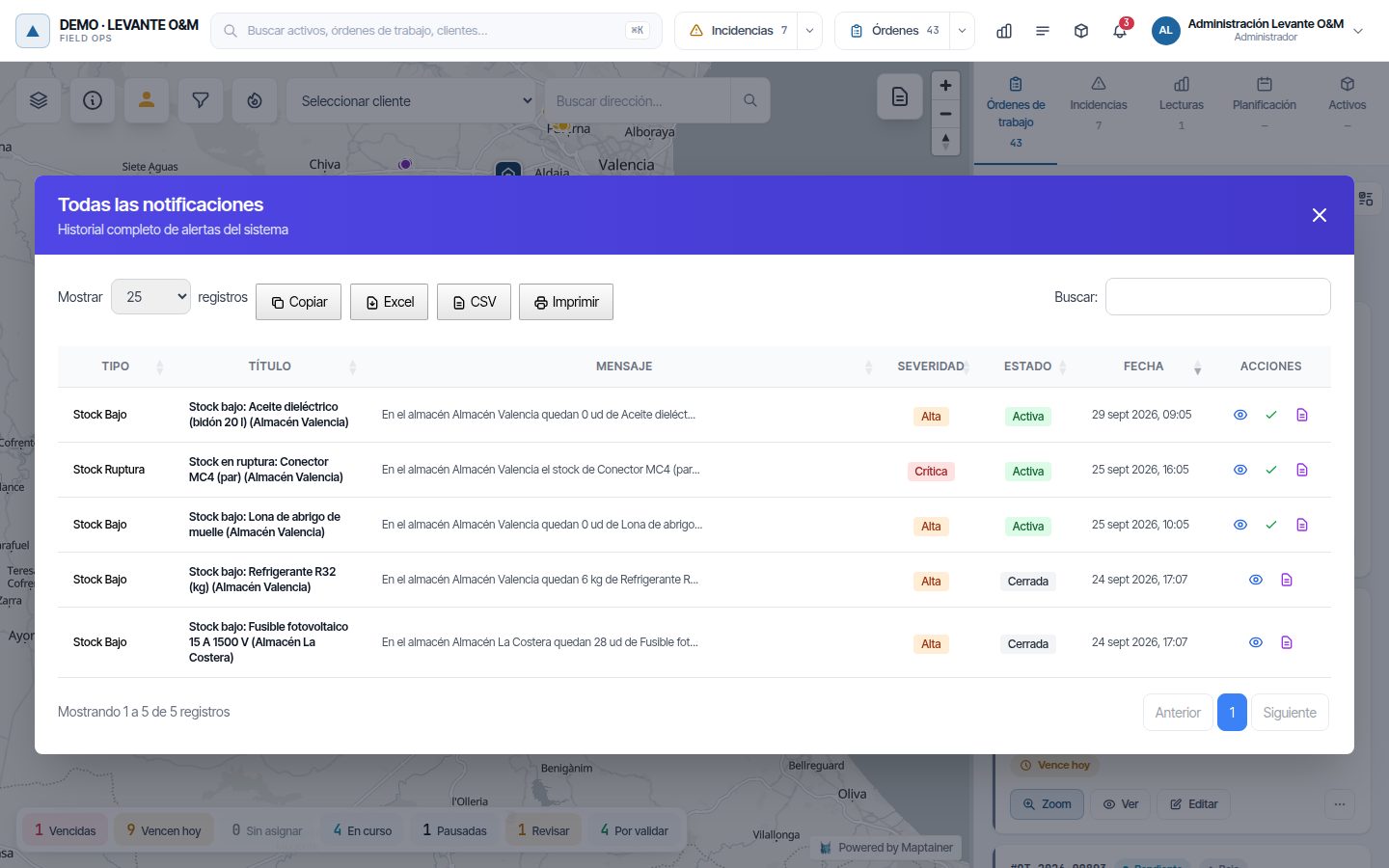
| Column | What it shows |
|---|---|
| Tipo (Type) | The kind of alert: “Stock Bajo” (Low stock), “Nuevo Activo” (New asset), “Fuera de Zona” (Out of zone)… |
| Título (Title) and Mensaje (Message) | The text of the alert. The message is cut at 60 characters; the detail shows it in full |
| Severidad (Severity) | Crítica (Critical), Alta (High), Media (Medium) or Baja (Low) |
| Estado (Status) | Activa (Active), Vista (Seen: a general alert you have already marked), En Progreso (In progress) or Cerrada (Closed) |
| Fecha (Date) | When it was generated |
| Acciones (Actions) | View detail, mark as seen (only active ones) and go to whatever caused it |
With Buscar (Search) you filter the table. Copiar (Copy), Excel, CSV and Imprimir (Print) export what you see. The window is closed with the X or with Escape.
Live synchronisation
The main screen updates itself, without reloading. Roughly every 30 seconds, it asks the server what has changed:
| What | How it is updated |
|---|---|
| Bell | The number changes as soon as a new alert arrives |
| Work order list | Cards changed by other people are updated by themselves |
| Work order open in detail | If someone changes it, “Esta orden ha cambiado · Recargar” (This order has changed · Reload) appears |
| Incident list | “Hay incidencias nuevas o actualizadas · Actualizar” (There are new or updated incidents · Refresh) appears. Clicking it reloads the list with your filters |
| Work order and incident layers on the map | They are redrawn at most once a minute, only if they are switched on |
| Day's summary strip | It is recalculated with each work order change and at least every 5 minutes |
With the browser tab in the background, nothing is requested. When you return to it, it updates immediately. If the server does not respond, it retries at increasing intervals, up to every 5 minutes.
In Perfil and in the administrator only the bell is updated, every 30 seconds.
Customer filter
If your company has the customers module, the map has a drop-down at the top left, next to the buttons. When you choose a customer, the whole screen shows only what belongs to them.
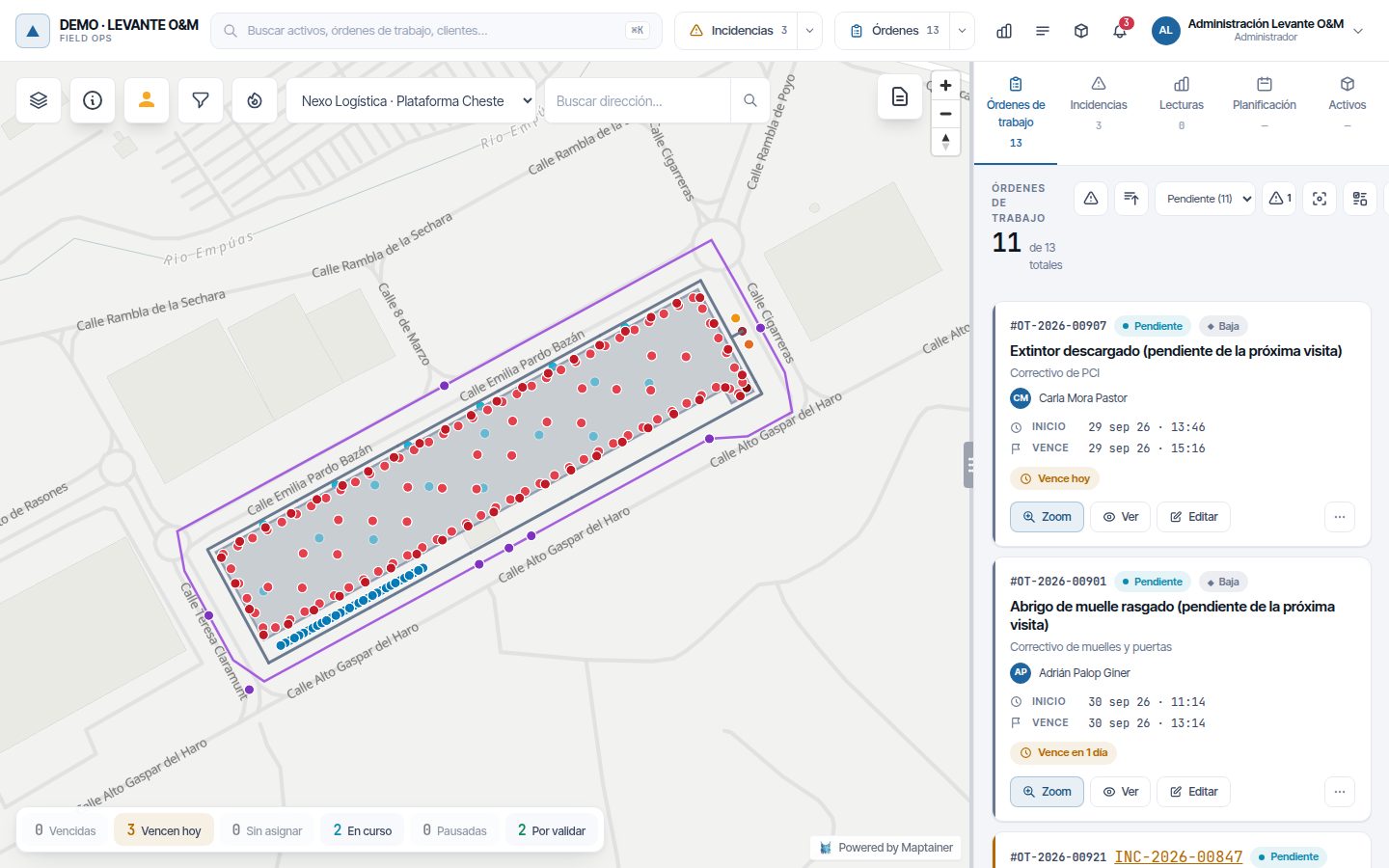
When you choose a customer:
- The map zooms to their assets. If they have no assets with geometry, the message “El cliente no tiene activos con geometría” (The customer has no assets with geometry) appears.
- The assets on the map, the work orders, the incidents, the reading batches, the planning, the heat map and the day's summary strip are restricted to that customer.
- The counters in the top bar and on the tabs become those of that customer.
The drop-down sorts the customers like this: first your company's own customer, marked “· Propio” (Own); then the active ones; finally, in the Clientes de baja (Inactive customers) group, those that have been deactivated. Inactive customers can be chosen to look at their history.
To remove the filter, choose Todos (All) or Seleccionar cliente (Select customer).
Note
The filter is not saved: when you reload the page you see everything again. If the chosen customer is deleted while the page is open, the filter goes back to Todos by itself.
Without the customers module, the drop-down shows the sectors (Seleccionar sector, Select sector) and is only used to zoom the map: it does not filter anything.
More detail in The map. Customers are managed in Customers and SLA.
The administrator (admin area)
The administrator brings together the company's configuration and management. You open it with Ir al administrador, in the user menu, and go back to the map with Ir al mapa.
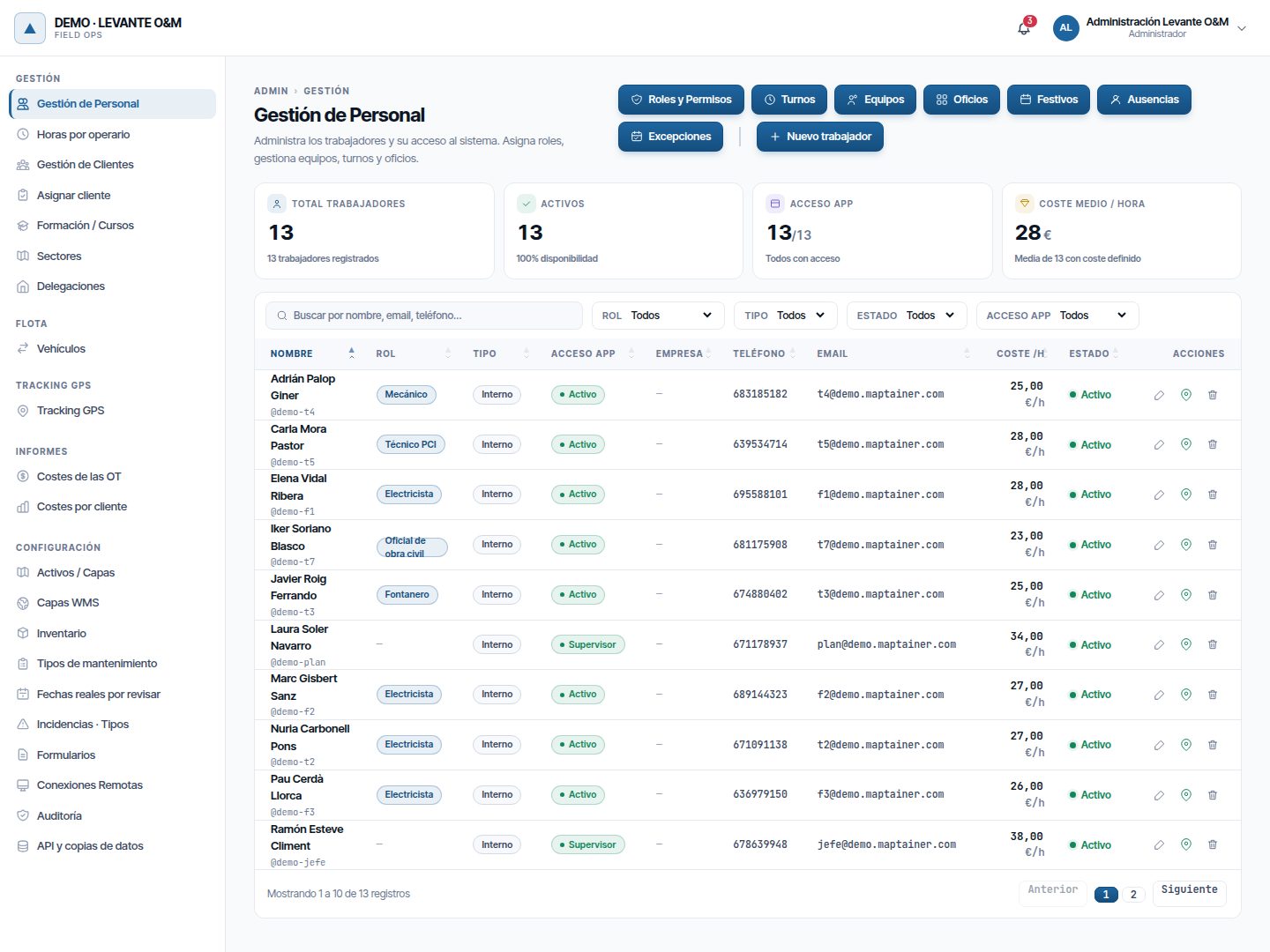
On the left is the sections menu. Each entry opens its screen on the right. On a phone, the menu is collapsed behind the Menú (Menu) button.
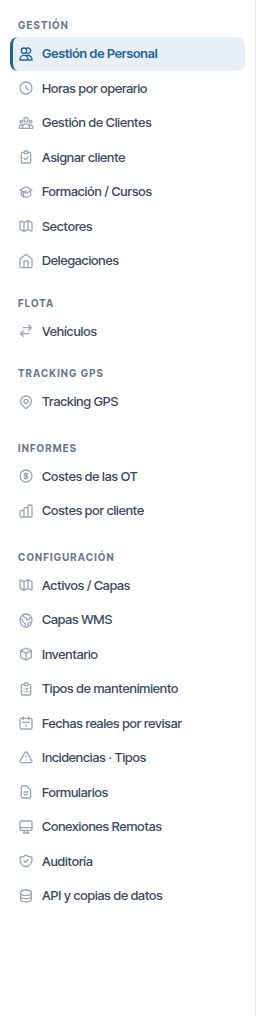
| Group | Entry | Manual |
|---|---|---|
| Gestión (Management) | Gestión de Personal: workers and the buttons Roles y Permisos, Turnos (Shifts), Equipos (Teams), Oficios, Festivos (Public holidays), Ausencias and Excepciones (Exceptions) | Staff and teams, Work calendar, Tenant administration |
| Gestión | Horas por operario (Hours per technician) | Staff and teams |
| Gestión | Gestión de Clientes (Customer management) and Asignar cliente (Assign customer) | Customers and SLA |
| Gestión | Formación / Cursos (Training / Courses) | Staff and teams |
| Gestión | Sectores (Sectors) and Delegaciones (Branches) | Branches and sectors |
| Flota (Fleet) | Vehículos (Vehicles) | Fleet and GPS tracking |
| Tracking GPS (GPS tracking) | Tracking GPS | Fleet and GPS tracking |
| Informes (Reports) | Costes de las OT (WO costs) and Costes por cliente (Costs by customer) | Costs and reports |
| Configuración | Activos / Capas (Assets / Layers) and Capas WMS (WMS layers) | Layers and asset types |
| Configuración | Inventario | Inventory and warehouses |
| Configuración | Tipos de Mantenimiento (Maintenance types) | Preventive maintenance and maintenance types |
| Configuración | Fechas reales por revisar (Actual dates to review) | Work orders |
| Configuración | Incidencias · Tipos (Incidents · Types) | Incidents |
| Configuración | Formularios (Forms) | Forms |
| Configuración | Conexiones Remotas (Remote connections) and Auditoría (Audit) | Tenant administration |
Each entry only appears if your company uses that part and your role has permission. For example, Sectores only appears if the company divides its territory into sectors, and Vehículos, with the fleet module.
The company's general settings are not in this menu: you open them with Configuración, in the user menu.
What each role sees
Each user has a role. Maptainer creates five roles with each company, with these starting permissions. The administrator can change them and create their own roles in Gestión de Personal → Roles y Permisos (see Tenant administration).
| In the web app | Administrador (Administrator) | Supervisor | Técnico (Technician) | Almacén (Warehouse) | Solo Lectura (Read only) |
|---|---|---|---|---|---|
| Work orders, Incidents and Planning | Everything | Everything | View, create and edit | View | View |
| Meter readings | Everything | Everything | View, create, edit and delete | No | View |
| Assets | Everything | Everything | View, create and edit | View | View |
| Dashboard and lists | Yes | Yes | Yes | Yes | Yes |
| Costs: reports, dashboard card and actual cost of the WO | Yes | Yes | No | No | No |
| Staff tracking: dashboard fleet and geofence review | Yes | Yes | No | No | No |
| Inventory | Everything | View, create, edit and movements | View and movements | Everything | View |
| Configuración menu | Yes | No | No | No | No |
| Ir al administrador | Yes, full | Yes: staff, customers, sectors, branches and cost reports | No | No | Yes: staff, customers, sectors and branches |
| General alert families | All | All | None | Stock | None |
- The administrator sees and can do everything within their company, regardless of permissions. Only they see the administrator's Configuración group, Asignar cliente and Auditoría.
- The supervisor organises the work: creates, assigns, closes and deletes work orders, and manages meter readings and assets.
- The technician works mainly with the mobile app. In the web app they can view, create and edit, but not close or delete work orders. In the app they complete their work orders; validating or closing them requires the Cerrar (Close) permission (see Work orders).
- Almacén manages the inventory and views the rest. It sees the inventory value and the consumption per asset, but not the work order costs.
- Solo Lectura views almost everything, without changing anything. It does not see amounts, staff tracking or reserved staff data, such as the rate or the reason for an absence.
Inside the administrator, each role only sees the sections its permissions give it: staff, customers, sectors, branches or reports. Customer users do not come in here: they have their own portal. See Customer portal.
Common problems
| Symptom | Probable cause | Solution |
|---|---|---|
| “Correo o contraseña incorrectos” | Email or password typed wrongly | Check them with the password eye. If you cannot remember it, use ¿Has olvidado tu contraseña? |
| “Demasiados intentos. Vuelve a intentarlo en N minutos.” | Several failures in a row with that email | Wait for the time shown. If it was not you, change your password when you sign in |
| “Token expirado” when activating the account | More than 24 hours have passed since you were registered, or you requested another link afterwards | Request a new link with ¿Has olvidado tu contraseña? and use the latest one |
| The recovery email does not arrive | It is in the spam folder, or the email address is typed wrongly | Search for “Maptainer” in the spam folder and check the address |
| “El enlace de recuperación ha expirado” (The recovery link has expired) | More than one hour has passed, or you requested another link afterwards | Request a new link and use the latest one |
| It takes you to the sign-in screen | 90 minutes have passed without activity or you have signed in with your user somewhere else | Sign in again. Use Mantener sesión iniciada on your computer and do not share your user |
| The mobile app asks you to sign in again | You have changed your password or closed the mobile session from Perfil | Sign in to the app with the new password |
| You do not see Ir al administrador | Your role does not have management permissions | Ask the administrator for them if you need them |
| You do not see the Lecturas tab or the inventory icon | Your role does not have that permission, or the company does not use that part | Speak to your administrator |
| The bell does not show an alert that others see | It belongs to another branch, your role does not have that alert family, or you caused it yourself | Check your role in Roles y Permisos → Avisos |
| The map and the lists appear almost empty | A customer is selected in the drop-down | Choose Todos |
| “El cliente no tiene activos con geometría” | That customer has no assets drawn on the map | The filter is applied anyway; only the map is not zoomed |
Last updated: